Record AP progress reviews and check baseline coverage
Written for: Authorised alternative-provision staff, progress leads and framework managers.
Choose the published framework, record a dated review and check baseline coverage and comparable observations before interpreting change. It helps staff record what they saw and review progress against an explicit framework. Observed change while supported does not show what caused the change. A level is a recorded judgement in context, not a diagnosis or automatic placement decision.
You need provision progress access. Recording and framework configuration require their own permissions and active AP capability. A read-only viewer can inspect permitted records without recording reviews. All examples are fictional; their two-driver, three-level framework is an illustration rather than a recommended assessment tool.
Read coverage before interpreting change
Section titled “Read coverage before interpreting change”- Open Progress Drivers from Progress.
- Read Baseline coverage as recorded baseline measures divided by expected measures for the current on-roll cohort and framework. For example, three recorded of six expected measures is not three of six pupils.
- Review Missing baseline measures and Observation window. The window describes the recorded evidence period, not the pupil’s full history or the duration of an intervention.
- Read Observed change while supported with its displayed denominator: it averages change across comparable measures, not across every pupil or every expected measure.
- Change by driver also uses comparable baselines only. A pupil with only a baseline or no comparable later review does not contribute an invented zero change.
- Expand Data coverage and Progress scale to inspect the source scope, completeness and level definitions. Unknown/incompatible framework evidence cannot support a comparable change claim.
- Keep the displayed scale and revision context with any interpretation. Published comparisons determine whether revisions can be compared; a different label or number alone is not proof of like-for-like progress.
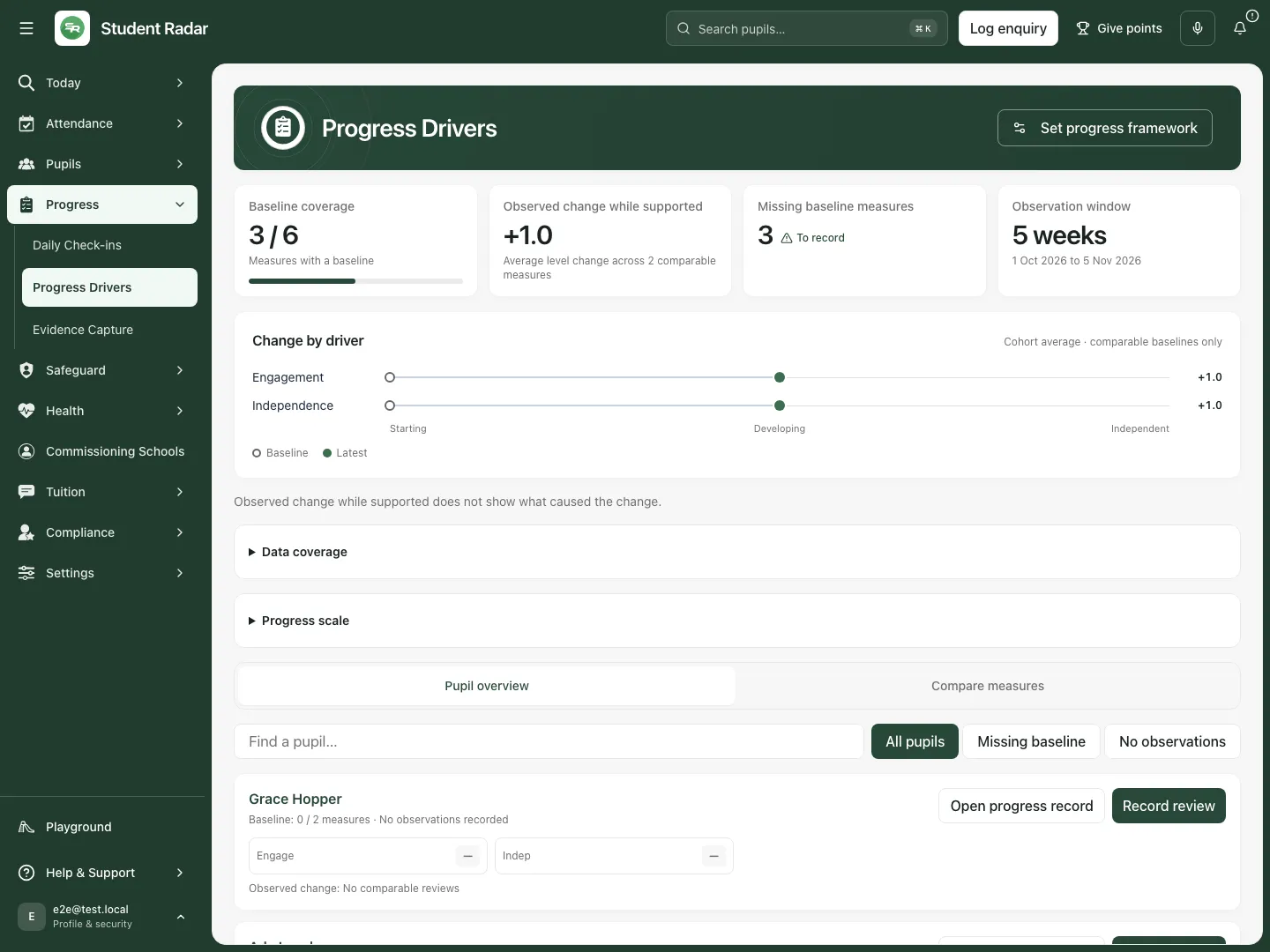 The fictional example has three baseline measures out of six expected, and observed change across two comparable measures. Grace has no observations and Alan has incomplete baseline coverage.
Find a pupil or compare measures
Section titled “Find a pupil or compare measures”- Use Pupil overview for individual cards, or Compare measures for the side-by-side table.
- Search the pupil in Search progress pupils. Terminology can follow the provision’s configured pupil label.
- Choose All pupils, Missing baseline or No observations. These filters describe evidence coverage, not risk categories.
- Read each pupil’s baseline count, latest review date and measure levels. A dash means no usable recorded value; do not fill it with a starting level merely to complete a table.
- Choose Open progress record to open that pupil’s permitted Progress context. A context link does not grant access to restricted evidence.
- In the comparison view, review the actual baseline/latest and comparable-change detail rather than ranking pupils from colour alone. Named records and cohort averages have different denominators.
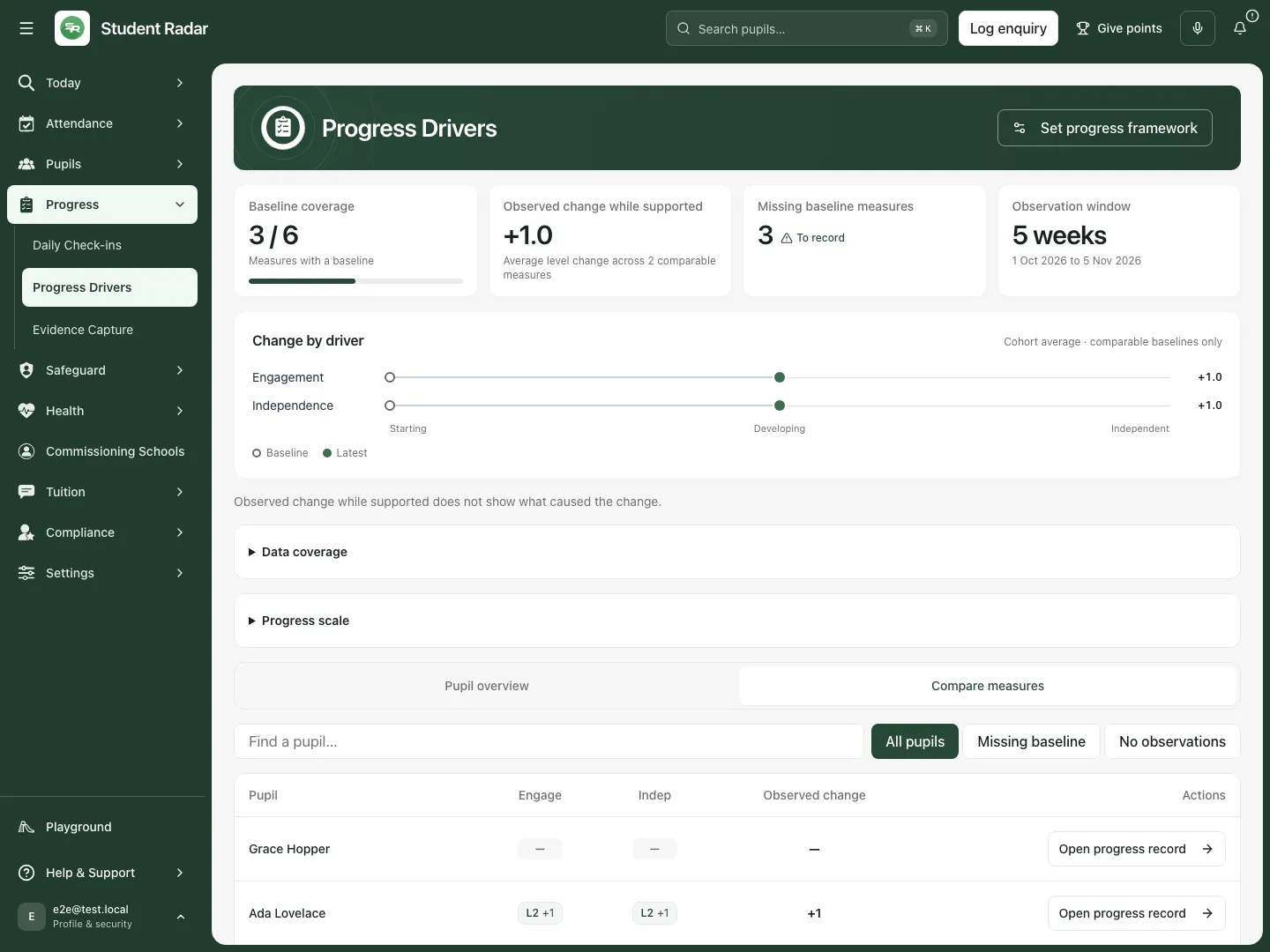 The fictional table keeps individual levels and gaps visible instead of turning missing measures into zeros.
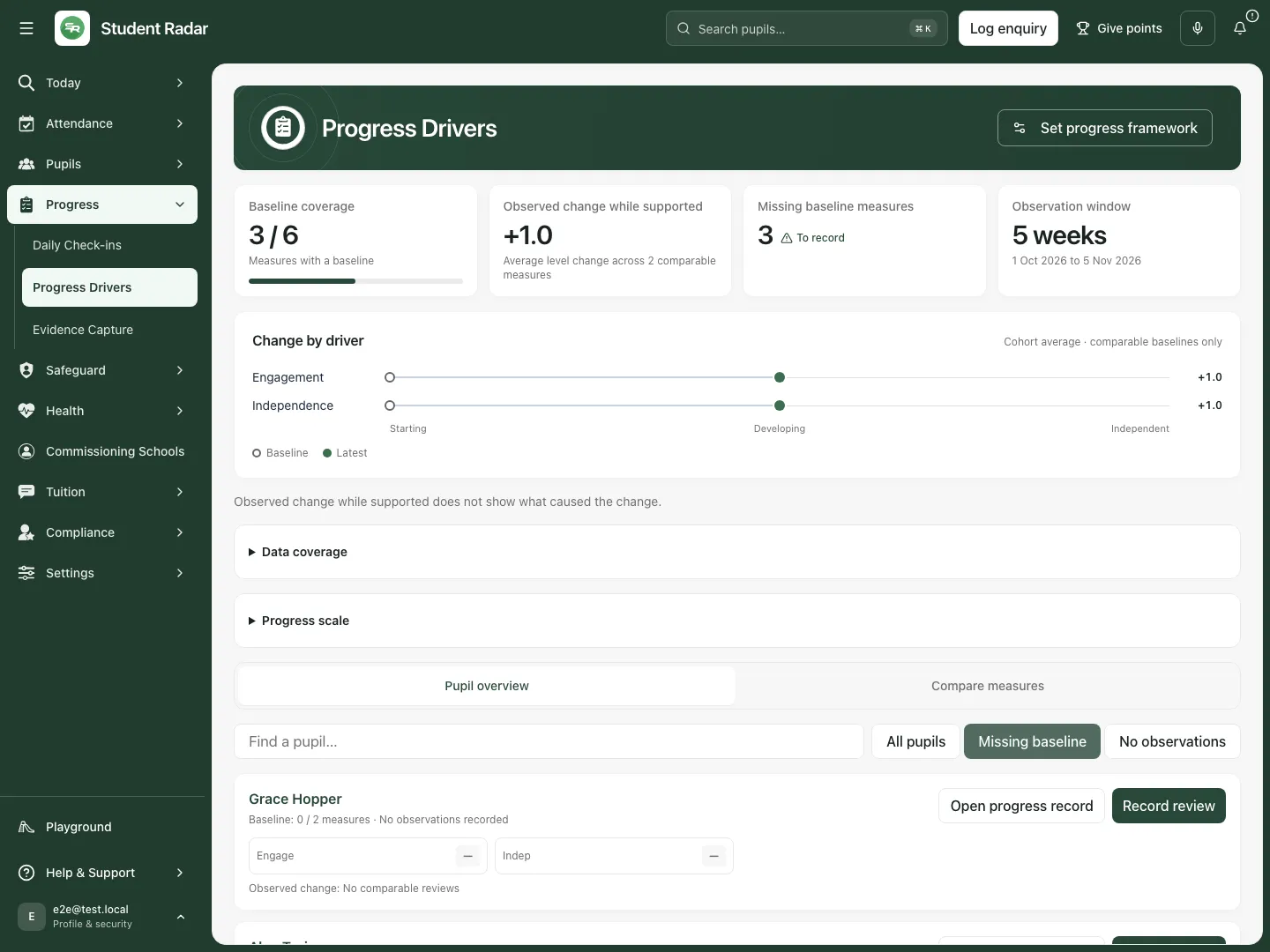 The fictional filtered view identifies incomplete baseline evidence. It does not diagnose pupils or decide what support they should receive.
Record a driver review for the actual date
Section titled “Record a driver review for the actual date”- On the intended pupil choose Record review. In a pupil Progress context the equivalent control is Record a driver review.
- Check the pupil in Review progress · … and set Review date to the date the observations support. Today or an earlier date is allowed; a future review is not.
- Wait for Review date evidence to load. The app reads the exact date before deciding whether the review is new or a correction. If it fails, use its retry/read controls; do not save over an unknown existing review.
- Choose a level for every measure required by that review’s framework. Measures with an earlier review can start from their latest recorded level. A measure with no earlier review has no preselected starting score: make the actual human judgement.
- Read each level’s meaning. In the fictional example, Engagement and Independence use Starting, Developing and Independent; your provision’s published framework can differ.
- In Evidence, record what was directly seen or heard that supports these levels. If the existing measures have different evidence, use each Evidence for … field rather than overwriting the distinction with one generic note.
- Choose Save review. Inspect the resulting state, reopen the same pupil/date and verify levels and evidence. The review saves its complete set of measures together; a failed or unconfirmed result is not a successful partial review.
- Review the updated summary and observation window. A saved level does not demonstrate the cause of change or prove an intervention worked.
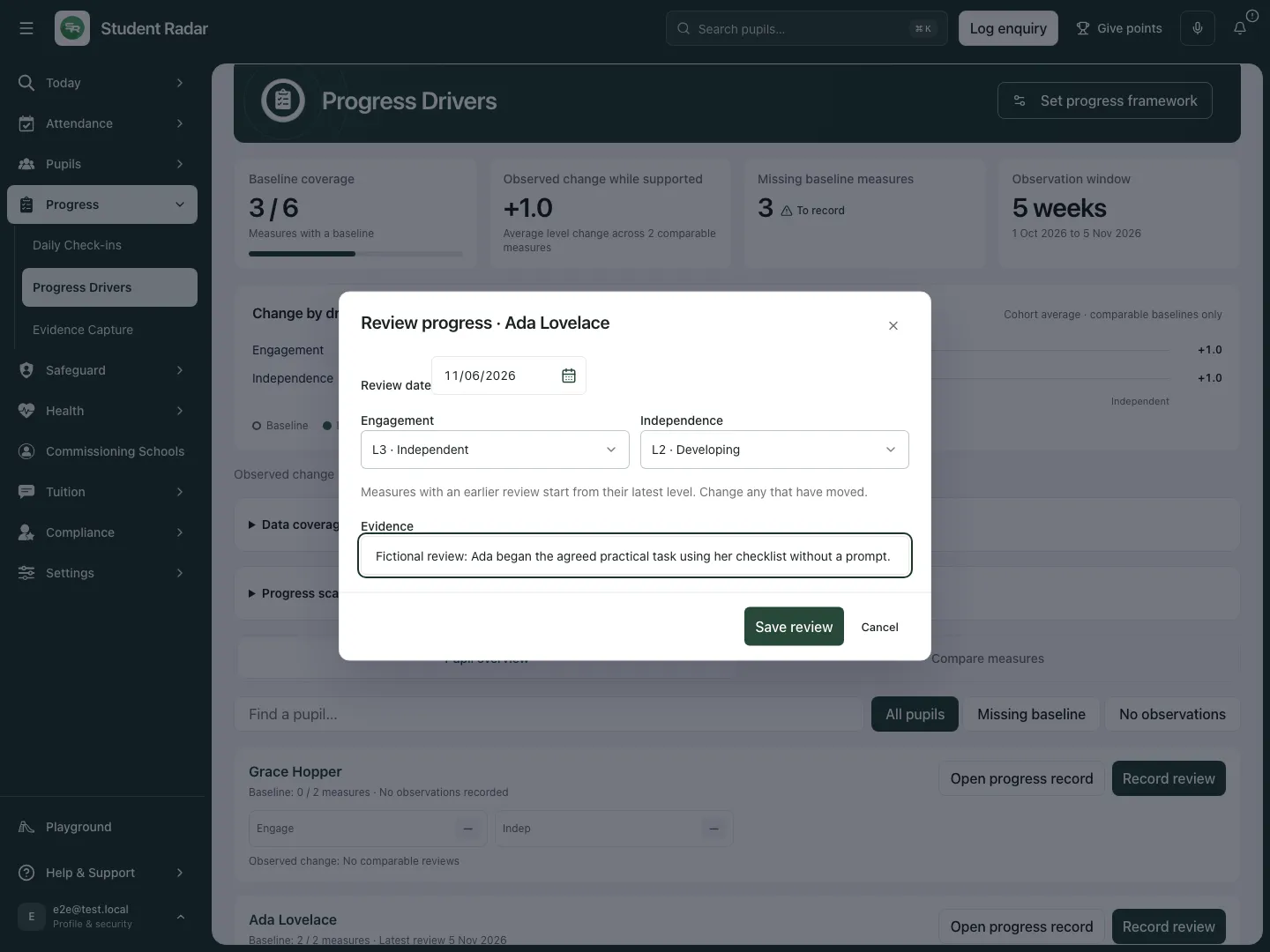 The fictional review records an observed checklist-supported task and an explicit Engagement level. It makes no causal claim about the support.
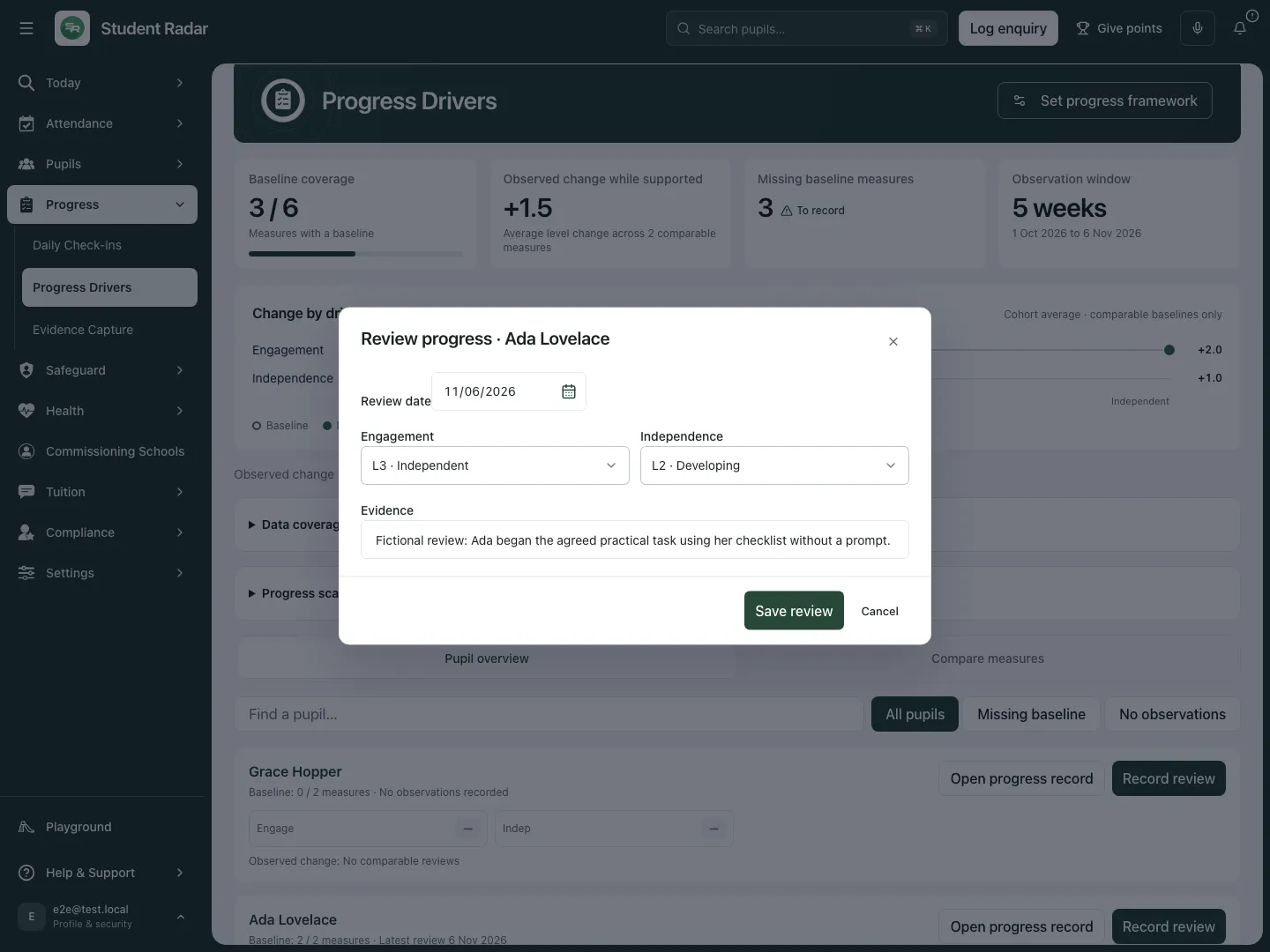 The reopened fictional review retains the chosen Engagement level and the exact supporting observation for the review date.
Correct a dated review or abandon unsaved changes
Section titled “Correct a dated review or abandon unsaved changes”- Reopen the pupil’s review and choose its existing Review date. Inspect the saved values and framework used on that date.
- Correct the actual levels/evidence, then Save review. The current saved revision is checked before the change; the app does not silently overwrite a review changed since you opened it.
- If a conflict or uncertain save appears, keep your entries and use Load saved values when ready to replace them with the current saved review. Check what would be lost before loading.
- If a save may have succeeded but summary refresh failed, inspect the saved date/values before retrying or creating another review.
- Cancel with unsaved changes opens Discard progress review changes? Choose Keep editing or Discard changes deliberately.
- Changing the date while editing opens Discard changes before changing review date? Keep editing to retain the current draft, or discard it and load the new date. The recorded review remains unchanged until a successful save.
- A review with incomplete/inconsistent saved measures cannot be edited as though its source were complete. Reload and resolve the source issue rather than fabricating missing rows.
Configure and publish the framework
Section titled “Configure and publish the framework”- Authorised managers choose Set progress framework.
- Under Progress sections, use Add section to define between two and twelve observable areas. Complete each Section …, Table heading and What staff should look for. Use the named Remove … control for an unwanted section, preserving the minimum.
- Under Progress scale, use Add level for between two and five ordered levels. Complete Level name and What this means. Explain observable distinctions consistently; avoid treating an ordinal level as a precise clinical measurement.
- Set Published version to a higher semantic version than the current one. Set Effective from no earlier than the current framework’s effective date and no later than today.
- Choose Comparison with the previous version: Do not compare or Comparable. Select Comparable only when measure meaning and scale interpretation are materially unchanged.
- Complete Comparison rationale (required), 10–500 characters, explaining the decision. A comparison label does not itself establish validity.
- Choose Save framework for an actual changed definition and intended publication. An identical definition is not a new publication. Existing reviews retain the framework used when recorded.
- Cancel discards or asks about unsaved framework changes. Read any confirmation before abandoning them.
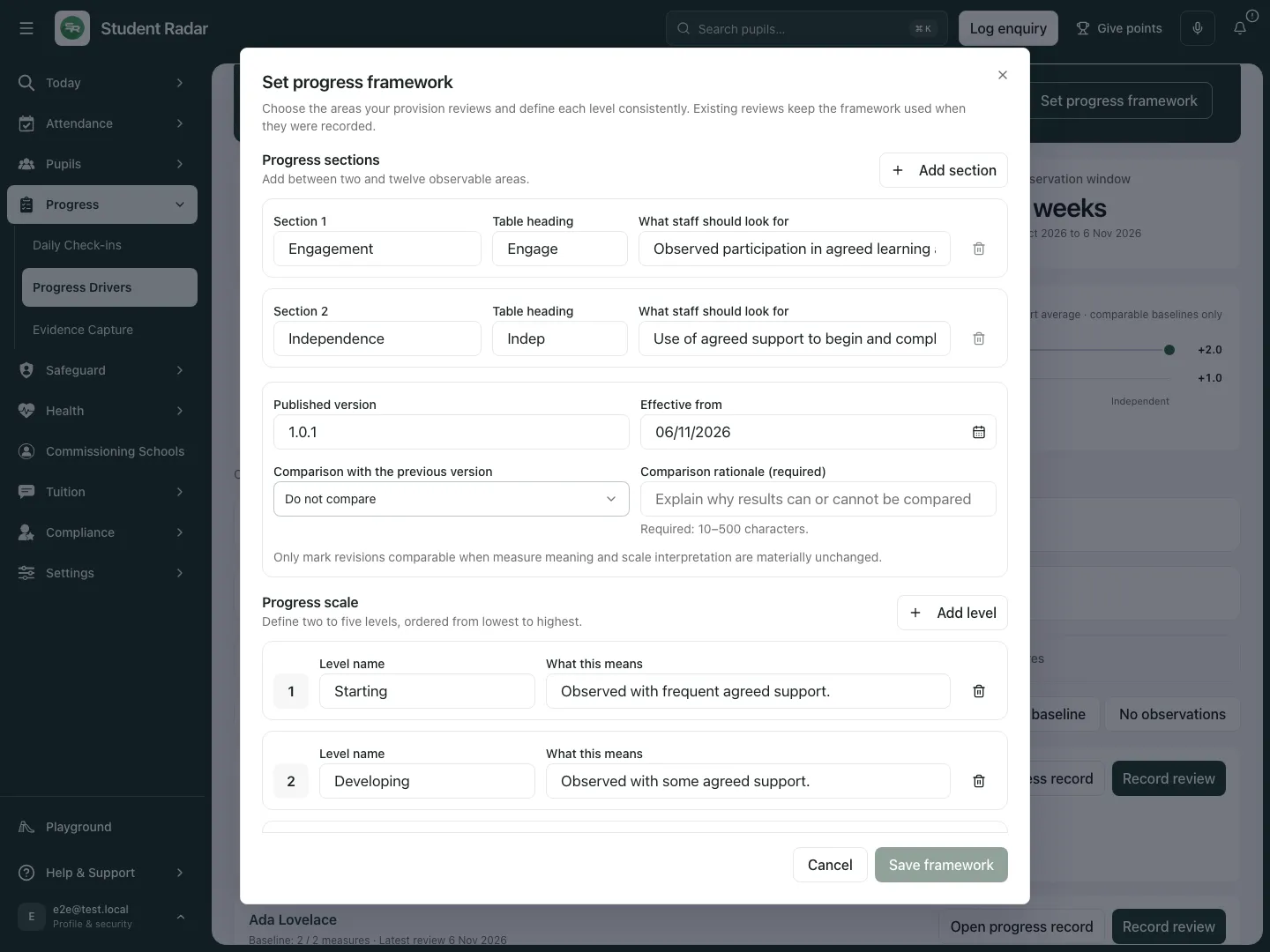 The fictional current framework has two observable sections and three defined levels. The example opens it for review without publishing a change.
Handle another manager’s framework publication
Section titled “Handle another manager’s framework publication”- If a newer version was published while your editor was open, inspect the version and difference panel. The app does not publish against an unconfirmed current version.
- Use Try again if the current version could not be confirmed. Leave your draft open until the comparison is available, or cancel deliberately.
- Keep my changes moves your draft onto the newer basis after you have seen it; recheck version, effective date and comparison rationale before saving.
- Discard mine and use version … replaces your draft with the newer definition. If it already matches your changes, Close leaves that current publication in place.
- After any intended save, reopen and inspect the published framework and resulting summary. Do not reinterpret old records as though they were collected under the new definitions.
Use the pupil Progress record for the supporting evidence
Section titled “Use the pupil Progress record for the supporting evidence”- Choose Open progress record and the pupil’s Progress tab. Check the pupil before editing a baseline, target, achievement or observation.
- Record a baseline captures entry assessment information. Set Date, Reading age (years), Spelling age (years) and Maths age (years) where actually assessed, plus Literacy on entry, Numeracy on entry, SEMH on entry and Behaviour on entry.
- Choose Save baseline, then inspect the saved entry. A baseline already saved for that date is shown before replacement. Blank is not zero; numerical assessment ages must stay within the form’s allowed range and reflect an actual assessment. This entry assessment is distinct from a driver’s recorded baseline level.
- Set a target opens Target, Driver (or No driver) and Due. Enter the actual agreed target, choose today or a later due date, then Save. Cancel leaves it unsaved.
- For an open target choose Review target, then Select outcome: Achieved, Partly achieved or Not achieved. Choose Save outcome after reviewing the evidence. Target completion is not proof of overall pupil progress or an intervention’s impact.
- Capture an achievement records What they did, Category and optional Points. Points must be a whole number from 0 to 1,000. Choose Save and inspect the result; it is an achievement record, not a qualification award or automatic driver-score change.
- The pupil context also presents check-in and EHCP outcome information where permitted. Keep their periods, frameworks and source authority separate; a task, check-in or target status cannot substitute for a recorded clinical/SEND outcome.
Add, correct or void a structured observation
Section titled “Add, correct or void a structured observation”- In the pupil Progress context choose Add observation.
- In Context category, choose General or the restricted Safeguarding context/Health context categories only where your access permits them. Restricted observation evidence does not replace the specialist safeguarding or medical workflow.
- Set Observed at and Session or setting. Record What happened immediately before?, What was directly seen or heard? and What happened immediately afterwards? Separate observed facts from theories about causes.
- Choose Save observation, then inspect the saved item, time and recorder. Cancel leaves the unsaved form unrecorded.
- To amend an eligible observation choose Correct observation, update the factual fields and enter Correction reason, then Save observation. Prior revisions remain in the history; a correction does not erase the original account.
- To remove an observation from current use choose its void action, enter Void reason, then Void observation. Review the result rather than treating it as deletion of the historical evidence.
- The card initially reads up to 50 observations; do not present that displayed subset as the whole pupil history. Missing access or an unreadable source does not mean no observation exists.
Phone use and questions
Section titled “Phone use and questions”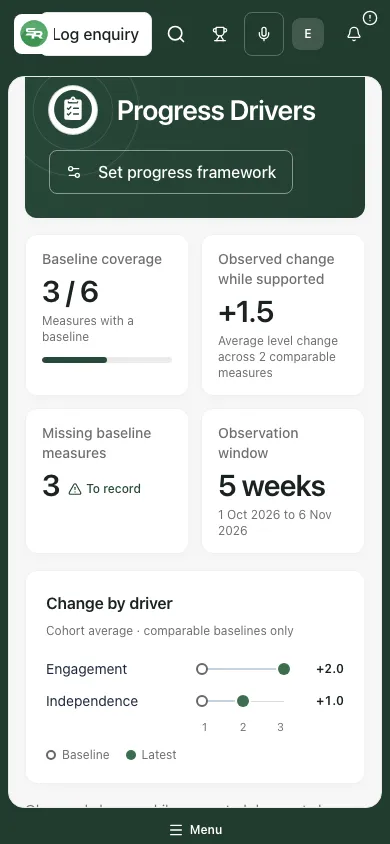 The fictional phone view retains pupil levels, missing baseline information and the recorded observation context.
The access check failed. Use Retry. An unconfirmed check is different from a settled permission refusal; ask the authorised provision administrator to review the intended duty when necessary.
No framework is published. Use the setup route if authorised. Do not invent a score or compare default-looking levels as though they were a published framework.
No comparable reviews. A baseline may have no later record, or framework revisions may not be comparable. It is not an observed zero change.
Does a rising level prove provision impact? No. It is observed change during the support period; the page explicitly does not establish causation.
Can I save one measure and leave others unknown? A driver review requires the complete reviewed measures for its date/framework. Record genuine evidence and choices; do not fill gaps with invented levels.
Related: Evidence Capture, Review progress against SEND targets.