Find and read a SEND Knowledge Base article
Written for: Staff looking up SEND reference and target examples.
Search reference articles, adjust categories and follow source links, checking jurisdiction before returning to the pupil record.
The examples below show the app’s current reader, not a diagnosis or endorsement of every article as current guidance.
Before you start
Section titled “Before you start”Check the school context and your access to the SEND workspace. Articles are reference material written for schools in England. The page does not decide whether a pupil has a condition, recommend an individual programme or update an ISP automatically.
Read relevant current authoritative guidance and the school’s own policies before applying information. A displayed article is not proof that its laws, service routes or recommendations are current or applicable in another jurisdiction. The loader does not provide a verified last-updated date for every article.
No personal pupil information needs to be entered to search these articles. Keep reference reading separate from recording sensitive evidence in the permitted pupil record.
Open the reference reader
Section titled “Open the reference reader”Open Inclusion → SEND → Reference → SEND Knowledge Base.
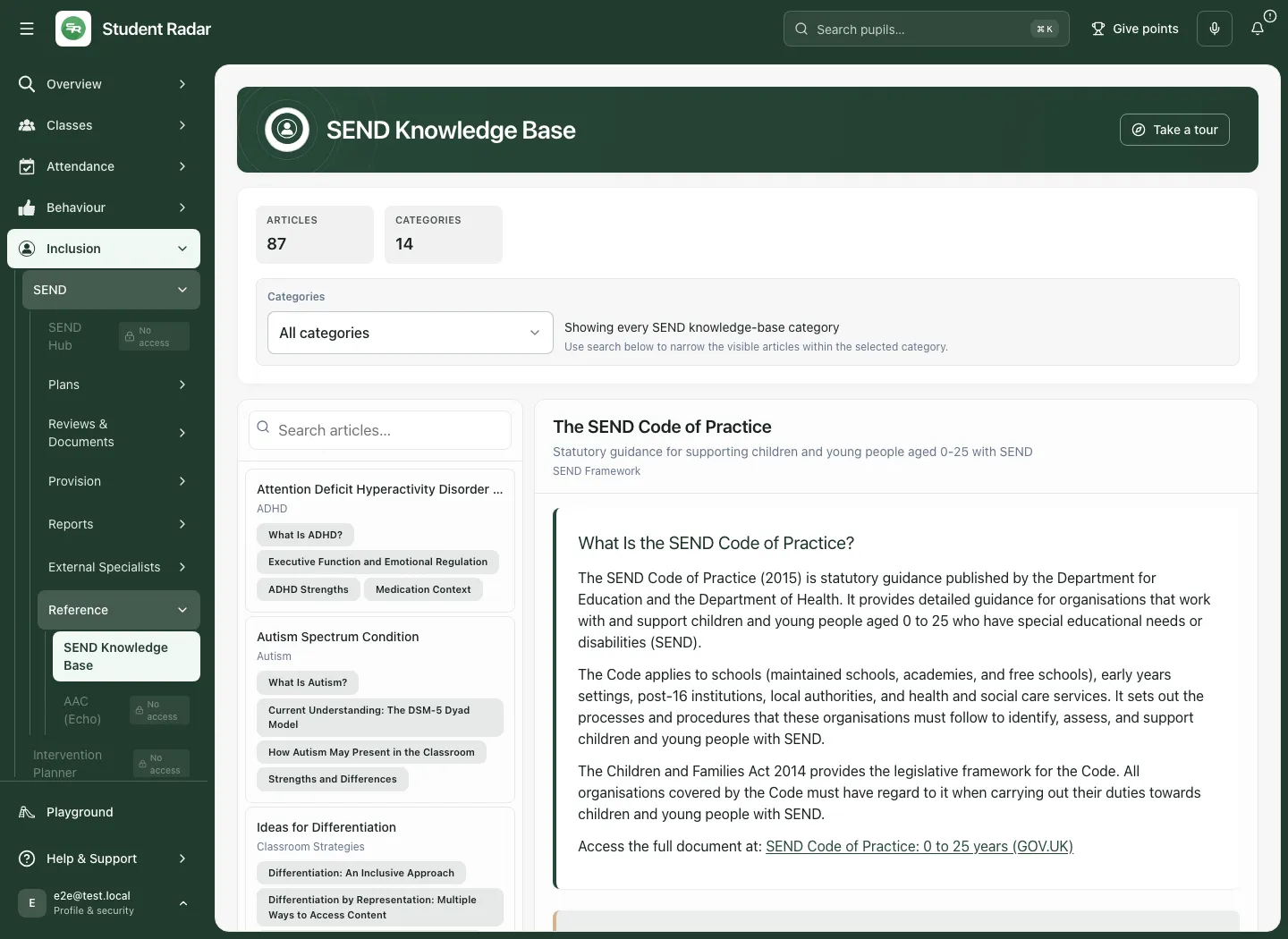
The banner counts the loaded Articles and Categories. A loading or failed import is not a zero count. The screen has a list of article cards and a separate reader. The currently open card is marked as current; its title, category and any subtitle identify the reference you are reading.
Search for an article
Section titled “Search for an article”- Type a subject or title in Search articles… (labelled Search SEND knowledge-base articles).
- Read the resulting titles, categories and tags.
- Select the intended article card.
- Confirm the title in the reader before using its content.
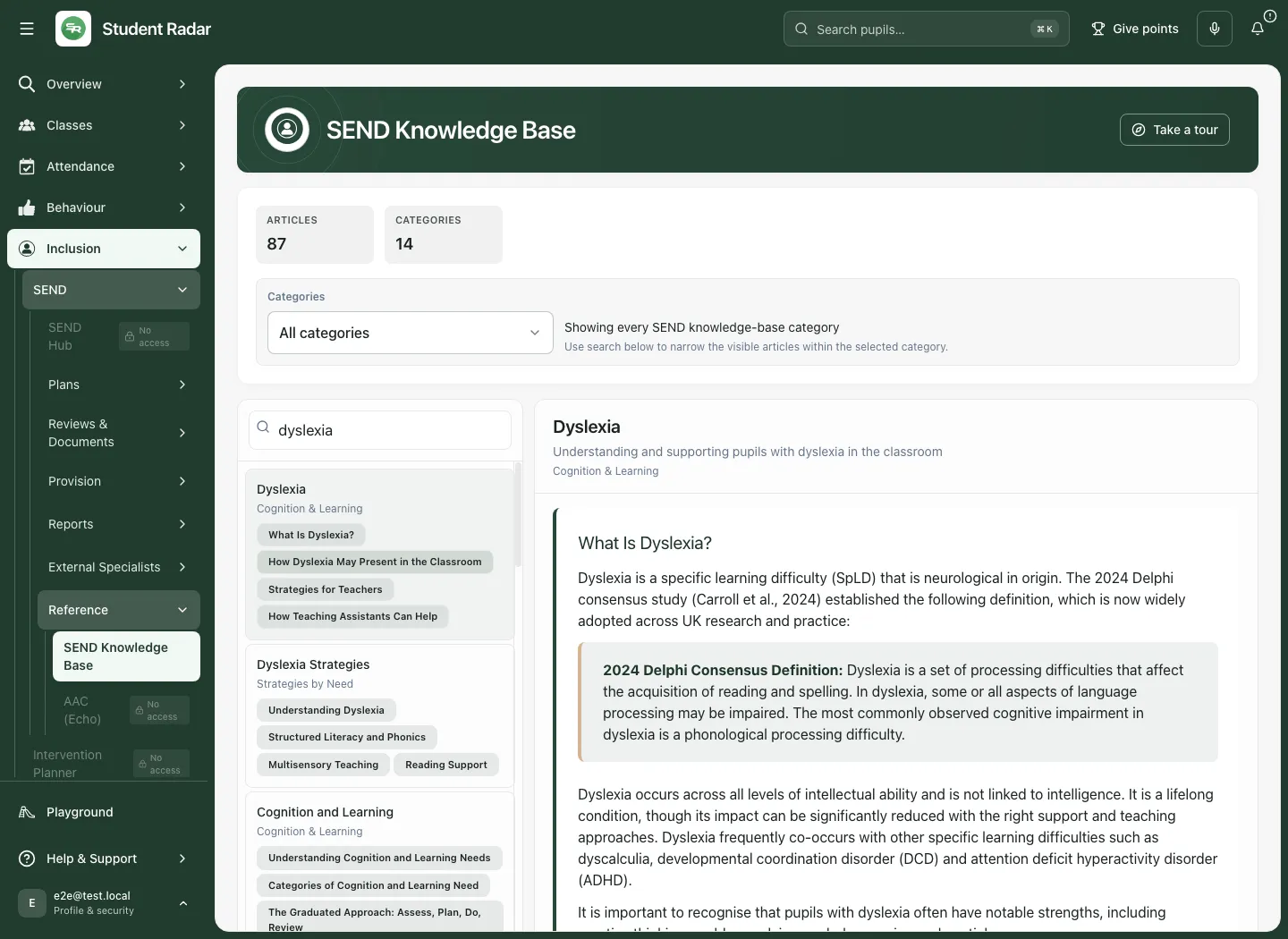
Search narrows the current category. Similar-title results can be suggestions rather than an exact match: read the actual title instead of assuming the first item answered your question.
Narrow or broaden the category
Section titled “Narrow or broaden the category”Open Categories and choose the required category. The page explains which category is selected; search then narrows articles within it. Choose All categories to broaden the list, and clear the search text to remove the search filter.
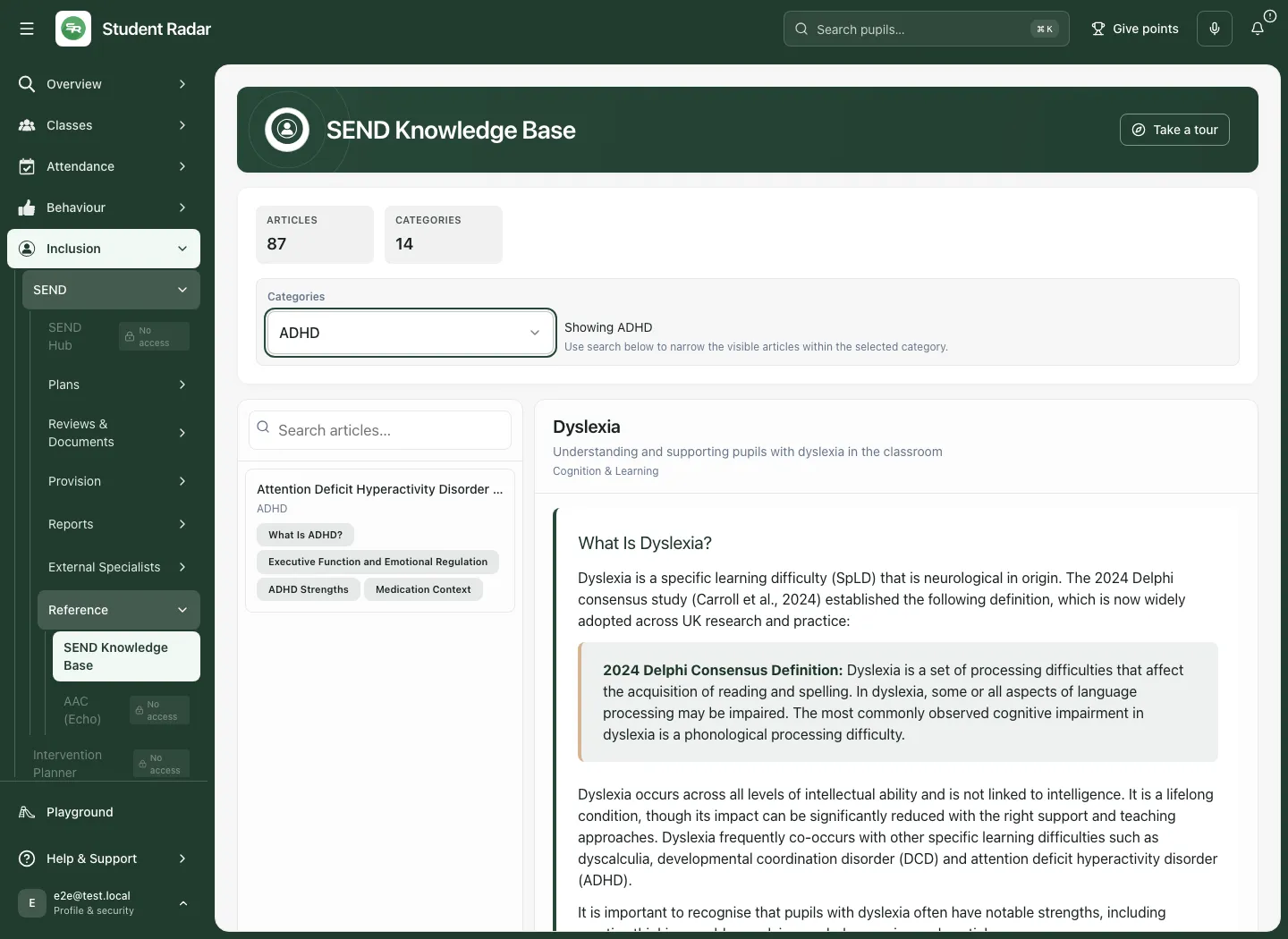
An already open reader may remain visible while filters change. The list’s current filter and the article you have open are different context; check both. Choosing another article opens that article at its start. Selecting an already-open article can bring the reader back into view without deliberately resetting its reading position.
Read the full article and follow source links
Section titled “Read the full article and follow source links”Scroll inside the reader to work through the article. Read headings, qualifications, source references and any limits rather than acting on a search-result snippet. Internal links to supported knowledge-base articles open in this reader and move focus to the new title. External references remain separate destinations; check their current source and scope.
The article address can include a kb identifier so a supported article can be reopened. The identifier is a reference selection, not a pupil ID or permission grant. The page is a reader: it does not offer an article-authoring or pupil-plan Save action.
Understand empty and unsupported results
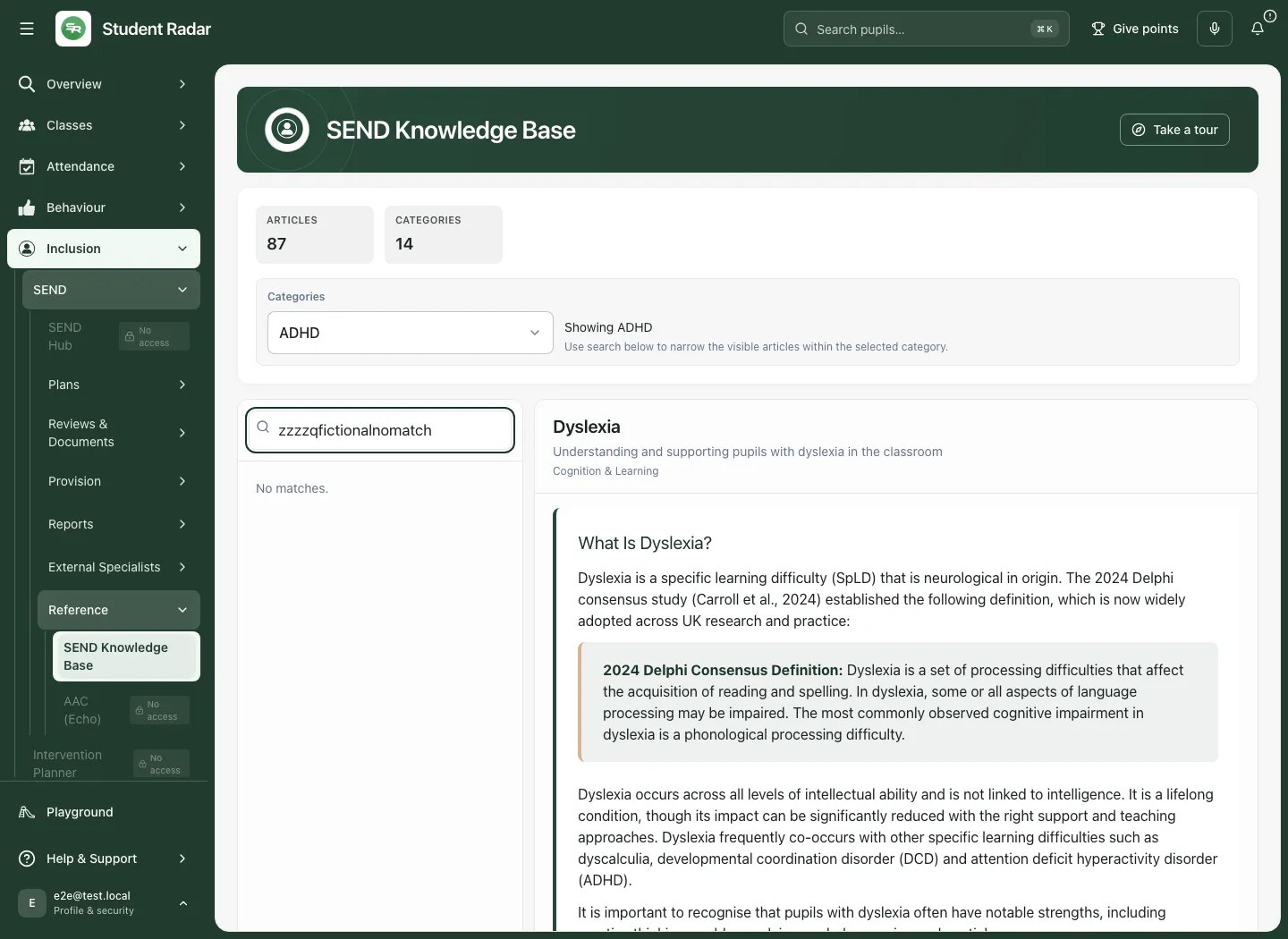
Section titled “Understand empty and unsupported results”No matches. means no article matched the current search/category selection. Clear the search or choose another category. It does not mean no support exists or that the reader’s previously selected article has disappeared.
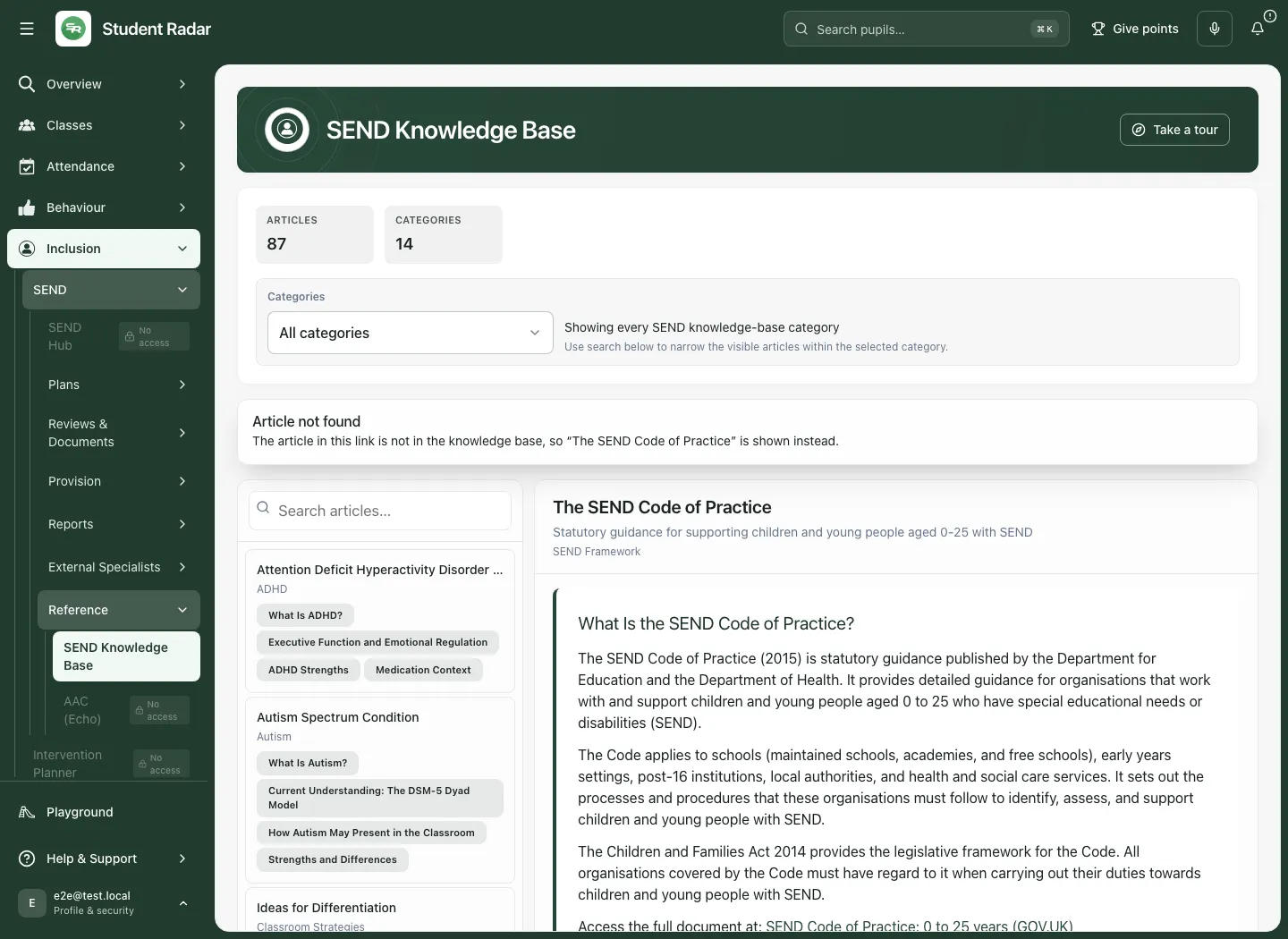
A link to an unknown article shows Article not found and identifies the supported article being shown instead. Read that notice; do not treat the fallback as the requested content. The original unsupported link remains explainable until you select a supported article.
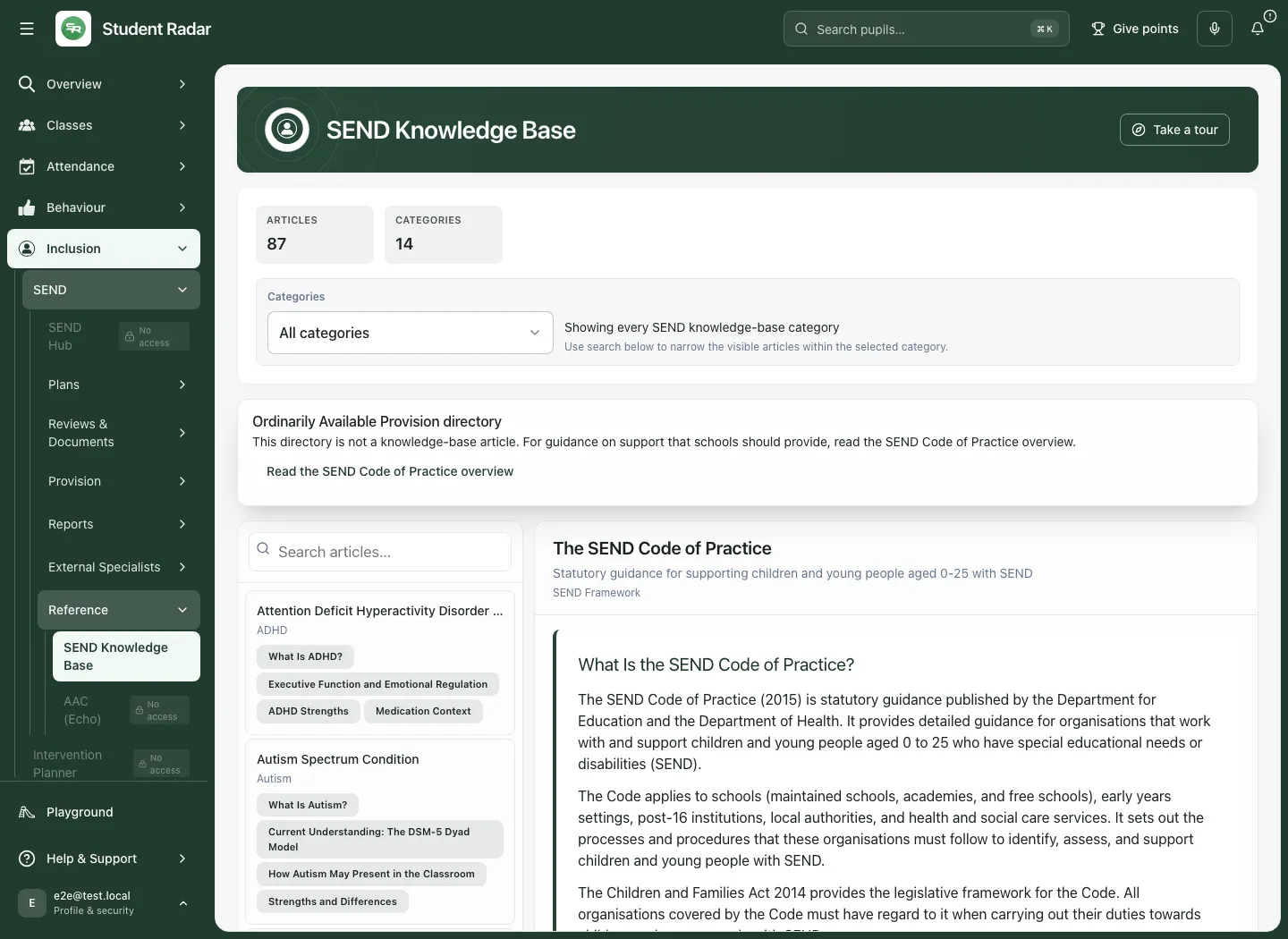
The Ordinarily Available Provision directory is not a knowledge-base article. If a link names that directory, the page explains the distinction and offers Read the SEND Code of Practice overview. This opens the supported overview; it does not execute or open a separate searchable provision directory in the article reader.
Use the SMART target material appropriately
Section titled “Use the SMART target material appropriately”Below the reader, the school can show Primary SMART Target Library (examples), or a live SMART Target Bank where enabled.
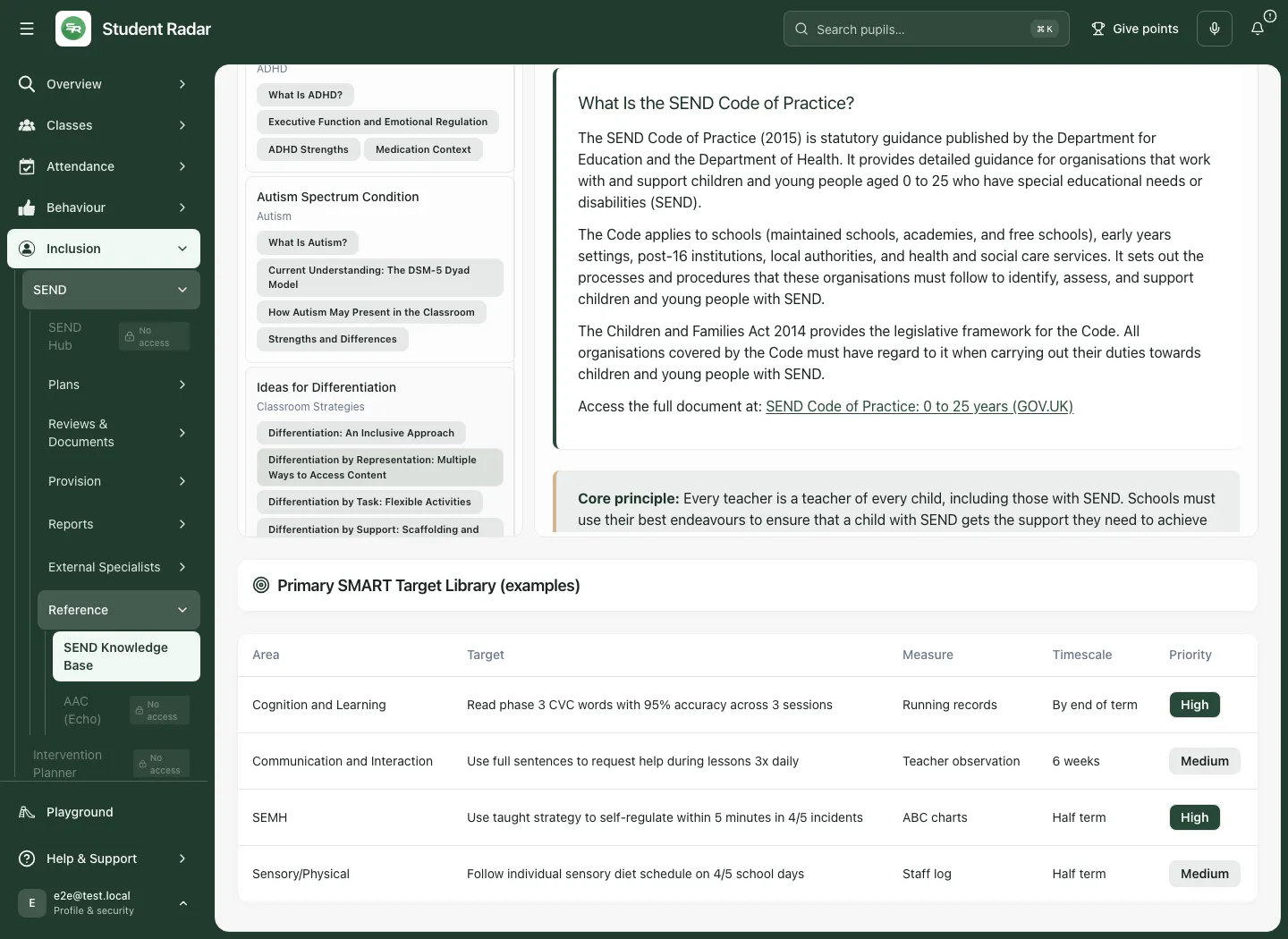
The static table contains examples, not targets selected for an individual pupil. Review the pupil’s baseline, intended outcome, measurement and agreed support before adapting a target in the ISP authoring workflow. Reading an example does not save it into a plan.
Where the live target bank is enabled
Section titled “Where the live target bank is enabled”The live bank offers need-area, phase and search filters and published items with target wording, area, measure and National or My school scope. A successful empty result differs from a failed read; use Retry where offered. Lists are bounded, so do not infer that every possible target has been shown.
Authorised school template managers may see Copy to my school on a national item. This immediately creates a published school-bank copy and then shows Copied for that item during the visit. It does not place the target in a pupil’s plan. Check existing school copies before repeating after a reload or an uncertain result. The plan authoring workflow remains responsible for pupil-specific wording and evidence.
A ranking or recorded outcome score is not proof that the target will work for this pupil or that it caused past improvement. The live bank is school-feature-gated; do not expect its controls in the static example view.
Use the phone reader
Section titled “Use the phone reader”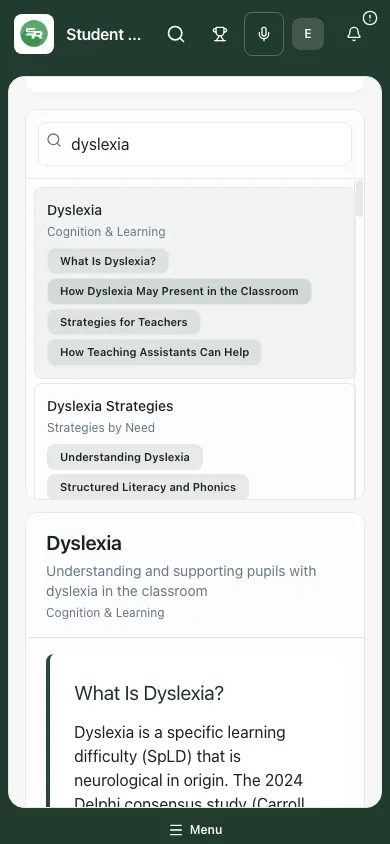
On a phone, the reader sits below the list. Selecting an article brings the reader into view when needed; scroll within it to continue reading. If you return to the list and select the already-open article, it can bring that same reading position back into view. Check the title when following a link so keyboard focus and visible article agree.
Jurisdiction and loading messages
Section titled “Jurisdiction and loading messages”For another jurisdiction, the page can show Written for schools in England. Localising a medical emergency-number text does not localise the article’s legislation, service structures or clinical recommendations. Follow the school’s relevant local procedures and current guidance rather than assuming the whole article has been adapted.
If article files cannot load, use Retry where offered. A failed deployed module may require Reload page, because retrying the cached failed import is not enough. Do not treat the error or a blank reader as no articles.
Take a tour temporarily opens example articles; closing it returns to the article you were reading where it still exists. The tour is navigation help, not a completed professional review.
Common questions
Section titled “Common questions”What should I check before using reference content in a pupil decision?
Section titled “What should I check before using reference content in a pupil decision?”Read its source, jurisdiction and currency, then return to the pupil’s actual evidence and authorised record.
What should I do when search finds no relevant article?
Section titled “What should I do when search finds no relevant article?”Adjust the search or category and use the empty-result guidance. Do not treat an unsupported result as a diagnosis or policy guarantee.