Prepare and review a pupil evacuation plan
Written for: SENCOs, health leads and staff responsible for evacuation planning.
Draft the pupil’s evacuation arrangements, check named help and sign-off, then activate and maintain the agreed PEEP.
Use it with the school’s actual site arrangements and responsible staff. A completed screen is not evidence that a route, item of equipment or staff member is suitable.
You need access to PEEPs and the relevant pupil. Managing plans and reading an assigned plan are different permissions. If you have access only to assigned plans, the page shows Your PEEPs. A named helper without an account does not receive system access.
All examples below are fictional school training examples. They are not evacuation instructions for a real site.
Find the plans that need attention
Section titled “Find the plans that need attention”- Open PEEPs. Start with Needs attention to see drafts, missing acknowledgements and overdue reviews grouped by their next action.
- Read Current plans, In use, Not yet agreed, Reviews overdue and Awaiting a parent together. A draft is not yet a plan in use.
- Choose Continue draft for unfinished work. Use All plans to search the register instead.
- In All plans, search for the pupil and use the year-group, status and Readiness filters. Needs attention and Review overdue narrow different problems. Refresh PEEPs retries the register read.
- Choose Open beside the pupil. Read the status, revision and review date before following the recorded plan.
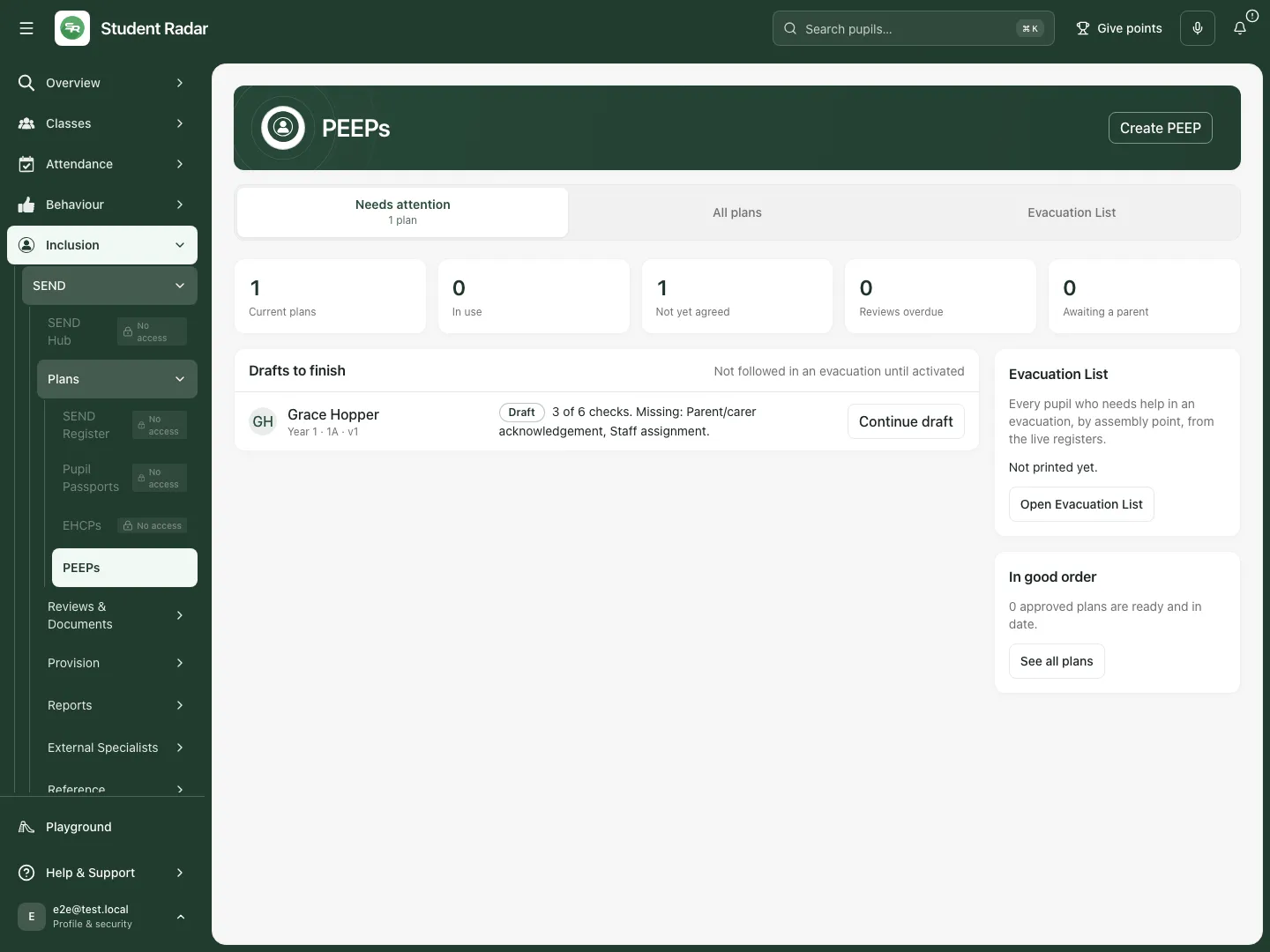 Grace’s fictional draft is shown under Drafts to finish, separate from the zero plans currently in use.
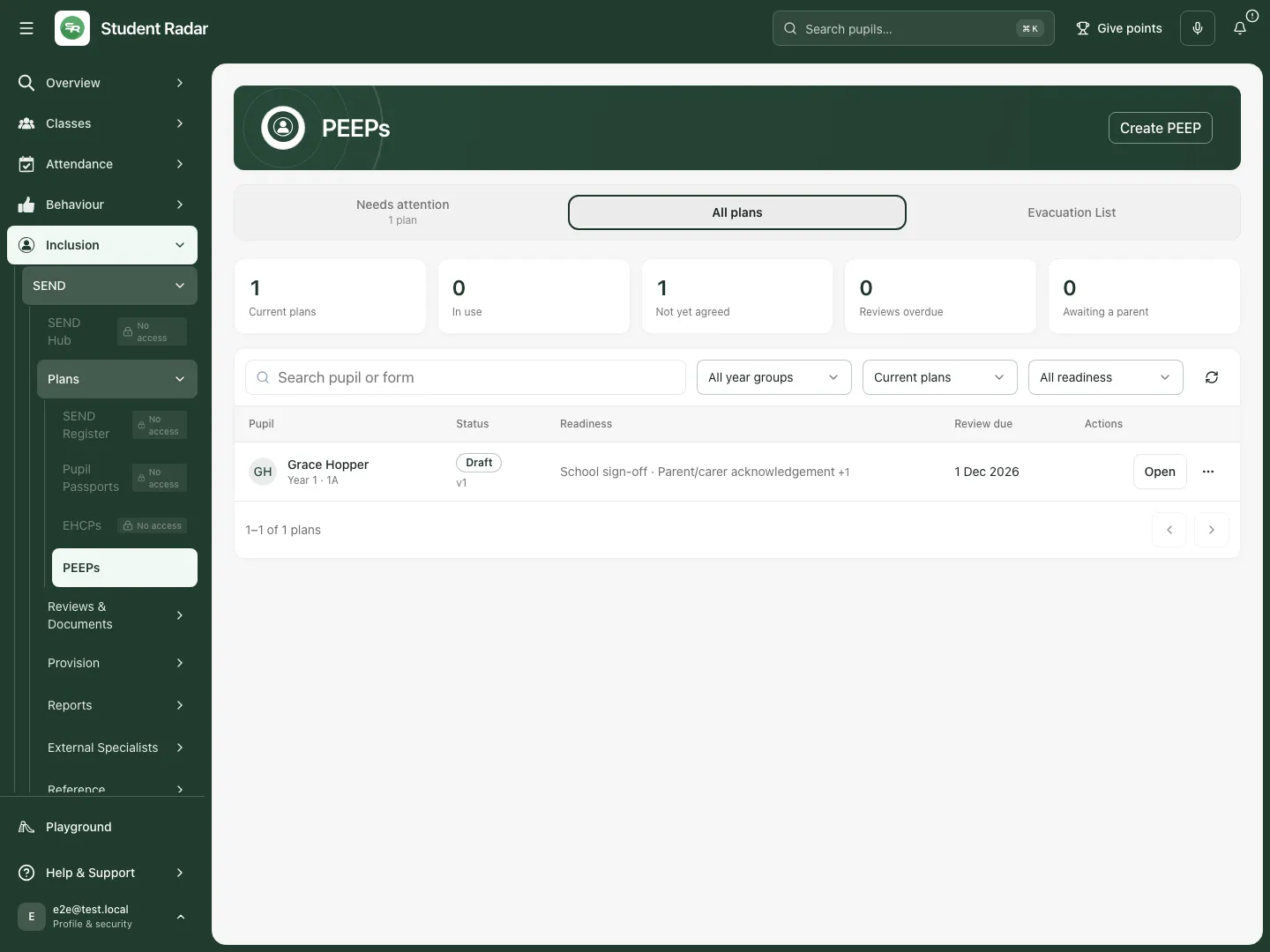 The fictional register keeps the draft status, outstanding checks and review date beside Grace’s name.
Read a plan and its readiness checks
Section titled “Read a plan and its readiness checks”- Open the pupil’s plan. The In an evacuation card brings together recorded route, assembly and assistance information.
- Use Pupil & needs, Routes & equipment, Staff & communication, Training & drills, Trips & other settings, Review & consultation, Privacy & sharing, and Sign-off & history to inspect the full record. On a phone use Plan section.
- Choose Show checks, then expand the items needing attention. Choose a linked missing item to go to its section. Hide checks collapses the panel.
- Resolve a missing or out-of-date arrangement with the responsible staff. Do not treat an incomplete draft as an activated plan.
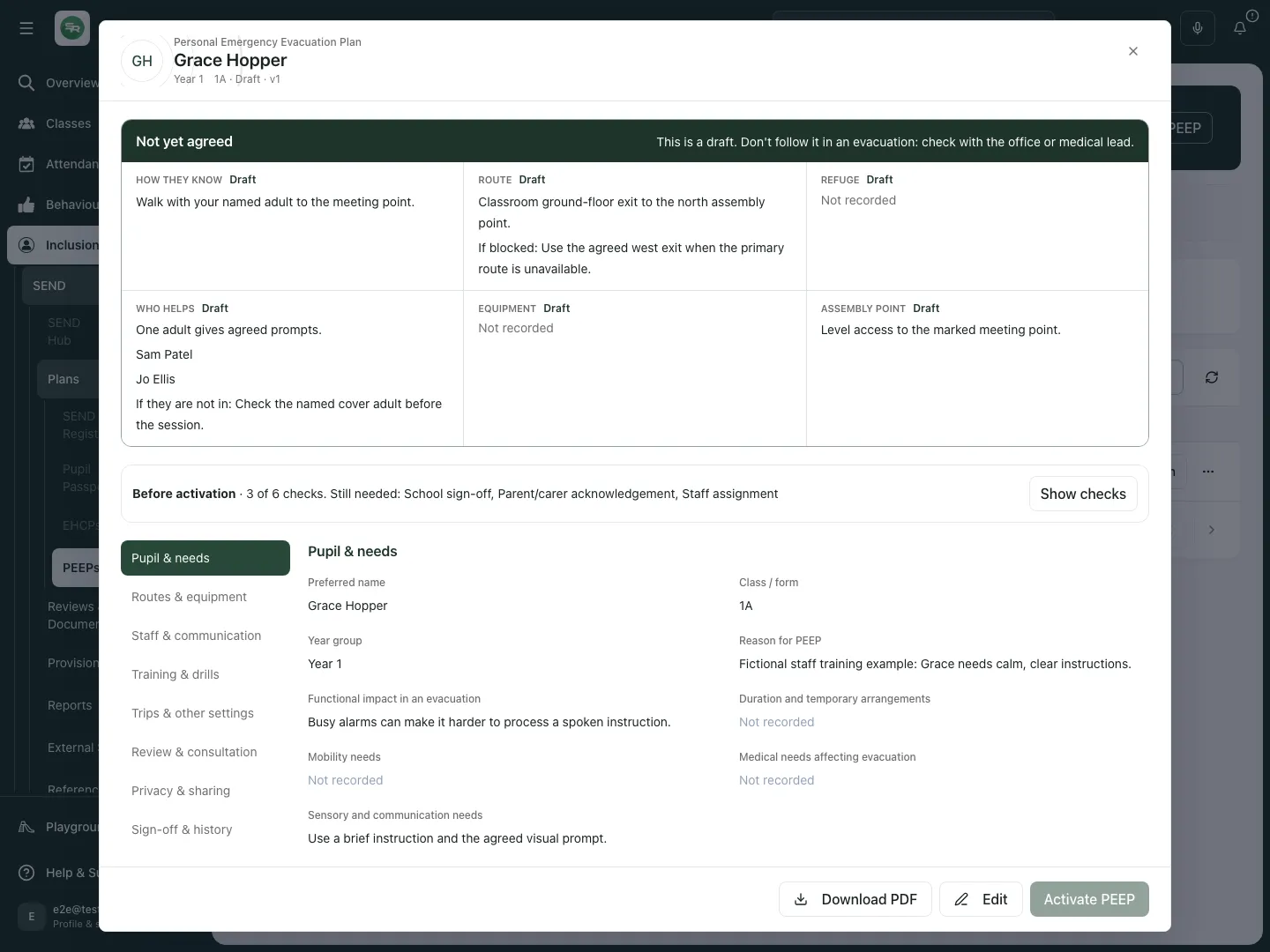 Grace’s fictional reader preserves the Draft label while showing the recorded evacuation information.
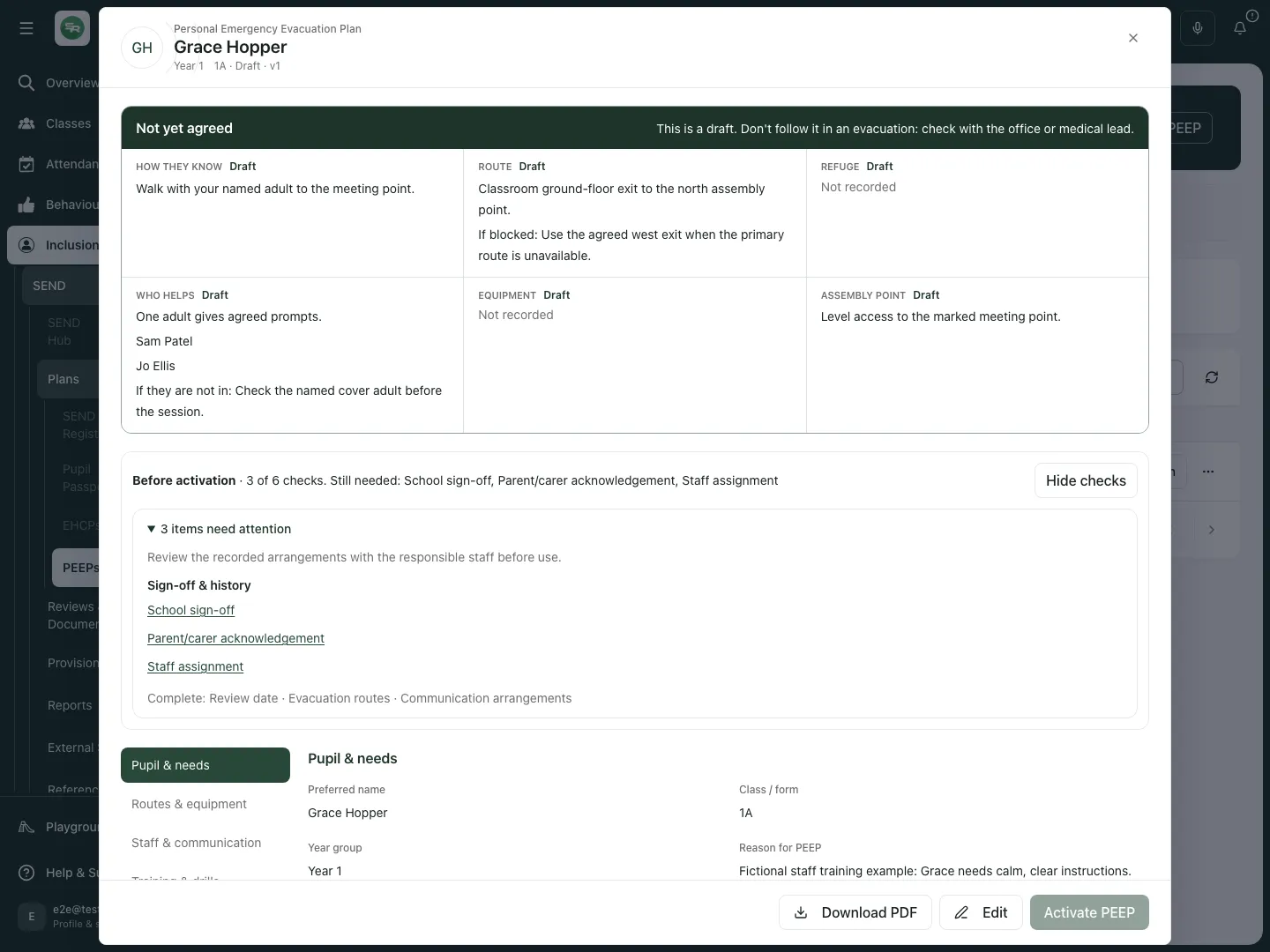 The fictional draft has three of six example checks complete; acknowledgement, assignment and school sign-off still need attention.
Create a new draft
Section titled “Create a new draft”- Choose Create PEEP and select the pupil. Search if necessary; the selection list displays up to 20 matches.
- Choose Create blank plan. If a current plan already exists, open it and continue or amend it rather than creating a competing plan.
- In Pupil & needs, check Preferred name, Class / form and Year group. Record Reason for PEEP, Functional impact in an evacuation, temporary arrangements and relevant mobility, medical, sensory and communication needs.
- In Routes & equipment, enter the agreed Primary evacuation route, Alternative route, Refuge point, Assembly point, accessible arrangements, lift arrangements and areas to avoid. Record the actual equipment, storage, checks and restrictions. Enter equipment one item per line.
- In Staff & communication, record primary and backup staff, meeting point, cover, escalation and training arrangements. Explain the alarm response, instructions, prompts, communication aids and pupil preferences.
- In Training & drills, record training arrangements, drill frequency, last outcome, next drill and actions. In Trips & other settings, explain changes between lessons, at assemblies or breaks, off site and during transport; record relevant contacts and document references.
- In Review & consultation, set Review due and record consultation, review process, triggers and post-drill or incident learning. Text entered as a consultation note does not replace the revision-specific acknowledgement in Sign-off.
- Record the school’s agreed handling arrangements in Privacy & sharing. These entries describe arrangements; they do not themselves grant access.
- Choose Save draft. Reopen the saved plan to check the important arrangements and review date. Cancel leaves the editor; when changes are unsaved, choose whether to discard them in the confirmation.
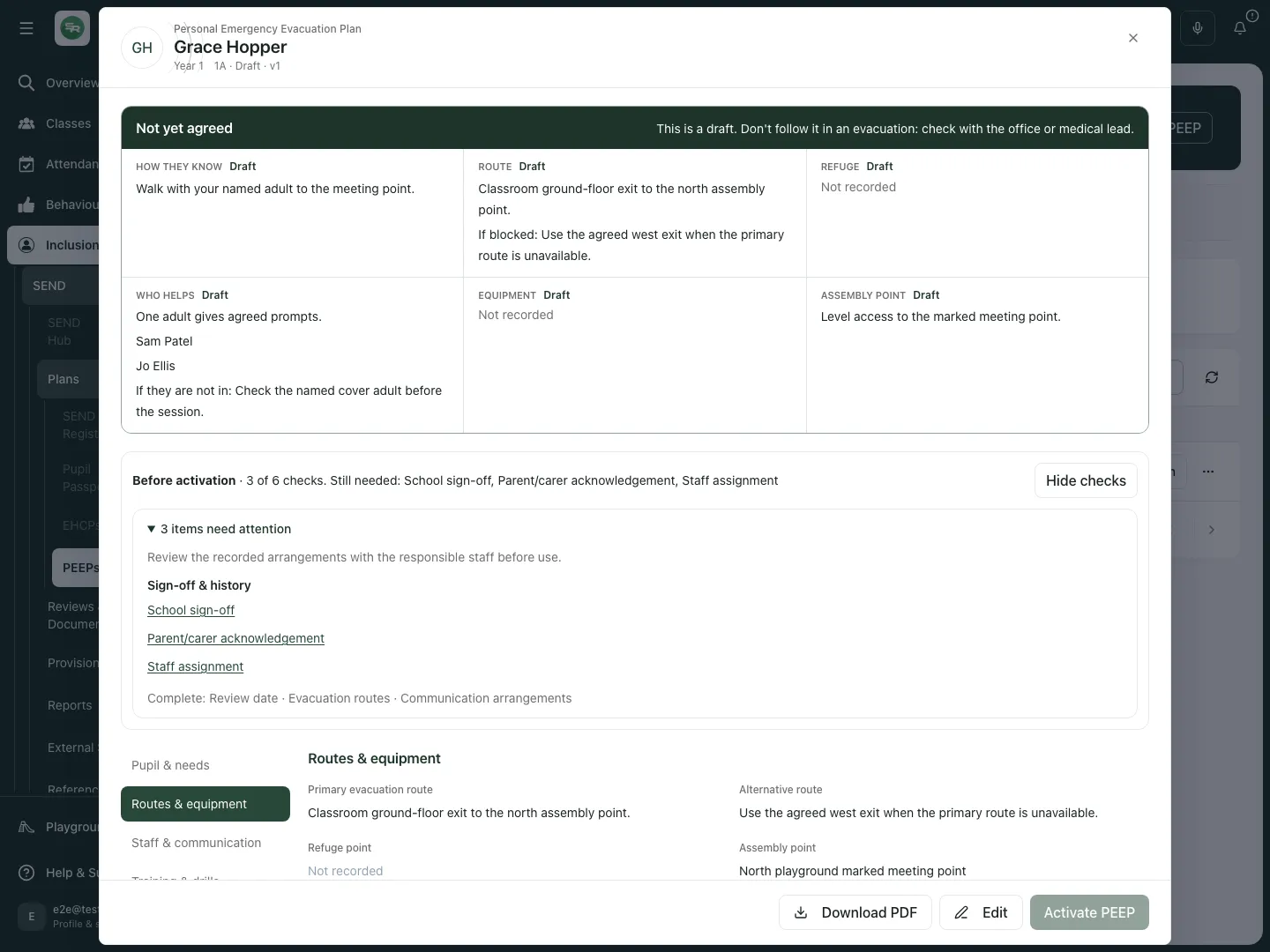 The fictional example keeps the primary and alternative routes together; a real school must agree its own safe routes.
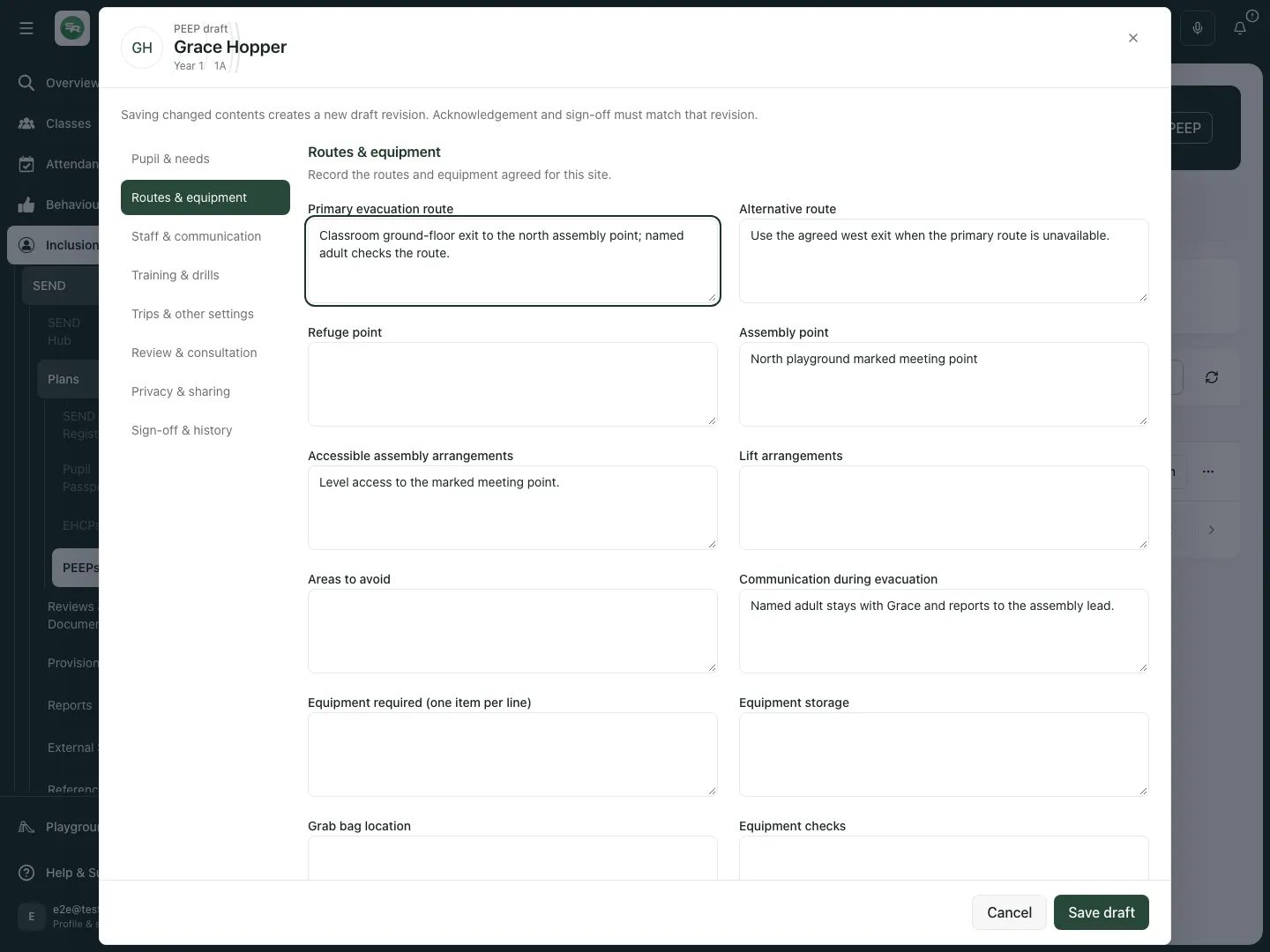 The route editor records an agreed fictional instruction before Save draft.
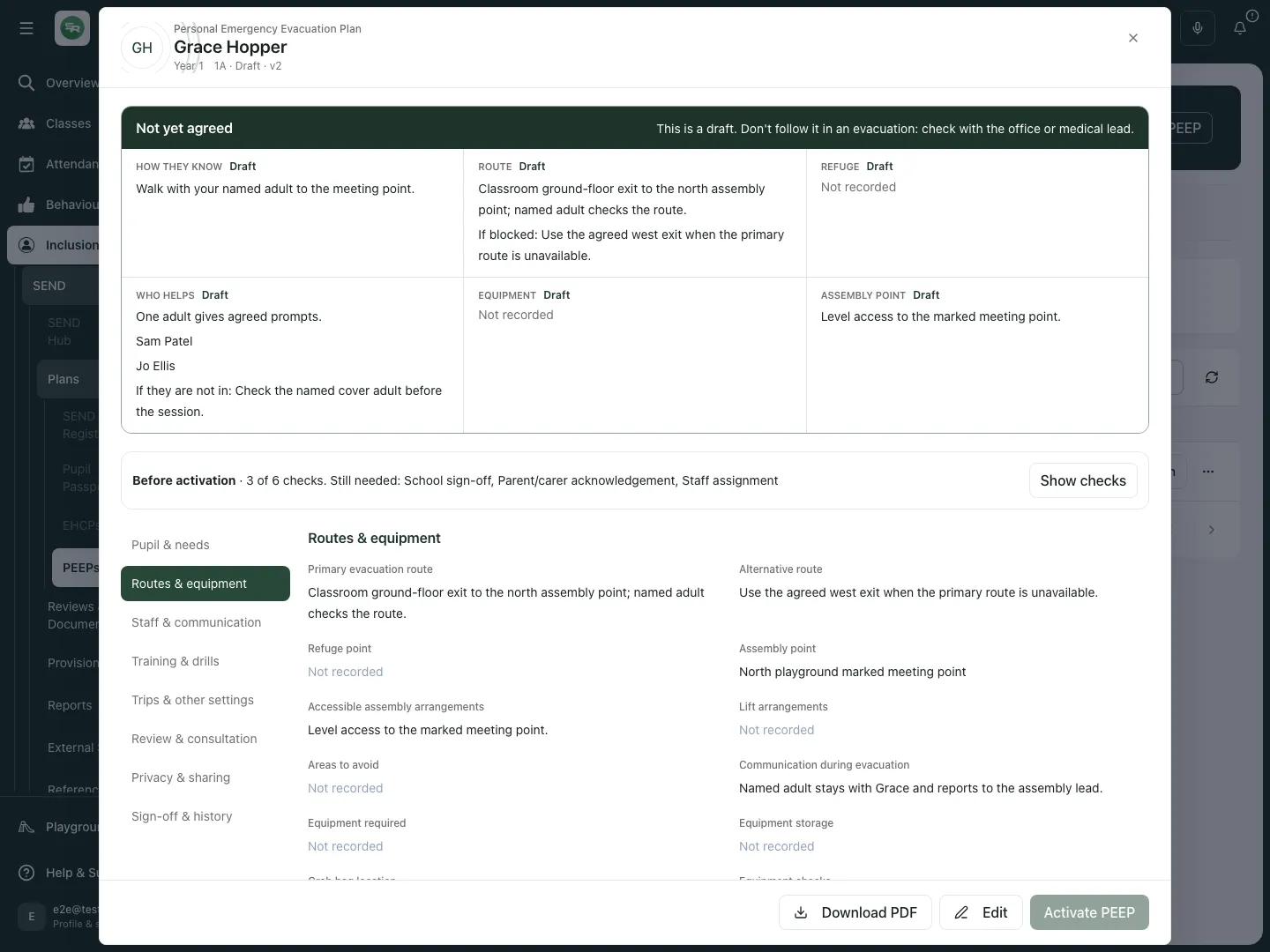 After a mocked save and reopening, the updated fictional route remains visible. The plan is still a draft.
Record named staff, acknowledgement and sign-off
Section titled “Record named staff, acknowledgement and sign-off”Save the draft before recording these items for its current revision.
- Open Sign-off & history. Under Assigned evacuation staff, choose Assignment type: School staff account or Named helper without an account.
- For an account, use Find staff, choose Assign staff member and check the displayed name. Search narrows up to 25 results. Ambiguous duplicate names cannot be selected. For a helper, enter Helper name.
- Tick Evacuation training already confirmed only when that is true, then choose Assign staff. An account assignment still requires school-granted health permission to read the plan. A name-only helper has no account access.
- Use Confirm training or Unconfirm training when the recorded training state changes. Remove [name] removes that assignment; ensure cover remains agreed.
- Under Signatures, select Signer role, enter the signer’s name and choose Record signature. These are append-only typed-name attestations, tied to the displayed revision. An earlier-revision signature is labelled accordingly.
- Under Parent acknowledgement, record the parent/carer’s name, then choose Record acknowledgement or Record as declined to reflect the response actually received. Do not record agreement on someone’s behalf without the school’s authorised process.
- The separate Email a secure acknowledgement link action starts a parent-link workflow. Check recipient and plan details before authorising delivery. Recording an acknowledgement and emailing a request are different actions; opening this page sends nothing.
- Review Plan history and the outstanding checks again after changes.
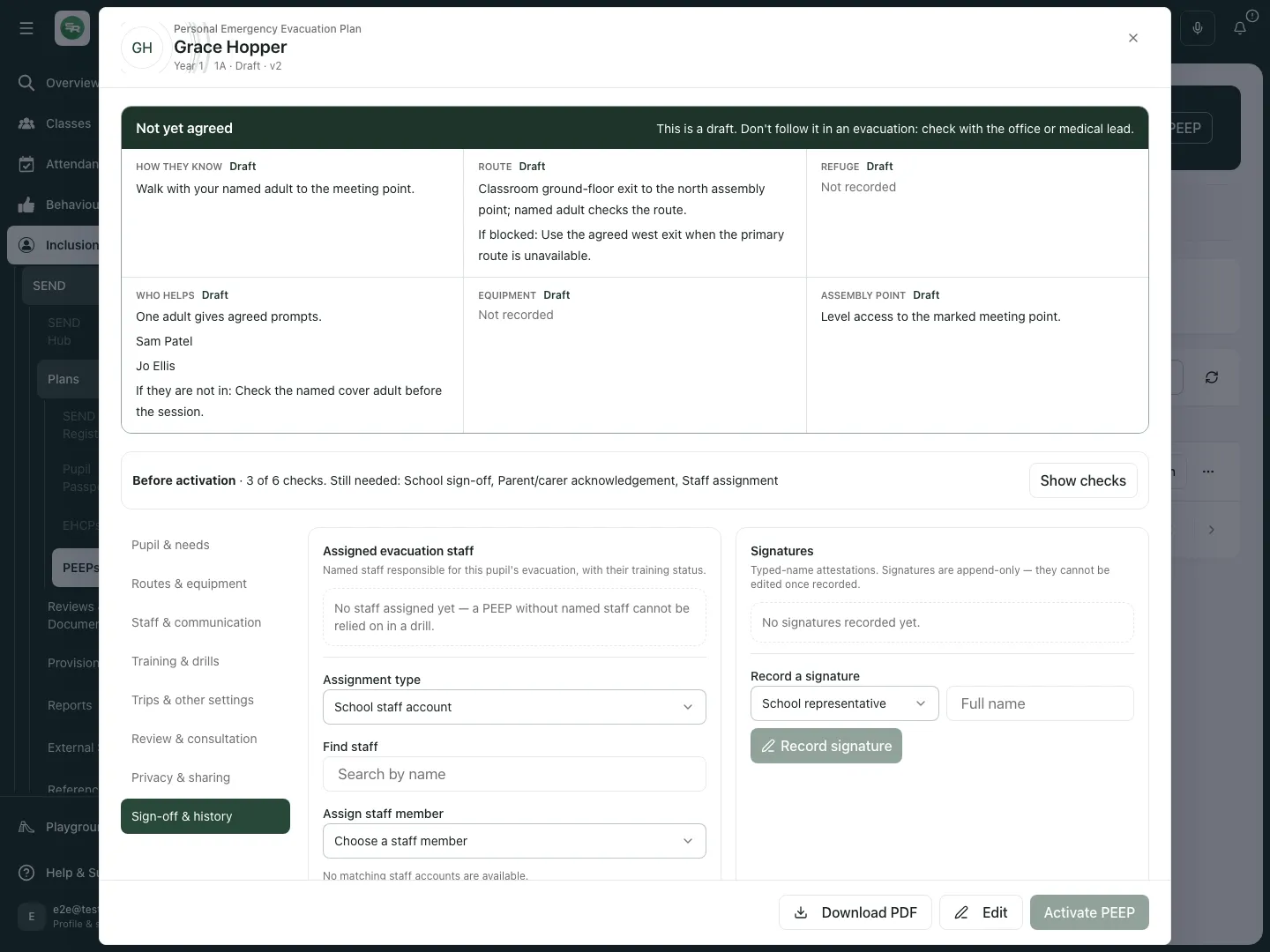 The fictional draft’s sign-off workspace separates named staff, typed attestations and parent acknowledgement. No signature or parent message was created for this example.
Activate, amend or archive
Section titled “Activate, amend or archive”- Check every readiness item for the current revision. Activate PEEP stays unavailable until the recorded checks are complete.
- Choose Activate PEEP only after the school’s authorised review. The app checks the latest readiness again before changing the status.
- For an active or review-due plan, choose Create amendment. The current approved plan stays in use while the amendment is prepared. The amendment requires its own acknowledgement and school sign-off.
- If an amendment is already open, the app opens it instead of making another. Edit and Save draft, then complete the revision-specific checks before activation.
- When retiring a plan, use its options menu and Archive; review the Archive this PEEP? confirmation before confirming. The plan and audit history stay saved, but it leaves the current register. Archiving the plan in use also removes the pupil from the Evacuation List as needing evacuation support. If arrangements are changing, choose Create amendment instead.
Saving changed contents creates a new draft revision. Acknowledgements and sign-offs must match that revision. A past review date on an active plan is shown as Review due; it is a reason to review the arrangements, not an automatic assurance that they remain suitable.
Use a PDF and the Evacuation List
Section titled “Use a PDF and the Evacuation List”- Open the correct plan and choose Download PDF. The app reloads the plan and its staff/sign-off records before producing the file; if the revision changes during preparation, retry rather than using a mismatched pack.
- Use Evacuation List or Open Evacuation List for the school’s separate assembly-point list. Check current source records and the print date; a previous printed copy may be stale.
- Handle printed or downloaded pupil information under the school’s agreed arrangements. Downloading is not evidence that staff have read or rehearsed the plan.
Optional AI-assisted starting draft
Section titled “Optional AI-assisted starting draft”- Choose Create PEEP, select the pupil and choose Draft with AI.
- Enter the factual staff notes and choose Prepare draft. This prepares an editable proposal, not an approved plan.
- Review every field, missing-information question, risk flag and uncertainty. Replace unsupported wording with agreed arrangements and obtain specialist input where needed.
- Choose Save draft only after checking the contents. Complete the same acknowledgement, assignment, sign-off and activation process as a manually written plan. Back returns to pupil selection.
The optional AI and parent-delivery workflows are described from the available controls; neither was run for these fictional screenshots.
Phone use
Section titled “Phone use”- Open PEEPs and choose the relevant section of the page.
- Open the pupil and use Plan section to move through the plan.
- Check status and review date before using the recorded arrangements; important actions remain separate from reading.
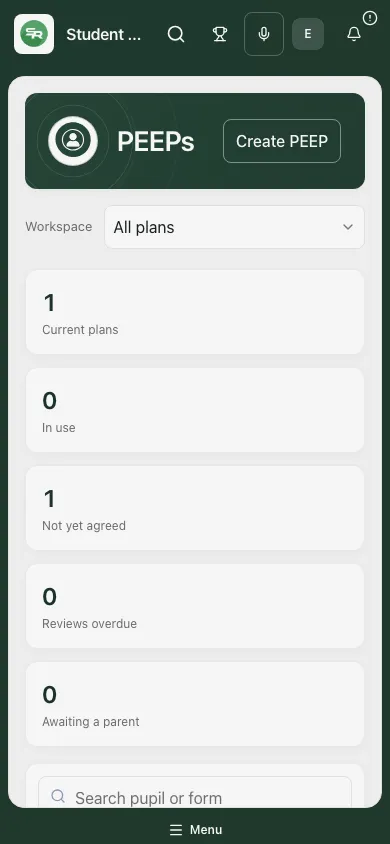 The fictional register at phone width retains the pupil, draft status and review information.
Problems and questions
Section titled “Problems and questions”A plan or pupil is missing. Check school, year/status/readiness filters and your pupil access. Staff with assigned-only access see their permitted plans. Retry a failed read; do not interpret an error as no plans.
Activate PEEP is disabled. Save the draft, open Show checks, and complete the current revision’s missing requirements. Notes saying “agreed” do not replace the recorded acknowledgement or sign-off.
My signature is marked earlier revision. Contents changed after it was recorded. Review the new revision and follow the school’s acknowledgement/sign-off process again.
The same pupil already has a plan. Open it. Active plans take an amendment; unfinished drafts should be continued. The app checks for an existing plan before creating another.
A save or download failed. Keep unsaved text, check the error and retry. Reopen the saved record before assuming the change persisted. A download can be stopped if the revision changed.
Does a green check prove this plan is safe? No. Checks describe what is recorded. Responsible staff must agree, practise and review the actual arrangements.
Related: SEND Hub, SEND Register, Pupil Passports, EHCPs. A separate Evacuation List guide is planned.