Manage staff appraisal cycles, evidence and signatures
Select the intended appraisal cycle, create reviews and proposed objectives, then record evidence and follow the actual parties’ signature steps. The workspace keeps appraisal roles, development requests, feedback and pay recommendations distinct; it does not make an employment or pay decision for the school.
Open Leadership → Staff → Appraisal & Staff Review. Screenshots use fictional staff and an ungraded draft cycle.
1. Check access, the cycle and your relationship
Section titled “1. Check access, the cycle and your relationship”The page’s sections include Reviews, Team reviews, Standards, Evidence, Cycles, restricted Pay, 360, Reports and Workspace. Check the cycle currently being shown before entering anything. Show reviews on a cycle changes the review context; the most recent/active cycle is not necessarily the one you intended.
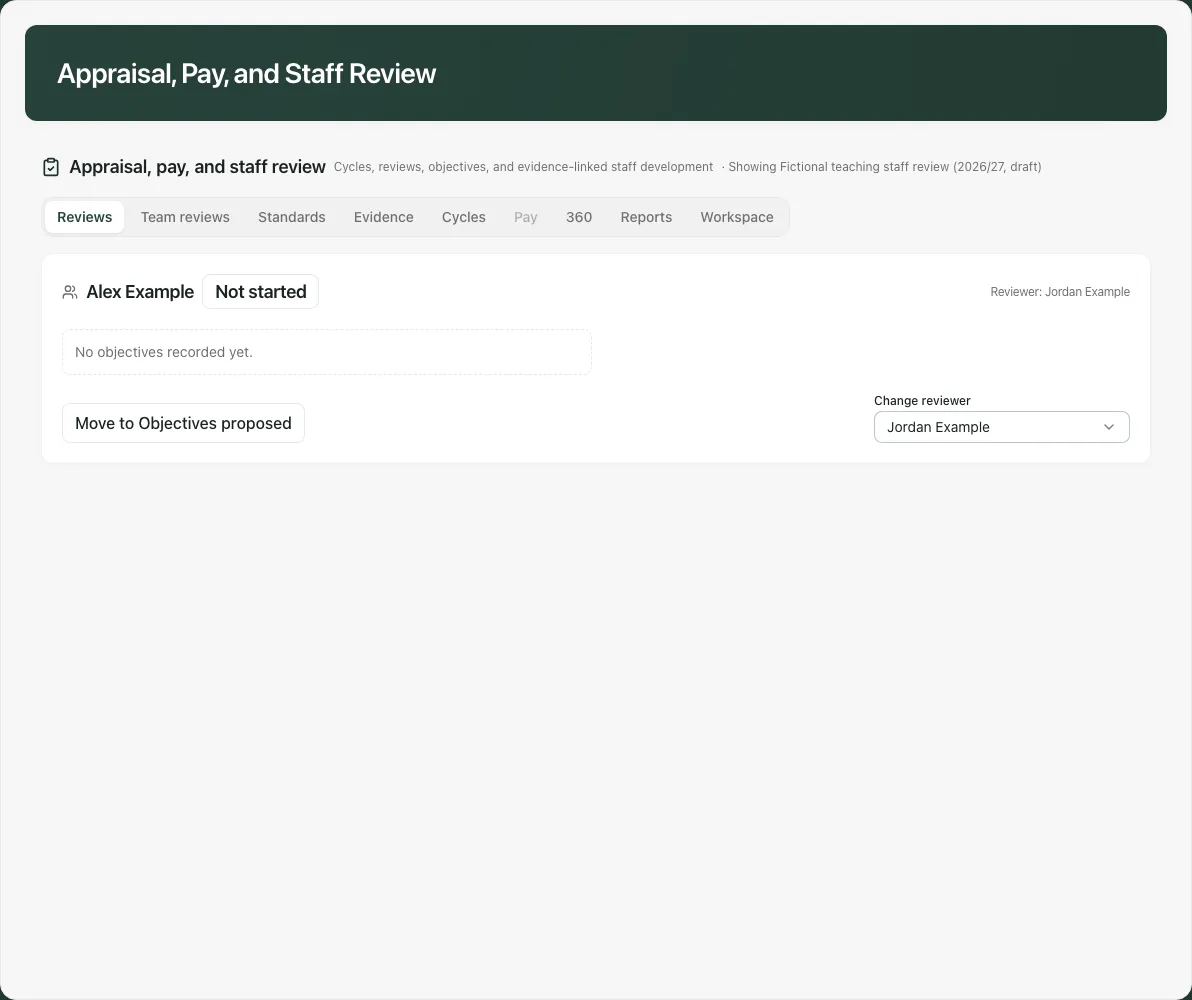
Opening this leaders’ workspace is different from being the appraisee, reviewer, feedback respondent or pay decision-maker on a particular record. Controls depend on that relationship and current access. A manager is not the manager of their own review: another eligible leader must assign that reviewer and manage its feedback process.
Do not assume every teacher, TA, reviewer or respondent can open this page simply because they are named in a review or reminder. If the intended party cannot access it, agree the school’s authorised process with the administrator; do not ask another person to sign or submit feedback under their name.
2. Create a draft cycle before activating reminders
Section titled “2. Create a draft cycle before activating reminders”In Cycles, complete Name, Academic year and Framework. Available professional frameworks include Teachers Standards, Headteachers Standards, Early Career Framework and NPQ. Choose the framework appropriate to the agreed review; it is not an automatic judgement about a person.
Enter Objectives due, Mid-year review due and Final review due in order, then Create cycle. Check the new record after confirmation.
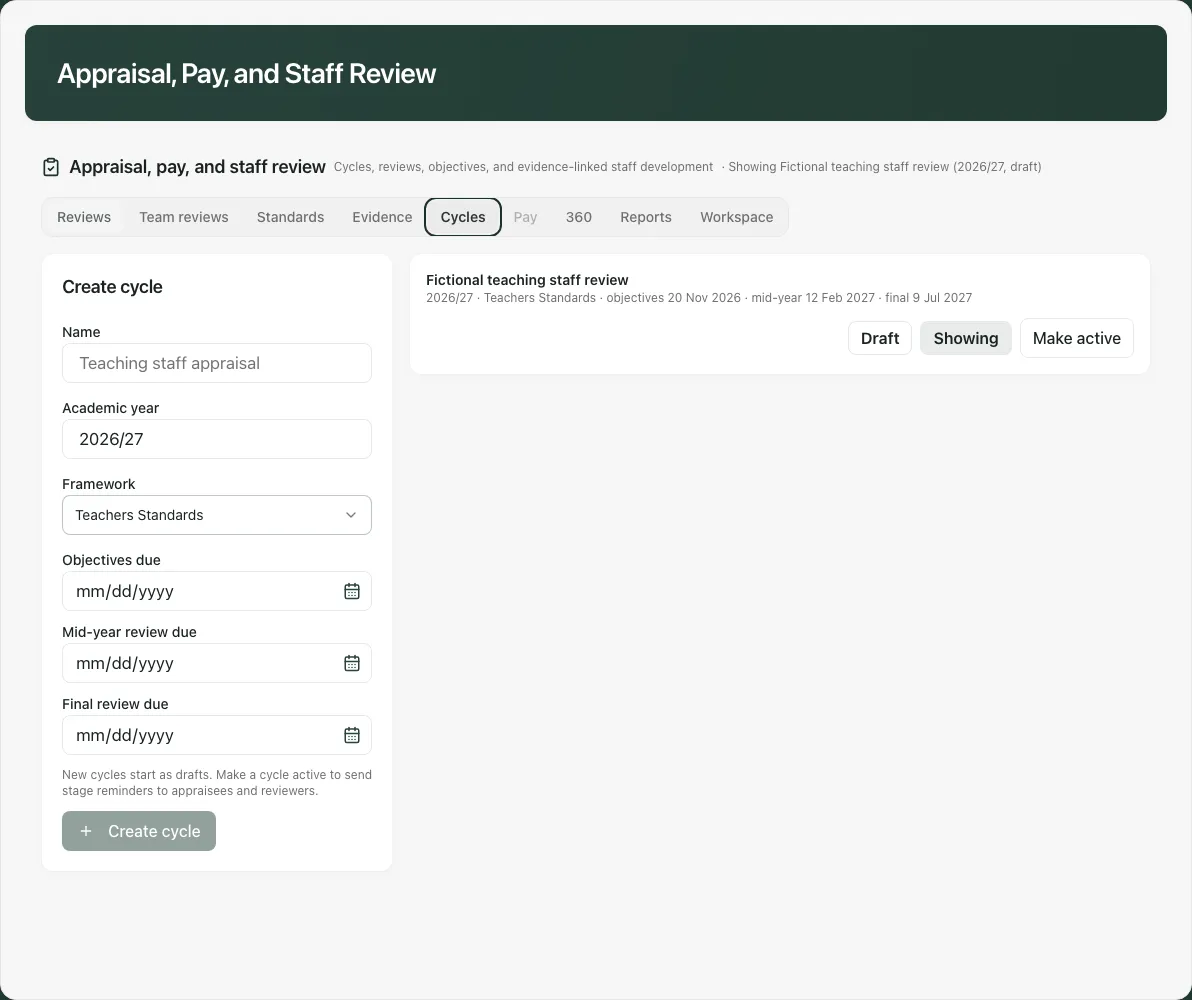
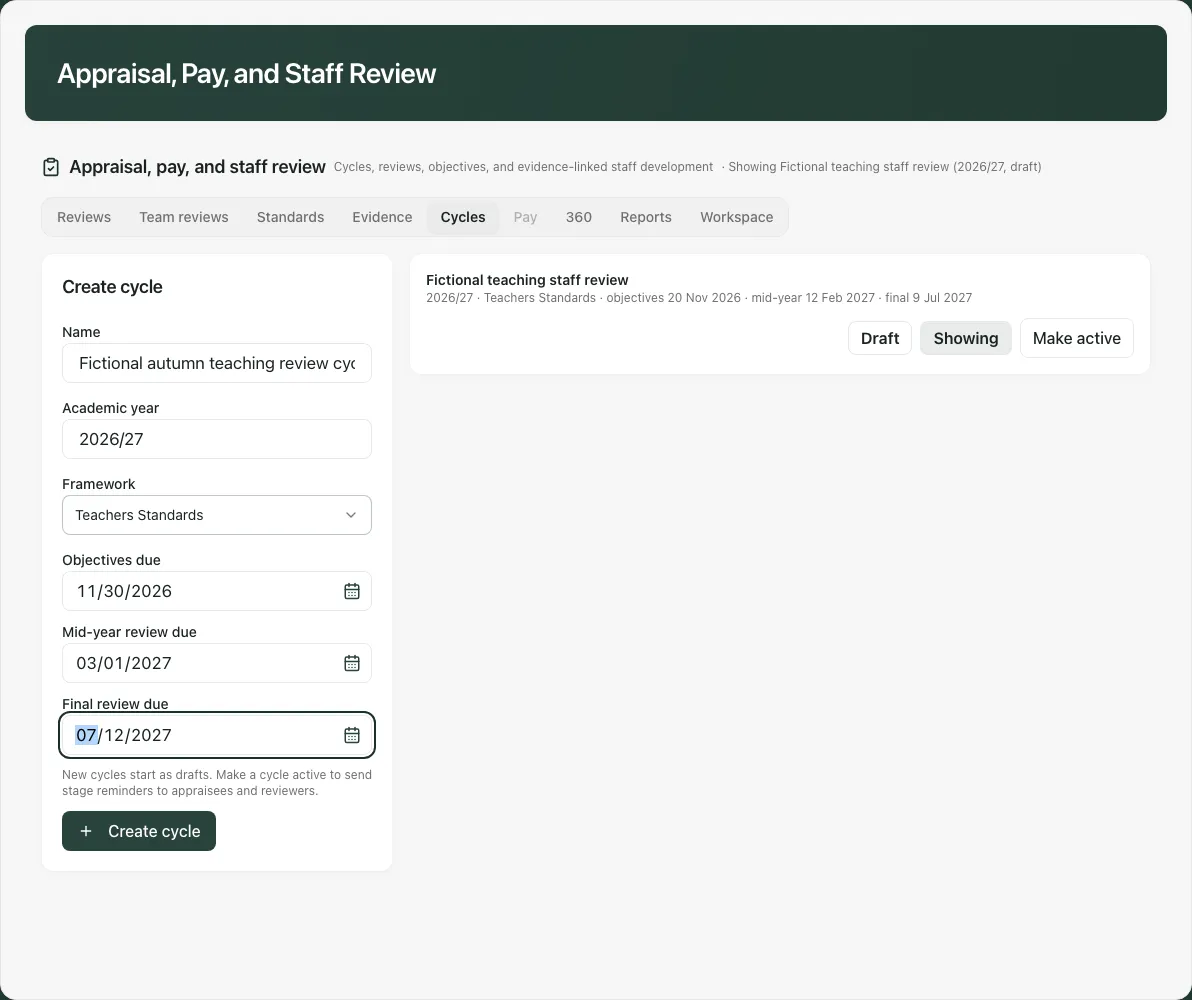
New cycles start as Draft. Reopen the page and use Cycles to check the name, year, framework, dates and status. Creating a draft does not activate the reminder programme.
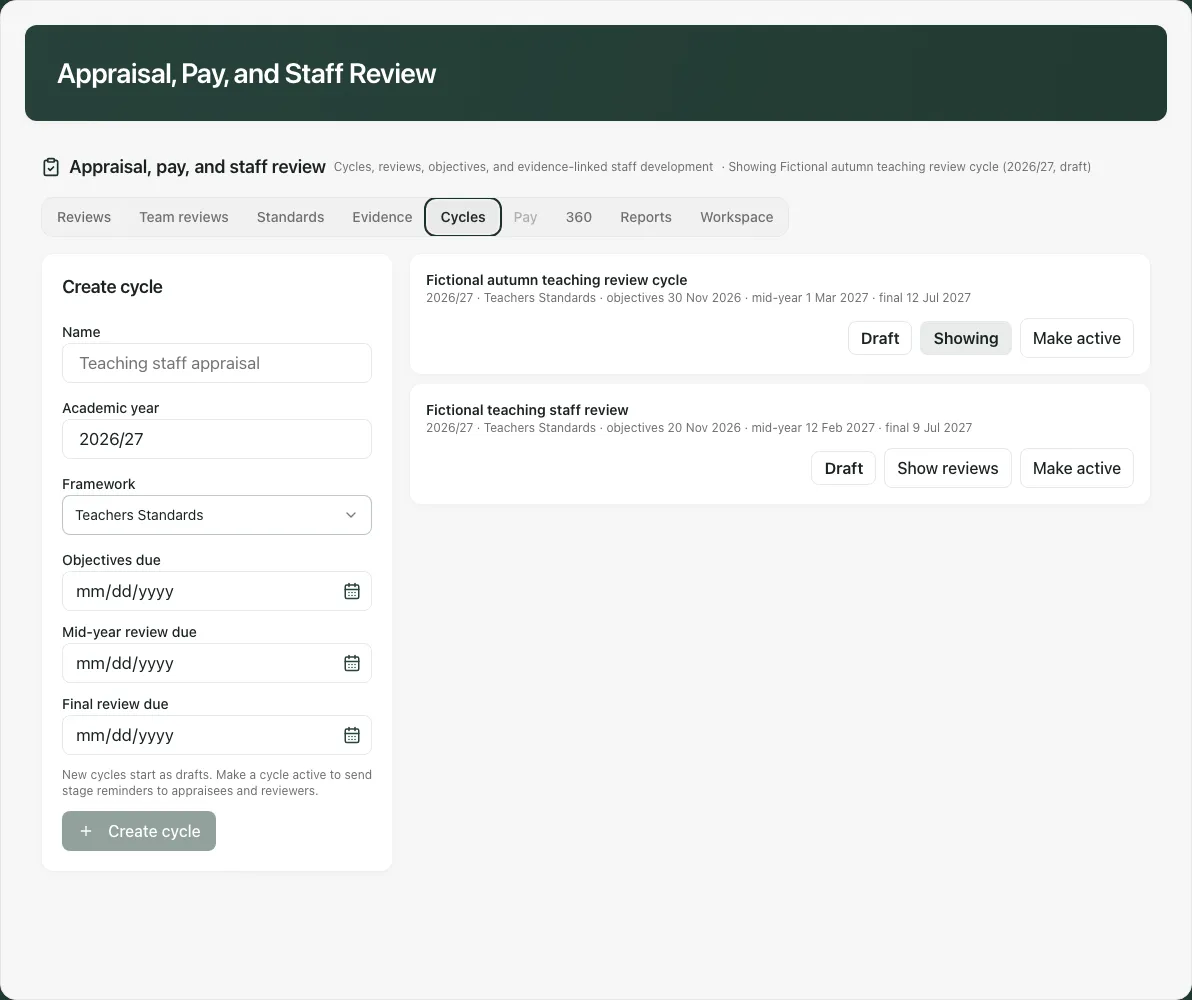
Make active is a separate deliberate action that starts stage reminders for the cycle’s appraisees/reviewers where the school supports them. Close ends active-cycle operation; Reopen makes a closed cycle active again. Check the affected cycle and actual staff access before using these controls. A cycle’s state is not the sign-off state of each individual review.
3. Create reviews and proposed objectives
Section titled “3. Create reviews and proposed objectives”In Team reviews, select Appraisee and a different Reviewer, then Create review in the intended cycle. Staff already holding a review in that cycle are excluded from the creation picker. A manager’s own review starts without a self-chosen reviewer; another eligible leader must assign one.
For an objective, choose Review, enter Title (up to 220 characters) and Success criteria, then Add objective. Make the criteria specific and reviewable. New objectives are proposed work, not automatically agreed or met.
In Evidence, review optional SEF/priority suggestions and seed only those the school agrees. Suggested objectives need checking against the actual person, school context and success criteria. A failed suggestion read is not “no development need”. Do not treat a suggested objective or linked measure as the person’s agreed appraisal judgement.
The current page does not provide a general control to change an objective’s status or enter an overall review grade/justification. Do not promise an end-to-end grading workflow from the visible Proposed objectives or a blank grade export.
4. Record standards ratings with the right rater role
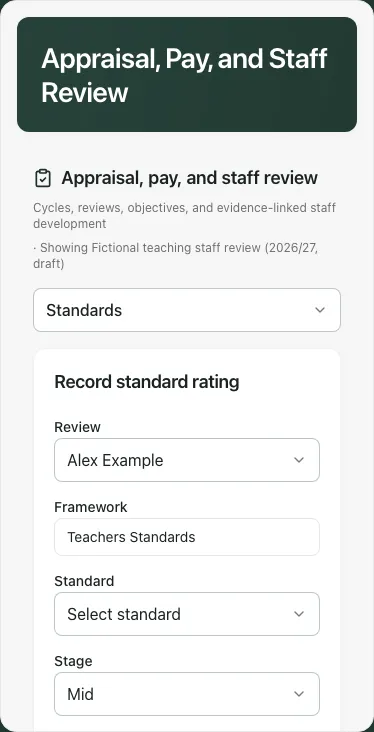
Section titled “4. Record standards ratings with the right rater role”In Standards, choose Review, Standard, Stage, Rater, Rating and Justification, then Save rating. Start, mid and end ratings are separate entries. The page offers the rater role you actually hold; a reviewer must not record a colleague’s self-rating as though they supplied it.
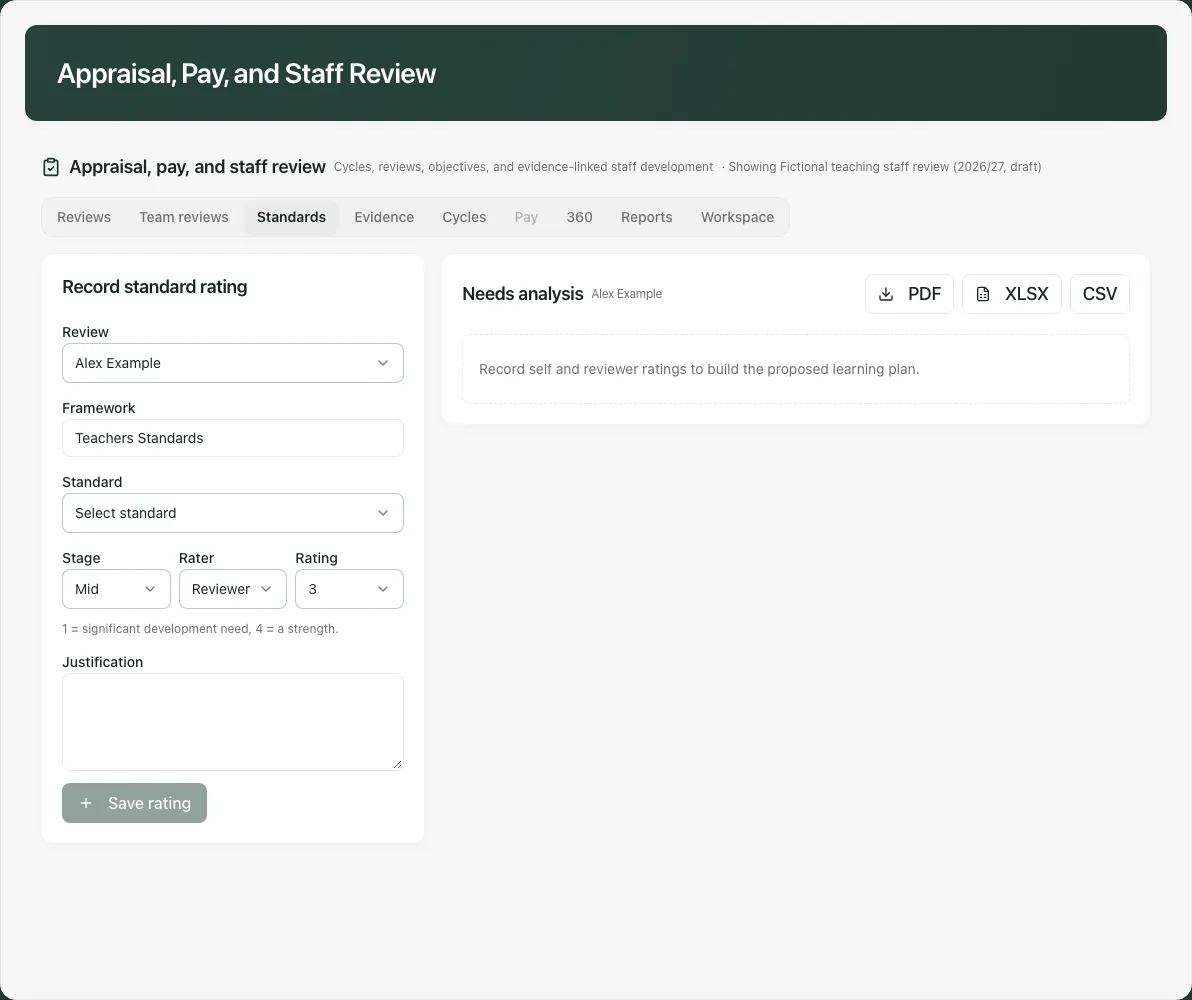
Read the displayed 1–4 scale: lower values describe greater development need and higher values stronger evidence against the descriptor. Explain the evidence in the justification; the number alone does not establish quality. Use the selected framework’s wording rather than inventing a universal scale.
Needs analysis summarises the recorded ratings for the selected staff member/cycle. Missing ratings are missing evidence, not weak performance. A rating at one stage and a later rating need matching standards, rater and context before describing progress.
5. Link evidence and request development support
Section titled “5. Link evidence and request development support”In Evidence, select the intended Review, Objective and Evidence item, then Link. Check the resulting link and its source. An item already linked should not be inserted again; the message explains the duplicate. Linking is not a copy of every source fact or permission to open restricted evidence.
Check linked priority/KPI context, including any warning that the objective and measure disagree. Refresh KPI where offered requests supported current values; it does not invent a value, refresh every possible measure or make a stale source current by changing the display date.
Where Request CPD is offered, review the development need and submitted wording. It creates a training request for a separate decision, not an approved session, enrolment or proof that training was delivered. Check CPD Requests and its decision before planning training.
The evidence picker contains a bounded recent selection. A missing item may need checking at its original source; it is not proof that no evidence exists.
6. Move a review and obtain the actual parties’ signatures
Section titled “6. Move a review and obtain the actual parties’ signatures”Reviews shows the appraisee, reviewer, objective summaries and stage. Use only the offered Move to [stage] action in the agreed sequence: Not started, Objectives proposed, Objectives agreed, Mid-year done and Final submitted. An appraisee’s proposal and the reviewer’s agreement are different decisions.
Where allowed, Assign reviewer or Change reviewer selects a current different staff member. Do not choose the appraisee as reviewer. A reviewer who has not signed can be replaced where offered, including when an appraisee has already signed; this is not permission to change the frozen grade or evidence after signing begins.
At Final submitted, eligible parties use Sign review as appraisee or Sign review as reviewer. Check the record and signature dates. Both required signatures complete sign-off; moving a dropdown is not a substitute. A missing reviewer or self-reviewed legacy record must be corrected by the appropriate other manager before signing.
Once either party signs, objectives, ratings, evidence links and feedback become frozen for the review. Signed-off content is not an editable working draft. If the school needs a correction, follow its authorised review/records process; do not create a parallel self-signed copy or pretend a failed update changed the signed record.
7. Request and review 360 feedback appropriately
Section titled “7. Request and review 360 feedback appropriately”In 360, use the Request 360 feedback card. Select the intended Review, Respondent and Relationship, then Create 360 request where offered. The appraisee cannot be their own respondent. Another leader manages the 360 process on a manager’s own review.
Requests are in-app only: no external respondent token or email link is created. Only the actual requested colleague can Submit 360 feedback for their request. A leader must not type a response attributed to someone else. Select your own request and check whose review it concerns before entering ratings/comments.
360 summary is tied to the selected review and states its minimum response threshold. A withheld summary is not zero feedback; respect the anonymity threshold and do not infer an individual answer by subtraction. Your own review does not expose attributed raw answers simply because you hold a management role. A failed summary read should be retried as a failed read, not described as no feedback.
8. Handle restricted pay information as a separate decision
Section titled “8. Handle restricted pay information as a separate decision”Pay appears only with the required pay-management access. Select the correct Review and inspect Spine point, Salary, Progression, Recommendation, Justification, Decision and Decision note before Save pay recommendation.
A pay row belongs to the appraisee on its review. The person cannot approve their own pay progression. The software records an authorised school decision; it does not determine contractual entitlement or replace the school’s decision-making process.
Check an existing decision and date before editing a recommendation: changing the wording must not be mistaken for a fresh approval. Pay-equity reporting is aggregated and can withhold multiple groups to protect small numbers. Missing/suppressed results are not evidence of equal outcomes, and hidden values must not be reconstructed.
9. Export the right record and use the wider workspace
Section titled “9. Export the right record and use the wider workspace”Reports offers review grading/professional objective and needs-analysis outputs, with CSV/Excel/PDF where available; 360 and pay-equity panels have their own outputs. Check the selected staff member, cycle, period, framework, rating role and completeness before downloading or sharing.
A blank overall grade can reflect the current lack of an entry control, not a satisfactory grade. Proposed objective status is not proof of agreement or achievement. Exports can use raw status keys; read them with the underlying record instead of presenting them as a new professional judgement.
Workspace supplies wider tasks/documents for appraisal coordination. Keep confidential appraisal material with its intended audience and source version. A task completion, read/sign acknowledgement or CPD request is not the person’s appraisal sign-off or improved performance.
Troubleshooting
Section titled “Troubleshooting”- Cannot edit your own review as manager: another eligible manager must take the relevant management decision; your appraisee role remains separate.
- Cannot sign: check Final submitted, a different assigned reviewer, the actual signing party and current access. Do not record someone else’s signature.
- Review changed or signing started: reread the latest record. A refused write is not a saved change, and signed evidence is frozen.
- No overall grade/status editor: the current page does not provide every grading transition; agree the authorised process rather than inventing a hidden control.
- 360 summary withheld or unavailable: distinguish anonymity suppression, no responses and failed reads; never infer attributed feedback.
- A named teacher/TA cannot open the page: being a party does not override the leaders’ route access. Resolve this with the school’s administrator before relying on in-app completion.
Common questions
Section titled “Common questions”When can the review’s actual parties sign?
Section titled “When can the review’s actual parties sign?”At Final submitted, the eligible appraisee and assigned reviewer use their own signature actions. Both required signatures complete sign-off.
Why can I no longer edit review evidence?
Section titled “Why can I no longer edit review evidence?”Once either party signs, objectives, ratings, evidence links and feedback freeze. Follow the school’s authorised correction process rather than treating signed content as a draft.