Chase overdue invoices and send funder statements
Written for: Alternative provision leaders, office and finance staff who chase payment for placements.
Credit control shows who owes you money for placements and how long they’ve owed it. Use Aged debt to see which funders are overdue, then download a statement of each funder’s account to send them.
Credit control reads the invoices you raise in Billing. To raise invoices, record payments or add credit notes, see Set placement rates and raise invoices.
Before you start
Section titled “Before you start”Credit control is for the same people as Billing: leaders, office and finance staff. Seeing the figures and downloading statements are separate permissions, so you may see a statement but not the Statement PDF button.
Aged debt and statements are only as current as your invoices. Mark each invoice sent when you send it, and mark it paid on the day the money arrives: Mark paid records that day as the payment date.
Open Credit control
Section titled “Open Credit control”In the sidebar, open Commissioning Schools and choose Credit control. The page has three sections: Aged debt, Statements and Price list. Click Billing at the top to go back to your invoices.
See who owes what
Section titled “See who owes what”Aged debt opens first. The cards at the top show what’s Outstanding, how much of it is Overdue, how much is 90+ days overdue, how many Funders owing there are and how many Unpaid invoices.
Aged debt by funder lists each funder that owes you money, with the oldest debt first. Each row splits what the funder owes by how long it’s been past its due date: Not yet due, 1–30 days, 31–60 days, 61–90 days and 90+ days, then the Total. The All funders row adds them up.
- Click the invoice count under a funder’s name to list their unpaid invoices, with each due date and how many days overdue it is.
- Click Statement to open that funder’s statement.
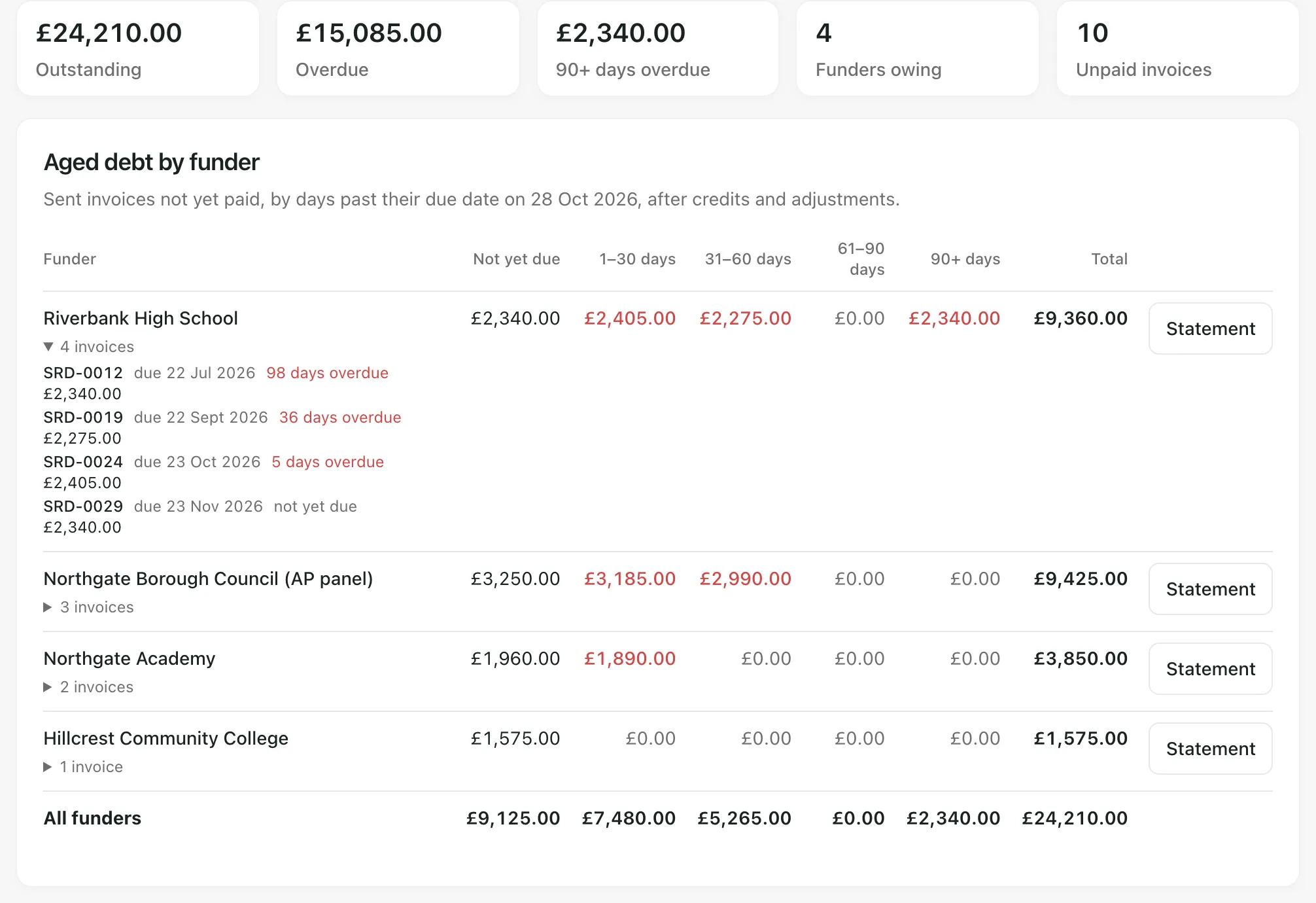
Aged debt counts only invoices you’ve marked sent and not yet paid, at their balance after any credit notes and adjustments. Drafts and void invoices aren’t debt. Days are counted from the due date to today.
Send a funder a statement
Section titled “Send a funder a statement”- Click Statements, or click Statement next to a funder in Aged debt.
- Choose the Funder. Only funders with a sent or paid invoice are listed.
- Set the period with From and To. It starts at the beginning of the month two months ago and ends today.
- Check the statement on the page.
- Click Statement PDF to download it, then send it to the funder in the usual way. Student Radar doesn’t email statements for you.
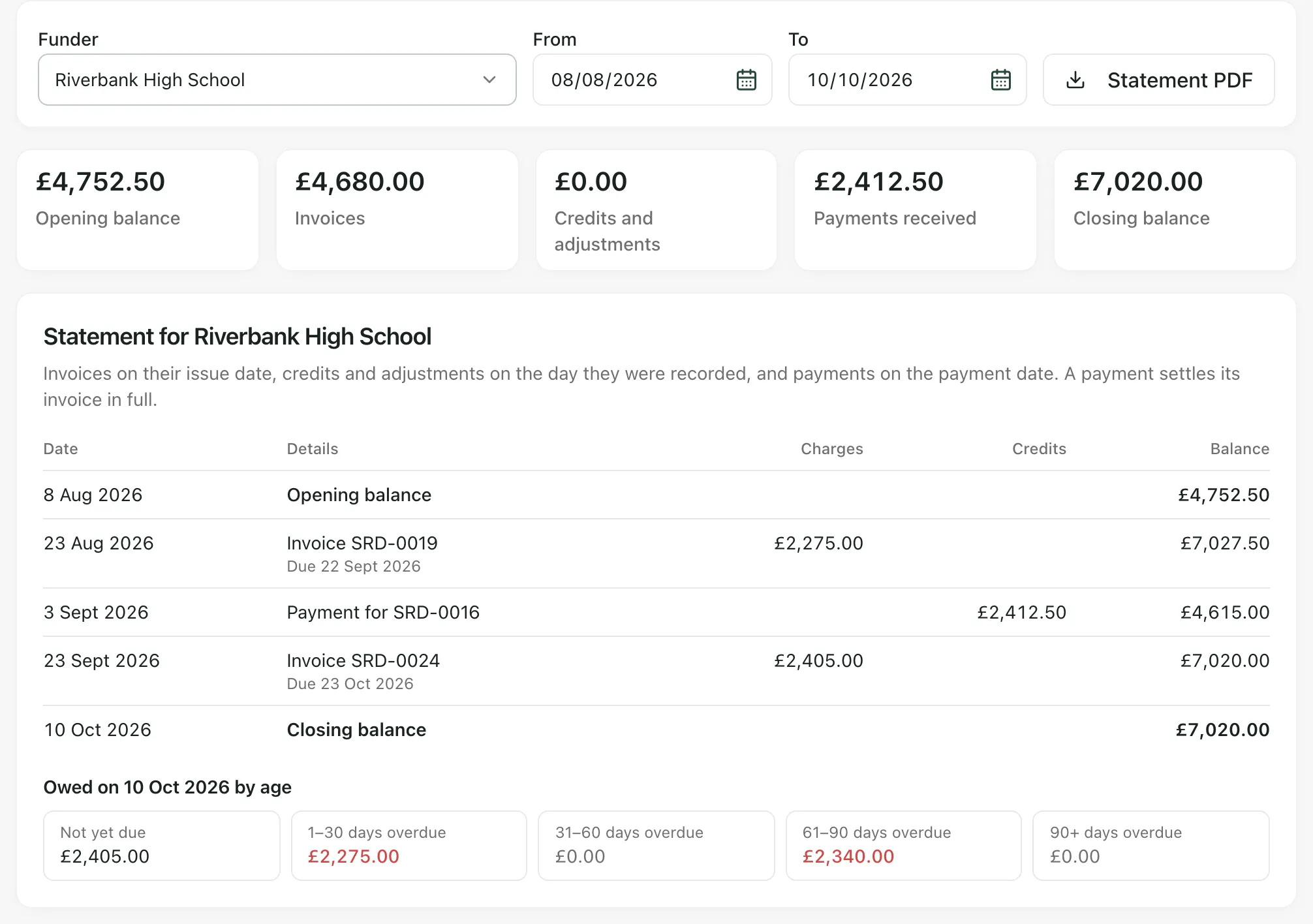
The statement starts with the Opening balance: what the funder owed before the period began. Then it lists, with a running Balance:
- each invoice on its issue date, with its due date;
- each credit or adjustment on the day it was recorded;
- each payment on its payment date.
It ends with the Closing balance and what was owed on the end date, split by how long it was overdue. The cards above the statement total the Opening balance, Invoices, Credits and adjustments, Payments received and Closing balance for the period.
The PDF carries your provision’s name, logo and colours, and the payment details and address from your invoice settings. To change those, click Invoice settings in Billing.
How payments are counted
Section titled “How payments are counted”- There are no part payments. When an invoice is marked paid, it’s settled in full on its payment date.
- A credit recorded after an invoice was paid is shown after the payment.
- A paid invoice with no payment date is left off the statement and adds nothing to the balance. A note under the statement says how many there are.
- Void invoices aren’t shown. A note under the statement says how many there are.
- Reminders: Student Radar doesn’t send overdue reminders. Use the statement, or the invoice PDF from Billing, to chase the funder yourself.
- Wording: your setting profile decides some words, such as what you call the schools that place pupils with you, so the menu may not say Commissioning Schools.
If something doesn’t work
Section titled “If something doesn’t work”| What you see | What to do |
|---|---|
| “You do not have permission to view billing data.” | Ask your Student Radar administrator for access to billing. |
| “Billing access could not be verified. No finance data has been loaded.” | Refresh the page. If it keeps happening, ask your administrator. |
| “The invoice ledger could not be loaded completely, so no balances are shown.” | Click Try again. Until it loads, the cards say Unavailable. Don’t treat that as nothing owed. |
| “The invoice ledger could not be loaded completely, so no statement is shown.” | Refresh the page and open the statement again. |
| “Nothing is outstanding.” | Every sent invoice has been paid or credited in full. Check Billing for drafts you haven’t marked sent. |
| “No funder has an issued invoice yet. Statements appear once an invoice is sent.” | Mark an invoice sent in Billing, then come back. |
| “Choose a period whose start is on or before its end.” | Check the From and To dates. |
| “This statement has too many entries. Choose a shorter period.” | Move From or To so the period is shorter. |
| “Nothing was invoiced, credited or paid in this period.” | The opening and closing balances are still right. To show some entries, choose a longer period. |
| Statement PDF isn’t shown | Your account can’t export billing documents. Ask your Student Radar administrator, or a colleague who can. |
| “The statement PDF could not be prepared” | Try again in a moment. The message underneath says what went wrong. |