Record KS4 results and check school-model coverage
Confirm the end-of-KS4 cohort and exam series, enter or import grades and check qualification mappings and model coverage. Start with the correct end-of-KS4 year and exam series, verify the actual grades and mappings, then interpret the model with its population and missingness visible.
Screenshots use a fictional pupil, a fictional reviewed Maths definition and one example result. They demonstrate the controls and an incomplete subject set, not an official school performance measure or a real pupil outcome.
Before using the figures
Section titled “Before using the figures”Open Assessment → Analysis → KS4 Measures. Viewing results, saving results and configuring the model can require different access. Setup is for authorised configuration staff; a visible measure is not permission to change its rules.
The page opens on the latest year with results you can view where that lookup succeeds. It may differ from the current academic year. Check Academic year before editing, importing or exporting. A later Year 10 early entry can affect which year is latest; the selected label is the context that matters.
1. Confirm the cohort and population
Section titled “1. Confirm the cohort and population”The selected year is the pupil’s end-of-KS4 cohort year, not necessarily the year a particular early-entry exam was sat. The current cohort corresponds to today’s Year 11; next year’s early entries correspond to Year 10. For a completed year, the pupil grid can show those with results who remain on roll.
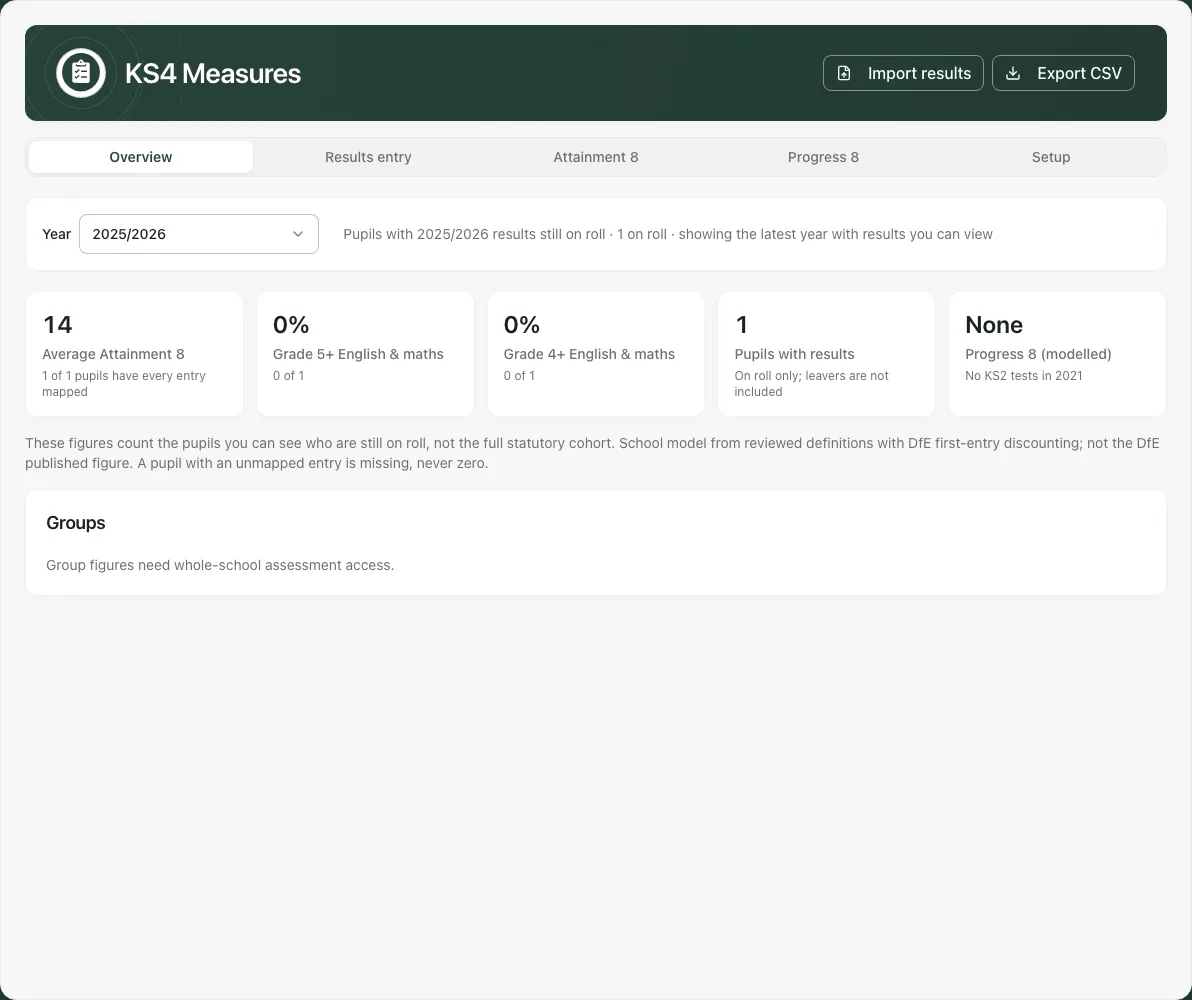
Whole-cohort headline figures, where permitted, can include pupils with results who left the roll. Without that aggregate access, the cards identify the pupils you can see. Progress 8 can have a visible-pupil population even when other headlines are whole-cohort. Read the actual population/coverage label rather than comparing unlike groups.
A withheld group or failed headline read is not zero. The page distinguishes a permission boundary from a temporary failed read and can offer Try again for the latter.
2. Select the actual exam series before entry
Section titled “2. Select the actual exam series before entry”Choose Results entry and confirm Exam series. A faint grade from another series is a reference, not the saved grade for the selected series. Do not type over it assuming it is an in-place correction.
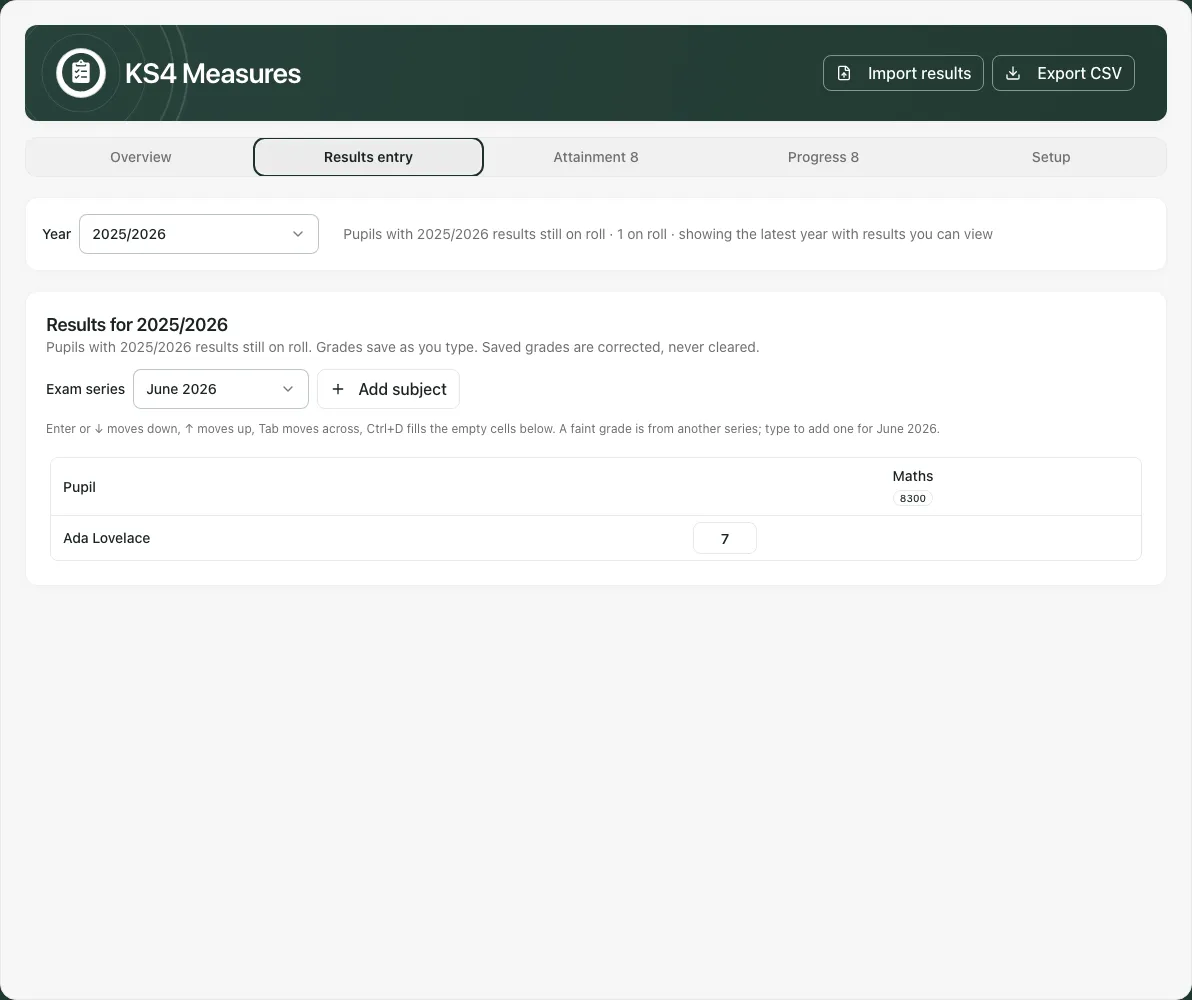
Series not recorded (older results) allows correction of an existing old result that lacks its exam series. Empty cells are read-only in that mode because a new result needs its real series. Do not use it to create another result whose exam timing is unknown.
For a new result or another series, choose the correct recorded series and subject/qualification. Add subject requires the appropriate reviewed qualification context; it is not permission to invent a recognised qualification code or point rule.
3. Enter or correct a grade and check the stored result
Section titled “3. Enter or correct a grade and check the stored result”- Confirm pupil, subject, selected cohort year and series.
- Enter the actual grade allowed by the qualification’s scale.
- Move out of the box to save; the grid’s Enter/down/up/Tab navigation can help move through rows and columns.
- Wait for the stored value or a specific Not saved refusal. Reopen the same cohort/series and verify the grade before relying on its model output.
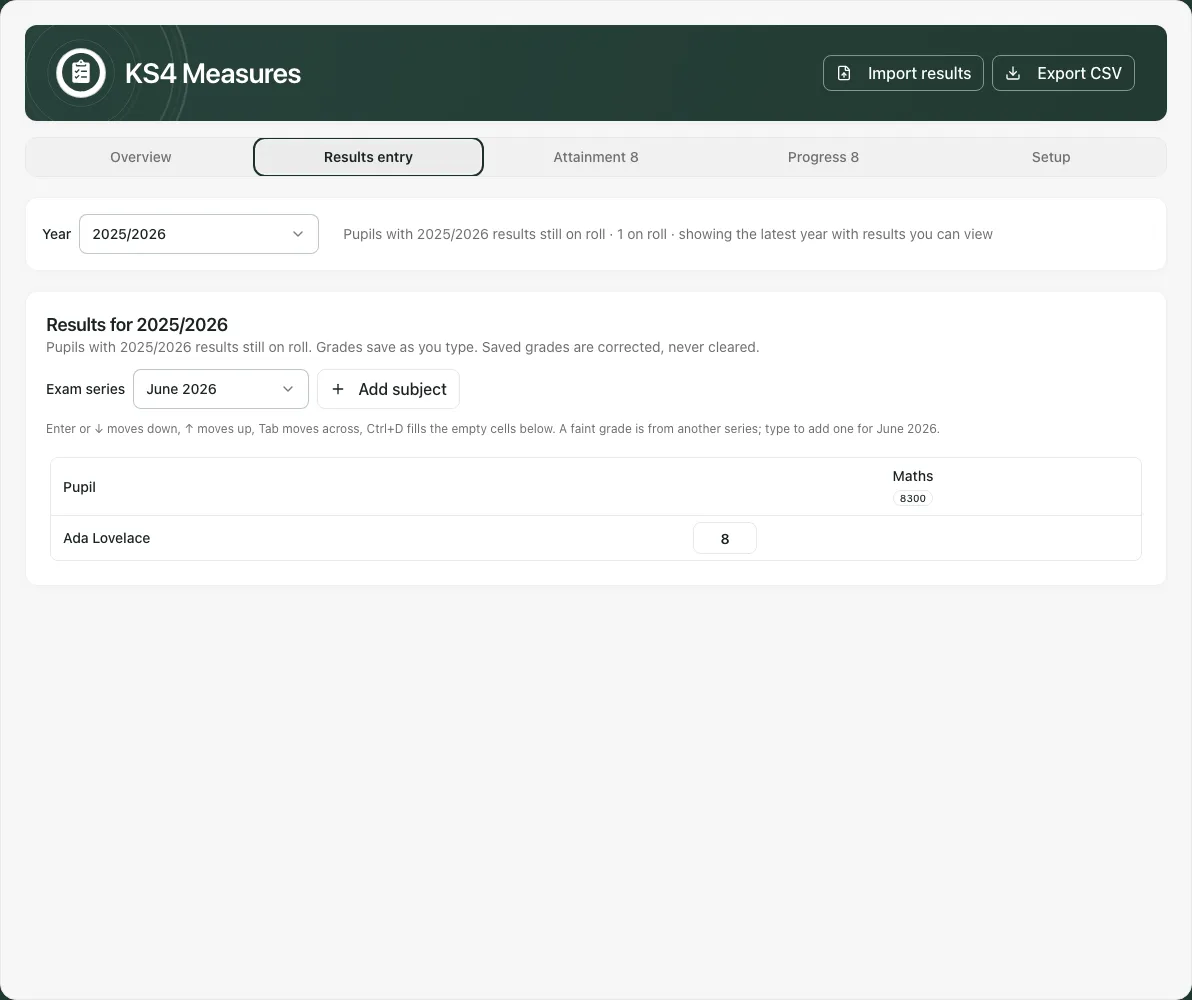
Saved grades are corrected, not cleared by emptying a box. A refused value stays typed with a not-saved indication; it must not be treated as stored evidence. Leaving the cell again can retry. If newer text was entered while an earlier save returned, the newer draft remains for the next save rather than being silently covered by the old receipt.
Ctrl+D (Command+D on Mac) fills empty cells below in the same subject/series. Confirm all destination pupils first. It does not replace existing grades and is not available to create results under the older unrecorded-series mode. Use it only for repeated actual grades, never to fill missing evidence with an assumption.
4. Import a CSV only after reviewing what would change
Section titled “4. Import a CSV only after reviewing what would change”Import results opens the selected cohort year’s import:
- Check Series for rows without one before loading the file.
- Use Download a template where needed and prepare the expected UPN, qualification code, grade and any supported series/subject fields.
- Choose Results file. The browser parses the CSV and requests a preview; an unreadable file is not a successful import.
- Read new, unchanged, differing and skipped counts and the row explanations. A differing saved grade is not silently overwritten; correct it in the grid if the file is right.
- Resolve identity, series, mapping or invalid-grade problems before Save [N] new results.
- Inspect the final result and reopen the affected cohort/series to verify the stored rows.
The preview can list only the first 200 problem rows and says when there are more. There is also an input row limit: handle the remainder separately rather than interpreting the shown rows as the complete file. Changing the cohort starts a fresh import context; recheck the displayed year and default series.
5. Read Attainment 8 with its qualification coverage
Section titled “5. Read Attainment 8 with its qualification coverage”Choose Attainment 8. The model allocates reviewed results to English, Maths, the science/humanities/language bucket labelled EBacc, and open slots. English and Maths each occupy two weighted positions; the model does not require ten separate subjects. Inspect element points, filled slots, English weighting and unusable/unmapped entries where shown.
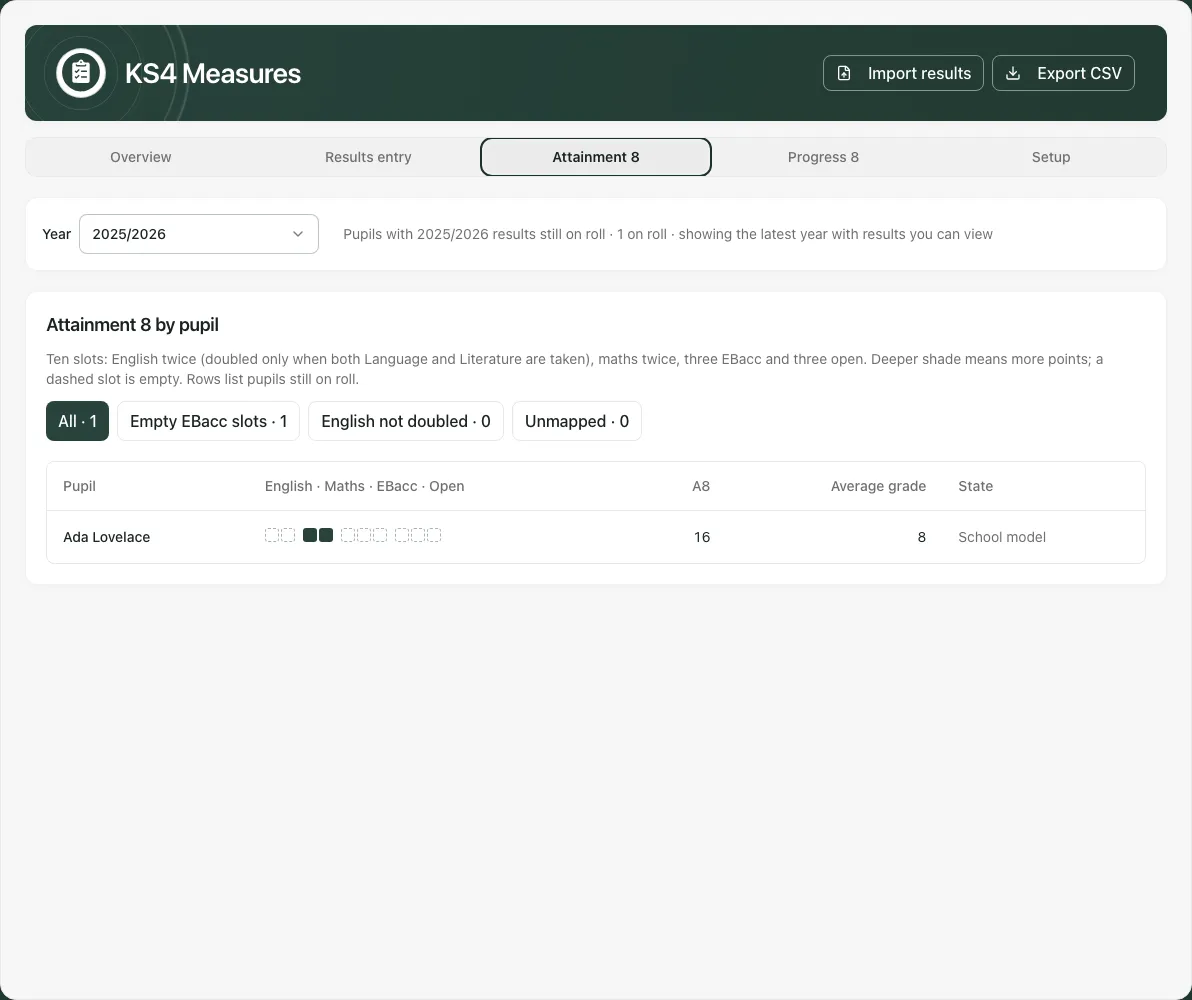
A usable point rule does not mean the pupil has a complete set of weighted slots. Empty slots, unmapped entries and a genuine recorded zero are different. Review the actual subject/qualification definitions and coverage before comparing a pupil total or group average.
The Grade 4+ English & maths and Grade 5+ English & maths flags depend on the relevant recorded/mapped entries, not a generic average grade. A missing/unusable English or Maths entry must not be assumed to be a failed or met threshold.
6. Check Progress 8 prerequisites instead of inventing a value
Section titled “6. Check Progress 8 prerequisites instead of inventing a value”Choose Progress 8 and read Before Progress 8 can be modelled. It checks mapped results, the cohort’s KS2 baseline and an appropriate reference. Where the selected cohort has no usable baseline, the page explains why a value is unavailable.
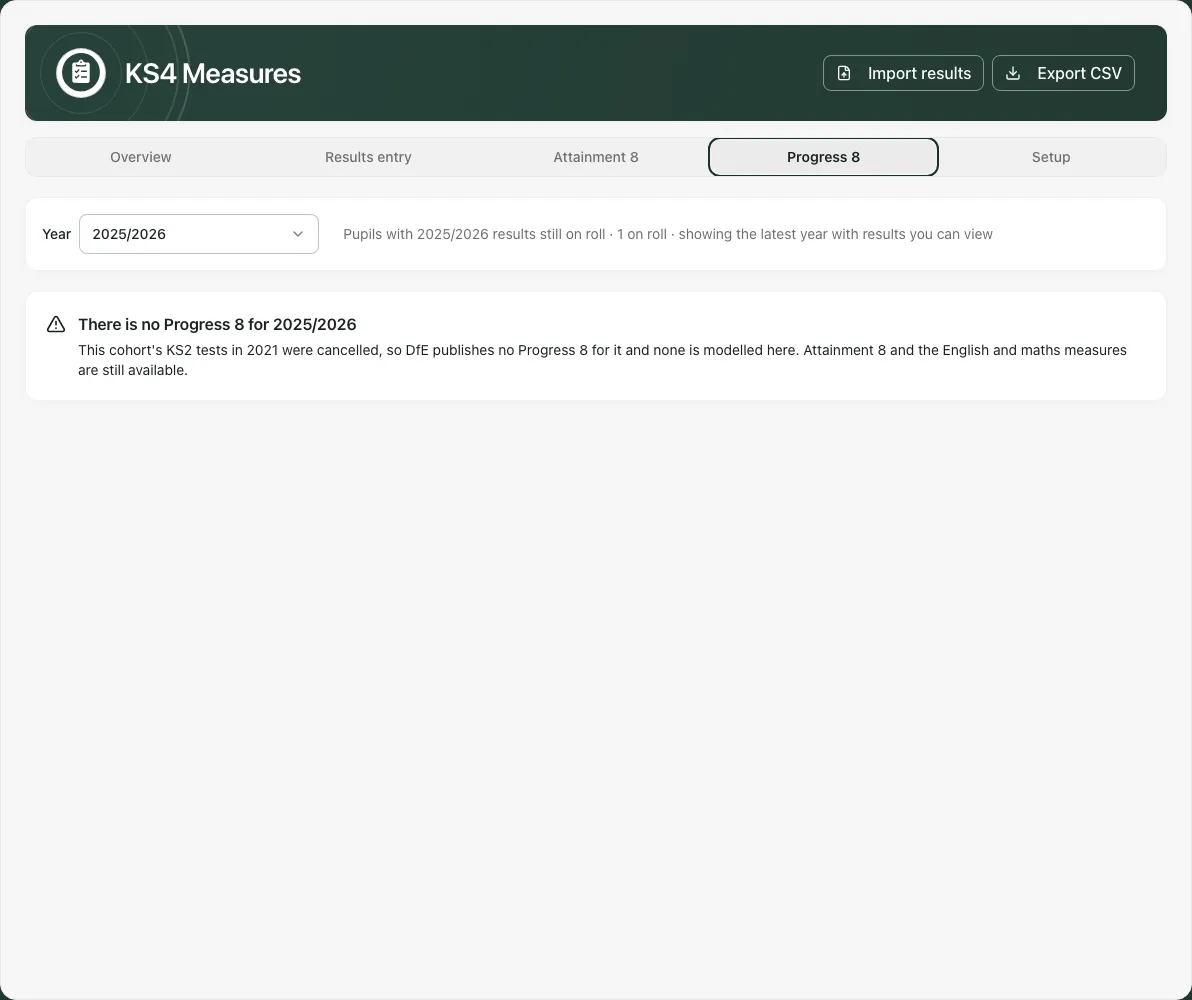
Use Import KS2 results (CTF) to open the separate CTF import section when appropriate. Opening the link does not import or approve records. Do not substitute teacher-assessment or another year’s value for the required prior simply to obtain a score.
Where a school-model reference is used, inspect its version/source and the recorded prior/coverage. The displayed model can be unadjusted and school-specific; it must not be described as an official published performance score or an automatic judgement of teaching impact.
7. Review qualifications before binding results
Section titled “7. Review qualifications before binding results”In Setup, use the visible steps for the selected year:
- Qualifications: inspect existing reviewed definitions first. If a new definition is genuinely required, choose Add a qualification.
- Select DfE point-rule template, enter verified Qualification code and Discount code, and set Attainment 8 slot and EBacc bucket where relevant.
- Review the definition and use Confirm and save. A template entry is a model input, not a guarantee that an unverified qualification is eligible for a particular official measure.
- Under Bind results, choose Qualification for [subject], check the unbound count and choose Bind [N]. This is a subject-wide operation over the displayed unbound set; confirm the whole set before acting.
- Read bound/skipped results. Grades off the scale or already bound can remain unbound; resolve those records rather than assuming the entire set succeeded.
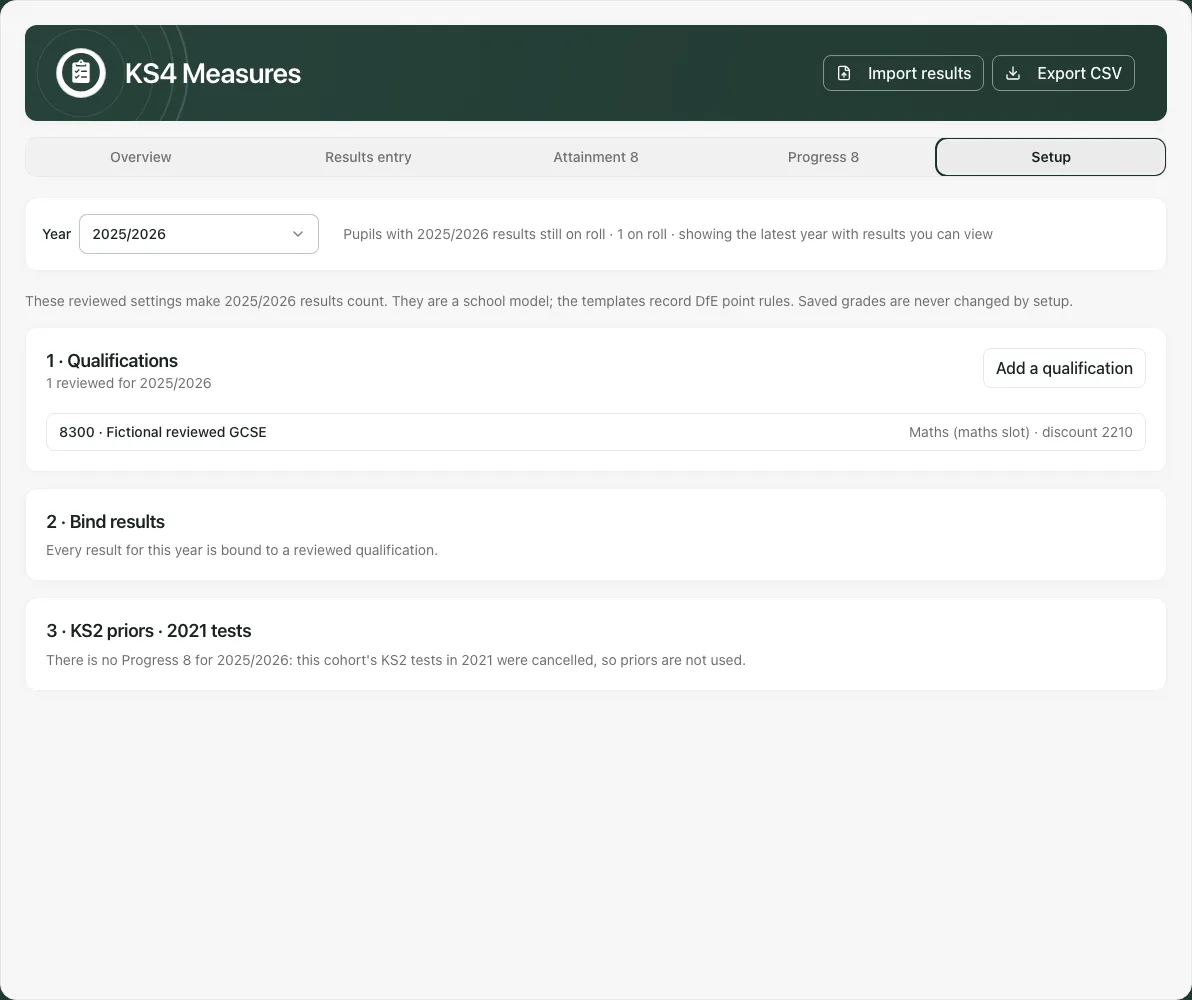
Setup changes the model’s mappings, not the original saved grade. Recheck the resulting figures and any remaining warnings after a reviewed configuration change.
8. Review KS2 records and an optional model reference
Section titled “8. Review KS2 records and an optional model reference”In KS2 priors, Approve [N] scaled scores for [N] pupils reviews the offered batch of suitable source records. Inspect the underlying cohort year, subject, value type and included pupils first.
For exceptions, use Review [N] other records. In Review a KS2 record, select KS2 record, choose What the value is, enter the actual Reason for another KS2 year, if applicable, then Confirm the record. A refusal or skip needs resolution; it must not be overridden with a fabricated value/year.
Where Progress 8 reference (optional) is offered, choose Add a reference to open Add a school model reference. Enter Reference version, Source description or link and element/prior bands with expected points. Use Add a band where needed, review every band’s range and source, then Save the reference. This is a deliberate school-model setup decision; do not copy a convenient table or infer an official reference from its existence.
9. Export a snapshot and retain the context
Section titled “9. Export a snapshot and retain the context”Export CSV downloads the selected cohort’s pupil measures and supporting elements/flags. Check the selected year, source/method labels and population before exporting. The file is a snapshot; later grade or mapping corrections will not update a previously downloaded file.
Handle named pupil information using the school’s normal arrangements. A CSV that opens correctly is not independent verification of the calculation or qualification eligibility.
Phone use and troubleshooting
Section titled “Phone use and troubleshooting”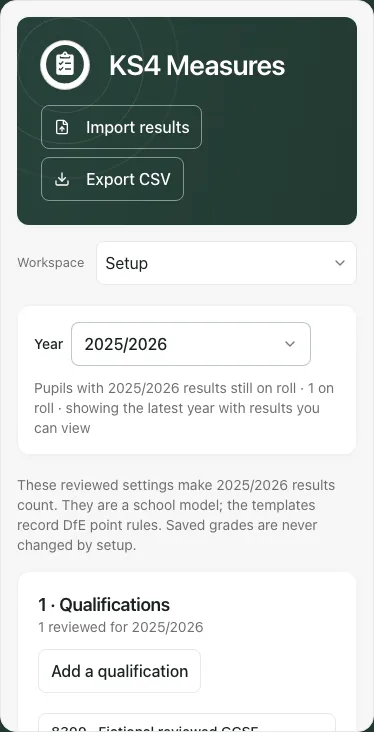
Use the section picker and scroll wide tables to see the full subject/series/coverage. Save drafts before moving to another cohort context.
| Situation | Next step |
|---|---|
| Empty grid | Check year, current/completed cohort and accessible on-roll pupils. |
| Faint grade | It belongs to another series; choose the right series before correcting. |
| Older series not recorded | Correct existing grades only; new results need the real series. |
| Not saved | Read the permission/conflict/rate-limit/series/grade message; the typed draft is not stored. |
| Import differences | Review and correct the original saved grade deliberately in the grid. |
| Unmapped/unusable entries | Review the qualification and binding rather than forcing a point value. |
| No Progress 8 baseline/reference | Read prerequisites and verified sources; unavailable is not zero. |
| Whole-cohort figures failed | Retry the specific read; do not present it as a permission denial or zero. |
| Group withheld | Retain suppression and denominator limits when reporting. |
Common questions
Section titled “Common questions”Which cohort and exam series should I select?
Section titled “Which cohort and exam series should I select?”Confirm the intended end-of-KS4 year and actual exam series before entering or importing grades. Check stored results in that context.
Why is Progress 8 unavailable?
Section titled “Why is Progress 8 unavailable?”Inspect the KS2 records, qualification mappings and other model prerequisites. Missing inputs do not become a zero or an invented value.