Compare pupil groups in Cohort Summary
Written for: Attendance staff, pastoral leaders and school leaders with the relevant access.
Read cohort totals and membership, open permitted pupils, maintain a custom group and export the intended snapshot.
It brings attendance and inclusion into one review without treating a count as a complete account of need.
Before you begin
Section titled “Before you begin”Open Attendance → Cohort Summary. Your access determines which pupils and dimensions are available. Safeguarding groups require the relevant permission; a missing group is not evidence that no pupils belong to it. Attendance must have usable session counters for a rate. Management of manual membership and custom columns requires additional permission and is read-only in the demo experience.
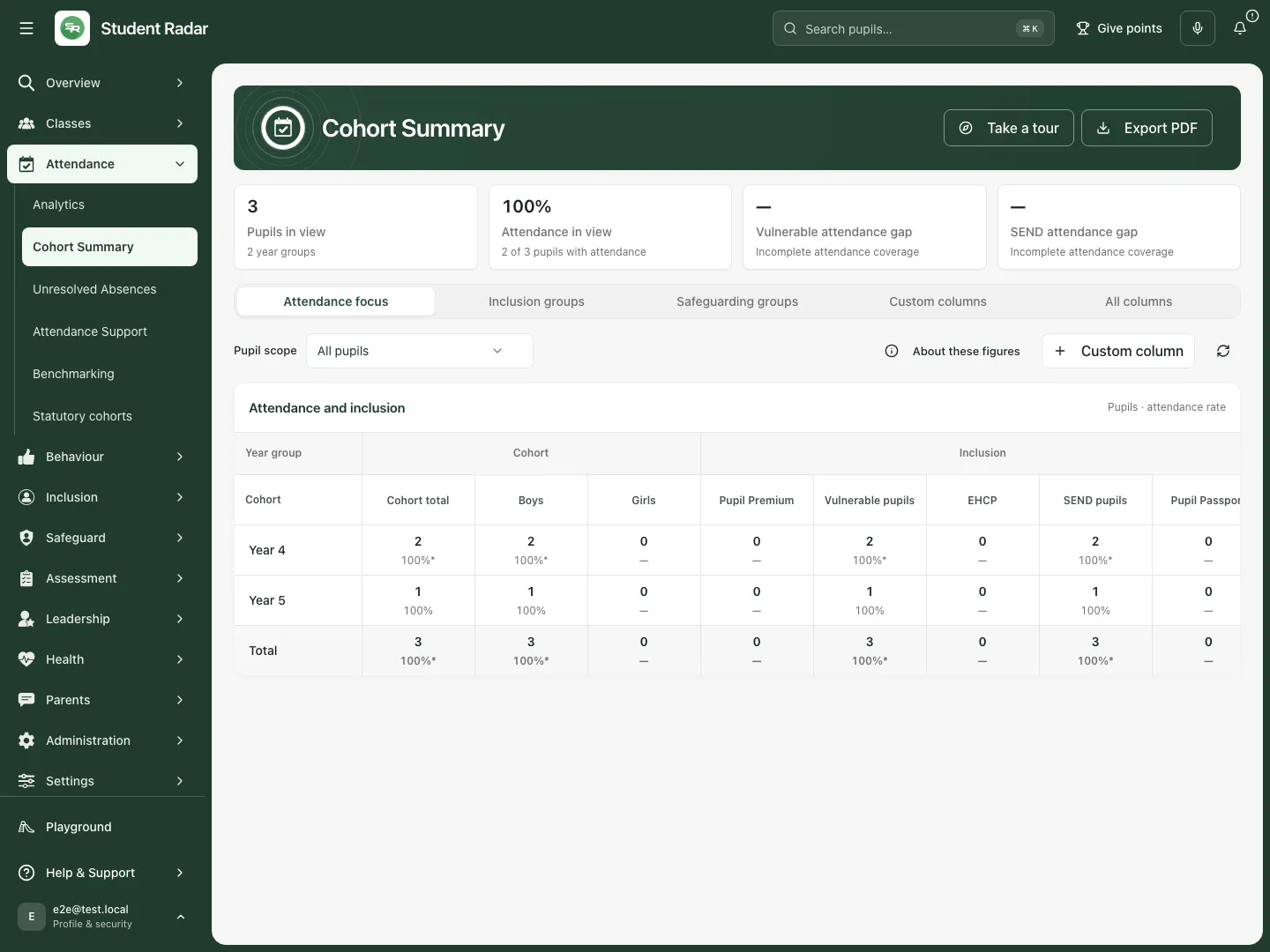
All three pupils are in view, but only two have attendance; the 100% rate must be read with that limitation.
Read the school picture
Section titled “Read the school picture”- Check Pupils in view, the number of year groups and Attendance in view.
- Read the attendance coverage, such as 2 of 3 pupils with attendance. A rate can be based on fewer pupils than the group total.
- Check any dashboard filter notice. The summary and exported snapshot follow the permitted pupils currently in view.
- Select Attendance focus, Inclusion groups, Safeguarding groups, Custom columns or All columns. Available dimensions depend on access and jurisdiction.
- In Pupil scope, choose All pupils or, where available, DfE methodology (current pupils). The latter has its own attendance window and eligibility; do not mix it with the all-pupil figure.
- Open About these figures to read the basis for the display before comparing or sharing it.
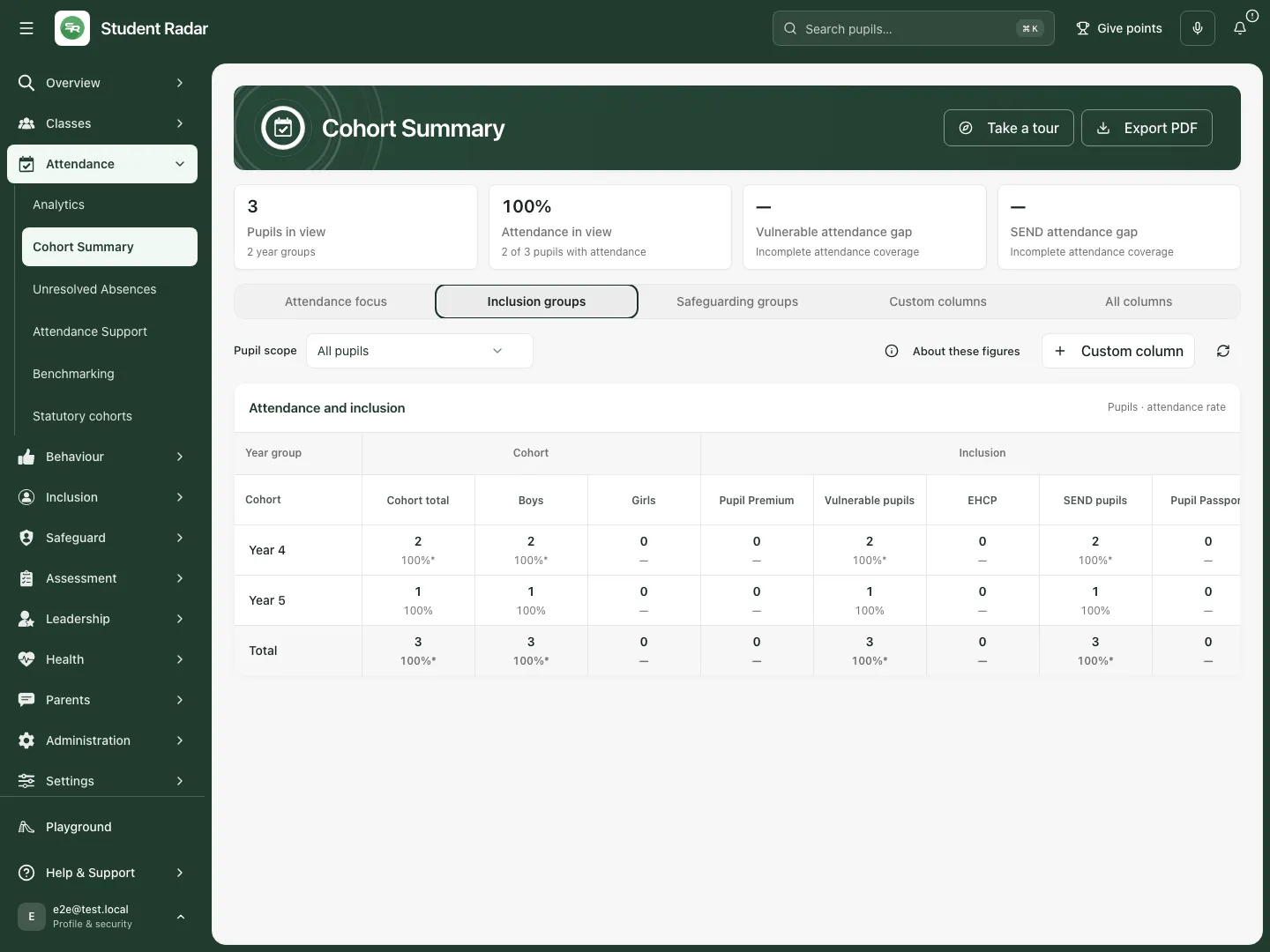
Use a focused view to make one review question easier to read.
Open a total and find a pupil
Section titled “Open a total and find a pupil”Select a count/rate button in the year-group or total row. The resulting dialog names the row and column, shows the pupils in that cell and provides Find a pupil in this cell. Review the attendance coverage and use pagination when the list is long. Select an available pupil name to open the existing pupil workspace. Close the dialog to return to the same comparison.
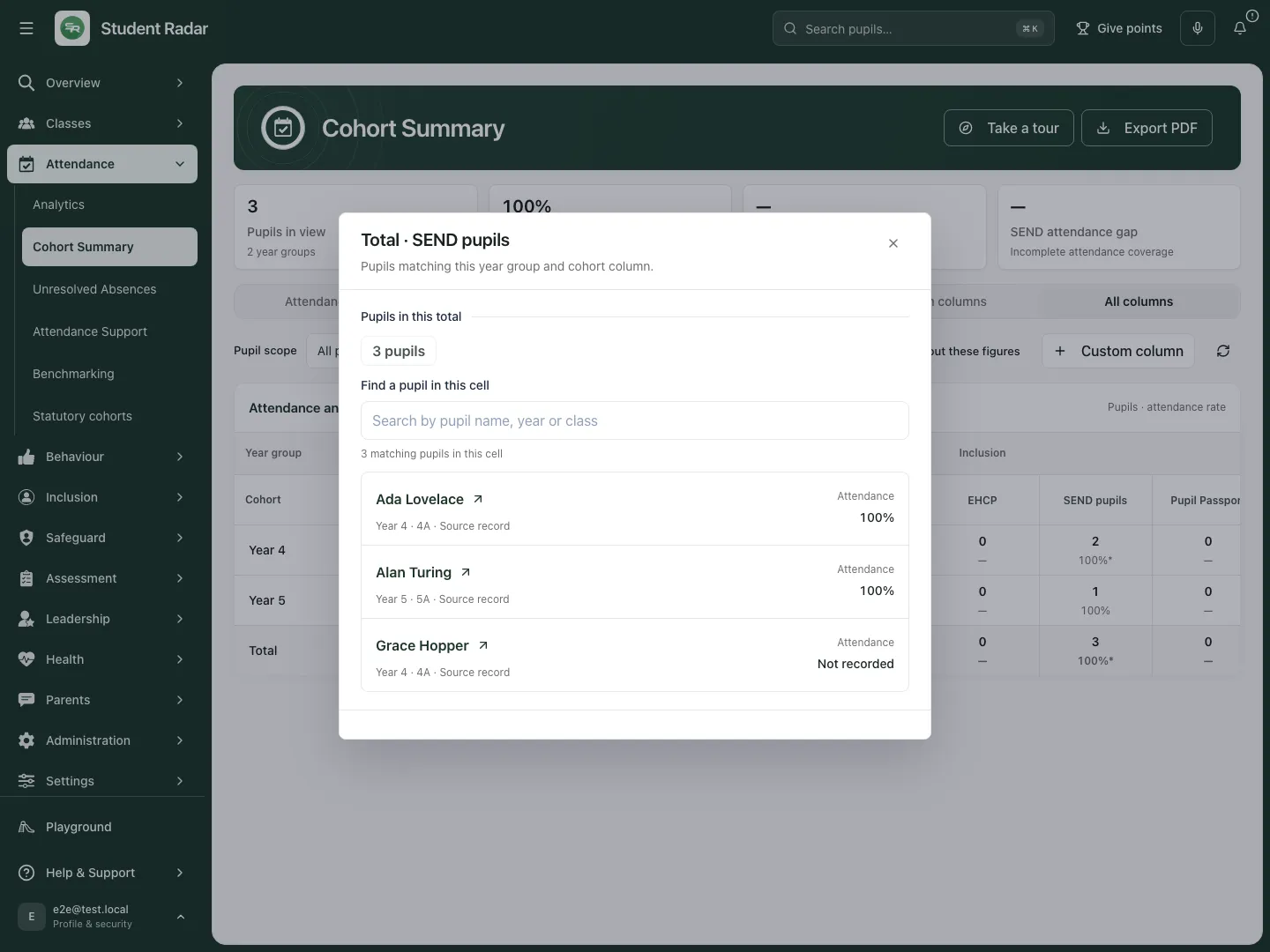
This list follows the selected cell; check coverage before opening the pupil.
A zero count and an unavailable attendance rate are different. An asterisk beside attendance marks incomplete coverage. Attendance uses the available counted sessions rather than averaging pupil percentages. A pupil with no attendance is not automatically recorded as having zero attendance.
Understand the available dimensions
Section titled “Understand the available dimensions”The available columns cover cohort total, boys/girls, Pupil Premium, vulnerable pupils, EHCP, SEND pupils, Pupil Passport, stored risk record, behaviour support plan and top-up funding. Permitted safeguarding/care dimensions include child in care, child protection, child in need, children’s services history and TAF / Operation Encompass. Labels and available plan types can follow the school’s jurisdiction. All columns is useful for a broad review; focused views make one question easier to read.
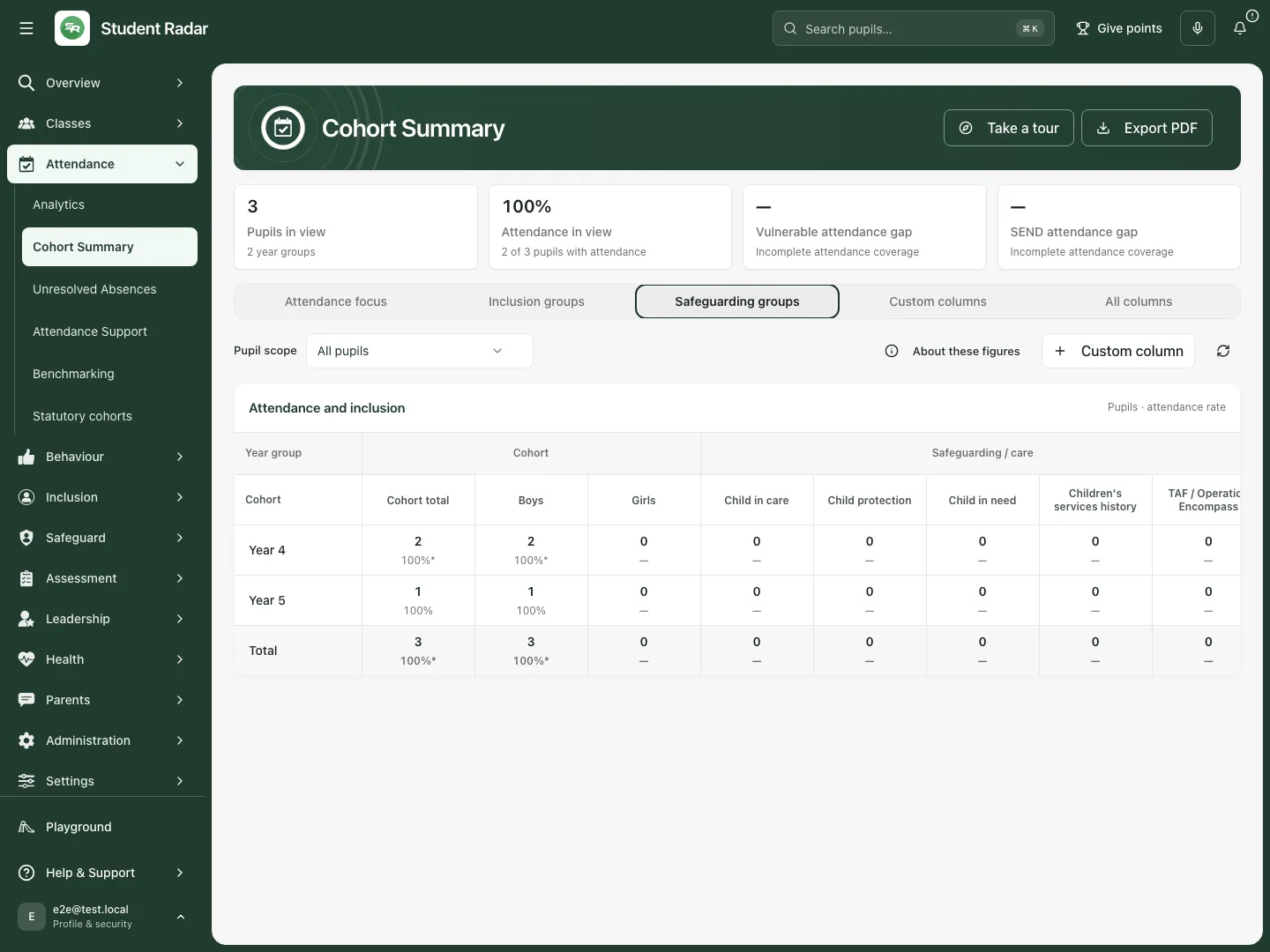
These fictional counts demonstrate the layout; access to this view is checked separately from ordinary attendance access.
Review a standard column’s membership
Section titled “Review a standard column’s membership”Open its column heading where offered. Use Find a pupil to inspect membership and source information. Some columns allow an authorised colleague to add a manual inclusion; source membership cannot simply be removed as though it were a manual choice. Correct the recorded source when that fact is wrong. A manual inclusion adds to this summary; it does not rewrite the MIS, legal SEND status or specialist source record. If management is unavailable, ask the colleague responsible for the source or the school administrator.
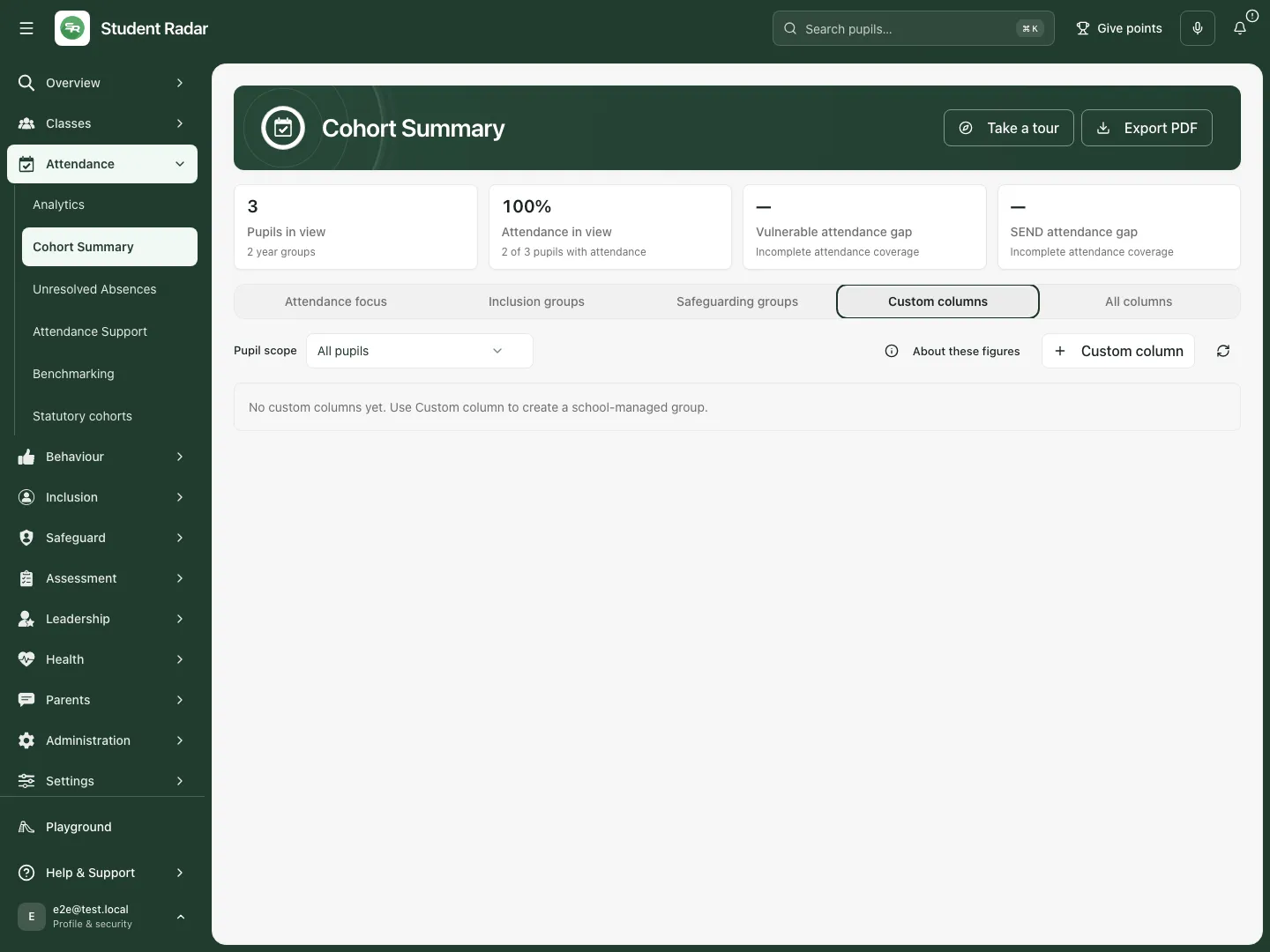
An empty custom view means no custom group is shown, not that other pupil source records are empty.
Create and maintain a custom group
Section titled “Create and maintain a custom group”- Select Custom column.
- Enter Column name and an optional Column description that make the purpose clear, for example “Breakfast club review”. Select Create column.
- Open the new column heading to see Manage [name].
- In Pupil membership, use Find a pupil and the pupil checkboxes to add/remove the intended members. Each checkbox change saves immediately; wait for it to finish before another change. Save column details saves the name/description, not a batch of membership changes. Check the number currently included; page through longer lists. Close and reopen to verify the membership.
- To rename or clarify the group, edit the details and select Save column details. Close and reopen the column to check the result.
- Select Remove column only when the school no longer needs the group. The confirmation asks Remove this column and its manual pupil membership? Choose Keep column to stop, or Remove permanently to remove the group and its manual membership. The pupil’s underlying records remain.
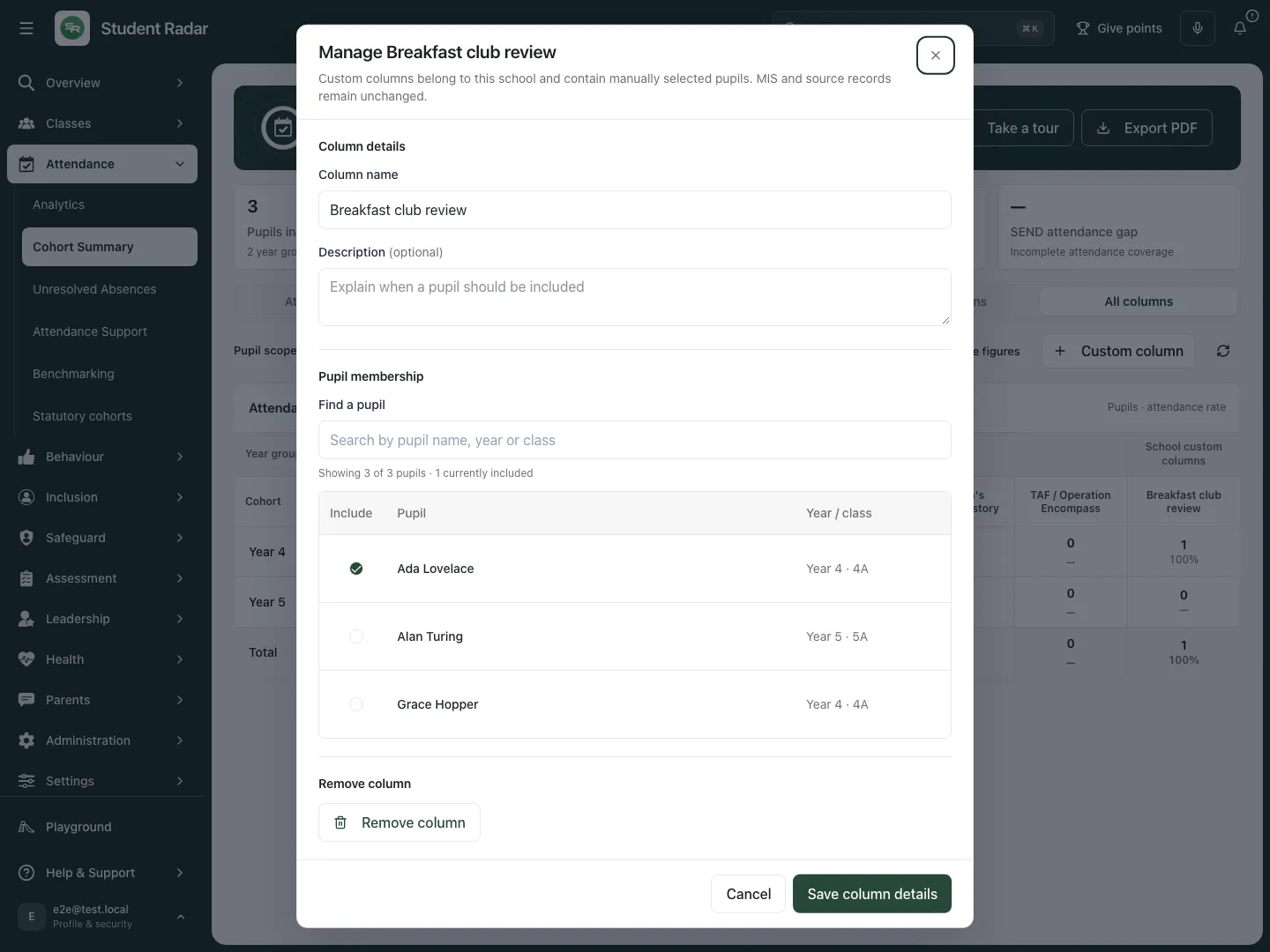
“Breakfast club review” and its pupil membership were saved and reopened in the fictional walkthrough.
Custom columns belong to the school and contain manually selected pupils. They do not change MIS/source records and should have a clear review purpose. In the illustrated example the save/reopen is demonstrated with fictional data.
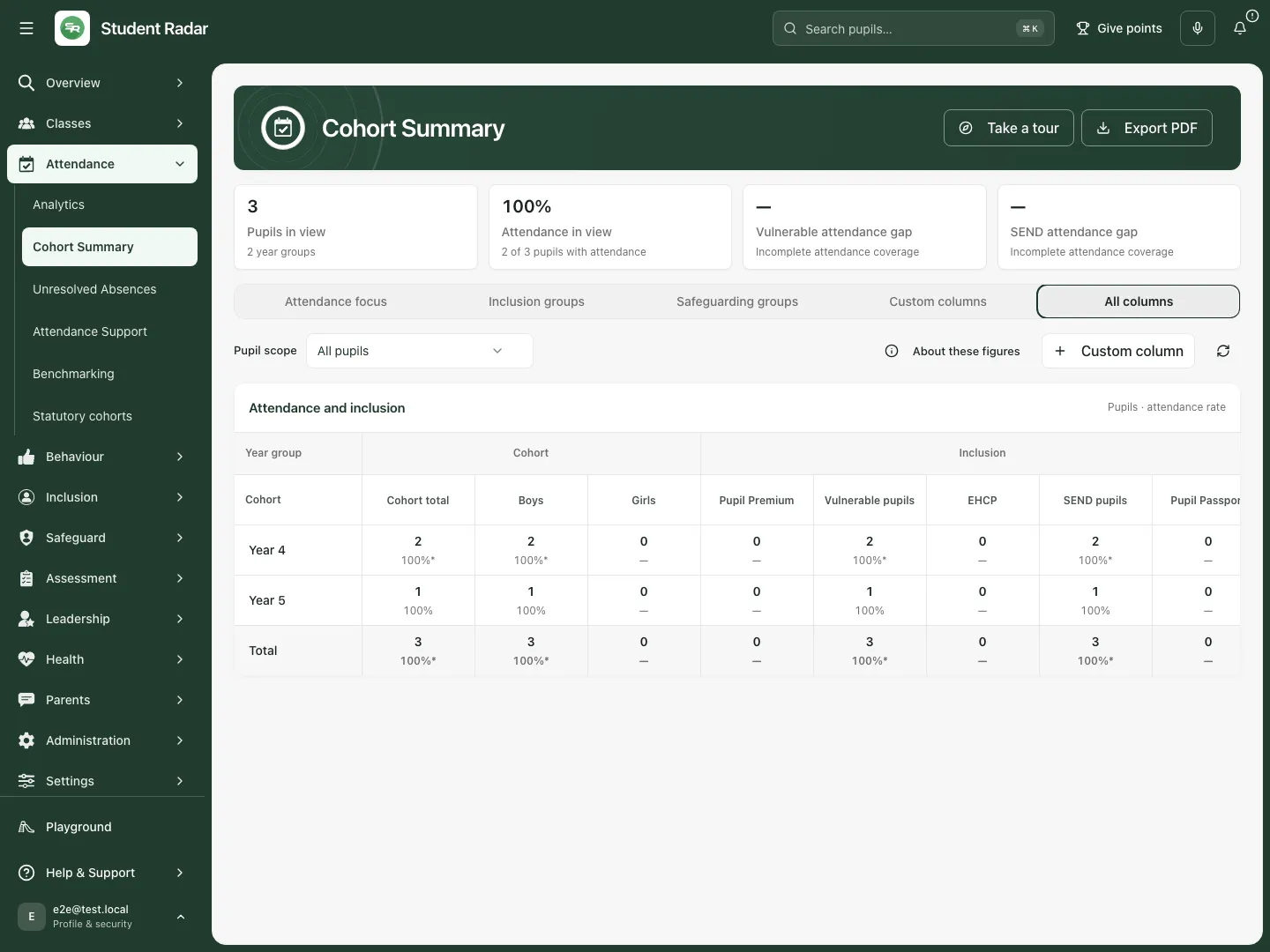
Scroll across the table to inspect further groups; available columns depend on access.
Export a snapshot
Section titled “Export a snapshot”Choose the view, pupil scope and filters first, then select Export PDF. Wait while the control shows Preparing…. Review the downloaded document’s school, scope, period, counts and coverage before sharing. Use an approved school channel and retain the snapshot according to school policy. A PDF records what was available at that point; later corrections will not update it.
Troubleshooting
Section titled “Troubleshooting”The figures are incomplete. Read the coverage and degraded-source notice. Refresh/retry before relying on a missing source. Missing values and dashes are not zeroes.
Access denied. Stop using previous figures and ask an administrator to check the exact access needed. A link to this page does not grant access to its groups or pupils.
Too many cohort summary requests · try again shortly. Pause, then retry. Repeated rapid refreshes do not resolve the rate limit.
No pupils are in view for this school yet. Check the school, filters and permitted pupil scope; ask the responsible colleague about source data if the scope is genuinely empty.
A custom column or membership change failed. Read the message, reopen the dialog and check the current state before retrying. Do not assume a failed request saved.
Review on a phone
Section titled “Review on a phone”Choose a view from the compact control, then scroll across the table to reach further columns. Tap the intended cell to open its pupil list. Custom-group management remains available only when your access permits it.
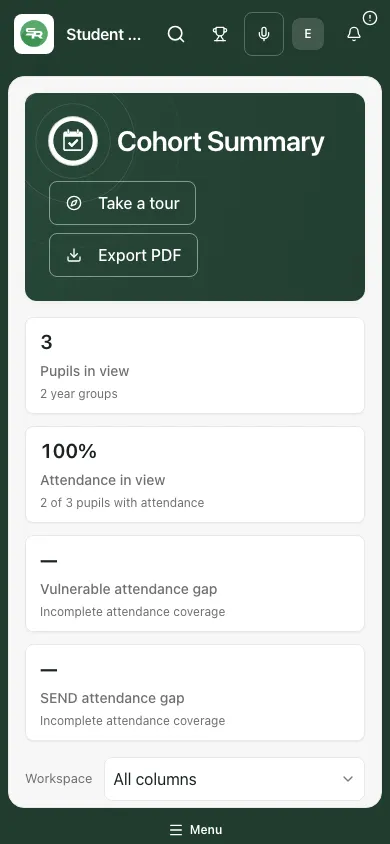
The same scope and attendance coverage apply on desktop and phone.
Questions schools ask
Section titled “Questions schools ask”Can I add someone without changing their MIS record? An authorised manual inclusion or custom column can support a local review. Keep recorded facts in the relevant source system.
Why can I not see safeguarding groups? That dimension needs separate access. Ask for the correct role/capability; do not infer membership from other counts.
Why does the rate look better than expected? Read how many pupils have attendance. Incomplete coverage can make a rate unrepresentative even when the visible percentage is high.
Related guides
Section titled “Related guides”Use Attendance Analytics, Use Unresolved Absences, Use Attendance Support.