Find the AP work that needs attention today
Written for: Alternative provision leaders and permitted staff checking the day.
Check the pupils booked today, missing session marks, placement reviews and recent notes, then open the source that needs attention. Follow the relevant link to the original record for the action.
Open the right provision and understand your view
Section titled “Open the right provision and understand your view”In the sidebar, open Today → Today. Check the provision, the displayed date and the school’s terminology. The greeting, current-time line and day’s registers follow the school clock, including a page left open overnight.
What appears depends on current access:
| View | What to expect |
|---|---|
| Provision leaders with the relevant permissions | Current roll, permitted placements, session registers, attendance and notes, with management actions where allowed. |
| Assigned teaching/support staff | Their permitted pupils and operational information. Your pupils is not the whole provision’s roll; a lack of assignments is not an empty school. |
| Office administrative staff | The permitted administrative pupil/placement picture. Session-register attendance and recent pupil-note panels are withheld, rather than shown as misleading empty results. Full pupil profiles are not opened from this administrative view. |
Every destination still needs its own permission. A missing placement/reporting/safeguarding link does not mean that record or need does not exist. If AP access cannot be confirmed, use Retry; an old screen is not continuing authority.
The screenshots use fictional pupils and examples. The main example is a provision-lead view; it is not a promise that every member of staff sees the same information.
Check the first action buttons
Section titled “Check the first action buttons”The greeting can offer:
- Take register if you can record attendance, or Daily register for a permitted reader. It opens Attendance → Daily Register, rather than saving marks on Today.
- Add pupil only when you can manage the roll and open Pupils. It takes you to the pupil-creation workflow; use AP Pupils or Add or import your pupils.
- Safeguarding only where you can open that area. Follow the provision’s immediate safeguarding procedures when action is needed; Today is not a substitute for them.
Read In today without treating an unmarked pupil as absent
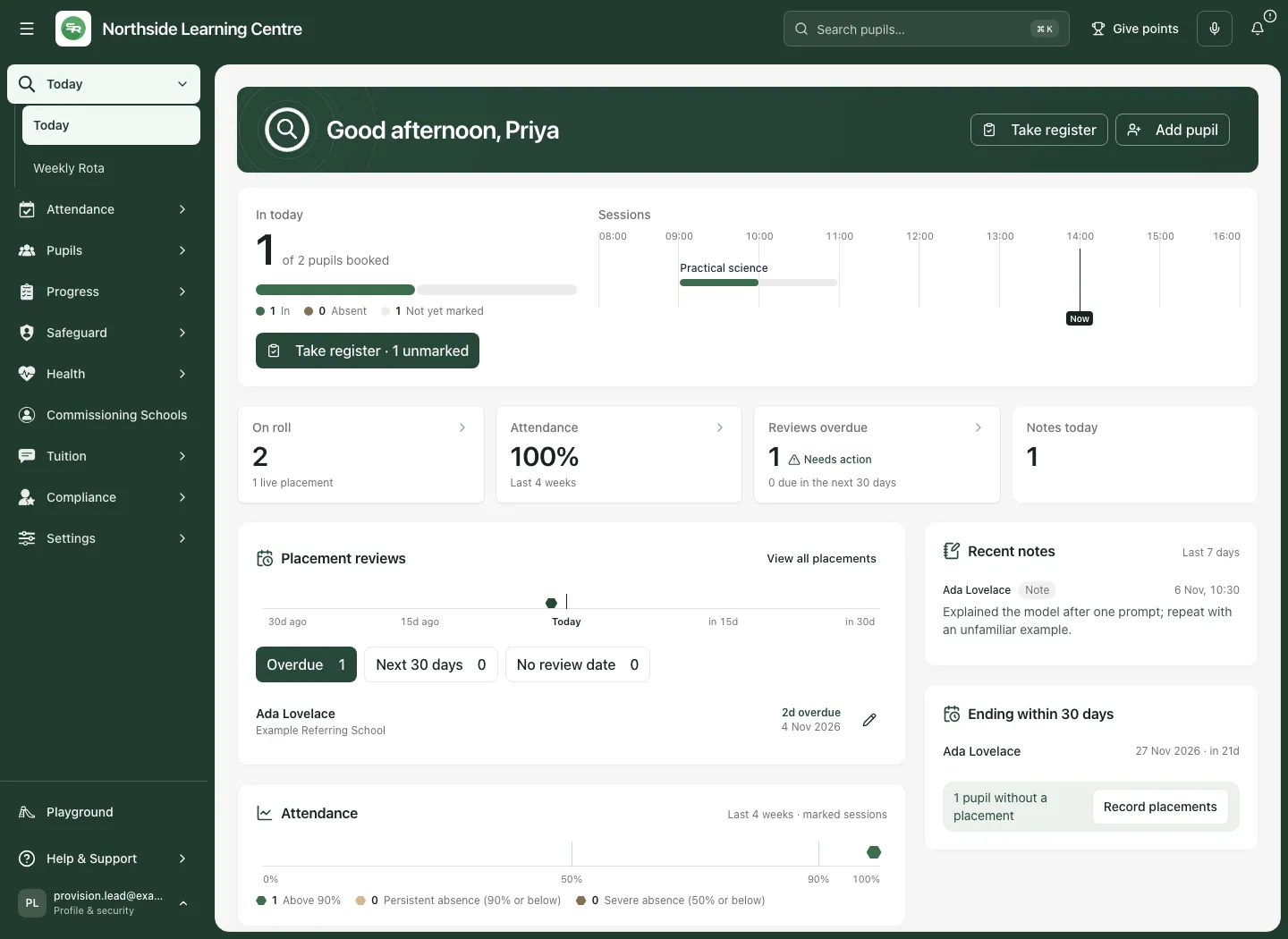
Section titled “Read In today without treating an unmarked pupil as absent”- Find In today. It counts distinct pupils booked into today’s included sessions, rather than every pupil on roll.
- Read the three states: In means marked present in at least one booked session; Absent means marked absent in every booked session; Not yet marked includes pupils whose attendance is still unknown. It does not mean absent, late or safely accounted for.
- Read both numerator and denominator. In the fictional example one of two booked pupils is in and one remains unmarked. It is not a completed two-pupil register.
- If you can record and marks are missing, select Take register · N unmarked. The number refers to outstanding session marks, which can differ from distinct pupils if the pupil has multiple sessions.
- In Sessions, select the relevant time bar to open the day’s registers. The fill shows register completeness, not minutes attended or delivery quality. The current-time line is a clock reference, not a live location tracker.
Today does not save attendance itself. Use the actual session register, check the booked pupil/date and confirm the save. See AP Weekly Rota and session registers and Take today’s register.
If some booked sessions have no rota times, the page explains that separately. A pending or failed rota read cannot establish which session belongs at a time/site: use the offered retry, rather than interpreting a blank timeline as no sessions.
Filter a site deliberately
Section titled “Filter a site deliberately”Where sites are configured and permitted, use Site to inspect the selected site’s sessions. No site recorded identifies sessions lacking a site; choose the all-sites option to return to the wider day.
A site selection changes the card to Marked · [site] and counts session places marked at that site, rather than the whole-day distinct-pupil In count. A pupil can have more than one session place. Read that changed label before comparing the figures.
If rota/site data cannot be loaded, the page says the selected site cannot be shown. That is different from “no pupils booked at this site”. Site filtering does not widen access to another pupil or provision. Use Set up sites and filter the day for site management.
Use the summary tiles as routes into the work
Section titled “Use the summary tiles as routes into the work”| Tile | Read it as |
|---|---|
| On roll, Your pupils or Pupils | The current verified cohort allowed for this view. The caption can identify live placements and future starts separately. |
| Attendance | Share of marked booked sessions attended over the last four weeks, not every unmarked booking or the statutory school register. |
| Reviews overdue | Permitted live placements whose review date has passed, with the upcoming-30-day context. |
| Notes today | Recent permitted notes dated today on the school clock. A plus sign means a lower bound, not a complete exact total. |
Use a tile only where it is an enabled route. For example, Attendance opens the permitted attendance-reporting view, and the roll/placement tiles open their relevant source workspaces. A withheld or unavailable figure is not a zero.
The full roll reader must reconcile its current directory and pupil details. If that cannot be verified, the page must not present the header-filtered list or a partial directory as a confirmed provision total. Placement summary coverage can also become unavailable when its read reaches the 500-record boundary.
Review placement dates and missing reviews
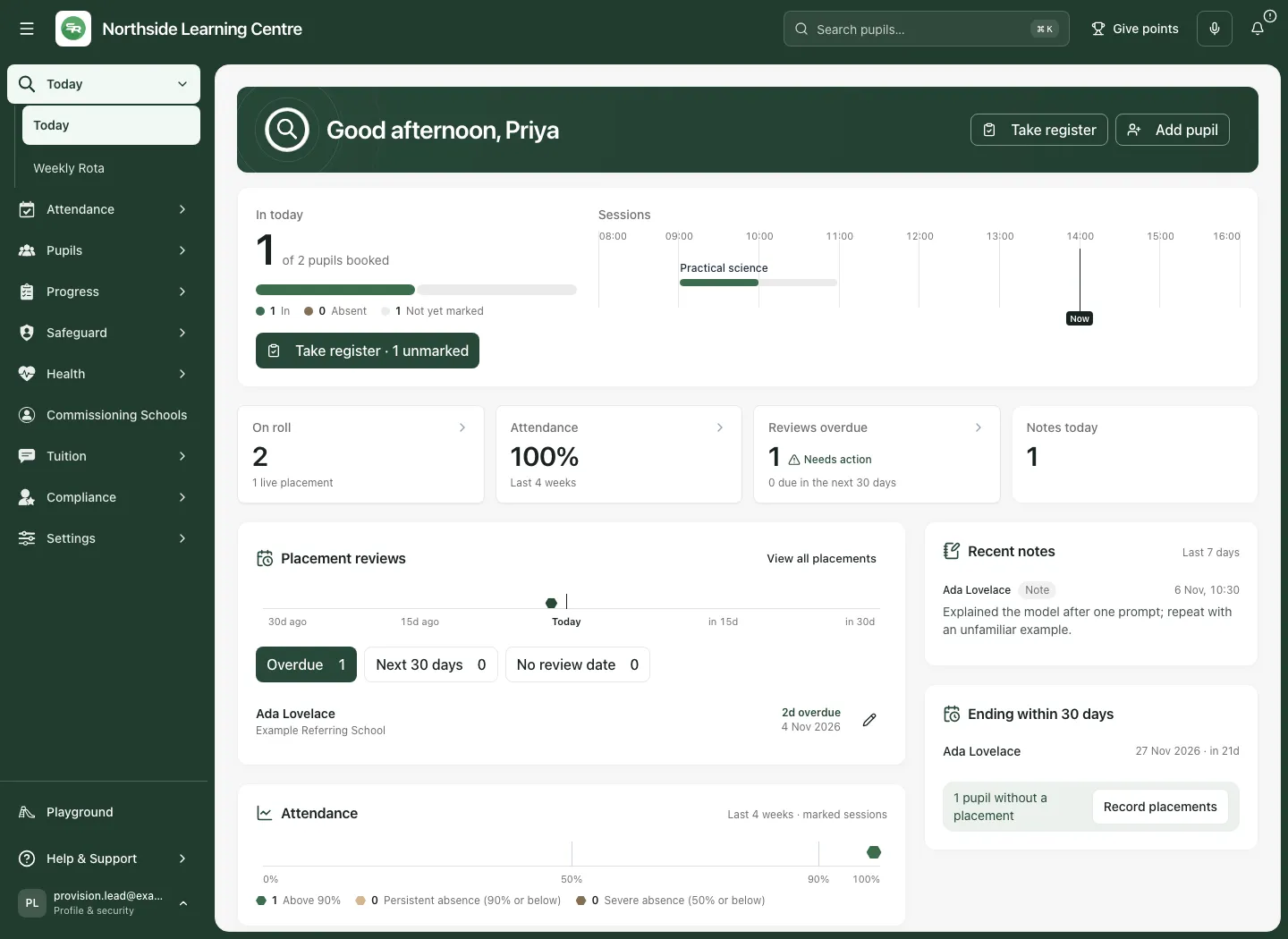
Section titled “Review placement dates and missing reviews”- Open Placement reviews. Check Overdue, Next 30 days or No review date.
- Read the pupil, referring school, due date and how overdue/soon it is. A missing review date is its own problem, not an overdue date invented by the app.
- Select the named pupil/review marker to open the permitted placement or pupil context. View all placements opens the full source workspace. A marker without a pupil route can still open Placements.
- For leaders with placement-management permission, Edit placement for [pupil] opens the placement editor. Check the placement identity and dates, save deliberately and verify the refreshed result; an administrative/reduced view does not offer this edit.
- Use Show more where offered instead of assuming the first rows are the entire count. The default review list initially shows five.
The live-placement calculation excludes placements after their final day and distinguishes future starts from current live placements. A placement review is not automatically a school attendance intervention, risk review or a completed pupil outcome. See AP Placements.
Read attendance with its evidence coverage
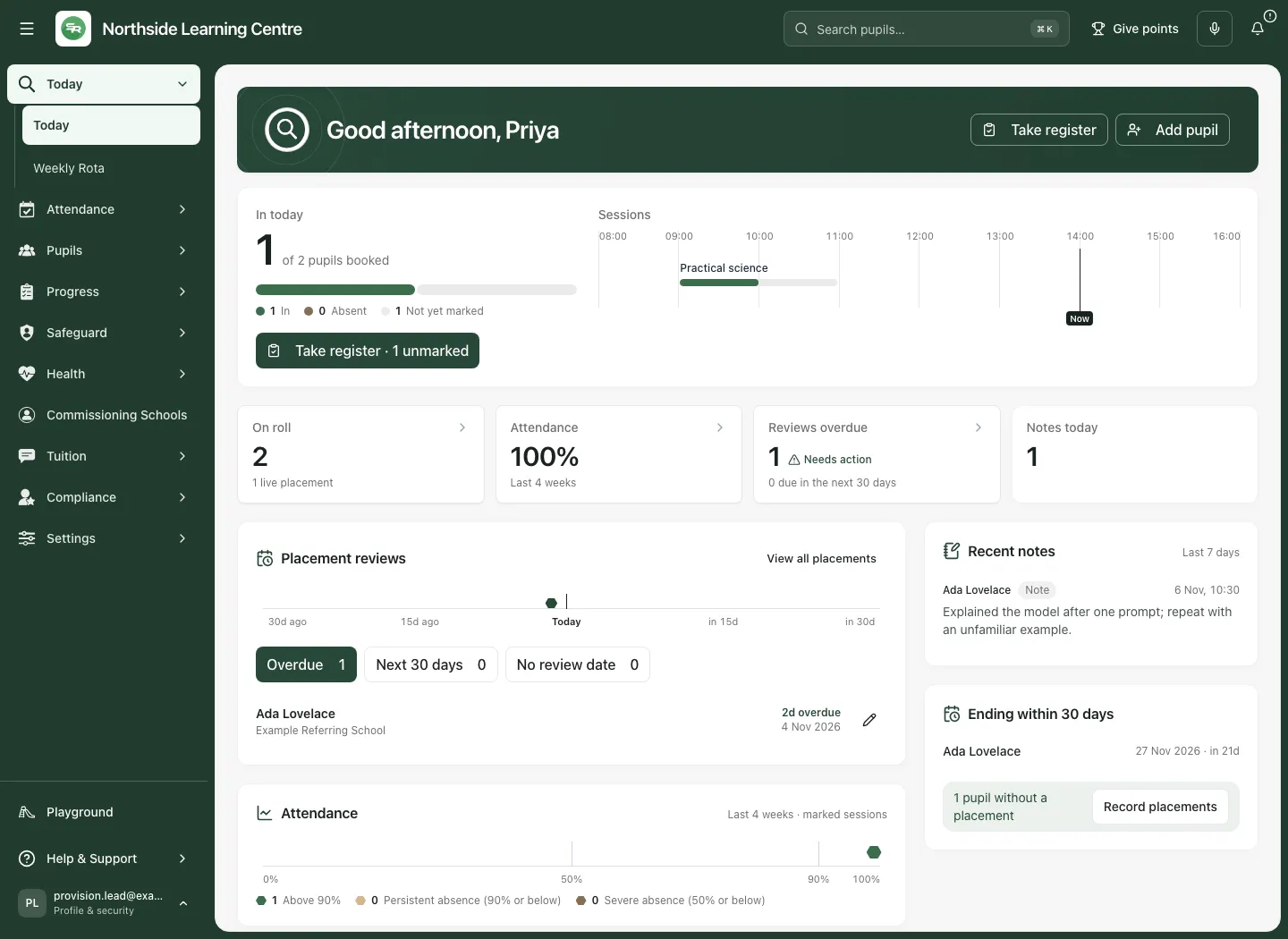
Section titled “Read attendance with its evidence coverage”The Attendance panel shows Last 4 weeks · marked sessions. Select a pupil’s point/name for the permitted pupil context. Read the displayed percentage and of N marked sessions. Use the chart’s labels as well as its colour.
The fictional example has one marked present session and another pupil’s unmarked booking. Its 100% attendance figure concerns the one marked session; it does not mean both pupils attended, every booking was marked or the provision delivered every planned session. A pupil with no usable marks has no percentage, rather than an invented zero.
The low-attendance list initially shows four pupils; use Show all N pupils where offered. The chart’s absence bands are prompts to inspect the source and agree follow-up, not diagnoses or automatic high-impact decisions. Do not confuse this booked-session reporting with the school’s statutory attendance return.
Use AP Attendance Tracking for the attendance/participation workflow, and Placement Reports for permitted reporting/export steps.
Read notes and endings in their original context
Section titled “Read notes and endings in their original context”Recent notes covers the last seven days and initially shows five of the returned notes. Read the category, date/time, any Restricted marker and the excerpt. Select the pupil name to open the permitted Notes context; the excerpt is not the whole pupil record. Show N more reveals the rest of the currently returned set.
The source read is capped at the latest 12 notes. Notes today can show a plus sign to make a lower-bound count clear; it is not an unlimited count of every note made that day. A failed read says the notes could not be loaded and offers a retry. It must not be read as “no notes exist”. Office staff do not receive this panel.
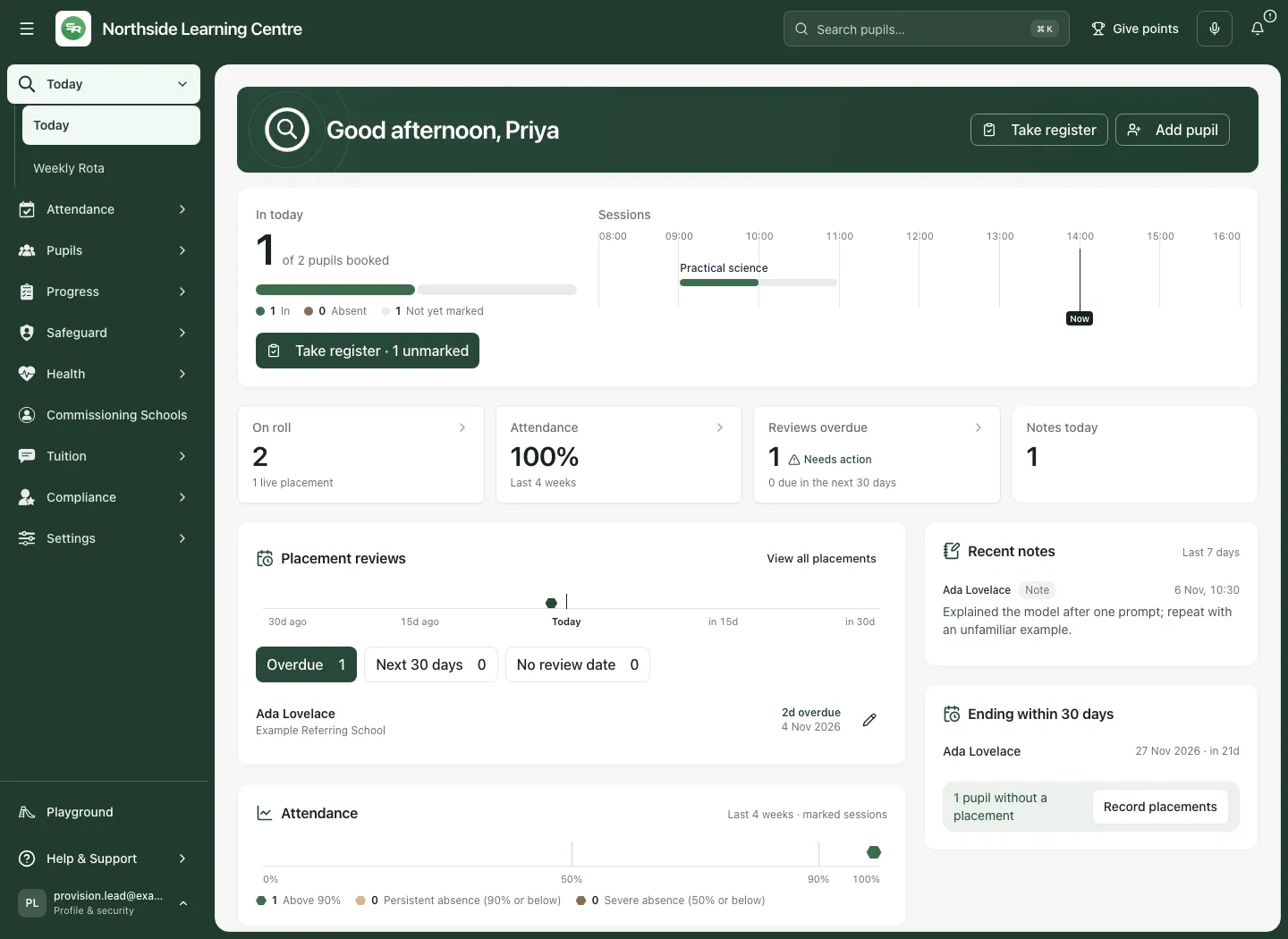
In Ending within 30 days, select the named placement/pupil to plan the next step in its original workflow. Show N more expands the initial five endings. A planned end date is not proof that a placement has been ended or a pupil safely handed over.
The pupils without a placement prompt links to Placements. Depending on permission it says Record placements or View placements. A count is a prompt to check the recorded arrangements, not permission to create or change them without the appropriate agreement.
Treat the registration prompt as a request for review
Section titled “Treat the registration prompt as a request for review”Leaders may see Review independent-school registration where the setting profile and recorded placement information indicate a review is needed. Assigned/office views do not provide a reliable provider-wide basis for that assessment and do not show this judgement.
Read the message and follow the current guidance link with the responsible lead. Unknown hours, care/EHCP or age information remains uncertain. The prompt does not register the provider, confirm an exemption, certify compliance or make a legal decision. A configured “registered” setting is not, on its own, external evidence of registration.
Use the phone view and recover from a failed read
Section titled “Use the phone view and recover from a failed read”On a phone, scroll through the same cards and check whether you are looking at all sites, one site, your assigned pupils or the provider-wide view. Use the full pupil/date context before opening a register or placement.
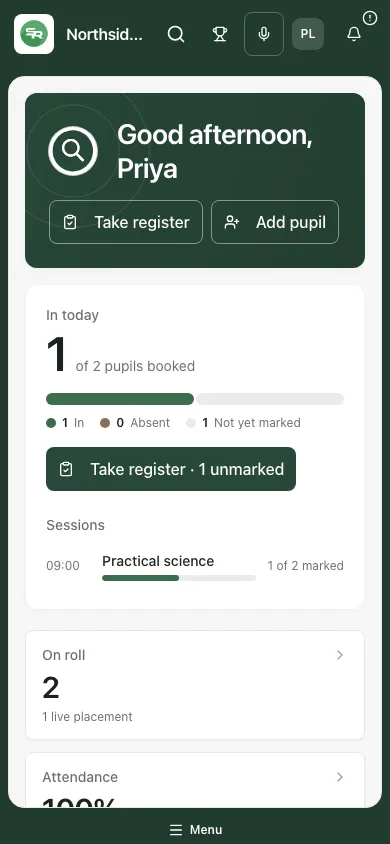
If a card is loading or reports an unavailable source, use that card’s Retry rather than assuming no work is due. If current access is withdrawn, earlier counts and actions are no longer authority; the page can withdraw cached information and close an editor. Unsaved typing can be lost when access is withdrawn, so follow the school’s authorised process for maintaining necessary work without copying a refused record elsewhere.
Common questions
Section titled “Common questions”Where do I complete a missing session mark?
Section titled “Where do I complete a missing session mark?”Follow the relevant Today link to the connected session register and check the pupil, session and actual saved mark there.
What should I do with a placement review flag?
Section titled “What should I do with a placement review flag?”Open the source placement record and review its actual next step. The overview brings attention to the record rather than completing the review.
Related: AP Weekly Rota · Take today’s register · AP Pupils · AP Placements.