Create and review a practical attendance support plan
Written for: Attendance staff, pastoral leaders and school leaders with the relevant access.
Record the pupil and family conversation, agree practical support, record delivery and make a dated review decision.
The plan records what school will do and how it will be checked; attendance percentages alone cannot explain a pupil’s experience.
Before you begin
Section titled “Before you begin”Open Attendance → Attendance Support. The full support workspace must be switched on for the school and your role must permit the intended action. If it is not enabled, the school may see the earlier strategy board instead. Plan access, eligible staff owners, pupil context and specialist timetable arrangements have their own checks. The examples below use fictional pupils and a fictional active plan.
Find an existing support record
Section titled “Find an existing support record”- Select Support plans. Use Find pupil support, year and class filters to narrow loaded records.
- Read each plan’s pupil, title, state, owner and review date. Select Open support for [pupil].
- If the page says more records are available, select Load more support records. Filters apply to loaded plans; a count of loaded matches does not establish a whole-school total.
- A top-bar pupil filter does not remove existing plans for other authorised pupils. Recheck the plan’s pupil when opening a record.
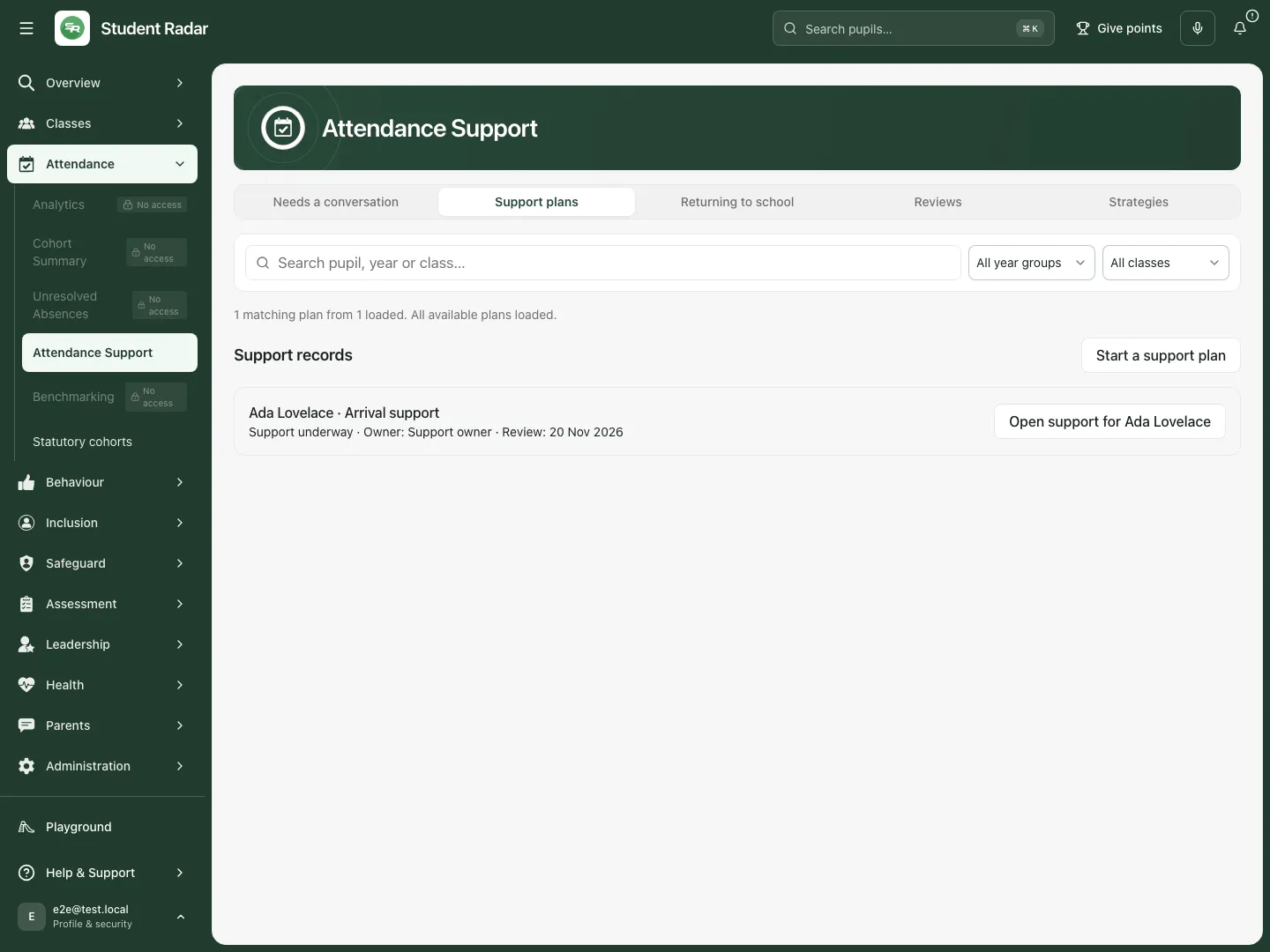
The fictional list shows Ada’s active arrival-support record and its owner/review date. Fictional school example.
Start with a conversation
Section titled “Start with a conversation”- Select Needs a conversation. Use pupil filters and inspect the attendance evidence window and missingness notice.
- Read the prompt as a reason to enquire, not a diagnosis or enforcement decision. Open existing support if one is shown; otherwise choose the pupil for a conversation.
- Record what the pupil and family say, what helps and what remains unknown. In the editor, choose the Pupil contribution status and Family contribution status. A recorded contribution needs an account, a source and a conversation date. Record declined, not obtained or support needed honestly.
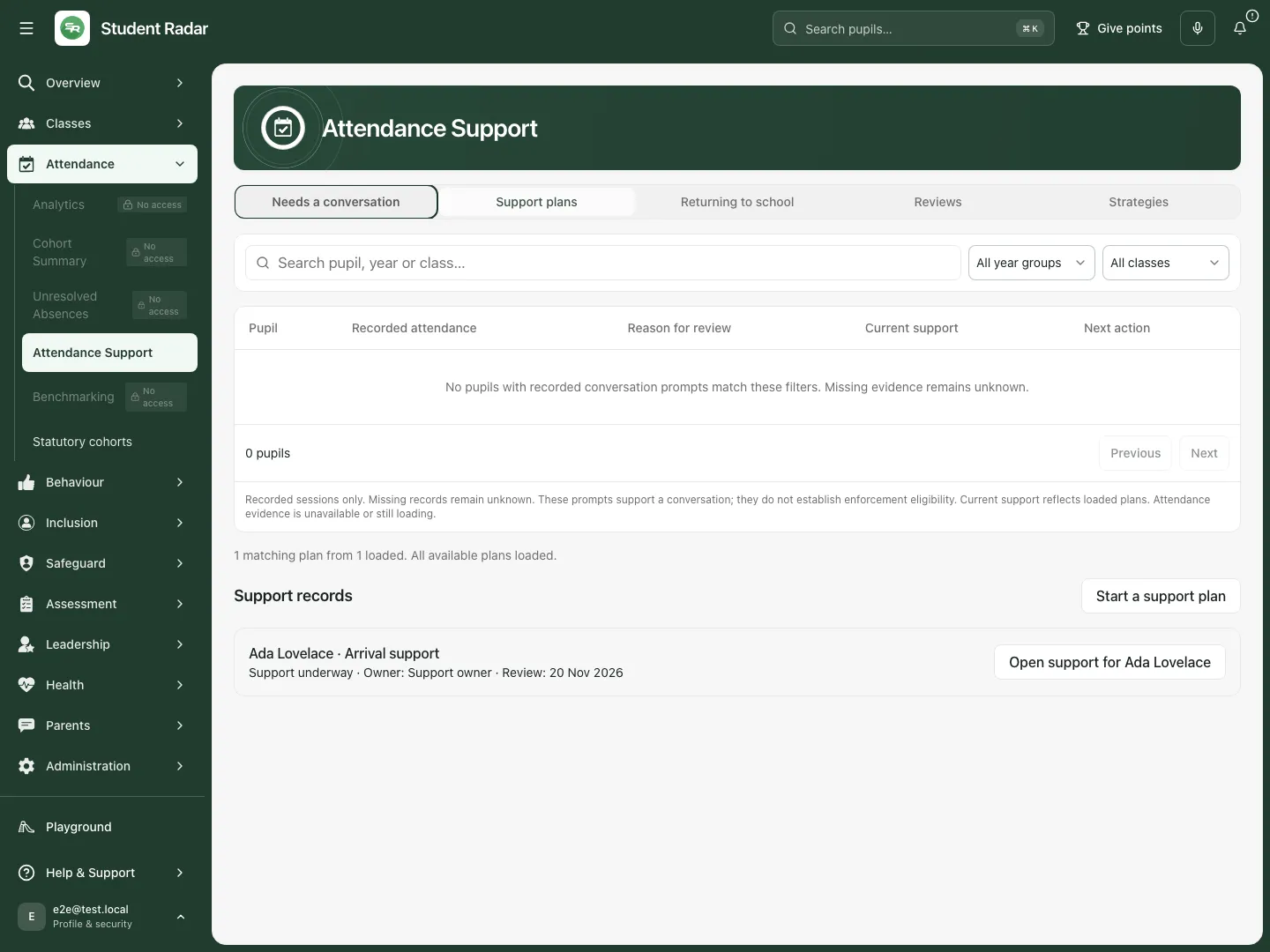
Conversation prompts retain their recorded-evidence limitations and do not decide a sanction. Fictional school example.
Create a practical plan
Section titled “Create a practical plan”- Select Start a support plan, choose the pupil and select Create support plan when the options have loaded.
- Complete Plan title, Accountable staff owner, Support starts and Plan review date. Choose an eligible named owner; support work is connected to their My Actions.
- Add the pupil and family perspectives. Record barriers with their account, source, observation date and evidence status; distinguish reported, observed, agreed, unknown and disputed information.
- For each action, enter Practical commitment, Barrier addressed, Intended observable outcome, Action staff owner, Action start and Action review. Add frequency/arrangements and a contingency if the usual adult or support is unavailable.
- Add the planned delivery dates you will actually record. Keep action/review dates within the plan dates and avoid duplicate dates. The form explains validation problems; resolve them rather than removing useful evidence to make the form save.
- Choose which actions/return steps belong in the family-facing preview. The preview is a selection, not a record that a message was sent.
- Select Save support plan, wait for the response and reopen Edit support plan to check the saved details. A new draft needs the deliberate Start agreed support decision before scheduled delivery becomes active.
Review the plan before starting or changing support
Section titled “Review the plan before starting or changing support”Open the record’s Overview. Read Understanding the barriers, Agreed support and Attendance evidence at start. Check the baseline dates, counted present/possible sessions and coverage. Missing sessions remain unknown. Use Edit support plan to change the plan, then Save support plan; reopen it to confirm the result.
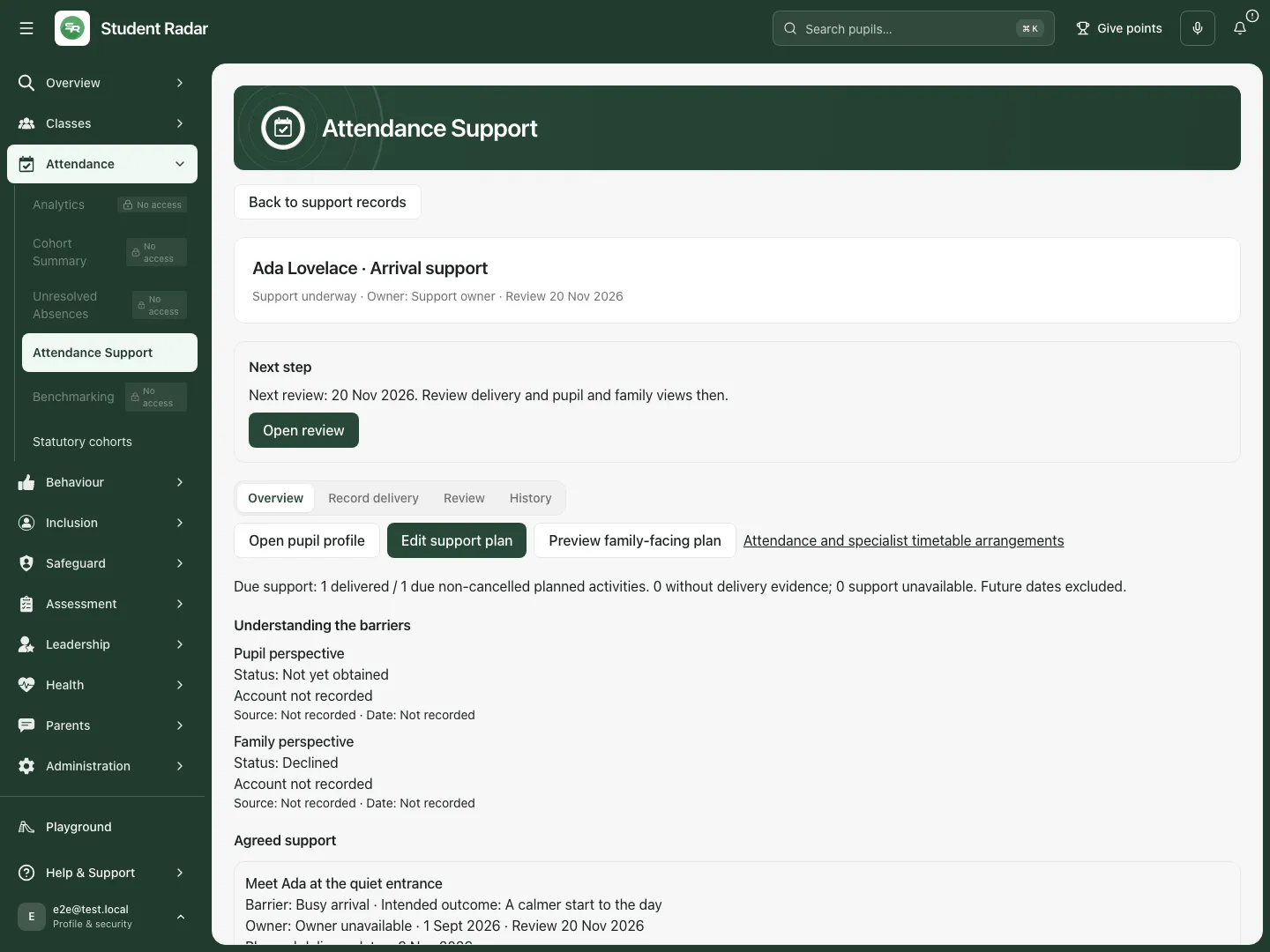
The fictional baseline is 18 present sessions out of 20 possible sessions; support delivery and attendance change remain separate measures. Fictional school example.
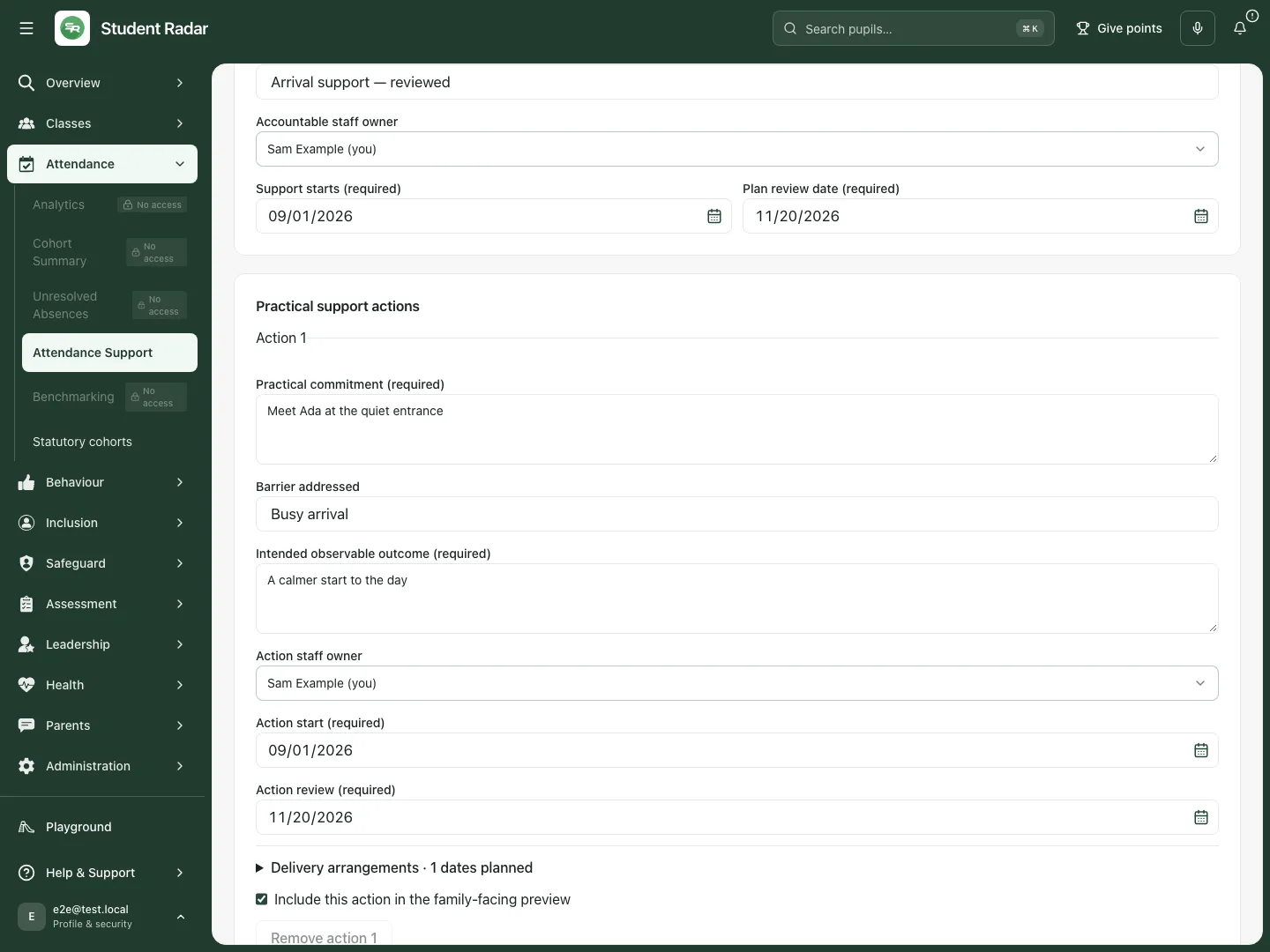
The renamed fictional plan is reopened after saving so staff can check the new title and details. Fictional school example.
Check what a family would see
Section titled “Check what a family would see”- Select Preview family-facing plan.
- Review the title, dates, selected practical actions, intended outcomes, arrangements and contingency.
- Check that the selected content is suitable to share. Return to Edit support plan to change preview selections if necessary, save and reopen the preview.
- Select Close family preview when finished. Use the school’s approved communication workflow to share an agreed plan; opening this preview does not send it.
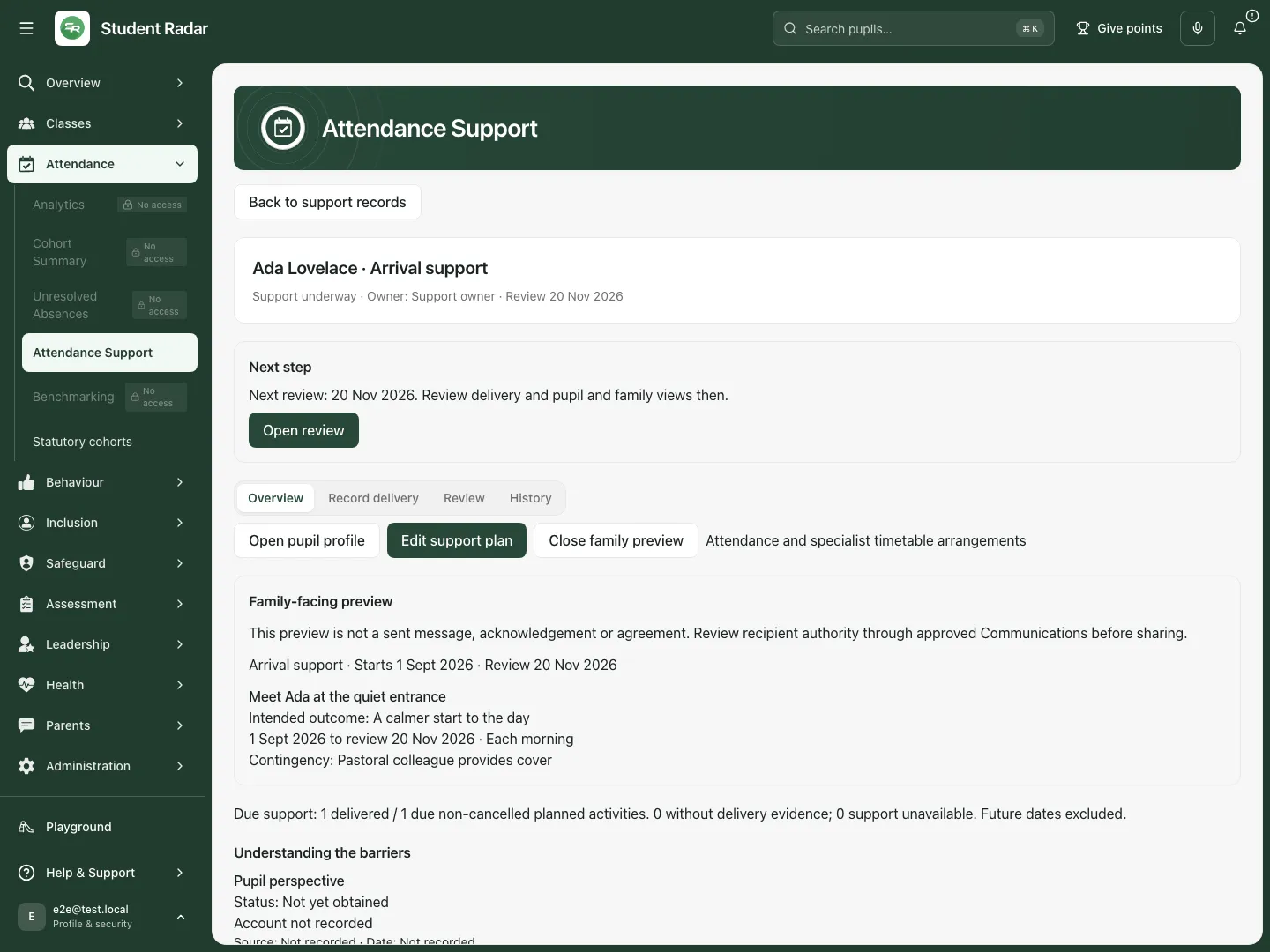
The preview shows selected practical support in this fictional example; it does not show an email or delivery receipt. Fictional school example.
Plan a return to school
Section titled “Plan a return to school”- Open Returning to school to find plans with current return arrangements, or edit a plan to add return steps.
- Record each Return step date, Arrangements, named adult, cover and check-in, and Return step status. Distinguish proposed, agreed and completed arrangements.
- Decide whether a reduced timetable needs consideration. Link the permitted specialist timetable plan where relevant; the support plan does not approve a reduced timetable by itself.
- Use Attendance and specialist timetable arrangements when available to work in the dedicated statutory workflow. That workflow holds agreement, approval and its own review requirements.
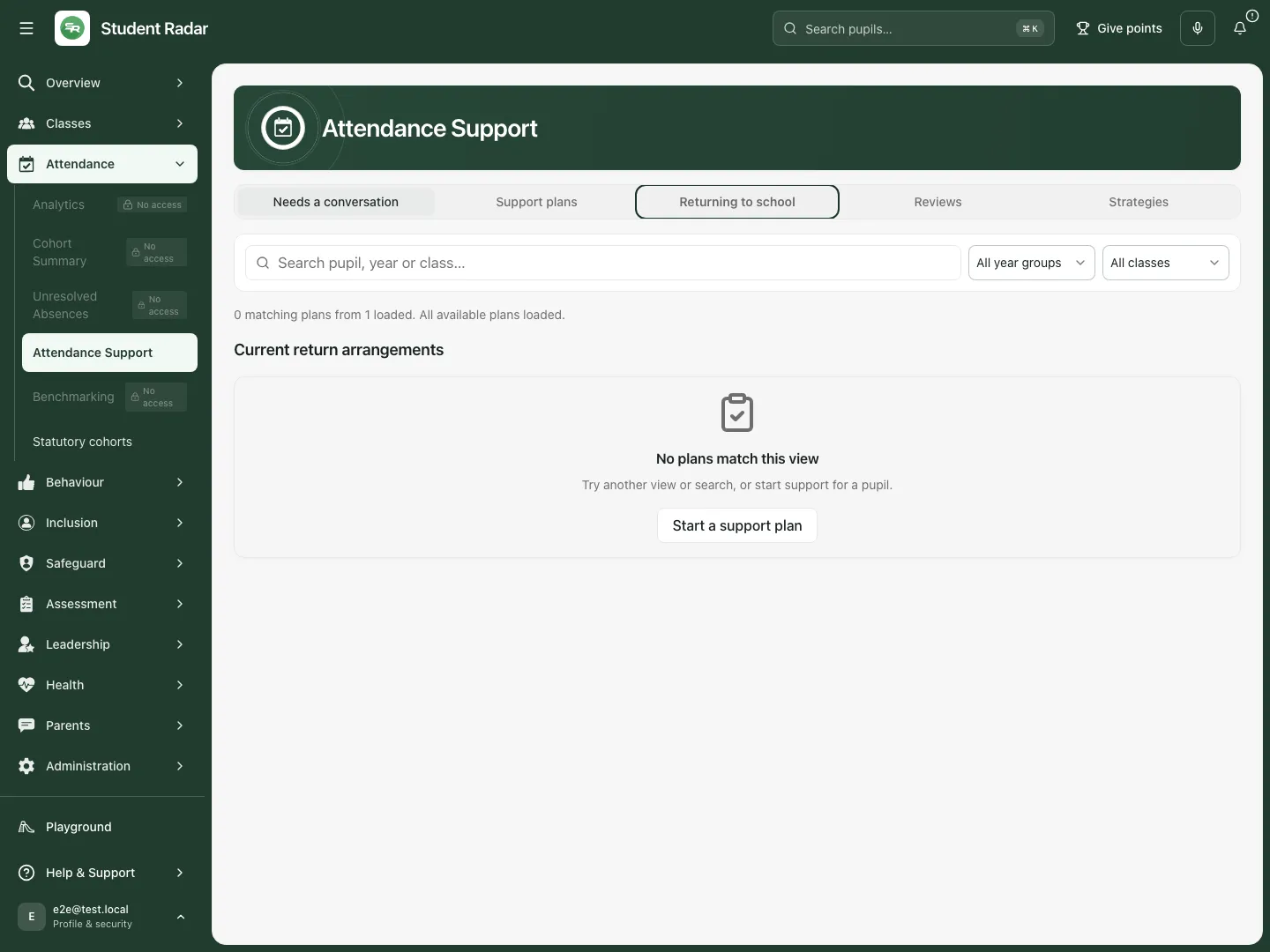
The returning view is distinct from the whole support list; an empty view does not mean a pupil has no attendance need. Fictional school example.
Record what support was delivered
Section titled “Record what support was delivered”- Open the support record and select Record delivery, or choose Add delivery update from the next-step prompt.
- Choose Planned support activity and the actual Delivery outcome. Distinguish delivered, partly delivered, unavailable, pupil absent, not taken up, cancelled and not recorded.
- Complete Delivery evidence and follow-up with what happened and any continuing action. Select Save delivery.
- Check the updated outcome and due-support counts. Future activities are not due yet, and missing updates are not delivered support.
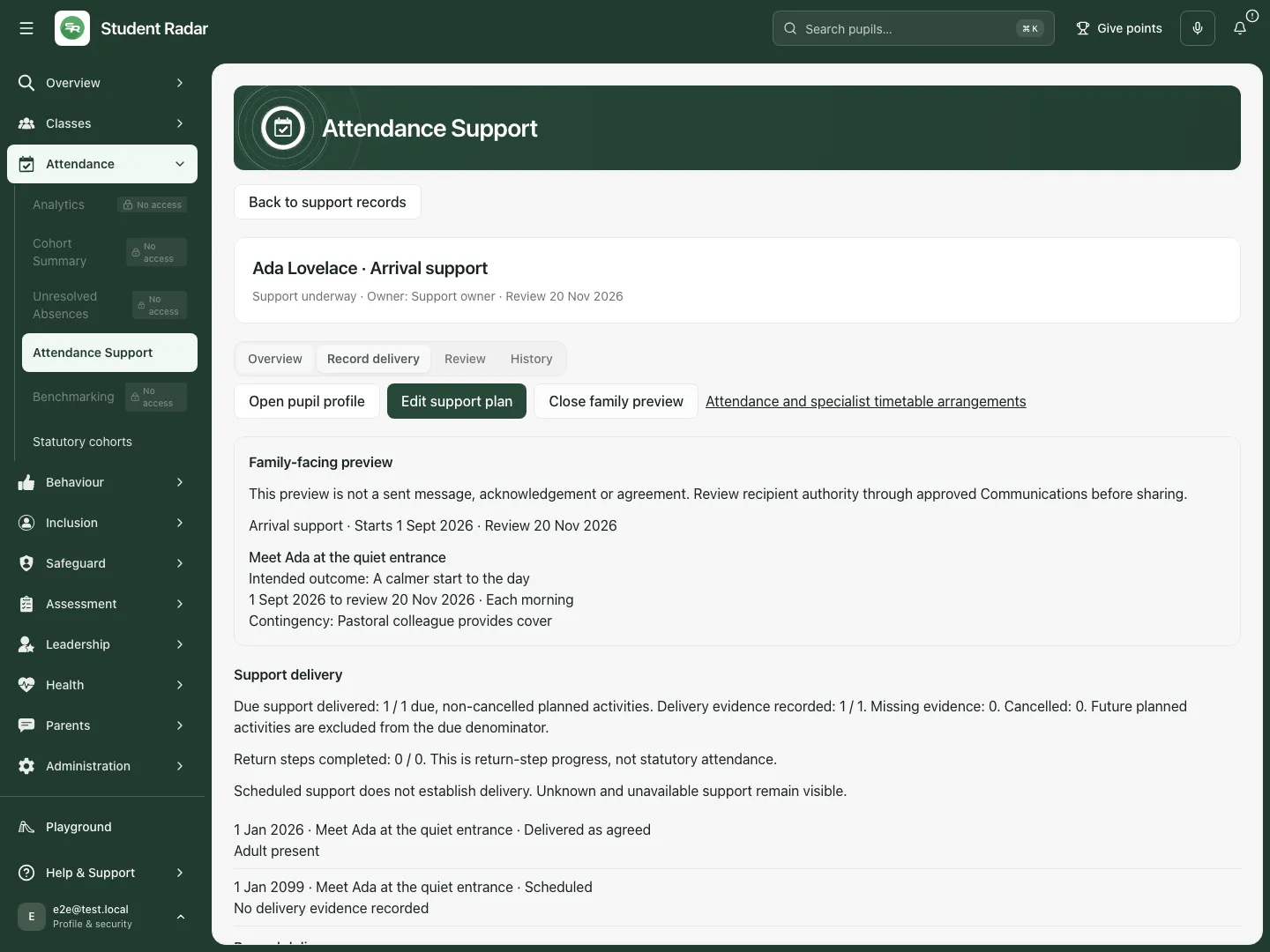
Delivery has its own evidence and outcome; it is not inferred from a task being completed or attendance improving. Fictional school example.
Make and record the review decision
Section titled “Make and record the review decision”- Open Reviews for upcoming/overdue reviews and choose the plan, then open Review in the record.
- Consider support delivery, the current barrier, pupil/family responses and attendance separately.
- Choose Review decision: continue, change, stop or escalate. Choose the Attendance observation, including not evaluable when the evidence is insufficient.
- Complete Was support delivered and what remains uncertain?, Pupil response or reason unavailable, Family response or reason unavailable, and Next action, owner and rationale.
- For continuing/changing/escalating work, choose Next review date within the dates the form permits. A stop decision closes the plan and does not set another review date.
- Select Save review decision and check the result in History. An escalation records a human decision/next action; it does not make a referral or issue enforcement automatically.
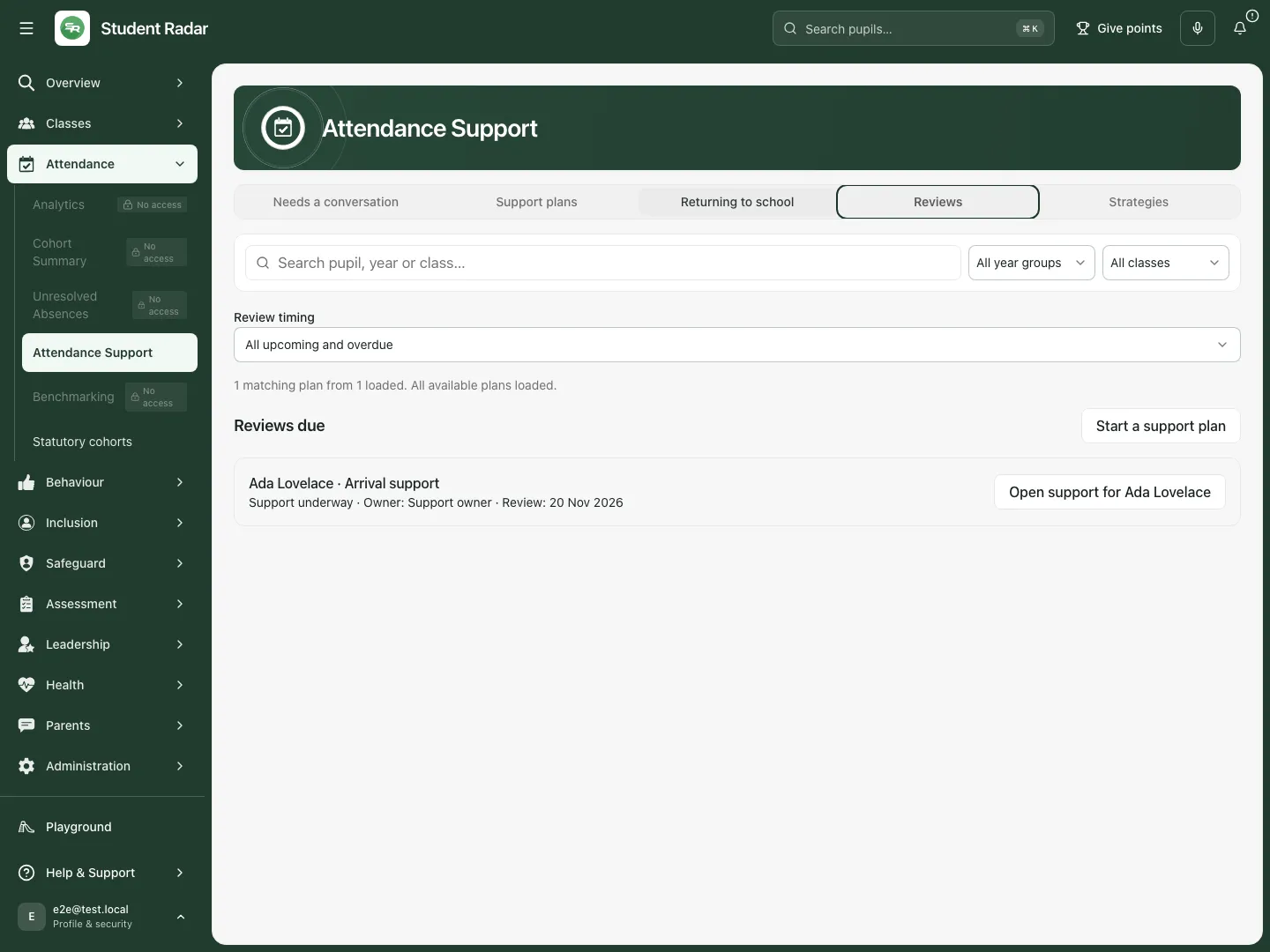
Review lists separate upcoming and overdue work and retain the owner and dates. Fictional school example.
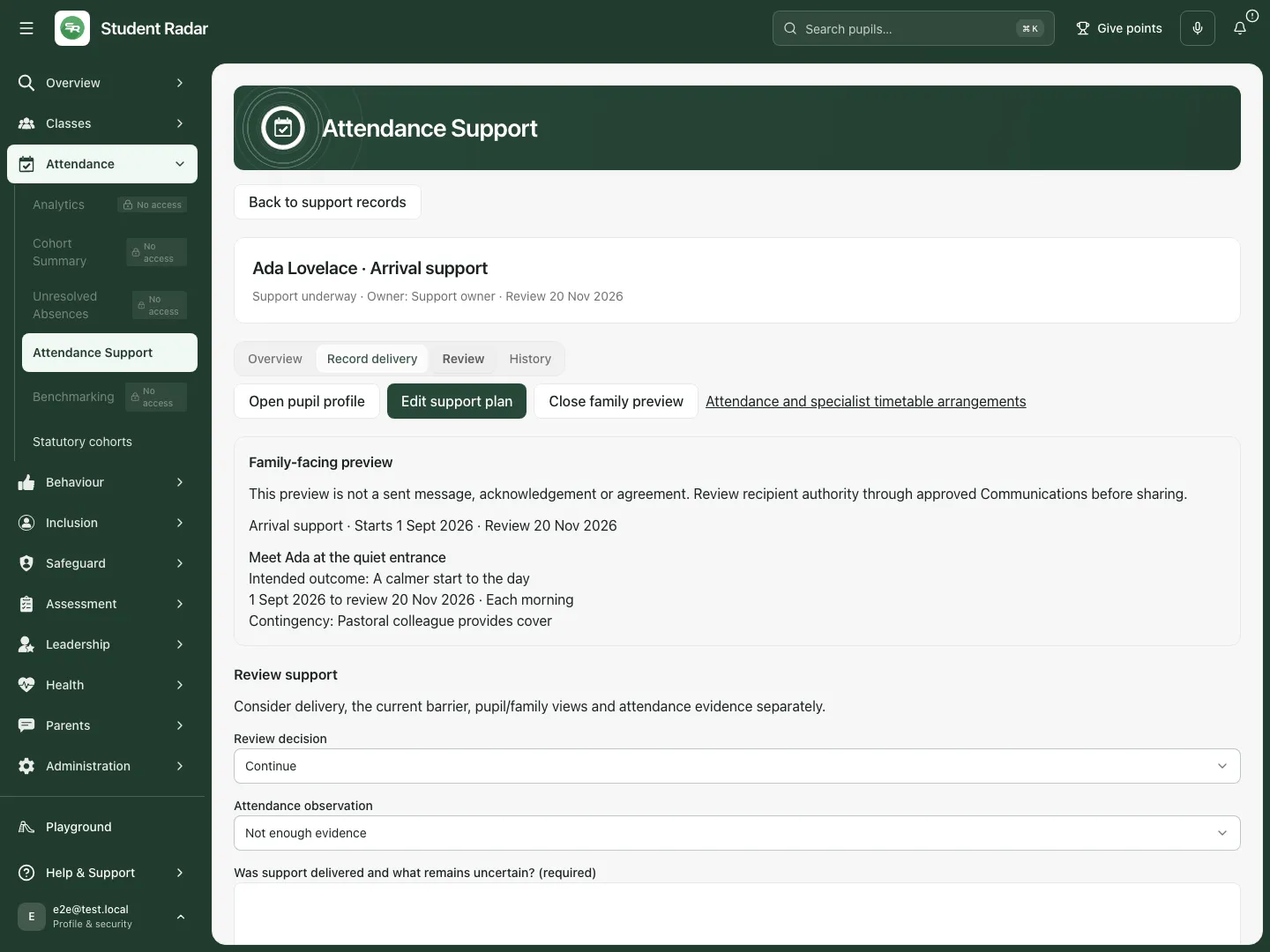
The review form asks for delivery, pupil/family responses and a reasoned next step alongside the attendance observation. Fictional school example.
Choose a strategy for the conversation
Section titled “Choose a strategy for the conversation”- Select Strategies to open the school’s attendance strategy library/board.
- Choose a strategy and select View full guidance to read its evidence, practical actions, dosage and review guidance.
- Where Add to attendance plan is offered, choose it only after deciding the strategy fits, then review the selected pupils, barrier, action, responsible staff member, Support start date and Support review date before the final save. The strategy dialog states exactly what saving will create: a plan, dated attendance baseline and review reminder for each selected pupil; suggested substeps are not automatically created as tasks.
- If Add school intervention is available to you, enter its title, summary, actions, evidence summary/strength, dosage, sources, implementation advice and monitoring before saving; do not present a locally entered idea as independently validated evidence. Attendance bands are prompts; unknown attendance belongs to no known band. Earlier strategy runs retain their own review/closure path.
Draft with AI when available
Section titled “Draft with AI when available”- Open Draft with AI in the plan editor. Enter Staff observations for AI draft, using 20–6,000 characters and leaving out names/contact details. You can continue writing manually instead.
- Select Generate draft. Read the suggested barriers, practical support, questions and unknowns against what staff, the pupil and family have actually recorded. Suggestions do not establish facts or diagnose a pupil.
- Tick I have reviewed these suggestions only after checking them, then select Use these suggestions. This adds suggestions to the unsaved plan.
- Correct missing or uncertain information, choose eligible staff owners and dates, and review the complete plan before Save support plan. Generated suggestions do not start support or assign sensitive work on their own.
- If the draft has expired, generate a new draft before using it. If generation fails, retain the recorded evidence and write the plan manually.
Work on a phone
Section titled “Work on a phone”Use the same record sections and scroll the editor to review all actions, dates and preview choices before saving. Read any validation message; do not assume leaving a field saved the plan.
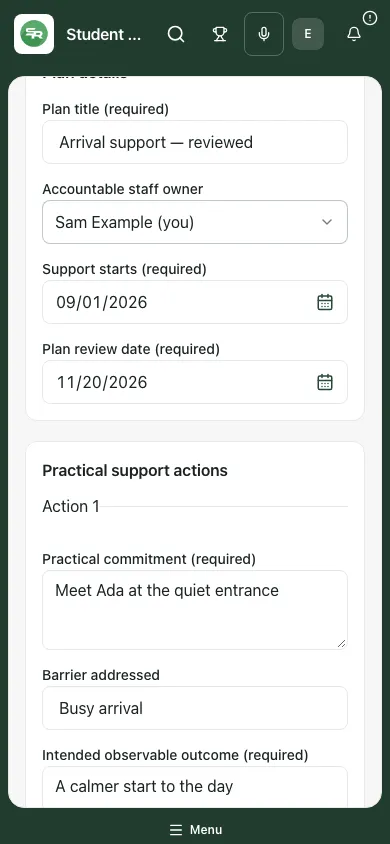
The fictional saved-plan editor remains available on a phone with the same required fields and review controls. Fictional school example.
Troubleshooting and questions
Section titled “Troubleshooting and questions”The workspace is not switched on. Ask the school administrator about availability; the earlier strategy surface is a different experience.
Owner choices failed or a colleague is no longer eligible. Retry the options and choose a staff member who can access the pupil’s attendance. Do not assign work to an unavailable owner.
The record changed elsewhere. Refresh and review the latest record before reapplying a change. A stale revision is not permission to overwrite a colleague.
The school changed in another session. Refresh to load the current school. Recheck the pupil before continuing.
Saving failed. The editor retains changes where possible. Read the message, correct invalid fields and check the current record before retrying. A rate limit needs a pause; repeated clicks do not create proof of saving.
Does delivered support prove impact? No. Record delivery and review attendance, pupil/family response and uncertainty separately. A change during the period does not establish causation.
Can a family see all the recorded barriers? The family-facing preview deliberately selects practical actions/return steps. Review it before sharing through the approved channel; it is not automatic delivery.
Related guides
Section titled “Related guides”Use Attendance Analytics, Use Unresolved Absences, Use Statutory cohorts.