Record wellbeing support and review the actual outcome
Written for: Authorised pastoral staff, support staff and safeguarding leads.
Record what the pupil said, what staff observed, the emotional support provided and the immediate outcome before planning follow-up. Keep what the pupil said separate from what staff observed, record the support actually provided and retain the actual immediate outcome. This is not a diagnosis, counselling note or mental-health risk score.
You need the relevant wellbeing record permissions and pupil access. Summary and full-detail access differ; some staff can record or read their own episodes without seeing every pupil’s full account. The examples use fictional Ada Lovelace and Sam Patel.
Find the relevant records
Section titled “Find the relevant records”- Open Wellbeing episodes under Health → Wellbeing.
- Choose My records for active records associated with you, or Pupils I support for pupils you are permitted to support. Wider readers can also use Follow-up, Patterns and History.
- Enter the pupil in Search pupils. The search updates after a brief pause; clear it to broaden the results.
- Read each pupil group’s latest episode and counts. Open earlier episode or earlier episodes to expand older entries in that group.
- Compare the support date/time with Recorded by and its recording time. A late entry can describe support that happened earlier.
- Use Refresh when checking the current state. Where paging is available, Previous and Next change the page; the cards count records, follow-up and review on this page, not the whole school. Up to 50 records are shown per page. Narrow the search when the older-record paging limit is reached.
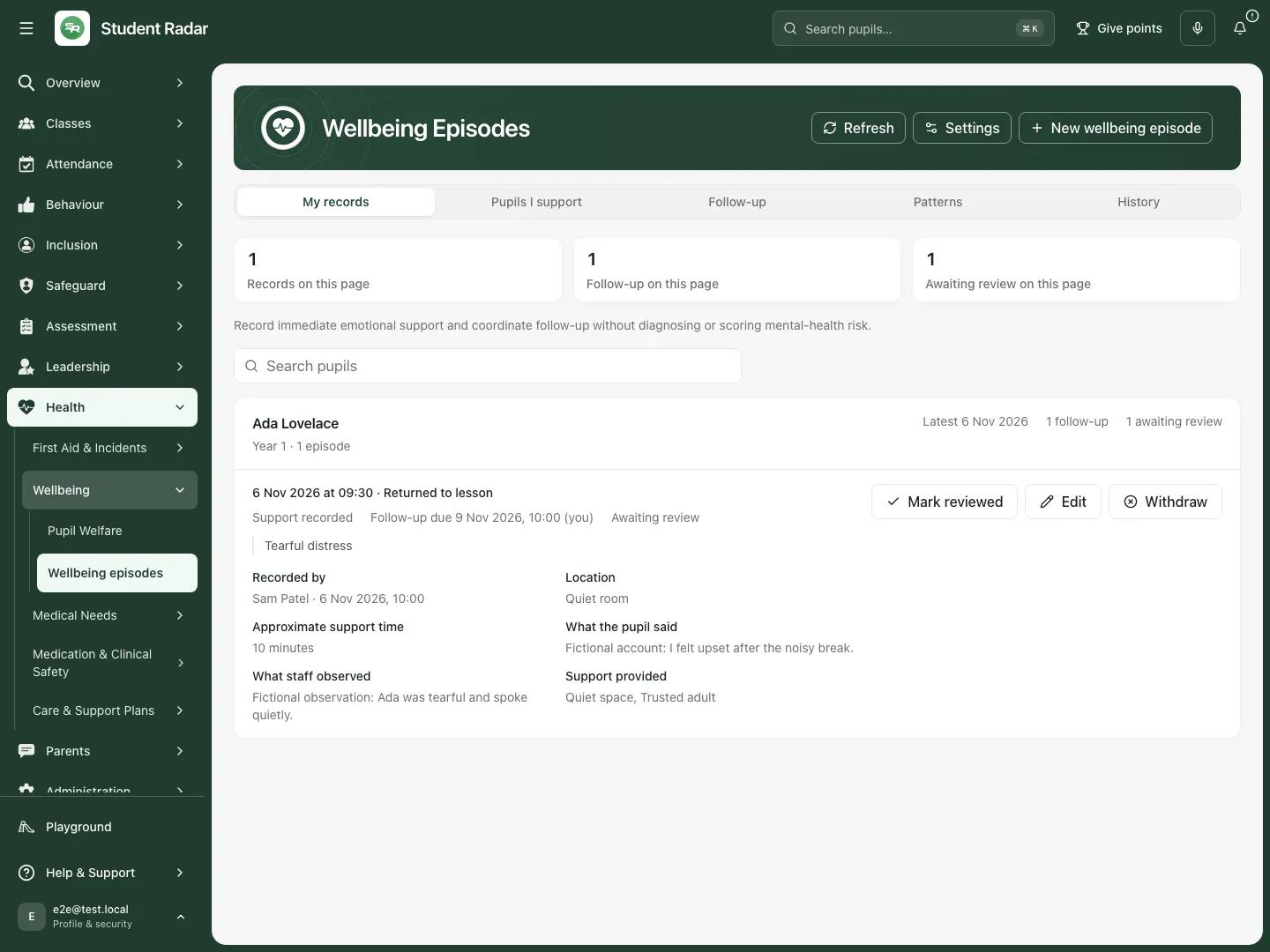 The fictional episode separates the support outcome, open follow-up and awaiting-review state. Recording support has not completed every part of the response.
Start a factual support record
Section titled “Start a factual support record”- Choose New wellbeing episode.
- In the pupil search, enter the name and select the intended pupil. Check the selected identity before recording anything about them.
- Complete Date, Time and Location for the actual support. A future date or time cannot be recorded.
- Review Safeguarding route check. If Self-harm, Suicidal thoughts, Immediate danger or Safeguarding disclosure applies, use the school’s safeguarding procedure. Selecting one prevents this wellbeing form from being submitted and exposes Open safeguarding concern. That control opens the safeguarding route in a separate tab; it does not submit a concern or create a wellbeing episode. Your entries remain in the open form.
- Choose Basis for this record: observed, pupil-reported, or both, as appropriate to the actual account.
- Enter Approximate support time (minutes), a whole number from 1 to 480.
- Tick at least one Presentation that actually applies: Tearful distress, Overwhelming fear, Rapid breathing, Withdrawal, Agitation, Freezing or Difficulty engaging. These describe the recorded presentation; they are not diagnoses.
- Complete What the pupil said and What staff observed with factual, proportionate information. Do not rewrite a pupil’s words as staff observation.
- Tick the Support provided: Quiet space, Trusted adult, Grounding support, Breathing support, Sensory support, Time to regulate, Restorative conversation or Medical review. Select what was actually provided, not what might be useful later.
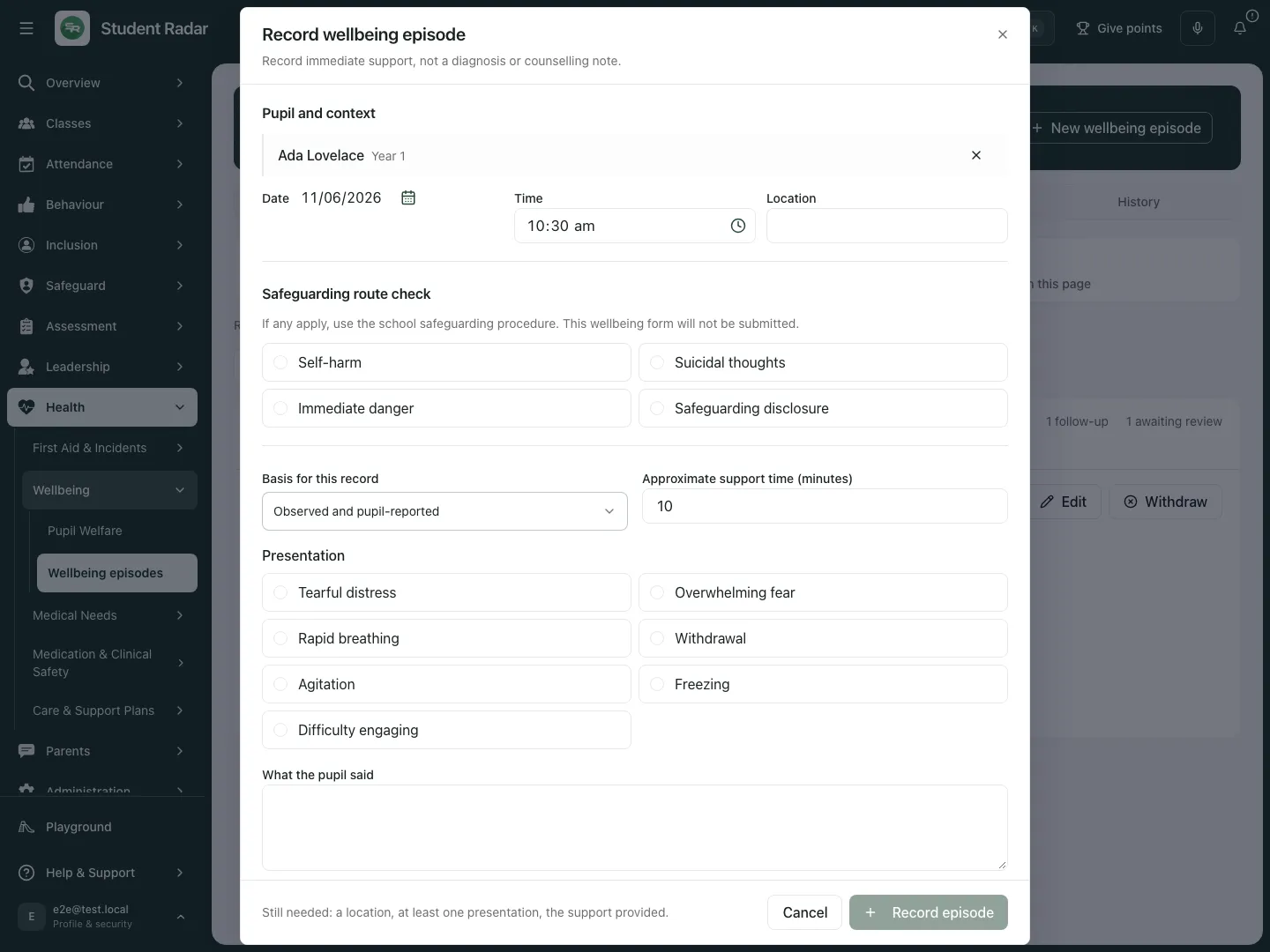 The fictional blank record form asks for context, a safeguarding route check, observed presentation and the support actually provided. Opening it creates no episode.
Record the actual outcome and follow-up
Section titled “Record the actual outcome and follow-up”- Set Immediate outcome to Returned to lesson, Remained with support, Collected by parent/carer, Transferred to medical support or Emergency response, matching what actually happened. The return-to-lesson state follows this selection.
- Tick Parent/carer contact recorded only when contact has actually happened. Complete Contact method or evidence. This records the contact; it does not send a message.
- Tick Follow-up required (assigned to me) when owned work is needed. Enter Follow-up due, a valid future date/time. This action is assigned to you; do not use it to imply another colleague has accepted the work.
- Review any Still needed message. A pupil, date/time, location, presentation, support selection and valid support duration are required. The conditional contact and follow-up fields must also be complete.
- Choose Record episode once the account is accurate. Check the resulting episode, review state and follow-up. An error does not establish that the record was saved; inspect the current register before creating another entry.
- Cancel, Close or Escape deliberately abandons the open unsaved form. Clicking outside a form containing entries is guarded against accidental dismissal.
Review the record and the follow-up separately
Section titled “Review the record and the follow-up separately”- Open Follow-up to find active episodes with open follow-up, where your access permits it.
- Read the recorded owner and due date beside the episode. Follow-up completed and Follow-up cancelled are different outcomes; neither proves that pupil wellbeing improved.
- Complete the actual owned work through its task record. The episode register displays its follow-up state; it has no separate complete-follow-up button.
- When reviewing the episode itself, check the pupil account, staff observation, support and outcome. Eligible managers can choose Mark reviewed on an active episode awaiting review. This records review, not task completion, communication or clinical approval.
- Return to the current record to check the resulting review state. History includes replaced, withdrawn or reviewed records within your access.
 The fictional follow-up remains assigned to Sam Patel with a due date. An episode review and completion of owned work are separate decisions.
Correct an account with a reason
Section titled “Correct an account with a reason”- Open the active episode and choose Edit. Availability depends on your permission, whether you recorded it and whether it has already been reviewed.
- In Record a correction, enter Reason. Explain what needs correcting; a blank reason cannot be saved.
- Amend What the pupil said and/or What staff observed. The correction form retains the existing structured support and outcome fields; it is not a general editor for every field.
- Choose Save correction. The original remains in the history, the corrected record needs reviewing again and the connected follow-up retains its own state.
- Reopen the record and inspect the corrected text. Use Cancel to abandon the correction before saving.
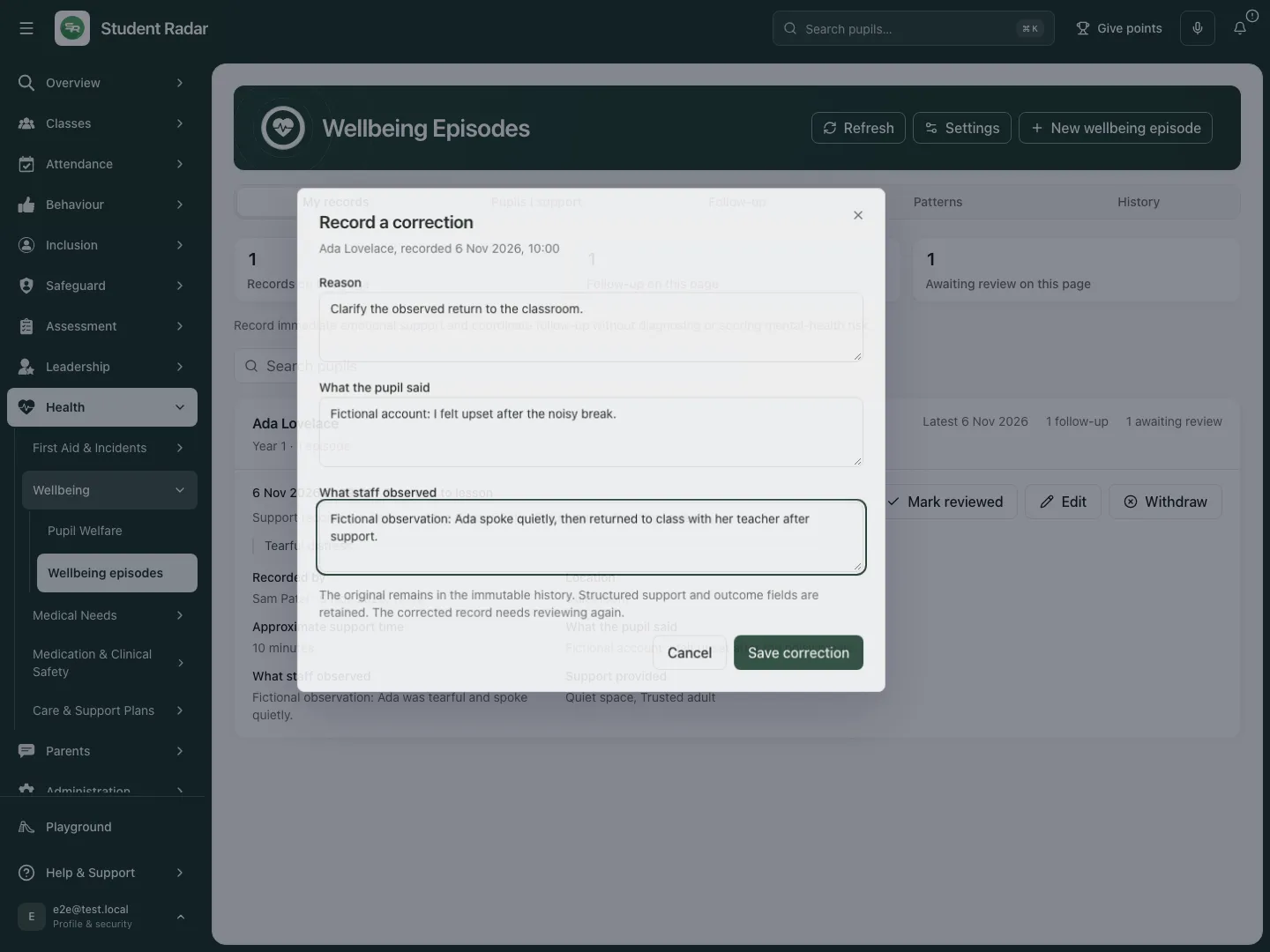 The fictional correction explains why the staff observation is being clarified. The pupil account remains separate.
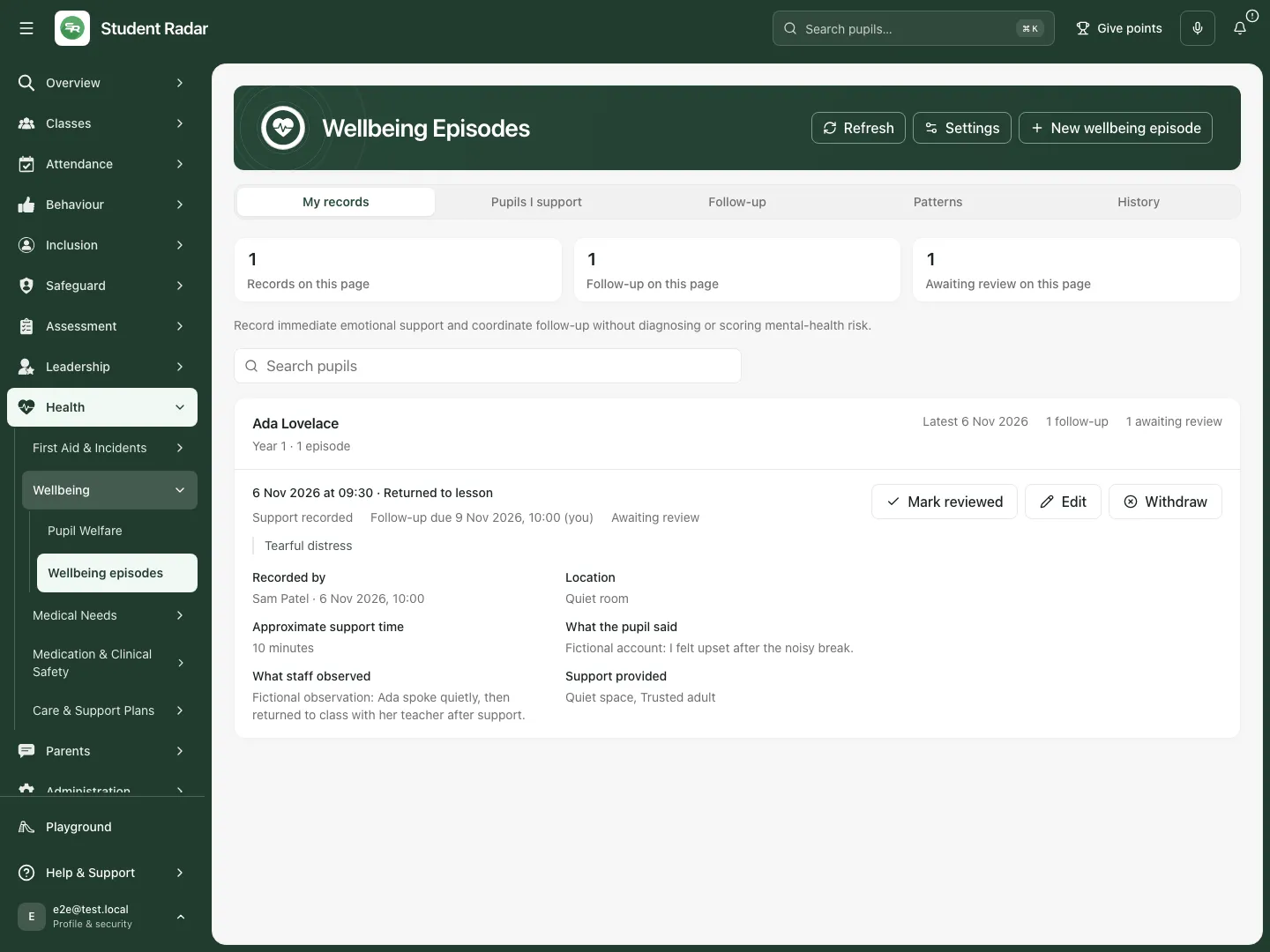 The reopened fictional episode retains the clarified staff observation and still requires review. Saving a correction does not complete its follow-up.
Withdraw an episode without deleting its history
Section titled “Withdraw an episode without deleting its history”- On an eligible active episode choose Withdraw.
- In Withdraw wellbeing episode, enter Reason after checking the intended pupil and episode.
- Choose Withdraw episode to confirm, or Cancel to leave it active.
- Withdrawal retains the record and reason in the audited history and cancels its open follow-up. It does not erase the account or reverse a real-world action. Check the history before entering a replacement.
Configure repeat-pattern prompts carefully
Section titled “Configure repeat-pattern prompts carefully”- Authorised configuration staff choose the page-banner Settings.
- Review Prompt the DSL when a pupil crosses the repeat threshold. Set it to the school’s agreed approach.
- Enter a whole-number Episode threshold (2–10) and Calendar-day window (7–90).
- Read the restart warning: Save settings restarts the count. Only episodes recorded after that point count; Patterns is empty until a pupil reaches the threshold again. It does not create retrospective prompts or safeguarding concerns.
- Choose Save settings for an intended change. An unchanged or out-of-range configuration cannot be saved. Cancel discards the unsaved changes.
- In Patterns, read the displayed threshold, calendar-day window and settings-effective period. The count concerns active episodes and is a prompt for professional judgement, not a diagnosis, risk score or automatic referral.
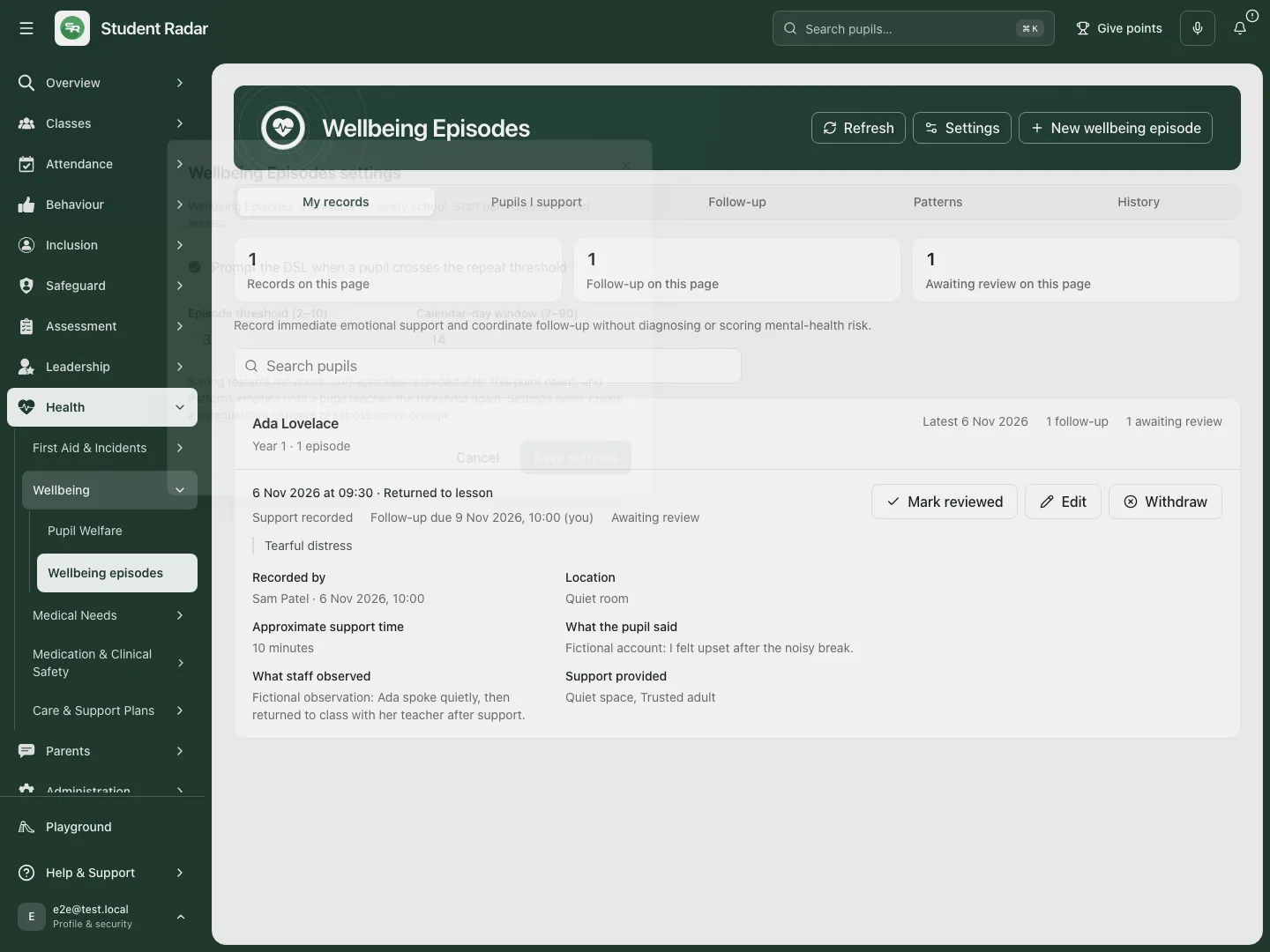 The fictional settings show a threshold of three episodes in 14 calendar days. Saving a change restarts the count rather than applying it retrospectively.
Use the pupil context and phone view
Section titled “Use the pupil context and phone view”Pupil Welfare’s Open episodes and other permitted pupil context links can open the same pupil’s wellbeing history. Check any Showing records for filter and choose Show all pupils to remove it. A task link cannot grant access to a restricted record.
On a phone, use the same tabs, search and episode actions. Review the whole form by scrolling before choosing its final recording control.
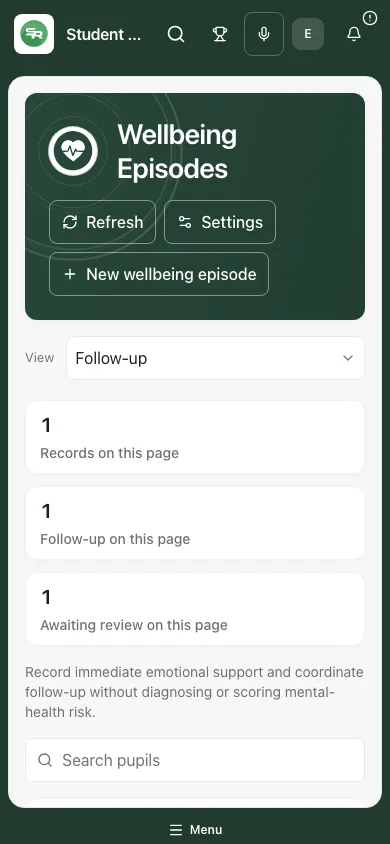 The fictional phone view retains the pupil, support outcome and follow-up context.
Problems and questions
Section titled “Problems and questions”No records in this view. Check the selected tab, pupil filter, search and page. An empty permitted result is different from Wellbeing Episodes are unavailable.
The record could not be opened. It may be unavailable or outside your access. Use the permitted register and ask the school’s authorised administrator to review access where appropriate; do not copy restricted information elsewhere.
Settings unavailable or a save failed. No successful change is established. Refresh and check the current setting before retrying. Retain the old count’s period when interpreting earlier records.
Can I record a diagnosis or use a high count to decide risk? No. Record immediate support and factual presentation; use professional judgement and the appropriate school procedures.
Does parent contact recorded send anything? No. It records actual contact already made.
Does Mark reviewed close the follow-up? No. Review and owned work have distinct states.
Related: Pupil Welfare, First Aid, My Actions.