Record careers guidance for a pupil
Written for: Alternative provision leaders, DSLs, SENCos and teachers who give or arrange careers guidance.
Careers & Destinations keeps a record of the careers guidance each young person gets while they’re with you: guidance interviews, encounters with employers and colleges, work experience and the action plan you agree. Each entry stays on the young person’s placement record, so you can show what they’ve had and what’s planned.
To follow up where young people go after they leave, see Follow up leaver destinations.
Before you start
Section titled “Before you start”AP leaders, DSLs, SENCos and teachers can read and record careers guidance. Teaching assistants, office staff and finance staff can’t open the page.
Leaders see every placement. Other staff see the young people they’re key worker for, or are assigned to, so the lists and counts cover only those.
The page is part of the AP menu, which appears when your setting profile is alternative provision and AP operations are active.
Open the page
Section titled “Open the page”In the sidebar, open Progress and choose Careers & Destinations. Then click Guidance.
Young people on roll lists your current placements. For each young person you can see:
- their key worker
- the date of their last guidance interview, or No interview yet
- how many employer or college encounters and work experience placements are recorded
- whether an action plan is agreed, and when it’s due for review
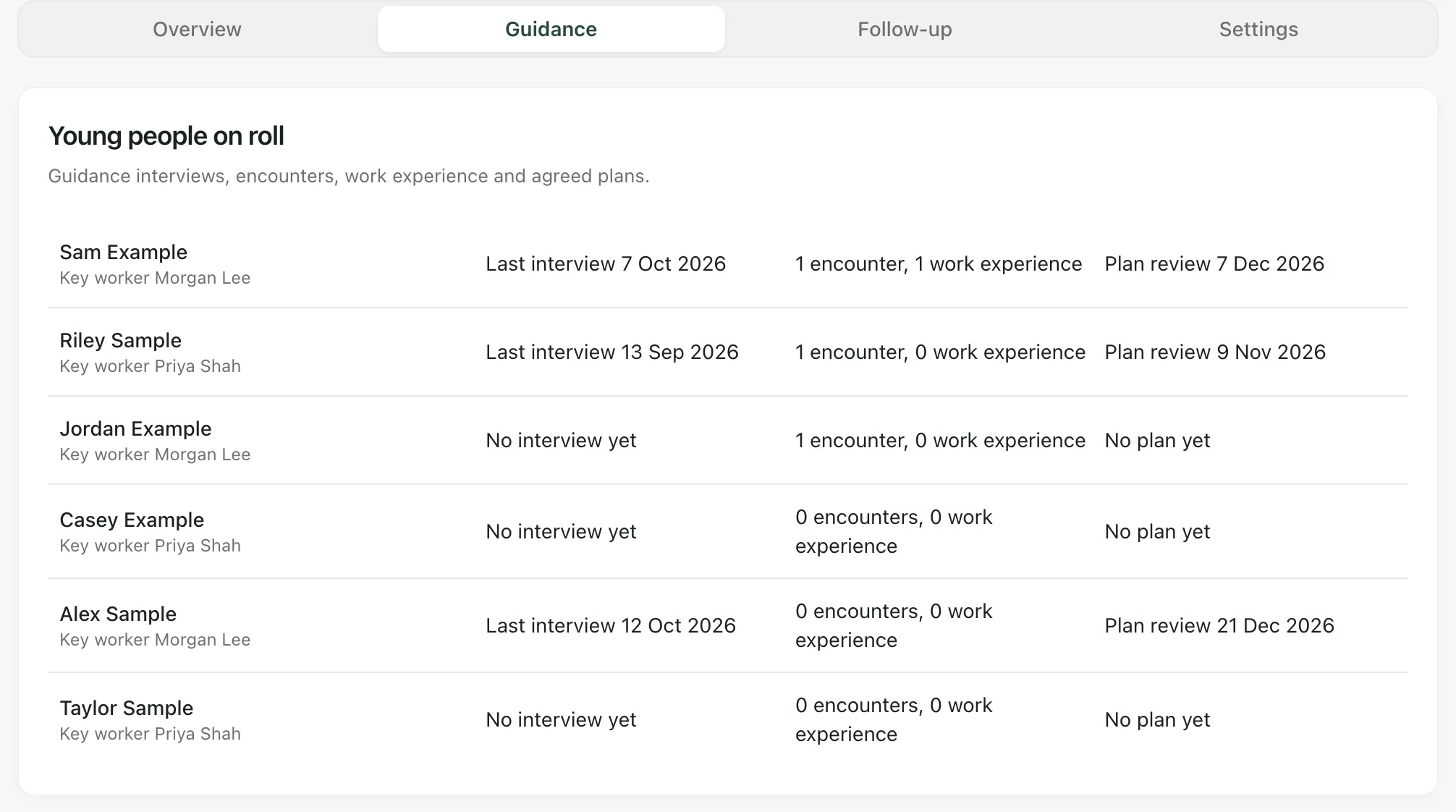
The Overview tab shows how many young people on roll have any guidance recorded, under On roll with guidance recorded.
Record guidance
Section titled “Record guidance”- Click Record guidance at the top of the page. Or, to add to one young person’s record, click their name in Young people on roll, then click Add on their Guidance record.
- Choose the Young person. You can also choose a young person who has left, to complete their record.
- Under What was it?, choose the kind of entry:
- Guidance interview
- Employer encounter
- College or training provider encounter
- Work experience
- Action plan agreed
- Enter the Date. For work experience, this is the First day.
- Fill in the details for that kind of entry (see below).
- Click Save.
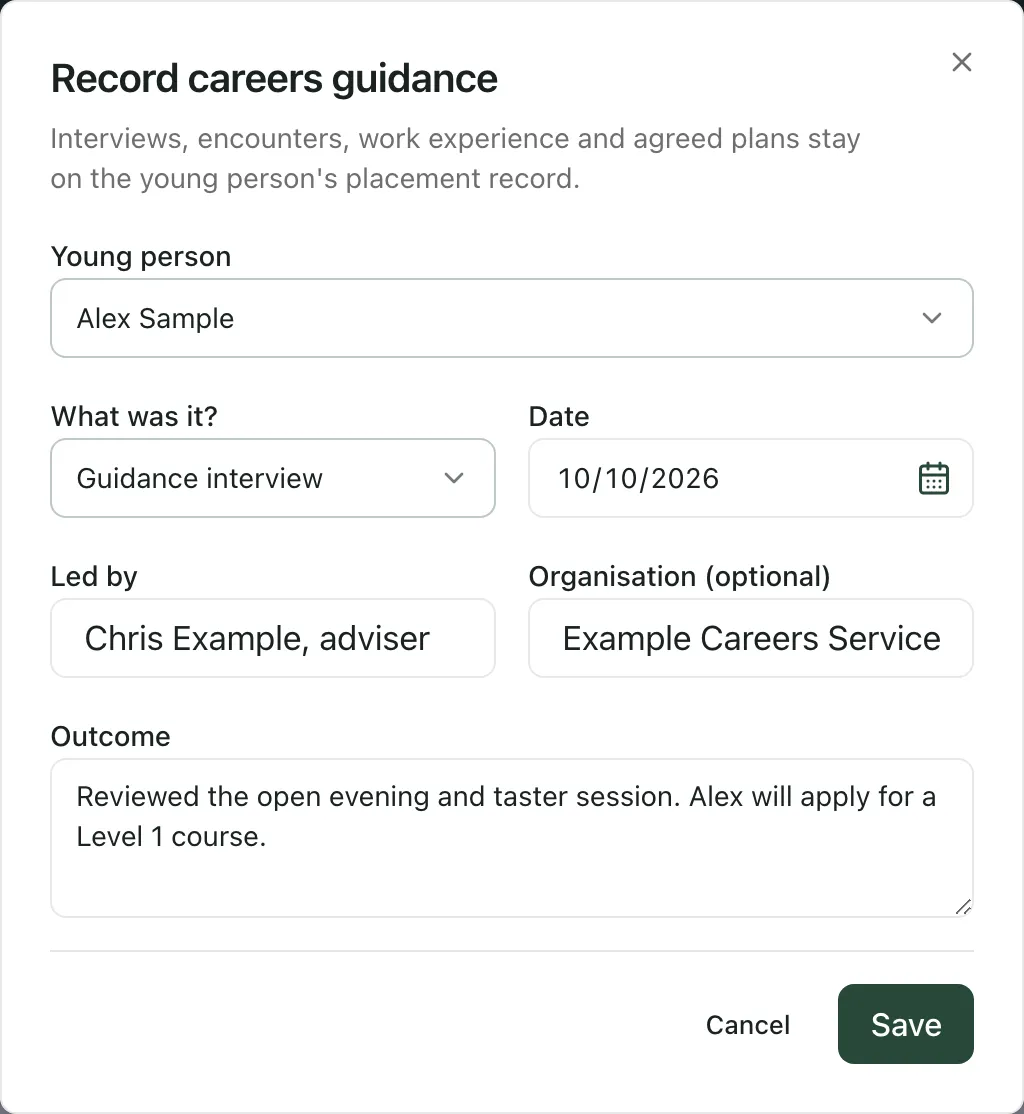
Save stays greyed out until the details the entry needs are filled in.
What each kind of entry needs
Section titled “What each kind of entry needs”| Kind of entry | Fill in |
|---|---|
| Guidance interview | Led by (the adviser’s name and role) and the Outcome. Add the adviser’s Organisation (optional). |
| Employer encounter | The Employer and What happened. |
| College or training provider encounter | The College or provider and What happened. |
| Work experience | The Employer and How it went. Add the Last day (optional) if it ran for more than a day. |
| Action plan agreed | The Actions agreed, with who will do each one, and a Summary. Add a Review by (optional) date. |
The outcome or summary can be up to 500 characters, and the actions agreed up to 1,000.
Read a young person’s guidance record
Section titled “Read a young person’s guidance record”- On Guidance, click the young person’s name in Young people on roll, or choose them under Young person on their Guidance record.
- Each entry shows its kind and date, who led it or where it took place, and what happened. An action plan also shows the actions agreed and its review date.
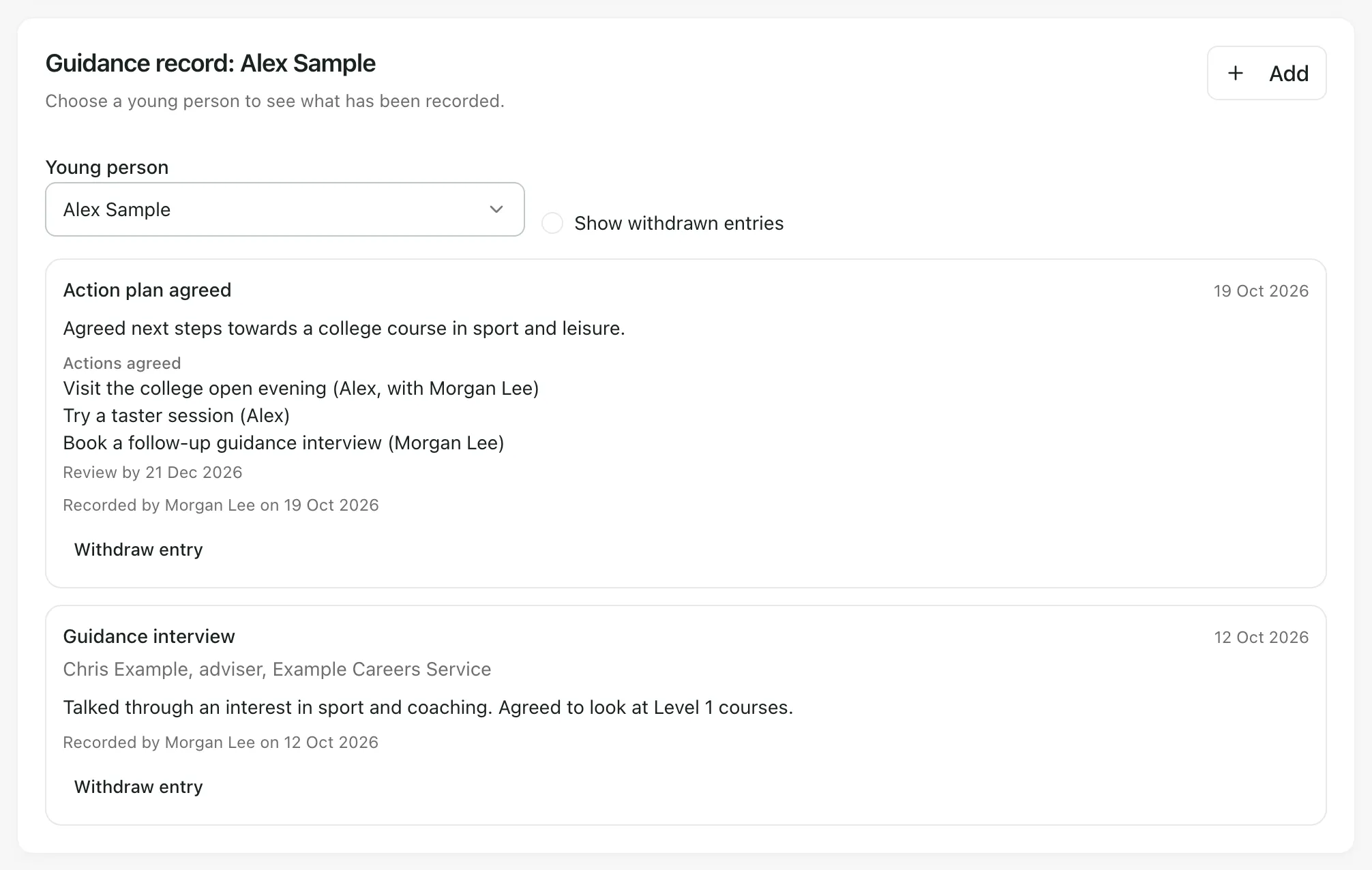
Each entry says who recorded it and when.
Withdraw an entry
Section titled “Withdraw an entry”Entries can’t be edited. If one is wrong, withdraw it and record it again.
- On the young person’s Guidance record, click Withdraw entry under the entry.
- In Why withdraw it?, give a reason of at least three characters.
- Click Withdraw.
The entry is hidden from the record but kept, with your reason. To see withdrawn entries, tick Show withdrawn entries.
- Your judgement: the counts show what’s recorded. They don’t measure the quality of the guidance or say what a young person needs next.
- Wording: this page calls the pupils on your roll young people, whatever your setting profile calls them.
- Leavers: recording guidance doesn’t follow up a young person after they leave. Follow-up checks are scheduled when their placement ends. See Follow up leaver destinations and Record a pupil leaving or returning.
If something doesn’t work
Section titled “If something doesn’t work”| What you see | What to do |
|---|---|
| “Careers and destinations are available to AP staff who can read careers records.” | Your account can’t read careers records. Ask your Provision Lead for access. |
| Record guidance isn’t shown | Your account can read careers records but not record them. Ask your Provision Lead. |
| Save is greyed out | Fill in what that kind of entry needs. Check that a last day or review date isn’t before the first date. |
| “No current placements you can see.” | There are no current placements, or none you’re key worker for or assigned to. Ask a leader if you think this is wrong. |
| “Check the details. Each kind of entry needs its own fields.” | Check the fields for the kind of entry you chose, then click Save again. |
| “That placement is not available to you.” | The placement has changed, or it isn’t one you can record for. Refresh the page and choose the young person again. |
| “Someone else changed this first. Refresh and try again.” | Someone changed the entry while you had it open. Refresh the page, check the record and try again. |
| “Give a reason of at least three characters.” | Say why you’re withdrawing the entry in at least three characters. |
| “Too many requests in a minute. Wait a moment and try again.” | Wait a minute, then try again. |
| “Something went wrong. Try again.” | Click Try again at the top of the page. If it keeps happening, refresh the page. |