Record QABF ratings and review the domain totals
Written for: Staff authorised to complete or review QABF assessments.
Define the target behaviour, complete the questionnaire, read totals with answers and verify the saved QABF record.
The app summarises ratings across Attention, Escape, Non-social, Physical and Tangible domains. Read those totals alongside the answers and observation context; they suggest questions to explore, not a cause, diagnosis or automatic support-plan decision.
Screenshots use Test Pupil, a fictional pupil, with example ratings. The example values illustrate the controls and must not be treated as an assessment of a real child.
Before you start
Section titled “Before you start”Open Behaviour → Assessment → QABF. Check the school and pupil access before opening the register or starting a new assessment. Read permission and create permission can differ.
A failed register is not an empty assessment history. Your account must be in the appropriate school workspace to save a staff assessment; a resource/demo questionnaire can have a different save boundary.
1. Find and review an existing assessment
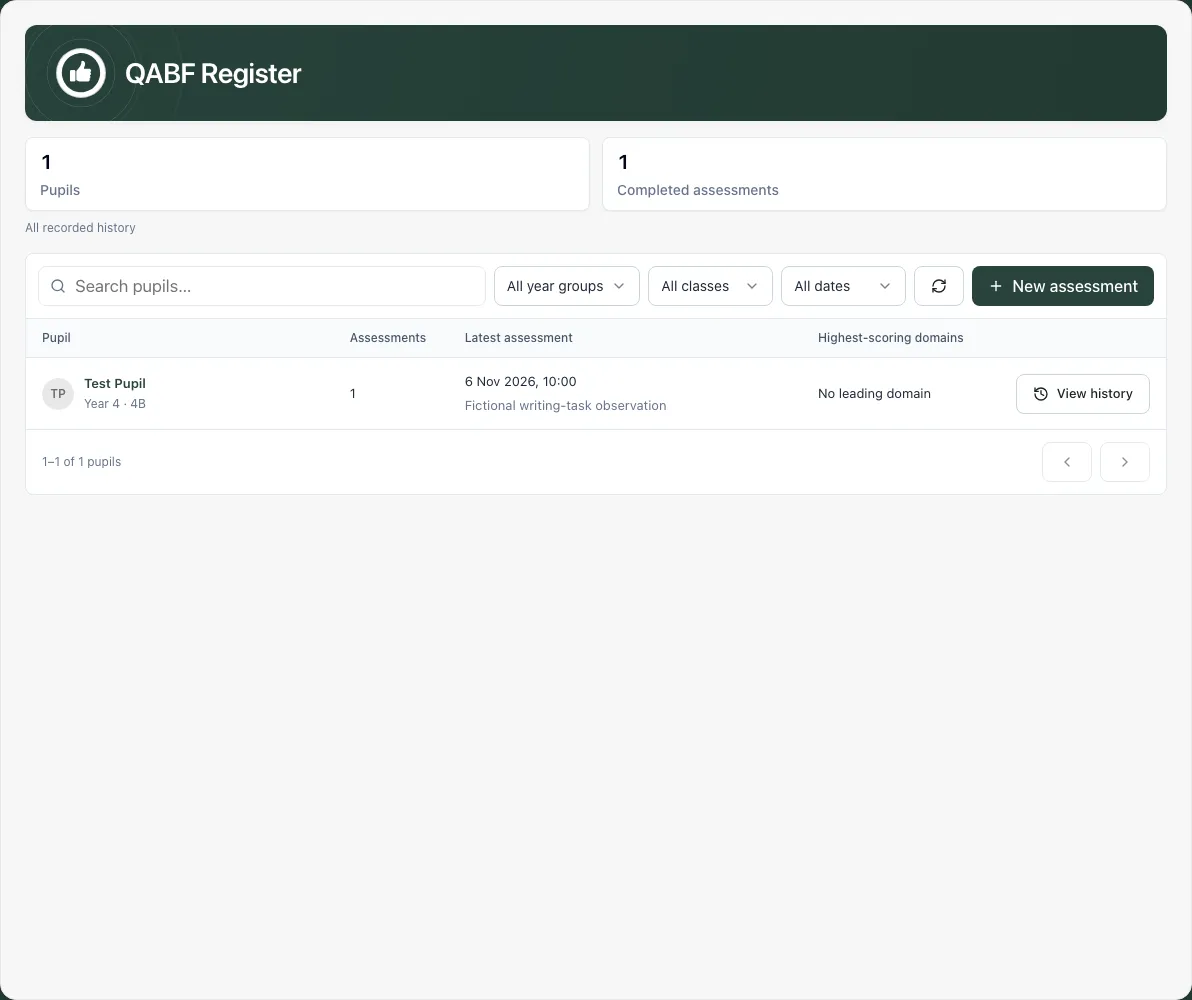
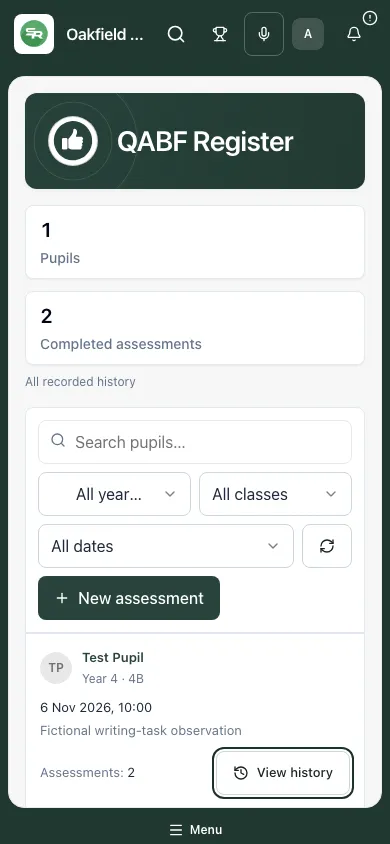
Section titled “1. Find and review an existing assessment”Use the name search, year/class filters and available date window to find the pupil. Read the row’s assessment count, latest date, target behaviour and highest-total domain label where present.
View history opens the pupil’s completed assessments. Select the intended assessment and read its target behaviour, context, completion time/author, ratings and scores. Check the page controls if more history is available. A pupil’s different target behaviours are not interchangeable questionnaires.
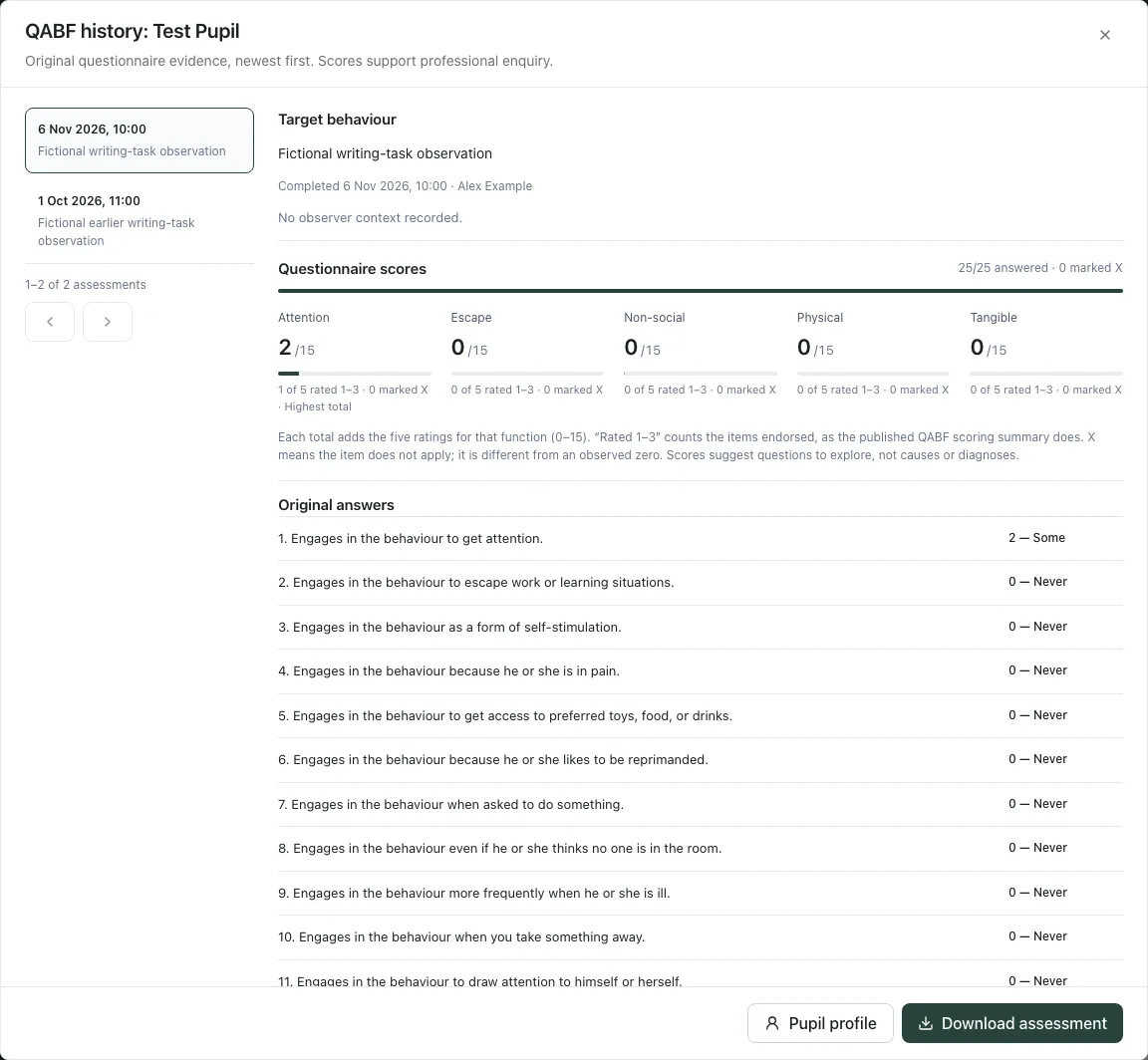
Use the pupil-profile control where offered for permitted wider context. A history link does not grant access to other sensitive records. Read dates in the school’s clock and confirm which assessment you are discussing before sharing an output.
2. Start with a clear target behaviour
Section titled “2. Start with a clear target behaviour”Select New assessment, choose the accessible pupil and confirm their name. In Target behaviour, describe one action that others could see or hear and when it occurs. Add relevant Context notes (optional) without unnecessary personal details.
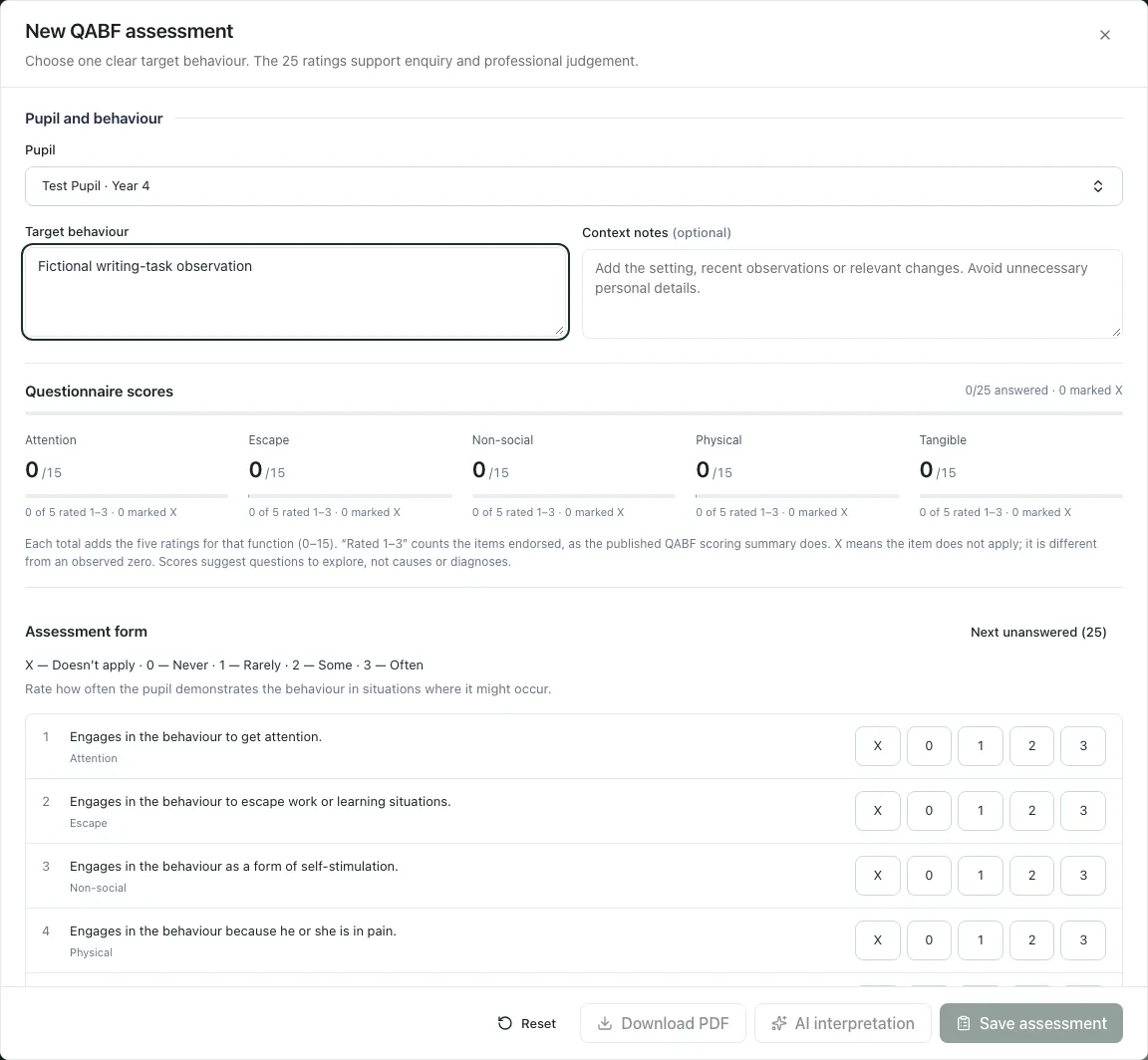
The questionnaire concerns that target behaviour. Do not silently change the target halfway through and assume earlier ratings still answer the new question. If you have insufficient observation to rate it, collect the needed information rather than guessing to complete the form.
3. Complete the ratings and check the answer count
Section titled “3. Complete the ratings and check the answer count”Under Assessment form, choose one response for each item:
| Response | Label shown by the app |
|---|---|
| X | Doesn’t apply |
| 0 | Never |
| 1 | Rarely |
| 2 | Some |
| 3 | Often |
X is different from an observed zero. An unanswered item is different from either. Use Next unanswered to locate the next missing rating and watch X/25 answered. Saving requires a valid complete answer set, pupil and target behaviour; a greyed-out save is not a reason to replace unknown information with an invented rating.
For focused completion steps, see Complete a QABF for a pupil.
4. Read totals and endorsement counts together
Section titled “4. Read totals and endorsement counts together”Questionnaire scores shows each domain total out of 15, the number of its five items rated 1–3 and how many were marked X. The total adds those five ratings; X contributes no score but remains separately counted. Read the distribution of responses, not just the largest number.
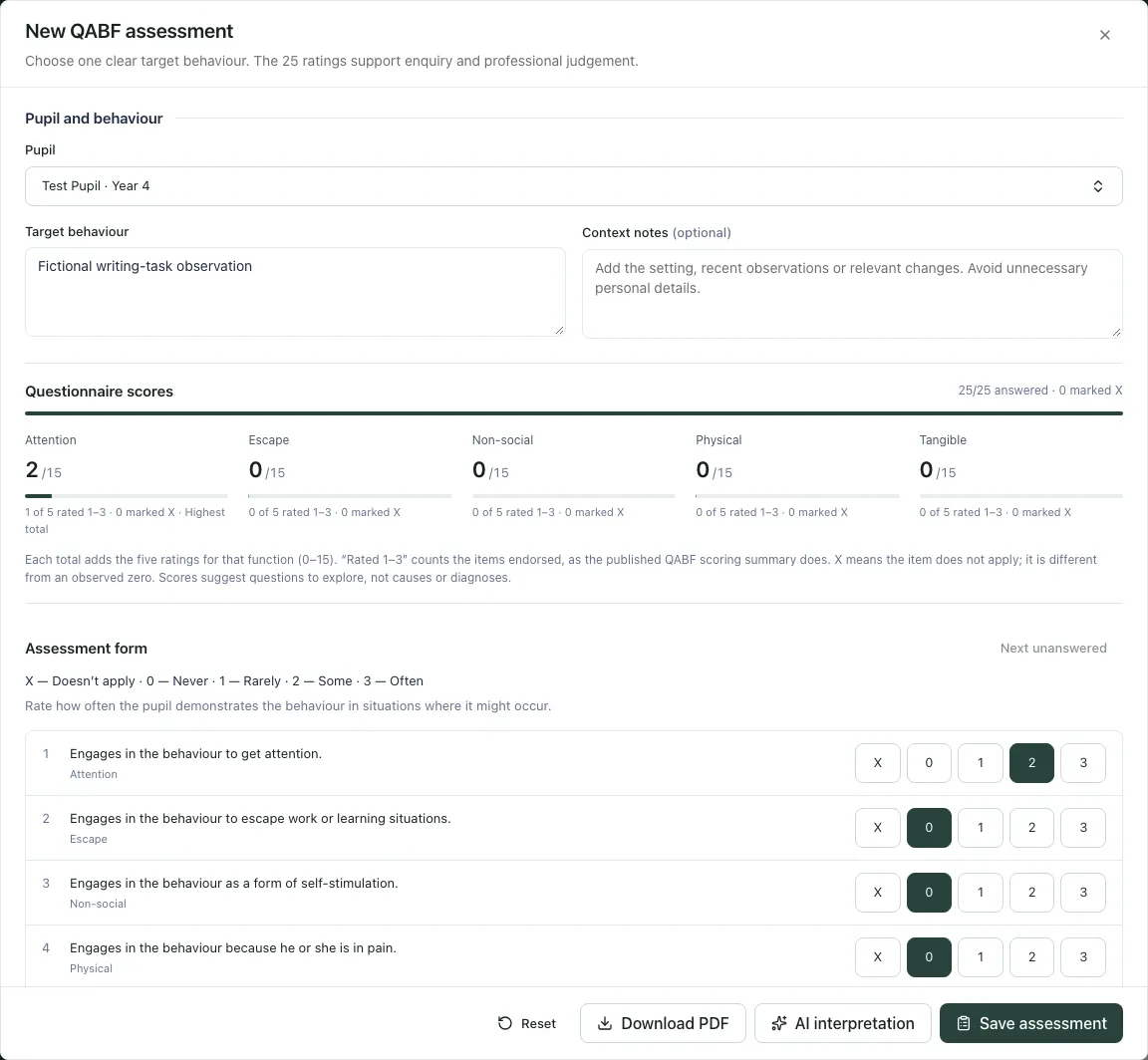
Highest total is a relative label within this questionnaire. Tied highest totals can be shown; it is not a statement that a cause is established. A high total resting on fewer endorsed items can differ from one spread across more items. The visible score does not automatically diagnose, choose a treatment or activate a plan.
Discuss the ratings alongside direct observations, the pupil’s account and relevant staff/family knowledge. Do not treat the label of a domain as a proven reason for the behaviour.
5. Decide whether to use optional AI interpretation
Section titled “5. Decide whether to use optional AI interpretation”Once the entered assessment is ready, AI interpretation can request working hypotheses from the ratings, target behaviour and notes. It is optional: you can save or download the questionnaire without AI.
Read the generated interpretation, cautions and provenance. The fixed warning still applies even if an interpretation sounds confident: it is not a diagnosis or a support plan. Editing the ratings or context can invalidate a previously prepared response; review the current inputs and any stale/error message.
In the staff register workflow, the AI interpretation is a temporary draft and is not saved with the assessment. If you need it in an appropriate reviewed output, use Download PDF before saving/closing, and inspect the PDF. In resource/demo modes, the screen explains that interpretation is not stored as a school register record. Do not assume returning to history will reproduce it.
If generation is unavailable, rate-limited or refused, the answers remain available. Continue with human review; repeated requests do not make the hypothesis more reliable or grant access.
6. Save the assessment and verify the record
Section titled “6. Save the assessment and verify the record”Select Save assessment after checking pupil, target, context and all 25 ratings. Wait for success, then find the updated register row. Open View history and select the saved assessment to confirm the answers and scores belong to the right pupil/behaviour.
Do not close while the page is saving unless you have read the still-saving/unsaved warning. If a connection failure leaves the result uncertain, inspect history before creating another assessment. A draft with unsaved changes can require Keep editing or an explicit discard decision before navigation.
7. Download a PDF deliberately
Section titled “7. Download a PDF deliberately”Download PDF prepares the questionnaire and the currently available reviewed output. Check the pupil, target behaviour, school-clock date, ratings and any included draft interpretation before using the file. A PDF is a snapshot, not a continuously updated plan or evidence of a staff decision.
Use the school’s normal handling arrangements for pupil information. Do not share a temporary AI interpretation as a definitive explanation of the child.
8. Use the phone view
Section titled “8. Use the phone view”The phone register keeps the pupil and history controls compact. In an assessment dialog, scroll its own body through all items and use Next unanswered. Recheck the pupil and target before using the footer save/download controls.
If something does not work
Section titled “If something does not work”| Situation | What to do |
|---|---|
| No school workspace or access refused | Check the school/account with an authorised administrator. |
| Pupil missing | Search again, confirm class/year and access. Do not use another pupil’s record. |
| Save disabled | Check target behaviour, valid text lengths and all 25 valid ratings. |
| Unanswered item | Use Next unanswered. Do not confuse blank with 0 or X. |
| Register/history failed | Retry and keep the distinction between failed and empty data. |
| Interpretation failed or unavailable | Read the message; answers are unchanged. Human review can continue without AI. |
| AI draft missing from history | The register saves answers/scores, not that temporary interpretation. Read the save-mode note before closing. |
| Save result uncertain | Check history before repeating completion. |
| Unsaved changes warning | Keep editing, save where supported or explicitly discard the intended draft. |
Common questions
Section titled “Common questions”What should I define before completing QABF ratings?
Section titled “What should I define before completing QABF ratings?”Describe one clear target behaviour and keep the observation context in view while answering the 25 items.
What should I read alongside the domain totals?
Section titled “What should I read alongside the domain totals?”Read the underlying answers and endorsement counts. Totals suggest questions for review rather than deciding a cause or support plan.