Plan school priorities and review improvement evidence
Create the agreed priority with its purpose and lead, then add milestones, owned actions and evidence for review. School Priorities keeps delivery progress separate from measured outcomes.
Open Leadership → Strategy & assurance → School Priorities. Screenshots use fictional examples.
1. Read and filter the register
Section titled “1. Read and filter the register”The Priorities register lists each priority’s owner, status, next review and delivery information. Use Search priorities and Filters to narrow by evaluation area, owner, priority status, target pupil group or Needs attention. Check the number shown against the total before assuming you are viewing every priority.
Group by framework and area groups records using their saved evaluation framework context. A priority retains its own framework edition; a later school framework selection should not silently rewrite its original meaning. A flagged area needs a leader’s review after a framework change.
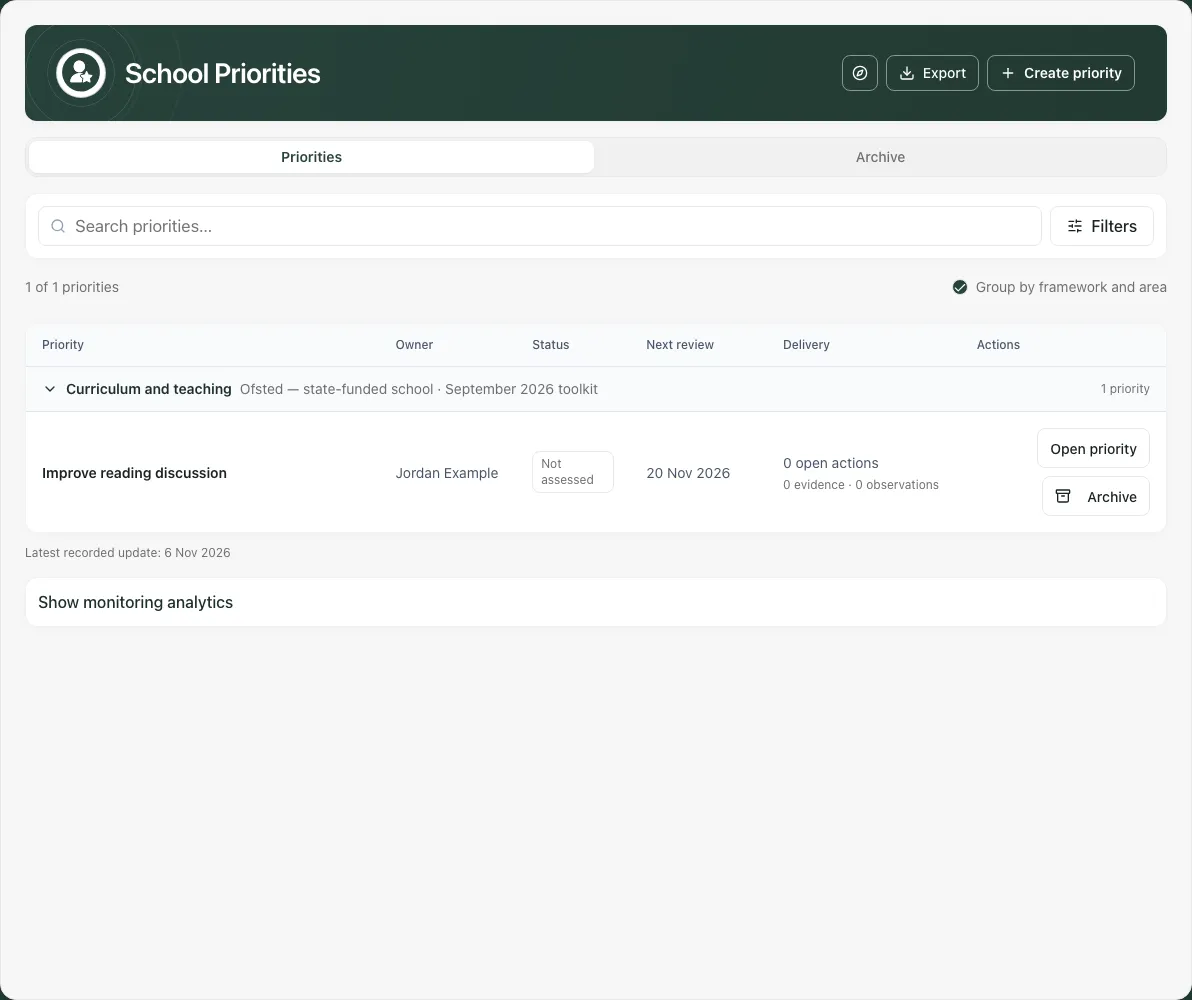
The status words are On Track, At Risk, Off Track and Not assessed. Not assessed is not On Track. Needs attention can include overdue work, a missed next milestone or an overdue review, so it is broader than one status category.
Select Open priority on the intended row. The title cell alone is not the open control. Archive is separate and should only be used when deliberately removing a priority from active work.
2. Create a priority with an agreed purpose
Section titled “2. Create a priority with an agreed purpose”Use Create priority and choose Manual. The confirmed leadership framework and your ability to manage it must be available before saving. If the framework read failed, retry it rather than choosing an assumed area.
Complete Title, Evaluation area, optional SIP cycle, Description, Owner (optional), Review cadence (optional), Start date and optional Next review date. Choose any relevant target pupil groups and optional trust priority where offered. Select Create, wait for confirmation and open the new record to check the context and ownership.
Give the priority a concrete problem and a reviewable ambition. “Improve reading discussion” is clearer when its description explains whose discussions, what is missing and how staff will check the change. A typed owner name without a linked staff lead cannot carry the same reminder connection as an assigned lead.
The AI-assisted creation option can help structure an intent into a suggested priority, measures, actions, monitoring and CPD ideas. Review the question/answer stage and every proposed title, rationale, description, date and target before accepting. It does not independently analyse all school data or decide the school’s priorities. Editing a target requires reconsidering its thresholds, not retaining an unseen AI assumption.
Back returns to answers; Start over deliberately begins again. Monitoring suggestions create the stated check, not an automatic repeating programme simply because a cadence is mentioned. A refused or uncertain request needs its displayed recovery path before another paid attempt.
3. Check the opened plan and edit it
Section titled “3. Check the opened plan and edit it”Overview brings together the purpose, saved framework/area, start, review cycle, success criteria, linked improvement plan and next review checks. Read what is missing as well as what is complete.
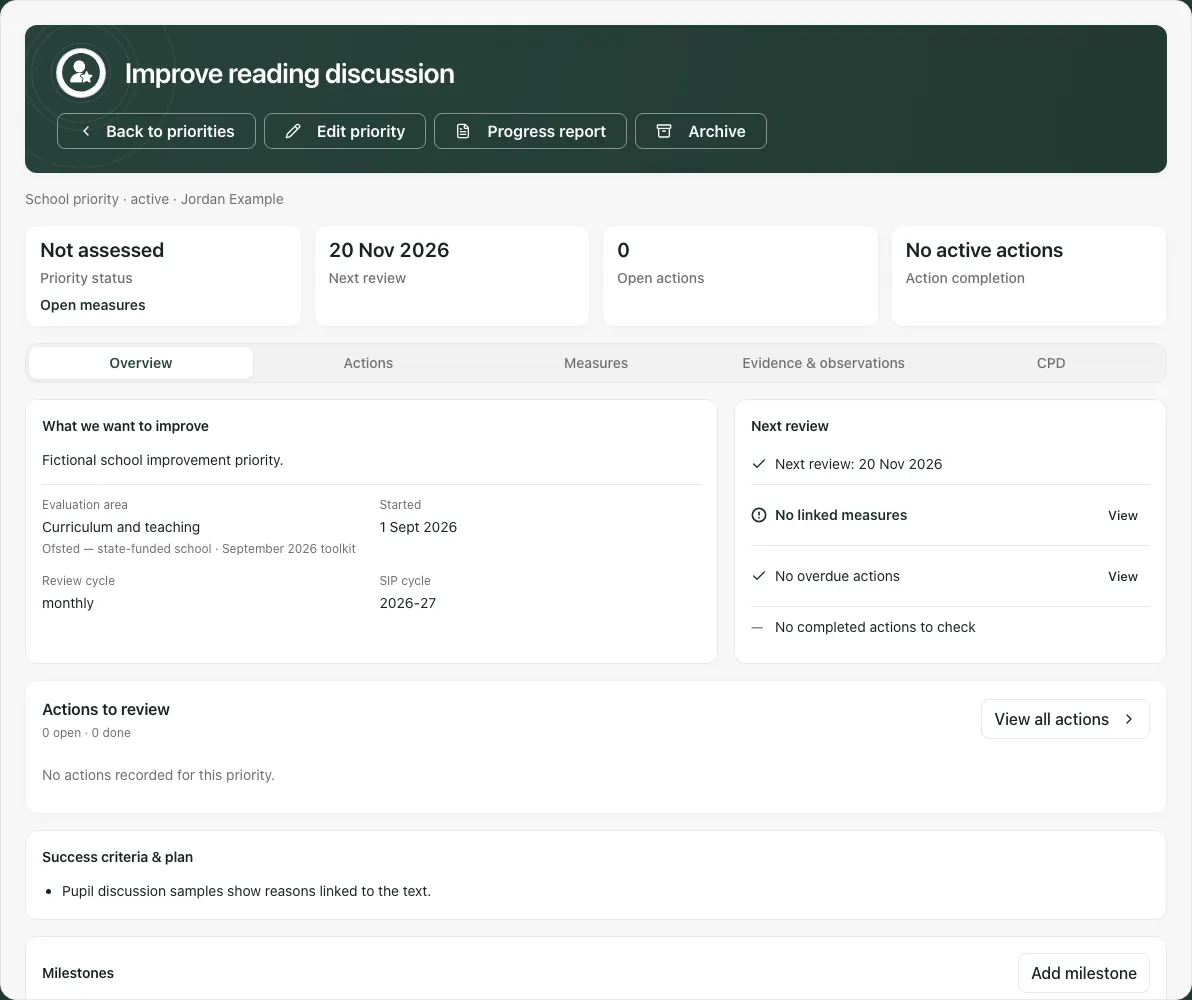
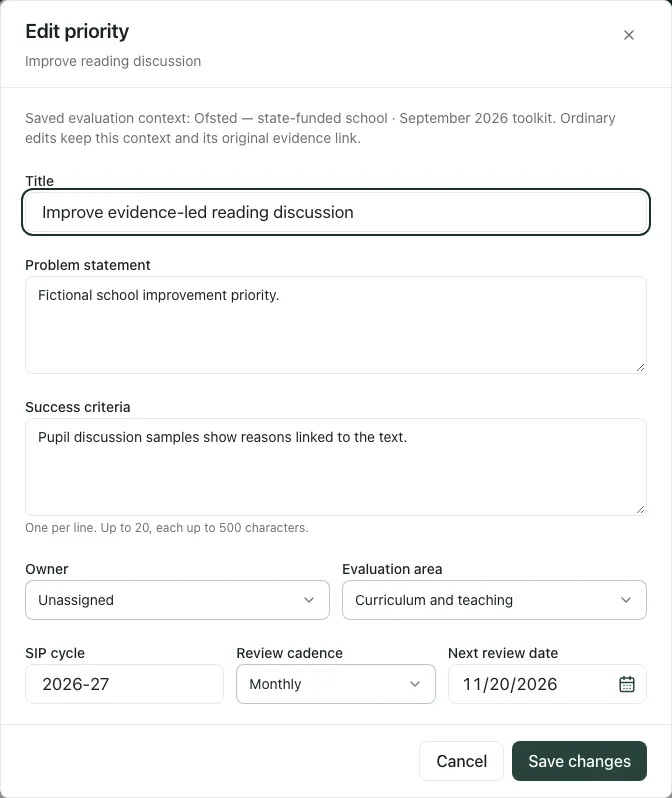
Use Edit priority to change Title, Problem statement, Success criteria, Owner, saved-context Evaluation area where allowed, SIP cycle, Review cadence or Next review date, then Save changes. Ordinary edits retain the saved framework context; review a framework-change warning deliberately rather than assuming choosing a similar area migrates every record.
After saving, check the reopened title and plan. If another leader saved a newer version, compare the latest record and apply the intended changes again; do not overwrite it blindly. Fields lock while saving, so wait for the receipt before leaving.
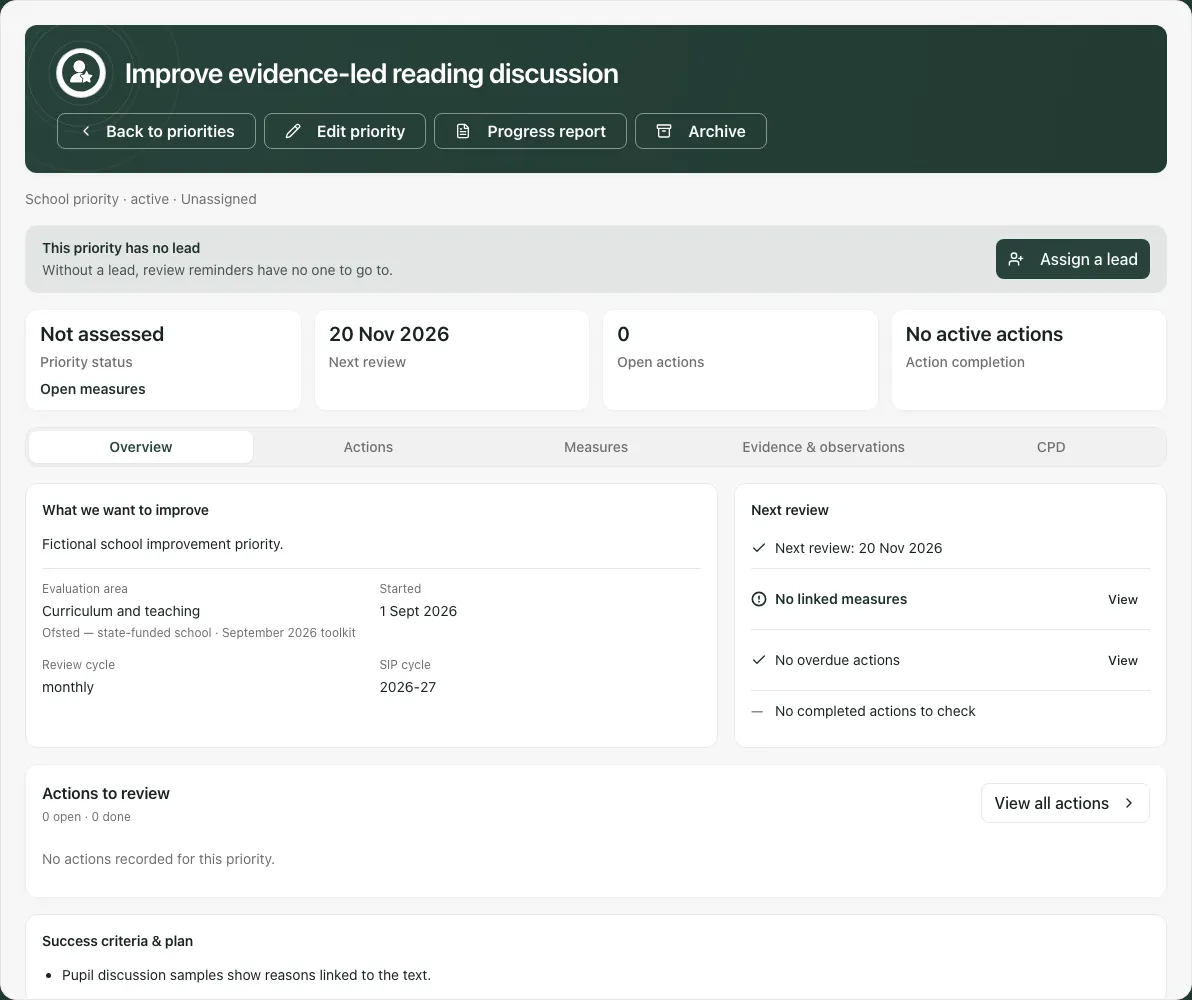
If the page says This priority has no lead, use Assign a lead or the owner edit to choose the responsible staff member. Without a linked lead, review reminders have no one to go to. An owner label and a staff responsibility are not interchangeable.
4. Add dated milestones
Section titled “4. Add dated milestones”In Overview, use Add milestone. Enter Milestone, Target date, Status and optional Notes, then Save milestone. Edit an existing milestone to update the checkpoint or its status. Keep the date tied to a meaningful review event, such as completing a set of learning walks.
The earliest not-started/in-progress milestone becomes Next on the register and in reports. Completing one should reveal the next checkpoint; if all milestones are completed or missed, there may be no remaining next milestone. A date in the past is not evidence that the checkpoint happened.
Milestones describe the plan’s sequence. They do not prove that an intervention improved pupil outcomes or automatically complete its actions.
5. Create, assign and review actions
Section titled “5. Create, assign and review actions”Open Actions or View all actions. Use Filter actions by status and the page controls to find the relevant work. Summary totals are calculated separately from the visible page, so ten displayed rows are not necessarily the whole action set.
Use New action, enter Title, Description, Due date, Status, Severity, linked Priority, optional Meeting and Owner (optional), then Create. Check the new action and owner. A due date without a responsible person is not a complete handoff.
Where offered, select individual open actions, Select unassigned or Select all open actions on this page, then Assign owner. This is a bounded ownership action for the selected page, not a general bulk completion command. Check the selected count and chosen staff member before confirming.
Open an action to edit its title, due date, owner, description or available status and Save changes. Add relevant proof through Add note, Add link or Attach document. The document flow records title, type, confidentiality, optional upload and change note; attaching a document and completing the action remain different events.
Mark done is a separate action that requires available proof and the appropriate access. Done is not chosen as an ordinary dropdown edit. If proof is unavailable, resolve that read; do not treat it as zero or bypass it. Reopening a completed action returns it to work and clears its completion time rather than preserving a misleading finished state.
In the action’s Impact (PDCA) section, under Impact prompts (PDCA), Add update records Stage, Intended impact, Success criteria, Notes and the offered decision/review fields, then Save. Describe what was checked and the authorised next decision. The fact that a note or document exists supports the work record; it does not by itself establish impact.
6. Read measures separately from action completion
Section titled “6. Read measures separately from action completion”Measures shows recorded values, targets and dates. It can legitimately have no linked measures even when the priority has actions or success criteria.
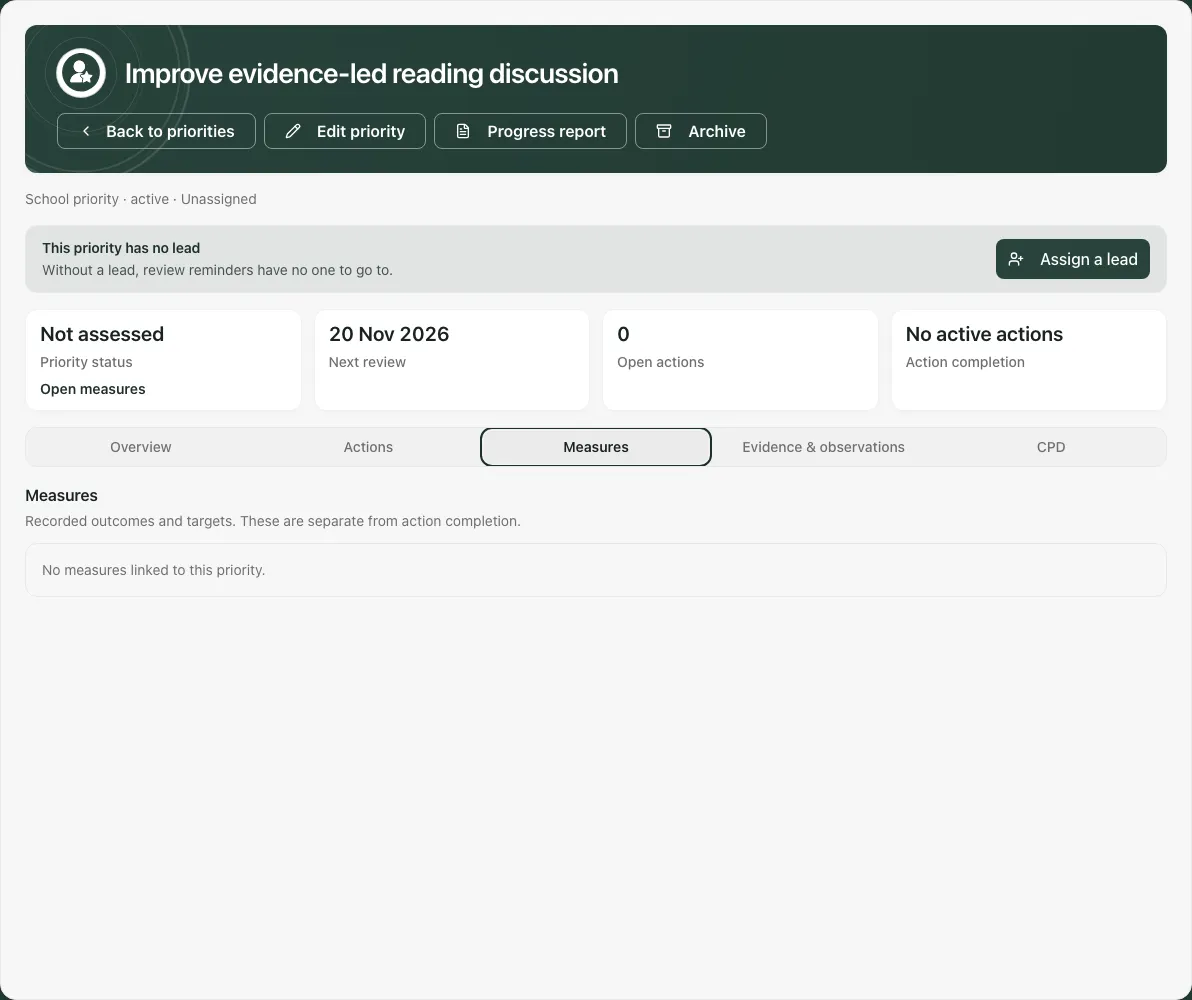
For a manual measure, select Record value, enter Value, Measurement date and optional Source or notes, then Save measurement. Use a real measured value and the school’s date; a future date is refused. Keep the source/window and the measure’s unit clear.
Where a supported automatic measure is configured, Refresh data requests a fresh value and reports what refreshed or could not be refreshed. Automatic does not mean universally complete or current. Check the measured date, coverage, denominator and missing/unavailable explanation before comparing with the target.
A target or agreed thresholds are needed for a meaningful status. No agreed target must not be read as On Track. A stale automatic value must not be presented as a current outcome. Action completion and outcome measures stay separate even when both are summarised on the same page.
7. Link evidence and record observations
Section titled “7. Link evidence and record observations”In Evidence & observations, select Link evidence, search Search evidence by title, choose relevant existing items and Link selected. Review title, source, date and confidentiality. Unlink [title] removes the relationship to this priority; it does not mean the original evidence was deleted everywhere. Page through the list before concluding there are no more items.
Use Add observation to record Type, Date, Observer, optional Rating (1–5), Key findings, Strengths and Areas for development, then Save. Choose wording that describes the observed sample and its limits. An observation rating is not a whole-school inspection grade.
Use Previous observations and the next-page control to review older records. A failed read should be retried; it must not become “no evidence” in a report. The register’s Show monitoring analytics offers a broader observation view, which still depends on what was recorded.
8. Use CPD ideas and progress reports
Section titled “8. Use CPD ideas and progress reports”CPD separates Saved CPD ideas from Linked CPD sessions. Inspect an idea’s target staff, format and rationale. Send to CPD prepares a CPD draft; it does not prove that training was scheduled, attended or effective. Open an existing linked session to review its date, status and details rather than sending a duplicate. If the linked-session read failed, resolve it before creating another.
Progress report opens a draft reporting workflow. Use Generate report where available, review Progress so far, Strengths in the approach, Weaknesses and unresolved risks, Evidence quality and the framework-related sections, and edit the narrative before Download PDF. Regenerate requests another draft; it can replace wording you have edited, so keep the useful work deliberately. Read Check report, Retry report or Start new draft according to the actual recovery message.
The progress report is a human-reviewed account of this priority, not automatic proof of causation, an inspection judgement or a sent governors’ communication.
9. Export, archive and revisit
Section titled “9. Export, archive and revisit”From the register’s Export menu, choose the required output: Print / PDF, Excel (.xlsx) — full dataset, CSV — priorities only, Governor one-pager (PDF), Policy compliance (PDF) or other offered reporting destination. Different outputs can require additional evaluation/export access. Disabled controls and their explanation distinguish a refusal from no data.
Check the export’s scope, dates, status labels and omissions before use. The one-pager prioritises the most concerning entries and can summarise additional priorities rather than displaying every one. Anonymise names withholds owner/observer fields in the stated priority outputs; it does not promise removal of every identifying detail from free text or all linked documents.
Report schedules… opens a separate schedule panel. Do not assume it sends any particular exported priority report simply because the menu is here; check the supported template and operation. Scheduling, archive creation and email notices are distinct.
Use Archive only when the priority should leave active work, checking the confirmation and reason. The Archive workspace provides the retained records and offered restoration workflow. Archiving is not proof that its intended improvement was achieved.
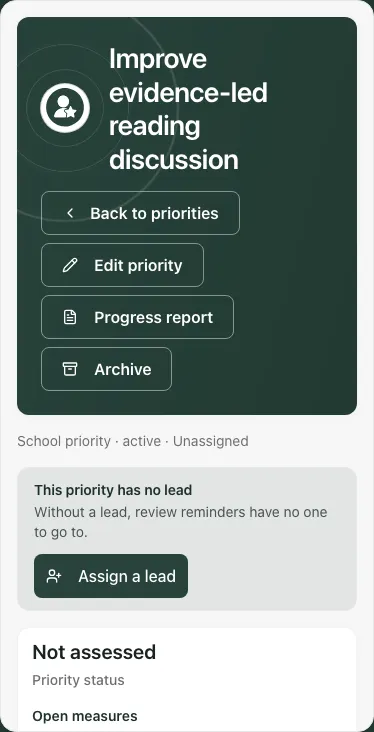
On a phone, use the section selector for Overview, Actions, Measures, Evidence & observations and CPD. Keep the priority name/context visible before saving.
Troubleshooting
Section titled “Troubleshooting”- Cannot create or edit: viewing a priority is different from managing its framework, evidence and work. Ask the responsible leader for the specific task.
- Review overdue or no lead: update the actual review arrangement and owner; changing a label does not complete the review.
- No measures, unavailable values or proof checks: distinguish absent setup from failed/restricted evidence. Retry the relevant read before drawing conclusions.
- Action totals unavailable: do not infer them from the visible page or call the priority complete.
- Framework association needs review: verify the edition and area before saving a new judgement or report.
- Export blocked: save/refresh the required context and check the stated access; no file is established merely by opening the menu.
For a shorter setup sequence see Create a school improvement priority.
Common questions
Section titled “Common questions”Where should I put the work for a priority?
Section titled “Where should I put the work for a priority?”Create and assign actions within the intended priority, alongside its milestones and dates. Give the response a clear owner.
How should I judge whether the priority helped?
Section titled “How should I judge whether the priority helped?”Review the measures, linked evidence and observations separately from action completion. Delivery progress alone does not show the intended outcome improved.