Take the register offline
Written for: Alternative provision staff who take registers at off-site settings.
If you run sessions somewhere with poor signal, such as a workshop, a farm or an outdoor site, you can take the Daily Register without a connection. Copy today’s registers before you go, take them on site, and Student Radar sends the marks when the signal comes back.
Before you go: save today’s registers
Section titled “Before you go: save today’s registers”Do this while you still have a good connection, on the phone, tablet or laptop you’ll take with you.
- In the sidebar, open Attendance and choose Daily Register. Make sure it’s showing today.
- Wait for the day’s registers to load, then click Save for offline at the top of the page.
- Wait while it copies. Offline register then says how many registers were copied, and when the copy will be removed.
- Keep the page open. Don’t close the tab, reload the page or sign out.

It copies up to 12 of today’s sessions that have pupils booked, with the registers still to take first, earliest first. Cancelled sessions aren’t copied. If the day has more sessions, it says how many weren’t copied. If you’ve chosen a Site, only that site’s sessions are copied.
The copy is held only while the page stays open, and it’s removed at midnight, or 12 hours after you copied it if that’s sooner. If the rota changes before you go, click Refresh offline copy. To get rid of the copy, click Remove copy.

Take a register without a signal
Section titled “Take a register without a signal”When the connection drops, the Daily Register switches to the registers on your device. If the signal is weak rather than gone, click Work offline to switch over yourself.
The cards at the top show the Sessions on this device, how many places were Marked when copied, how many are Booked, and the Marks waiting to send.
- Click Take register on the session.
- Mark each pupil as usual: Present, Late arrival, Absent or Unrecorded, with times and reasons. See Take today’s register.
- Click the button at the bottom to keep the marks, for example Keep 3 marks on this device.
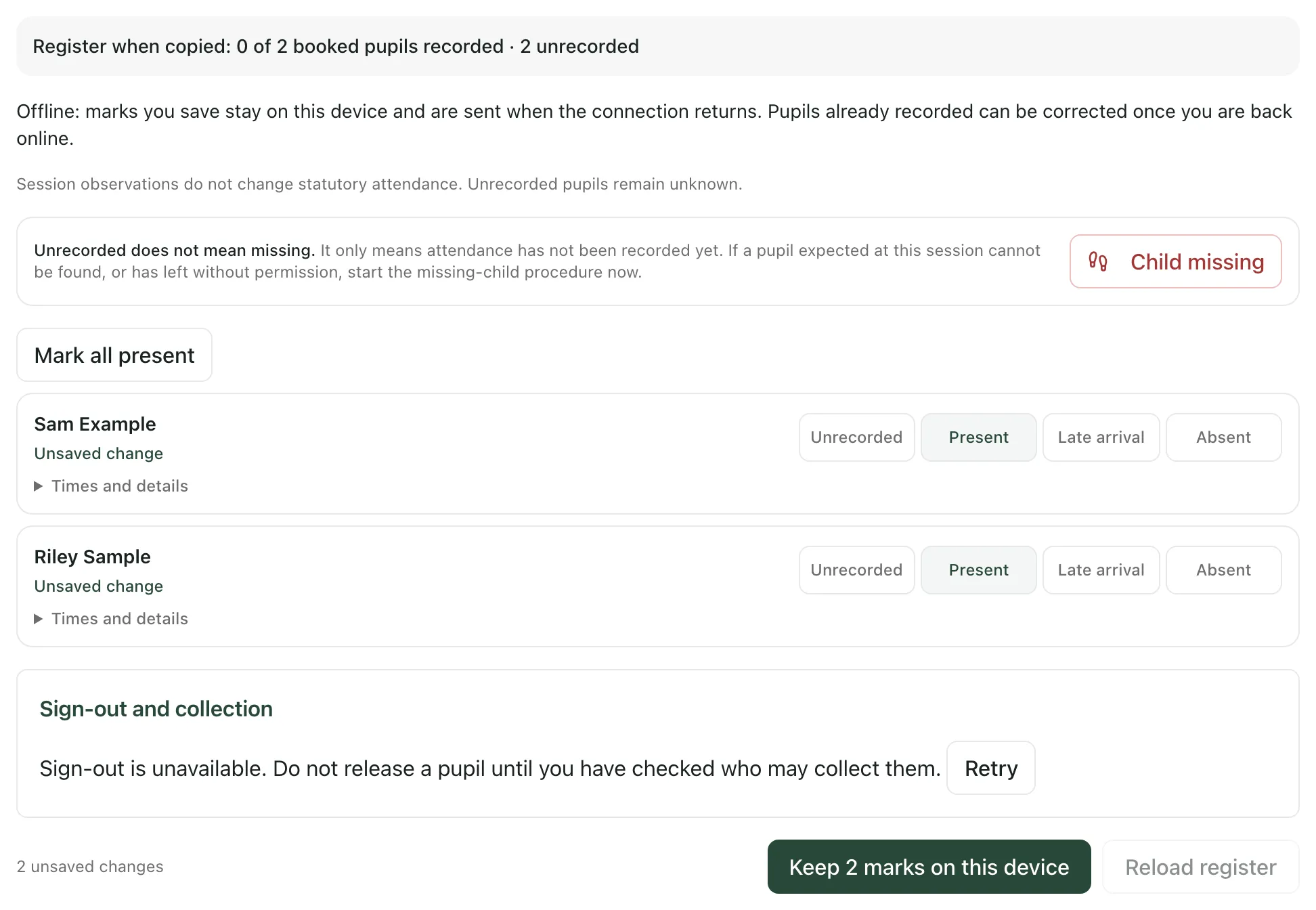
The session now shows Waiting to send. To change the marks before they’re sent, open the register again, change them and keep them again.
Pupils who were already recorded when you copied the registers can’t be changed offline. Correct them in the register once you’re back online.
Send the marks when you’re back online
Section titled “Send the marks when you’re back online”Student Radar sends the marks as soon as the connection returns. If you chose Work offline, click Go back online. To send straight away, click Send now.
While the marks are sending, the session shows Sending. If the connection drops before a send is confirmed, Student Radar tries the same send again later and shows when. It sends the same marks each time, so nothing is recorded twice. When the register accepts the marks, they leave the list of marks on this device and the day’s registers update.
If marks need review
Section titled “If marks need review”If the register refuses marks, nothing from them is saved and they show Needs review. This happens when someone changed the session, the register or your access after you copied it, or when a mark can’t be saved as it stands.
- Back online, click Review and re-apply on the session. The live register opens.
- Check the marks already saved there.
- Click Re-apply my unsaved marks. If someone else has saved a mark for one of your pupils, enter a Correction reason (required when saving changes) for them.
- Save the register.
If you don’t need the marks any more, click Remove from this device instead. If the marks are for another day, show that day first with the button beside them.
Keep your marks safe
Section titled “Keep your marks safe”- Three days: marks not confirmed within three days are removed from the device. Send them as soon as you can.
- Signing out or switching school: this removes any marks still waiting on the device. Make sure Offline register shows no marks waiting before you sign out.
- Reloading the page: marks you’ve kept stay on the device, but the copied registers don’t. Without a signal, you can’t copy them again.
- One device: marks stay on the device you took them on. Send them from that device.
- Up to 20 sessions: one device can hold marks for up to 20 sessions at a time. Send them before you take more.
- Who can use it: staff who can record attendance or manage the rota can save registers for offline use. It isn’t available in the read-only demo.
- Today only: you can only copy today’s registers. Save for offline doesn’t appear on other days.
- What needs a signal: the Child missing alert and pupil sign-out need a connection. Without one, phone the on-call lead or DSL about a missing pupil, and don’t release a pupil until you’ve checked who may collect them. See Report a missing pupil from the session register and Sign pupils out and record who can collect them.
- Trips and visits: the offline Daily Register is for the sessions on your rota. For an off-site trip or activity planned in Trips, use the trip’s own field register instead: open the trip and click Open field mode. Field mode also works without a signal. See Plan an off-site trip or activity.
- Your provision’s words: labels use your provision’s Setting profile. The defaults are pupil, group and commissioning school, so your labels may differ.
If something doesn’t work
Section titled “If something doesn’t work”| What you see | What to do |
|---|---|
| “No connection, and today’s registers are not on this device. Reconnect, then choose Save for offline before you go.” | The registers weren’t copied before the signal went. Note the marks another way and enter them when you’re back. |
| “The registers could not all be copied, so none were kept. Try again while connected.” | Move somewhere with a better signal and click Save for offline again. |
| “This browser cannot keep marks on the device, so registers cannot be taken offline here.” | Use another browser or device to take registers offline. |
| “This device holds marks for as many sessions as it can. Send them before taking another register.” | Get a connection and click Send now, then take the next register. |
| “Marks for this session are being sent. Take it again once they are confirmed.” | Wait until the send is confirmed, then open the register again. |
| “The register refused the marks saved for this session. Review them once you are back online.” | Once you’re online, click Review and re-apply. |
| “This session changed after the register was copied. Nothing from these marks was saved.” | Click Review and re-apply, check the session and re-apply the marks. |
| “Someone changed this register, or your access to it, after it was copied. Nothing from these marks was saved.” | Click Review and re-apply. Add a correction reason for any pupil someone else has recorded. |
| “The register refused these marks as they stand. Nothing was saved; they need editing.” | Click Review and re-apply, fix the marks the register shows, and save. |
| A message that offline registers passed three days without being confirmed and were removed | Those marks were never saved. Check the sessions in the Daily Register and record them again. |
| A message that only the registers for another day are on this device | You changed the date. Click the button to show the day you copied. |
| No Save for offline button | Go to today in the Daily Register. If it still isn’t there, your account can’t record attendance, or your browser can’t keep marks on the device. |