Review pupil accounts and family account links
Check pupil and parent account states, review the intended adult-child link and prepare any invitation for the exact recipient. You can also manage the permitted information/actions for one adult-child relationship. A pupil login, parent account, pending invitation, child link and a published family document are different records.
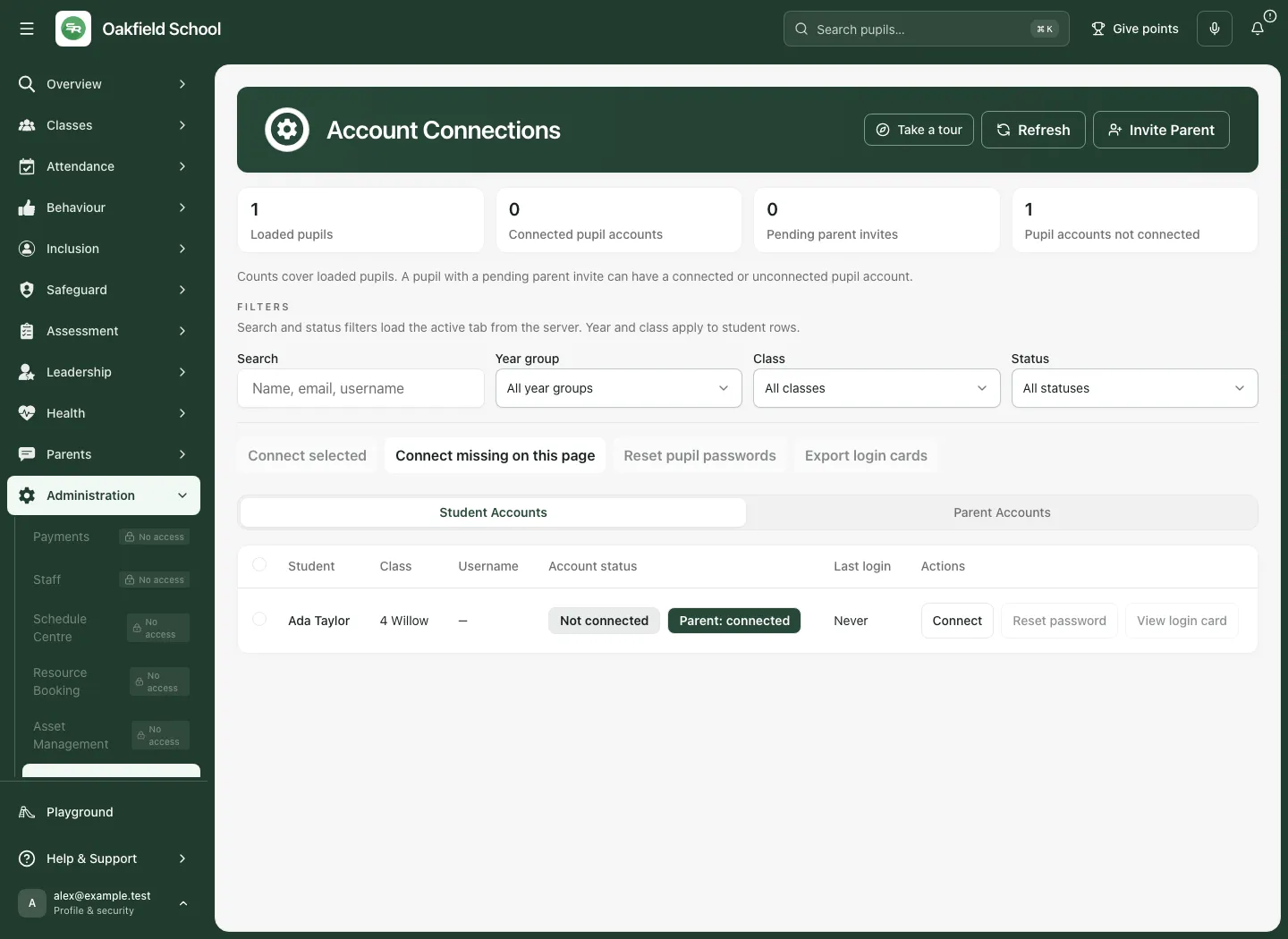
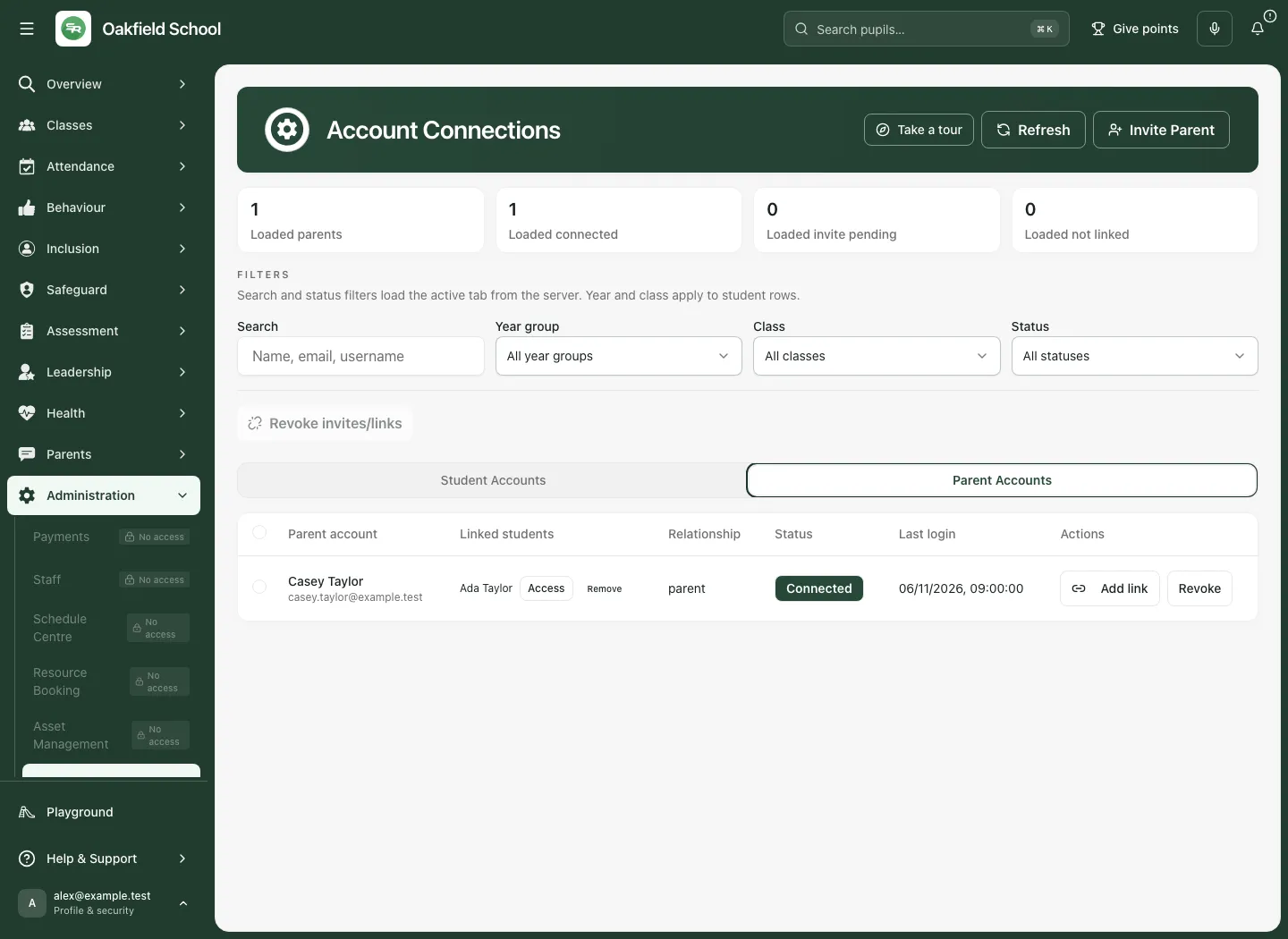
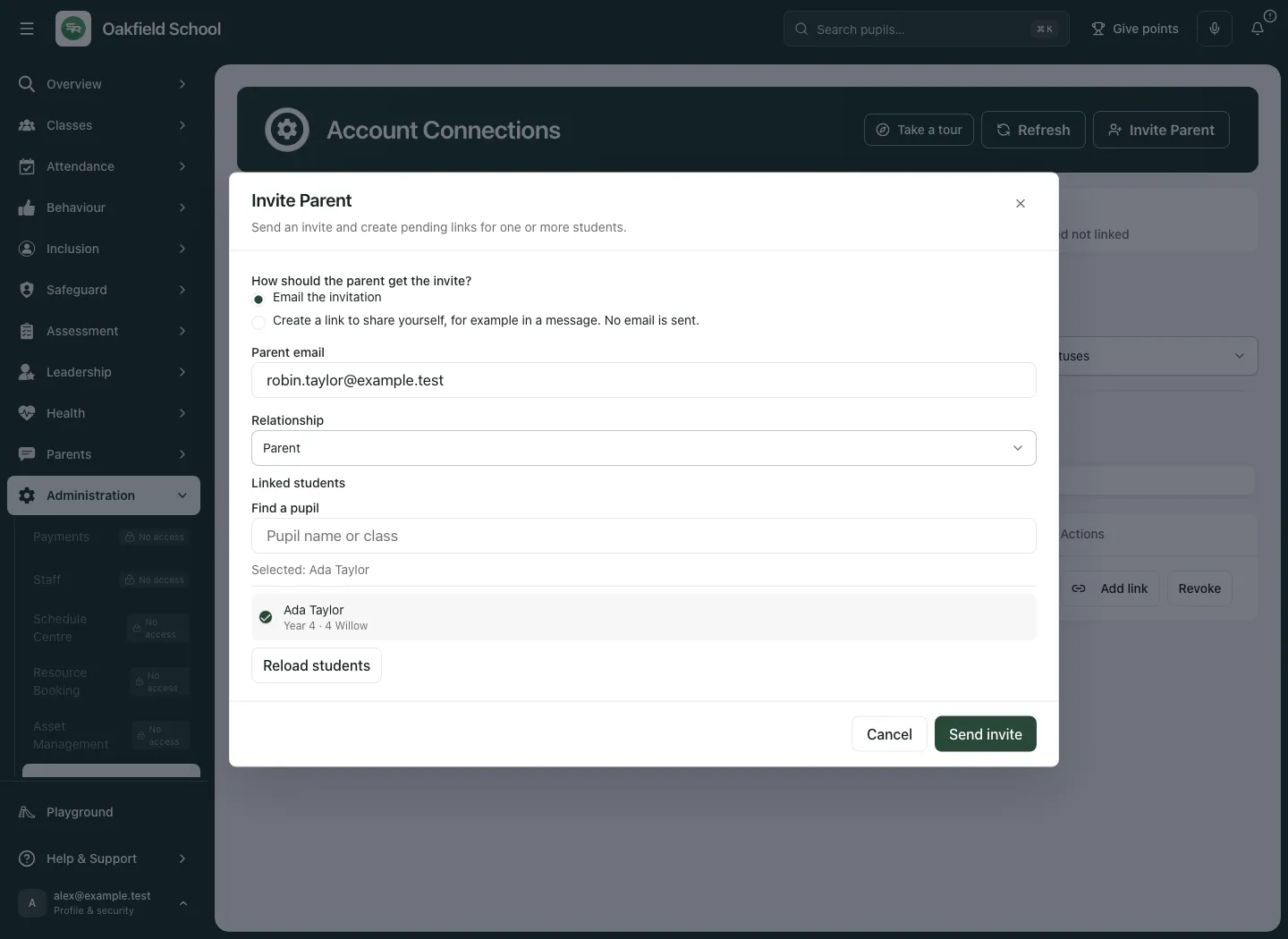
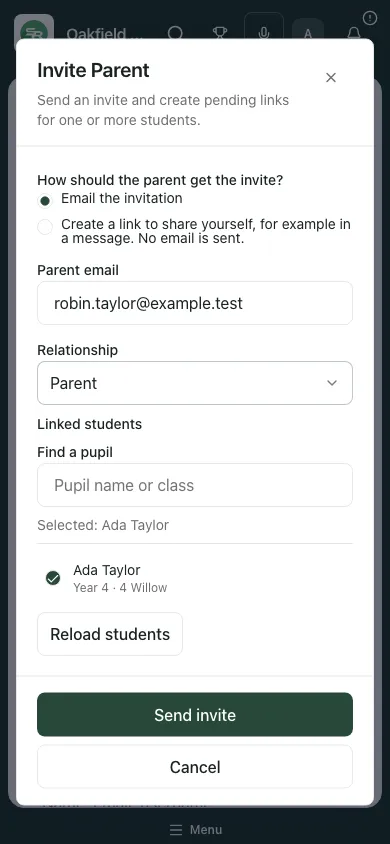
The fictional example has Ada Taylor’s pupil account not connected while Casey Taylor already has a connected parent account linked to Ada. This is possible: a child’s own login and a parent’s relationship are separate. A second fictional invitation is prepared for Robin; no invitation is sent.
1. Check the current school and authority
Section titled “1. Check the current school and authority”Open Account Connections under Administration. Check the school before selecting people. The area can be disabled by school feature availability. Pupil provisioning, password reset, parent invitations and relationship management have separate role/capability checks.
Use only the verified pupil identity shown by the account roster. An ambiguous or unavailable identity needs the office/MIS record corrected before selection. Similar names and a shared class are not sufficient identity evidence.
For family work, confirm the actual adult-child relationship and school policy before linking or widening access. An email address or a context link does not itself establish authority to see a pupil’s information.
2. Read loaded coverage and filters
Section titled “2. Read loaded coverage and filters”- Choose Student Accounts or Parent Accounts.
- Read the loaded counts for the active tab. Loaded pupils, Connected pupil accounts, Pending parent invites and Pupil accounts not connected are not one mutually exclusive set: a pending family invitation can coexist with a connected pupil account.
- Use Search, Year group, Class and Status as offered. Year/class filtering applies to pupil rows; search/status reload the active tab from the server.
- Use Load 50 more when available. Counts cover the loaded rows for current filters, not all school accounts.
- Check the actual name, class/year and identity status before selecting a pupil. Do not interpret opaque/missing identity data as a ready account.
- Use Refresh to read current state after an external change or a school switch.
If a list cannot load, read the error and retry the intended tab. Do not treat an unavailable list as zero accounts or continue a bulk action using an old selection.
3. Connect pupil accounts
Section titled “3. Connect pupil accounts”- In Student Accounts, find and select the intended ready-identity pupil rows.
- Review the selected people, current connected/not-connected state and the current school.
- Choose Connect selected for that explicit selection, or Connect missing on this page for the loaded not-connected rows only.
- Read each returned result. A batch can include created, existing or refused outcomes; do not assume every selected row succeeded.
- Open the credential result and check the pupil label/username. Newly issued passwords are shown once.
- Use Export login cards only when authorised staff need the printable credentials, and store/distribute them through school policy. Keep cards away from general screenshots, email lists and shared notes.
- Refresh/reopen the intended pupil to confirm the connected account state. A prepared selection is not a created account.
Connect missing on this page is deliberately bounded. It does not connect unseen pages or every child matching a wider search. If more pupils need accounts, load/review the next page deliberately.
4. Reset a pupil password
Section titled “4. Reset a pupil password”- Check the pupil’s identity and why a reset is needed.
- Use the row Reset password, or select the intended pupils and choose Reset pupil passwords.
- Read each actual result. A password reset changes credentials; it is not simply showing an old password.
- Handle the newly issued password immediately through the approved school handover. Export login cards uses the credentials currently held by this page.
- If the page no longer holds the password, it cannot recover it from an earlier account list. Use the supported reset route when another new password is justified.
Never place real credentials in a public document or general staff chat. Closing/reloading can remove the one-time values from the current page; do not assume a future export can reconstruct them.
5. Review parent accounts and child links
Section titled “5. Review parent accounts and child links”- Open Parent Accounts and locate the adult by verified email/name.
- Read the status, relationship, linked children, last login and any invitation timing/expiry shown.
- Distinguish Connected, Invite pending, Revoked and Not linked. A pending invite is not an accepted account; a revoked row can retain Previously linked evidence without active access.
- Check each named child independently. One linked child does not mean the adult can view every sibling or every school.
- Open the child’s Access control for the adult-child settings, or the explicit link-management control when the relationship itself needs changing.
6. Invite a parent using the intended delivery method
Section titled “6. Invite a parent using the intended delivery method”- Check the current parent list first, so an existing account or pending invitation is not mistaken for a missing person.
- Choose Invite Parent.
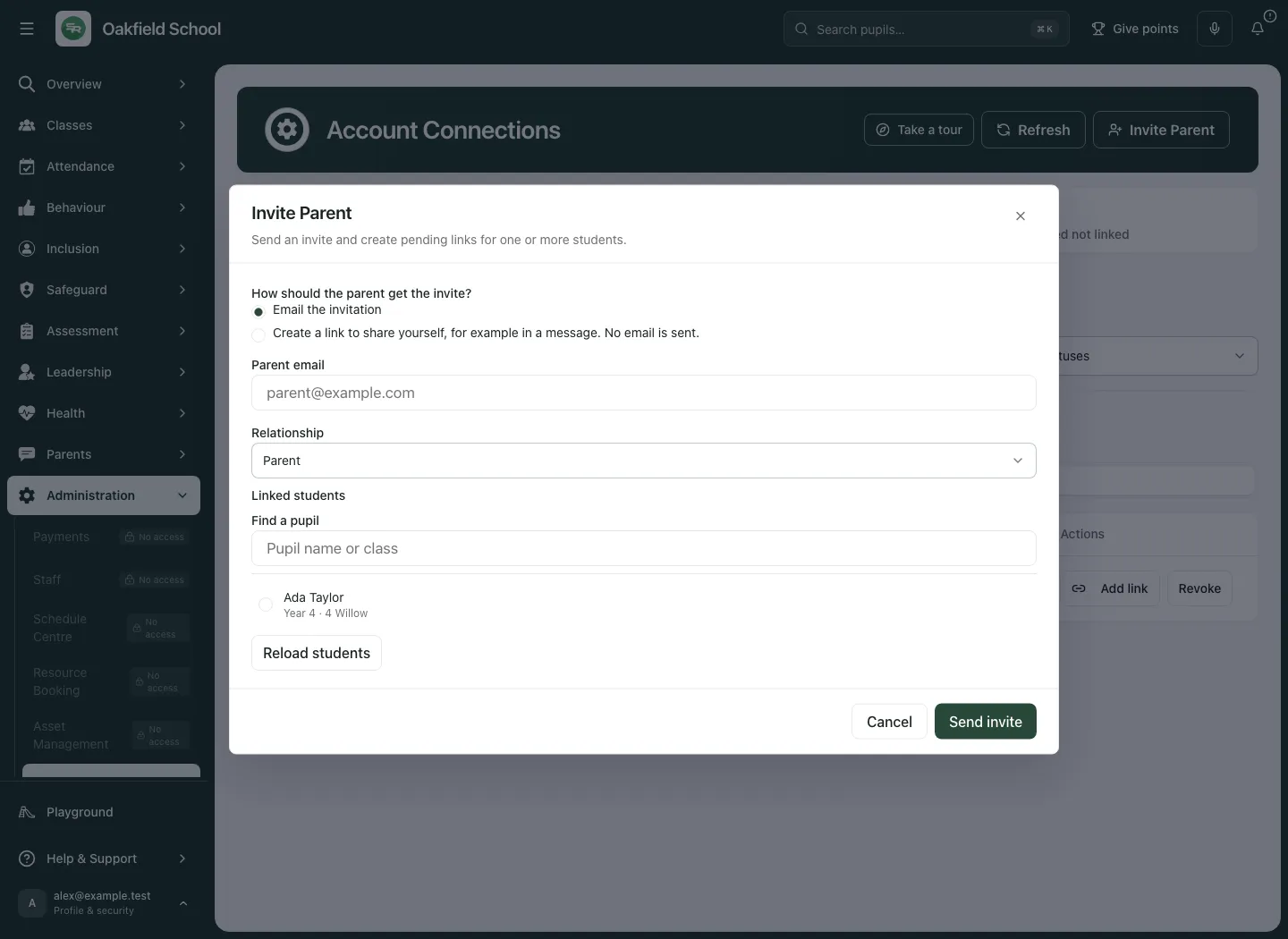
- Under How should the parent get the invite?, choose Email the invitation or Create a link to share yourself, for example in a message. No email is sent.
- Enter Parent email and choose Relationship according to verified school information.
- Use Find a pupil in the dialog’s own roster. Select each intended ready-identity child and review Selected/linked students. This roster is separately searchable/paginated, so the main table’s first page or filters do not limit finding an authorised pupil.
- If identity needs checking, ask the office to correct the name/year/registration group in the MIS, then use the roster reload control. Do not select a different similar pupil to bypass the warning.
- Recheck the address, relationship, children and delivery method.
- Choose Send invite for email delivery or Create link for the share-yourself route.
- Read the result and any displayed recipient-specific link. Creating a link sends no email. Email acceptance, invitation pending and account acceptance remain separate states.
Copy an existing pending invite link
Section titled “Copy an existing pending invite link”Use Copy link on the intended pending parent row. This reads the existing invitation link; it does not resend an email. A parent invitation is emailed at most once through this route.
In the link dialog, check Invite link for [email], its expiry and the reminder to send it only to that address. The recipient must sign in with that email to accept. Choose Copy link, then send it only through the school’s authorised communication process. A copied link is not evidence it has been sent or accepted.
For an expired link, follow the offered current invitation/replacement process. Do not assume Copy link renews its lifetime or sends another email. Read partial/fallback outcomes where a link is available but email delivery did not complete.
7. Add or remove a specific child link
Section titled “7. Add or remove a specific child link”Add a child to an existing parent
Section titled “Add a child to an existing parent”- On the connected parent row, choose Add link.
- In Add Student Link, use the pupil search/selection to choose the correct Student.
- Check the adult and intended child, then use the explicit link confirmation.
- Refresh/read the parent row and confirm the new linked child. An already existing or refused relationship should be read as that outcome, not a successful new link.
Remove one child relationship
Section titled “Remove one child relationship”- Use the named remove control beside that child on the parent’s row.
- Read the confirmation naming the adult and child. This removes that relationship, rather than every parent account in the school.
- Choose Keep access to return, or Remove link to confirm the intended removal.
- Check the resulting link state. Earlier evidence can remain; removal is not a deletion of historic communication or evidence records.
Revoke the selected invites/links
Section titled “Revoke the selected invites/links”For a whole parent row, choose Revoke; for a reviewed selection use Revoke invites/links. Read Revoke [parent]’s access? or the multi-parent count. Use Keep access to return or Revoke access to confirm. This is broader than removing one child link: check the affected parents and relationships before acting. Follow the actual result after the command.
8. Set access for one parent and one child
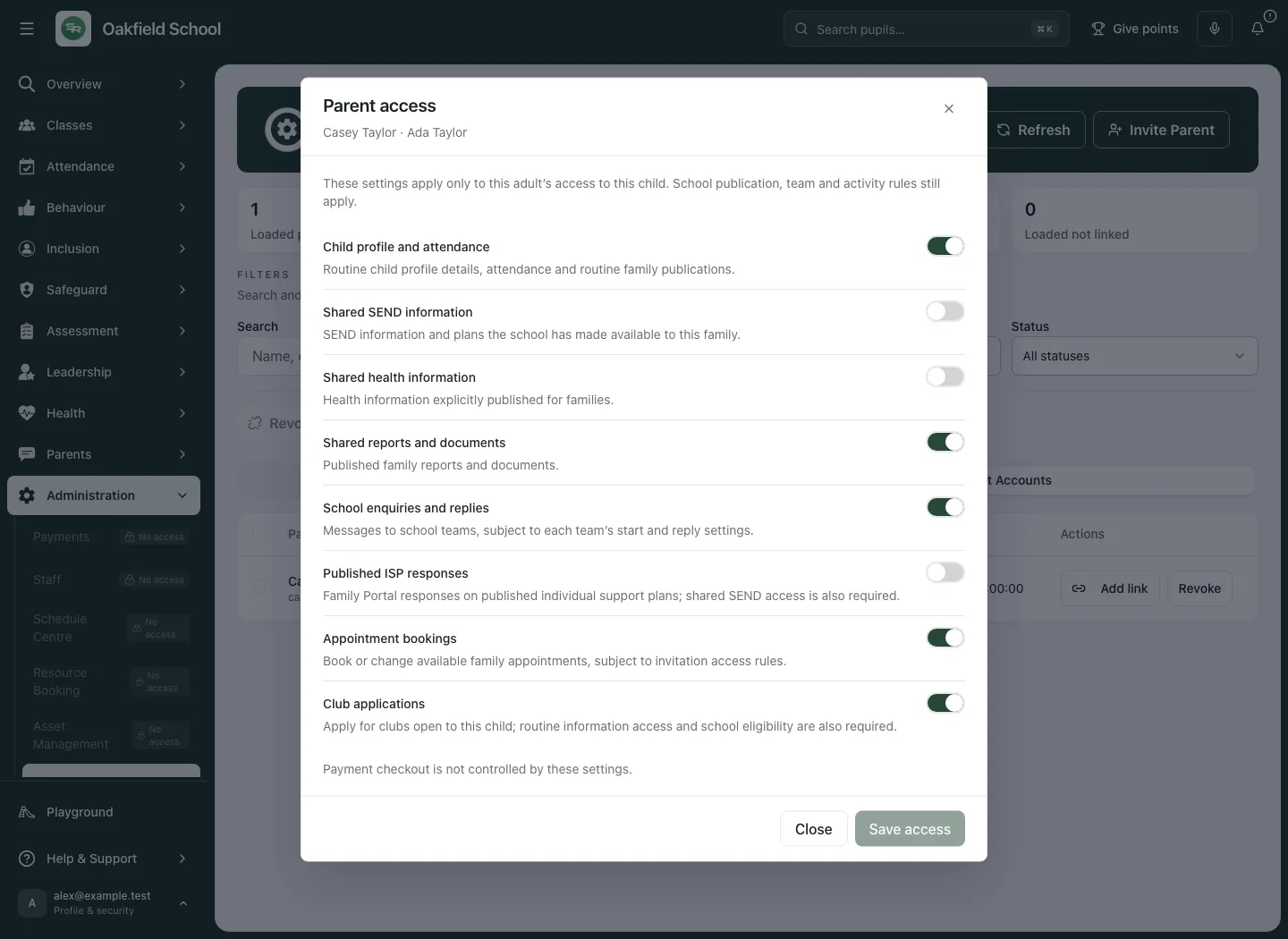
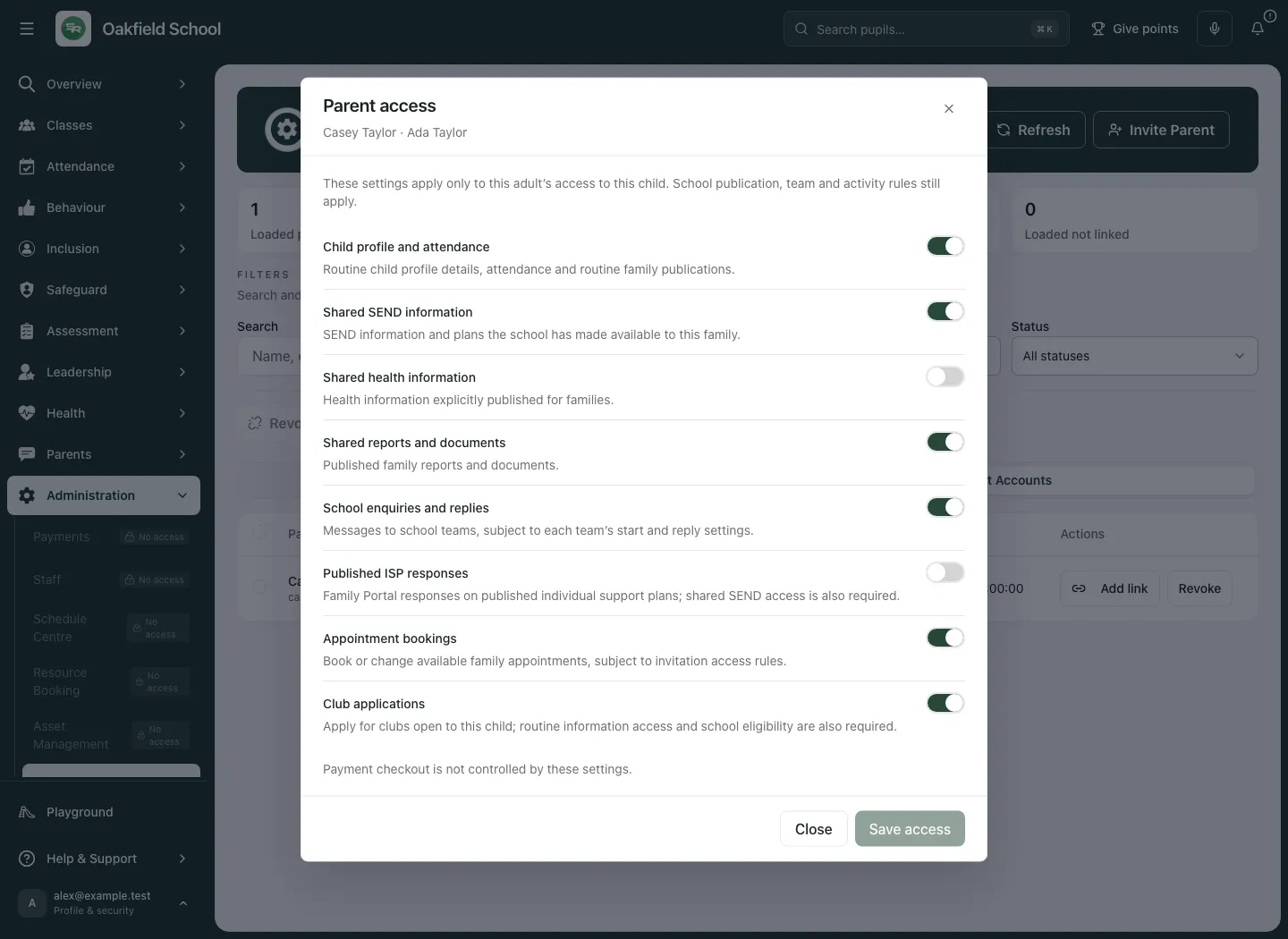
Section titled “8. Set access for one parent and one child”- In Parent Accounts, choose Access beside the intended child. The accessible button names both people, for example Manage Casey Taylor access to Ada Taylor.
- Check the dialog’s adult/child names. Read the note that school publication, team and activity rules still apply.
- Review the supported switches:
- Child profile and attendance: routine profile/attendance/family publications.
- Shared SEND information: SEND material the school has made available.
- Shared health information: health material explicitly published for families.
- Shared reports and documents.
- School enquiries and replies: still subject to each team’s start/reply settings.
- Published ISP responses: also needs shared SEND access.
- Appointment bookings: still subject to invitation rules.
- Club applications: also needs routine access and activity eligibility.
- Change only the intended grants and choose Save access.
- Wait for Parent access saved., close, then reopen the same relationship to check the current saved state.
- Payment checkout is explicitly not controlled by these settings. Do not interpret a missing payment switch as a way to allow or block a financial obligation here.
Enabling a switch does not publish every source document or reveal restricted records. It permits the relevant family capability within the source’s own publication/access rules. Do not turn it on merely because a parent asks to see a record that has not been reviewed for family sharing.
If another person changed access, use Refresh current settings and review the latest version before saving again. Discard changes and reload abandons the local draft. Retry loading access is for a load failure. If the active parent-child link no longer exists, refresh Account Connections rather than trying to save against a stale relationship.
9. Keep school switches and uncertain outcomes clear
Section titled “9. Keep school switches and uncertain outcomes clear”Account mutations belong to the school in which they started. If you change school or leave before a command finishes, Check your last change asks you to reopen Account Connections at the original school and see whether it applied. Do not assume a late response belongs to the school now on screen.
Keep a pending action’s people and payload unchanged while it runs. Refresh/read the original school’s state before retrying a provisioning, invitation, link or access change whose outcome is unclear. A list refresh is different from a new mutation.
Take a tour introduces the current controls without creating or changing accounts.
Troubleshooting
Section titled “Troubleshooting”School not selected appears. Refresh the page and confirm your current school relationship. Do not proceed with an old selection.
The pupil identity is ambiguous/unavailable. Correct the owning MIS record and reload the roster. Do not substitute another record by name alone.
The counts seem inconsistent. They describe loaded rows and separate pupil-account/family-invitation states. Pending family invites can coexist with connected pupil accounts.
No password is shown. Passwords are only known when issued/reset. Account listing does not reveal existing secrets.
The parent did not receive an email. Check the selected delivery method and actual outcome. Create link sends no email; Copy link does not resend one. Check the precise recipient/link expiry before an authorised follow-up.
A linked parent still cannot see a document. Check the per-child grant and whether the source was actually published to the family. A relationship is not permission to every record.
Access save conflicts. Refresh the current settings and review them. Do not overwrite another decision from the old dialog.
A link/access change seems missing after switching school. Reopen the original school’s Account Connections and confirm whether the command applied there.
Questions schools often ask
Section titled “Questions schools often ask”Does a pupil login create a parent relationship? No. These are separate account/link records.
Does Connect missing handle the whole school? It handles missing accounts on the loaded page, not unseen results.
Does Copy link send another email? No. It reads the existing invitation link.
Can we recover the old pupil password? The list cannot reveal it; use the authorised reset process when needed.
Does a per-child switch publish all SEND/health evidence? No. Source publication and current authority still govern what is shared.
Does the access dialog control payment checkout? No. The dialog explicitly excludes it.
Related guides: School Settings, Connect, Forms and Meetings & Appointments.