Record and check a pupil's consent
Written for: Alternative provision staff.
Consent Records keeps each pupil’s standing consents: what a parent or carer, or the young person, has agreed to, who gave it, how and when. Before you take a photo, go off site or share information, it gives you a clear answer to “can I?”. Only Yes means you can go ahead.
The seven consents
Section titled “The seven consents”Each pupil has seven standing consents:
| Consent | What it covers |
|---|---|
| Photos: internal use | Displays, records and learning evidence kept inside your provision. |
| Photos: social media | Your provision’s social media accounts. |
| Photos: marketing | Your website, leaflets, press and funding bids. |
| Off-site activities and trips | Routine off-site sessions and outings. A trip planned in Trips still needs its own consent. |
| Medication | Staff may give medication. Each medicine still needs its own consent in Medical Needs. |
| Emergency medical treatment | Staff may agree to emergency treatment if no parent or carer can be reached. |
| Sharing with the commissioning school | Attendance, progress and incidents may be shared with the commissioning school. |
Each one has an answer:
| Answer | What it means |
|---|---|
| Yes | Consent was given and its review date, if it has one, hasn’t passed. |
| No, refused | Consent was refused. Don’t go ahead. |
| No, withdrawn | Consent was given, then withdrawn. Don’t go ahead. |
| Review overdue | Consent was given, but its review date has passed. Check first. |
| Not recorded | No decision has been recorded yet. Check first. |
The answer comes from the latest decision recorded. It doesn’t replace your judgement or your provision’s policies. If anything is unclear, check with the family before you go ahead.
Open Consent Records
Section titled “Open Consent Records”In the sidebar, open Pupils, then Records, and choose Consent Records. The page has three sections:
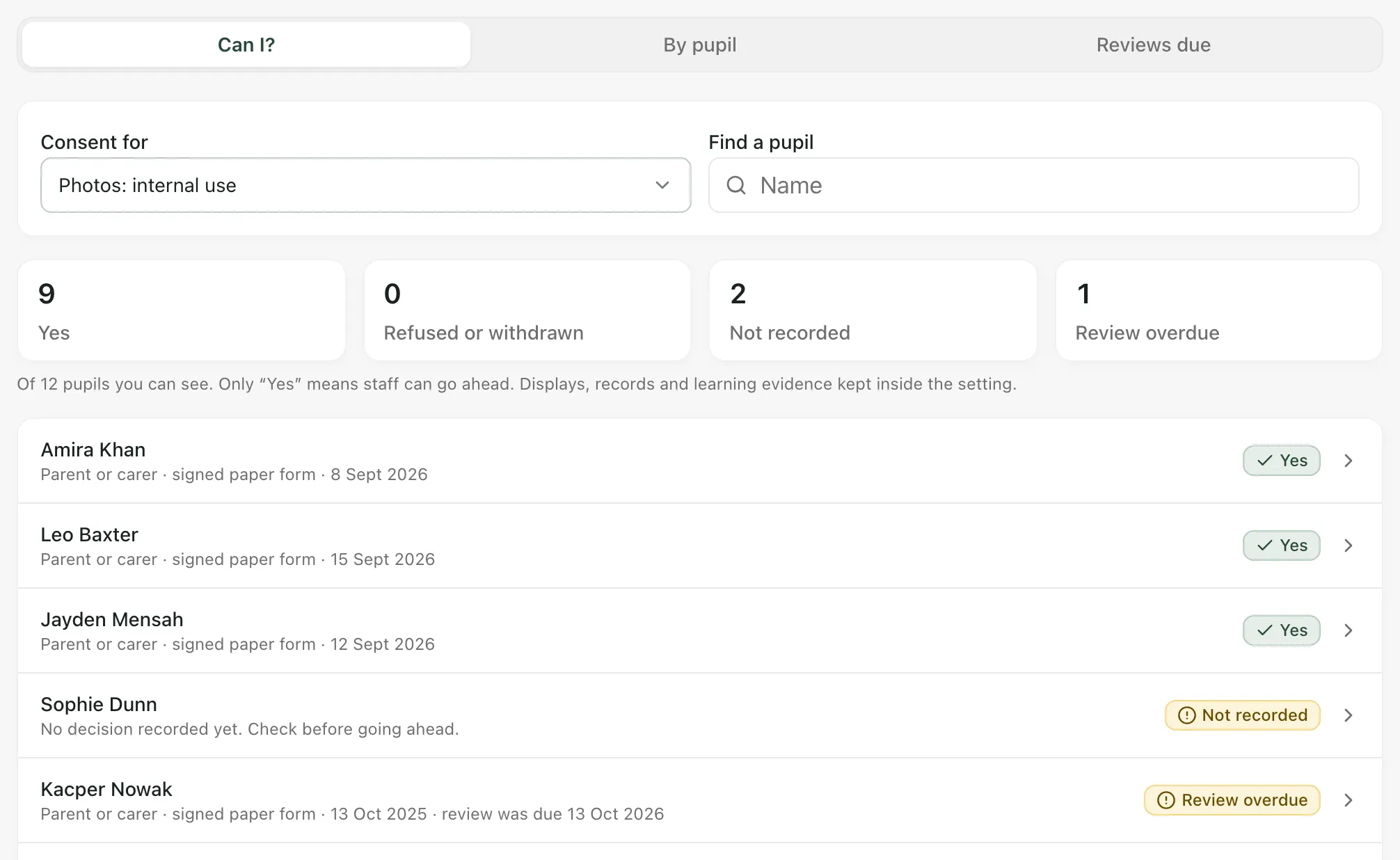
- Can I?: one consent for every pupil. Choose it under Consent for. The figures count Yes, Refused or withdrawn, Not recorded and Review overdue, and each pupil’s row says who decided, how and when.
- By pupil: all seven answers for each pupil. The figures count the pupils with Every consent recorded, Any refused or withdrawn and Nothing recorded.
- Reviews due: consents whose review is overdue or due in the next 30 days, soonest first.
Use Find a pupil to search by name. Under the figures, the page says how many pupils it covers. It only includes the pupils you can see.
Record a decision
Section titled “Record a decision”-
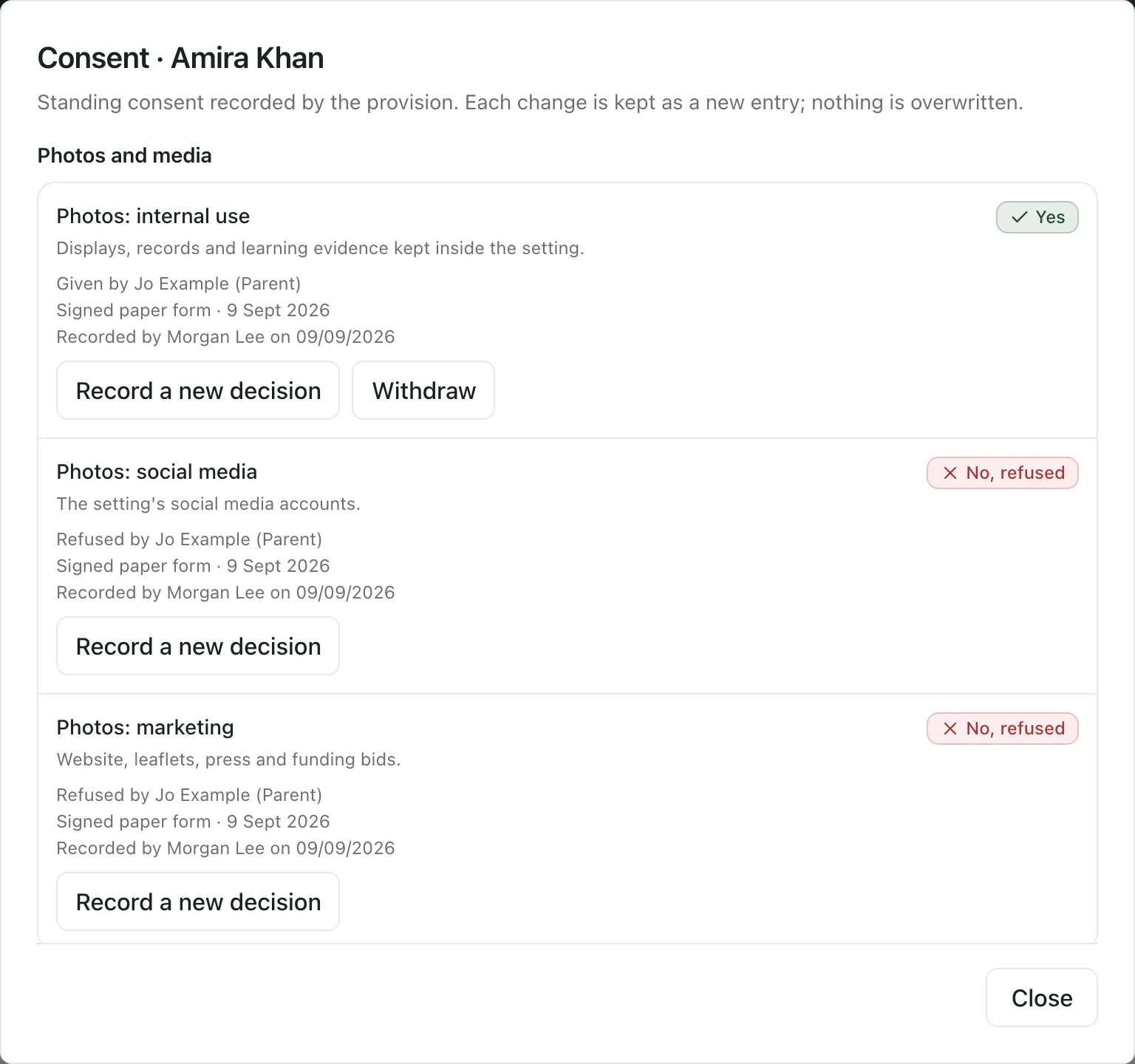
Click the pupil’s name. Their consent record opens, grouped into Photos and media, Off-site, Health and Sharing.
-
Find the consent and click Record decision. If there’s already a decision, click Record a new decision.
-
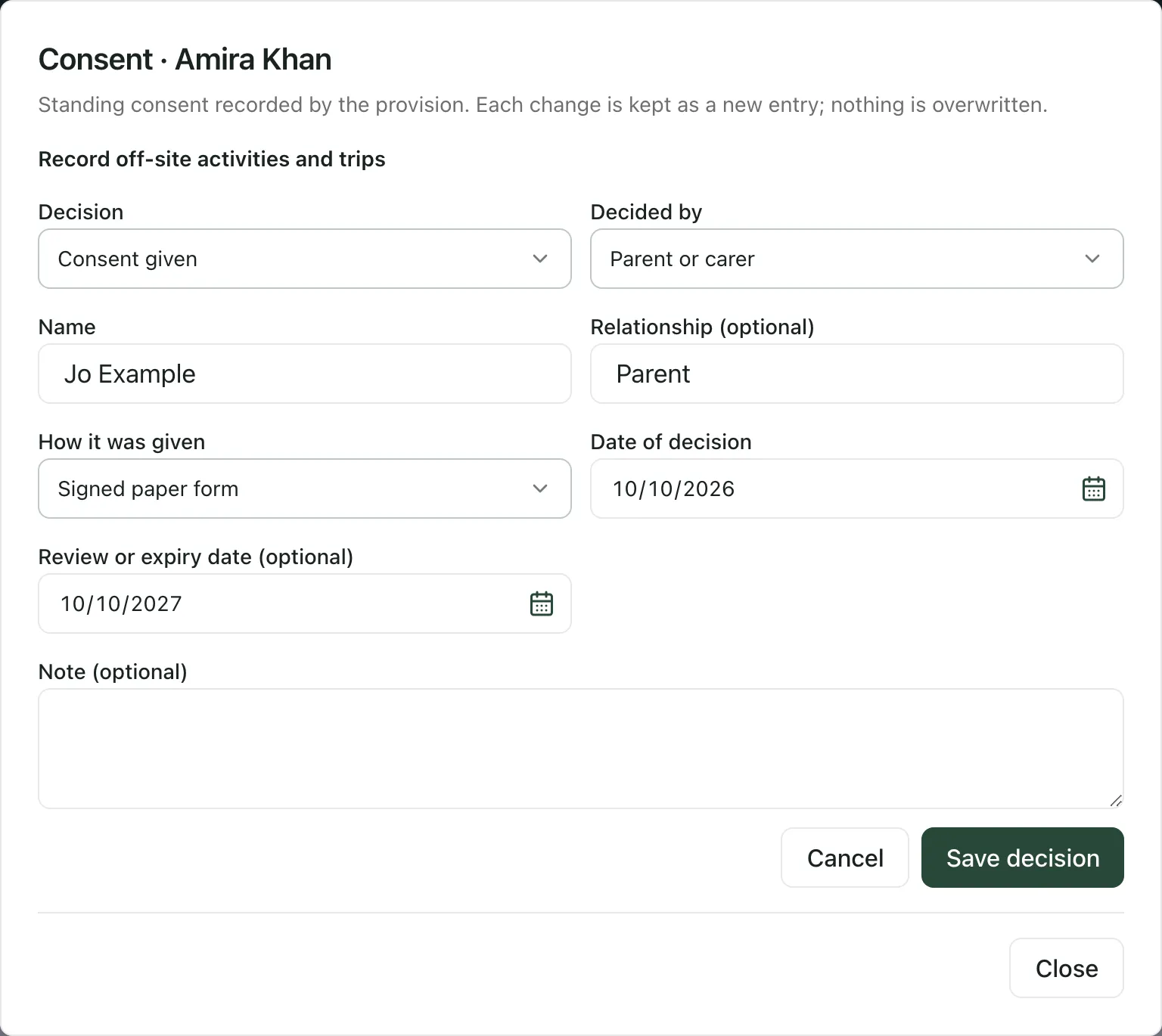
Choose the Decision: Consent given or Consent refused.
-
Choose who it was Decided by:
- Parent or carer: enter their Name and, if you like, their Relationship (optional).
- Young person: explain Why they can decide for themselves, for example because they’re 16 or over and able to decide.
-
Choose How it was given: Signed paper form, Online form, Email, Telephone, In person or Referral pack.
-
Enter the Date of decision. It can’t be in the future, or before the decision it replaces.
-
If the consent should be checked again, enter a Review or expiry date (optional).
-
Add a Note (optional) if it helps.
-
Click Save decision.
You’ll see “Consent decision saved”.
Nothing is overwritten. Earlier decisions are kept under Earlier decisions, with who recorded each one and when.
To renew a consent when its review falls due, record a new decision with a new review date.
Withdraw consent
Section titled “Withdraw consent”When a parent, carer or young person withdraws consent they gave:
- Open the pupil’s consent record and click Withdraw on the consent.
- Choose who it was Withdrawn by, and enter their name if it’s a parent or carer.
- Choose How it was given: how they told you they were withdrawing it.
- Enter the Date withdrawn.
- Say Why it was withdrawn.
- Click Withdraw consent.
You’ll see “Consent withdrawn”. The answer changes to No, withdrawn.
Medication consent
Section titled “Medication consent”The Medication consent says whether staff may give medication at all. Each medicine still needs its own consent. Click Per-medicine consent to go to Medical Needs. See Add a medication and its schedule.
Where else you’ll see the answer
Section titled “Where else you’ll see the answer”The same answers appear where you’re about to act:
- The pupil’s profile: open the Placement tab. The Consent card shows all seven answers. Click Open consent record to see the detail or record a decision.
- Daily Check-ins: when you click Evidence on a check-in, Photo and video consent at the top shows the pupil’s three photo answers.
- Weekly Rota: each Outreach / off site session says whether everyone booked on it has Off-site activities and trips consent, and names any pupils to check. If some pupils on the session aren’t visible to you, it counts them without naming them.
- Sharing with a commissioning school: when you share a placement, Consent to share with the commissioning school is shown at the top. Consent to share: appears again beside the confirmation when you invite someone or publish. It’s there to inform your decision; it doesn’t stop you sharing. See Record a placement and share updates with the commissioning school.
- Trips: each pupil’s standing off-site answer appears beside the trip’s own consent status. It doesn’t count as consent for the trip. See Plan an off-site trip or activity.
- Who can do what: by default, leaders, DSLs, inclusion leads, teachers and teaching assistants can see consent. Teachers, inclusion leads and teaching assistants see the pupils assigned to them. Everyone except teaching assistants can record decisions. Office staff don’t keep consent records. If you don’t see Record decision, ask a leader or teacher.
- Your provision’s words: your Setting profile may use other words for pupils and commissioning schools, so some labels may differ.
If something doesn’t work
Section titled “If something doesn’t work”| What you see | What to do |
|---|---|
| “Consent records are kept by the provision’s leads, teachers and support staff. Ask a lead to check a pupil’s consent.” | Your role doesn’t keep consent records. Ask a leader to check the pupil’s consent. |
| “No pupils to show. Pupils appear here once they are on the roll and assigned to you.” | Ask a provision leader to check which pupils you’re assigned to. |
| “Consent for this pupil is not available with your access. Ask a lead before going ahead.” | Don’t go ahead until a leader has checked the pupil’s consent. |
| “Consent is unavailable right now. Check the pupil’s consent record before going ahead.” | Open Consent Records and check the pupil there. If it still won’t load, ask a leader. |
| “Enter the name of the parent or carer.” | Fill in Name. |
| “Say why the young person can decide for themselves.” | Fill in Why they can decide for themselves, in at least 3 characters. |
| “The review date must be after the decision date.” | Choose a later Review or expiry date (optional), or clear it. |
| “This date is before the current decision. Choose a later date.” | Choose a date on or after the decision you’re replacing. |
| “Only consent that has been given can be withdrawn.” | The consent is already refused or withdrawn, so there’s nothing to withdraw. |
| “Someone else updated this consent. Reload it to see the latest before saving.” | Close the consent record, open it again and check the latest decision. |
| “Too many consent updates in the last hour. Try again later.” | Wait, then try again. |
| “Consent records could not be loaded or saved. Try again.” | Click Try again. Until the answers load, the figures show Unavailable. |