Prepare and issue a reviewed headteacher report
Select the report period and source, review each section and obtain approval before issuing a fixed edition to checked recipients. The workspace separates editable drafts, Ready to issue review and fixed issued editions, so the school can retain what was actually made available to the intended readers.
Open Leadership → Strategy & assurance → Headteacher’s Report. Screenshots use a fictional working draft. It has not been approved or issued.
1. Find the report and its version
Section titled “1. Find the report and its version”The list shows your available working reports and Issued reports shared with you. Use All, Draft, Ready to issue and Issued to narrow working reports. Check the title, reporting period, audience, status, revision and last-updated time before opening one.
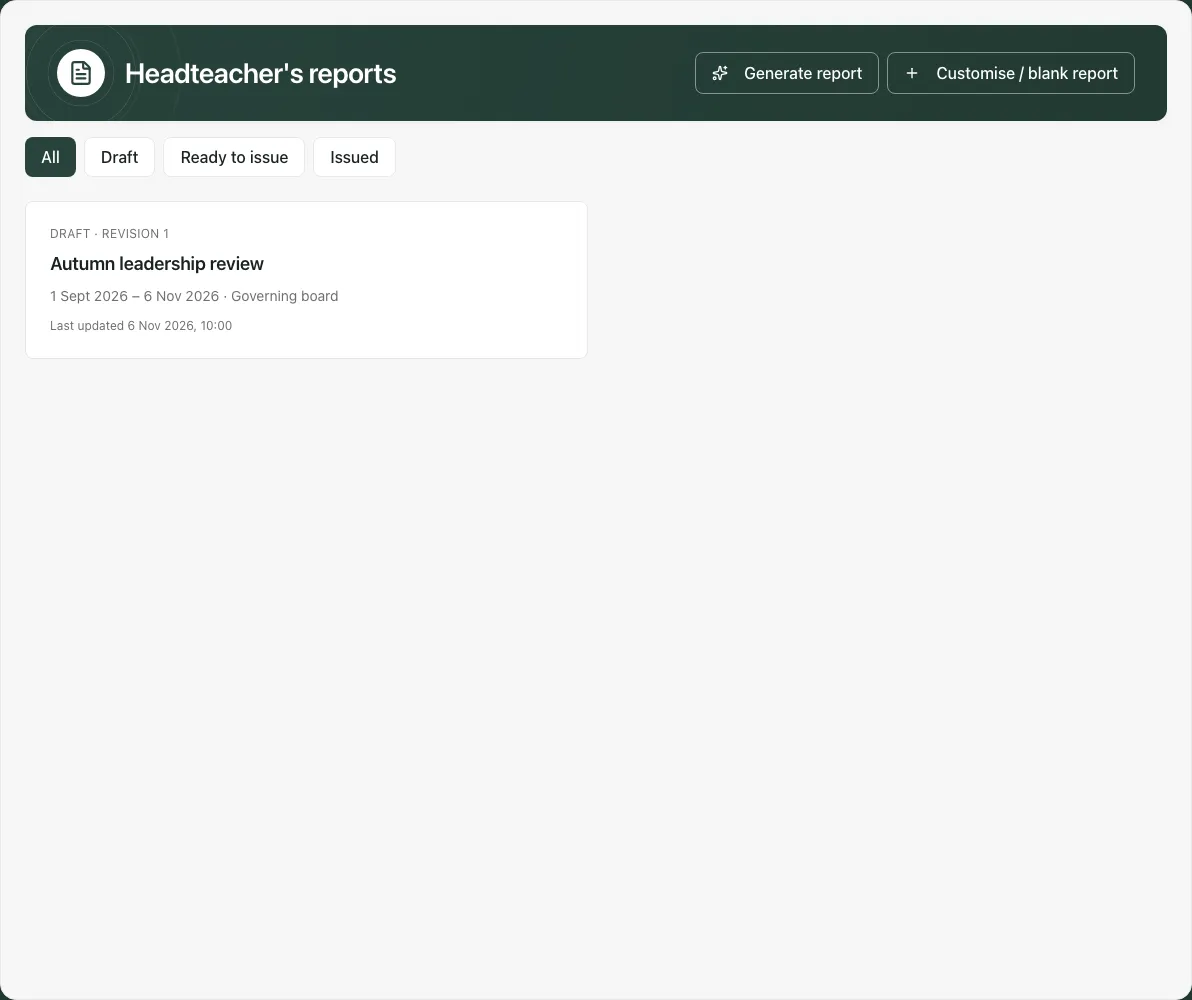
Working access and recipient access are different: a section contributor may edit only assigned sections, while a recipient reads the issued edition. A failed list read is not “no reports”. Use the relevant retry; creation can be unavailable until the list loads.
2. Start with the correct period and source choice
Section titled “2. Start with the correct period and source choice”Generate report uses the current term from the school calendar, from the term’s start to the school’s current day, and requests an editable AI draft from permitted source evidence. Check the period explanation if term dates are missing or ambiguous; do not assume the device’s month defines the school’s reporting term.
For other dates or a manual/evidence-only approach, select Customise / blank report. Complete Report title, Template, Period starts, Period ends, optional Meeting date and Audience. The period must start on or before it ends, and a non-blank title is required.
Choose deliberately:
- Generate with Astra gathers available figures and requests a full AI draft for review.
- Create evidence draft gathers figures without AI-written commentary.
- Create blank draft starts manual writing without a source refresh or generation.
A generated draft can identify sections needing human evidence or commentary. Missing sources do not establish a reassuring finding. No option automatically approves the report, supplies specialist records outside your access or establishes an inspection judgement.
3. Write executive commentary and watch autosave
Section titled “3. Write executive commentary and watch autosave”Open Executive commentary in Report outline. Review Report title, Audience, period dates and meeting date, then write Headteacher commentary. State the important findings, limitations, risks and decisions leaders need to consider.
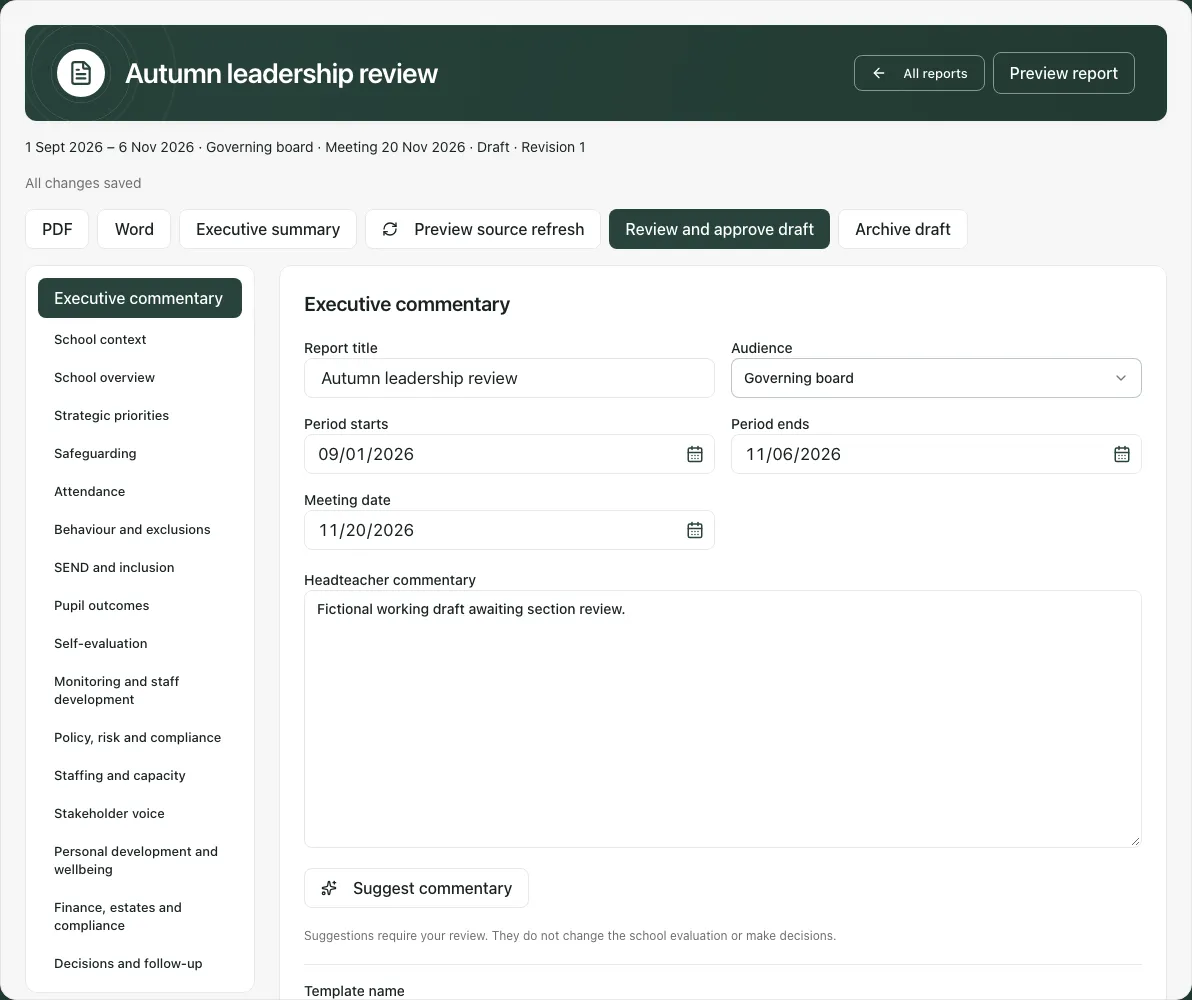
Writing saves automatically after a short pause. Wait for All changes saved and check the revision before leaving or asking for approval. “Saving” is not a receipt for text still being typed.
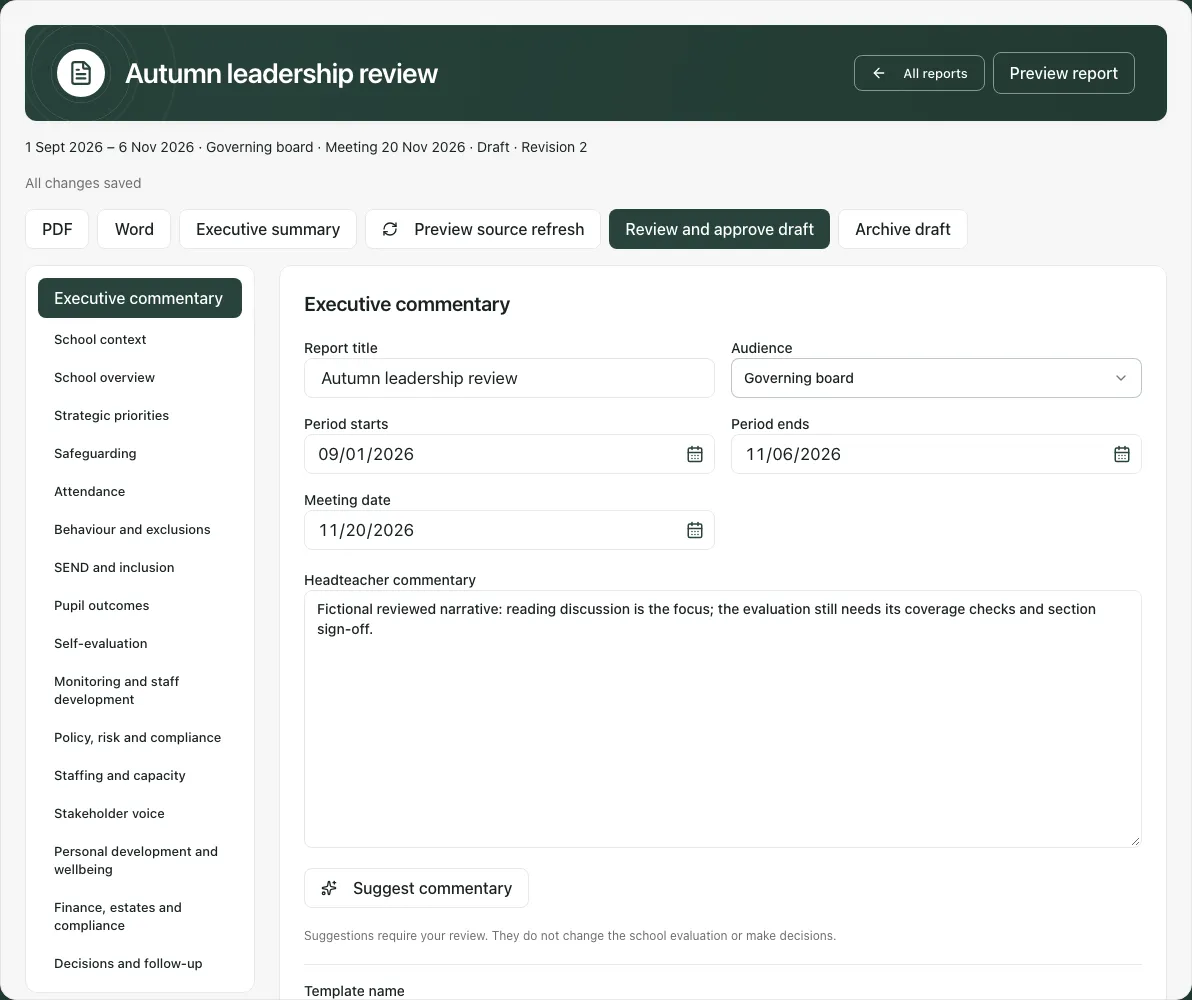
If saving pauses, your latest writing remains local. Use Retry save, or deliberately Discard changes and reload to load the saved version. Check which text is retained before leaving. A version conflict means another save changed the report; preserve the useful local wording and review the latest saved record rather than repeatedly overwriting it.
All reports returns to the list. Navigation warns about unsaved writing or an evidence note still in progress. Cancel that navigation if the input must be added or saved first.
4. Work through the report outline
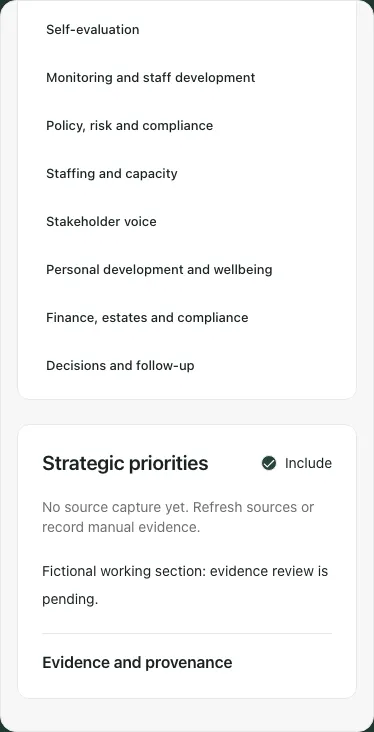
Section titled “4. Work through the report outline”The fixed outline includes School context, School overview, Strategic priorities, Safeguarding, Attendance, Behaviour and exclusions, SEND and inclusion, Pupil outcomes, Self-evaluation, Monitoring and staff development, Policy/risk/compliance, Staffing/capacity, Stakeholder voice, Personal development/wellbeing, Finance/estates/compliance and Decisions/follow-up.
For each section:
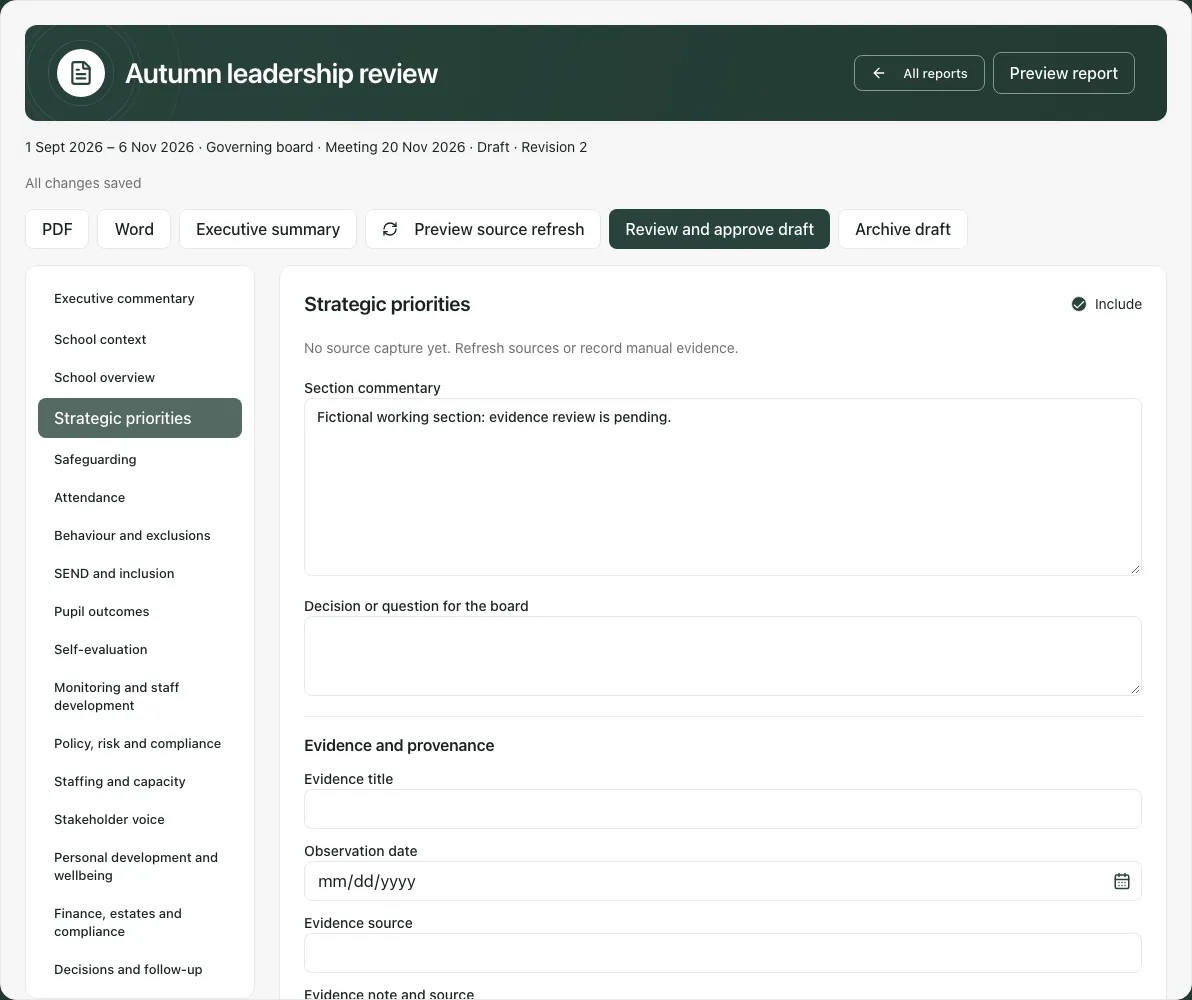
- Check its source snapshot, captured time, period, source method and any missing/withheld data.
- Set Include according to the intended report, not simply to hide an inconvenient gap.
- Write Section commentary that interprets what the evidence can support.
- Record Decision or question for the board where a decision or challenge is needed.
- Add relevant evidence and review the audience before marking the section reviewed.
Do not combine unlike assessment scales or call result-entry coverage attainment. A recorded action’s completion is not proof of impact. A source snapshot is a dated read, not a claim that the live source has remained unchanged.
Earlier report evidence appears when a suitable earlier issued report exists. It is a side-by-side reference, not an automatic comparison or causal impact calculation. Check both periods, methods and audience before describing a trend.
5. Add manual evidence and refresh sources deliberately
Section titled “5. Add manual evidence and refresh sources deliberately”For human evidence, fill Evidence title, Observation date, Evidence source and Evidence note and source, then Add manual evidence. Do not leave an important note merely typed in the add form: it is not part of the report until added. Review it in the section afterwards.
Up to 40 evidence notes are supported in a section. Use a real observation date no later than the school’s current day. Avoid pupil names, sensitive case details and unnecessary staff-identifying information in text intended for a board audience. A manual note is the author’s evidence statement, not a verified source calculation.
Preview source refresh rereads available source evidence and shows what would change. Review every affected section, then Apply source refresh or Cancel. Applying keeps commentary, manual evidence and decisions but resets the relevant section reviews. The old interpretation may no longer fit the new figures, so read it again before approval.
A source refresh does not automatically adopt every new fact into a governor-safe issued edition. Source availability and later audience curation remain separate checks.
6. Use optional AI writing with review
Section titled “6. Use optional AI writing with review”Suggest commentary can propose executive wording using the available evaluation context. Read and edit it, then Accept or record edits or Reject suggestion. Remove latest suggestion can return to earlier wording where offered. The suggestion does not change the school evaluation or make a decision.
For a full Astra-generated report, review every included section and the displayed AI provenance before approving. A pending AI review can block export or issue. Do not treat a generated sentence as evidence absent from the source records or use the draft to disguise missing data.
Read generation errors carefully. Access, configuration, length, current-report changes and rate limits need different remedies. Start new Astra attempt starts afresh where the message requires it; an uncertain reusable request should be checked using its offered same-request recovery. Repeated clicks are not proof of successful generation.
7. Coordinate contributions and owned follow-up
Section titled “7. Coordinate contributions and owned follow-up”Under Contribution and review, choose Section contributor where you manage the report. Report owner leaves that section with the owner. Eligible contributors can edit the assigned sections, rather than automatically becoming reviewers, issuers or recipients of every version.
Write Review note to explain any checks or qualification. When a section contains a decision, Create owned follow-up offers Action owner and Action due date. Choose an eligible report owner or section contributor, then Create owned follow-up. Check the created task under Owned follow-up and use the offered work link where available.
The due date is the end of the chosen school day, not UTC midnight. Creating the task is a deliberate work assignment; it does not prove its completion, notify every governor or establish the decision’s impact. A replay/conflict message needs checking against existing follow-up rather than creating a duplicate.
Earlier source-report follow-up can be shown in a copied-forward report. Check each task’s actual source report, owner and state before reporting it as current work.
8. Review a saved draft before issue
Section titled “8. Review a saved draft before issue”Open every included section, check its wording, source coverage, evidence and intended audience, then tick Section reviewed for accuracy, missing evidence and audience. A tick is the reviewer’s recorded check, not an automated quality score.
Resolve pending AI reviews and unfinished evidence notes, wait for all changes to save, then Review and approve draft. The report becomes Ready to issue. New edits or an applied source refresh require review again; they must not be treated as the unchanged approved revision.
Preview report provides a reading view of the selected working section, and Edit report returns to editing. It is not a separate curated governor preview and does not establish that a recipient can already open it.
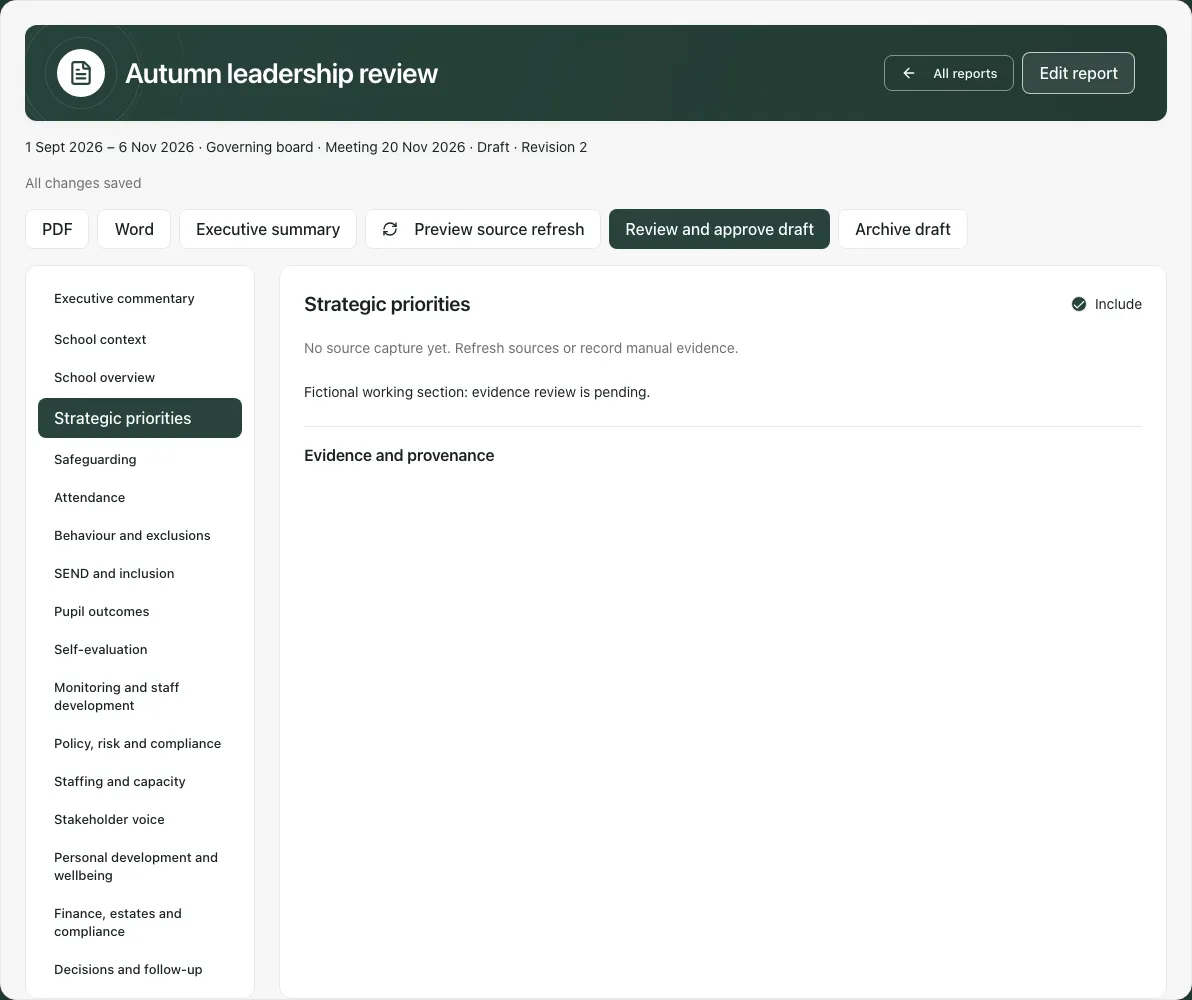
Review/issue actions lock content-changing controls while running. Wait for the actual returned state before editing or leaving; a clicked approval is not a completed approval receipt.
9. Approve and issue to a checked audience
Section titled “9. Approve and issue to a checked audience”When Ready to issue and authorised, use Issue to the intended audience. Choose at least one eligible recipient and tick I have checked every included narrative and evidence note for this audience. Then select Approve and issue.
Issuing grants those recipients in-app access to an immutable approved edition. It does not send the meeting message. Use Open Communications where available to prepare a separate authorised communication through the normal workflow.
The issued edition curates source snapshots, including withholding sensitive/small-number detail. That protection does not rewrite the commentary or manual evidence you supplied. Check every included sentence and note for the actual audience before issue; do not assume the system makes free text safe automatically.
The issued view is distinct from the private working draft. Verify the version and edition you open or download. If issue succeeds but the new edition cannot immediately be reread, follow the message to reopen it; do not keep treating the former working copy as editable or issue it again blindly.
10. Retain editions, templates and files
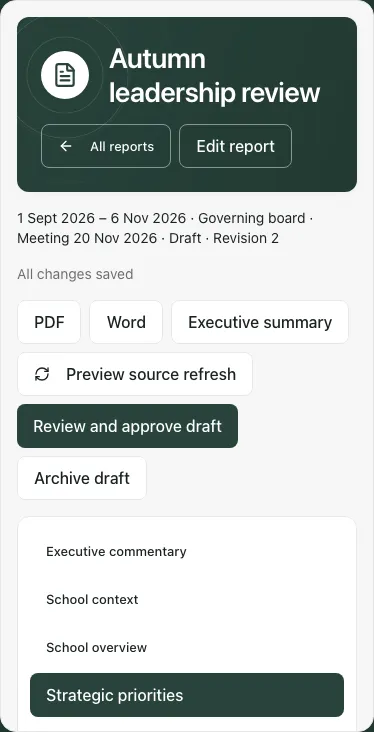
Section titled “10. Retain editions, templates and files”An issued report cannot be edited in place. Create corrected edition creates a separate working correction; review and issue it deliberately. Copy forward starts a later report from an earlier issued one. Check dates, source freshness, audience and next actions rather than carrying forward assumptions unchanged.
In Executive commentary, enter Template name and Save structure as template to retain the structure. Templates clear narrative, evidence, decisions, source snapshots, reviews, contributor assignments and AI lineage; they are not reusable copies of sensitive report content.
Archive draft removes a working draft from the active list after confirmation; it is not the same as correcting an issued edition. Only use it when the draft is no longer needed as active work.
Use PDF, Word or Executive summary for the required output. Working exports are labelled as drafts, not issued governor editions, and can contain working detail that differs from the audience-curated issued version. Inspect title, period, audience, status, version and sensitive content before sharing through the school’s agreed secure process.
Troubleshooting
Section titled “Troubleshooting”- No report or recipient list: distinguish a genuine empty list from a failed or refused read. Retry the appropriate read and check the current school/account.
- Review/issue unavailable: complete included-section reviews, resolve AI/evidence input, wait for saving and check the exact capability/status.
- No eligible action owner: follow-up ownership is limited to the report owner and section contributors; agree the appropriate contribution first.
- A save/issue outcome is uncertain: verify the latest revision/issued edition before repeating commands. Do not discard unsaved text unless that is your deliberate choice.
- A metric is absent from the issued edition: current audience curation may withhold it; do not replace it with an invented zero or claim the full working snapshot was issued.
- Recipients have no message: issue establishes in-app access, not dispatch, delivery or reading. Communications is separate.
For the focused board-report sequence see Prepare the headteacher’s report for governors.
Common questions
Section titled “Common questions”What should I check before issuing a report?
Section titled “What should I check before issuing a report?”Review the saved draft, period, section evidence and intended audience, then follow the approval and issue steps.
Can I treat an editable draft as an issued edition?
Section titled “Can I treat an editable draft as an issued edition?”No. The workspace distinguishes drafts, Ready to issue review and fixed issued editions. Check the version actually made available to recipients.