Request behaviour support and record the response
Send a behaviour-help request, follow its actual response status and record handover or resolution with a factual outcome.
The requester can follow the response; authorised responders can acknowledge, travel, hand over and resolve it. Managers maintain the duty rota and dispatch settings.
Screenshots use a fictional request and location. In an urgent safety situation, follow the school’s emergency and safeguarding procedures immediately; do not wait for an app acknowledgement. A behaviour request is not a safeguarding concern submission.
Before sending or responding
Section titled “Before sending or responding”Open Behaviour → Response and Escalation → Behaviour On-Call. The school must enable the service and your account must have the appropriate access. Requesting, responding, managing and analytics are different capabilities. Do not assume a particular job title always grants or denies access.
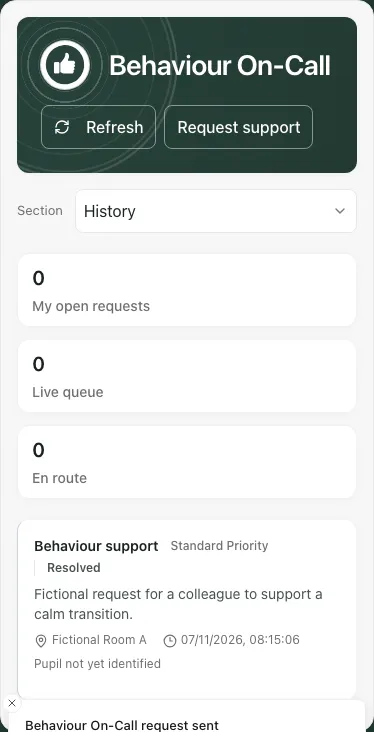
Check My requests, and use Live queue or History where available. The phone uses a Section picker. Refresh checks the latest lists. The page also updates as request events arrive; an unavailable-service notice still needs attention.
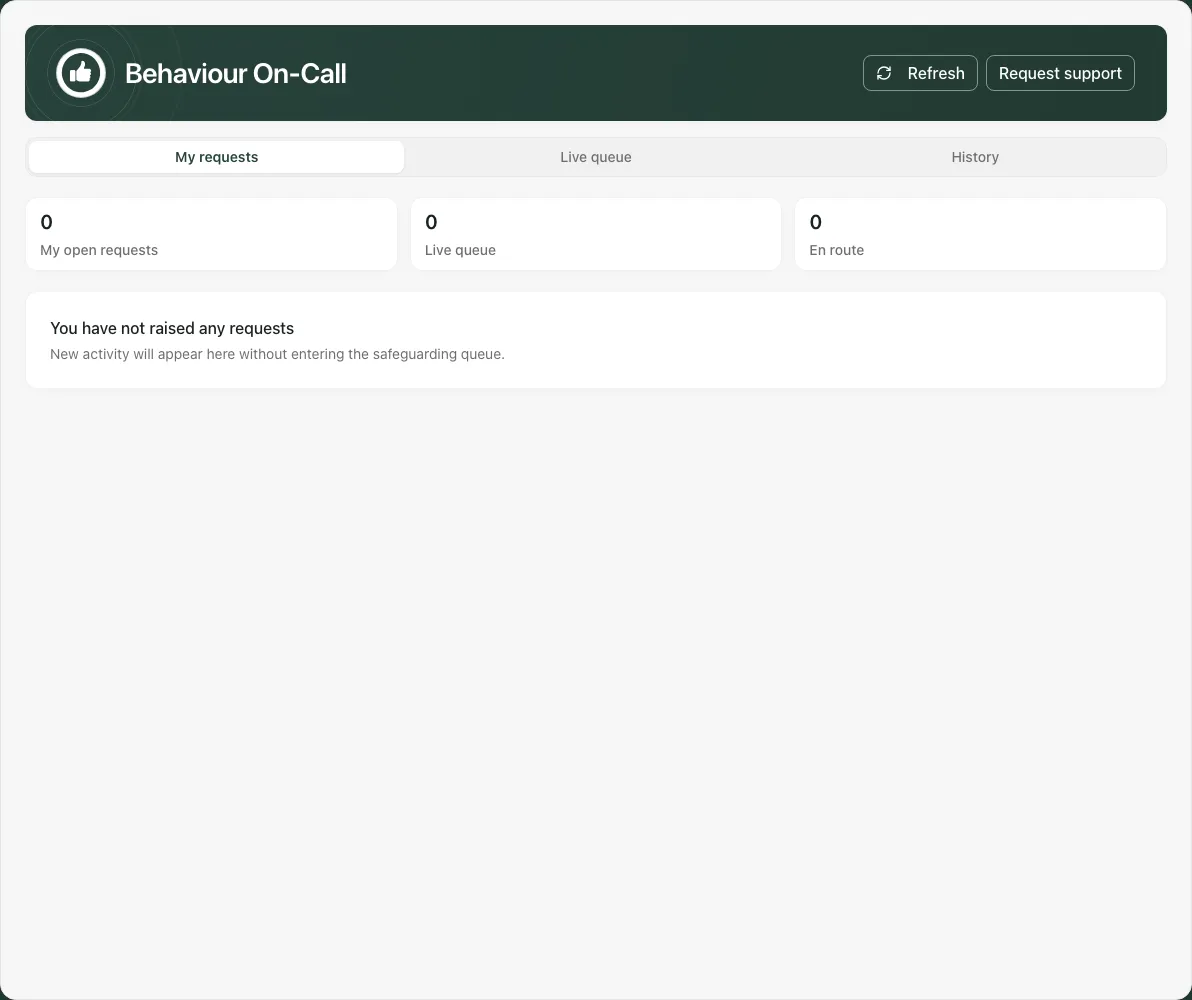
The metrics use — where a queue is not applicable to your access, and Unavailable when it could not be checked. Neither means zero waiting requests. Lists show the 100 most recent requests; there is no general load-more control here.
1. Request a colleague’s support
Section titled “1. Request a colleague’s support”Choose Request support and complete the actual operational details:
- In What support is needed?, describe what is happening and the help needed. The field supports up to 500 characters; keep it factual and relevant.
- In Location, state the room or place where support is needed. A blank field can use the current lesson room where known. Confirm it rather than assuming the suggested room is still correct. The field is limited to 160 characters.
- Add the pupils if they can be identified confidently. Use the offered pupil search, select the verified result and remove any mistaken selection. Up to five pupils can be attached. The request can be raised without a pupil if identification must follow later; an unavailable identity is not a reason to choose another child.
- Set Urgency to Standard, Urgent or Immediate according to the actual situation and school process.
- Check the audience/context and choose Send request only when help is needed.
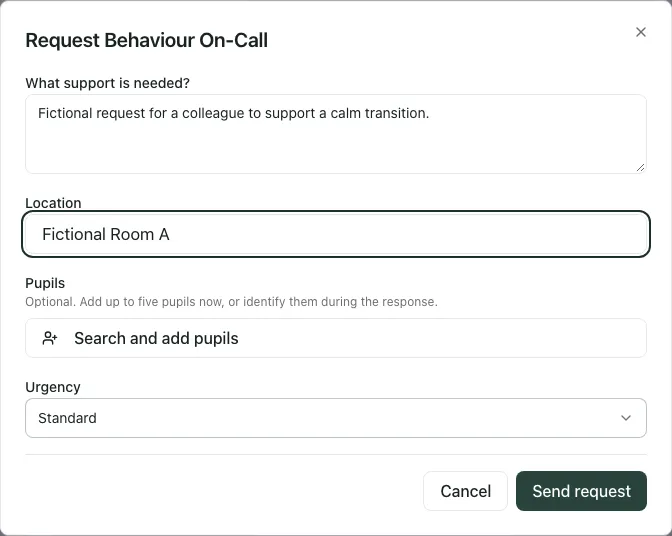
Sending can alert colleagues. Routing uses the school’s duty arrangements and configured escalation/dispatch rules. SMS is a separate opt-in; a sent request is not proof that an SMS reached someone or a responder has seen it.
2. Check the raised request and its status
Section titled “2. Check the raised request and its status”Find it in My requests after the success confirmation. Check the summary, location, pupil list, urgency and current status. Avoid raising a second copy simply because no colleague has acknowledged yet.
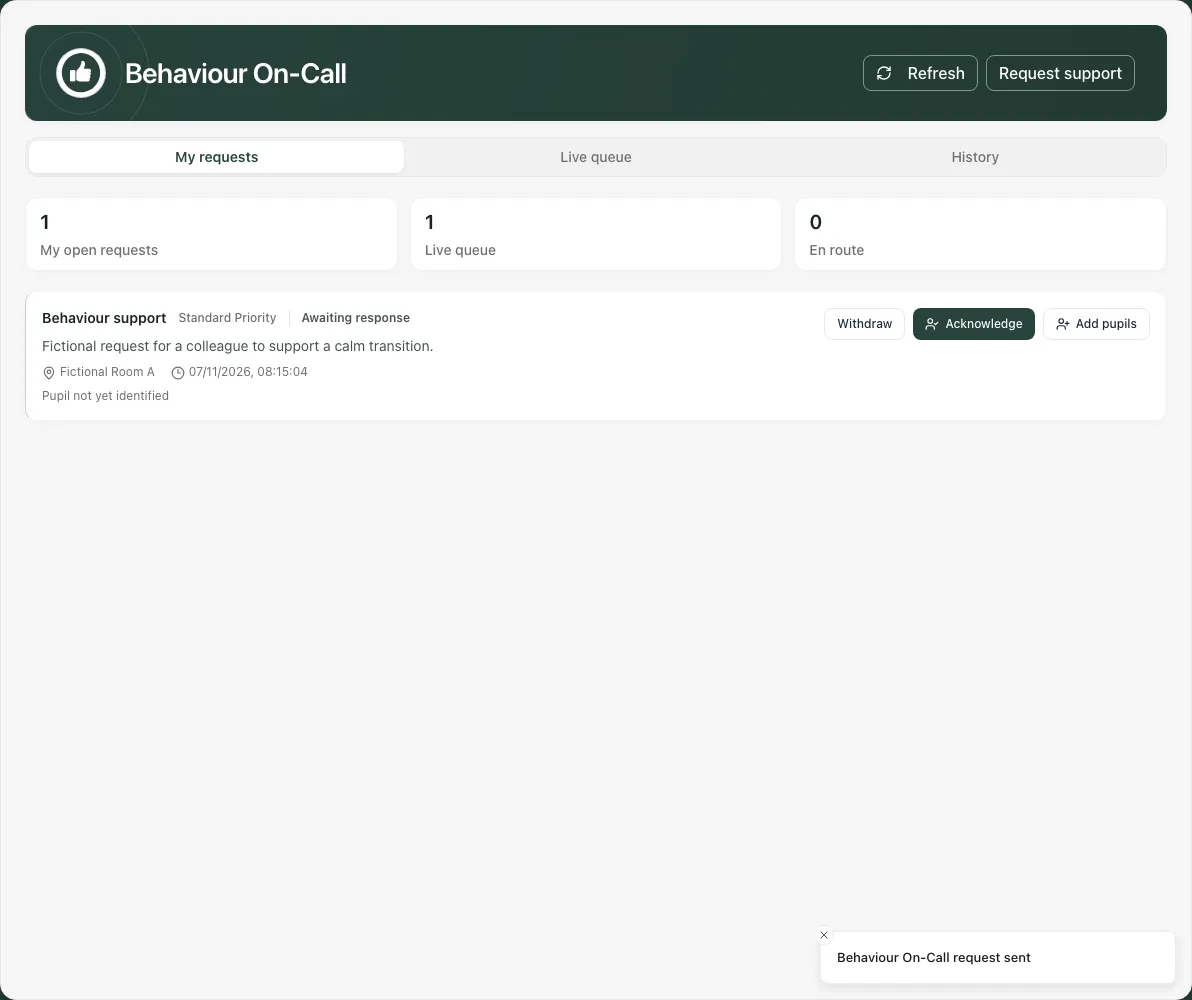
| Status | Meaning |
|---|---|
| Awaiting response | The request is open and has not been claimed. |
| Acknowledged | A responder holds the request. |
| En route | The responder recorded that they are on their way. |
| Resolved | The response was closed with an outcome. |
| Withdrawn | The request was withdrawn. |
An ETA is not invented by acknowledging. If one is available it relates to a currently held request; an old ETA must not be treated as a fresh promise. A degraded-dispatch notice needs the school’s alternative contact route, especially when help is needed now.
3. Handle an uncertain send safely
Section titled “3. Handle an uncertain send safely”If a connection fails before confirmation, the request may already exist. Read This request may already have been sent and use Check My requests or inspect the live queue where available. An unchanged retry of the same form is designed to avoid a second request, but first check the visible result.
A definite refusal and an unknown outcome are different. Keep the entered details while resolving the problem; do not repeatedly start new drafts to bypass it. If the app is unavailable, use the school’s usual way of calling for help.
4. Acknowledge and show the real response
Section titled “4. Acknowledge and show the real response”On Live queue, inspect the request before choosing Acknowledge. The request then names its current ownership. Select En route when you actually set off. Do not leave a colleague expecting travel that has not begun.
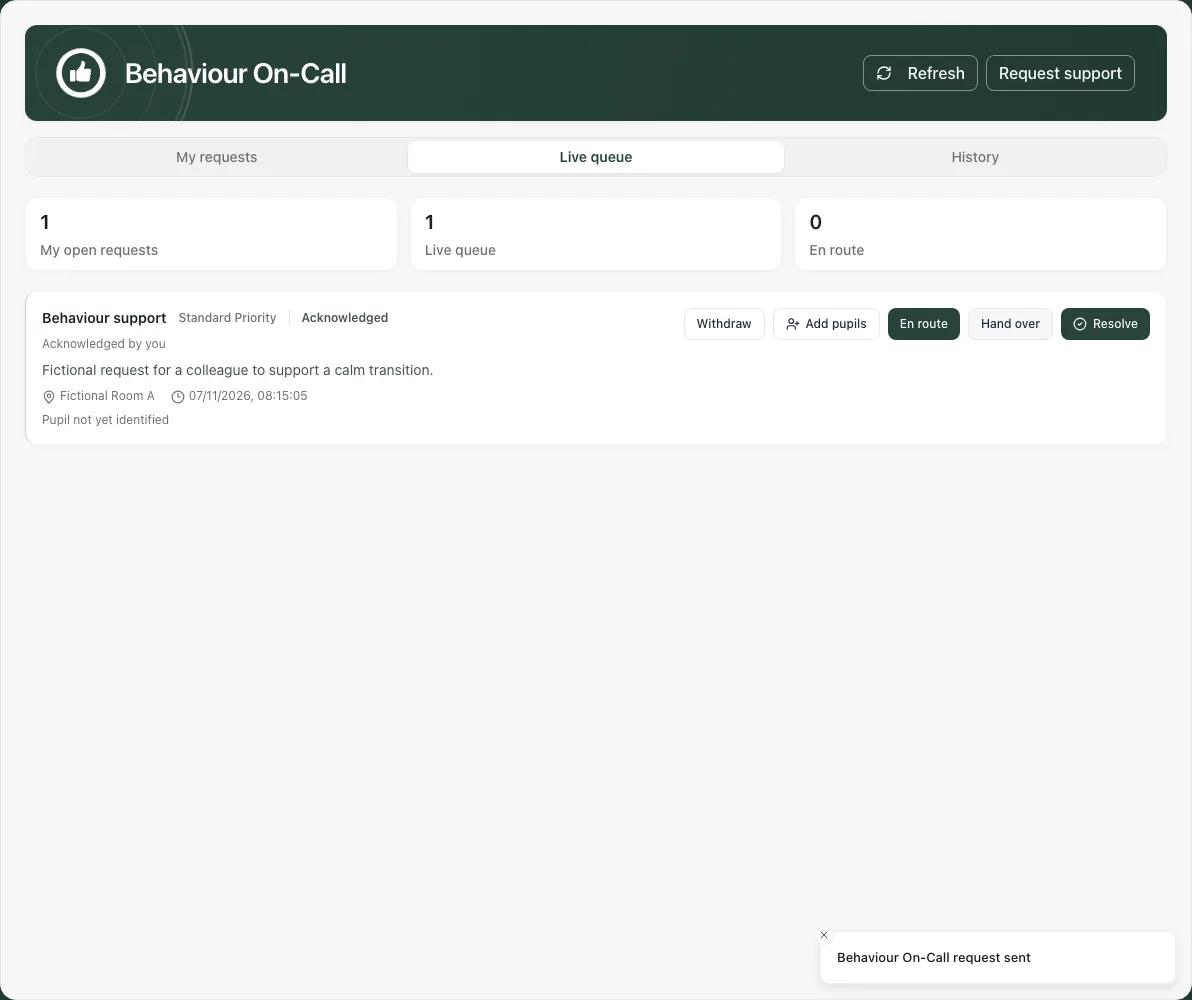
Add pupils is available where the responder can identify those involved. Recheck each selection and the limit. Care/context flags may be restricted; a hidden flag is unknown, not evidence that no need exists. Open any connected support link only for the appropriate work and access.
If another colleague holds the request, Take over appears only when allowed. Record the genuine reason. Leadership may see Return to queue. These actions can conflict with a colleague’s recent update; refresh and review the new owner rather than forcing an old action.
5. Hand over or withdraw without losing the operational message
Section titled “5. Hand over or withdraw without losing the operational message”Hand over returns your held request to the queue. It does not guarantee that everyone is alerted again, so arrange a clear real-world handover when needed and check that a colleague has picked it up.
As requester, Withdraw means help is no longer required. An open request can be withdrawn directly. If a colleague already holds it, the app can record Withdrawal requested instead of immediately cancelling their work. The requester’s and responder’s cards show that request. Tell the responder through the appropriate route if the situation changed urgently; do not assume a click has already stopped their journey.
6. Resolve the request with a factual outcome
Section titled “6. Resolve the request with a factual outcome”The staff member holding it selects Resolve, chooses Outcome, writes Outcome summary and confirms Resolve. The current options include Returned to lesson, Removed to a supervised room, Internal suspension, Escalated to leadership, No further action and False alarm.
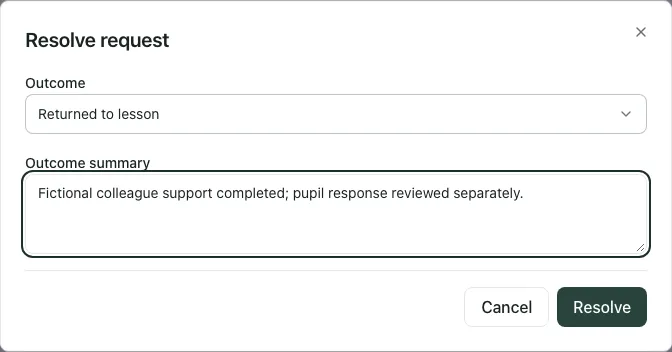
Choose the outcome that actually occurred under the school’s authorised process. Outcomes that create a behaviour incident require the pupils involved; use Add pupils when the form asks. An outcome label is not permission to remove or suspend a pupil and is not a substitute for the specialist process.
After success, check History and the status. A resolved request records that this response ended; it does not establish that the support caused improvement or that no further review is needed. Keep the outcome evidence and any follow-up in the appropriate pupil/plan workflow.
The same request’s unsaved resolution draft can be retained if you temporarily add pupils or retry after a failure. When moving between requests, recheck the heading and summary so you resolve the correct one.
7. Review history and analytics with their limits
Section titled “7. Review history and analytics with their limits”History retains recent resolved/withdrawn work. Analytics, where authorised, summarises outcomes, including requests not yet resolved and withdrawals. A suppressed or unavailable count is not zero. Do not try to reconstruct a small hidden group from other displayed totals.
The current page displays outcome summaries rather than a complete staff-performance or response-time dashboard. Enabling a named-staff setting does not itself add visible named-staff charts to this page. Review the actual coverage before comparing teams or making decisions about individuals.
8. Maintain the rota and settings deliberately
Section titled “8. Maintain the rota and settings deliberately”Managers use Rota & settings. Dispatch settings separates Urgent SMS and Named-staff analytics opt-ins. Check the school’s authority and actual dispatch arrangements before Save settings. In-app routing and an SMS delivery are different channels.
To add or change cover:
- Open Rota & settings, find Duty rota, and choose Rota mode: Hourly or Timetable periods. Period mode needs a saved school day; changing mode is a draft until saved.
- Search Search duty staff and select the verified staff name. On desktop, drag that staff member to the correct slot, or select their name and use the slot’s Add [name] to [day/time] button.
- Alternatively use Rota day, Rota hour or Rota period, and Duty staff member in the compact add controls, then Add slot. Check that the resulting assignment is in the intended cell.
- To remove cover, use the assignment’s Remove [name] from [day/time] control or its offered remove action. Check the remaining cover before saving.
- Review mode, all assignments, time zone and any validation notice, then Save rota. It saves the mode and every assignment together. Discard changes restores the loaded draft instead.
- After success, review the saved rota. If there is a conflict, Load the latest rota retrieves the colleague’s current version. Save my version instead deliberately replaces it and should be used only after reconciling the cover with the responsible colleague.
This is one rota shared by Behaviour On-Call and safeguarding alerts, so a save affects both uses. The duty editor supports hourly cover or the saved school-day period model where available. Periods follow the school’s configured day, including break/lunch; before/after-school cover can use clock hours. Check the shown school time zone, day, period/hour and named staff before saving. A name that cannot be verified must be resolved before assigning them.
Read notices about unavailable staff lists or partial rota/settings loads: the saved rota can remain visible even when staff search failed. The initial staff list is limited; search for other staff, noting that the server itself has a cap. Do not treat the first page as every eligible colleague.
If another manager changed the rota/settings, review the conflict and reload the current revision before saving again. Do not overwrite a colleague’s changes with an old draft. Check for uncovered cells and duplicates in the displayed validation before relying on cover.
9. Use the phone and recover from errors
Section titled “9. Use the phone and recover from errors”Use Section to move between the lists. Scroll the request card to its controls and confirm the correct request before taking an action.
| Situation | Next step |
|---|---|
| Request support unavailable | Check school enablement/access and use the normal support route. |
| Send outcome unknown | Check My requests/live queue before retrying the same draft. |
| Pupil search unavailable or ambiguous | Request help without a guessed pupil and identify them through the appropriate staff process. |
| Someone changed the request first | Read the refreshed state and current owner. |
| Not on duty/holding the request | Use the allowed role and actual rota; do not assume a visible queue grants response authority. |
| Withdrawal requested | Check with the responder; it may still be held. |
| Outcome needs a pupil | Identify and add the real pupils before recording the incident-producing outcome. |
| Service or dispatch degraded | Use the school’s alternative contact route; do not wait for an app-only response in an emergency. |
| Rota/settings conflict | Reload and reconcile the current values before saving. |
Common questions
Section titled “Common questions”What if I am unsure whether a request was sent?
Section titled “What if I am unsure whether a request was sent?”Check the request and its status before retrying, using the uncertain-send recovery steps to avoid duplicate requests.
Can I wait for an app acknowledgement in an urgent safety situation?
Section titled “Can I wait for an app acknowledgement in an urgent safety situation?”No. Follow the school’s immediate safety, emergency and safeguarding procedures. A behaviour request is not a safeguarding concern submission.