Request a duty first aider and record the response
Written for: School staff, duty first aiders and authorised rota managers.
Request the duty first aider, follow the response state and record the actual outcome for each named pupil. It connects to the First Aid incident record and the duty rota. A request, acknowledgement, care record and completed response are different stages.
Use the school’s trained first-aid and emergency procedures. This is a guide to recording and coordinating work, not advice about treatment or when to call emergency services. An on-screen request or acknowledgement does not prove someone is physically at the location or that a message was delivered.
Permissions and current rota cover affect the visible sections. Requesters have My requests; current responders can see Live queue and History; rota managers have Rota & settings. Someone holding an unfinished claim can retain Requests I hold after their duty slot ends so it can be completed or handed over.
The screenshots use a fictional request for Ada Lovelace and fictional first aider Sam Patel. They illustrate acknowledgement, En route and a saved rota change. The examples are fictional.
Find the request and current cover
Section titled “Find the request and current cover”- Open First Aid On-Call and read My open requests, Live queue and Current rota as available to your role.
- Use My requests for requests you raised. Read the location, pupils, priority, time and current status before starting another request.
- Responders open Live queue for current permitted requests. History shows completed response history; a failed source read is not “no requests”.
- Review the current duty period/location and coverage. A covered slot needs an eligible responder; a named rota entry alone does not prove someone is available or responding.
- Use the offered refresh/retry controls after an error or conflict. The page refreshes its live data, but check the actual state after an action rather than relying on a stale card.
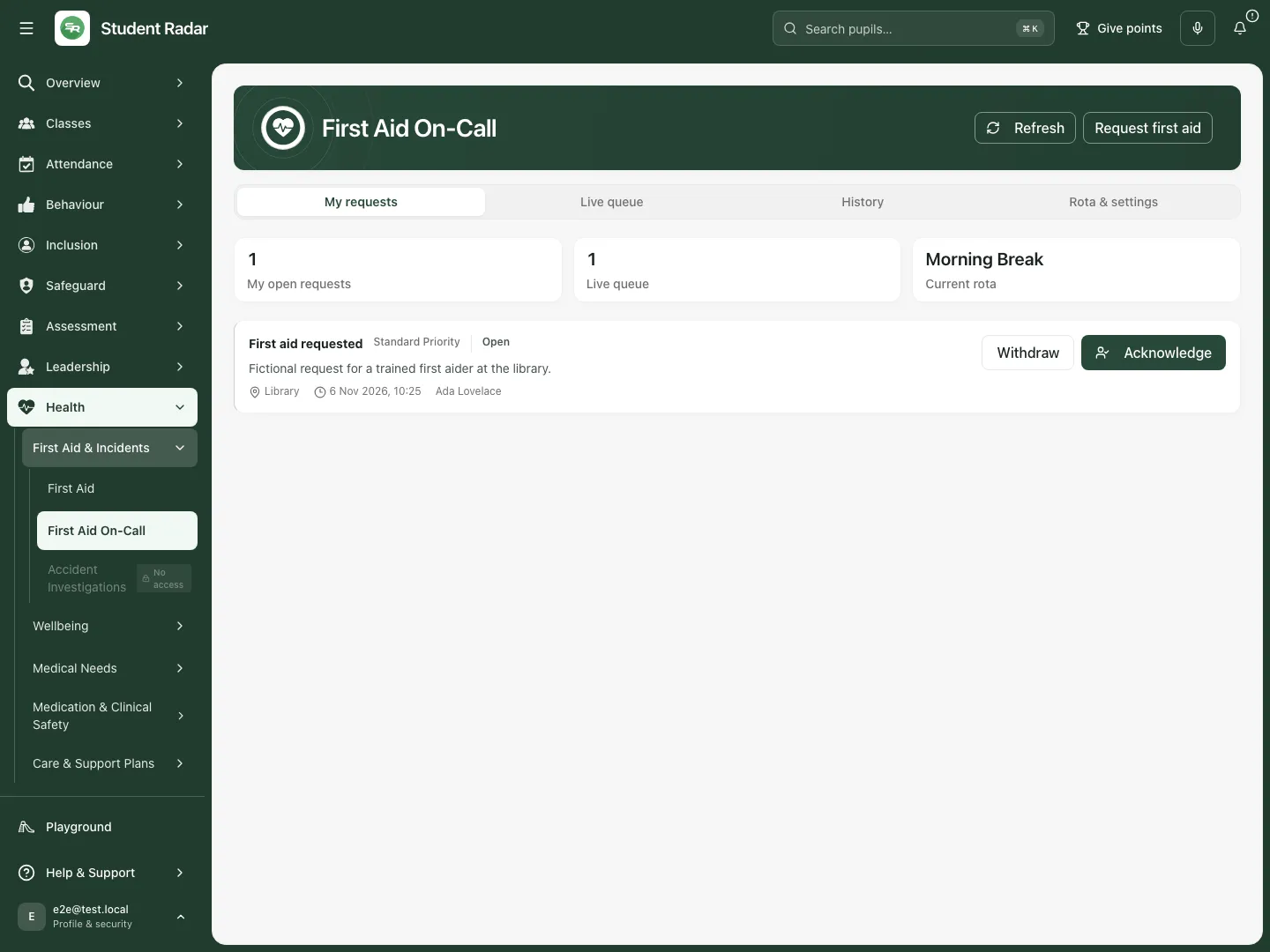 The fictional requester sees one open request and the recorded Morning Break rota. Its standard priority and location remain attached to the request.
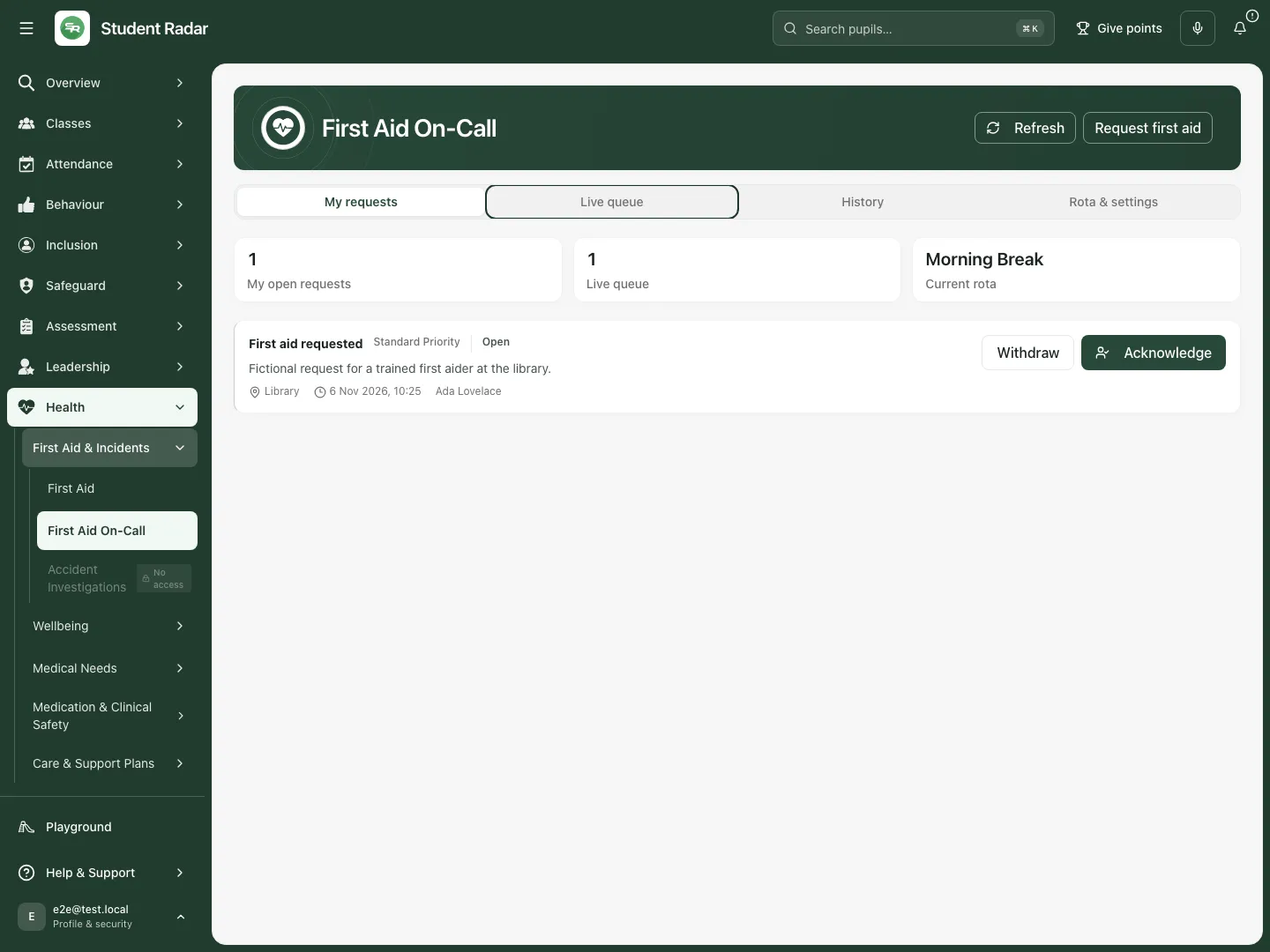 The fictional responder sees the request before acknowledgement. Open is separate from Acknowledged or En route.
Request a first aider
Section titled “Request a first aider”- Choose Request first aid.
- Enter What help is needed? in a short factual description, then Location clearly enough for a colleague to find it.
- Choose Priority: Standard, Urgent or Immediate, following the school’s actual procedure. Selecting a priority is not a clinical assessment by the app.
- Under Pupils (optional, up to five) choose Add a pupil, search and select the correct permitted identity. Use the displayed year/class to distinguish pupils. An ambiguous or unavailable identity needs resolution, not a guessed match.
- Review the named pupils and remove an incorrect selection before sending.
- Choose Send request and check the resulting card in My requests. Cancel closes the form without sending. A failed or unconfirmed request keeps its draft open; check the state before repeating it.
- If the form says there is no first aider on the rota and nobody will be alerted, use the school’s usual radio/phone route as well. Recording a request must not substitute for obtaining the help the situation requires.
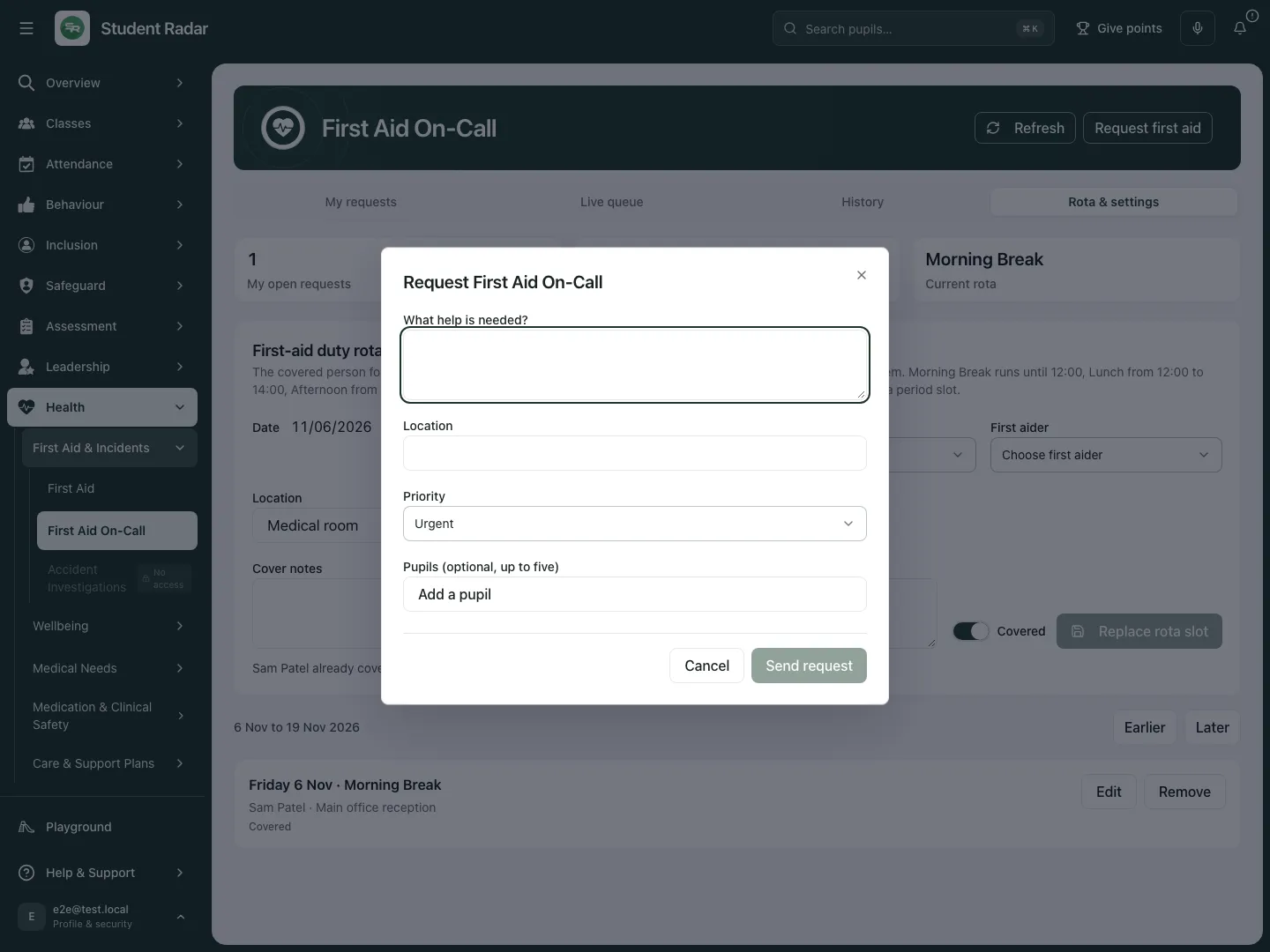 The fictional walkthrough opens and cancels the real form. The description, location, priority and optional pupil list are separate inputs; Send request was not used.
Acknowledge and update the response state
Section titled “Acknowledge and update the response state”- As a permitted responder, open Live queue and check the request you intend to take.
- Choose Acknowledge. Wait for the update and check that the card now says Acknowledged and identifies your held request.
- If you are moving to the location, choose En route. This records that response state for the requester; it does not prove arrival or care delivery.
- If a colleague’s action wins first, refresh and inspect the current holder instead of repeatedly trying to take the same request.
- Use Hand over when you should release your held response for another eligible responder. Coordinate any practical handover using the school’s process; a status change alone is not a completed personal handover.
- Take over is offered when a held request is eligible because its holder has left the rota. It checks the claim you saw before taking it; review a conflict rather than assuming takeover succeeded.
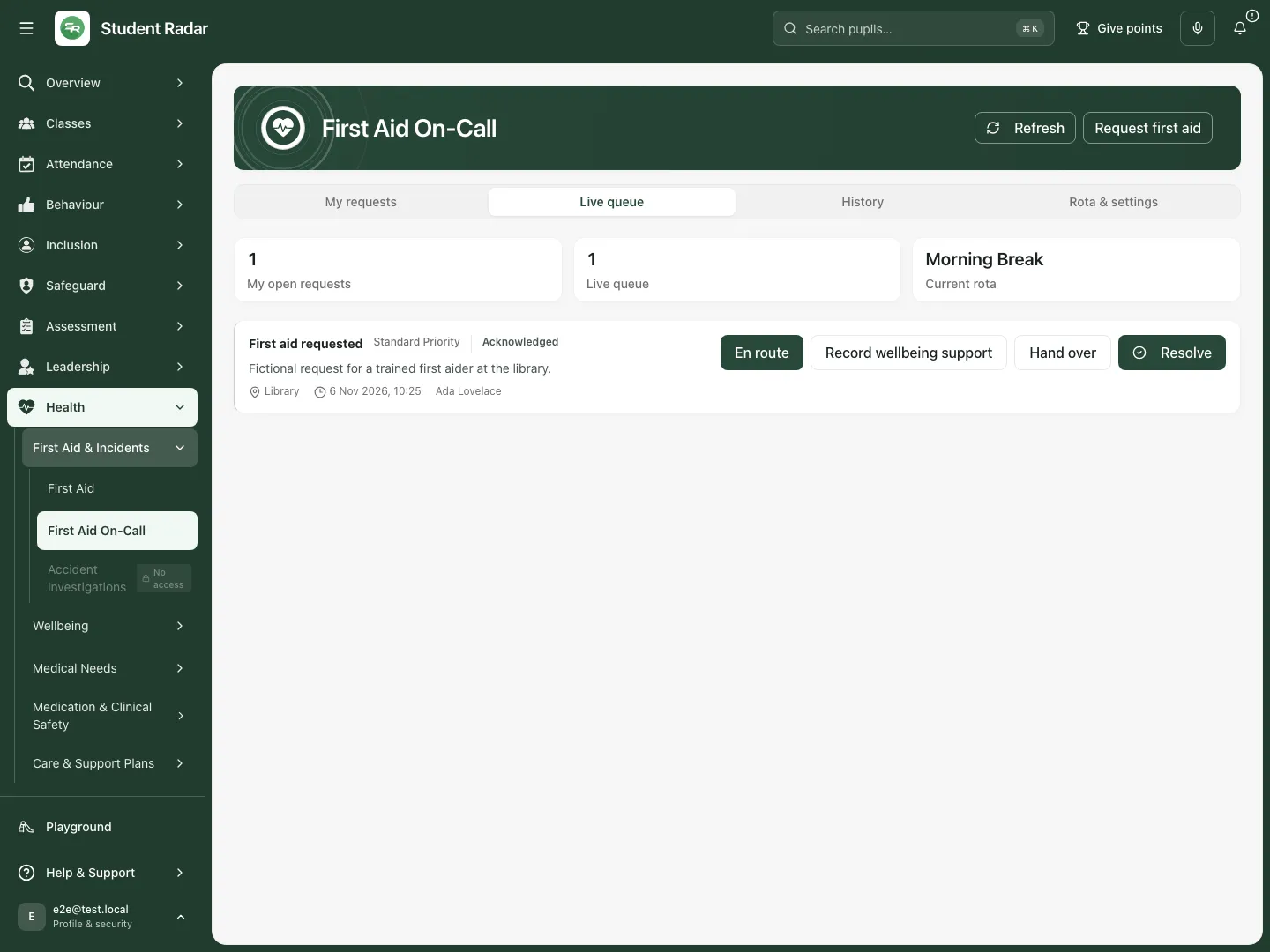 The reopened fictional request remains acknowledged, with En route and Resolve available as separate next actions.
Prepare the actual outcome
Section titled “Prepare the actual outcome”- From your held response choose Resolve.
- In Resolve first-aid request, choose the actual Outcome: Treated at the location, Moved to the first-aid room, Ambulance called, Parent contact requested, No treatment required or False alarm.
- Enter Outcome summary in your own factual words. Record an ambulance call or requested parent contact only if it actually happened; choosing the label does not make that call or send a parent message.
- For a care outcome choose Complete First Aid record. This prepares the outcome and opens the connected incident workflow. The request remains unfinished until the required care record/pupil accounting is completed.
- For No treatment required, Continue opens the named-pupil accounting step rather than inventing an injury record.
- Cancel leaves the outcome form without completing the response. Change outcome lets the holder reconsider a prepared outcome before it is finally resolved.
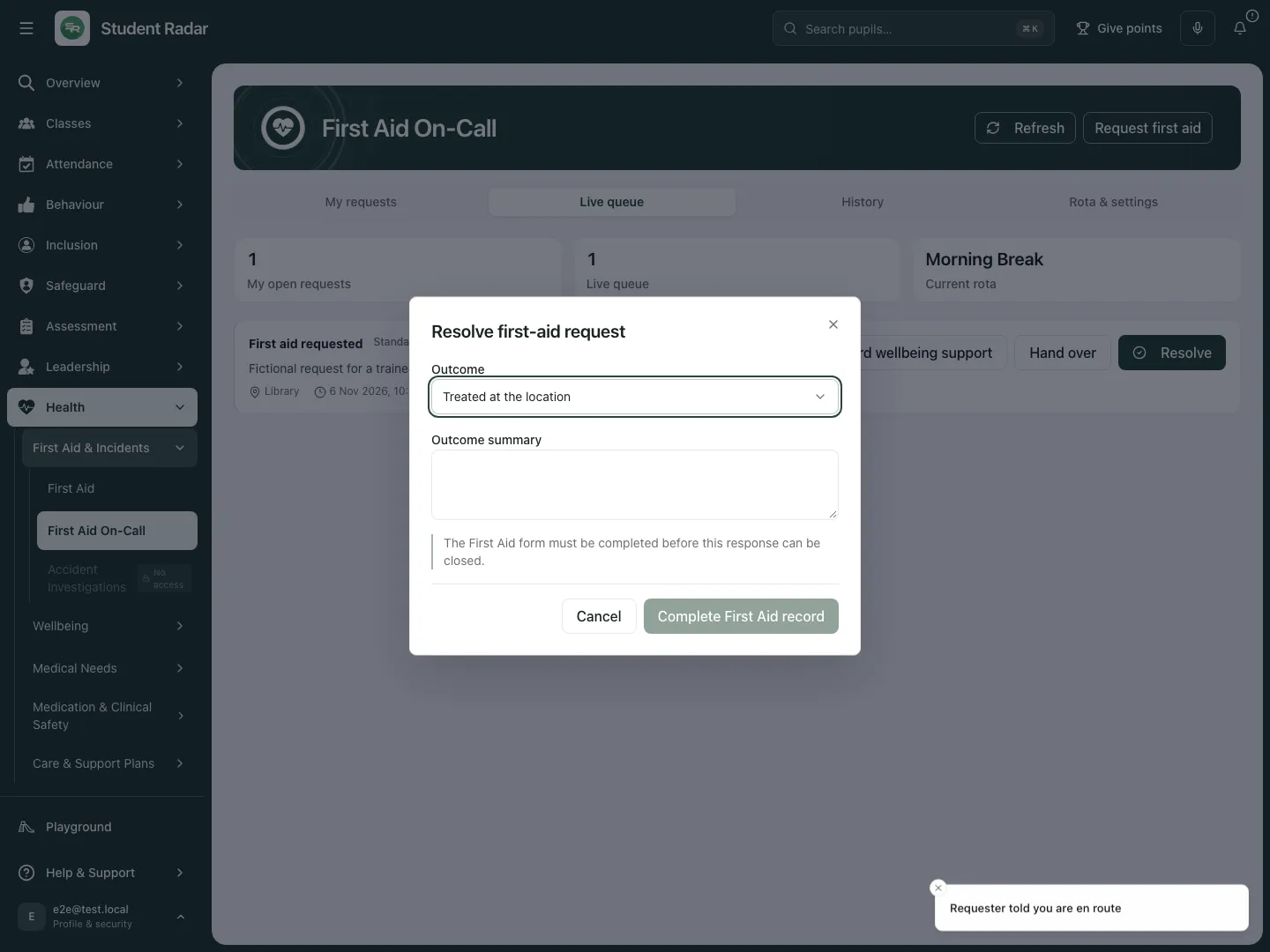 The fictional response is En route and the outcome form is open. The page states that a First Aid record is still needed; no care outcome was saved.
Account for every named pupil
Section titled “Account for every named pupil”- Read Pupils to account for after preparing the outcome. Each named pupil needs their own actual First Aid record or an explained No first aid needed state.
- Choose Record first aid beside the relevant pupil and complete the First Aid record. The pupil/request link is retained; check the pupil before saving.
- If no first aid was needed for a pupil, choose No first aid needed, enter Why did [pupil] need no first aid?, then Confirm. Do not use it merely to bypass a missing care record.
- For a treatment outcome, at least one pupil must have an actual First Aid record. If nobody required treatment, change the outcome to No treatment required and record the appropriate reasons.
- Check First aid recorded or No first aid needed beside every pupil. The request closes when every named pupil is accounted for under the chosen outcome.
- A request without named pupils still offers the connected record action for the actual person/event. Check the person in the incident form rather than assuming the request supplied a pupil identity.
False alarm is a separate reasoned closure when no first-aid assessment was needed. Enter the explanation and choose Confirm false alarm. No incident record is created for that closure, and False alarm is no longer offered after a care record has already been made. It must not be used to erase completed care evidence.
Record wellbeing support opens the separate wellbeing workflow from a held response. Recording wellbeing support does not silently complete the First Aid accounting requirements.
Withdraw a request you raised
Section titled “Withdraw a request you raised”- Open your still-open request and choose its Withdraw action.
- Read Withdraw this request?. Choose Withdraw request only when it is no longer required, or Keep request to leave it open. The app records the withdrawal reason as No longer required; this form has no free-text reason field.
- Check Withdrawn in the resulting record. It leaves the live queue and cannot be reopened; raise a new request if help is still needed. Withdrawal is separate from a responder recording care or a false alarm; do not use it to rewrite an already completed response.
- If the request has already been acknowledged or closed elsewhere, refresh and follow the current state instead of treating the stale card as authority to change it.
Manage the response rota
Section titled “Manage the response rota”- Open Rota & settings and review First-aid duty rota. The form uses the school’s clock.
- Enter Date and Cover pattern. Choose School period with Period, or an hourly slot with Hour.
- Choose First aider from the permitted staff list, enter Location and optional Cover notes, then check Covered accurately.
- Choose Add rota slot for a new slot. If the date/time already has cover, the form says who holds it and changes to Replace rota slot; review that replacement explicitly before saving.
- For an existing slot choose Edit, make the change and Save changes. Cancel edit abandons the edit. Move away and back to check the saved slot rather than relying only on the form’s text.
- Earlier and Later move through the bounded two-week rota windows. Check the actual date on the slot before editing a different window.
- To remove a slot choose Remove, read Remove this rota slot?, then confirm removal or Keep slot. Recheck current cover afterwards.
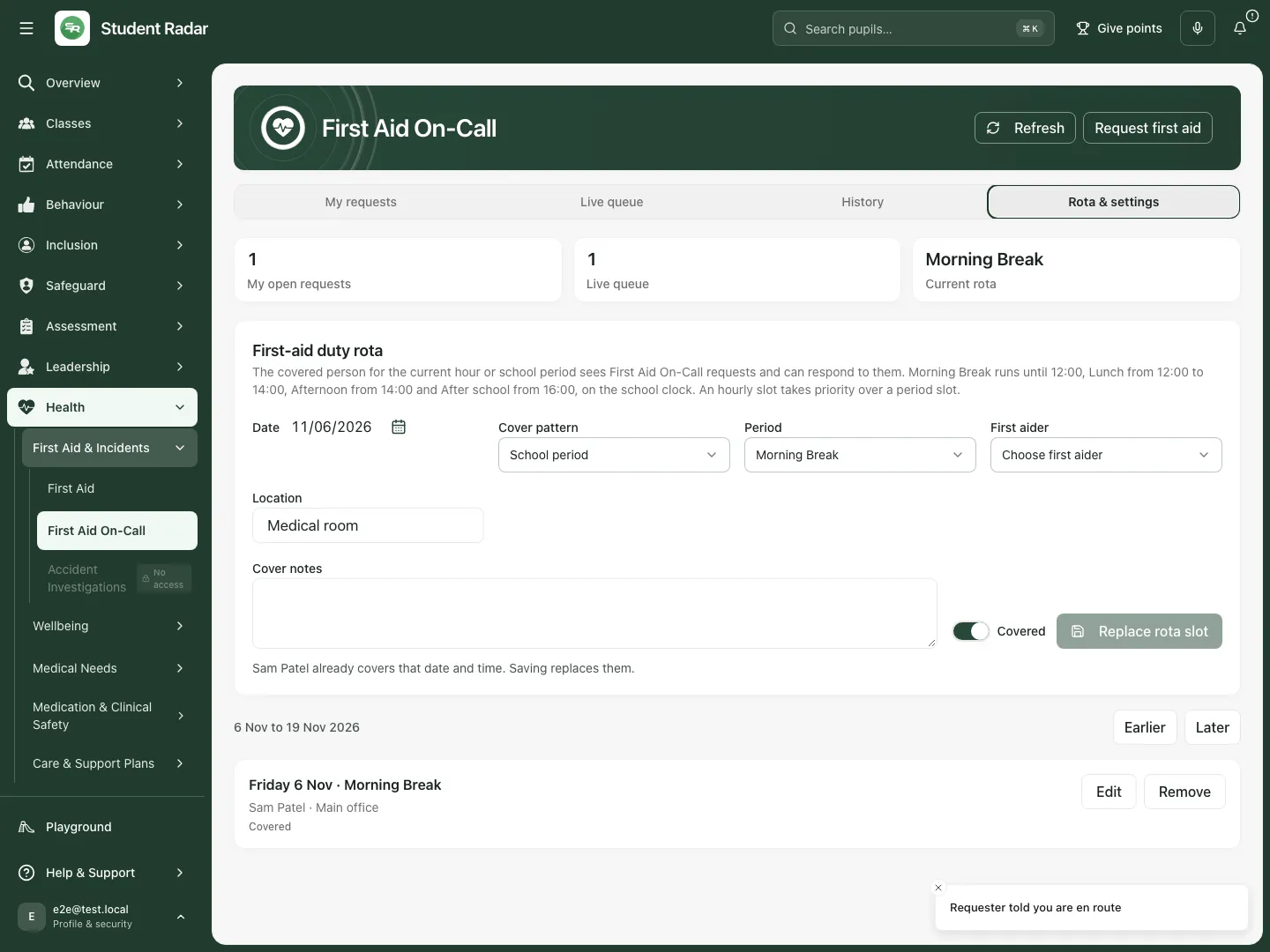 The fictional rota has Sam Patel covering Morning Break at Main office. The add form identifies that saving the same date/period would replace an occupied slot.
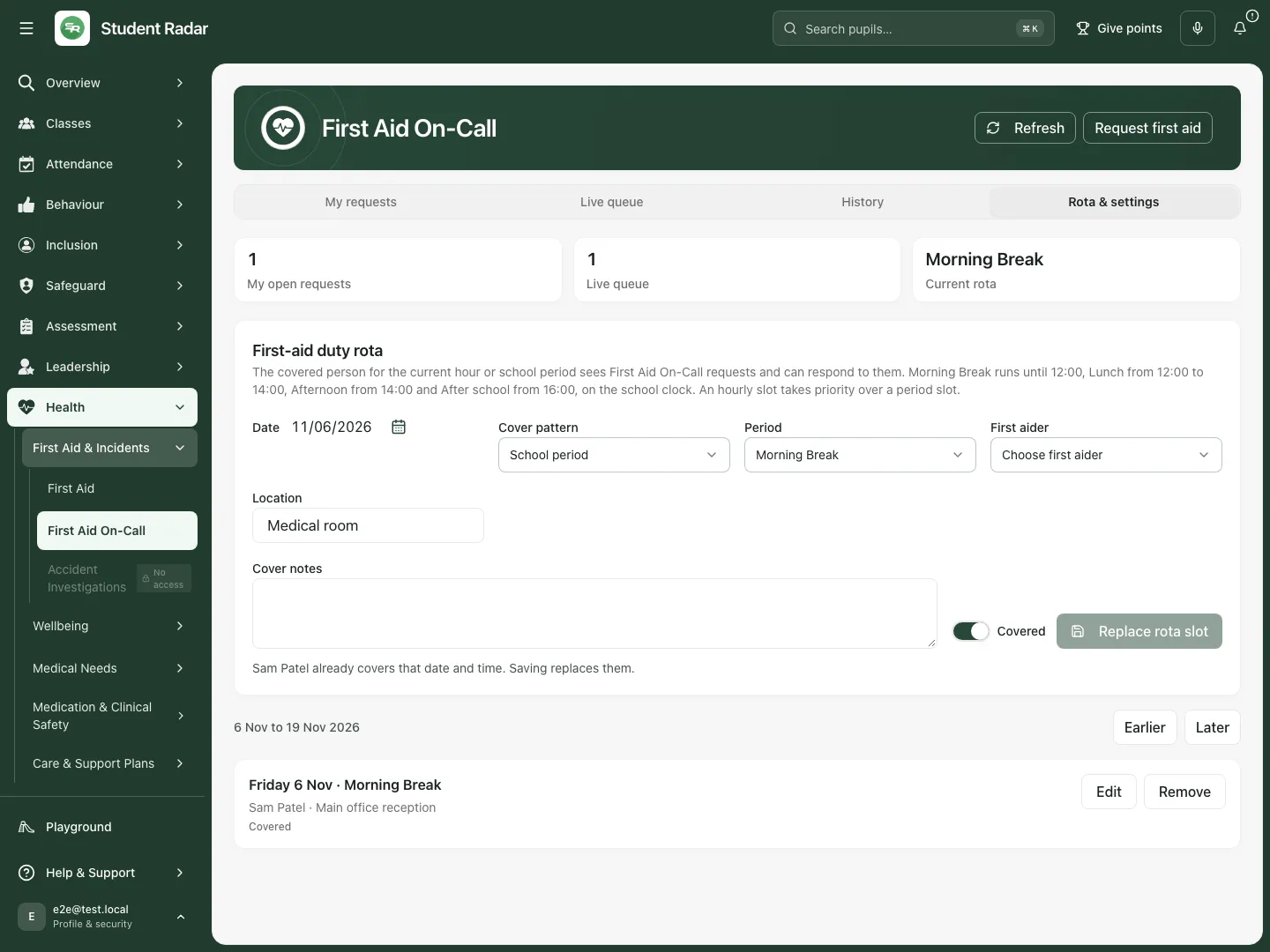 The reopened fictional rota shows Sam’s saved location as Main office reception.
How the cover periods work
Section titled “How the cover periods work”The page describes Morning Break until 12:00, Lunch from 12:00 to 14:00, Afternoon from 14:00 and After school from 16:00, on the school clock. An hourly slot takes priority over a period slot. Check the school’s actual cover plan rather than assuming those labels alone provide suitable staffing.
A staff member shown as cannot respond yet needs the required linked account, permission and valid qualification/eligibility before being counted as an effective responder. A rota entry is not an access grant. A person who still holds a claim may need to finish or hand it over after their duty changes.
Phone use
Section titled “Phone use”Use the compact section selector for My requests, Live queue/Requests I hold, History or Rota & settings. Keep the pupil names, location and response status visible before taking an action. Check the saved state after returning from a form.
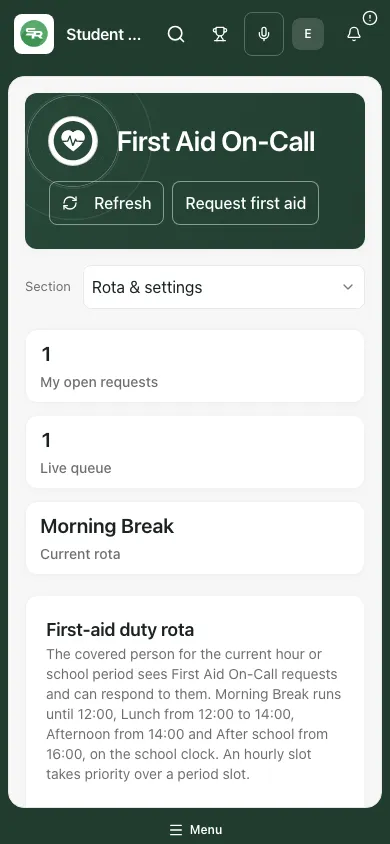 The fictional phone view retains the held request, location and response controls.
Problems and questions
Section titled “Problems and questions”Nobody appears to cover the current time. Check the school clock, covered flag, hourly override and responder eligibility. Use the school’s usual way of calling for help rather than assuming an app request reached someone.
Live queue or History is missing. They depend on responder access; held claims can remain available separately. Check the current school/duty and permission rather than choosing another person’s account.
A request could not be confirmed as sent. Keep the draft, check My requests and refresh. Repeating an uncertain request is different from deliberately raising a new event.
Acknowledgement, handover or takeover failed. Another responder may have changed the claim. Refresh and review the actual holder before acting again.
Resolve did not close the request. Check the prepared outcome and every named pupil. A prepared care outcome waits for the connected incident record or an explained no-first-aid state; it is not itself a treatment record.
Parent contact requested is selected. That records the outcome description. It does not send a parent notice; use the incident’s separately reviewed communication workflow when authorised.
My rota edit seems absent. Check date/period/hour, replacement notices and the saved slot after refresh. An uncovered or ineligible entry is not effective cover.
Related: First Aid · Accident Investigations · Wellbeing Episodes. Evacuation remains a separate workflow.