Prepare EYFS profiles and review family reports
Choose the child, review portfolio evidence and prepare the Reception profile before checking family views and export readiness. Observations and evidence support staff judgement; a draft profile, a displayed GLD calculation and a formal completed/submitted outcome remain different records.
Screenshots use Alex Example, a fictional Reception child. The example profile has recorded Expected outcomes but is deliberately still Draft. Its displayed GLD calculation is not a claim that a real profile was completed or submitted.
Before choosing a child or tab
Section titled “Before choosing a child or tab”Open Assessment → EYFS → EYFS Profiles & Reports. You see the tabs available to your account: Child portfolio, Profile entry, Parent report, Transition, GLD overview and Export & submission. Reading, updating, approving/reopening and export access can differ.
Use Child and verify the name, Nursery/Reception stage and class. The picker can initially show only 20 children; type a name to find others. An unavailable identity or failed read is not evidence that a child has left school.
Child portfolio supports Nursery and Reception. Profile entry, Parent report and Transition require a Reception child. A Reception child required notice is an explicit boundary; return to the portfolio for a Nursery child’s observations rather than changing their stage to expose a report.
1. Review the child portfolio and its evidence
Section titled “1. Review the child portfolio and its evidence”In Child portfolio, inspect the area summaries, latest observation, evidence items and individual early learning goals. Portfolio observation states are not the statutory end-of-Reception outcomes.
Use the offered goal/status filters to focus the list. Recently updated means a judgement in the recent 28-day window, not every goal ever observed. A goal without an observation is unknown, not automatically Emerging.
Choose Evidence: [N] on a goal to filter the Evidence timeline on this page. Check the visible goal name and use Show all evidence to clear the focus. An Evidence: 0 control can instead focus goals without evidence; do not infer that the child has never demonstrated the skill.
Read the written observation date and goal name before interpreting a change. Evidence unavailable means an attachment could not be accessed, not an empty or invalid observation. Do not copy a broken attachment as though it was reviewed evidence.
Where offered, Add evidence and Open EYFS checklist go to the checklist workflow. They depend on checklist access; the link itself does not grant it.
2. Manage family contributions with the correct child in view
Section titled “2. Manage family contributions with the correct child in view”The portfolio’s journal card can show pending family contributions. Read a contribution in the child’s context, then choose Approve or Reject only after staff review. Pending entries are not automatically part of the staff learning record. A failed contribution read must be retried rather than treated as no contributions.
Create family contribution link opens a confirmation naming the child. Read the described audience and content before Create link. The current link works for 90 days without a family login, so give it only to that child’s parents/carers through the school’s approved route. The visible field identifies whose family it is for; recheck it before Copy again.
Changing the child/school/account must not be treated as permission to reuse a link already copied to the clipboard. There is no staff revoke/replace control on this card. If the wrong family may have received a link, stop using it and follow the school’s support/data-handling process. Creating a link is a sharing action, not a routine step required to record a profile.
3. Open a Reception profile and check its status
Section titled “3. Open a Reception profile and check its status”Choose Profile entry after selecting the intended Reception child. The editor remains unavailable until the stored profile can be checked. Confirm academic year, status and existing outcomes before typing.
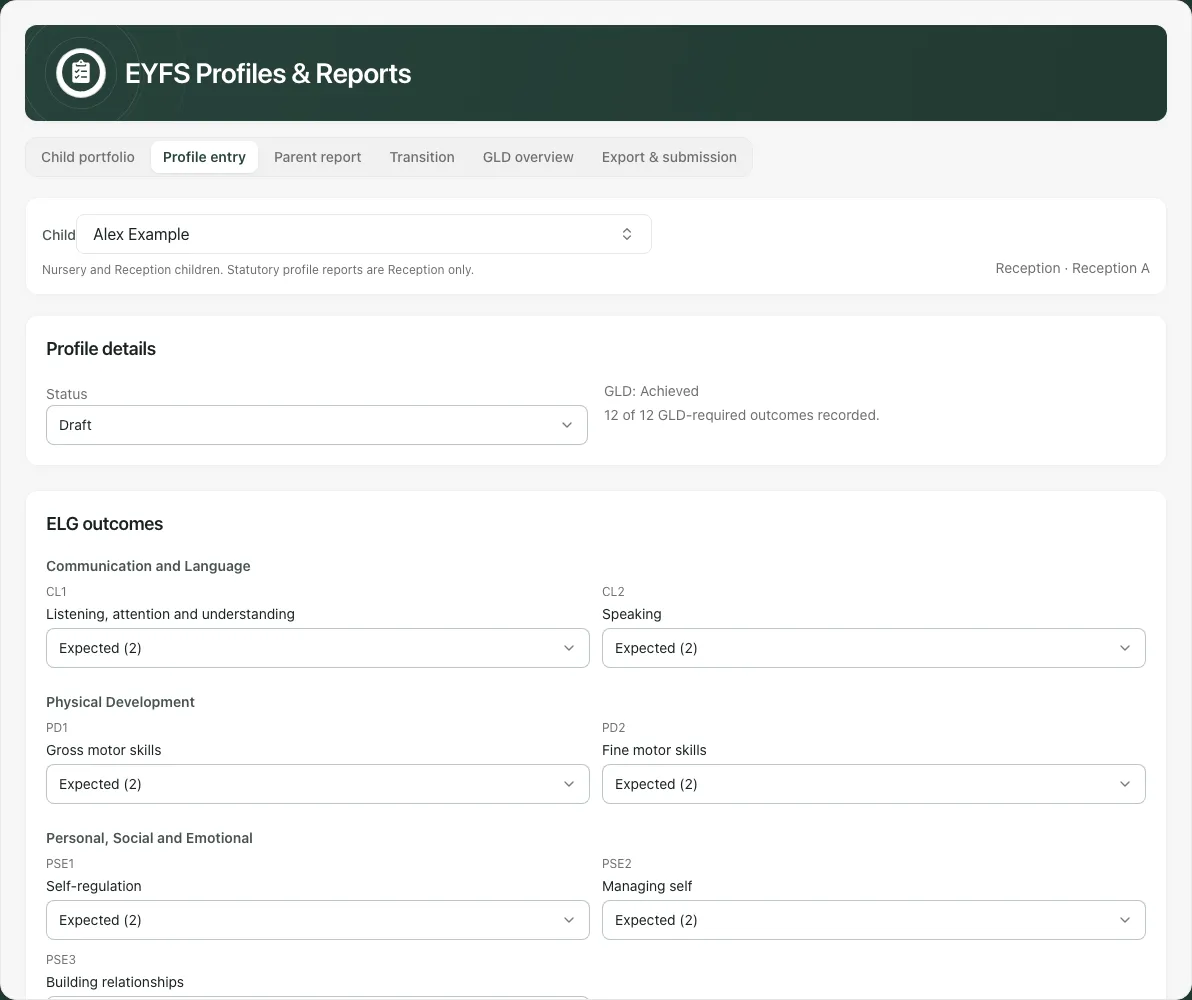
A completed, submitted or locked profile cannot be edited directly. A read-only account sees that it can view but not change the profile; do not type an alternative record to bypass that boundary.
The form groups all 17 early learning goals. Read the goal and select the actual Emerging, Expected or Exempt outcome under the school’s assessment process. Exempt is a specific recorded outcome, not a replacement for missing evidence. A blank goal remains unrecorded.
4. Record context and save a draft deliberately
Section titled “4. Record context and save a draft deliberately”- Check each outcome against the evidence and the intended child/year.
- Where an outcome is Emerging, record the actual Barriers to learning and Successful strategies required by the form. Do not invent either to clear validation.
- Add relevant SEND provision details and the characteristics-of-effective-learning narratives: Playing and Exploring, Active Learning and Creating and Thinking Critically.
- Add useful Teacher comments. Keep observations and proposed support factual; avoid unnecessary sensitive details in a broad report narrative.
- Leave Status as Draft while it is still being reviewed, then choose Save profile.
- Wait for success and reopen the same child’s profile to verify the stored text/outcomes.
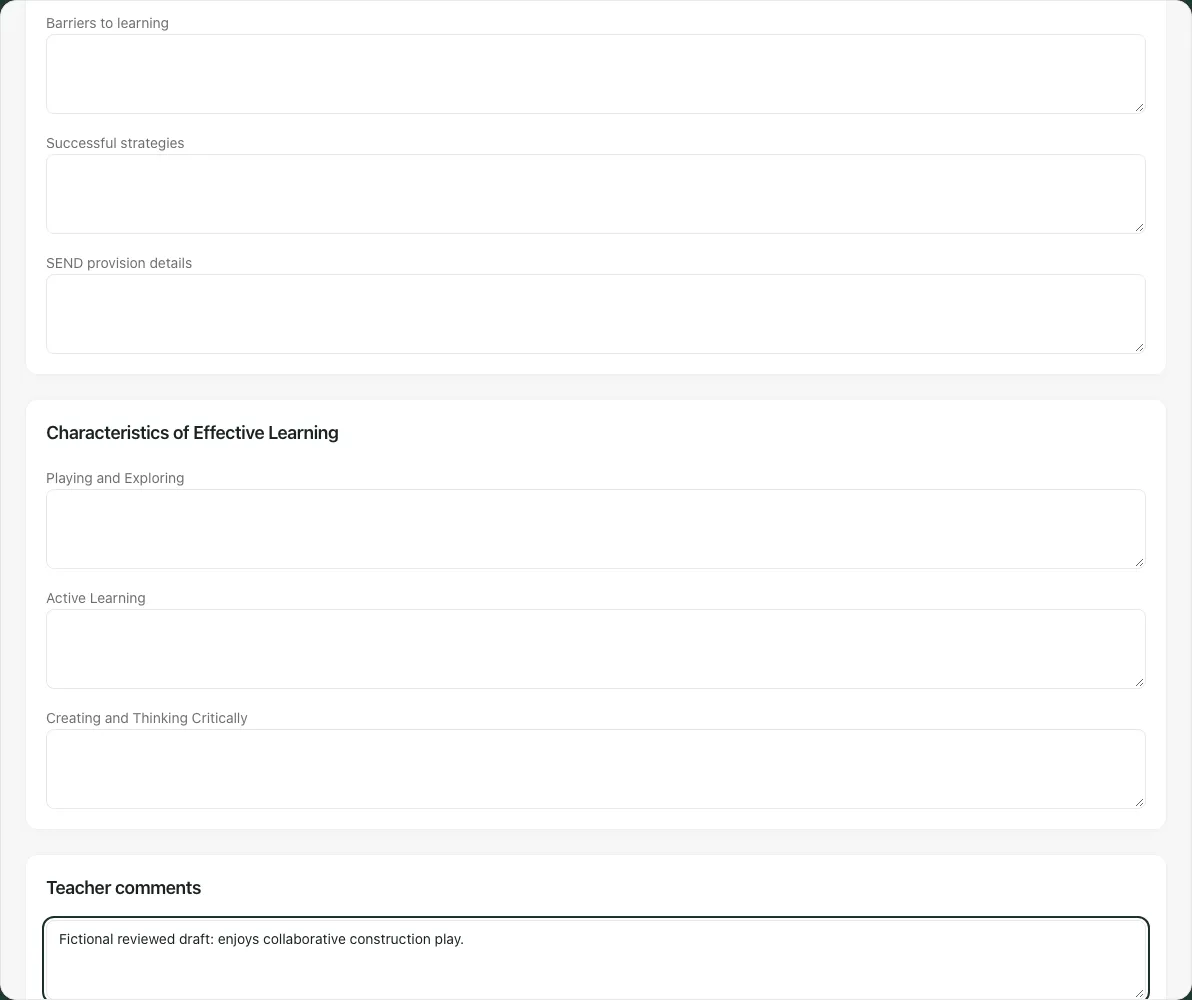
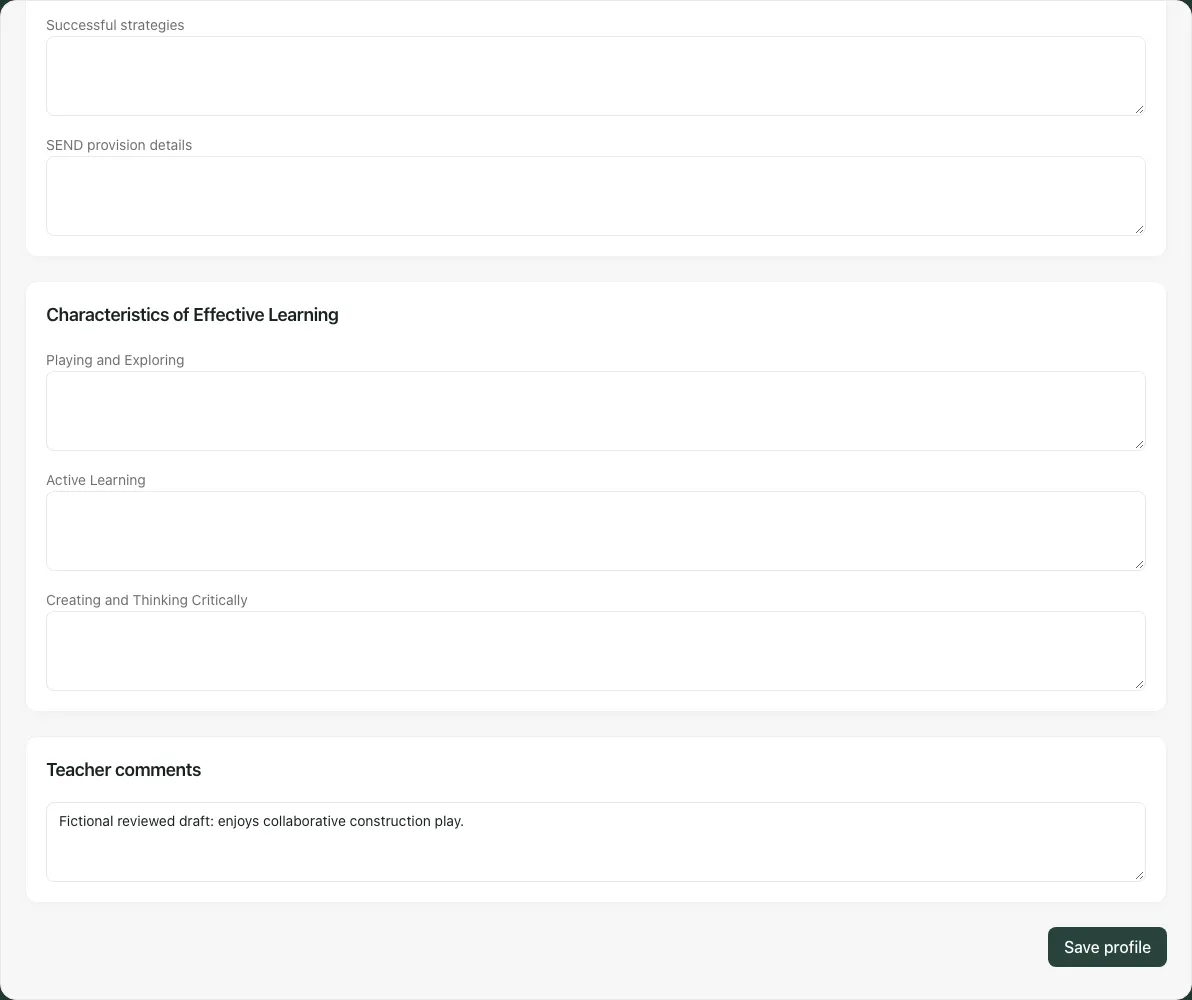
A typed change is not a saved profile. A missing-school/settings, locked, permission, rate-limit or revision refusal needs its named next step. If another colleague saved first, Load the latest version reloads their current revision. Copy any wording you still need before loading it, then reconcile the changes; do not overwrite the newer record with an old draft.
5. Complete, mark submitted or reopen through the authorised process
Section titled “5. Complete, mark submitted or reopen through the authorised process”Only staff with the required approval capability can select Complete or Submitted. The form requires a recorded outcome for all 17 goals before saving either status and names how many are still missing. It can also require the Emerging context fields.
Check the entire profile, evidence and actual process before changing status and Save profile. A status change records an authorised decision; it is not evidence that an external recipient accepted a file. Do not mark Submitted merely because a draft XML was downloaded.
For a correction to a closed profile, an authorised reviewer chooses Reopen profile, enters Reason for reopening, then Confirm reopening. This returns it to Draft and retains the reason in history. Recheck the latest revision and perform the correction before the appropriate reviewed completion step.
6. Read the parent and transition views as profile-derived outputs
Section titled “6. Read the parent and transition views as profile-derived outputs”Choose Parent report for the selected Reception child. Check Child, Period, Status, goal outcomes and Teacher comments. Read the displayed GLD label alongside Draft/Complete/Submitted status; a derived label on a draft is not a formal end-of-Reception conclusion.
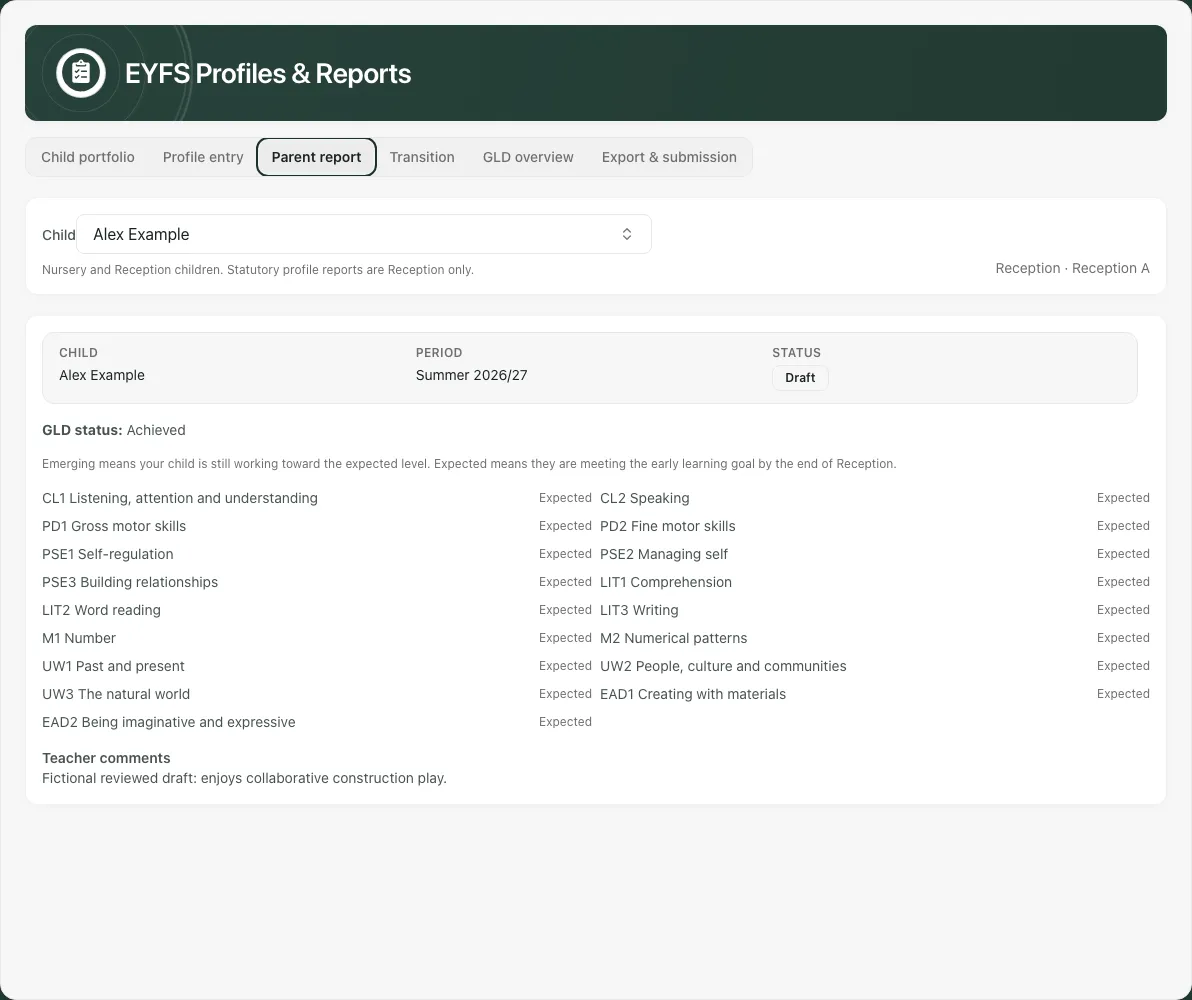
If No EYFS parent report yet appears, use Open profile entry to check the source or Open EYFS portfolio for the evidence. Do not interpret a failed read as no profile.
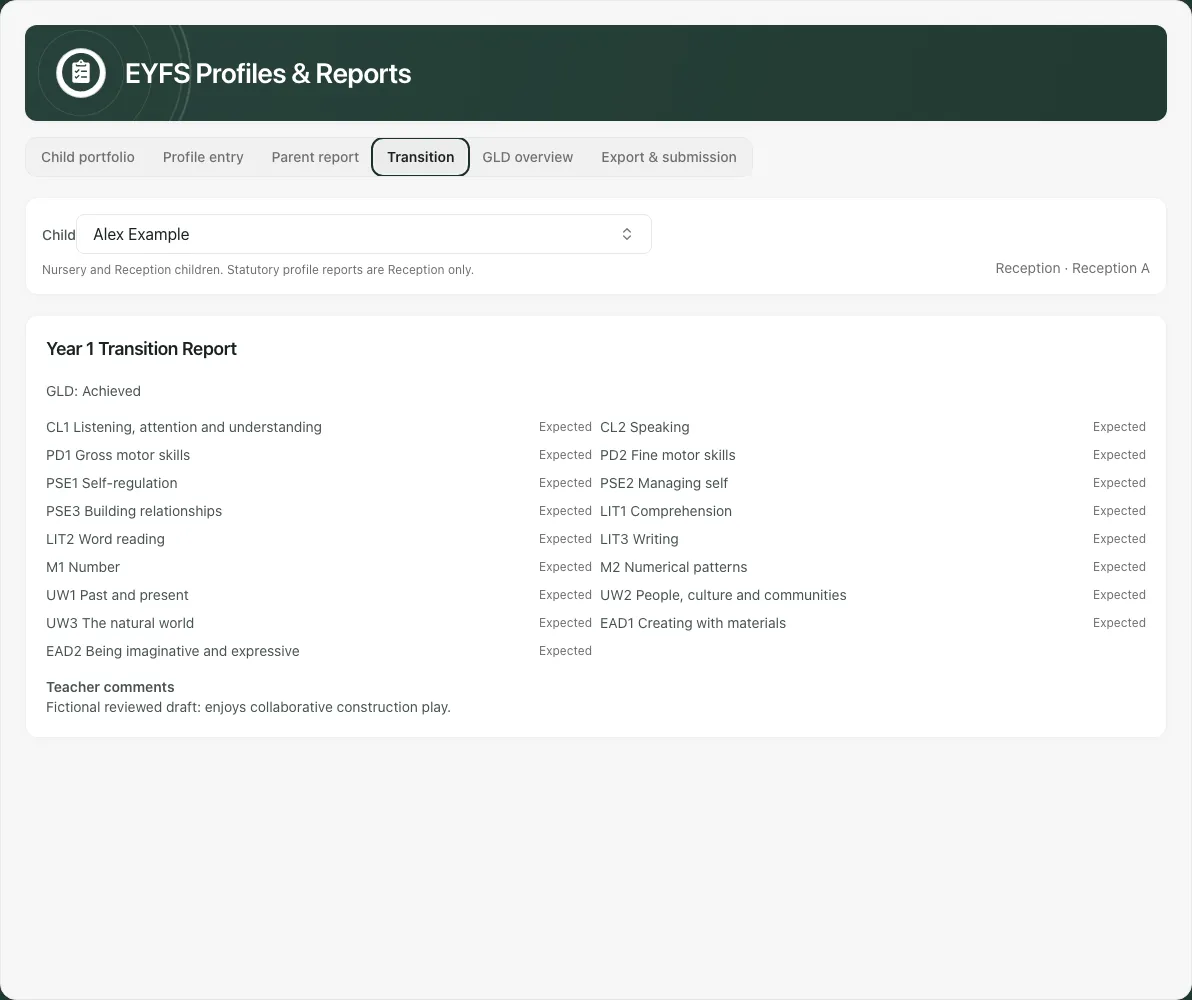
Transition brings the profile’s outcomes, learning characteristics, barriers/strategies, provision and comments into the transition context. Verify the intended pupil and current source profile before using it in a handover. These views are not a one-click family send; opening them does not deliver anything or prove approval by a receiving school.
7. Distinguish current observation coverage from formal GLD
Section titled “7. Distinguish current observation coverage from formal GLD”GLD overview uses current-year Reception observation evidence and shows its coverage, including complete, missing or conflicting children where supplied. It is not the same source as formal completed profiles. Do not interpret an observation-based prediction or an incomplete denominator as a statutory profile result.
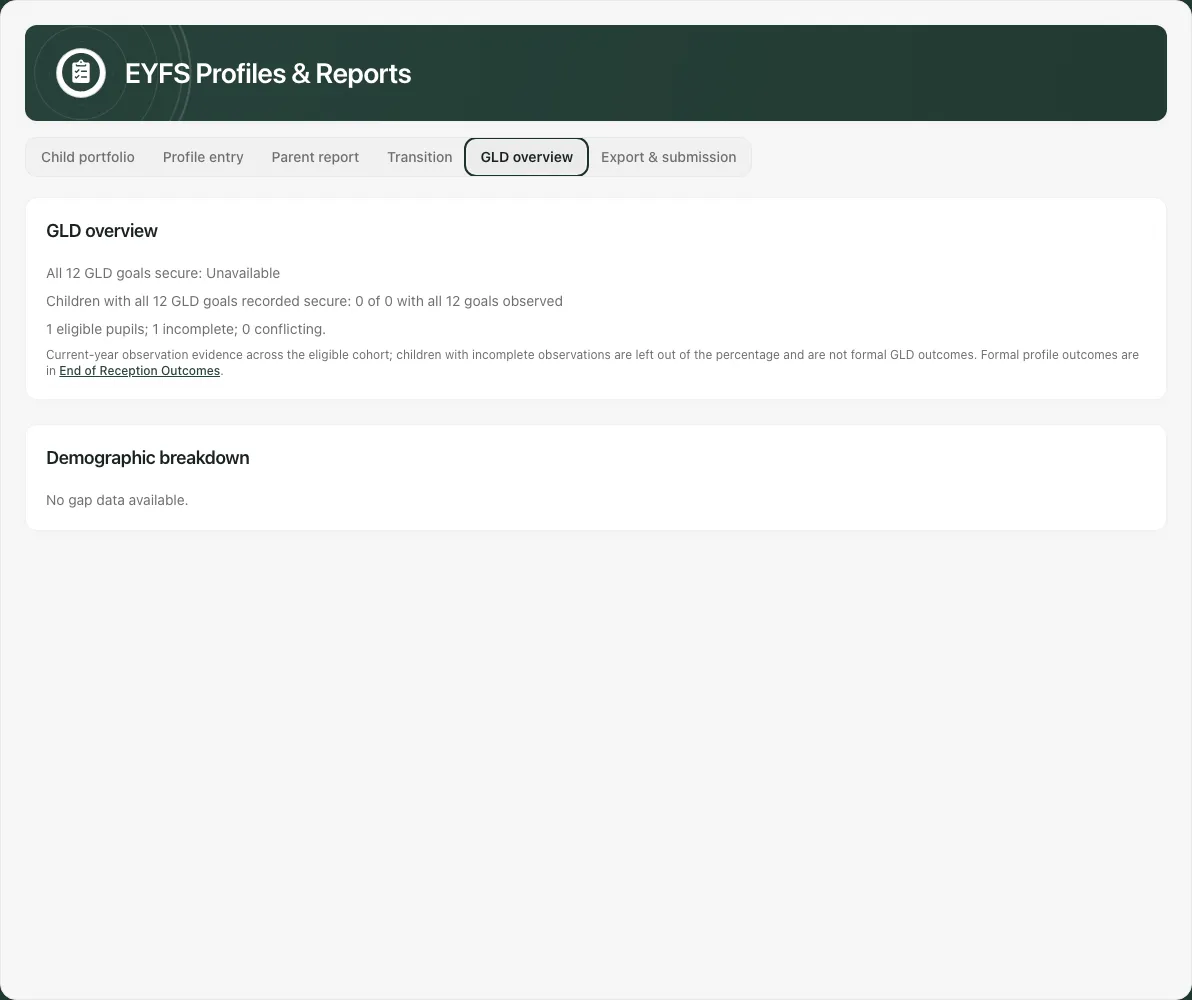
Read missing/conflicting and recent-observation coverage alongside the headline. An unavailable percentage is not zero; a child with unrecorded evidence is not automatically assessed below the expected level. For formal completed-profile outcomes, use the offered End of Reception Outcomes link where your account can open it.
The overview’s school-year/time basis matters when observations straddle academic-year boundaries. Check dates and scope before comparing it with a saved profile or another report.
8. Review export readiness before downloading a file
Section titled “8. Review export readiness before downloading a file”Choose Export & submission. Confirm Academic year, Permitted Reception pupils, profiles with all 17 outcomes, missing/incomplete profiles, profiles awaiting completion and missing identity fields. A profile with all outcome fields can still be Draft; completeness of fields and authorised completion are distinct.
A failed export-data read offers Try again and must not be treated as an empty cohort. Identity checks can require verified UPN, date of birth, gender and school/receiving-authority context. Resolve the actual source fields instead of inventing identifiers.
Export draft XML is for review and may contain missing outcomes/identity; it must not be submitted as a statutory transfer. Export CTF XML is available only when the current transfer checks permit it. Read the reported failures rather than assuming a disabled button is a formatting issue.
The CTF export is a partial transfer of the permitted pupils shown, not evidence of whole-school completeness or automatic local-authority submission. Check the resulting file and receiving-system process; file structure and download are not receiving-system acceptance.
Phone use and troubleshooting
Section titled “Phone use and troubleshooting”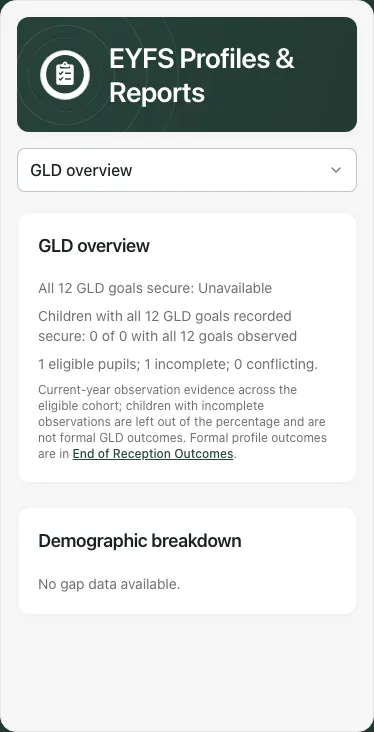
Scroll the tab strip if a section is off screen, and recheck the child label after switching. Keep draft text saved before leaving the editor.
| Situation | Next step |
|---|---|
| No child selected | Select the verified child before opening an editor. |
| Reception child required | Use a Reception child for statutory profile/report tabs, or return to portfolio. |
| Fields disabled | Check loading, write access and locked/completed status. |
| All 17 outcomes required | Record the actual missing outcomes; do not fill unknowns by assumption. |
| Emerging context missing | Add the real barriers/strategies relevant to the record. |
| Another version saved | Copy needed draft wording, then Load the latest version and reconcile. |
| Evidence unavailable | Recheck attachment access; do not treat it as reviewed or absent evidence. |
| Family link copied for wrong child | Stop using it and use the school’s support/data-handling process. |
| GLD incomplete or conflicting | Inspect source coverage and dates; do not substitute zero. |
| Transfer blocked | Correct the stated identity/profile/context issue; a draft export is not a workaround submission. |
Common questions
Section titled “Common questions”Does saving a draft complete the Reception profile?
Section titled “Does saving a draft complete the Reception profile?”No. Completion, marking submitted and reopening use their own authorised steps; check the profile’s actual status.
What should I check before using a family or transition output?
Section titled “What should I check before using a family or transition output?”Review the underlying profile, evidence and status. A displayed GLD calculation or draft output does not establish formal completion or submission.