Assign EYFS key people and plan focus children
Written for: Authorised Early Years staff with relevant child and assignment access.
Check key-person assignments, organise backup and cover, and plan focus children for a specific observation week.
The screenshots use fictional children and staff.
Assignments and focus plans support staff organisation. An accepted focus child has not automatically been observed, and assigning a key person does not itself record any care or support delivered.
Before you start
Section titled “Before you start”- Check the school and class. Children appear where they are recorded in Nursery/Reception or the school’s equivalent Early Years stage and you have access.
- Read-only and editable assignments can appear differently. Changing a child’s key person needs the appropriate permission; opening the page does not grant it.
- Check staff availability using the school’s agreed process. An absent “Away” marker can mean absence information is unavailable to your role, rather than confirmation the person is in school.
- Agree substantive staffing changes with the appropriate lead before recording them.
1. Open Children and check the scope
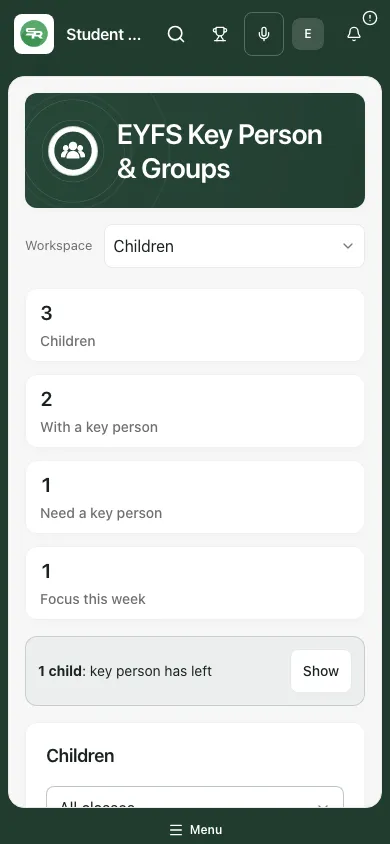
Section titled “1. Open Children and check the scope”Open Key people through the available Early Years/class navigation. The title is EYFS Key Person & Groups. Choose Children, Groups or Focus this week. On a phone, use Workspace to choose the section.
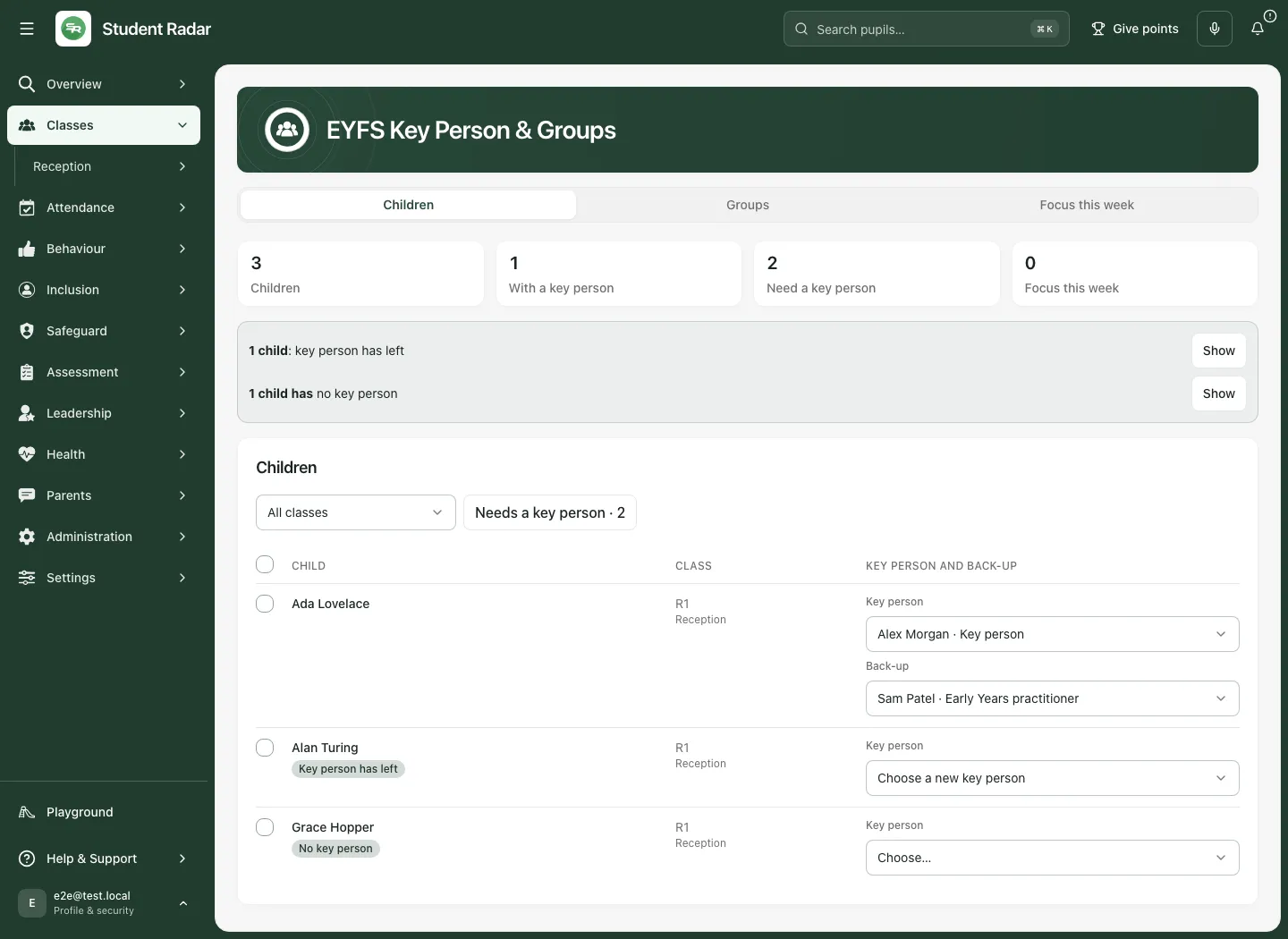
In Children, use Class to choose the intended group or All classes. Check the headline figures:
- Children is the permitted roster read.
- With a key person counts current assignments.
- Need a key person includes unassigned children and those whose key person has left.
- Focus this week counts accepted focus children for the current school week, rather than every unreviewed suggestion or a different week browsed in the planner.
The attention area separates key person has left from no key person. Select Show on the relevant line to see exactly that set across classes. Use Needs a key person for the combined filter. Check its selected state and the class filter before interpreting a missing child.
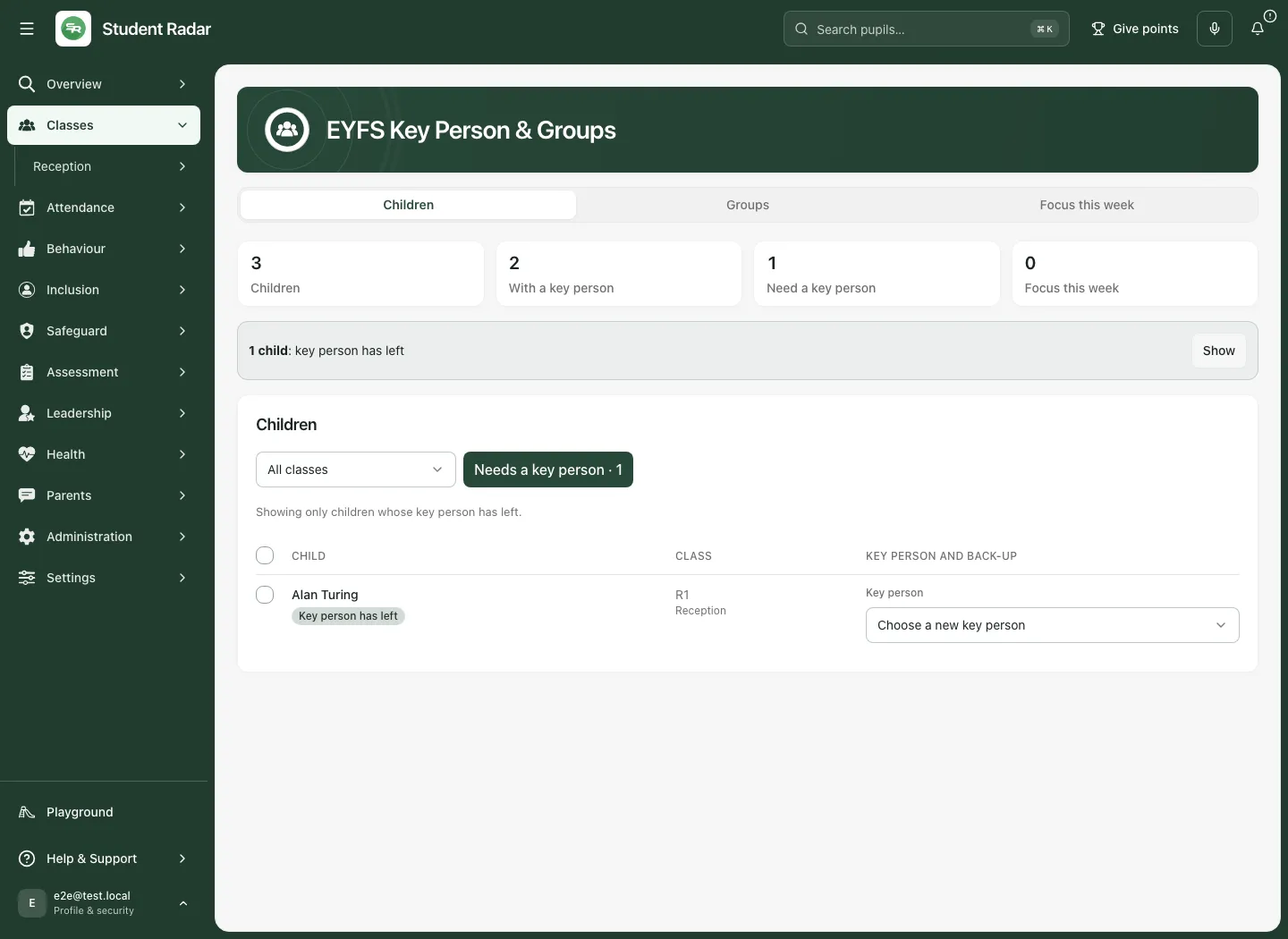
A failed read is shown as unavailable, not zero. If no children match, check filters and scope before assuming everyone has an assignment.
2. Assign or change a child’s key person
Section titled “2. Assign or change a child’s key person”- Find the child and check name, class and stage.
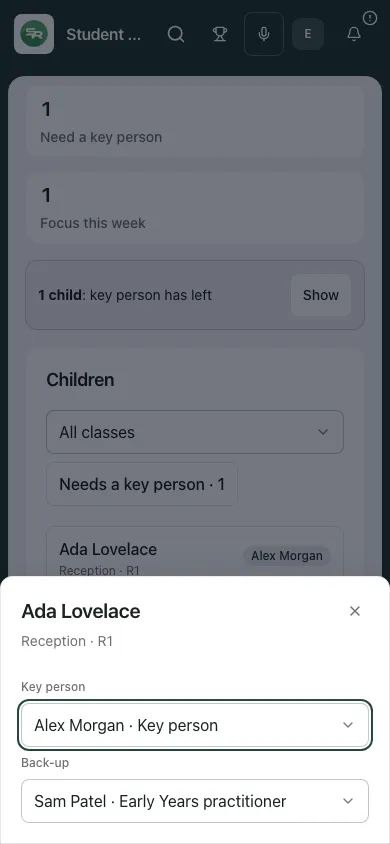
- Open Key person for that child. A missing assignment offers Choose…; a departed person offers Choose a new key person.
- Review the available staff list. It groups Key persons and back-ups and Other staff where applicable.
- Choose the agreed staff member. The selection saves immediately; there is no separate Save button for an individual assignment.
- Wait for Saved — Key person updated. Check the refreshed row and counts.
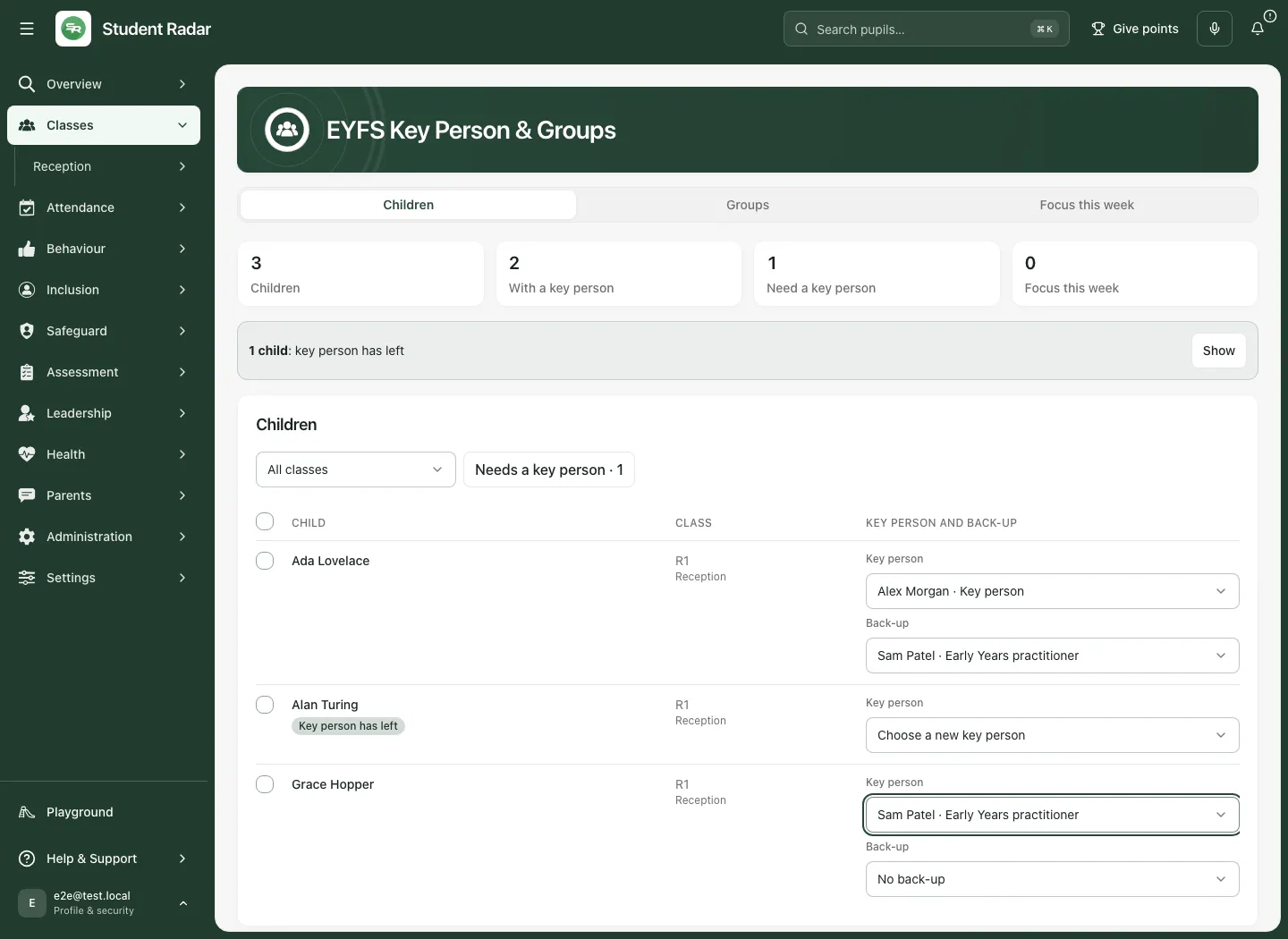
If the service reports that a staff member can no longer be chosen or nothing changed, reread the row and choose an eligible person. Do not assume the displayed draft choice became the saved assignment.
On a phone, select the child’s card to open the editing sheet, then use the same Key person control. Close the panel when finished and check the child’s updated card.
Add or remove a back-up
Section titled “Add or remove a back-up”Once the child has a key person, choose Back-up. Select a different eligible staff member; the key person cannot also be their own back-up. Choose No back-up to remove that assignment. The choice saves immediately. Check the saved result and refreshed name.
Assigning a key person or back-up is not an adult room sign-in. A back-up assignment is different from confirming that the person is present or automatically arranging cover. Read the available absence context and follow the school’s staffing process.
3. Assign several children carefully
Section titled “3. Assign several children carefully”On desktop, the Children table offers a checkbox beside each editable child and Select all children shown.
- Set the class/filter so you can review the intended children.
- Select the children to change. Select-all applies to the shown eligible children; check the actual selected count.
- Under Key person for the selected children, choose the agreed person.
- Review the count and select Assign N children.
- Read the result and check the affected rows. The supported bulk limit is 60 children at a time; choose a smaller group if necessary.
Do not use bulk assignment as a shortcut around an individual refusal or staff availability decision. A read-only child may not offer a checkbox, and a changed staff roster can invalidate a previous choice.
4. Review Groups and today’s cover context
Section titled “4. Review Groups and today’s cover context”Choose Groups to see children grouped by their currently assigned key person. Each group shows its number of children, Nursery/Reception split where relevant and back-up coverage. An additional group lists children needing a key person.
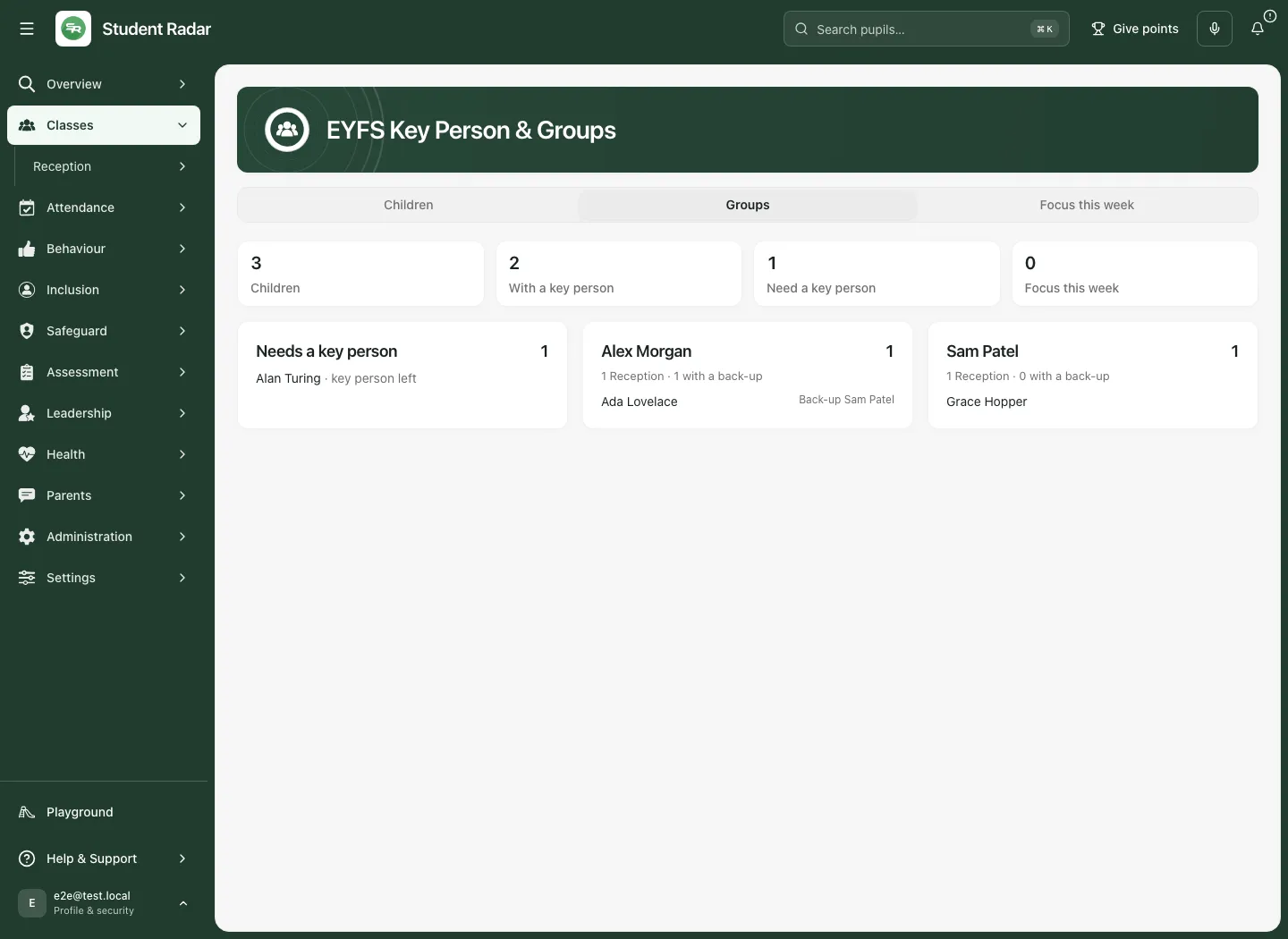
Where you can read staff absence, Away today and the back-up wording help identify staffing questions. A statement that absence is shown to people who manage cover is an access limitation, not a confirmation of attendance.
Use this view to check workload and arrangements with the responsible lead. It is not an automatic staffing allocation or proof that a particular adult has seen every assigned child today.
5. Plan focus children for a specific week
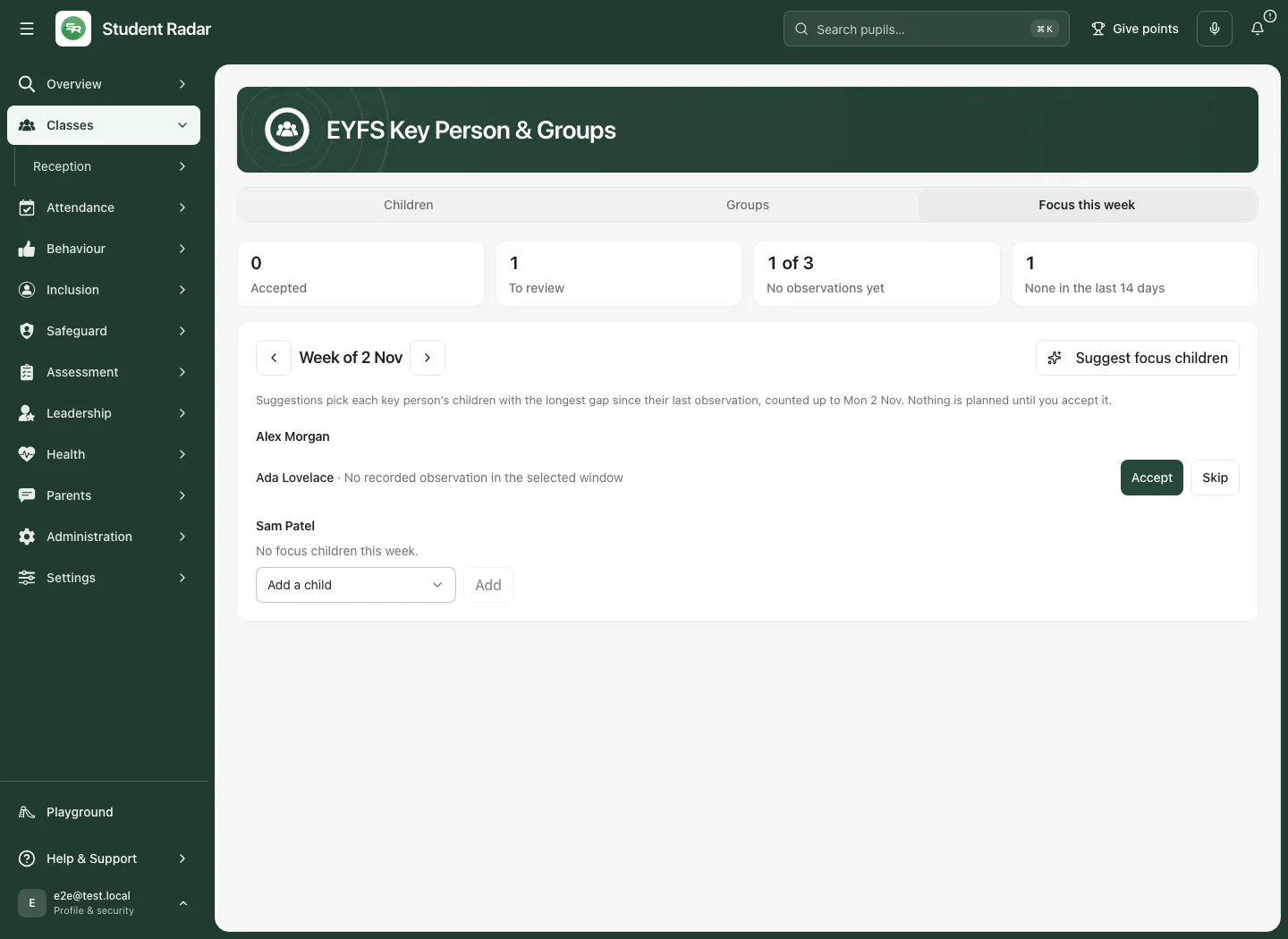
Section titled “5. Plan focus children for a specific week”Choose Focus this week. Check Week of [date] before taking an action. Use Previous week or Next week to browse, and This week to return to the current school week.
Read the figures and observation window:
- Accepted counts children explicitly accepted for that displayed week.
- To review counts suggestions awaiting a decision.
- No observations yet includes a denominator; read it as coverage of the relevant recorded observation source.
- None in the last 14 days is a recorded-gap prompt, not proof that nobody has interacted with or supported the child.
Review suggestions
Section titled “Review suggestions”- Select Suggest focus children, where offered.
- Read the generated/updated suggestions beneath each key person and their reason. The tool favours the longest gaps in recorded observations within its stated window.
- Check the child’s circumstances with the appropriate colleague. Missing recorded observations are not a judgement about the child or their key person.
- Choose Accept to plan that focus, or Skip when it is not the right choice. Wait for the refreshed state.
- For an accepted item no longer intended, use Remove and check the result.
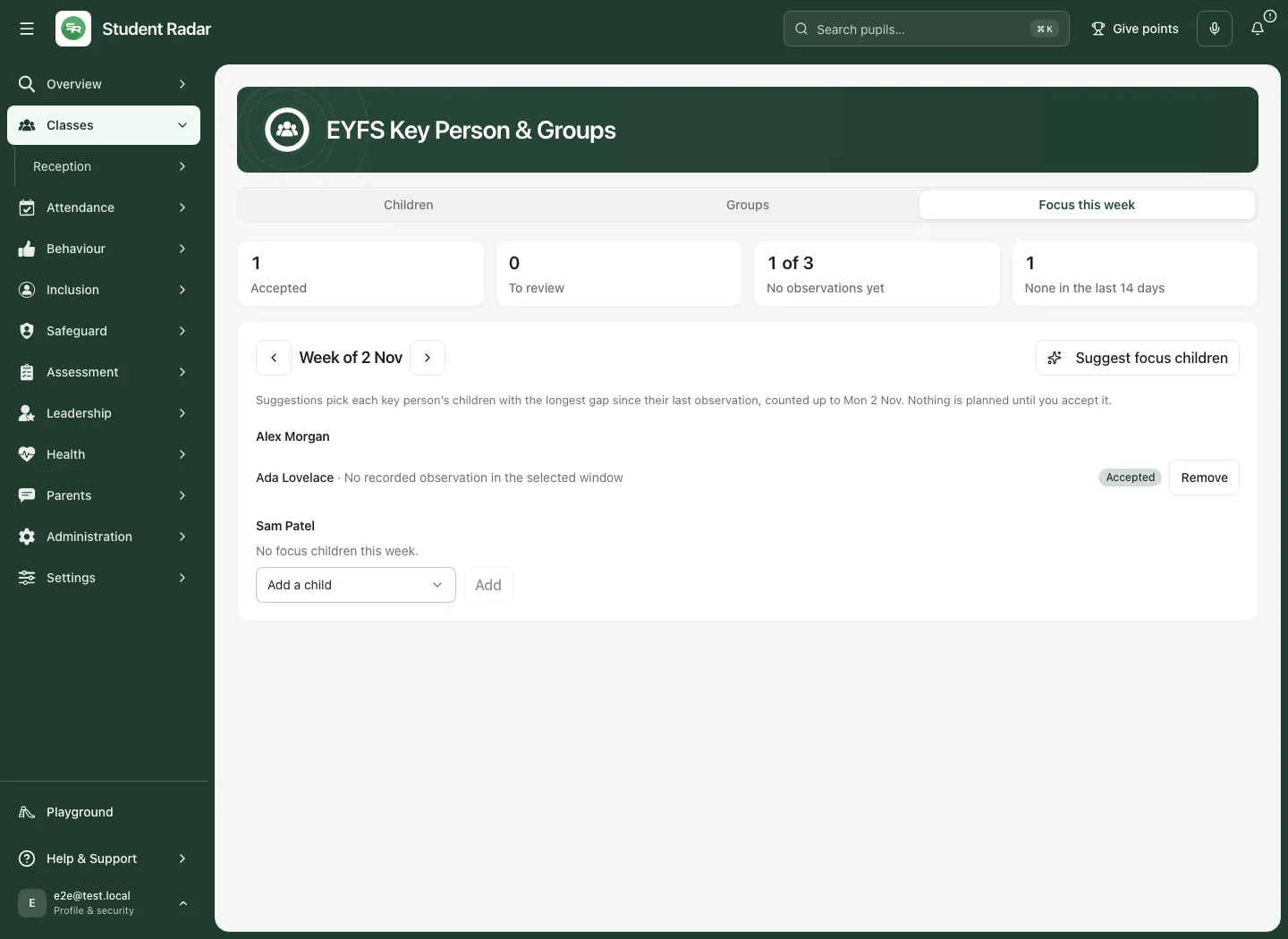
Nothing is planned until someone accepts a suggestion. Regenerating suggestions can make or refresh suggestions; its “suggestions ready” count is not a count of observations completed or new needs diagnosed.
Add a focus child by hand
Section titled “Add a focus child by hand”Under the intended key person, use Add a focus child / Add a child to choose an eligible child, then select Add. Check the week, adult and child before confirming. A manually added entry is labelled Added by hand.
If the page refuses the child, week or staff choice, retain the intended details and follow the message. The week must be within the supported planning range, and a stale assignment may require a new choice. Do not treat a refused action as saved.
Record the actual observation in the school’s appropriate observation workflow afterwards. Focus planning does not create observation evidence automatically.
Troubleshooting
Section titled “Troubleshooting”| What you see | What to check |
|---|---|
| No children | Check school, Early Years classification, class and permission. |
| No children match | Clear the class/attention filters; left and unassigned are different drill-downs. |
| A staff member cannot be chosen | Check whether they are still eligible; ask the appropriate staffing lead. |
| Back-up is rejected | Choose someone other than the child’s key person. |
| An assignment did not save | Check the error and refreshed row before retrying. |
| Staff absence not shown | Your role may not include cover information; do not infer present. |
| Focus counts differ | Compare current-week headline versus displayed planner week, accepted versus suggested, and the observation window. |
| Too many requests | Wait as directed, then reread; repeated retries do not grant access or confirm a save. |
| Too many children to show | Narrow the supported scope with the school administrator rather than treating the returned list as complete. |
For support, provide school, class, week, action and error wording through the approved route. Avoid unnecessary child-identifying screenshots.
Common questions
Section titled “Common questions”Does accepting a focus child record an observation?
Section titled “Does accepting a focus child record an observation?”No. It records a plan for an observation focus. Record the actual observation separately when it happens.
Does a key-person assignment show the adult is in the room?
Section titled “Does a key-person assignment show the adult is in the room?”No. Assignments and adult room sign-in are separate records. Check the actual room cover context before relying on the arrangement.