Prepare intimate care plans and record care provided
Written for: Authorised SENCOs, plan leads and named intimate-care staff.
Prepare the agreed care and child’s views, review consent and sign-offs and link the actual carers before recording care under the active plan. A draft is not an active plan. A named person in the plan’s text is different from a linked staff assignment, and a recorded signature is different from consent status.
Use the school’s authorised care, safeguarding and dignity procedures. This guide explains the app’s recording controls, not clinical or safeguarding decisions. You need the relevant pupil/plan permissions; plan managers and assigned carers can have different controls. The examples use fictional Ada Lovelace and a working draft. No care is recorded against that draft.
Find the plan and its current state
Section titled “Find the plan and its current state”- Open Intimate Care Plans under Health → Care & Support Plans.
- Managers use Needs attention, All plans, Care today and Carers and training. Their counts have different meanings: plans needing work, open plans and care recorded today are not interchangeable.
- Use the search and class filter to narrow the intended pupil. Check active filters before concluding a plan is missing.
- In All plans, choose Open. Assigned-carer cards offer Read the plan, and an in-force plan can offer Record care.
- Check the plan’s version/status, consent and review due date. Read the actual care document before recording or changing an arrangement.
- Source/readiness failures remain unknown. A failed care read is not evidence that no care happened, and an unavailable version cannot safely be edited.
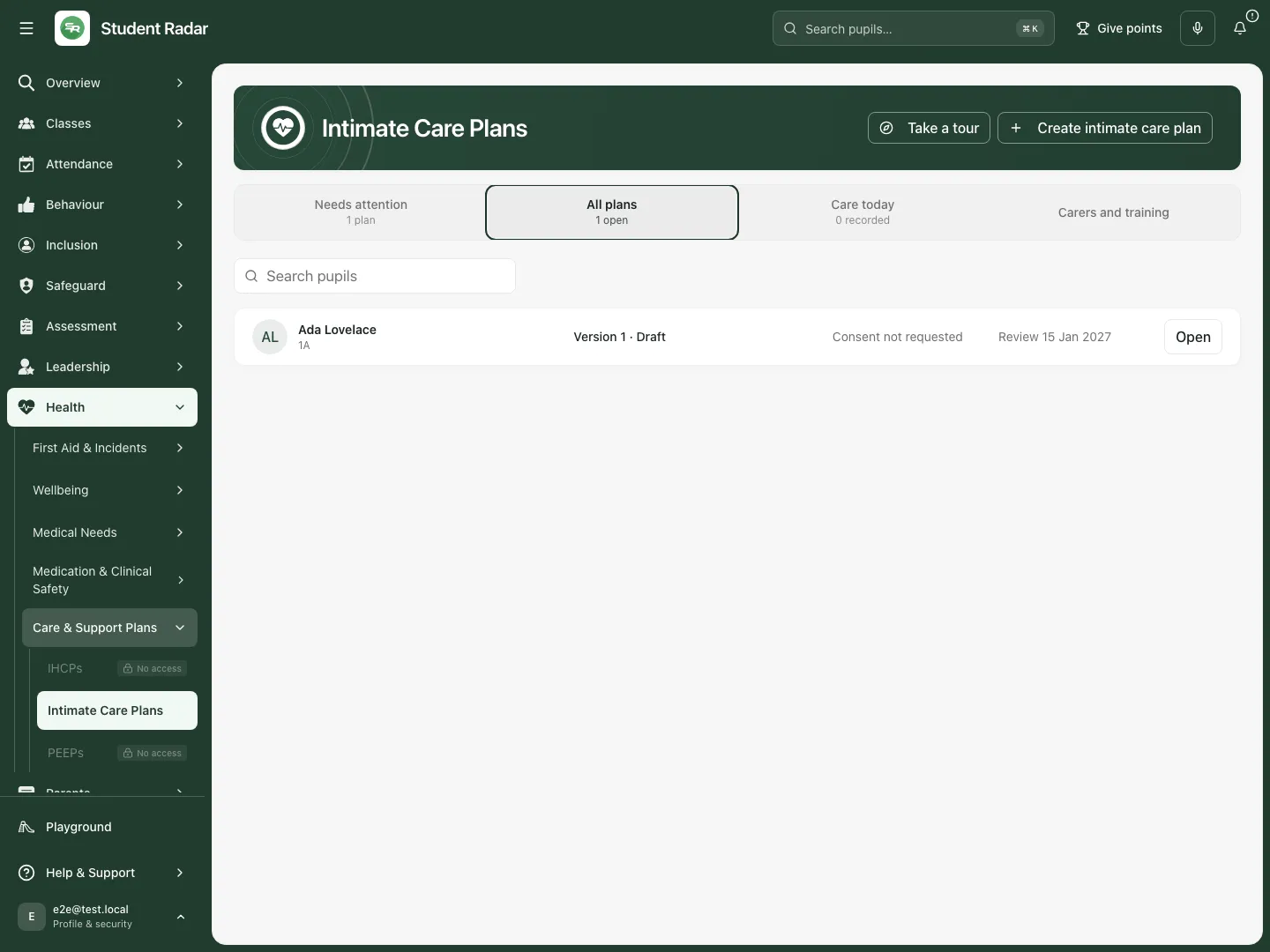 The fictional draft remains open with consent not requested. Its presence is not approval to begin care.
Start a blank plan or open an existing one
Section titled “Start a blank plan or open an existing one”- Choose Create intimate care plan.
- Select the intended pupil. If the app reports an existing open plan, choose Open existing plan and use its version workflow rather than creating a duplicate.
- Choose Create blank plan to create a draft. Cancel abandons the unsubmitted creation choice.
- Open the new draft and choose Edit. Check the pupil before entering personal care or family information.
- Keep a draft while agreement, training or clinical information remains outstanding. Do not mark consent or sign-offs merely to pass a checklist.
Write the overview, child voice and care arrangements
Section titled “Write the overview, child voice and care arrangements”- In Overview, review Status, Parent consent status, Date of birth (required for activation) and Review due. Record Child views and the child-views confirmation only for information actually captured.
- In Care, complete Reason for intimate care, Care tasks agreed, Care tasks not agreed and Assent and refusal process. Distinguish agreed tasks from tasks staff must not undertake.
- Record Frequency and timing, Staff involved / roles, Primary named carer(s), Named cover carer(s), required training and contingency arrangements.
- Complete Privacy and dignity arrangements, Privacy measures, Health, safety, and hygiene, Equipment and supplies and Medical or professional input from the agreed arrangements.
- Set Manual handling assessment to the actual assessment state. Not assessed is not the same as not required. Record linked medical-plan/medication information and its actual authorisation/recording arrangements where relevant; this text does not authorise administration.
- Use the plan’s step-by-step and communication fields to preserve the agreed routine, child’s language, comfort check and response to refusal. These should be practical instructions from the agreed plan, not assumptions about the child.
- In Safeguarding, record the actual concern-reporting process, Safeguarding measures and Recording and reporting arrangements. A saved field does not notify the DSL or replace the school procedure.
- In Consent, record Consent date, Consent limits and Consent notes accurately. The text and the separate consent status must reflect actual agreement.
- In Review, complete Review process: who will review the arrangement and how changes will be agreed.
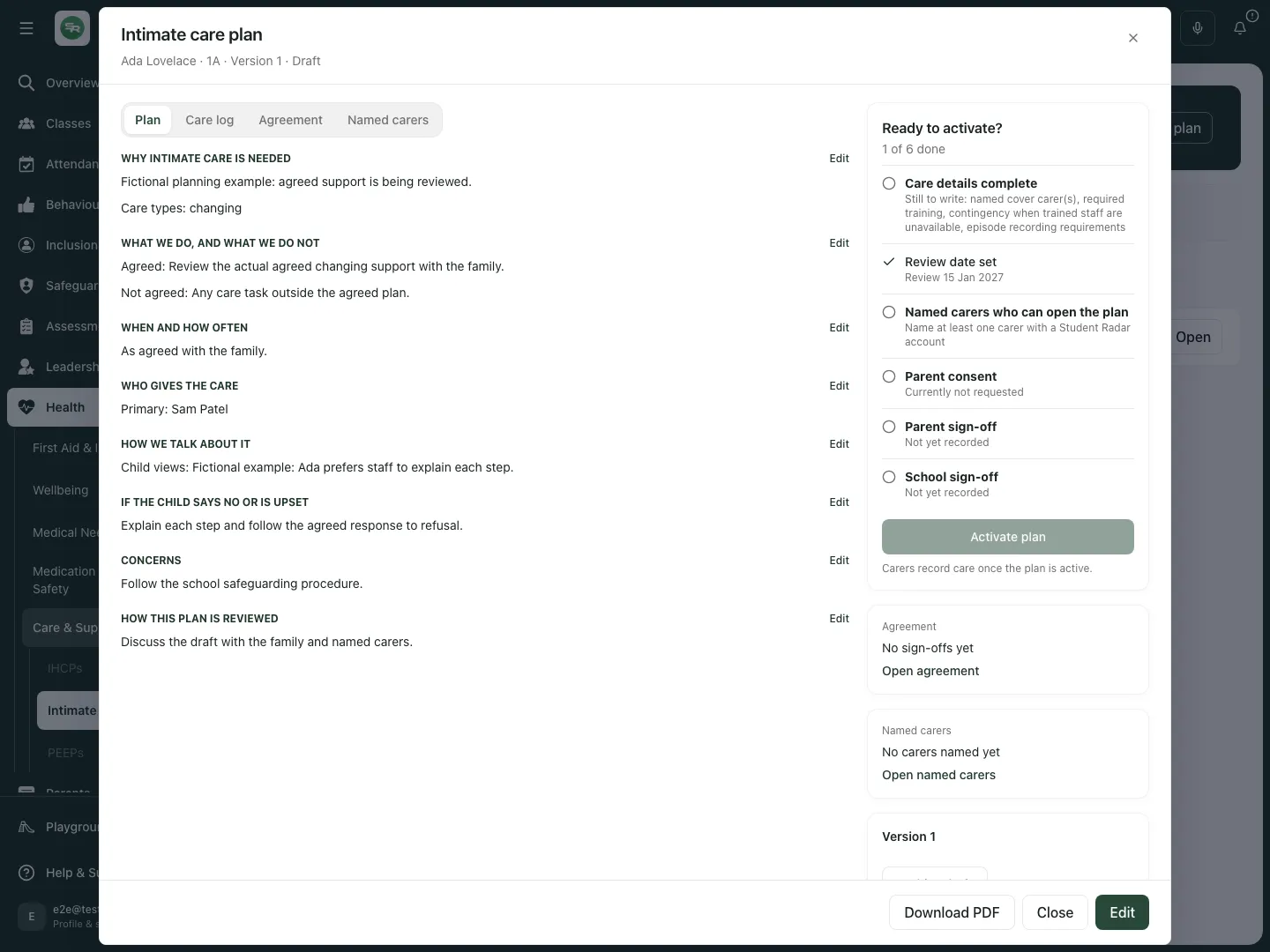 The fictional plan reader keeps tasks, child voice and incomplete agreement visible before care begins.
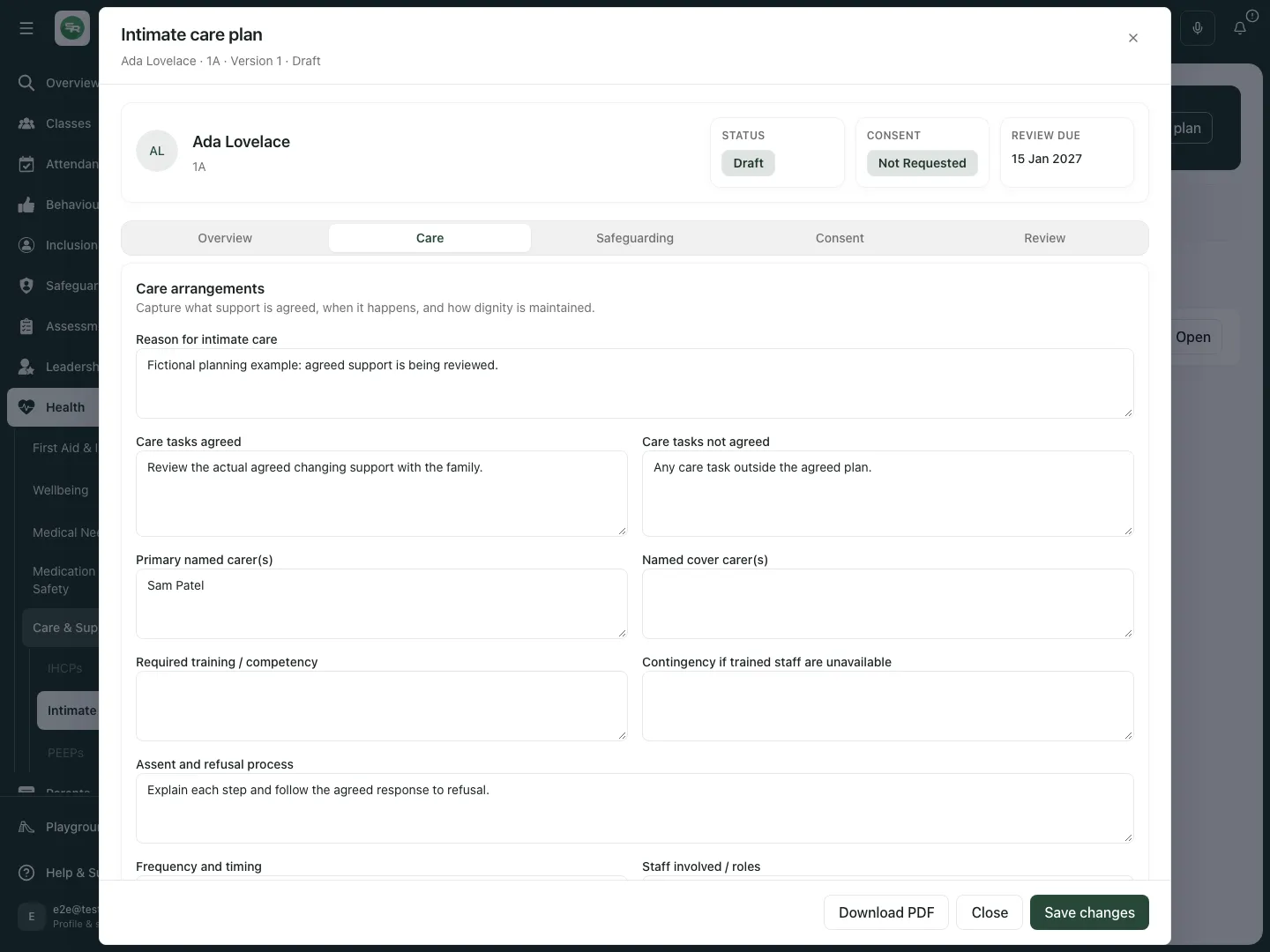 The fictional Care section distinguishes agreed tasks from excluded tasks and records how staff respond to assent or refusal.
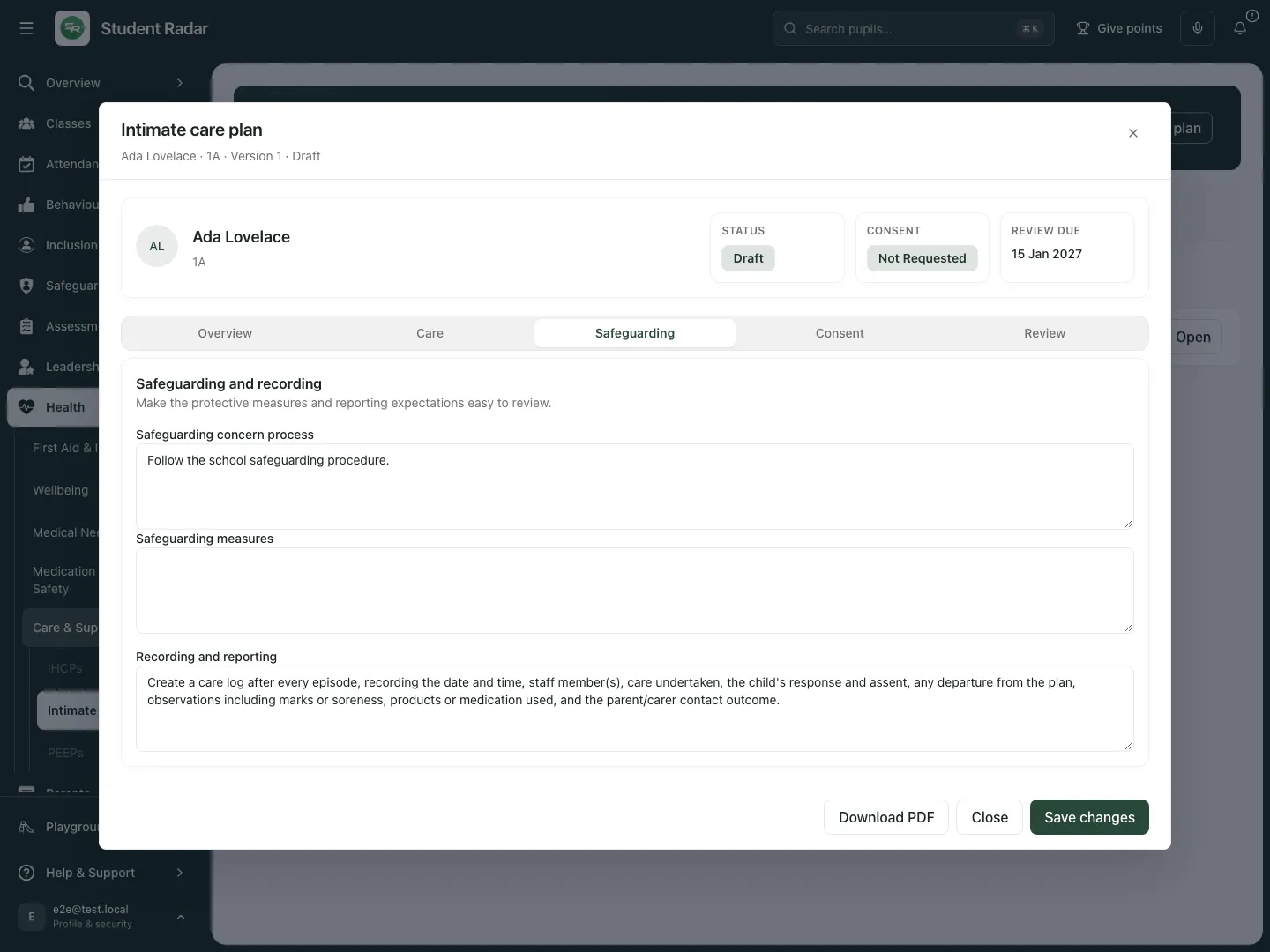 The fictional safeguarding fields describe the school’s process. Saving them is not a safeguarding referral.
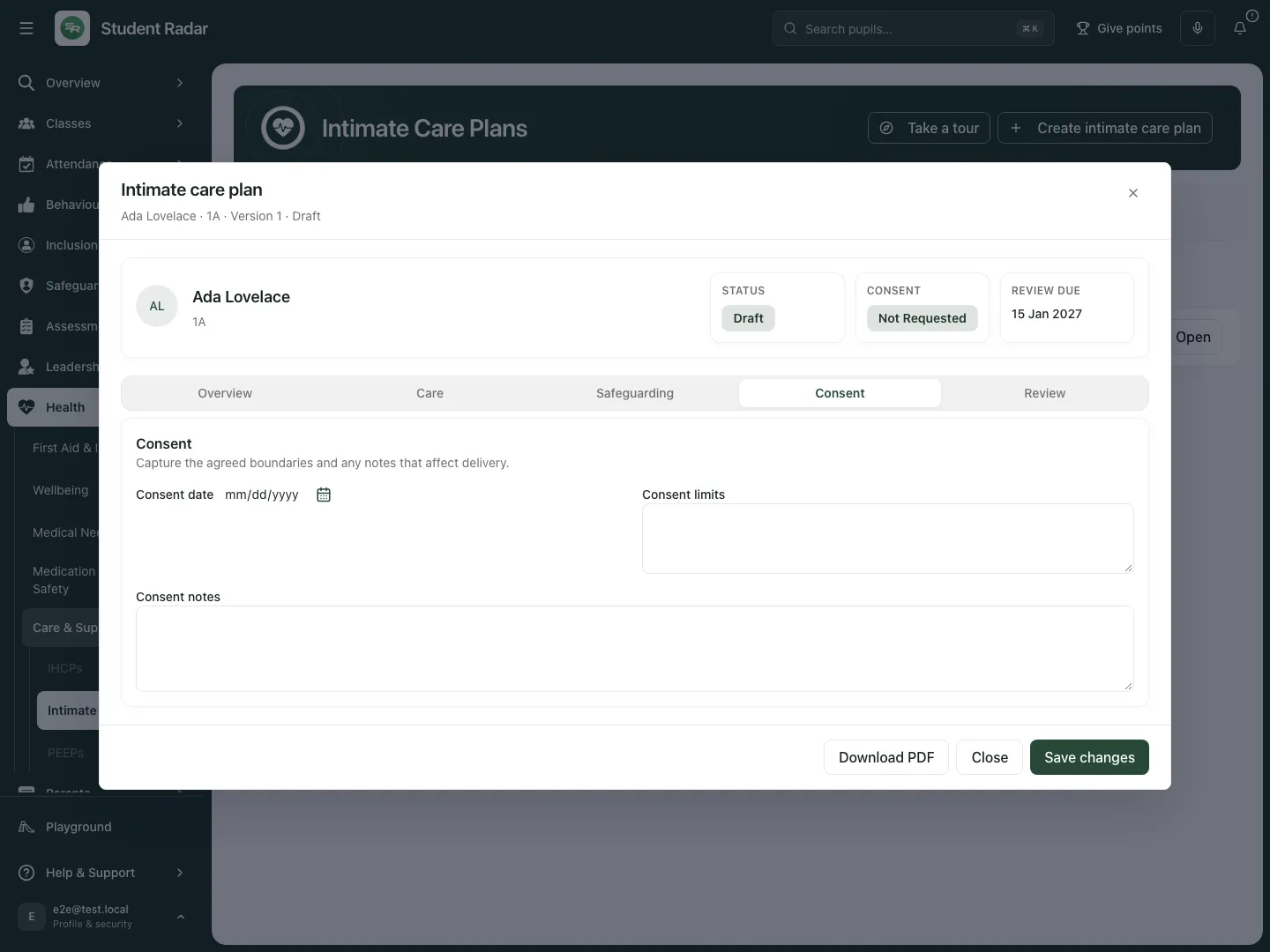 The fictional consent section remains a working record. Consent has not been granted or inferred from opening the form.
Save and verify a working draft
Section titled “Save and verify a working draft”- Choose Save changes on an existing editable plan, or Create plan when reviewing an unsaved proposed plan.
- Reopen the plan and check the saved content, version/status and review date. Saving the draft does not activate it or record a signature.
- Close leaves the editor. If you have unsaved changes, review the discard prompt before abandoning them; do not assume that merely closing saved them.
- A stale/current-version error means the plan changed since this copy opened. Reopen and reconcile rather than overwriting someone else’s update.
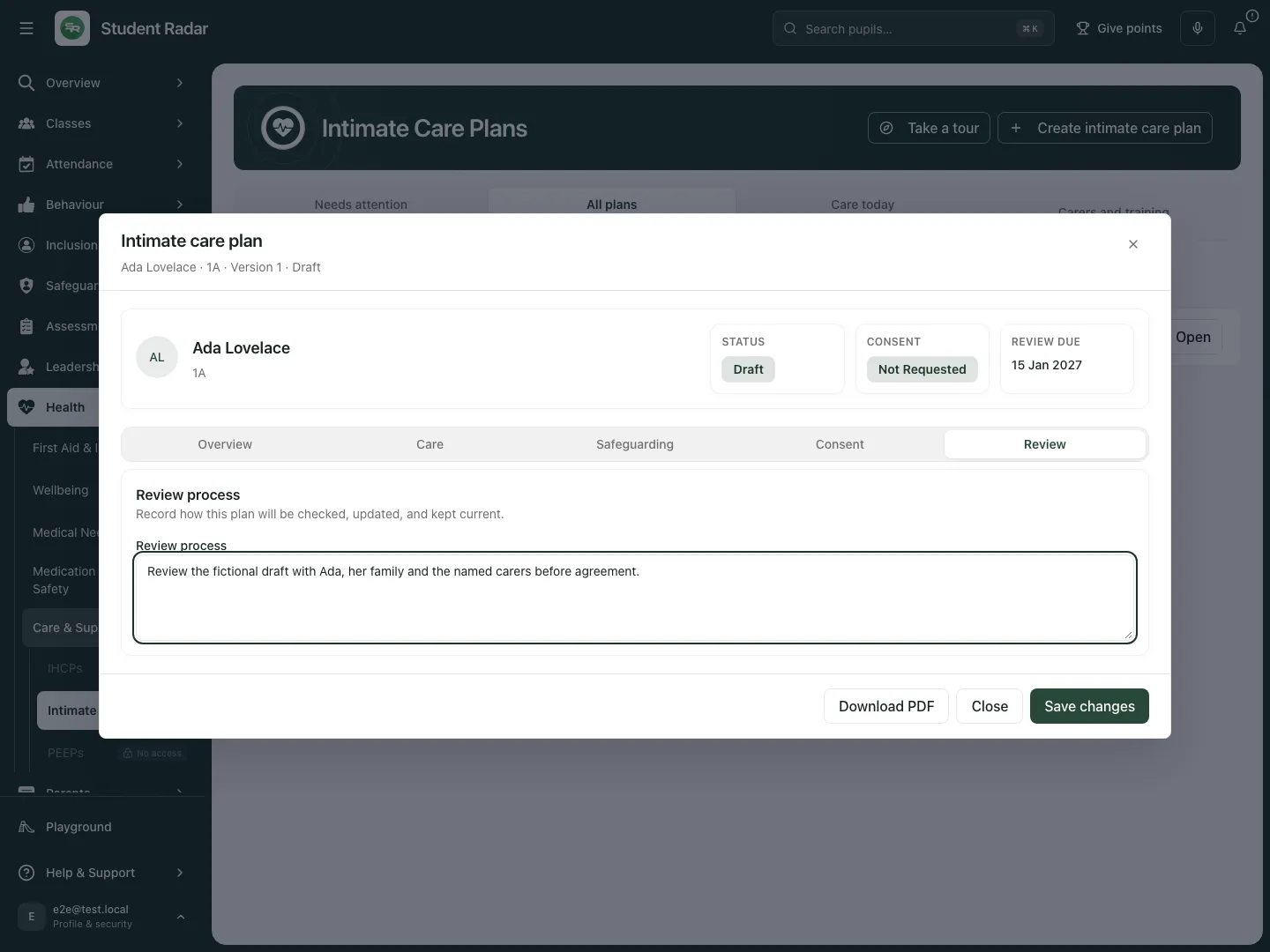 The fictional review process is being clarified while the plan remains a draft.
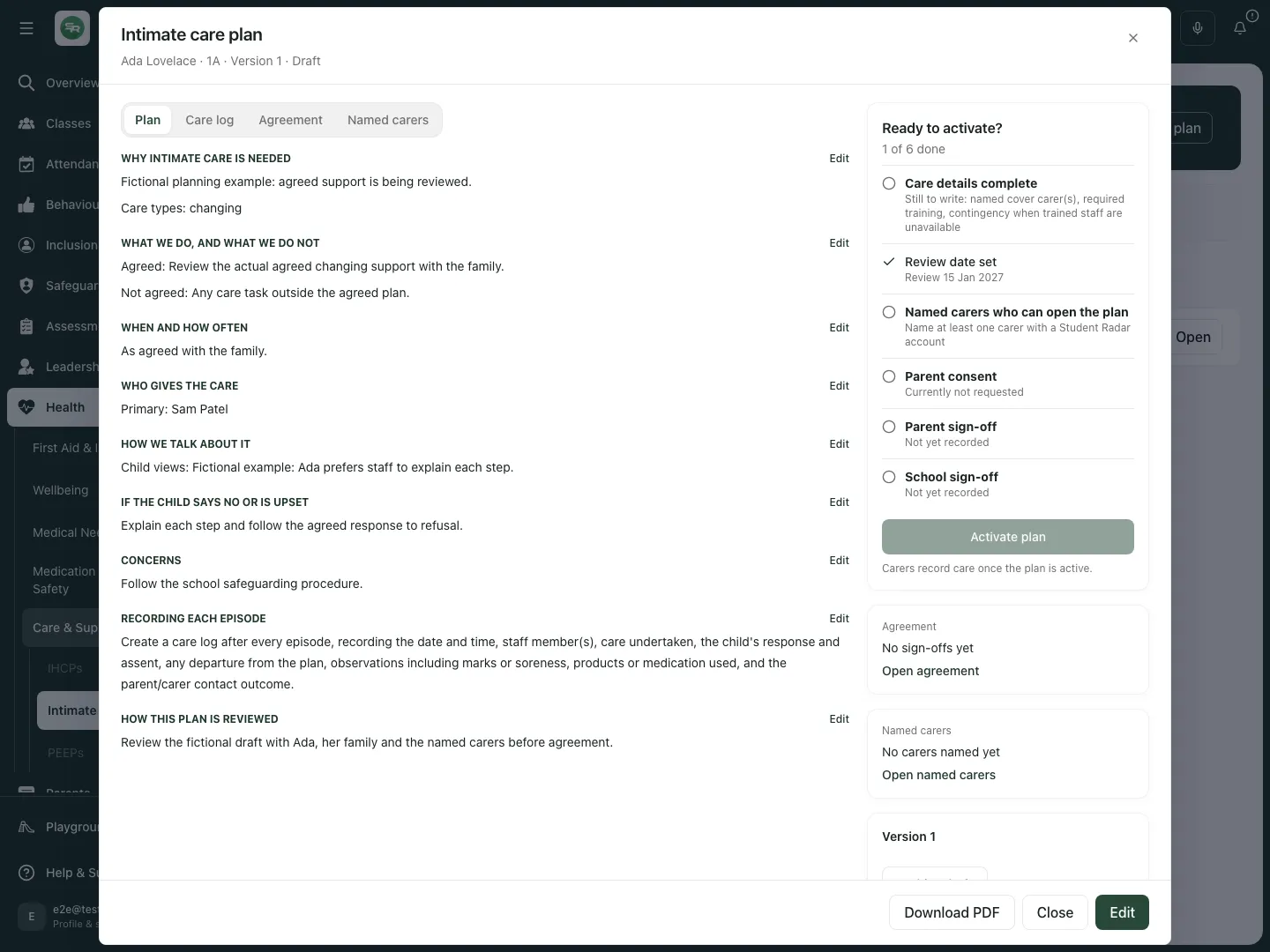 The reopened fictional plan retains the agreed-draft review wording. That save has not created consent, a sign-off or a care log.
Assign named carers and record training
Section titled “Assign named carers and record training”- In Named carers, review current assignments and whether the account Can open this plan. A text name or No linked account is not an authorised care route.
- In Add staff member, select the intended linked staff account.
- Set Assignment role to Primary or Cover. Record Required training, the actual training-confirmed state/date, Training review date and Training evidence.
- Choose Add staff. Inspect the resulting assignment, linked-account/access notice and training state. The assignment does not itself give an otherwise excluded role access.
- For an existing assignment choose Confirm training, update the completion/review/evidence information and choose Save training. A recorded training confirmation must describe an actual check; it does not provide training.
- Use Remove only for the intended assignment and review the result. It removes the assignment rather than deleting the staff account or historical care logs.
- Use Carers and training to review unconfirmed/overdue training and primary/cover arrangements across permitted plans. Resolve unavailable readiness data before treating the list as complete.
Record actual parent consent and sign-offs
Section titled “Record actual parent consent and sign-offs”- In Agreement, review Parent consent and its date/limits. Managers can choose Consent requested, Consent granted, Consent declined or Consent withdrawn to record the actual state.
- These controls record a consent state; Consent requested does not send a parent message. Use the school’s actual consent process and record the outcome truthfully.
- Save and reopen care details before sign-off. In Recorded sign-offs, set Signer role, Signer name, Signed on and optional Sign-off note for an actual signature/agreement already made.
- Choose Record sign-off. A future signature date is not accepted. Inspect the recorded signer and date; this is a recorded sign-off, not signing a document on someone else’s behalf.
- Sign-offs seal the saved care details. A signed plan becomes read-only for care changes; use Create new version when agreed care changes.
- Consent withdrawal or decline must be taken seriously as a changed recorded state; do not treat an old active badge or prior signature as fresh agreement. Review the current plan and school procedures before further care.
Activate only the reviewed plan
Section titled “Activate only the reviewed plan”- Review the activation checklist on the saved plan: Care details complete, Review date set, Named carers who can open the plan, Parent consent, Parent sign-off and School sign-off.
- Resolve the specific gaps, including care details, child/date-of-birth information, assent/refusal process, named carers/training, safeguarding process and a future review date as required. Recording a checkbox does not establish the real fact.
- Choose Activate plan only for the intended reviewed first version when the app permits it. A draft’s care form remains unavailable until the required active/consent/sign-off state is in place.
- Inspect the resulting state and current version. An activation error leaves that decision unconfirmed; do not assume care may proceed because a draft was saved.
- If version/signature access cannot be checked, use Retry version access and resolve it. Editing and activation remain locked until the app can establish the current record.
Change a signed plan through a new version
Section titled “Change a signed plan through a new version”- Open the signed/current plan and choose Create new version where permitted. The prior saved care remains historical/current until the successor is reviewed and activated.
- Open the linked draft, inspect the copied arrangements and make the intended changes. Save its review date and actual parent consent.
- Record fresh parent and school sign-offs for the new saved version; earlier sign-offs do not approve changed care.
- Choose Activate reviewed version when its checklist is complete. The prior active version is archived when the successor activates.
- Use Open previous version … and Open version … to inspect linked history within your access. Archived/signed versions remain locked rather than being silently rewritten.
Record actual care on the plan in force
Section titled “Record actual care on the plan in force”- From Care today, a carer card or the active plan choose Record care. Read the plan and confirm the pupil/current version first.
- If review is overdue and the acknowledgement notice is shown, read it and use Acknowledge and continue only after the appropriate school review/decision. It records acknowledgement, not a completed review or revised plan, and does not change the review date.
- Choose the actual care type: Toileting, Changing, Washing, Medical support, Stoma care, Catheter care or Other. Select the actual staff present; Another adult present records an additional adult where needed.
- Choose Change time, then Care time, when the recorded event happened at another time. A future time cannot be recorded.
- Record assent accurately: Agreed throughout, Paused, then agreed or Refused; care stopped. A refusal is recorded as care not completed/stopped, not “care as planned”.
- In Anything unusual?, choose No, routine as planned only when the recorded care followed the plan. For a departure, choose Yes, add details and complete Care provided, Change from the plan, Marks or soreness, Products or medication used and Child response as applicable. These are factual records, not diagnoses or treatment authority.
- Record the actual comfort-check state. The routine path records the planned comfort check unless care stopped through refusal; use the detailed path when the facts differ.
- If there is a concern, record Concern details and follow the school’s safeguarding procedure. A new concern waits for a DSL decision about parent contact; do not use a contact outcome to bypass that decision.
- Choose Save care log and inspect the timeline. A saved care entry does not send a parent message or prove an issue was escalated in person.
Correct care logs and record the concern response
Section titled “Correct care logs and record the concern response”- In Care log, choose Edit on the intended timeline entry where permitted. Amend the factual fields, name staff present and choose Save changes to log.
- Existing concern information/DSL escalation can restrict what a carer can change. A plan lead can record the actual Parent/carer contact outcome: Not needed, Contacted or DSL decision pending, with Contact notes. This records a decision/outcome, not a message send.
- Use DSL told only after the actual report has been made. It records that escalation; the button does not itself replace contacting the DSL.
- To remove an incorrect eligible log choose Remove, enter Reason for removing this log, then Remove log. Keep log cancels. The log and reason remain in the audit trail.
- Read the timeline’s actual loaded/total scope and load additional records where offered. An unavailable timeline is not evidence that no care occurred.
Optional AI drafting, PDF and archive
Section titled “Optional AI drafting, PDF and archive”- In creation select the pupil, then Generate with AI where permitted. Supply factual staff notes, family/child voice, professional input and school constraints.
- Choose Generate draft only for an authorised generation. Review the suggested plan, questions and safety check; the AI form does not save the plan automatically.
- Choose Review draft in editor, check every proposed field and consent/sign-off state, then explicitly Create plan or Save changes. Keep unsupported or unsafe content out of care instructions; the normal approval gates still apply.
- Choose Download PDF on a saved plan. Check pupil, version/status and audience before sharing. Downloading does not demonstrate receipt, consent or training.
- Choose Archive draft or Archive plan for the intended record. Read the confirmation: the draft leaves the to-do list, while archiving an in-force plan prevents further care recording against it. It stays on record.
- Do not archive merely to avoid a review or consent issue. Use the current linked plan/version and retain the historical evidence.
Phone use and questions
Section titled “Phone use and questions”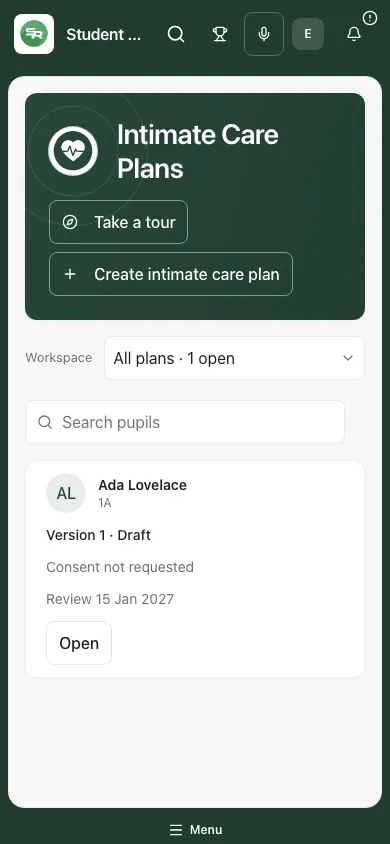 The fictional phone register retains the pupil and draft/consent state. It does not offer care against an unapproved draft.
I am named in the text but cannot open the plan. Ask the authorised lead to check the linked assignment, role and pupil access. A written name does not grant access.
I cannot edit a signed plan. Use the new-version route. Historical signatures must not silently approve rewritten care.
The child refuses. Follow the agreed refusal/safeguarding procedure and record the actual response. Do not record completed routine care that did not happen.
Does Consent requested send a form? No. It records the status of the school’s actual process.
Does DSL told send a referral? It records escalation already made; follow the school’s procedure to report the concern.
Related: IHCPs, Pupil Welfare, My Actions.