Sign pupils out and record who can collect them
Written for: Alternative provision staff, and the leaders who decide who may collect a pupil.
At the end of a session, record who took each pupil home. The session register shows who is authorised to collect each pupil that day, warns you about anyone who must not collect them, and records the handover against the pupil’s mark. Your Provision Lead or safeguarding team decides who may collect a pupil in the pupil’s record.
Sign a pupil out
Section titled “Sign a pupil out”- Open the session’s register. In the sidebar, open Attendance and choose Daily Register, then click Take register or Review register on the session. The session’s attendance window in the Weekly Rota shows the same register.
- Make sure the pupil is marked present, and save the register.
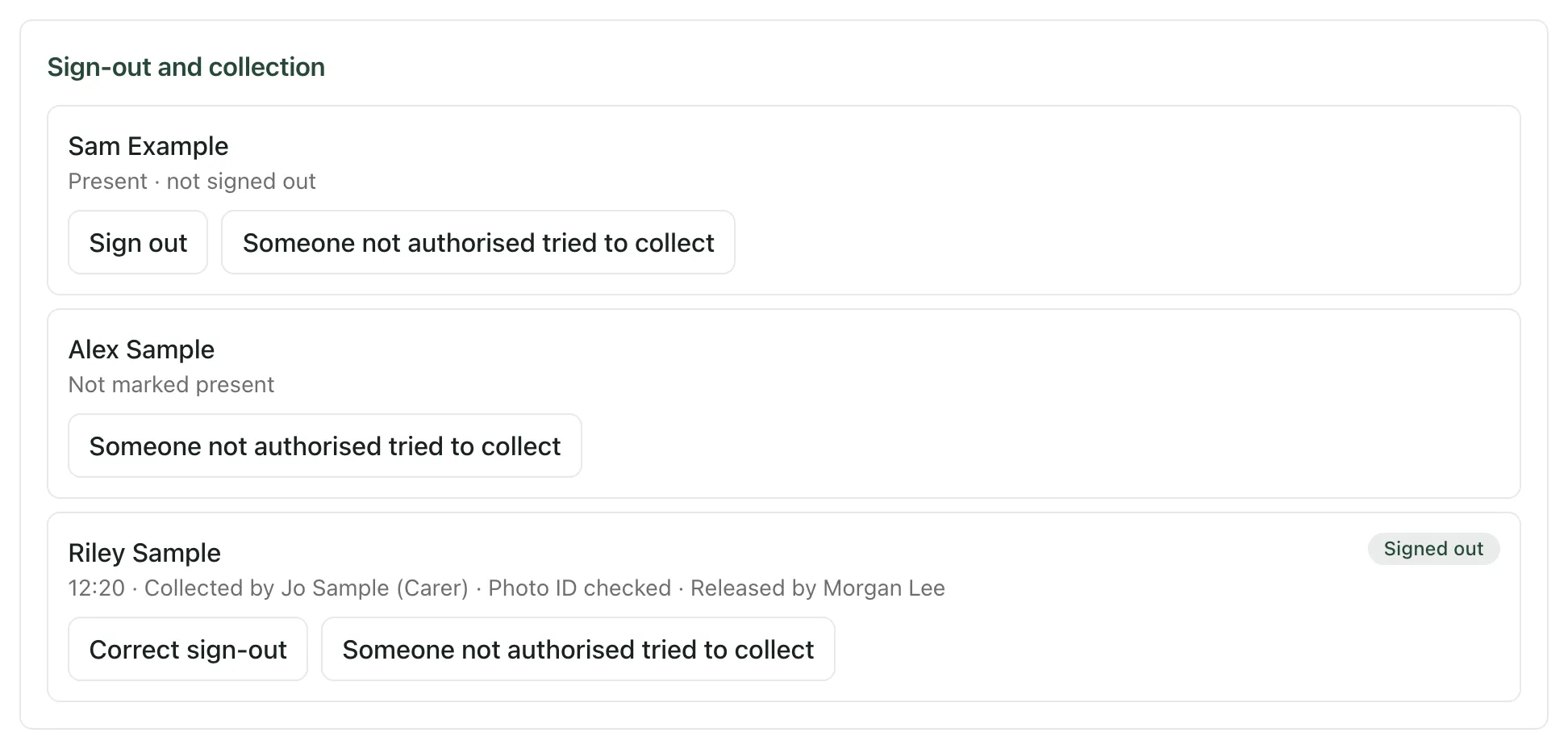
- Under Sign-out and collection, find the pupil and click Sign out.
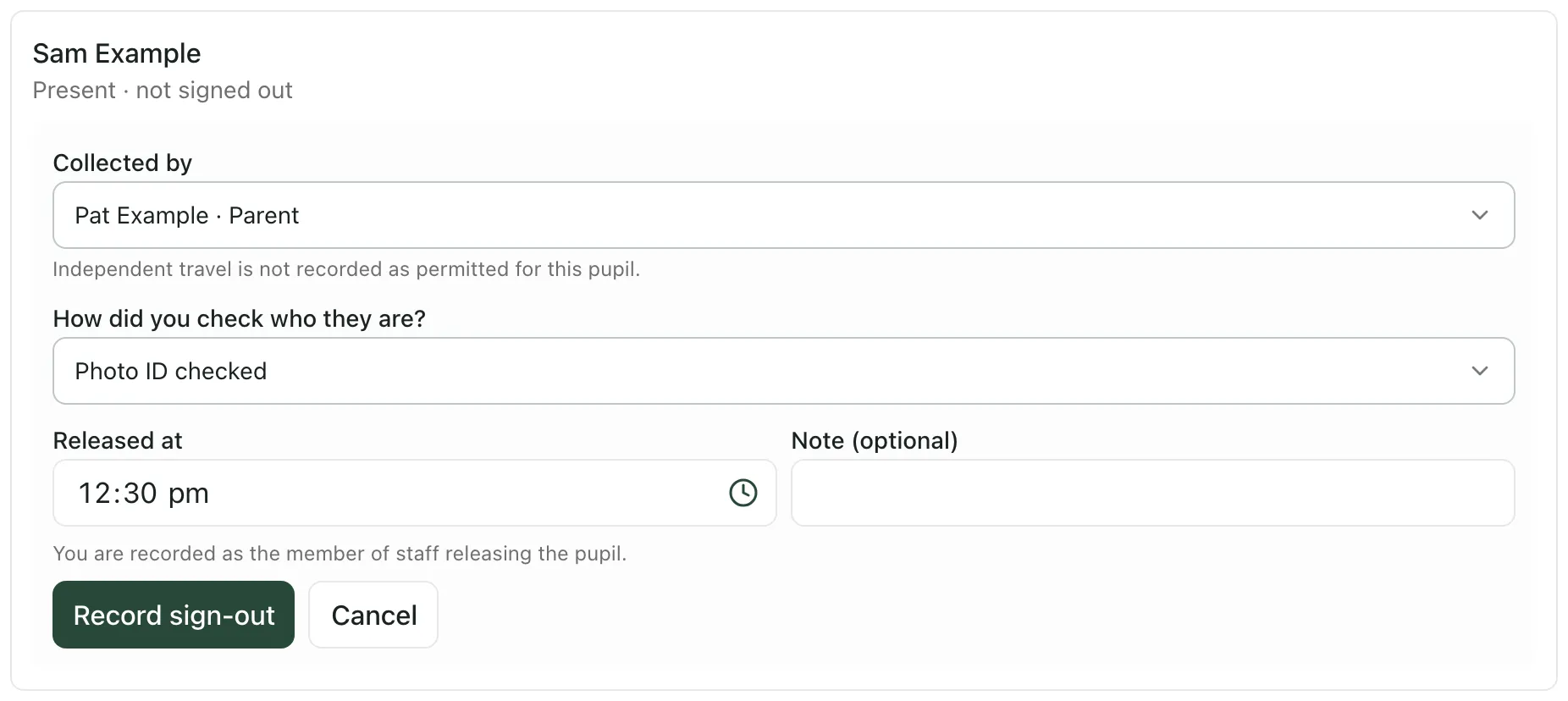
- Under Collected by, choose who is collecting:
- one of the people authorised to collect the pupil that day
- Travelled independently, which is only offered if the pupil is allowed to travel home on their own
- Taxi or arranged transport
- Check who they are:
- For an authorised collector, the register shows the check set for them. If none is set, choose one under How did you check who they are?: Photo ID checked or Known to staff.
- If the check is a password word, ask the collector for it and type it in Password word the collector gave. Student Radar checks it for you.
- For transport, enter a Transport reference, such as the operator, the driver or escort, a badge or a booking reference.
- Check the Released at time. On the day, it starts as the current time. It can’t be in the future or before the pupil arrived.
- Add a Note (optional) if it helps, then click Record sign-out.
The pupil shows Signed out, with the time, who collected them and who released them. You’re recorded as the member of staff who released the pupil.
If a pupil hasn’t been signed out, the list says whether they’re present and not signed out, or not marked present. Only pupils marked present can be signed out.
If someone not authorised tries to collect
Section titled “If someone not authorised tries to collect”If a pupil has someone who must not collect them, the register shows Must not collect with their name and a description. Don’t release the pupil to them.
If anyone who isn’t authorised tries to collect a pupil:
- Click Someone not authorised tried to collect beside the pupil.
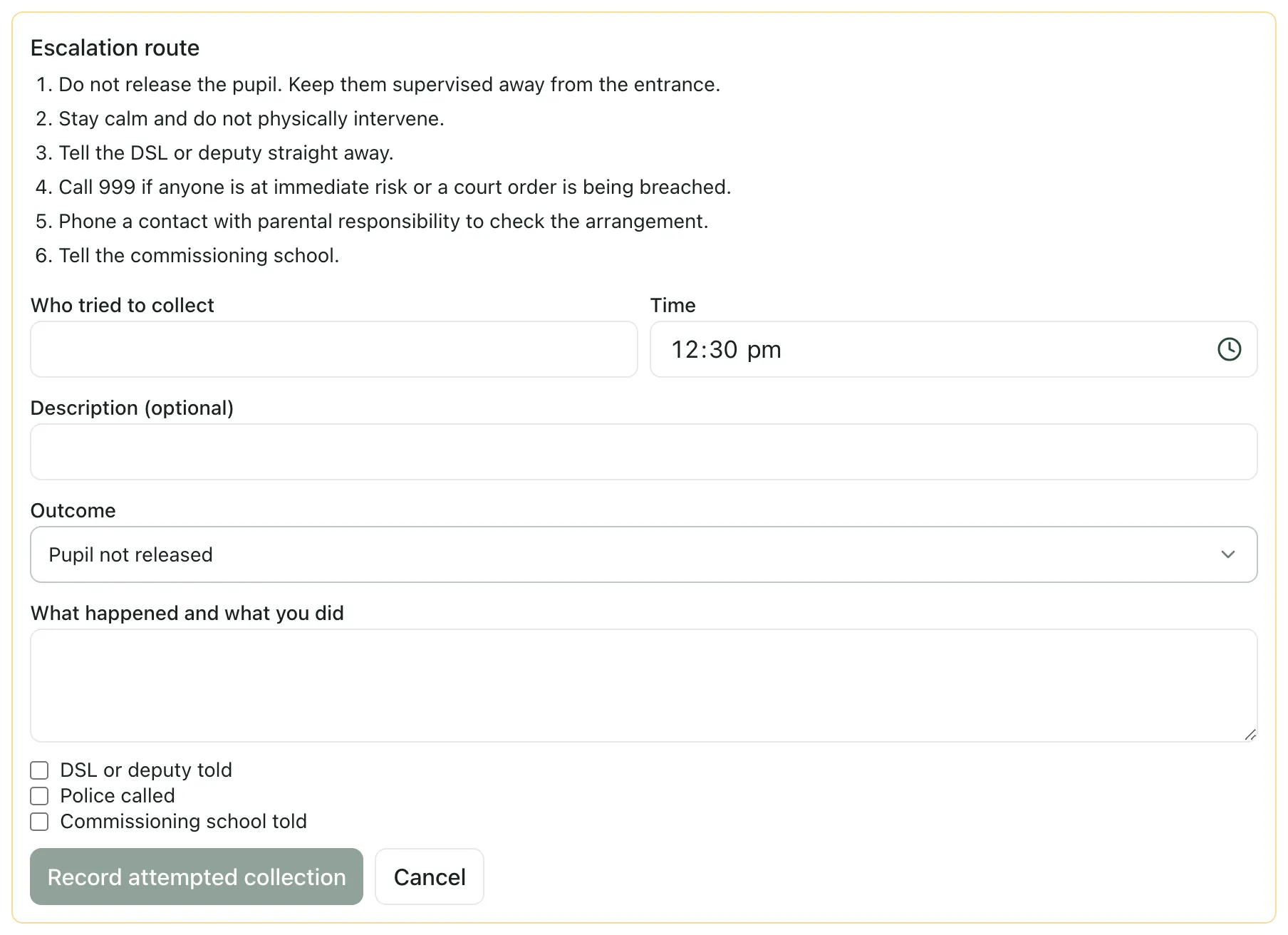
- Follow the Escalation route at the top before you record anything. Don’t release the pupil, keep them supervised away from the entrance and don’t physically intervene. Tell the DSL or deputy straight away, call 999 if anyone is at immediate risk or a court order is being breached, phone a contact with parental responsibility, and tell the commissioning school.
- When it’s safe, enter Who tried to collect, the Time and a Description (optional).
- If the pupil has must-not-collect entries, say whether the person is one of them under Is this someone on the must-not-collect list?.
- Choose the Outcome: Pupil not released or Released after checks with a contact.
- Describe What happened and what you did.
- Tick DSL or deputy told, Police called and Commissioning school told as they apply.
- Click Record attempted collection.
You’ll see “Attempted collection recorded. The DSL will review it.” with the escalation route again.
Correct a sign-out
Section titled “Correct a sign-out”If a sign-out is wrong, for example the wrong collector was chosen:
- Click Correct sign-out beside the pupil. You’ll see it on sign-outs you recorded, or on any sign-out if you manage the rota.
- Enter Why is this sign-out wrong?, then click Mark as corrected.
- Click Sign out and record the right handover.
The original record is kept and marked as corrected.
Set who can collect a pupil
Section titled “Set who can collect a pupil”The Provision Lead, the DSL and deputy DSLs can change who may collect each pupil. You need to be able to edit pupils’ details to reach this. Other staff who can edit pupils see the same list without the buttons.
- In the sidebar, open Pupils and choose Pupils.
- Find the pupil, click ⋯ and choose Edit details.
- Click Save and continue until you reach Family and emergency contacts. Add any contacts the pupil needs here first.
- Scroll down to Collection and sign-out.
Choose who can collect
Section titled “Choose who can collect”Who can collect lists the pupil’s saved contacts, each with a status, such as Authorised to collect, Not authorised, Court order on contact record, Must not collect or Authority expired. A contact whose authority starts later shows the date it starts.
- To let a contact collect the pupil, click Authorise to collect. To stop them, click Withdraw pickup authority.
- Enter the reason, then click Confirm.
- To limit when they can collect, or how staff check them at the door, click Set dates and check (or Edit dates and check).
- Set Valid from and, if the arrangement ends, Valid until (optional).
- Under Check at the door, choose Photo ID checked, Known to staff or Password word. For a password word, enter the Password word the collector will give: 4 to 40 characters.
- Add a Note for staff (optional), then click Save.
Only contacts marked as authorised, on dates they’re valid, can be chosen at sign-out. Being an emergency contact doesn’t let someone collect a pupil.
A password word is stored so that nobody can read it back. Staff type in the word the collector gives, and Student Radar checks it. After five wrong words for the same collector in a day, sign-out with that collector is blocked for the rest of the day.
Record whether the pupil travels home alone
Section titled “Record whether the pupil travels home alone”- Next to Travels home independently, click Change.
- Under Independent travel, choose Permitted, Not permitted or Not recorded.
- Add the Arrangement (optional) and a Consent reference (optional) that says where the parent or carer’s agreement is kept. This isn’t a consent record.
- Click Save travel.
Record who must not collect
Section titled “Record who must not collect”Safeguarding leads also see Must not collect (restricted). Door staff see only the name and description of each entry. The basis, references, notes and links stay with safeguarding leads.
- Click Add person.
- Under Person, choose one of the pupil’s contacts, or Someone not in the contacts list and enter their Name.
- Add a Description for door staff (optional), such as their appearance or vehicle.
- Choose the Basis: Court order, Safeguarding decision, Request from a person with parental responsibility or Other.
- Add a Court order reference (optional), and link a Safeguarding concern (optional) if you have one you can open.
- Set From and, if it ends, Until (optional). Add a Restricted note (optional).
- Click Save restriction.
To end an entry, click End, enter Why is this ending? and click End restriction. An ended entry can’t be restarted. If it applies again, add a new one.
Attempted collections lists what staff have recorded at sign-out. Each one says Awaiting DSL review until a safeguarding lead clicks Record review, enters the Review outcome and clicks Save review.
- When you can sign out: on the day of the session and for 7 days afterwards, so you can record a handover you missed. Sign-out isn’t recorded for cancelled sessions.
- Sign-out doesn’t change attendance: it records the handover. If the pupil’s mark changes after they were signed out, the register says so. Check the sign-out and correct it if it’s wrong.
- Who can sign pupils out: staff who can take the session’s register, for the pupils within their attendance access.
- Without a signal: sign-out needs a connection. If you can’t check who may collect a pupil, don’t release them until you can.
- Your provision’s words: labels use your provision’s Setting profile. The defaults are pupil, group and commissioning school, so your labels may differ.
If something doesn’t work
Section titled “If something doesn’t work”| What you see | What to do |
|---|---|
| “Sign-out is unavailable. Do not release a pupil until you have checked who may collect them.” | Click Retry. Until it loads, check with your Provision Lead or DSL before releasing anyone. |
| “No one is authorised to collect today. Ask a manager to authorise a contact.” | Nobody is authorised for that day. Ask your Provision Lead or DSL before releasing the pupil. |
| “This person is not authorised to collect today. Do not release the pupil; record an attempted collection.” | Don’t release the pupil. Click Record attempted collection and tell the DSL. |
| “Too many wrong password words for this collector today. Do not release the pupil. Record an attempted collection and tell the DSL.” | Don’t release the pupil. Click Record attempted collection and tell the DSL. |
| “Use the verification set for this collector.” | Use the door check shown for the collector. |
| “The register changed for this pupil. Reload and check they are marked present.” | Reload the register, check the pupil’s mark, then sign them out again. |
| “This session changed. Reload the register to sign pupils out.” | The session changed on the rota. Click Reload register, then sign the pupil out. |
| “This pupil has already been signed out of this session.” | Someone else has signed the pupil out. To change it, click Correct sign-out. |
| “Sign-out is only open on the session day and for 7 days after.” | You can’t sign out for this session any more. Ask your Provision Lead how to record the handover. |
| “Check the time. It cannot be in the future or before arrival.” | Change Released at to a time after the pupil arrived and not later than now. |
| “The register changed after this sign-out. Check it and correct the sign-out if it is wrong.” | The pupil’s mark changed after they were signed out. If the sign-out is wrong, click Correct sign-out. |
| “A password word needs 4 to 40 characters.” | Choose a password word of 4 to 40 characters. |
| “Collection arrangements are unavailable. Do not rely on this pupil’s pickup list until it loads.” | Click Retry. |
| “No saved contacts yet. Add a contact above, then authorise them to collect.” | Add the pupil’s contacts in Family and emergency contacts first. |
| “This restriction has ended. Add a new one if it applies again.” | Click Add person to add a new entry. |
| “The save could not be confirmed. Retry, or reload to check what was saved.” | The connection dropped. Try the same save again, or reload to see whether it was recorded. |
| “Too many changes in the last hour. Try again later.” | Wait, then try again. |