Review unresolved absences and confirm corrected marks
Written for: Attendance staff, pastoral leaders and school leaders with the relevant access.
Find an unexplained mark, confirm its reason and replacement code, then check the save or configured MIS writeback outcome.
Confirm the reason before selecting a replacement, and check which system holds the school register. One pupil can have more than one mark; the marks count is not a count of different children.
Before you begin
Section titled “Before you begin”Open Attendance → Unresolved Absences. You need permission to read the queue; editing and opening pupil context have their own access checks. The school needs attendance records and active replacement codes. Older locked registers require a colleague with permission to edit them. A local change and an update to an MIS are different outcomes.
Find the mark to review
Section titled “Find the mark to review”- Select Today for the current queue. Read the marks count, pupil count, oldest unresolved date and refresh information.
- Use Search pupils, year, class and session filters to find the intended pupil and AM or PM mark. A pupil may have more than one row; match the date and session before continuing.
- Select Review on the intended row. Do not replace a code just to reduce the queue size.
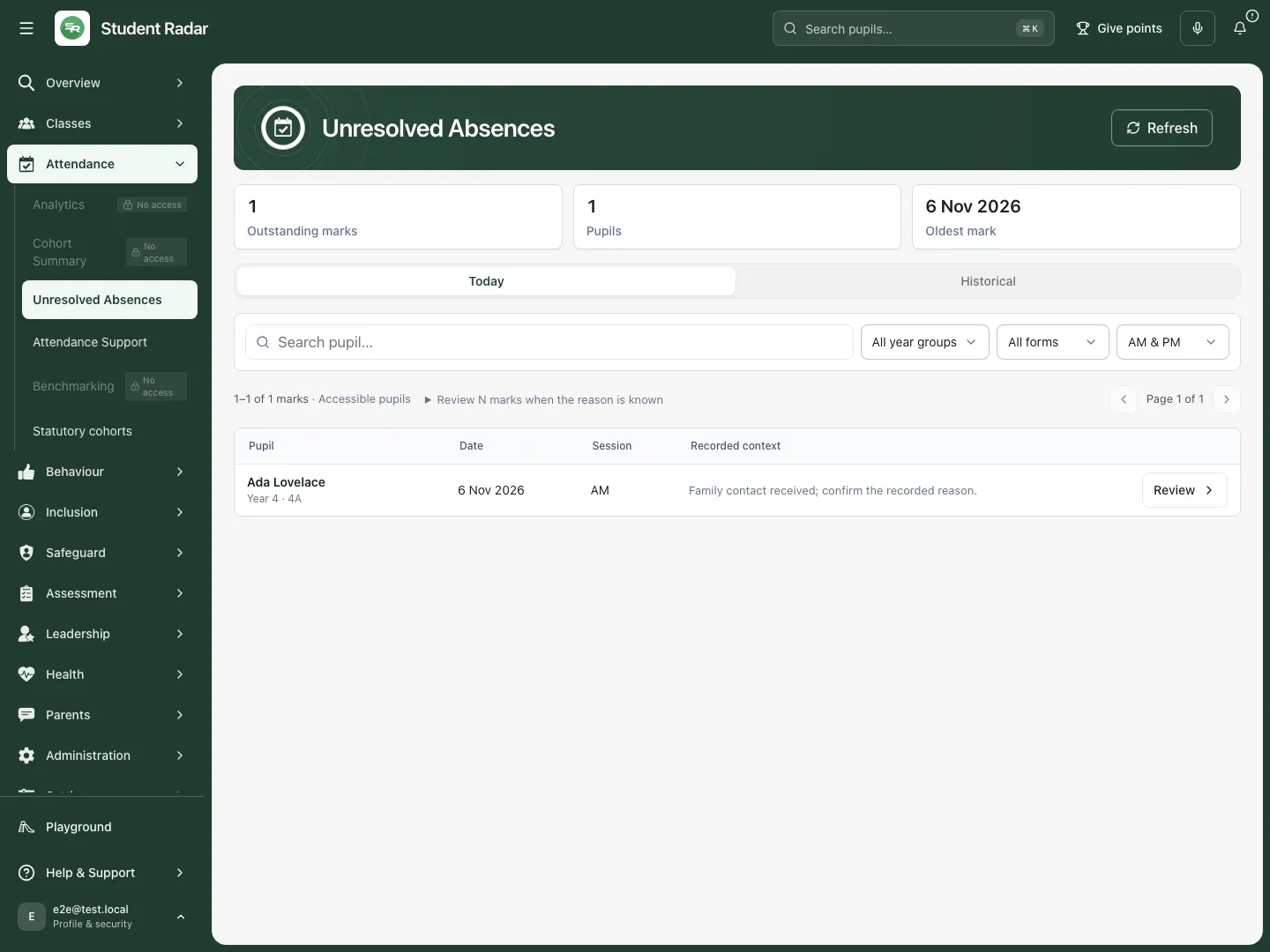
The fictional queue contains one unexplained AM mark for Ada; one mark and one pupil happen to match in this example. Fictional school example.
Check historical marks
Section titled “Check historical marks”- Select Historical.
- Set From date and To date for the period you need, then use the pupil/year/class/session filters.
- Check the oldest unresolved date and page through the results with Previous page and Next page where available. A page shows a bounded part of the queue; it is not the complete school record.
- Clear filters if you need to return to the wider queue. Recheck the dates after changing the period.
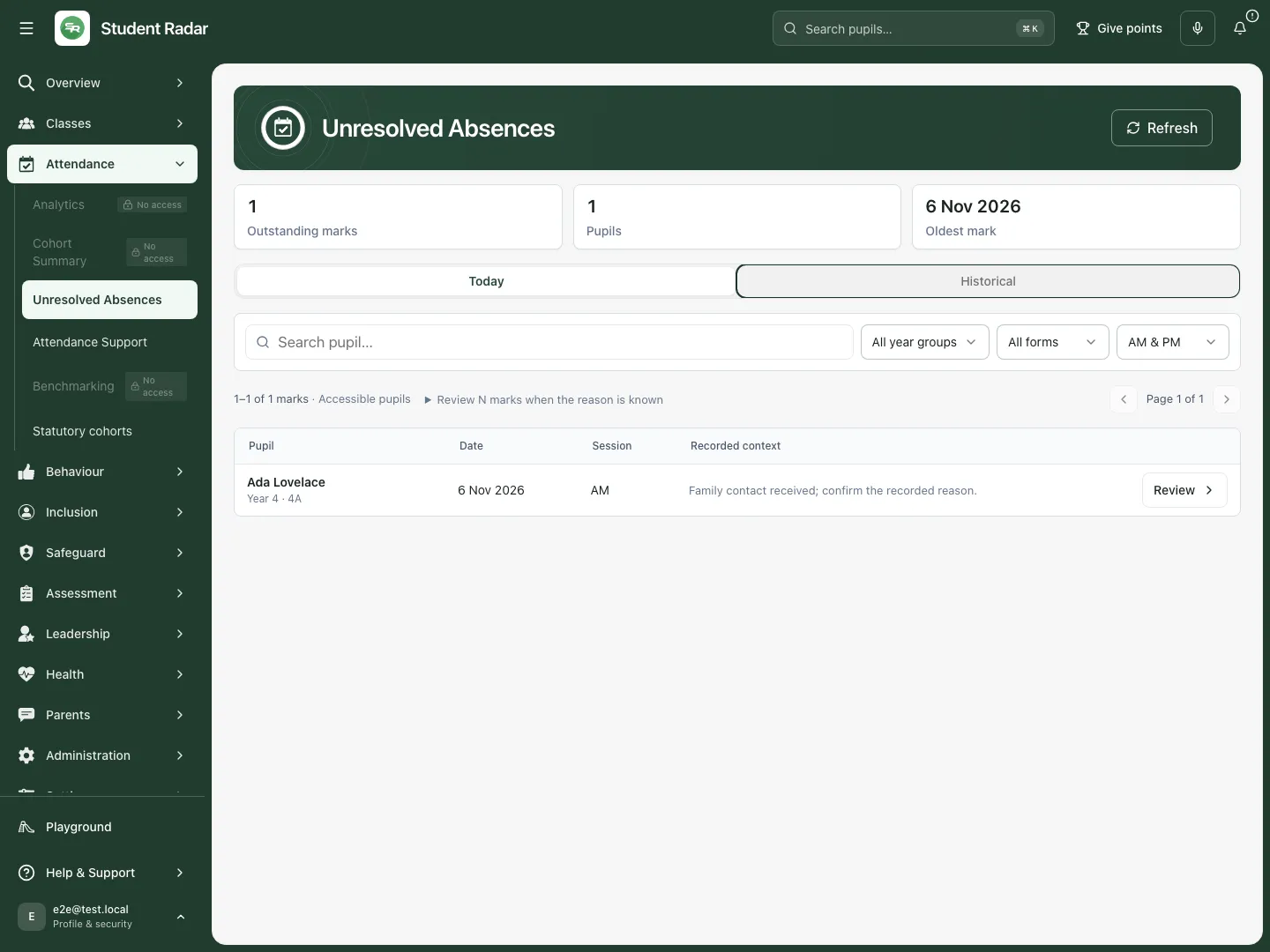
Historical review adds a date window; confirm the session and period before changing a mark. Fictional school example.
Confirm the reason and choose the correct code
Section titled “Confirm the reason and choose the correct code”- Select Review beside the intended pupil. In Review absence, confirm the pupil, date, Session, existing Code and any comment. A lesson/period label adds context; do not assume every row is an AM/PM registration mark with the same meaning.
- If necessary, choose Pupil profile to inspect permitted context. A missing profile button does not grant permission to obtain that information another way.
- Read the register-source notice. If Student Radar keeps the register, the local save updates that record. If an MIS keeps it, the local-only control explicitly says Save in Student Radar only; it does not update the MIS.
- Open Replacement code, search the code or reason using Search attendance codes, and select the code matching the confirmed reason. Use the school’s active code list and policy. If the reason is still unknown, choose Cancel and continue the agreed enquiry.
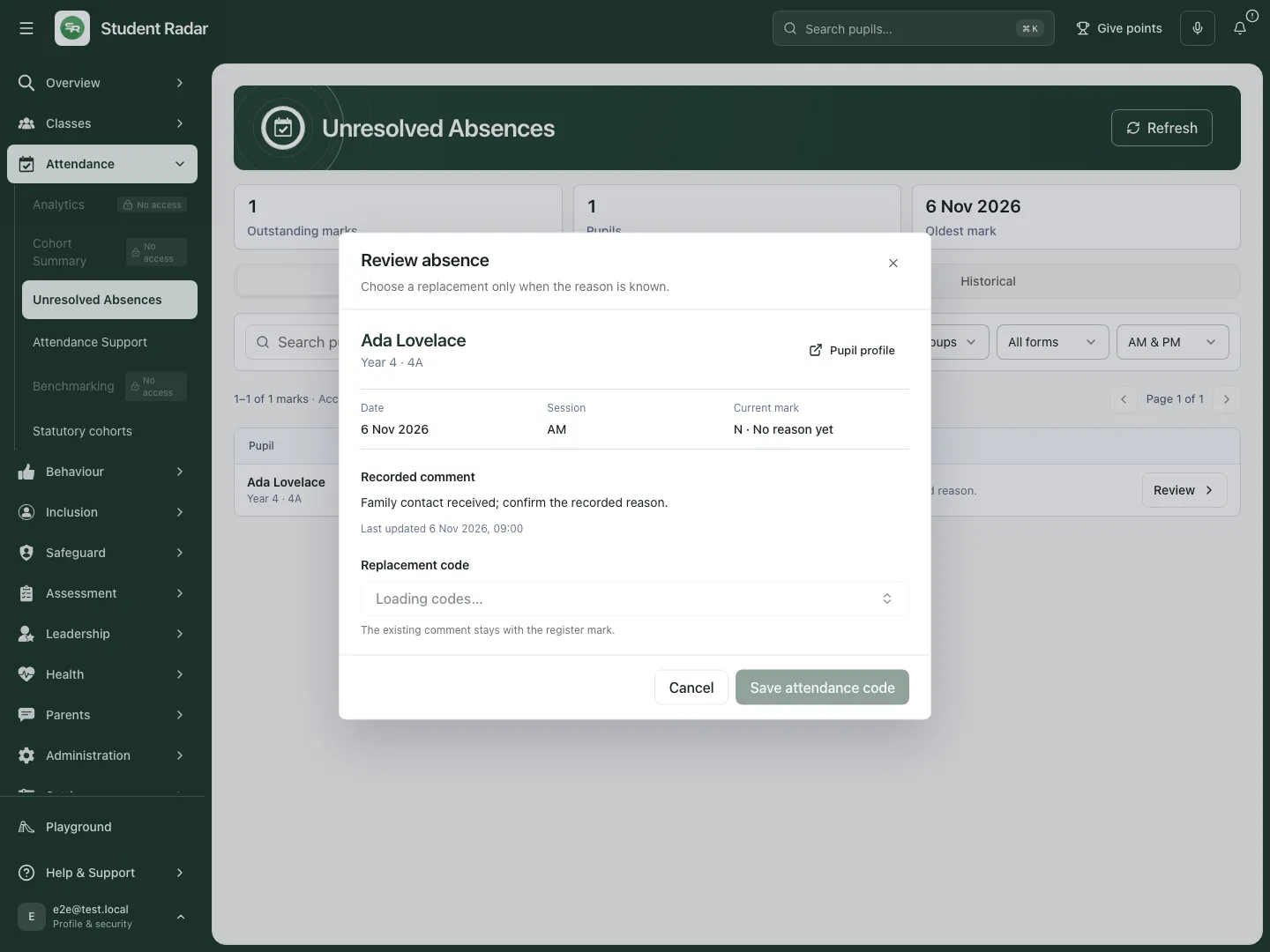
The review keeps the original N mark and session context visible before a replacement is chosen. Fictional school example.
Save and check the outcome
Section titled “Save and check the outcome”- Recheck the chosen code and the register-source notice.
- For a Student Radar register, select Save attendance code. For an MIS register without the configured writeback workflow, use Save in Student Radar only only when you understand the limitation and have arranged the MIS correction.
- Wait for Saving… to finish. The review closes and the queue refreshes after a successful reconciliation.
- Check that the intended mark is no longer unresolved. Use the school register to verify the final recorded code when needed; an empty filtered queue does not prove every absence is resolved.
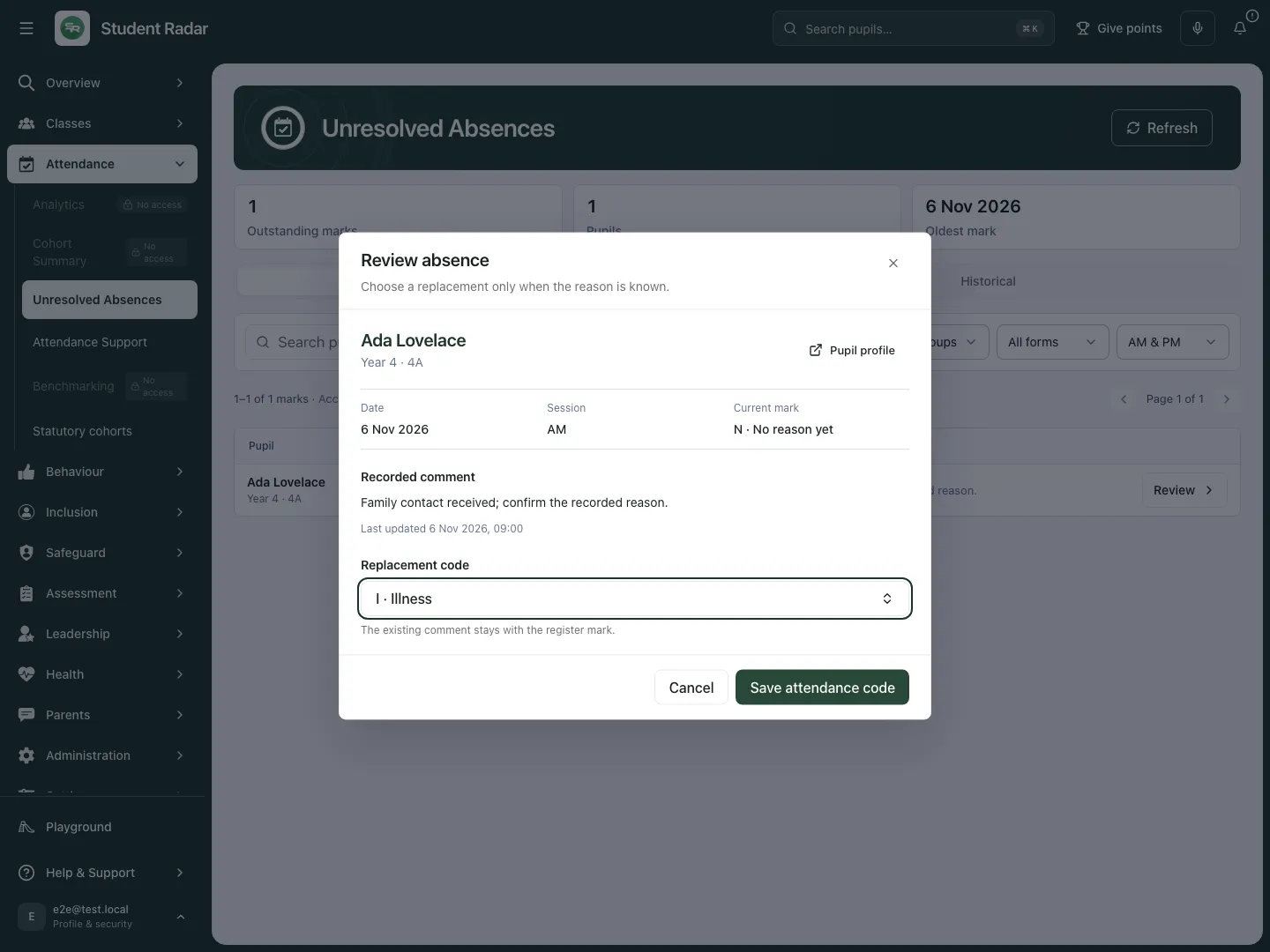
Illness has been selected for this fictional known reason; the save control states the destination. Fictional school example.
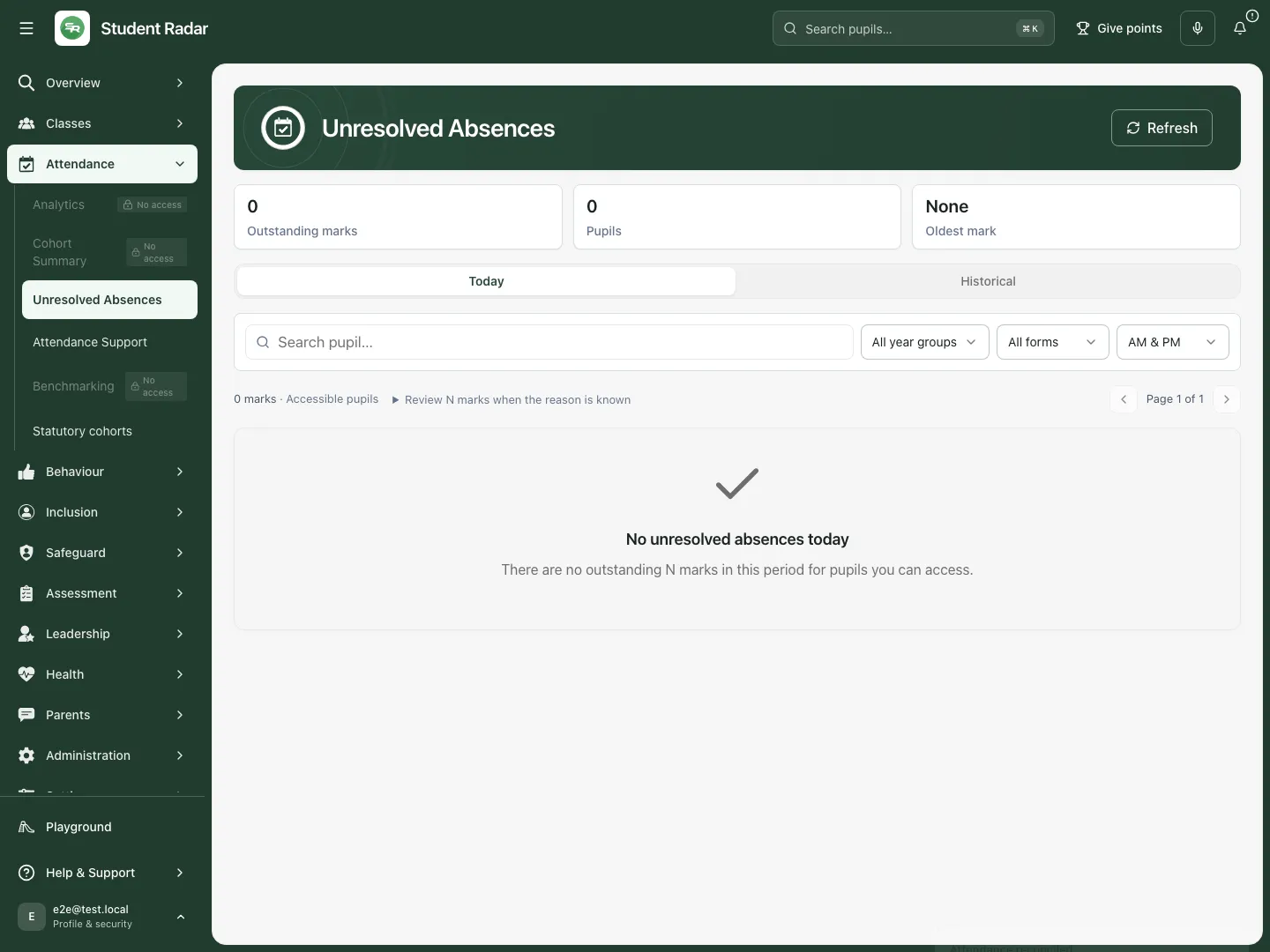
After the fictional save, the matching mark leaves the unresolved queue. This demonstrates the queue response, not a live-school write. Fictional school example.
If the school uses configured MIS writeback
Section titled “If the school uses configured MIS writeback”A school with the configured writeback service has a separate review/connection workflow. Check the connection state and the proposed MIS change, use the offered review controls, and read the resulting status before assuming the MIS was updated. A queued or pending request is not confirmed delivery. Do not repeat a pending update or fall back to a local-only save without checking what has already happened. Ask the authorised integration owner if the connection is not ready. The screenshots here illustrate the Student Radar register path.
Use the queue on a phone
Section titled “Use the queue on a phone”Open the same Today or Historical view and use the compact filters. Each card retains the pupil, date, session and review action. Check the entire review before saving, especially when the comment or code label wraps.
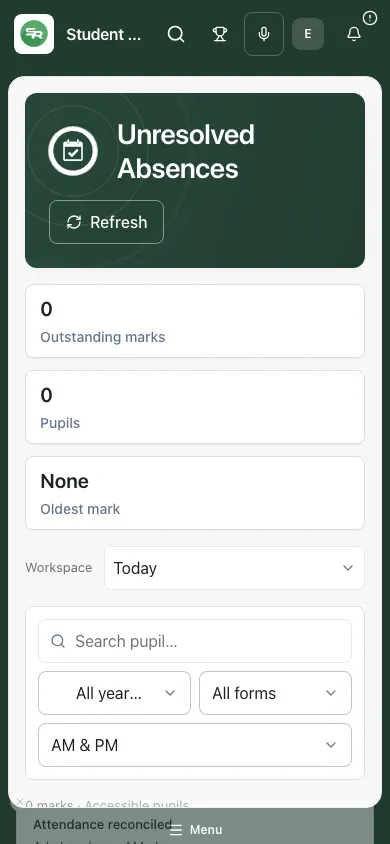
The phone example shows the refreshed queue after the fictional mark was reconciled. Fictional school example.
Recover safely from a problem
Section titled “Recover safely from a problem”The mark changed while I was reviewing it. Select Refresh queue and review the current mark again. Do not overwrite another colleague’s newer change.
The older register is locked. Ask the colleague authorised to edit locked registers. A code lookup does not unlock the mark.
No replacement attendance codes are available. Ask a school leader to check the school’s attendance codes. If a chosen code has been retired, refresh the options and select an active appropriate code.
Register source is unavailable. Wait for the check/retry to finish before saving. You need to know where the register is kept.
Access could not be verified. Ask the school administrator to check the exact queue/edit/pupil permission required. Too many requests means wait a minute, then retry.
Loading or saving failed. Keep a note of the intended mark and check the current queue/register before another attempt. An error does not prove a change saved.
Questions schools ask
Section titled “Questions schools ask”Does resolving N explain the absence automatically? No. A member of staff chooses a replacement only when the reason is known.
Will this always update the MIS? No. The register-source notice and save control identify the path. Local-only saves explicitly do not update the MIS; configured writeback has its own status to check.
Why are there more marks than pupils? A pupil can have multiple unresolved sessions.
Related guides
Section titled “Related guides”Use Attendance Analytics, Use Attendance Support, Use Statutory cohorts.