Connect SIAMS evidence with a reviewed self-evaluation
Start with the school’s Christian vision, link evidence to the SIAMS questions and record the considered self-evaluation.
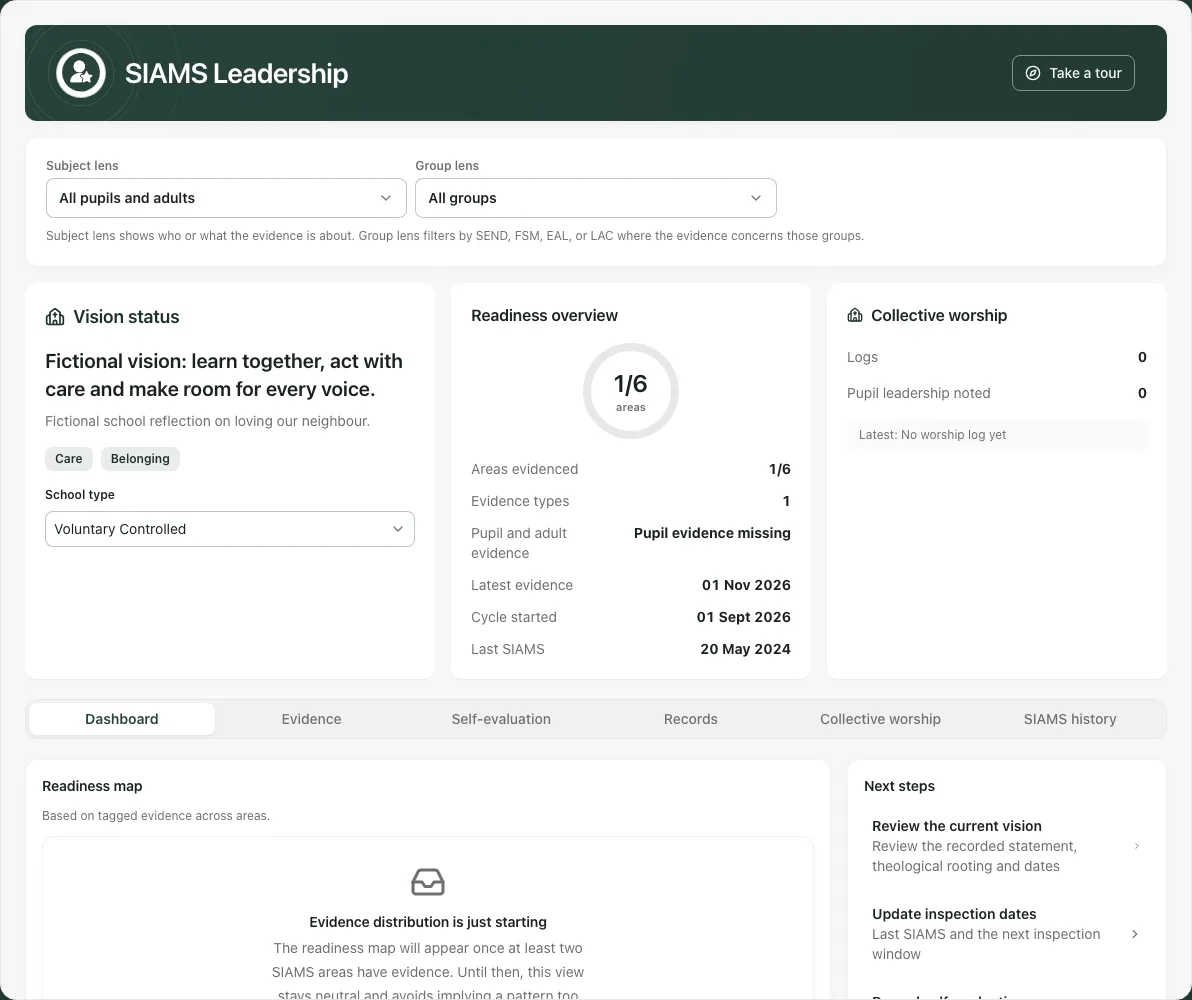
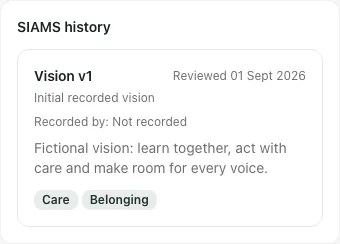
Open Leadership → Faith inspection → SIAMS. The page heading is SIAMS Leadership. The hub is ungraded: evidence distribution and a recorded school judgement are not an inspector’s judgement or proof that pupils and adults flourish. Screenshots show a fictional school vision and one limited staff reflection, with pupil evidence still missing.
1. Establish the current vision and inspection context
Section titled “1. Establish the current vision and inspection context”On Dashboard, review Vision status, its values, theological rooting and the school type. Eligible leaders use the offered set-up/review vision action, complete Christian vision, Theological rooting, Vision values, Adopted, Last reviewed and Next review due, then Save full vision setup.
Review the saved version before tagging new evidence. A changed vision is retained as a new version, rather than rewriting the meaning of all historical evidence. Saving an unchanged setup does not need another version. If a save partly fails, inspect what the page reloaded before repeating it.
Choose School type accurately. This affects which inspection questions apply; the Quality of RE question applies to the types explained by the selector. Do not change the school type just to reduce the apparent number of gaps.
Use Add inspection dates or Update inspection dates, enter the actual last inspection and next window, then Save dates. A last-inspection date cannot be in the future and the next window must be in order. These are planning dates, not confirmation of an inspectorate appointment.
2. Read coverage without turning it into a score
Section titled “2. Read coverage without turning it into a score”Readiness overview reports areas evidenced, evidence types, pupil/adult evidence and latest evidence date. A figure such as 1/6 means one applicable area has the relevant recorded evidence; it is not one sixth of an inspection passed. Readiness map likewise describes evidence distribution. A sparse map or missing pupil evidence is a question for further enquiry, not a low pupil outcome.
Where the coverage board is enabled, inspect Evidence coverage and its reasons. School judgement for [area] offers No school judgement, Ready, Developing, Priority or Not started. Choosing a value records the school’s working view; it does not turn the evidence count into an inspection grade. Read a save failure before treating a selected value as retained.
Use Subject lens for who/what evidence concerns and Group lens for recorded SEND, FSM, EAL or LAC markers. These filter tagged evidence, not every school record or the actual membership of every group. Missing tags/markers do not prove a group was excluded from school life.
3. Link evidence to the right question and vision
Section titled “3. Link evidence to the right question and vision”Open Evidence, choose Inspection question, then check Current evidence or Pre-vision. Use the offered search, source-type and date-order filters; Reset evidence filters helps distinguish no matching results from no recorded evidence.
For a manually described artefact, expand the Evidence tagging panel. Enter What is this evidence?, choose Area and Flourishing subject, add the relevant Vision values, optional Groups this evidence concerns and an appropriate narrative note, then Add tag. Use a clear label describing the actual source and sample, not a generic “evidence added” title.
A descriptive tag is not a file upload or a verified copy of every source fact. Original pastoral, SEND, safeguarding and other source details retain their own access controls. A link or tag does not grant permission to read them. Keep sensitive pupil detail out of text that a wider audience can read.

Where Mark reviewed is offered, use it after checking that specific evidence. It records the review, not proof that the source demonstrates impact. Show more evidence items expands the current list; read newest-record/truncation notices before assuming all history is present.
Evidence tagged before the full vision setup remains Pre-vision until deliberately associated through the offered vision-assignment workflow. Review its original date and context before assigning it; do not relabel old practice as though it was collected under a later vision without that check. SIAMS history preserves recorded vision versions and their review context.
4. Attach measures and artefacts without losing their provenance
Section titled “4. Attach measures and artefacts without losing their provenance”Where Impact measures is available, inspect a candidate’s source, population/group, observation period, captured date and comparison before using its offered attach control. A saved measure is a captured snapshot; changing source records later does not silently update that earlier evidence. Capture a later measure deliberately when a fresh comparison is needed.
Manual measures need a meaningful label, actual value/unit, optional comparison and period. Unknown is not zero. A comparison or change does not establish that the Christian vision caused the result. A source-unavailable notice is different from no recorded pupils or no change.
For an actual file, use Artefacts → Choose artefact file, enter Artefact label and Upload. Check the saved item and opening result. If upload completion is uncertain, keep the file and follow Artefact request recovery, including checking/retrying the original request or the offered explicit abandonment path. Do not submit duplicate uploads while the original may already be saved. A failed removal is not a confirmed deletion.
5. Save an evidence-led self-evaluation
Section titled “5. Save an evidence-led self-evaluation”Open Self-evaluation, select the intended Inspection question and inspect the evidence context. Vision can hold the whole-school narrative; other questions need reflection on their own evidence.
In Current narrative, write what the evidence supports, whose voices are missing, what remains uncertain and what should be revisited. Use Save narrative, wait for the result and reopen the same question to check it.
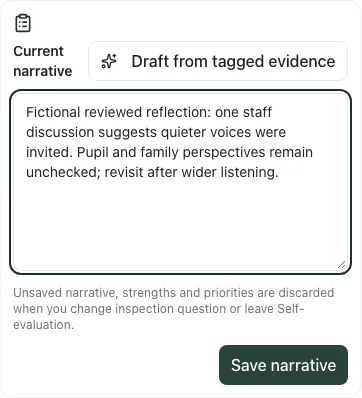
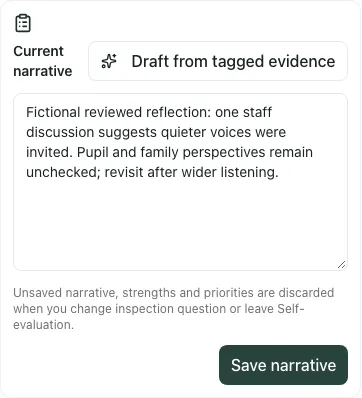
Under Strengths, priorities & impact, enter Strengths (one per line) and Development priorities (one per line), then Save strengths & priorities. This save is separate from Save narrative. Switching question or leaving Self-evaluation discards unsaved narrative, strengths and priorities, so check both saves before moving on.
Optional Draft from tagged evidence and Draft with AI require relevant evidence and human review. Read and edit the proposed wording against the actual selected sources; a suggested impact summary is a draft, not an adopted finding. Saving strengths/priorities does not automatically create assigned tasks.
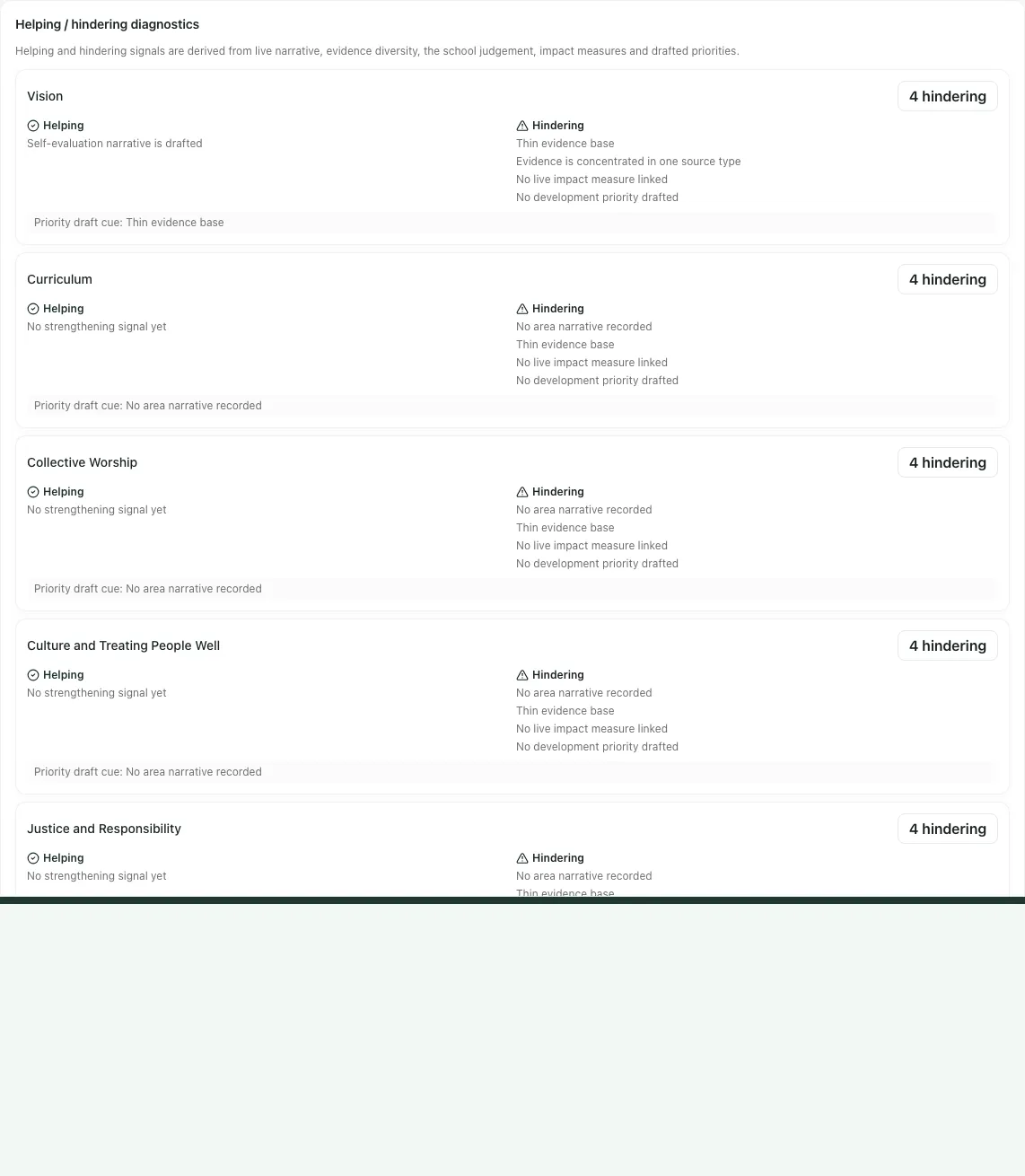
Gaps and actions can show platform prompts extracted from source notes. A prompt is not a saved school action or an authorised decision. The current hub does not offer a complete writer for every displayed action/gap field; create deliberate owned work in the relevant task workflow where needed, then return with evidence at review.
6. Capture wider records with proportionate detail
Section titled “6. Capture wider records with proportionate detail”Records are logged across the whole school; they are not filtered by the selected inspection question. Read this distinction before comparing the records list with an area’s evidence count.
Where enabled, Spiritual development offers an add-moment form. Complete Moment date, Context, Type, optional Pupil or group and What happened, then Save moment. Describe an actual observed moment; do not infer a child’s spiritual state from a label or number.
In Voice, open the capture form, choose Date, Voice type and Inspection question, record optional Who, Prompt, the actual What was said and optional Theme, then Save voice. Record the question/sample and missing voices, rather than presenting one quotation as everyone’s view. Cancel deliberately discards that draft.
For Courageous advocacy, add an actual project/event using the offered kind, title/date, pupil initiation, narrative, partners, vision values and Advocacy outcome evidence, then Save advocacy evidence. Pupil initiation and a project’s existence are different from evidence of its outcome. Use confirmation before deleting a mistaken record.
These records can contain free text read by wider hub audiences, including governors where available. Write for that audience and keep confidential case information in its proper source; do not assume every quotation is automatically anonymised.
7. Plan and complete governor monitoring
Section titled “7. Plan and complete governor monitoring”In Governor monitoring, choose Log a visit. Set Visit date, Status Planned/Completed, Governor name, Evaluation area, Focus, What was seen, Strengths and Questions raised.
Under Agreed actions, use Add for an Action title, optional Action owner and Due date; remove an unwanted draft action with Remove action. Record Follow-up due if appropriate, then Save visit and check the saved record.
A planned visit is not completed monitoring evidence. Use Mark completed after the actual visit and check its linked evidence. Keep recorded action completion distinct from what changed at school; return to the observation/question at follow-up rather than inferring impact from ticking an action.
8. Check Statement of Entitlement data carefully
Section titled “8. Check Statement of Entitlement data carefully”In Records → Statement of Entitlement, choose Add SoE entry. Record Phase, optional Year group, RE minutes, Total minutes, Christianity %, the applicable pathway and proportionate notes, then Save entry.
The minutes must be comparable, non-negative and RE cannot exceed the total; missing minutes/share remain incomplete evidence. Check the phase/year/pathway classification rather than treating a default Not applicable as a confirmed Key Stage 4 route. Read each result’s explanation and use the offered PDF only after checking the data.
The app’s calculation is a structured check against recorded inputs, not legal or theological advice, evidence of actual lesson delivery or an external inspection determination. Consult the school’s responsible RE/diocesan lead where interpretation is needed.
9. Keep worship planning and delivered evidence separate
Section titled “9. Keep worship planning and delivered evidence separate”In Collective worship, distinguish the series planner, forward schedule and Log worship. A saved or published plan is not an act of worship that happened.
For a delivered log, select Log worship, enter Date, Theme, optional Scripture reference, Pupil leadership role, What pupils said, What pupils did and What was offered for reflection, then Save worship log. The date must be on/before today and a recognisable theme is required. Review the actual log and its evidence connection.
Where enabled, use the forward-planning form for a future date, theme, leader, scripture and season, then explicitly record delivery/status after it happens. An optional generated series needs review/editing of every session and its content before publishing to the schedule. Publishing requires the intended first-week date; it does not send a family message or establish delivery. See Plan and review collective worship for the detailed sequence.
10. Prepare an audience-appropriate export
Section titled “10. Prepare an audience-appropriate export”Choose Export audience explicitly: Staff (full detail), Governors or Inspection, as offered to your account. Then choose Summary SEF, Ongoing SEF or Evidence CSV. Summary and ongoing are different levels of the same recorded working evidence, not two inspectorate approvals.
Check the resulting file’s date/window, source limitations, suppression and intended audience. Restricted source details and small groups can be withheld in exports; a withheld value is not zero and must not be reconstructed. Free-text narrative still needs human checking for names, confidential detail and unsupported claims before sharing.
Exports are unavailable while the necessary data is incomplete/failed. A successful download is not external submission, an inspection judgement or proof that an inspector/governor received it.
11. Issue adviser access only as a deliberate sharing action
Section titled “11. Issue adviser access only as a deliberate sharing action”In Records → Adviser access, review the intended working self-evaluation and audience first. Adviser link asks for Adviser email, Adviser name, Adviser organisation and Adviser link expiry days (1–30), then Issue link. Copy the issued link using Copy adviser link before Done; the token is not shown again.
This gives expiring access to the supported working view. The panel does not share pupil evidence files or pupil-level source records, but your narrative must still be appropriate for that named recipient. Issuing is not proof the adviser read it, and is not an automatic external inspection submission. Manage the listed access with Revoke where offered and inspect actual adviser comments/proformas in the panel.
Do not open a newly issued link merely to test it: views are limited. If access/expiry/view limits or a failed read causes a problem, follow the stated response rather than issuing duplicates without checking the existing grant.
12. Read history and resolve incomplete evidence
Section titled “12. Read history and resolve incomplete evidence”
SIAMS history retains the school’s recorded vision/version context; it is not an imported complete inspectorate history. Use inspection-date/report fields deliberately and check the original report where needed.
On a phone, use the SIAMS sections selector and scroll to the selected content. Save before switching question or section.
- No evidence matches: reset lenses/type/search and compare Current evidence with Pre-vision.
- Failed source read: refresh/retry as offered; do not treat it as no records or a zero measure.
- Unsaved text: save narrative and strengths/priorities separately before changing area.
- No optional panel: availability depends on school configuration and access; use the appropriate original workflow rather than assuming a hidden control.
- Unavailable export or artefact: resolve the stated source/recovery issue before sharing or repeating the upload.
Common questions
Section titled “Common questions”What should I link to a SIAMS question?
Section titled “What should I link to a SIAMS question?”Link the lived evidence that supports the school’s considered evaluation, including the relevant context and limits.
Does the evidence overview give an inspection grade?
Section titled “Does the evidence overview give an inspection grade?”No. The hub is ungraded. Evidence distribution and a school judgement are distinct from an inspector’s judgement.