Follow up leaver destinations
Written for: Alternative provision leaders, DSLs, SENCos, teachers and key workers who follow up young people after they leave.
When a young person’s placement ends, Student Radar schedules checks on where they are afterwards: by default 1, 3 and 6 months after they leave. You record each check on Careers & Destinations, saying where they are now and how you know. A check that’s missed becomes a task in My Actions, and the Overview counts every leaver, including those whose destination isn’t known.
To record careers guidance while a young person is with you, see Record careers guidance for a pupil.
Before you start
Section titled “Before you start”AP leaders, DSLs, SENCos and teachers can read and record destination checks. Only AP leaders can change the follow-up settings. Teaching assistants, office staff and finance staff can’t open the page.
Leaders see every leaver. Other staff see the young people they were key worker for, so the lists and counts cover only those.
The page is part of the AP menu, which appears when your setting profile is alternative provision and AP operations are active.
How follow-up works
Section titled “How follow-up works”- When a placement ends, a check is scheduled at each follow-up point, counted from the leaving date. The destination recorded when the placement closed stays as the first data point.
- Each check is due on its date. You can record it from then, or earlier if you already know.
- If a check still isn’t recorded when the grace period ends (14 days by default), it counts as missed. It becomes a task in My Actions for your provision’s follow-up lead or, if there isn’t one, the young person’s key worker.
- When you record the check, its task closes.
If a leaving date is corrected, the checks not yet recorded move to match it. If the placement is reopened, they’re cancelled. Recorded checks never change.
See your leavers
Section titled “See your leavers”- In the sidebar, open Progress and choose Careers & Destinations.
- Click Follow-up.
- Choose the period: Left in the last 12 months, Left in the last 2 years or Left in the last 3 years.
Leavers lists each young person who left in that period, most recent first, with their leaving date, the destination recorded at closure and their commissioning school. Under each one is a label for every check:
- a recorded check shows the destination
- a check still to do shows its due date
- a missed check is highlighted and shows the date it was due
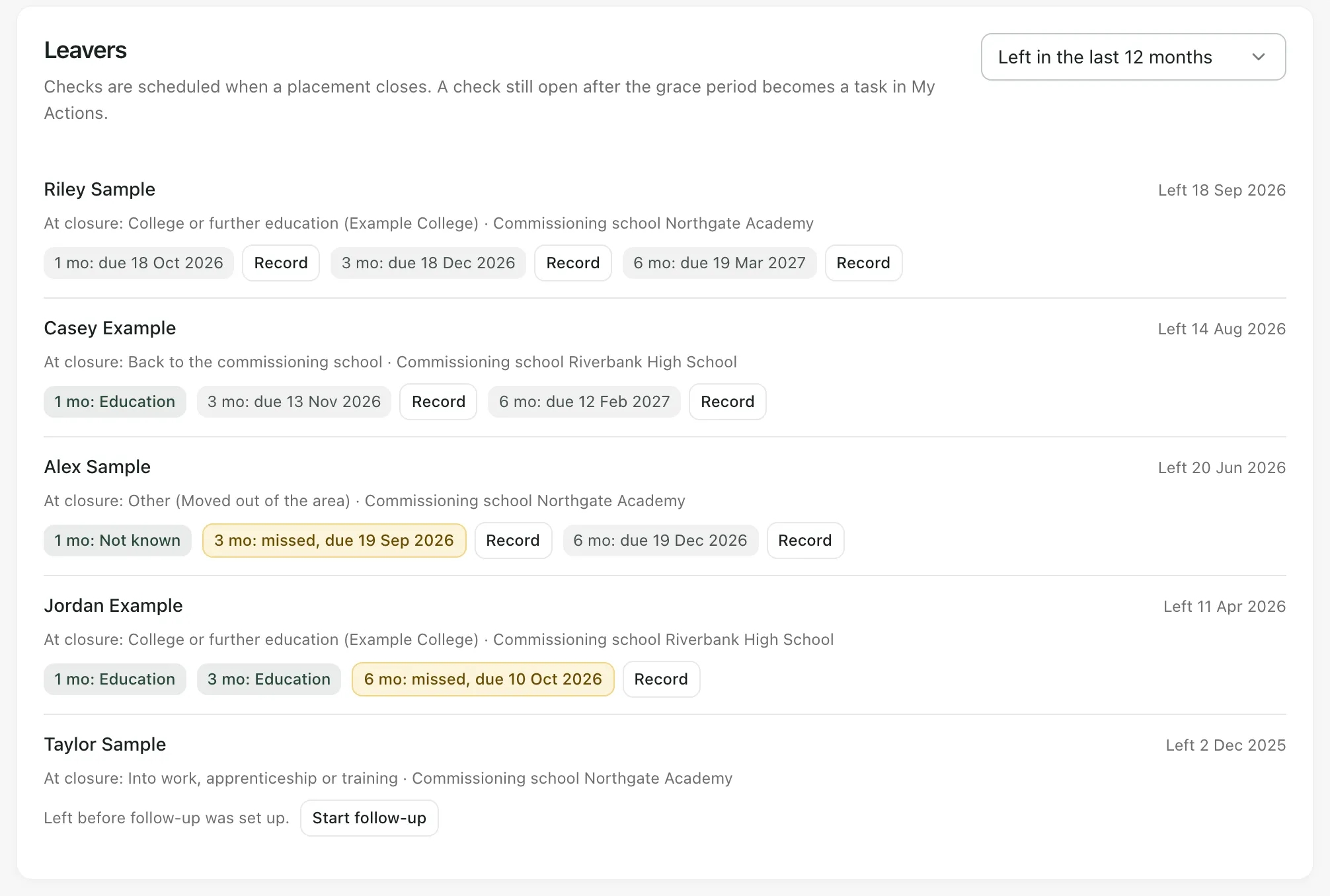
The period you choose here also sets which leavers the Overview counts.
Record a destination check
Section titled “Record a destination check”- On Follow-up, click Record next to the check.
- Under Where are they now?, choose Education, Employment, Training, Apprenticeship, Not in education, employment or training (NEET) or Not known.
- Under How do you know?, choose who told you: The young person, Parent or carer, Commissioning school, Local authority or careers service, College, employer or training provider or Other.
- Set the Date checked. It must be between the leaving date and today.
- Add a Note (optional), for example the course or employer, or the attempts you made to get in touch.
- Click Record check.
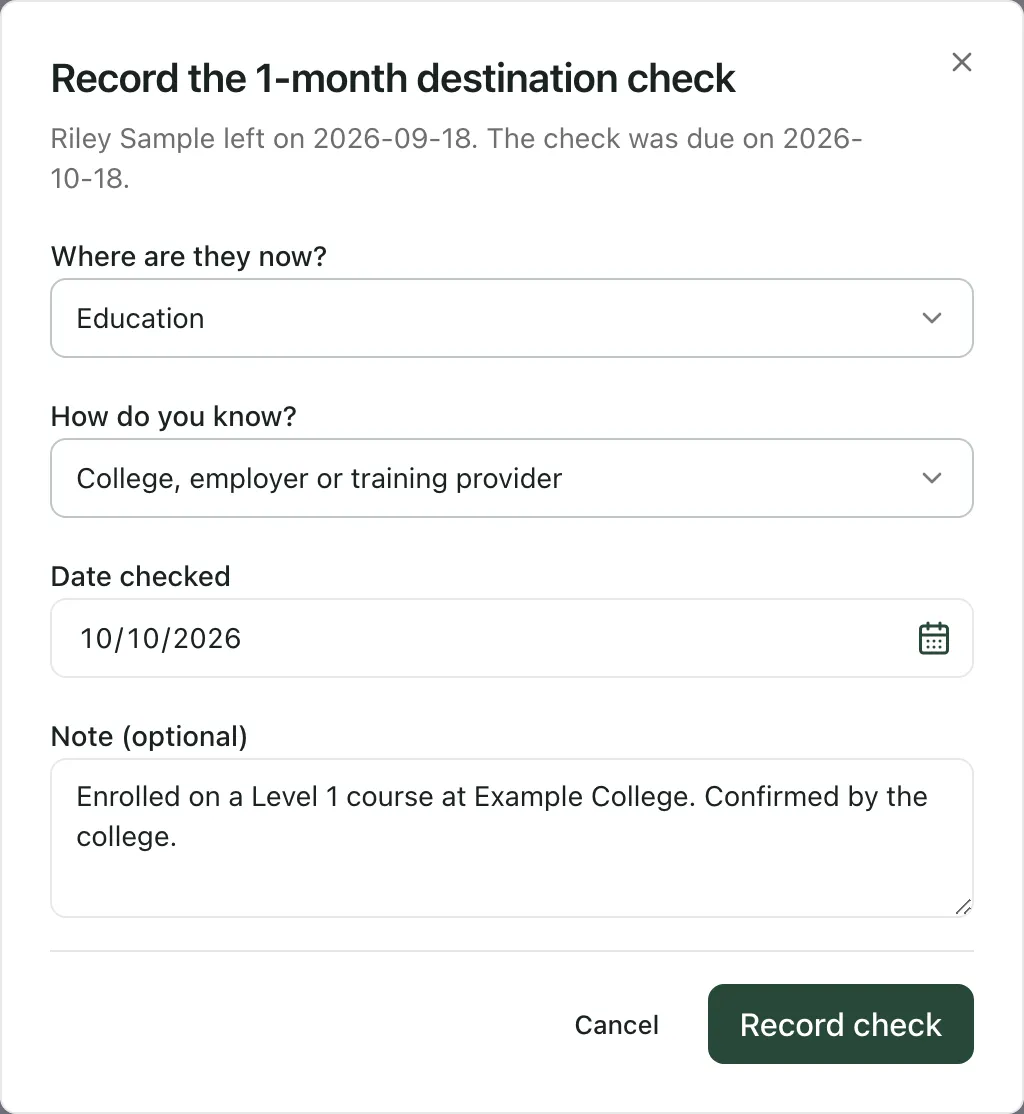
If you tried and couldn’t find out, record Not known and say what you tried in the note. Not known still counts as a recorded check.
A recorded check can’t be changed or withdrawn. If you record one by mistake, contact Student Radar support.
Start follow-up for an earlier leaver
Section titled “Start follow-up for an earlier leaver”Young people who left before follow-up was set up have no checks. Their row says “Left before follow-up was set up.”
- Click Start follow-up on their row.
- Their checks are scheduled from their leaving date, using your current settings.
Any check whose date has already passed (plus the grace period) shows as missed straight away.
Missed checks in My Actions
Section titled “Missed checks in My Actions”When a check you can see has been missed, a card of missed destination checks appears below your tasks in My Actions. Each row shows the young person, which check it is, when it was due and who owns it: Yours, a colleague, or Not assigned.
- Click Record check to record it there, in the same way as on the page.
- Click Open to go to Careers & Destinations.
A check leaves the list when it’s recorded. See Manage your tasks in My Actions.
Read the destinations report
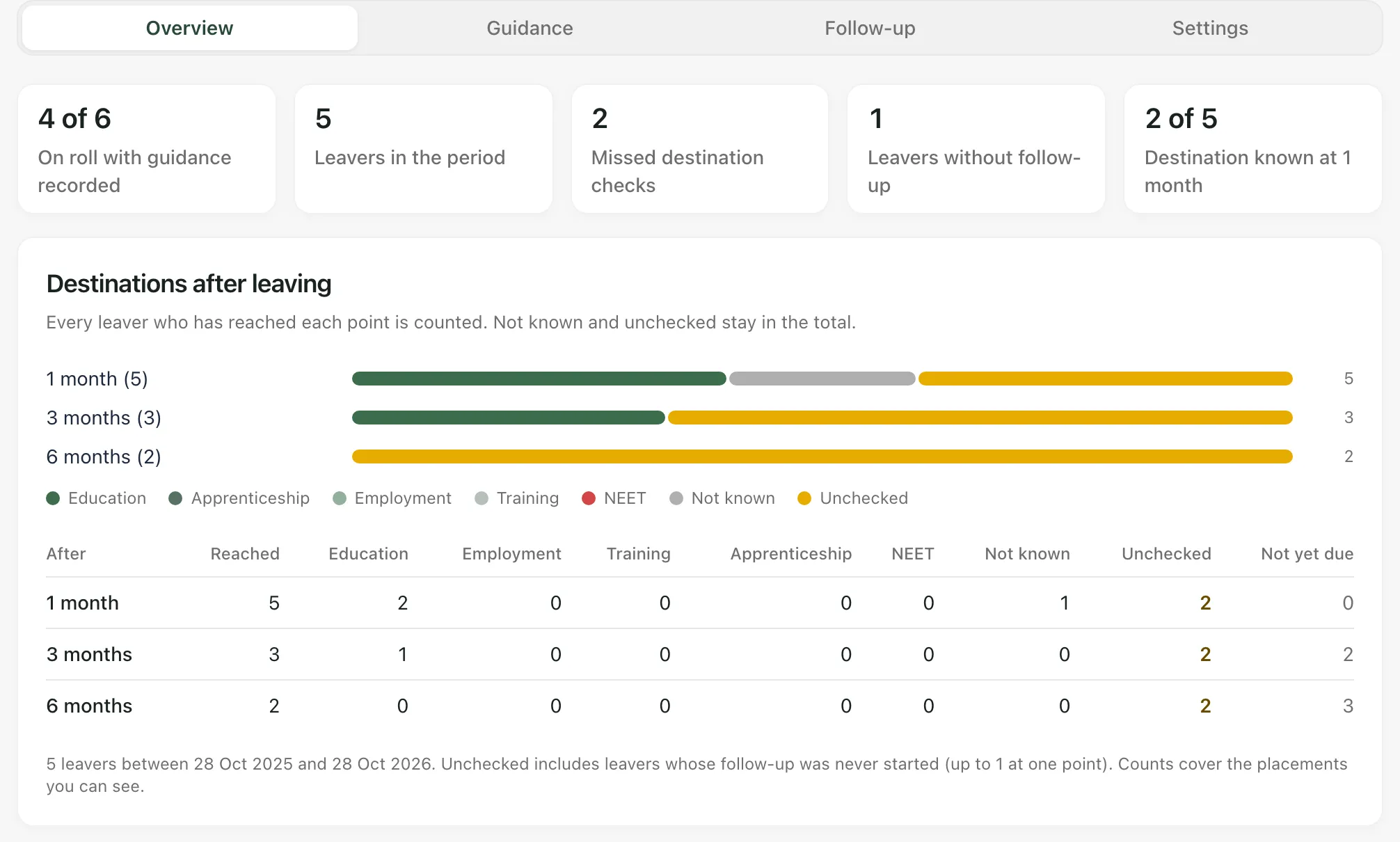
Section titled “Read the destinations report”Click Overview. The figures at the top count, for the period chosen on Follow-up:
- Leavers in the period
- Missed destination checks
- Leavers without follow-up: leavers whose checks were never started
- how many leavers have a known destination at the first follow-up point, out of those who have reached it
Destinations after leaving has a row for each follow-up point. It shows how many leavers have Reached that point, how many are in each destination, and how many are Unchecked. Not yet due counts leavers who haven’t reached the point yet. Not known and unchecked leavers stay in the total, so the figures don’t look better than what you know.
Destination recorded at closure counts the destinations recorded when placements closed, including how many were Not recorded.
Change the follow-up settings
Section titled “Change the follow-up settings”AP leaders can change when checks are due and who owns missed ones.
- Click Settings.
- Under Check after leaving (up to six), tick the follow-up points you want, from 1 to 24 months after leaving.
- Enter the Days of grace before a check counts as missed, from 0 to 60.
- Choose a Follow-up lead to own every missed check, or No lead: the key worker owns missed checks.
- Click Save settings.
Changes apply to placements that end from now on. Checks already scheduled keep their dates.
- Your judgement: a missed check is a date passing, not a judgement about the young person. The report counts what’s recorded. Contacting a young person or their family is up to you.
- Leaving: checks are scheduled when the placement ends. See Record a pupil leaving or returning.
- Wording: this page calls the pupils on your roll young people, whatever your setting profile calls them.
If something doesn’t work
Section titled “If something doesn’t work”| What you see | What to do |
|---|---|
| “Careers and destinations are available to AP staff who can read careers records.” | Your account can’t read careers records. Ask your Provision Lead for access. |
| “No leavers you can see in this period.” | Choose a longer period. If you still expect to see a leaver, ask a leader. |
| “Left before follow-up was set up.” | Click Start follow-up to schedule the checks. |
| “Follow-up starts once the placement has ended.” | The placement hasn’t ended yet. Its checks are scheduled when it does. |
| Record check is greyed out | Choose where they are now and how you know, and set a date checked between the leaving date and today. |
| “Choose a date between the leaving date and today.” | Change the Date checked. |
| “Check the destination, the source and the date checked.” | Check each field, then click Record check again. |
| “Someone else changed this first. Refresh and try again.” | Someone may have recorded the check already. Refresh the page and check the leaver’s row before recording again. |
| “This was already saved by someone else. Refresh and try again.” | Refresh the page and check the leaver’s row. |
| “That check is not available to you.” | The check was cancelled or moved, for example because the placement was reopened. Refresh the page. |
| “Choose one to six intervals between 1 and 24 months, and up to 60 days’ grace.” | Tick between one and six follow-up points and enter a grace period from 0 to 60 days. |
| “Choose a current member of staff as the follow-up lead.” | The person you chose has left or isn’t on the staff list. Choose someone else, or no lead. |
| “Missed destination checks could not be loaded.” | In My Actions, click Try again. |
| “Destinations are unavailable.” | Click Try again at the top of the page. Until the figures load, don’t rely on them. |
| “Too many requests in a minute. Wait a moment and try again.” | Wait a minute, then try again. |