Build and review a pupil access-arrangements case
Written for: SENCOs, exams officers and authorised coordinators.
Select the assessment framework, gather usual-support and trial evidence, record decisions and prepare exam-day arrangements.
The five main sections are Overview, Pupils, Evidence, Applications and Exam days.
Select the right Framework and academic year before working: School/internal, STA KS2, MTC, Phonics and JCQ AARA are different contexts. A school/internal decision is not a JCQ or statutory approval. Check the displayed rules and season against the actual assessment and current official guidance; the app’s checklist does not itself confer approval.
You need the appropriate workspace, pupil and action permissions. This guide’s fictional Grace Hopper case uses School/internal for 2026–27. No external portal application, teacher message, paid AI, assessment or live school change was performed.
Find the pupil and the next evidence gap
Section titled “Find the pupil and the next evidence gap”- Open Access Arrangements. Select the framework and academic year and read the Rules label.
- In Overview, use Mine or Everyone to inspect the next actions. Review the pipeline, deadline and renewal information for the selected context.
- Open Pupils, search/filter the permitted cases, and check their stage, next step, review date and owner. All open cases and All owners are separate filters.
- Select the pupil, then Open case. The case header records the framework, year and proposed arrangements. What the school needs or the framework’s equivalent lists recorded readiness requirements.
- Choose a missing requirement or Go to next missing item. Read whether the requirement is Missing, Awaiting confirmation, Stale, Contradictory, Invalid or Met. A stale check may require fresh evidence rather than another copy of the old file.
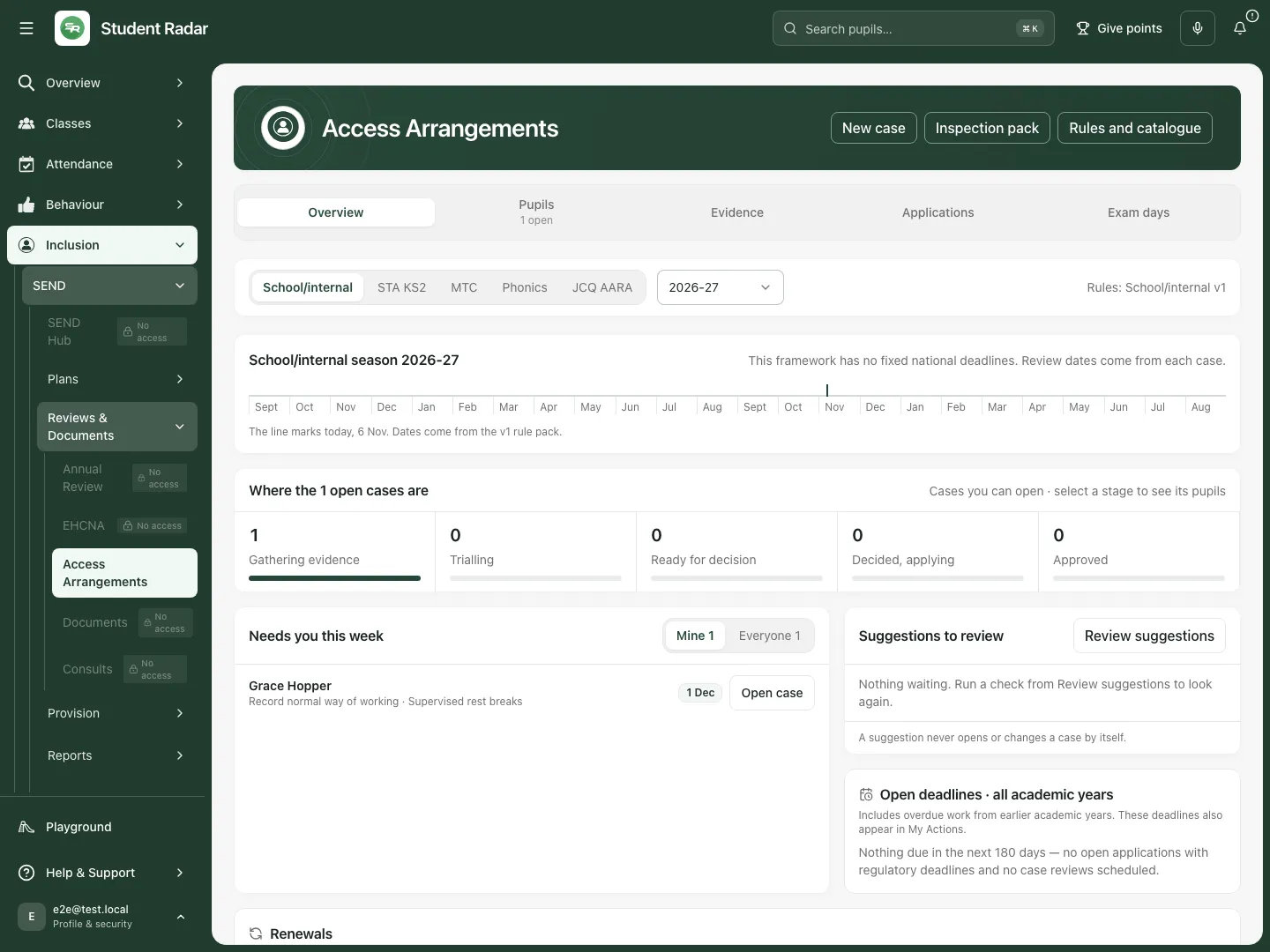 The fictional school/internal overview brings the case’s next evidence action into the staff worklist.
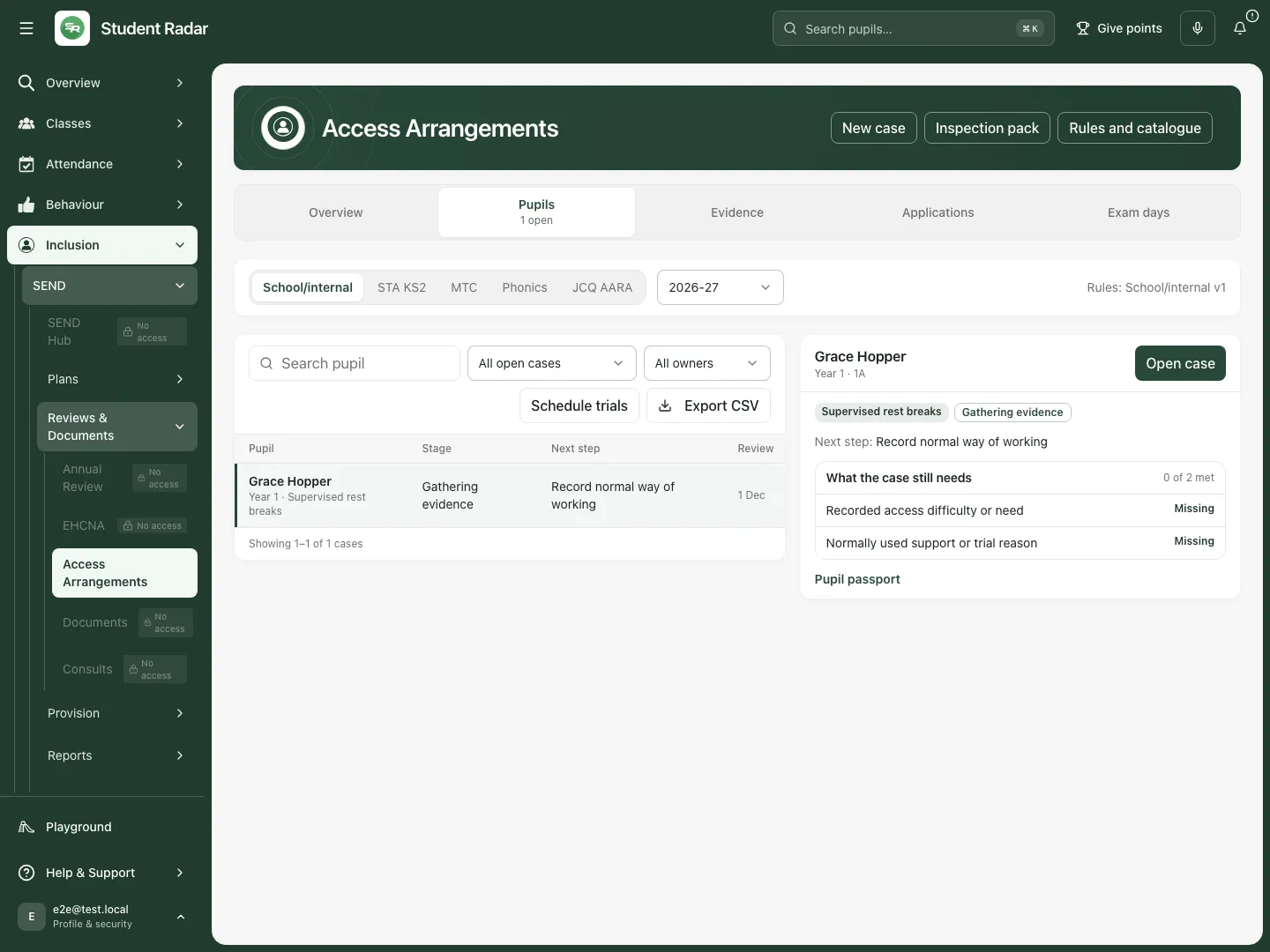 Grace’s fictional case is gathering evidence. Its review date and next action remain visible beside the pupil.
Create a case and propose the actual arrangement
Section titled “Create a case and propose the actual arrangement”- Choose New case. Find and select the pupil; the search needs at least two characters.
- Check the framework and season. Choose the proposed arrangement and a supported decision route, check the owner and enter the reason for opening the case.
- Choose Create case. Reopen it and check the pupil and proposal before adding evidence.
- In Evidence, choose Add arrangement to add another proposed adjustment. Select the arrangement and decision route, then Save proposal.
- Use Change proposal for an editable proposal. Once evidence or a decision is attached, retain its history and add a new proposal rather than overwriting what the evidence referred to.
If Framework unavailable for operational use appears, no reviewed rule pack covers the selected season. Existing case history remains readable, while new operational work waits for the matching rules. Provisional framework information must remain labelled as provisional.
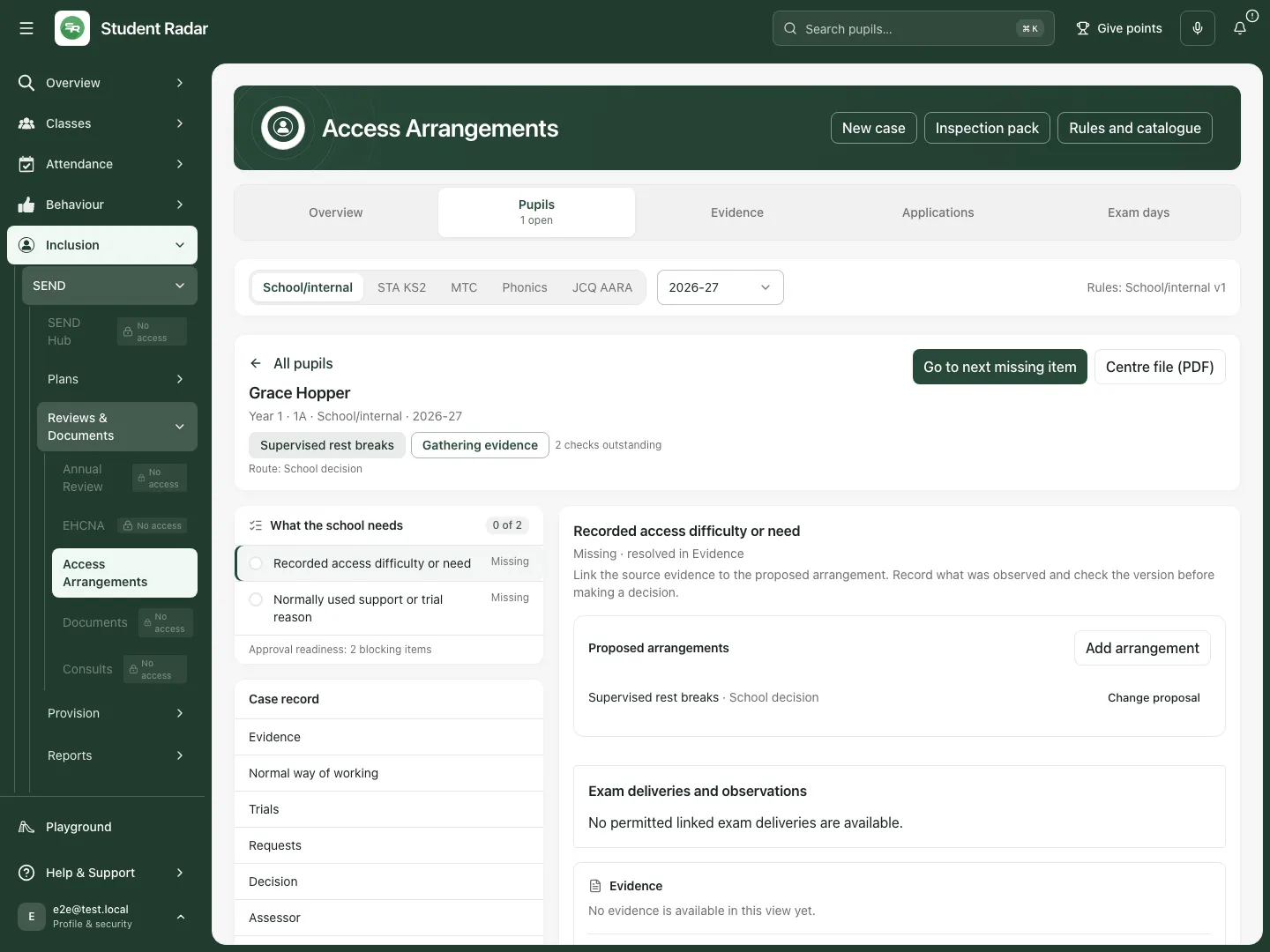 The fictional workbench keeps the proposed break arrangement beside its outstanding school/internal evidence requirements.
Link a supporting document to the arrangement
Section titled “Link a supporting document to the arrangement”- Open the case’s Evidence section and choose Add supporting file.
- Choose Arrangement and Evidence type. Use Find an existing SEND document and select the intended saved document version.
- If a new file is needed, enter Document title, select Supporting document file, then choose Upload to document library. Supported choices are PDF, DOC/DOCX and PNG/JPG/JPEG.
- After uploading, select the uploaded version in the search results. Uploading to the library alone does not link it to this arrangement.
- Choose Link evidence to this arrangement. Read the linked title, version and evidence type before moving on.
- Open the source from its evidence control to inspect the actual file. A link or category is not proof that the document supports the proposed arrangement.
For a JCQ route, the Evidence section also records that the candidate has been informed about AAO processing. Enter the actual date and method (Explained in person or Written information provided), confirm the statement and choose Record that the candidate was informed only when it happened.
Record the normal way of working
Section titled “Record the normal way of working”- Open Normal way of working, then choose Log normal way.
- Select Arrangement, enter Observation date, and choose Does the pupil use it independently?: Yes, No, adult support is needed, or Not yet observed.
- Enter Subject or context, Difficulty observed, Usual adjustment, How often and Specific examples. Use actual dated observations rather than a generic diagnosis or an assumed benefit.
- Tick I confirm this is the pupil’s established way of working only when the evidence supports that statement. Leaving it unticked records a draft observation; saving does not silently establish the normal way of working.
- Choose Save record. Close/reopen the case and inspect the saved observation and its state.
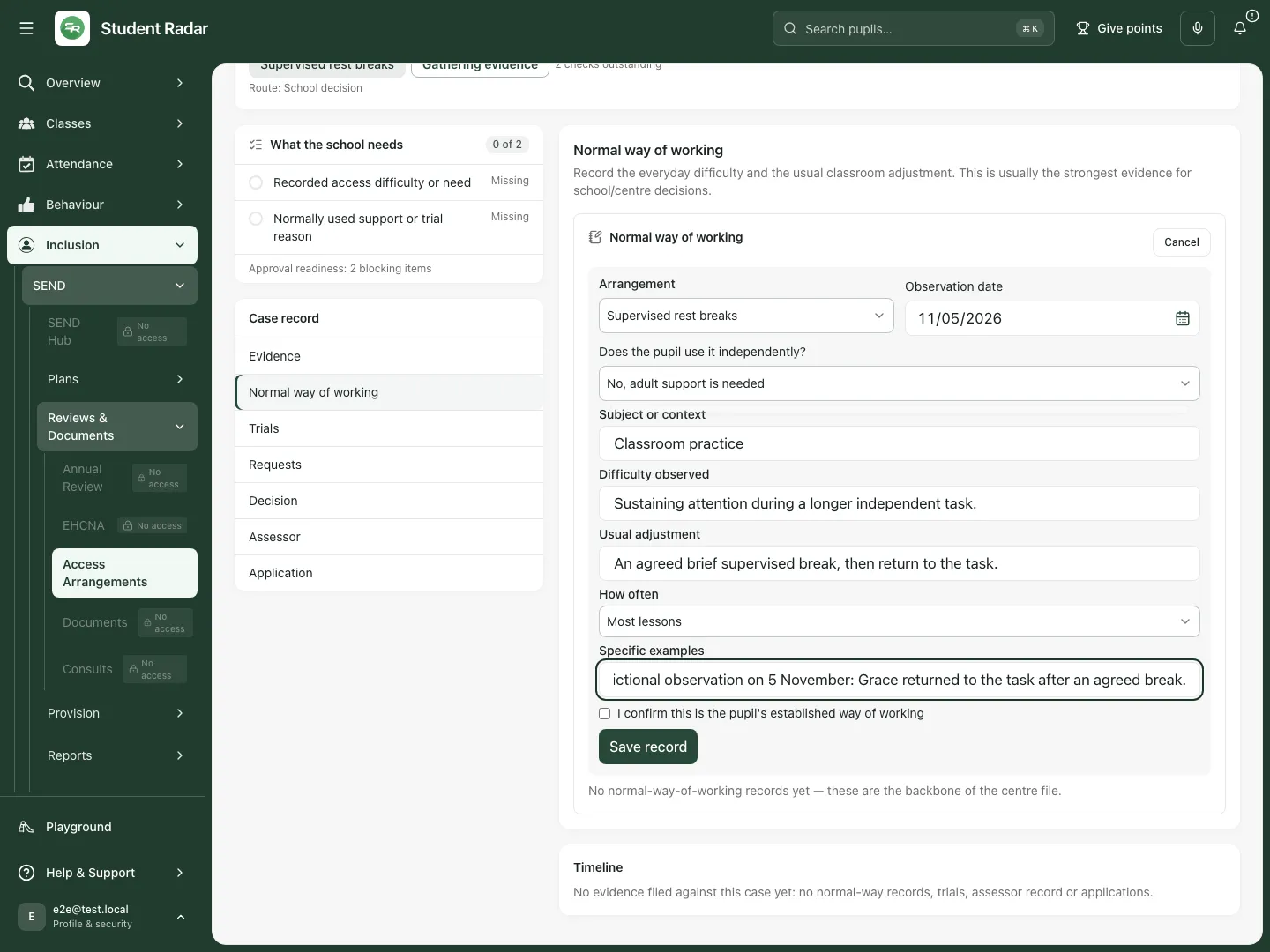 The fictional form records the observed difficulty, usual supervised break and actual adult support. Established use is not confirmed in this example.
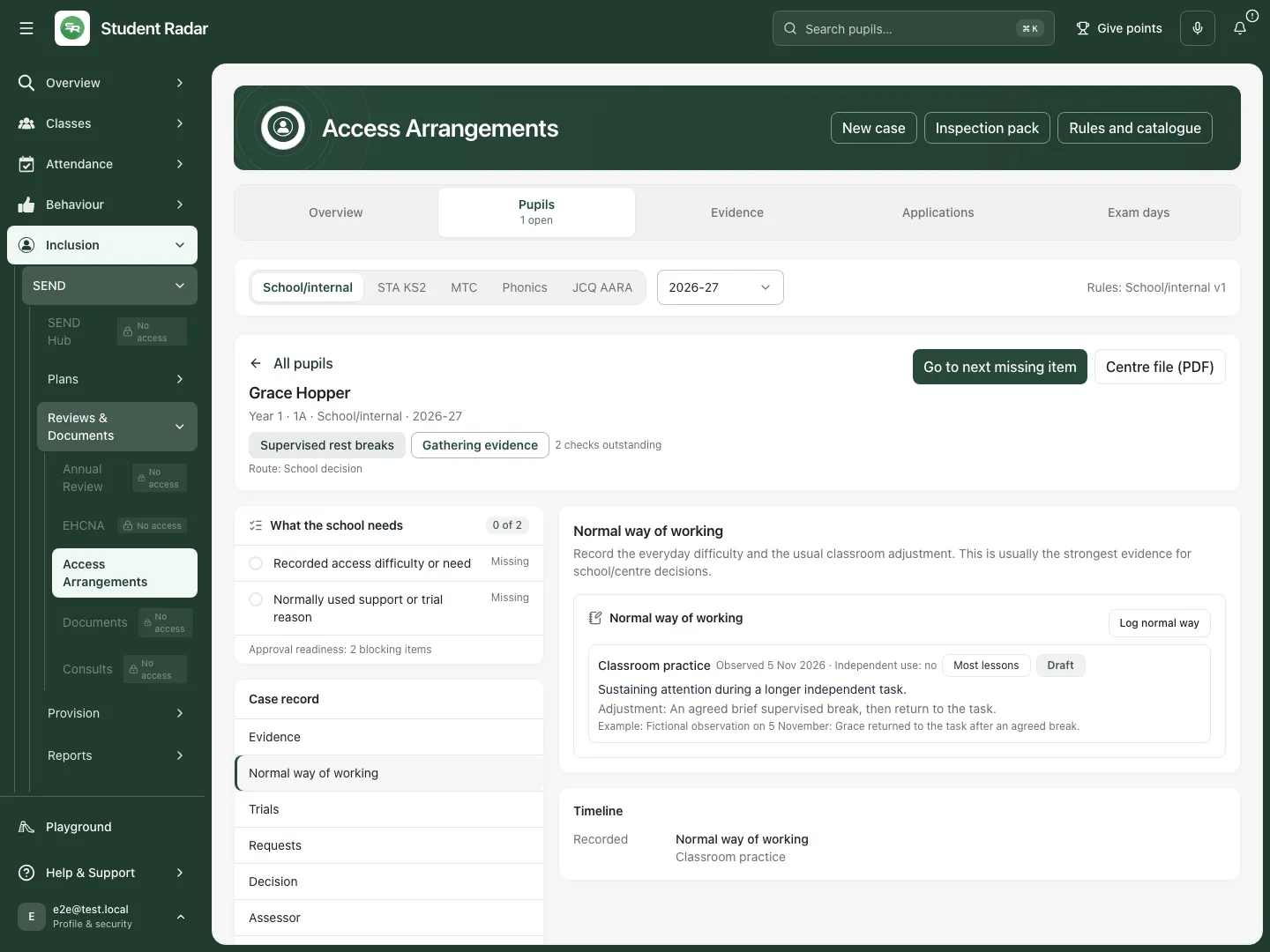 After a mocked save and reopening, the fictional observation remains in the case. Outstanding readiness requirements remain distinct from the saved draft observation.
Schedule a trial and record what happened
Section titled “Schedule a trial and record what happened”- Open Trials, then Schedule trial. Select the arrangement when there is more than one.
- Enter the assessment Context, Date, Baseline, Standard mins and Allocated mins, then choose Schedule. Record a trial in the correct assessment context; a planned trial is not completed evidence.
- After the trial, choose Record outcome for that trial. Enter Actual minutes used, Outcome, completion information, Staff observation and Pupil feedback.
- Use Save outcome to save the recorded result. Tick Sign off trial and choose Save & sign off only when an authorised person has reviewed the actual record.
- Read the signed-trial and evidence counts. A percentage of allocated time used is a usage observation, not by itself proof of effectiveness. Without a comparable baseline, the summary remains observational.
- For several pupils, use Schedule trials from Pupils, select the intended cases, enter Assessment context, Date and optional Subject, then review the result for each case. A partial bulk result is not a successful schedule for every selected pupil.
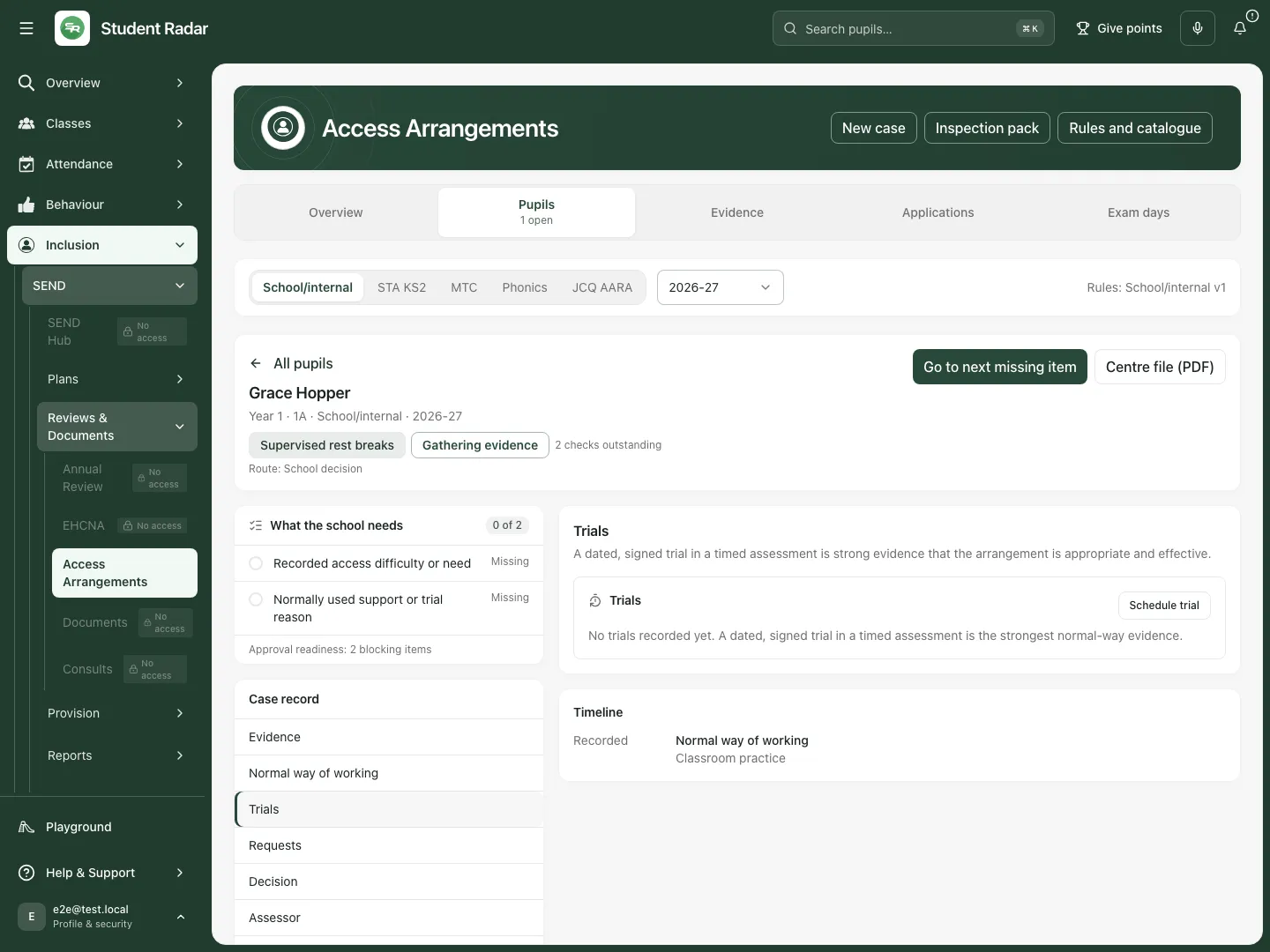 The fictional case has no trial yet. Schedule trial is separate from recording and signing an outcome.
Request and review teacher evidence
Section titled “Request and review teacher evidence”- Open Requests, then Send teacher request.
- Select Arrangement and Colleague, enter Subject, Due and optional What to confirm. Ask for observed classroom practice and impact rather than a predetermined approval.
- Choose Send request only after checking the staff recipient and pupil. Sending starts work for that colleague; opening the form sends nothing.
- Review the returned response, contradiction notices and request state in the case. An invitation is not a completed response or a confirmed normal-way record.
- If sending cannot be confirmed, check the request list before retrying. Keep the same details for the app’s retry protection; Discard draft abandons the unsent form rather than resolving an uncertain delivery.
Record assessor information and scores
Section titled “Record assessor information and scores”- Open Assessor, then Record assessor.
- Enter Assessor name, Assessment date, Qualification route, Registration / certificate number and Report reference, then Save assessor record.
- Review the qualification and source report before choosing Verify assessor record. A saved name or reference is not the verification itself.
- Add the relevant test score: Test (and subtest), Area assessed and Standardised score, plus the offered test details. Save the score against the correct assessor record and check the result.
- Use the framework’s checklist to establish which assessor and score evidence is actually required. Do not apply another framework’s thresholds to a school/internal arrangement or treat an AI suggestion as an assessor result.
Record the authorised decision and its rationale
Section titled “Record the authorised decision and its rationale”- Open Decision, then Record decision beside the arrangement.
- Choose the outcome appropriate to its route. The available outcomes distinguish Approve — school/centre decision, Approve — pending external submission, Reject, Insufficient evidence — gather more, Trial further before deciding, Refer for assessment, Defer and Withdraw existing arrangement.
- Enter the required rationale and select the actual Evidence this decision rests on. Resolve blocking requirements and acknowledge relevant warnings before approval.
- For a school/centre approval, enter Valid from and Valid until. External application routes receive their validity from the recorded external outcome instead.
- Choose Record decision and check the updated arrangement/case state. The coordinator’s recorded decision moves the case forward; it does not transmit an external application.
- Other moves… offers other permitted case transitions. Read the reason and result before changing the case; do not use a status move to evade missing approval evidence.
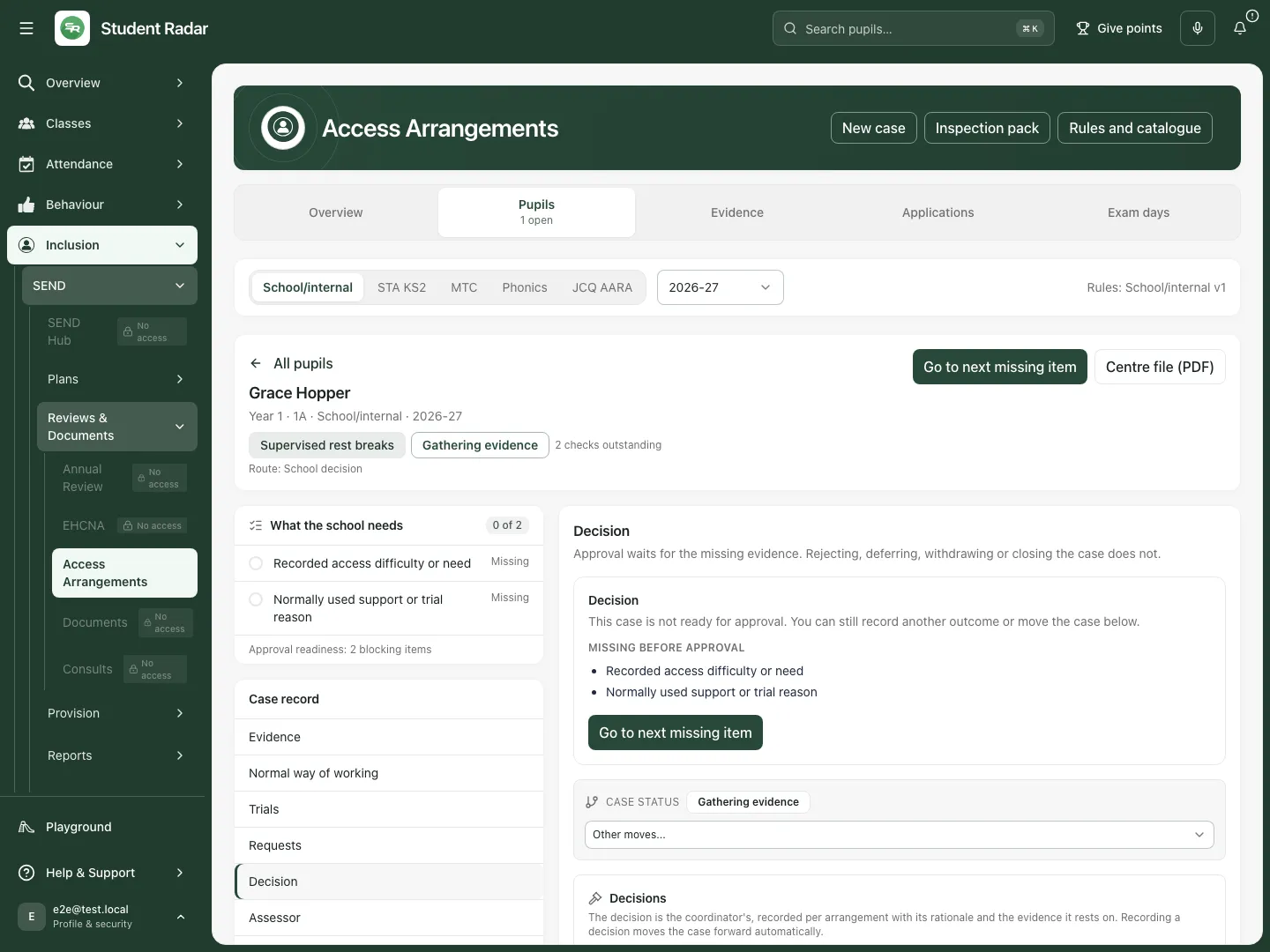 The fictional case can record a coordinator decision, but approval still waits for the required evidence. No approval was recorded.
Prepare an external application and record the portal outcome
Section titled “Prepare an external application and record the portal outcome”School/internal cases do not require an AAO/NCA application. The following conditional controls apply to supported external routes.
- Open Application and choose New application type. Select the Arrangements to include that use that route.
- Enter Assessment series and Assessment date in this series. Check the reference deadline and enter Application deadline confirmed with the portal when appropriate.
- Confirm that the evidence and coordinator decision have been reviewed, then Prepare evidence manifest. Open Review the prepared evidence file and check the included evidence/version snapshot.
- A person submits the application through the actual AAO/NCA or awarding-body process. Student Radar prepares and tracks it; it does not key the application into those portals.
- Enter the External reference and choose Mark submitted only after submission. Submission locks the evidence snapshot for that application.
- When the external response arrives, record the actual outcome. For approval enter Approved until, check the route’s validity limits and choose Confirm approval. Review the confirmation for rejected, withdrawn or other outcomes before recording them.
- Do not interpret Approve — pending external submission as external approval. Refresh and inspect a stale-version or uncertain outcome before retrying.
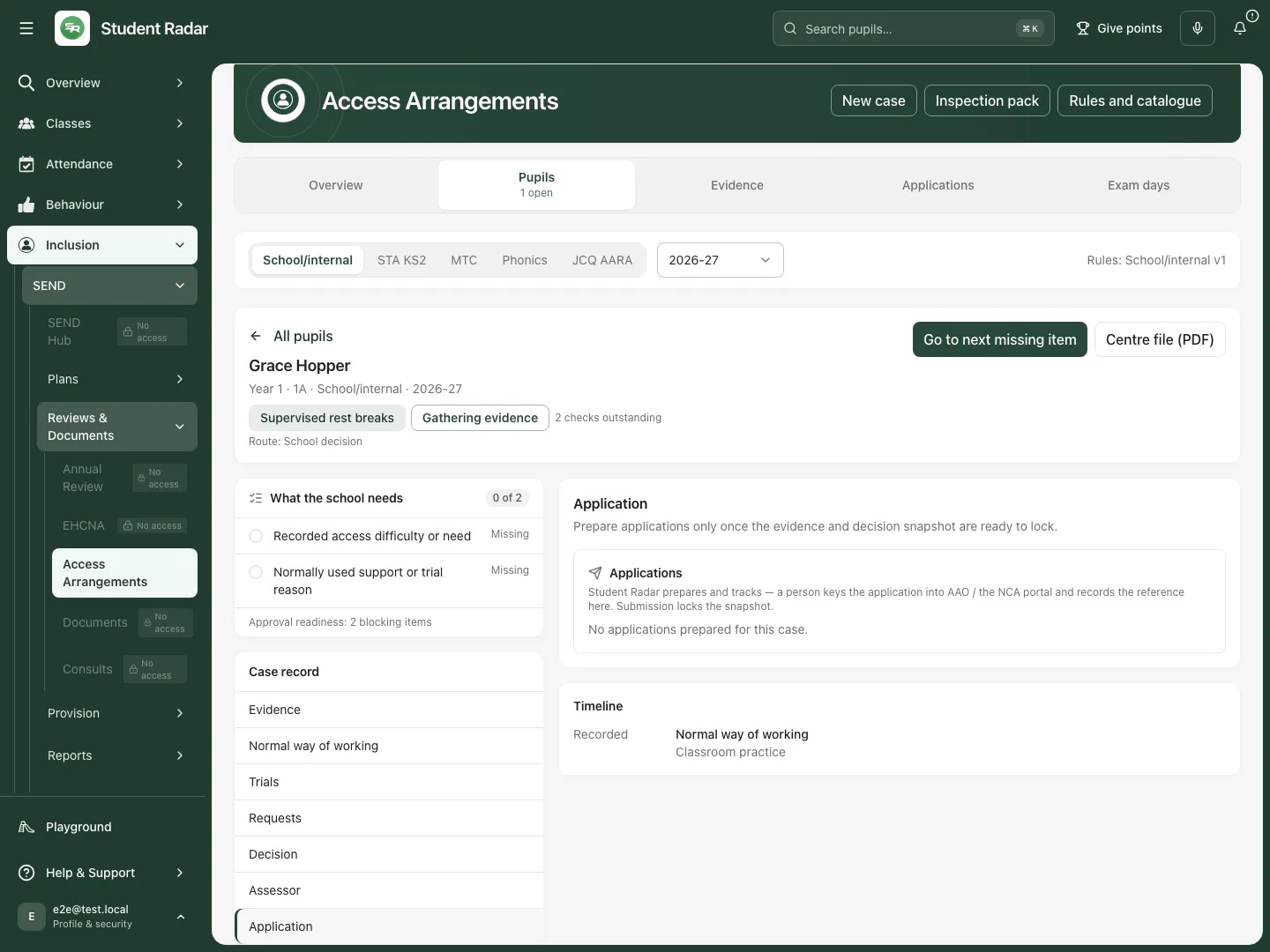 The fictional school/internal case has no external application. The workspace explains that portal submission is a separate human action.
Prepare and retain Form 8 or Form 9
Section titled “Prepare and retain Form 8 or Form 9”- In the relevant application’s forms card, choose Check the fields. Read the prefilled pupil, assessor, evidence and arrangement fields and correct their sources where necessary.
- Choose Download to sign to prepare the form for review and signature. A downloaded form is not a signed form.
- After the proper signing process, choose Upload signed copy and select the signed PDF. Check that it is attached to the intended form/application.
- Keep the signed record intact. Corrections use an authorised amendment rather than silently replacing signed history.
Prepare exam-day arrangements and retain actual delivery evidence
Section titled “Prepare exam-day arrangements and retain actual delivery evidence”- Open Exam days and select a recorded exam window/session. Check the candidate and assessment context before preparing any delivery.
- Review each arrangement’s authority, validity, staffing, resources and readiness. Internal/mock trials need current trial authority; an old approval or an unrelated exam entry is not sufficient.
- Use the session’s preparation controls to record staff, resources and practical arrangements. Create follow-up task can assign preparation or review work with Work purpose, Assigned staff member and Due date and time.
- Record what happened after the session, including any variance and its reason. Submission/sign-off of delivery evidence remains separate from preparing the day sheet.
- Open the Day sheet and review its generation time and supersession notice. PDF exports the permitted complete sheet; an incomplete sheet or blocked export needs resolution first. A day sheet records preparation, not proof that the support was delivered.
- Return to the case’s Exam deliveries and observations to inspect linked delivery evidence and signed/review states. A source-read failure is not “no deliveries”.
Suggestions, renewals, exports and optional drafting
Section titled “Suggestions, renewals, exports and optional drafting”- From Overview choose Review suggestions. Review the source, observation period and uncertainty before triaging a suggestion. Running a check does not automatically open or change a pupil case.
- Review Renewals for expiring approvals, key-stage boundaries and previous-year cases. Starting a renewal opens a fresh case with the same arrangements; re-confirm evidence rather than assuming it transfers as current approval.
- Use Export CSV for the selected register context. Use Inspection pack for the evidence/decision/audit inspection view and Centre file (PDF) for the case file. Check scope, completeness and current sources before distributing any export.
- Open Rules and catalogue to inspect the framework packs, season, source and arrangement catalogue. A provisional or unavailable pack stays labelled; it is not a production approval route.
- Optional AI drafting proposes text from permitted evidence. Review source references, missingness and uncertainty; adopt wording only after checking it. Drafting does not make the coordinator’s decision, manufacture a score or submit an application.
Phone use
Section titled “Phone use”Use the compact pupil cards and the page’s Section selector. Open the case, select its evidence task and check the framework/year, save state and source details before acting.
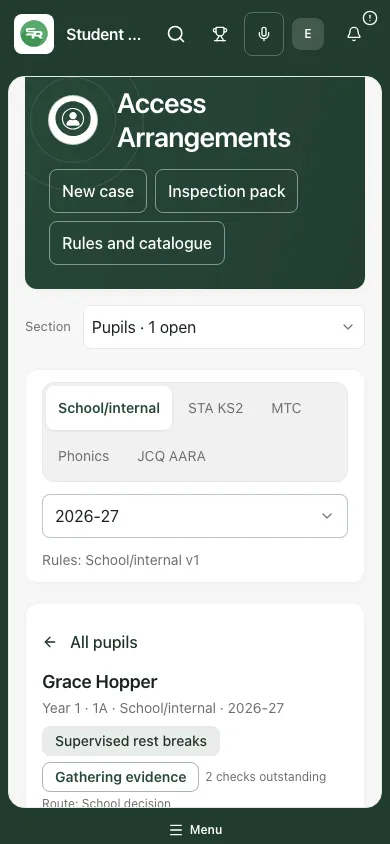 The fictional phone register retains Grace’s arrangement, evidence stage and review information.
Problems and questions
Section titled “Problems and questions”New case is unavailable. Check selected framework/year and whether the app has an operational reviewed rule pack. Existing history may still be readable.
A requirement is stale or contradictory. Open it, inspect the relevant sources and reconcile the evidence. A tick cannot resolve a genuine contradiction.
Approval is blocked. Check required evidence, normal-way confirmation, assessor verification and route-specific prerequisites. Other outcomes can record that more evidence or a trial is needed.
My record saved but the case is not ready. Saving a draft observation, uploading a document or scheduling a trial is different from confirmed evidence satisfying a requirement.
A colleague changed the case. Preserve your draft, refresh and review the newer version before saving. A stale-version error protects the evidence/decision snapshot.
Does Student Radar apply to AAO or NCA for me? No. It prepares the file and records the external reference/outcome after a person completes the actual portal process.
Does a signed trial prove eligibility or an outcome? No. It records the observed trial; an authorised coordinator reviews the applicable evidence and framework.
Related: SEND Hub, SEND Register, Pupil Passports, EHCPs. SEND Documents and the separate exam-day guides are planned.