Manage club places, consent and activity sessions
Open the activity view offered by your school, review applications and places and check consent and session registers separately. Keep application, offer, consent, financial and attendance states separate: an application is not an allocated place, a payment is not consent and a readiness label is not an attendance mark.
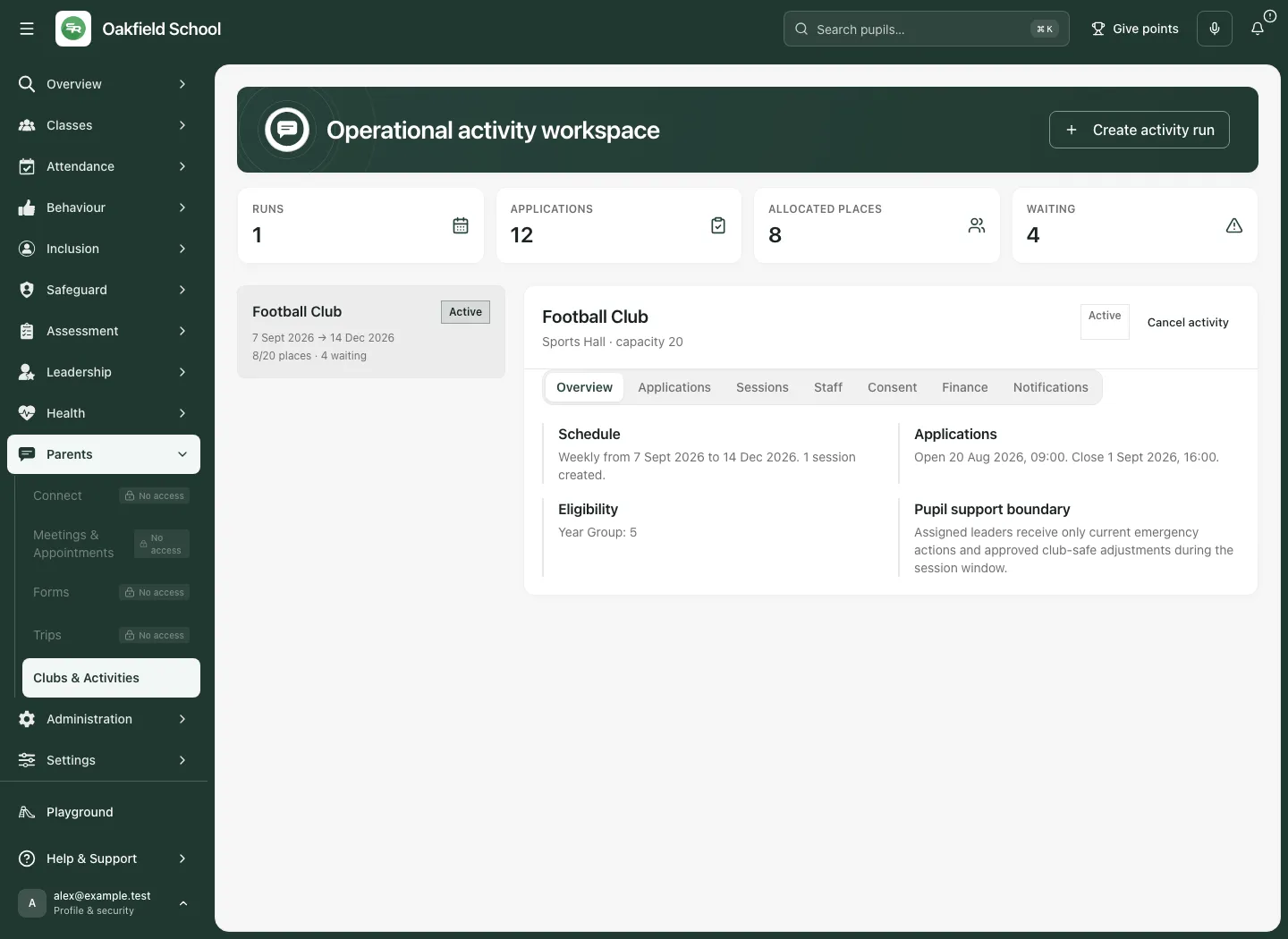
The fictional Football Club shows the operational activity workspace. Schools without that workspace enabled retain the earlier Clubs & Enrichment view. Both routes belong to the same school area, but their controls differ. Use the section of this guide that matches the heading on your screen.
1. Check your access and the activity context
Section titled “1. Check your access and the activity context”Open Clubs & Activities. Confirm the school and intended activity/run. Permissions separately control configuration, allocation, staff assignment, registers, support publication/read access, finance, communications and audit. A parent sees the opportunities and decisions allowed for their linked children, not the staff workspace.
Agree the activity’s purpose, dates, leader, capacity, eligibility, consent wording and payment arrangements before publishing. Name who will review applications, chase practical information and act when a pupil needs support. Do not place diagnosis or private finance notes in activity descriptions.
A run is the dated series of an activity. Sessions are its actual occurrences. Read both: the same club name can have different terms, dates, staff or fees across runs.
2. Create and review an activity run
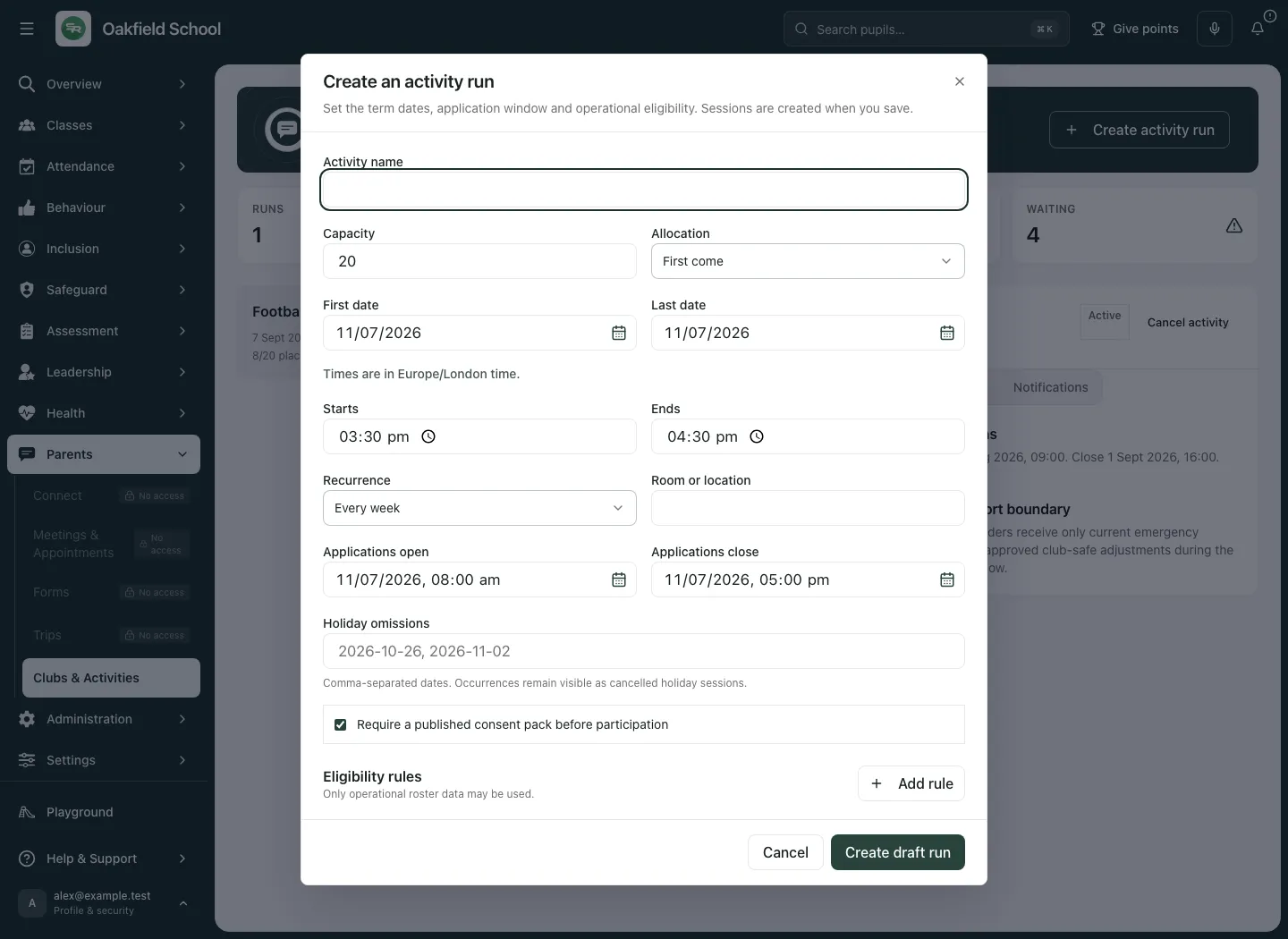
Section titled “2. Create and review an activity run”- Choose Create activity run.
- Enter Activity name and Capacity. Choose Allocation according to the school’s agreed process: first come, ballot or staff review.
- Set First date, Last date, Starts, Ends, Recurrence and Room or location. Check the stated time zone, especially around clock changes.
- Set Applications open and Applications close. Allow enough time for family decisions and staff review.
- Enter Holiday omissions as comma-separated dates when needed. Those occurrences remain visible as cancelled holiday sessions; they are not silently removed from the history.
- Decide whether to Require a published consent pack before participation.
- Add eligibility rules with Add rule and the offered operational roster fields. Only operational roster data may be used; do not create selection rules from protected medical or safeguarding detail.
- Choose Create draft run. Read any validation error and keep the entries while correcting it.
- For a draft or a run marked as needing migration review, use Review details, check the imported/entered arrangements and choose Save reviewed run.
- Choose Publish run only after checking the actual details, consent and application arrangements. A published run is not evidence that any family has applied or accepted a place.
The run summary shows applications, allocated places, waiting count and capacity. Read the selected run’s Overview for Schedule, application opening/closing times, Eligibility and Pupil support boundary. Counts relate to the loaded run, not all activity participation across the school.
3. Review applications, clashes and offers
Section titled “3. Review applications, clashes and offers”Open Applications for the selected run. Read the pupil, receipt time, application status, offer, waiting-list position, readiness and clashes.
- Check which allocation method this run uses. For first come, server receipt time defines the order. For a ballot, an immutable seed records the result order. Staff review requires an explicit selection and rationale.
- Use Check for the relevant pupil clashes before allocation. Read each conflict and its context.
- Resolve the underlying scheduling issue where possible. If a permitted override is justified, use Override, enter the reason and save it through the offered confirmation. An override is evidence of a decision, not proof the clash disappeared.
- For staff review, select the applicants and enter Selection rationale. Do not use a hidden need or an unsupported assumption as the reason.
- For ballot/staff review, use Run allocation only when the required clash checks are complete and unresolved override requirements have been addressed. First-come allocation follows its receipt-based process rather than the same manual button.
- Check the resulting offers, waiting list and available capacity. An offer has a validity period; it is not a final membership until the required family acceptance/consent steps are complete.
- Review Health or SEND changes awaiting authorised review with the appropriate owner. Use Complete review only after the permitted review, keeping specialist details in their source.
Avoid rerunning an allocation just to obtain a preferred result. Read the recorded method/seed and the current offer state before taking another action. A cancelled or expired offer must be handled through its actual lifecycle.
4. Sessions and changes to the schedule
Section titled “4. Sessions and changes to the schedule”- Open Sessions and read the actual occurrence date, time, room and status. A holiday omission or cancellation remains meaningful history.
- Use Add date, complete the occurrence details/reason and choose Add session for an additional occurrence where permitted.
- To change an occurrence, choose Move, review Starts, Ends, Room or location and Reason, then choose Move session.
- To cancel just one occurrence, choose Cancel session, enter Reason and confirm that session’s cancellation. This differs from cancelling the whole activity.
- Read room conflicts for the selected session. Use Record override only when an authorised decision is justified; record the reason and review the resulting Override recorded state.
- Check the updated session list and communication outcomes. A saved change does not prove a family received a notification.
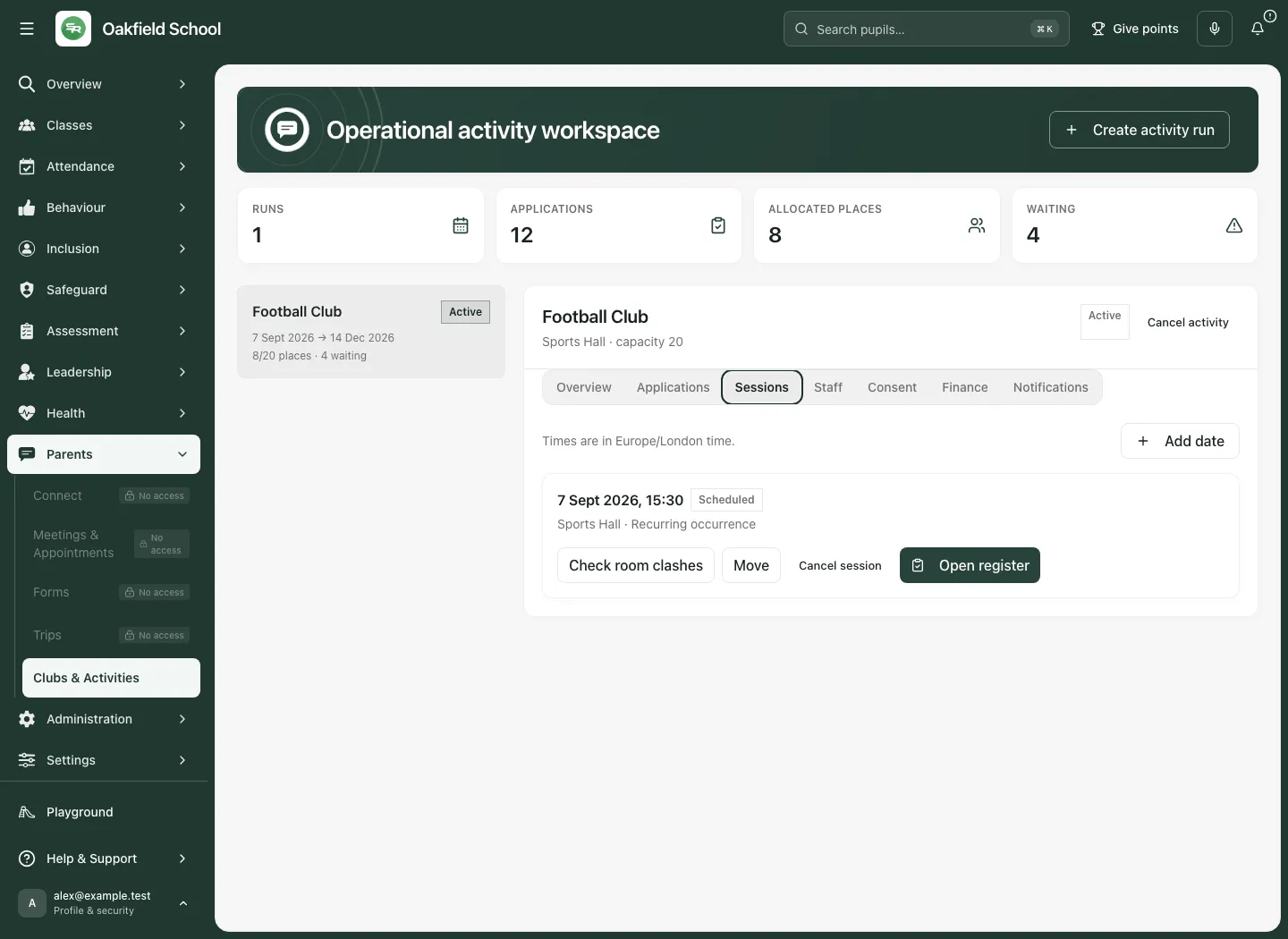
For a whole run, choose Cancel activity, enter Cancellation reason, read the terminal-action warning and use Confirm cancellation. Keep activity returns without cancelling. Attendance and payment evidence are retained; do not assume cancellation issues refunds automatically.
5. Assign staff and review their clashes
Section titled “5. Assign staff and review their clashes”- Open Staff. Select the verified Staff member account.
- Choose Scope: the run or a particular session, as offered. Select Assignment for the intended role.
- Use Check clashes across that assignment scope. Review all results before assigning the person.
- Where an override is permitted and justified, record it with its reason. Do not simply ignore an unresolved clash.
- Choose Assign and check the saved assignment. Use Remove only for the intended existing assignment.
A leader’s assignment helps determine access to the live support brief during the session window. It does not give access to every pupil’s full SEND or medical history. A general Clubs permission and a session-specific assignment are different requirements.
6. Publish the consent pack
Section titled “6. Publish the consent pack”Open Consent with activity-management access.
- Enter Consent pack title and Introduction. State the activity’s practical arrangements and what the family is agreeing to.
- Review each field’s Type, Purpose, label and Required setting. Remove unnecessary fields and complete choice options where applicable.
- Check that the wording asks only for information needed for this activity. Sensitive changes need the authorised source review, not an unchecked free-text copy into a leader’s brief.
- Choose Publish consent pack, or Publish new version when replacing an existing one.
- Review the resulting immutable version. Material changes require fresh consent; do not assume an answer to the old pack applies to changed terms.
- Follow the actual family acceptance and pupil readiness state. A published pack is not a response and an application is not consent.
Parents should check the linked pupil, activity dates, offered place and pack wording before accepting or declining. Where the parent portal offers preferences, applications, an offer or consent, follow the status shown for that child. An expired offer or unavailable opportunity requires the activity owner to review it; do not reuse another family’s link.
7. Take a register without confusing readiness and attendance
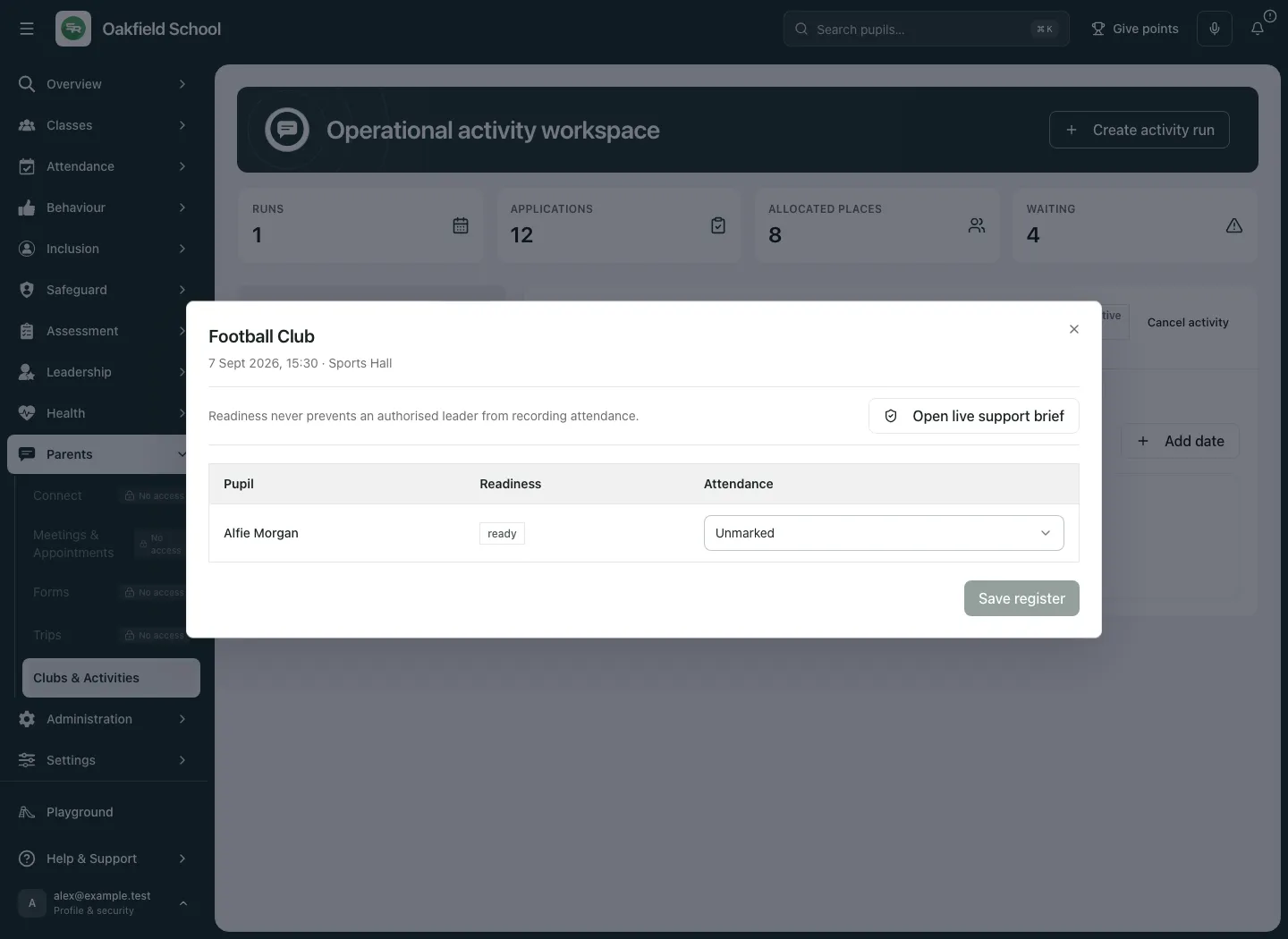
Section titled “7. Take a register without confusing readiness and attendance”- Open Sessions, choose the correct occurrence and select Open register.
- Check the dialog title, date, time and location.
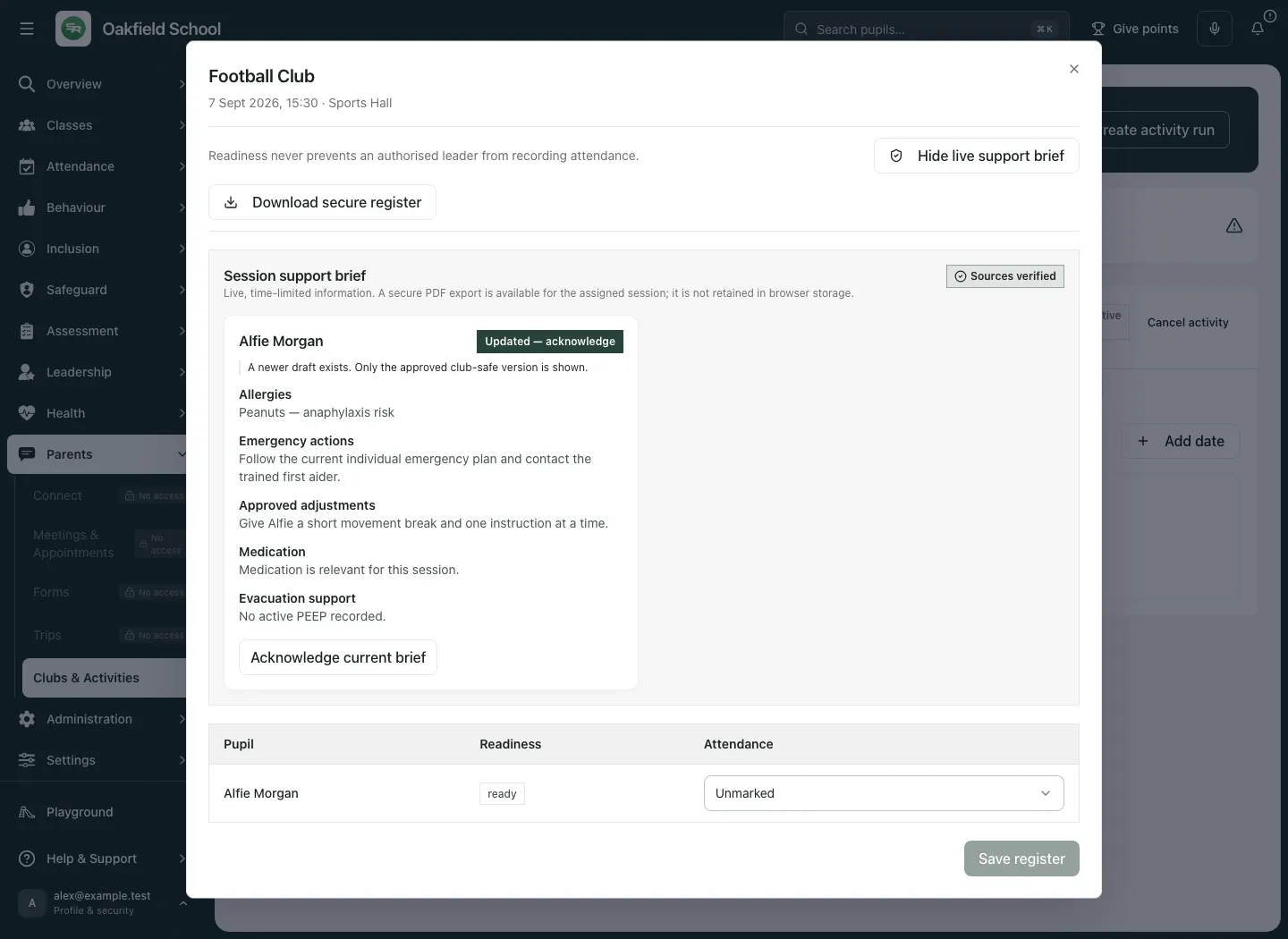
- Read the pupil’s Readiness separately from Attendance. Readiness never prevents an authorised leader from accurately recording who attended.
- Set Attendance for [pupil] to the actual observed state, using the offered choices. Do not mark present merely because the pupil has a place.
- Choose Save register and wait for confirmation. If a revision conflict is shown, reload the current register and reconcile the actual marks before saving again.
- Reopen the same session to check the confirmed record when handing it over. A changed dropdown before saving is still only a local edit.
8. Use the live support brief within its boundary
Section titled “8. Use the live support brief within its boundary”- From the register choose Open live support brief.
- Read the session, access window and Sources verified or Some sources unavailable message.
- Review the current emergency actions and approved club-safe adjustments for the pupils in your permitted session/group. Follow the school’s emergency procedure where needed.
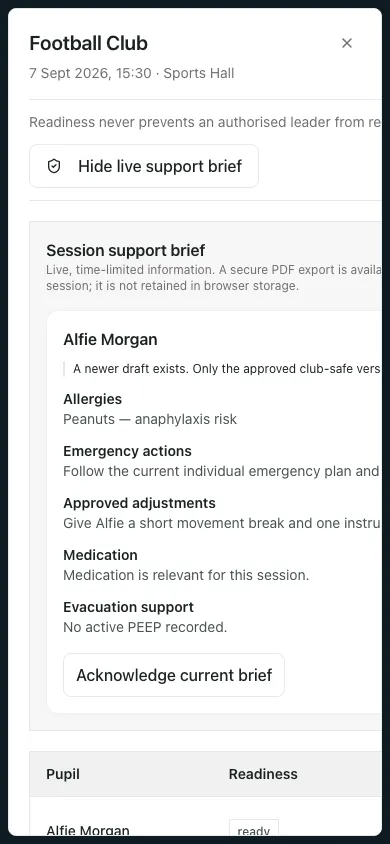
- A newer draft exists message means the approved version is still shown. Do not treat the draft as an approved change.
- Use Acknowledge current brief only after reading the current content. Acknowledgement is separate from recording attendance or signing off a specialist plan.
- If a source is unavailable or information appears stale, contact the authorised owner and use the school’s backup arrangements. Missing information is not reassurance that no need exists.
Support publication is a separate authorised SEND/medical action:
- Open Publish club-safe support for [pupil] from the authorised pupil support workflow.
- Read the current approved publication/version and select only the candidate statements suitable for club leaders.
- For each selected safety statement, explicitly confirm Approve safety statement for club leaders: [statement].
- Choose Publish selected support and check the resulting approved version. This does not edit the underlying source.
The publication dialog is for the approved club-safe version; it is not a general export of restricted pupil context. Do not copy private diagnoses or full records into general activity notes to work around a restriction.
9. Fees, balances and refunds
Section titled “9. Fees, balances and refunds”The operational Finance tab is restricted. It keeps subsidy reasons in the finance workspace. Later missed instalments alert finance and never suspend or remove a pupil automatically.
- Review the School Stripe account status. Continue Stripe onboarding is an external account-authorisation step, not a routine way to mark a club paid.
- In Fee plan, set Total fee (£), Offer deposit (£), Sibling discount (%), Early payment discount (%) and Early payment deadline, plus the displayed refund policy percentages.
- Enter each instalment’s label, amount and due date. Deposit and instalments must add up exactly to the total fee.
- Choose Save fee plan and inspect the version/obligations created through the supported workflow.
- In Pupil balances, open Finance action for the correct pupil. Select Action and, for an adjustment, Adjustment type and any Correction direction. Enter Amount (£) and the required reason before confirming the specific action.
- For a refund proposal, choose the Successful payment, amount and reason. A refund proposal needs a separate authorised finance decision; it is not money returned simply because the proposal was saved.
- Read actual paid/outstanding/refund outcomes. Payment, place, consent and attendance remain separate.
Where a canonical payment item is connected, use its permitted Payments link to follow the financial record. Payments explains request, transaction, refund and settlement states.
10. Notification controls
Section titled “10. Notification controls”Open Notifications with the appropriate permission. Parent portal delivery is created by the supported club workflow; email is standard, while SMS additionally depends on the school’s approved sender and family choices.
- Review Allow optional activity SMS. SMS stays off until the sender identity is approved.
- Set Daily SMS cap and Daily email cap within the permitted bounds.
- Choose Save notification controls and check the result.
- Review actual delivery/outcome evidence after a real workflow action. A configured channel or saved cap is not proof of delivery.
Do not duplicate a workflow’s notification with a second general message without checking what has already been prepared/sent. Use Connect for the broader governed school conversation workspace.
11. Earlier Clubs & Enrichment workspace
Section titled “11. Earlier Clubs & Enrichment workspace”If the operational workspace is not enabled, the existing Clubs & Enrichment view remains available. Use its club catalogue, places, participation and register controls rather than looking for activity-run tabs that are not enabled.
- Create/edit the club using its actual form: name, weekday/time, capacity, location, leader, focus/tags and any provider details. Review external provider checks before recording them as confirmed. Save the form and reopen the club to check it.
- In Places, review the selected club, confirmed places, waiting list and capacity before adding a pupil or moving a place. A waiting-list entry is not a confirmed place.
- Use the register for the chosen club/date and save the actual marks. Review any register-lock or current-date messages rather than assuming a date change saved earlier edits.
- Review Participation using its actual cohort, date window and coverage. No counted club is not automatically a lack of interest or a reason to label a pupil.
- Where an invitation round or prepared draft is offered, review the proposed pupils, reason and message. A prepared draft is not an invitation delivered. Confirm only the specific authorised next action.
- Keep funded-place and subsidy information within the permitted finance view. A broad participation view should not expose private funding reasons.
The earlier workspace is a supported alternative while the school launch flag is off. Migration review is deliberate: an imported activity must be checked before it is published as an operational run.
Troubleshooting
Section titled “Troubleshooting”The heading differs from the screenshots. Check whether the school uses the operational workspace or the earlier view. Do not create duplicate clubs to try to reveal another version.
Allocation is blocked. Read eligibility, capacity, pending clash checks, unresolved overrides and the method’s required rationale. Complete the underlying review rather than removing a control.
A family accepted but the pupil is not ready. Check current consent version, required reviews and operational readiness. Acceptance, consent and financial states can differ.
A register will not save. Keep the correct session open, read the revision/access error and reconcile with the current record. A readiness problem must not stop an authorised person recording actual attendance.
The live brief is unavailable. Check assignment, session window, current source status and read permission. Use the authorised source owner and school backup arrangements; do not copy restricted history into a general note.
The brief says a newer draft exists. Only the approved club-safe version is being shown. Ask the authorised owner to review/publish the change.
Money appears outstanding after a payment. Check the actual provider transaction and obligation, pending/refund state and version. Do not mark a pupil absent or remove a membership to reconcile a finance record.
A notification did not arrive. Review the actual channel/delivery evidence, family preference, caps and sender readiness. A saved change or portal record does not establish inbox delivery.
Questions schools often ask
Section titled “Questions schools often ask”Does applying guarantee a place? No. Allocation and the family’s valid offer acceptance are separate steps.
Can we rerun a ballot until we like the result? Read the recorded method and immutable evidence. Decisions must follow the school’s actual allocation process.
Does readiness control whether we can mark attendance? No. An authorised leader should record actual attendance even when readiness needs follow-up.
Can a leader see all SEND and medical history? No. The brief is limited to current emergency actions and approved activity-safe adjustments within the permitted session scope/window.
Does cancelling refund everyone? No. Cancellation retains attendance/payment evidence; refund proposals and authorised payment outcomes remain separate.
Do later missed instalments remove a pupil? No. The finance workflow can alert finance; it does not automatically suspend or remove the pupil.