Review AP recruitment checks and staff training records
Find the correct person, review recruitment-check gaps and expiry dates and record the authorised check or training decision. The record helps an authorised provision lead see missing, incomplete or expiring entries and record a reviewed decision. A complete-looking row or percentage is not a judgement that someone is suitable to work with children.
Before you begin
Section titled “Before you begin”Open Compliance → Single central record in your alternative provision workspace, or the Single Central Record page offered to your role. You need access to the page; managing recruitment checks and managing training are separate permissions. Some roles can read without editing. Demo and governor views have additional limits. Ask your school’s permission manager for the specific duty you need.
Have the original evidence, the correct person, relevant dates and the school’s authorised recruitment/training decision ready. Do not treat every check as applicable to every worker. Record the decision and rationale appropriate to their role and circumstances; follow your organisation’s recruitment process.
1. Read the record before changing it
Section titled “1. Read the record before changing it”- Open Record. On a phone use Single Central Record sections to choose the section.
- Read the active-person totals, Checks in place, Expiring in 60 days and Expired or missing together. A missing source is shown as unavailable, not a clean compliance result.
- Use Checks by type, Expiries and Needs attention to identify the next record to review. The attention list may abbreviate a longer list.
- Find the person in the checks table. Read the key for complete, expiring soon, expired, in progress, missing and not required. On a phone use Show checks for [person] to expand their checks.
- Turn on Show leavers only when you need their retained record. It changes the people included in the record and download.
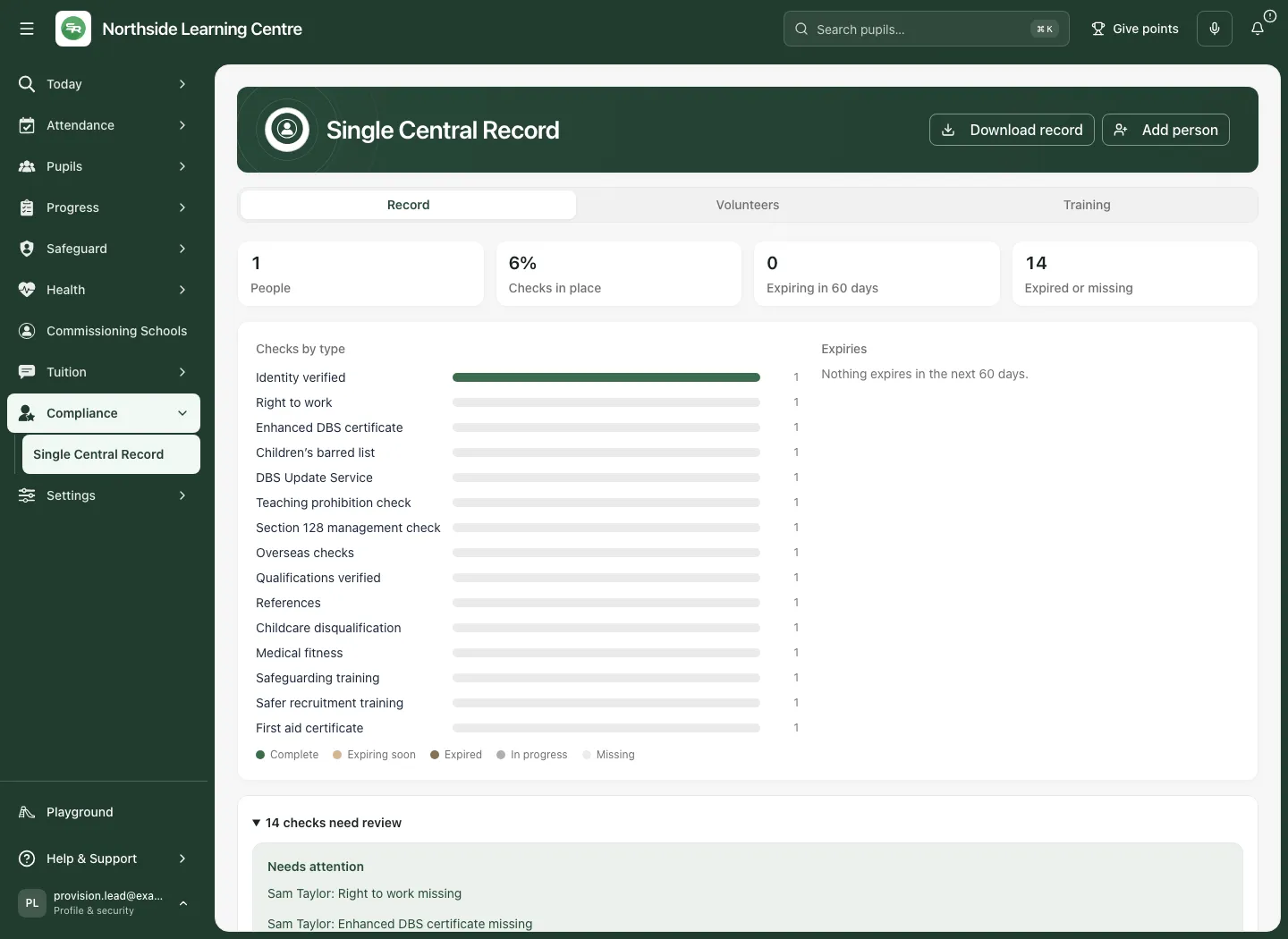
The example has one active person and one of fifteen recorded checks in place. The percentage describes the displayed record, not legal compliance, evidence quality or suitability. Unrecorded checks need human review; they are not automatically failed checks.
2. Add or correct the person
Section titled “2. Add or correct the person”- Choose Add person, or select the person’s name to open their existing record.
- Enter Full name and Role, then choose the correct Type.
- Record Start date, End date where relevant, and Status. Keep the employment/engagement state accurate when someone leaves.
- Add concise Notes relevant to this record. Avoid unnecessary sensitive detail.
- Choose Add for a new person or Save for an existing person. Wait for confirmation and reopen the person to check the result.
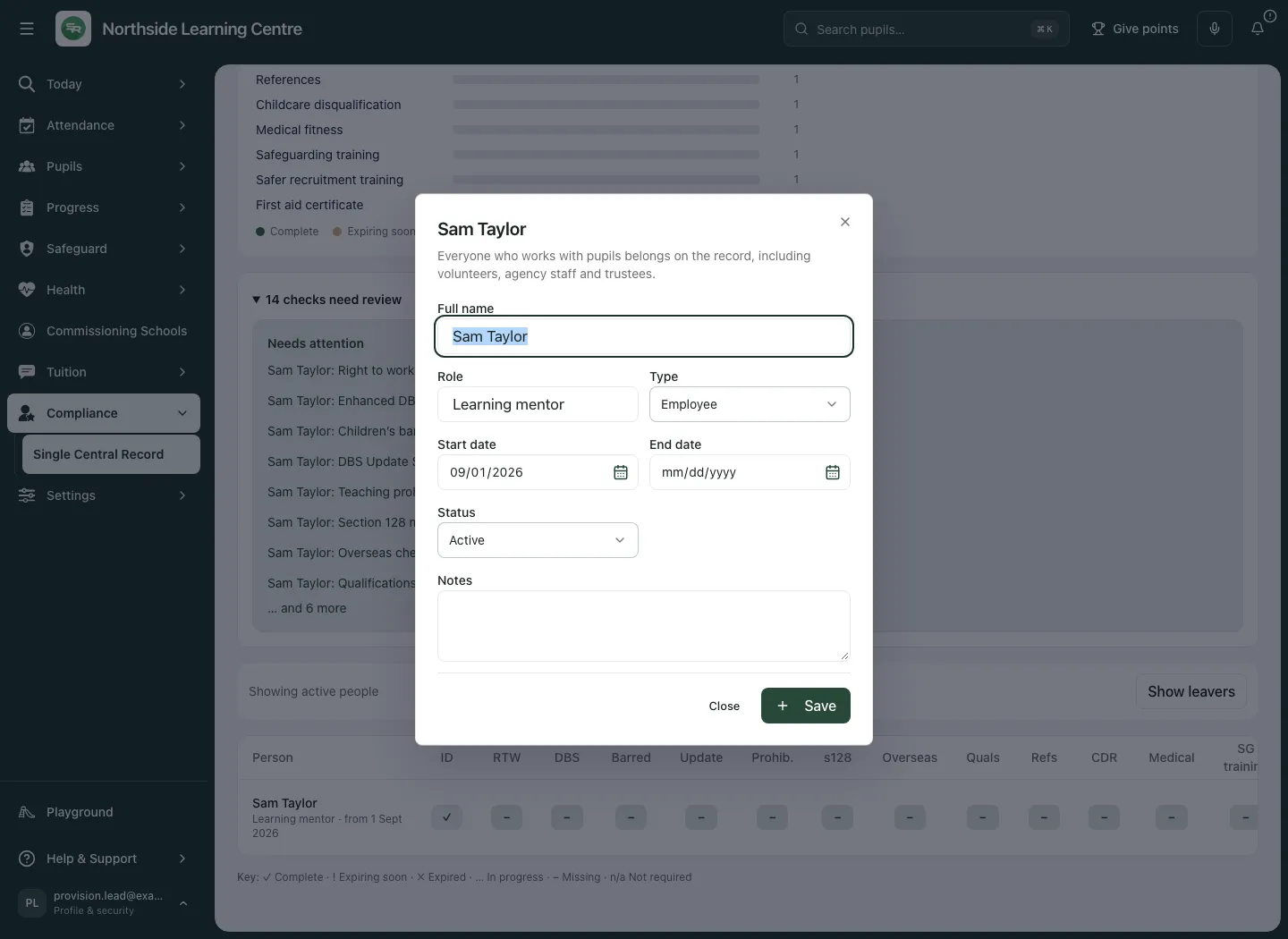
Changing the person record does not establish that their recruitment checks have been completed. Review the individual check cells separately.
3. Record a recruitment check
Section titled “3. Record a recruitment check”- Select the exact check cell for the exact person, such as Children’s barred list for Sam Taylor. A direct check link can also open this editor.
- Read the check title and person again before entering anything.
- Choose Status to reflect the authorised reviewed outcome. Use an in-progress or not-required state only when justified; do not mark Complete simply to improve the percentage.
- Enter Reference or certificate number, Completed on, the offered expiry/recheck date where applicable, and Verified by. An expiry field may be labelled for the particular check.
- Add Notes and select Evidence document where an appropriate canonical document is available. A reference is not a substitute for checking the evidence.
- Choose Save check once. While saving, keep the draft unchanged and wait for the result.
- Reopen the cell and verify the state, dates and reference against the source evidence.
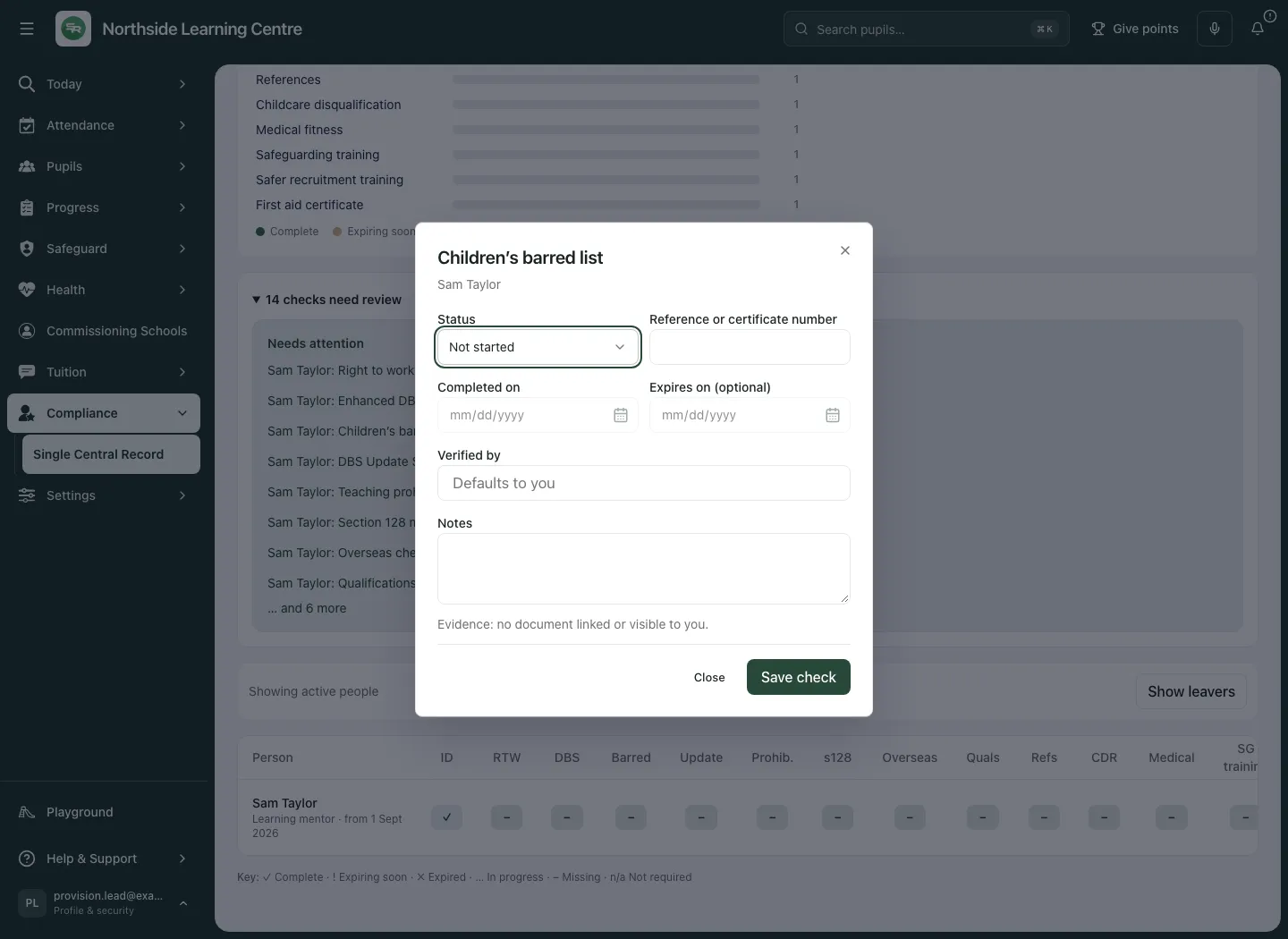
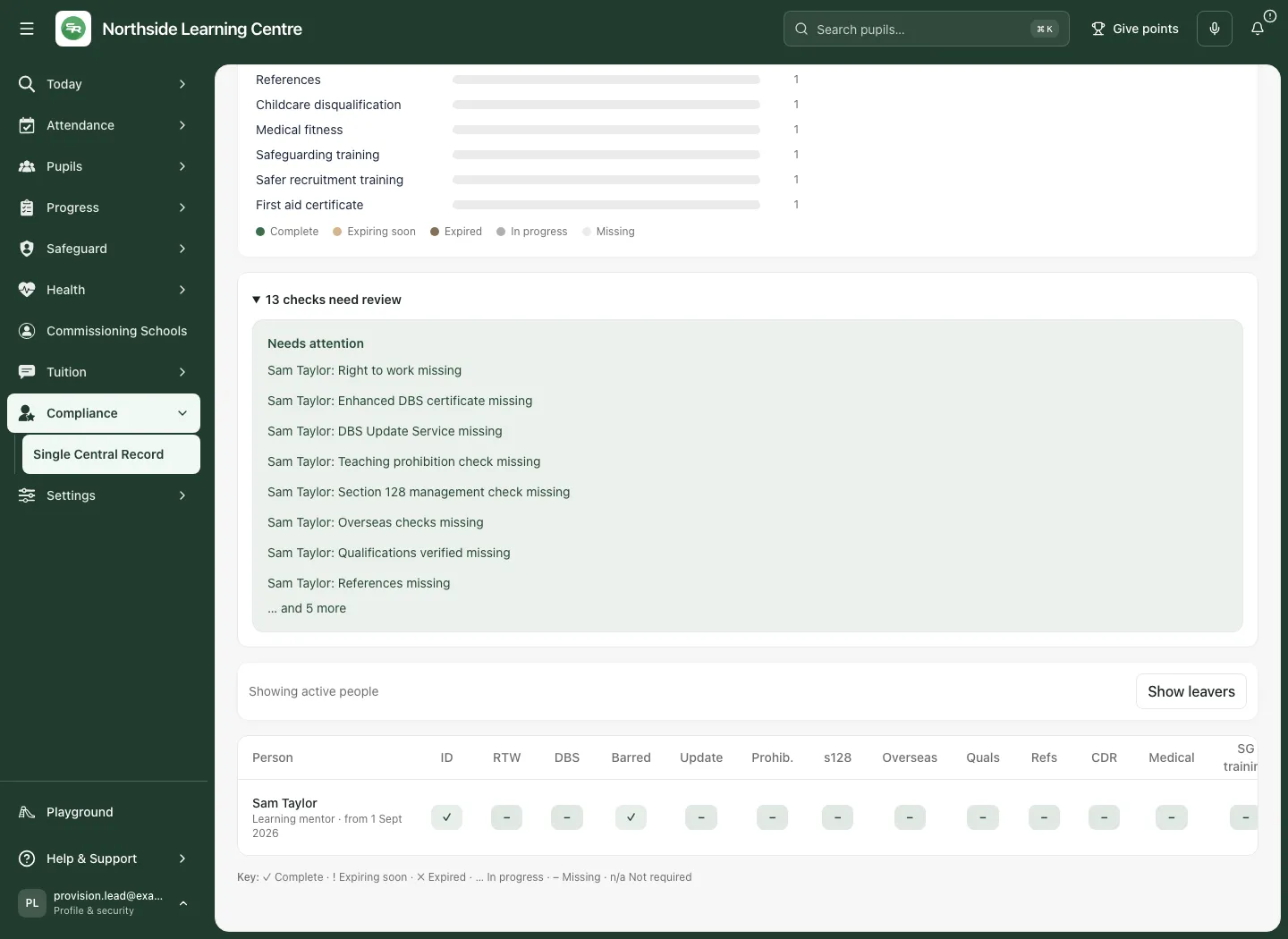
The check record is the owned source here. A saved status does not grant deployment permission or replace a separate suitability decision. If the page reports a changed record or uncertain result, retain the original draft, refresh/check the current record and follow the offered recovery message before attempting a fresh decision.
4. Review training alongside the record
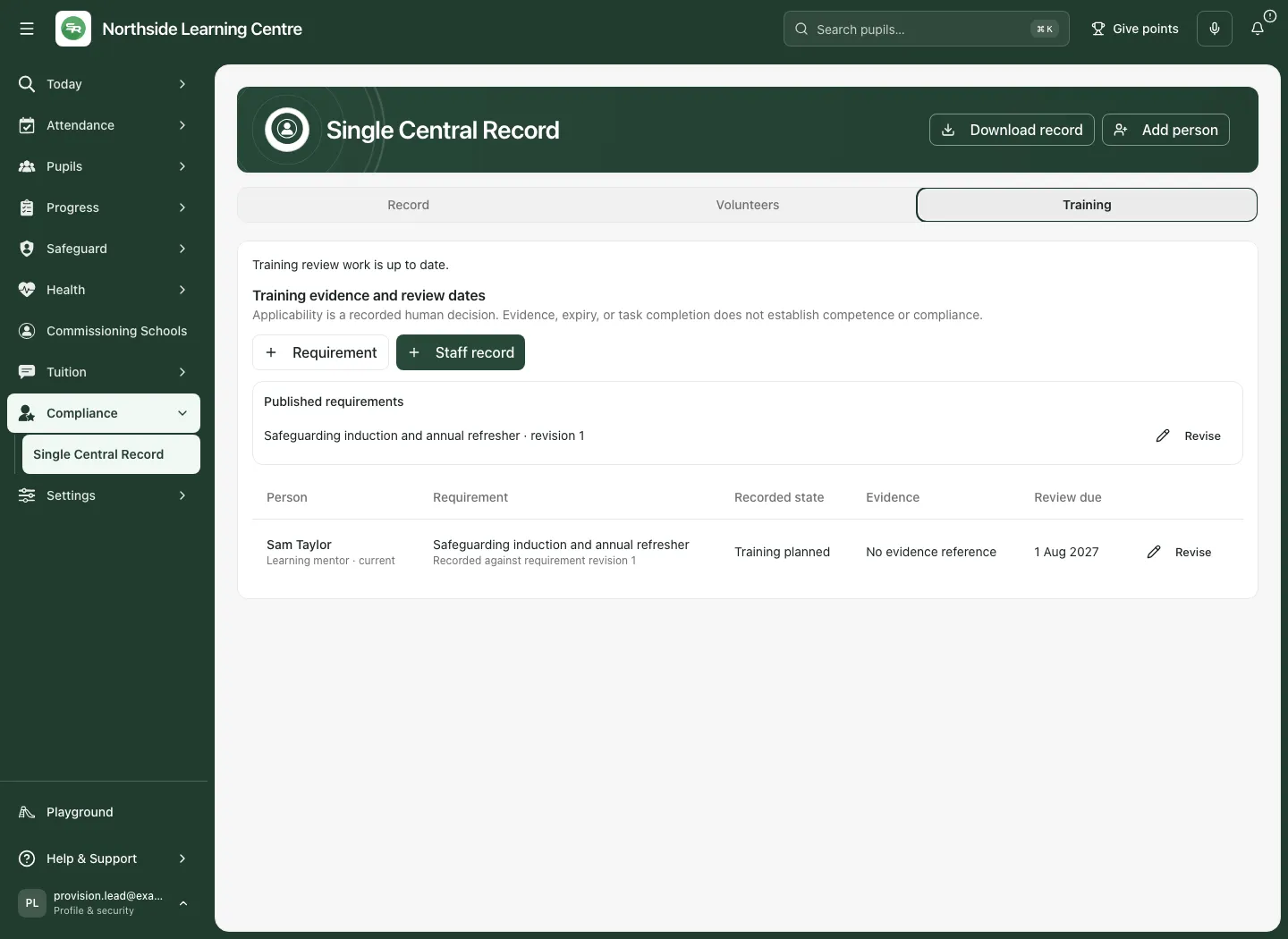
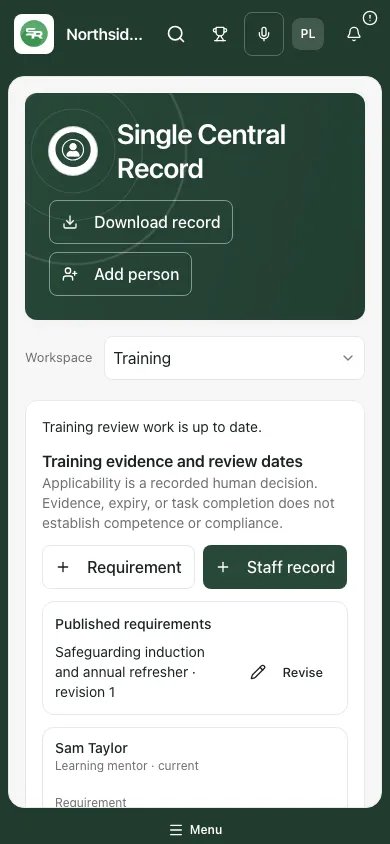
Section titled “4. Review training alongside the record”- Choose Training, or use the section chooser on a phone.
- Read the requirement, recorded state, dates, human review and evidence for the relevant person.
- Distinguish the recorded lifecycle from the human applicability/review decision. A planned course, completed course and reviewed evidence are different facts.
- Open available source/review links to inspect the original record. Access to a link’s destination is checked separately.
- If review work is pending after a source save, use Retry review work. Do not submit the training decision a second time to repair its follow-up work.
5. Publish a training requirement revision
Section titled “5. Publish a training requirement revision”This requires training-management access.
- Choose Requirement to add one, or the existing requirement’s revise action.
- Enter Requirement and Description. Select Potentially applicable worker types and record Role wording for human review. These guide a human decision; matching a role title does not determine applicability automatically.
- Set Validity days (optional), Warning days, Effective from and Effective to (optional). Validity is 1–3,650 days when supplied; warning is 0–365 days. Read validation before continuing.
- Select Evidence reference required when the requirement needs it. To retire an existing requirement, choose Retire this requirement and provide Retirement reason.
- Review the revision and choose Publish revision. This publishes the requirement definition; it does not record anyone’s attendance or completion.
- Reopen the requirement and review the new revision. Keep historical decisions attached to their original requirement revision.
6. Record or revise staff training
Section titled “6. Record or revise staff training”- Use the training panel’s add-record action, or the row’s revise action.
- Choose Person and Current requirement revision. Check the person is current; leaver records are not available for a fresh training revision.
- Set Human applicability decision and Recorded lifecycle. Add Applicability rationale where the decision needs explanation.
- Enter Recorded completion date, Recorded expiry date, Review due and Human review outcome as supported by the evidence.
- Where required, supply Canonical document ID and Exact document version ID. Add Evidence note and Outcome note to explain the human review without copying excessive personal information.
- Choose Record revision, wait for confirmation, then reopen the row. A new revision preserves the earlier source decision.
- If the result is uncertain, use Recover original save result with the original fields/reference retained. If the source saved but review work is pending, close and use Retry review work instead of resubmitting.
7. Record volunteer deployment separately
Section titled “7. Record volunteer deployment separately”- Choose Volunteers. If needed, add a person with Type Volunteer first.
- Read the volunteer’s clearance/attention message and required-check details before planning cover. Missing source data makes clearance unavailable; it is not clearance.
- Choose Record deployment or Edit deployment for that volunteer.
- Enter Volunteer role, choose Sessions they help with and add Activities (optional).
- Make the explicit Regulated activity decision: In regulated activity or Not in regulated activity. Read the associated DBS/barred-list guidance. The decision must follow the authorised assessment, not a convenient way to remove a warning.
- Choose Supervising staff member. Review Count as an adult for staffing ratios and lone-working cover only if appropriate: the application limits this to required checks being in place and a supervisor named.
- Choose Save deployment, wait for confirmation and reread the volunteer card and attention messages. A deployment entry and its recruitment checks are separate records.
8. Download the record deliberately
Section titled “8. Download the record deliberately”- Check whether Show leavers is intended and make sure the source records loaded successfully.
- Choose Download record where your role/session offers it.
- Wait for the download to be prepared. The application records the export before releasing the dated CSV; a refused export does not produce a file.
- Handle the downloaded staff record using your organisation’s approved storage and sharing process. A spreadsheet copy will not refresh when the source changes.
Troubleshooting
Section titled “Troubleshooting”- A button is missing or read-only: reading, recruitment-check management, training management and downloading have different boundaries. Demo/governor restrictions may also apply.
- Totals are unavailable: retry the source load. Do not interpret missing data as no outstanding checks.
- A check appears missing: open the precise person/check, verify applicability and look for the original evidence before recording a state.
- An expiry looks unexpected: check the recorded date and check-specific field meaning. Review the evidence rather than changing a date to remove a warning.
- A save is uncertain or stale: keep the original decision, inspect the current revision and use the offered recovery route. Avoid duplicate submissions.
- Training saved but follow-up work failed: retry review work; the source decision may already be saved.
Questions
Section titled “Questions”Does 100% prove our organisation is compliant? No. It describes the recorded checks in scope. Authorised staff must assess applicability, evidence quality, recruitment requirements and suitability.
Does completing training prove its effect on practice? No. Record the training fact and the human review/outcome separately.
Can I delete history by marking someone as a leaver? Leaving changes the active view; it is not deletion of their retained check history.
Can a document link grant someone access to a restricted record? No. Each destination applies its own access checks.
Related: AP Evidence Store.