Respond to a subject access request for a pupil
Written for: Alternative provision leaders, DSLs and staff who handle data protection requests.
When a pupil, or a parent or carer on their behalf, asks for a copy of the information your provision holds about them, Subject access in Audit and Retention works out your response deadline and takes you through answering the request. Each step opens the place in Student Radar where you do that part.
Work out your deadline
Section titled “Work out your deadline”- In the sidebar, open Compliance and choose Audit and Retention.
- Click Subject access.
- Under Pupil, start typing the pupil’s name and choose them from the list. The list only has pupils you can already see.
- Enter the Date received: the day the request arrived.
The page then shows:
- Respond by: one calendar month from the date received. If that date falls at a weekend, it moves to the Monday.
- Latest, if complex: you can take up to two more months for a complex request, as long as you tell the requester why within the first month.
- Pupil ID in the export: the ID that marks this pupil’s records in the AP record export.
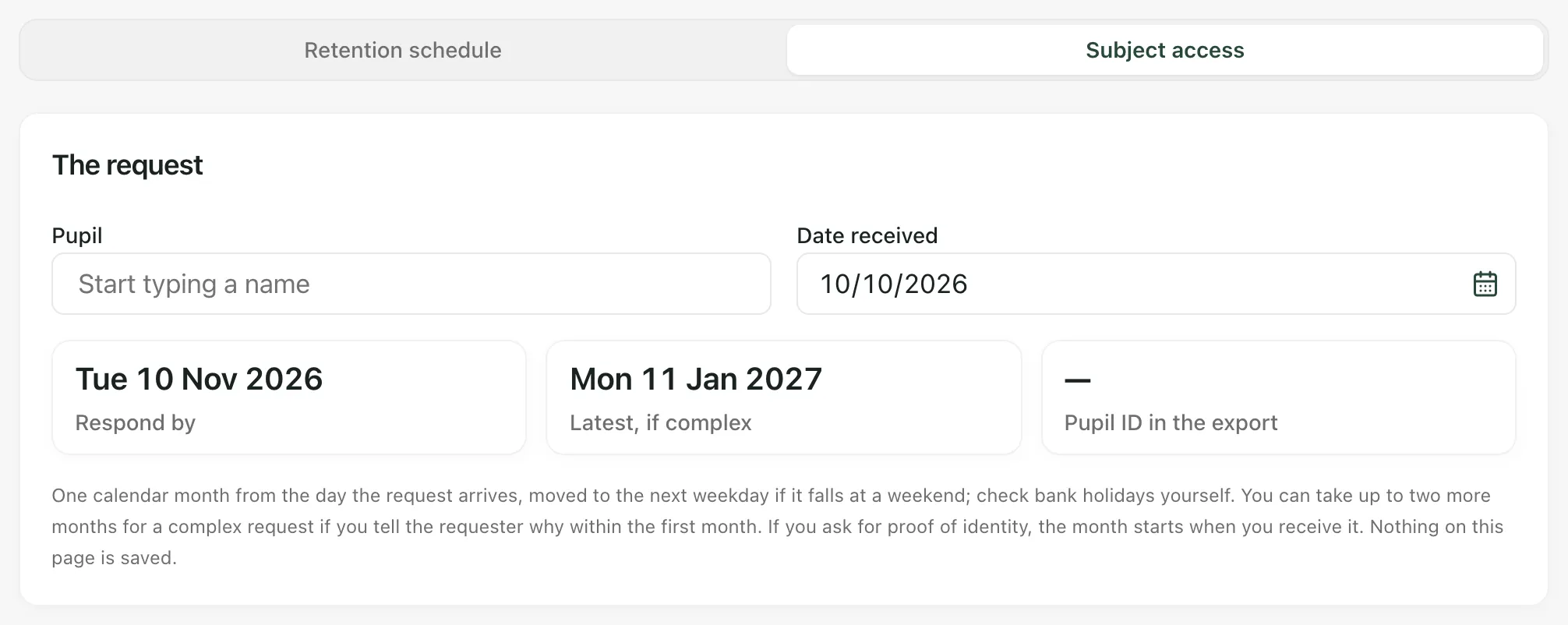
The page doesn’t know bank holidays, so check those yourself. If you ask the requester for proof of identity, the month starts when you receive it, so enter that date instead.
Nothing you enter here is saved. Keep the dates with your own record of the request. To check the pupil’s details, click Open pupil record.
Answer the request
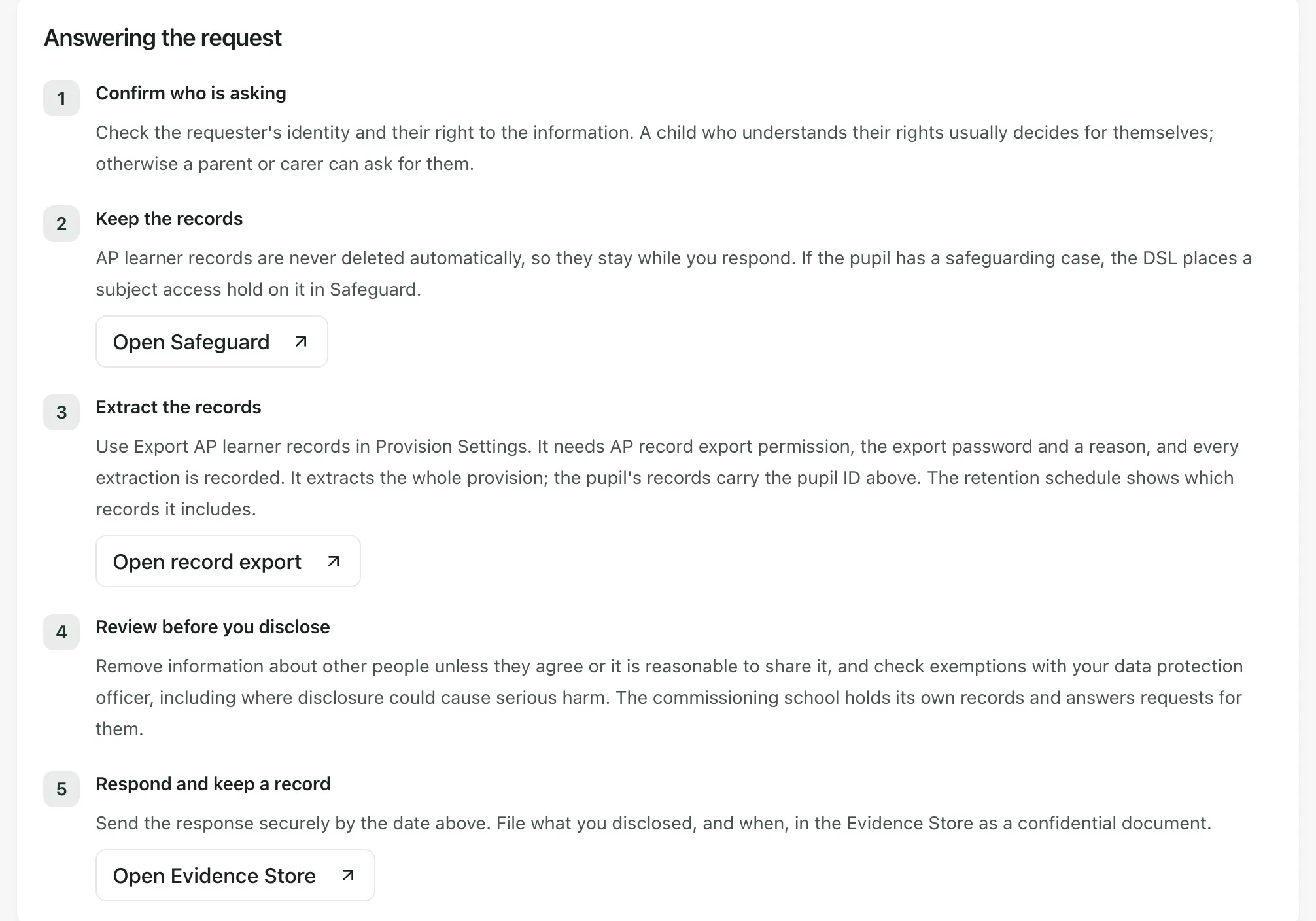
Section titled “Answer the request”Under Answering the request, the page lists five steps. The guidance is a prompt for your own judgement, not legal advice, so check anything you’re unsure of with your data protection officer.
1. Confirm who is asking
Section titled “1. Confirm who is asking”Check the requester’s identity and their right to the information. A child who understands their rights usually decides for themselves. Otherwise, a parent or carer can ask for them.
2. Keep the records
Section titled “2. Keep the records”Student Radar never deletes AP learner records automatically, so they stay while you respond.
If the pupil has a safeguarding case, your DSL places a subject access hold on it:
- Click Open Safeguard and open the pupil’s case.
- Open People & access.
- Under Case retention holds, choose the subject access reason.
- Enter a Hold review reference of at least 10 characters, then click Place hold.
Only staff who can place holds on the case see this form.
3. Extract the records
Section titled “3. Extract the records”- Click Open record export. Provision Settings opens.
- Open the Setting Profile tab. Export AP learner records is at the bottom.
- Enter the AP export password.
- Under Reason for extraction, say why you’re exporting, in at least 20 characters. For example, mention the subject access request and the date it arrived.
- Click Extract learner records, then download every part and the manifest.
The export covers your whole provision. Find this pupil’s records by the pupil ID on the Subject access page. To see which kinds of record the export includes, check Record export on each card in the retention schedule. See Check how long your provision keeps its records.
Every extraction is recorded. The downloaded files aren’t encrypted, so save them somewhere secure.
4. Review before you disclose
Section titled “4. Review before you disclose”Remove information about other people unless they agree or it’s reasonable to share it. Check exemptions with your data protection officer, including where disclosure could cause serious harm.
The commissioning school holds its own records about the pupil and answers requests for those.
5. Respond and keep a record
Section titled “5. Respond and keep a record”Send your response securely by the Respond by date. Then click Open Evidence Store and file a record of what you disclosed, and when, as a confidential document.
- Who can do each step: each step opens a page that checks your access on its own. Placing a hold needs safeguarding case access, usually your DSL’s. Exporting records needs AP record export permission, which your access administrator gives to named staff, and the export password, which an export administrator sets.
- Who can open the page: leaders and safeguarding leads can open Audit and Retention by default. If you can’t see it under Compliance, ask your Provision Lead for access.
If something doesn’t work
Section titled “If something doesn’t work”| What you see | What to do |
|---|---|
| The pupil isn’t in the Pupil list | You can only choose pupils you can already see. Ask a colleague who works with the pupil, or your Provision Lead. |
| Respond by shows a dash | Enter a full Date received. |
| No Export AP learner records section on the Setting Profile tab | You don’t have AP record export permission. Ask your access administrator, or a colleague who has it. |
| “An authorised export administrator must set the password before extraction.” | Ask your export administrator to set the AP export password. |
| “The AP export password was not accepted.” | Check the password with your export administrator and try again. |
| “Too many password attempts. Try again next hour.” | Wait an hour, then try again with the right password. |
| “The daily export limit has been reached. Try again tomorrow.” | Try again tomorrow. |
| “Export incomplete. Download the manifest for the missing sources or files; do not use this as your complete migration record.” | Download the manifest to see what’s missing, then extract again. Don’t rely on an incomplete export for your response. |
| “Export settings could not be loaded. Check your access or retry later.” | Refresh the page. If it keeps happening, ask your access administrator to check your permission. |
| “Hold decision capability is unavailable in the current scope.” | You can’t place holds on this case. Ask your DSL. |