Record AP consent decisions and preserve later changes
Written for: AP staff checking standing consent and permitted colleagues recording verified decisions.
Choose the pupil and consent purpose, record the decision actually received and preserve later refusals or withdrawals in history. It is an advisory record: it does not grant staff access, obtain consent from a family or automatically permit an activity, medicine, trip or disclosure.
Open the permitted consent register
Section titled “Open the permitted consent register”Open Pupils → Records → Consent Records in the AP sidebar. Check the provision. The register can include permitted active pupils with a future start; it is not the current on-roll denominator. Assigned colleagues see their permitted pupils rather than every learner at the provision. Reading and recording are separate rights; some colleagues may see records without an edit action. A read-only demo cannot record a decision.
A missing pupil, an access refusal or an unavailable source is not Not recorded. The current reader does not offer consent history for a pupil whose active record is no longer accessible, so do not promise that this screen provides every leaver’s history. Use the provision’s authorised retained-evidence process when needed.
The examples are fictional. Check the actual scope of the decision, who can make it, the evidence received and your provision’s procedures before relying on an answer.
Ask the right purpose question under Can I?
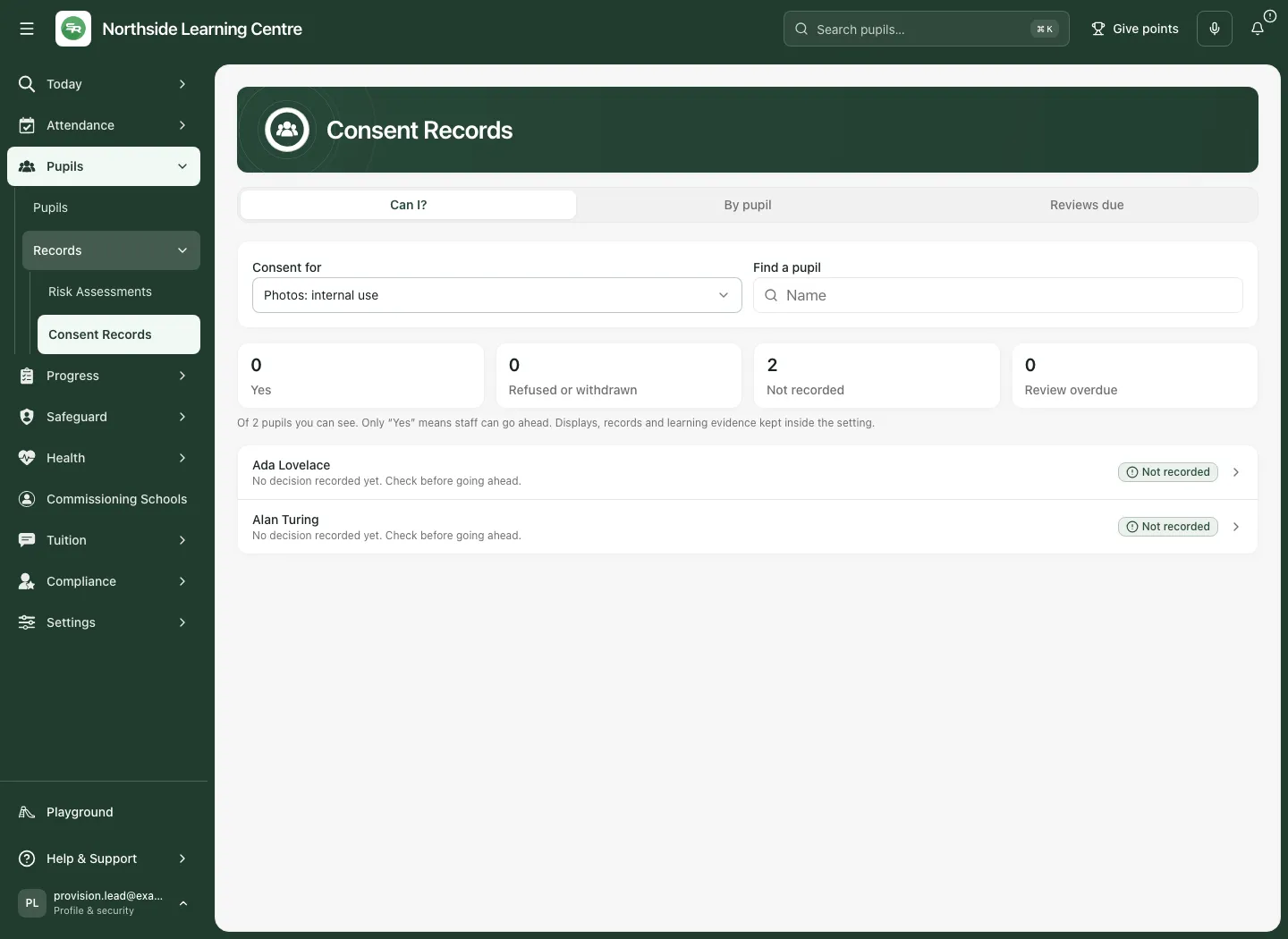
Section titled “Ask the right purpose question under Can I?”- Select Can I? and choose Consent for.
- Read the purpose’s wording and hint, not just its chip colour.
- Search the permitted list by pupil name if needed, then inspect the actual pupil’s answer and date.
- Select the pupil to read the decision, who gave/refused/withdrew it, how it was received, effective date, review date and history.
| Purpose | Distinction to keep |
|---|---|
| Photos: internal use | Internal displays, records and learning evidence; it is separate from social media and marketing. |
| Photos: social media | The setting’s social media accounts; internal-photo consent does not cover it. |
| Photos: marketing | Website, leaflets, press and funding bids; do not infer it from another photo purpose. |
| Off-site activities and trips | Standing routine off-site context; a trip in Trips still has its own consent workflow. |
| Medication | Standing provision record; each medicine still needs its own consent in Medications. |
| Emergency medical treatment | The recorded standing emergency-treatment purpose, not a clinical instruction or proof a family cannot be reached. |
| Sharing with the commissioning school | The recorded sharing scope; it does not itself publish records, establish another legal basis or give a recipient access. |
Read all five answer states
Section titled “Read all five answer states”| Answer | Practical reading |
|---|---|
| Yes | An in-date recorded given decision for this purpose. Check its scope and other required authorities; the chip alone does not approve the whole action. |
| No, refused | A recorded refusal. Do not treat it as no reply. |
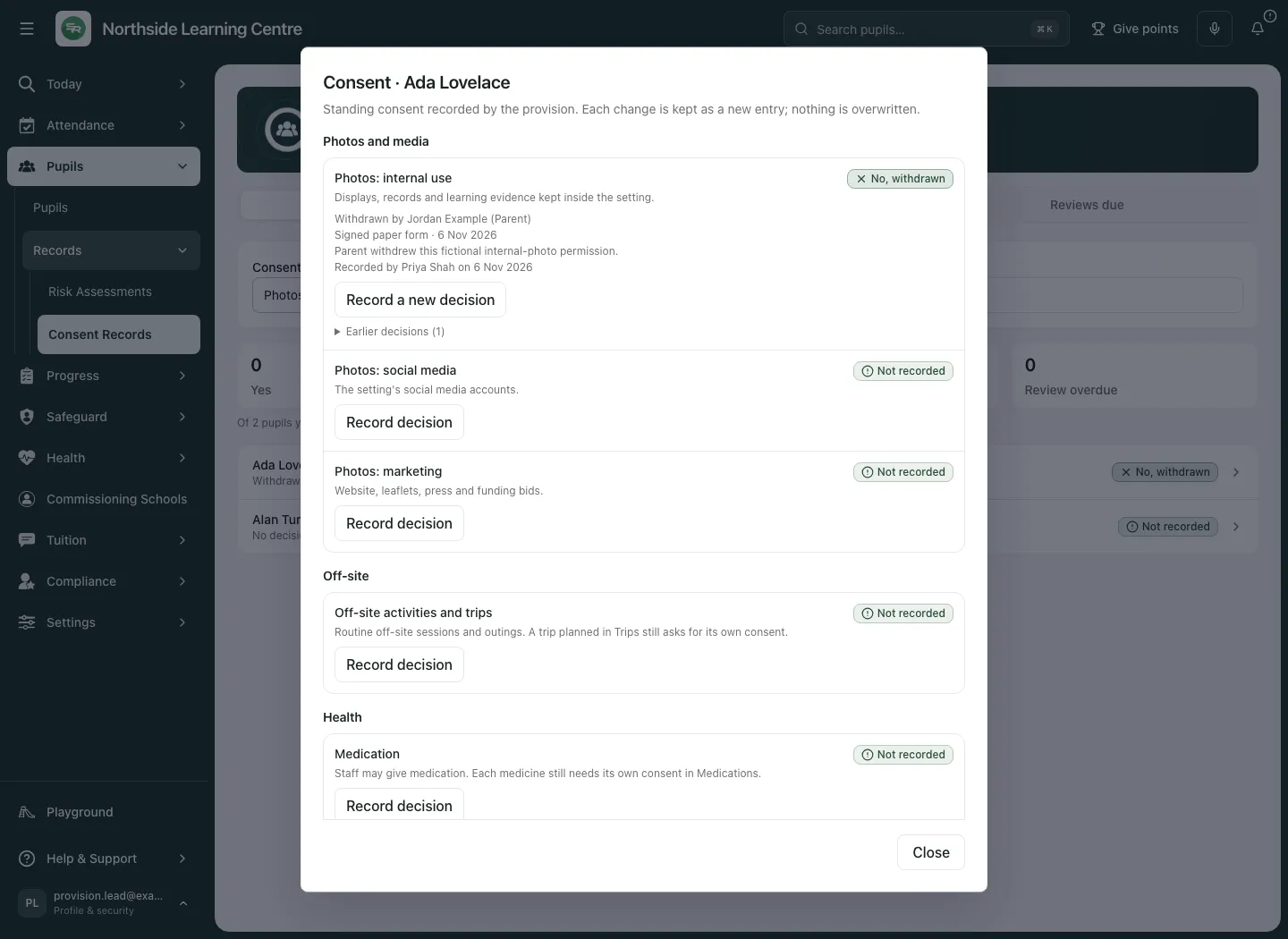
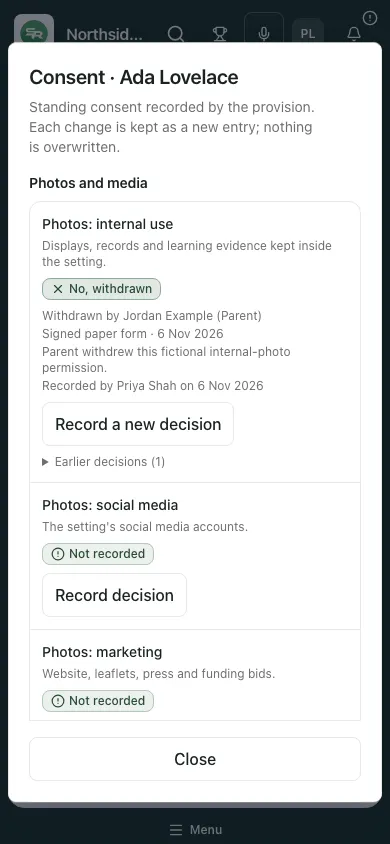
| No, withdrawn | A later withdrawal. Read the effective date and history rather than rely on the earlier Yes. |
| Review overdue | A previously given decision whose review date has passed. Check before relying on it. |
| Not recorded | No current decision in the permitted source. Check first; it is not an assumed Yes or a refusal. |
A review date of today is due today, not yet overdue; overdue begins after the review day. An unreviewed answer does not automatically become renewed. Dates follow the school source date.
The Can I? counts apply to the selected purpose. Search narrows the displayed rows, while counts retain the permitted register scope. Read the coverage note. A truncated register says Showing the first 1000 pupils you can see; those figures describe that bounded list, not every pupil at the provision. Named contextual reads are also bounded and cannot reveal an excluded pupil’s answer.
Record the decision actually received
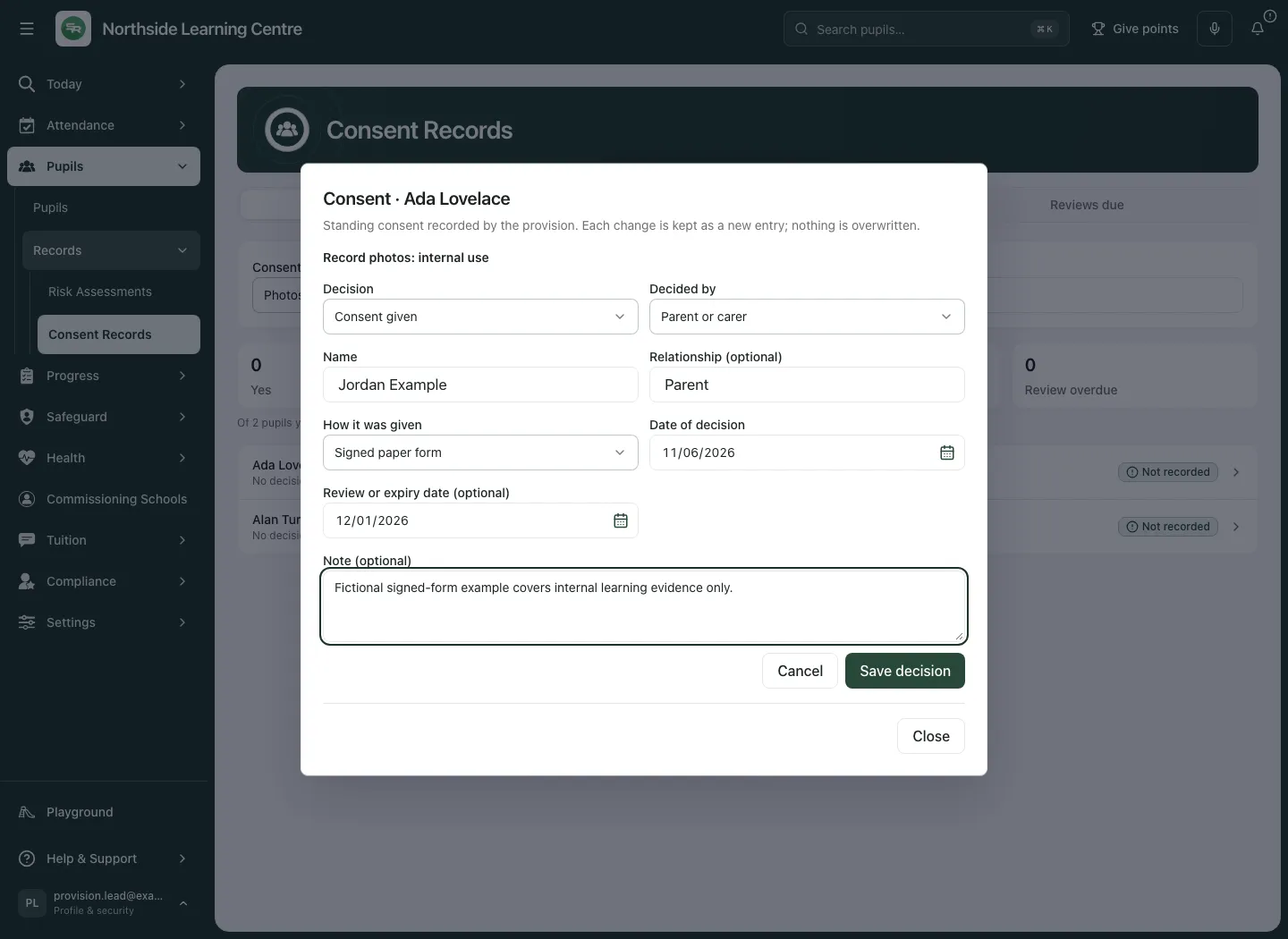
Section titled “Record the decision actually received”- Open the correct pupil. In the relevant purpose, select Record decision, or Record a new decision if there is already history. The form is for one purpose, not all seven.
- Under Decision, choose Consent given or Consent refused. Record a refusal as refused; do not select given merely to complete the form.
- Under Decided by, choose Parent or carer or Young person.
- For a parent/carer, enter Name (up to 200 characters) and optional Relationship (up to 100). This is free text, not a verified contact picker or identity check. For a young person, enter Why they can decide for themselves, at least three and up to 500 characters, reflecting the actual assessment made by the responsible professional.
- Choose How it was given or How it was refused: Signed paper form, Online form, Email, Telephone, In person or Referral pack. Choose the actual channel; selecting it does not retrieve or verify the evidence.
- Set Date of decision to today or earlier, within the last 3,660 days and not before the current recorded decision’s effective date. Use the actual date rather than today’s date to bypass a restriction.
- If agreed, set Review or expiry date (optional). It must be after the decision date and no more than 3,660 days later. Leaving it blank means no review date was recorded, not permanent validity.
- Add Note (optional) if useful, up to 1,000 characters. A supplied note needs at least three characters. Keep the purpose and limits clear without copying unnecessary sensitive material.
- Select Save decision. Wait for Consent decision saved, then check the current answer and recorded details. Reopen after refresh if you need to verify the saved state.
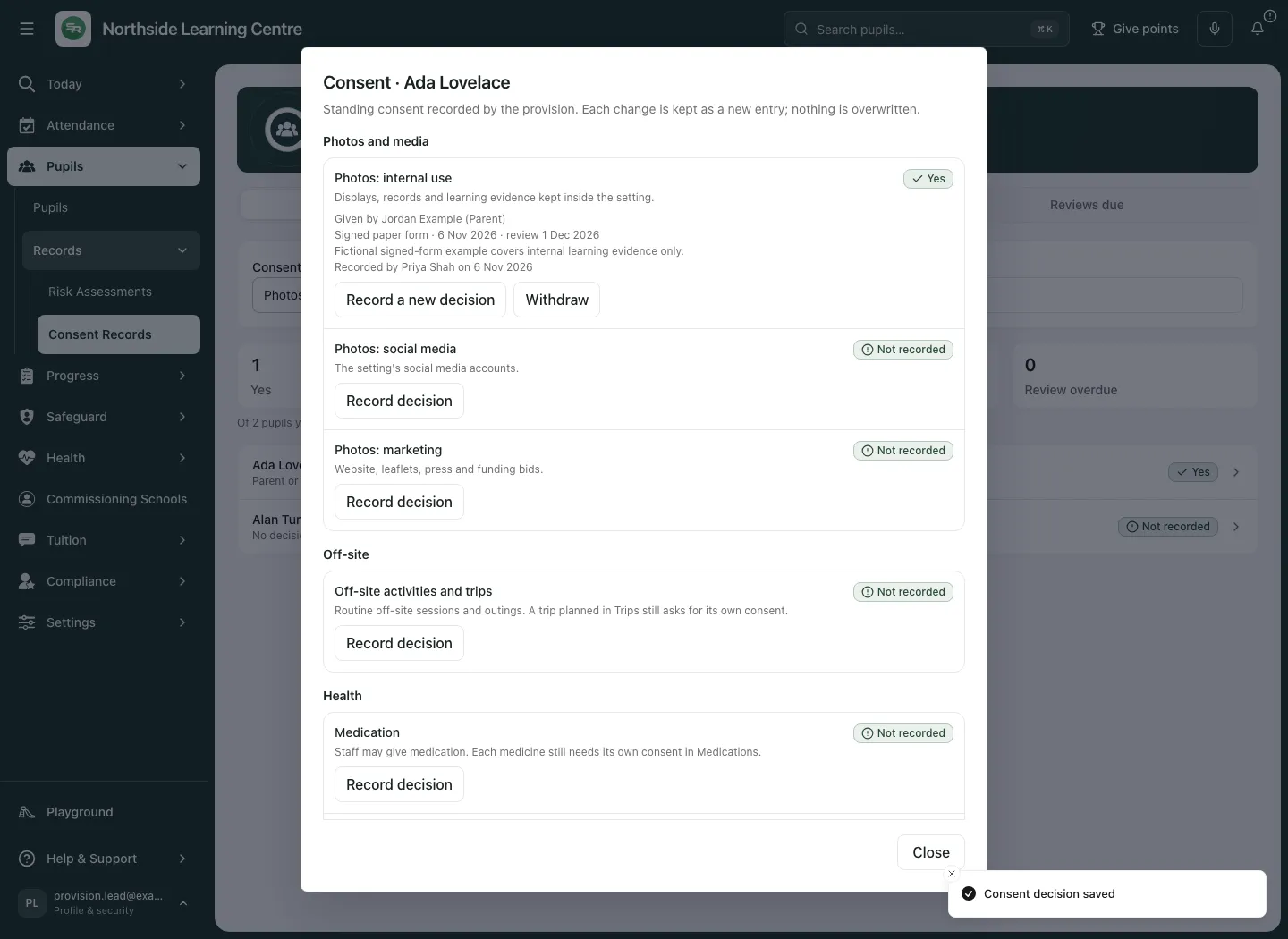
Each change is a new decision entry. A linked contact may be retained only where the same person is recorded again; the free-text form does not independently create a new verified contact relationship. If a previously linked contact is no longer current, the history says so.
Check the pupil-wide picture and reviews
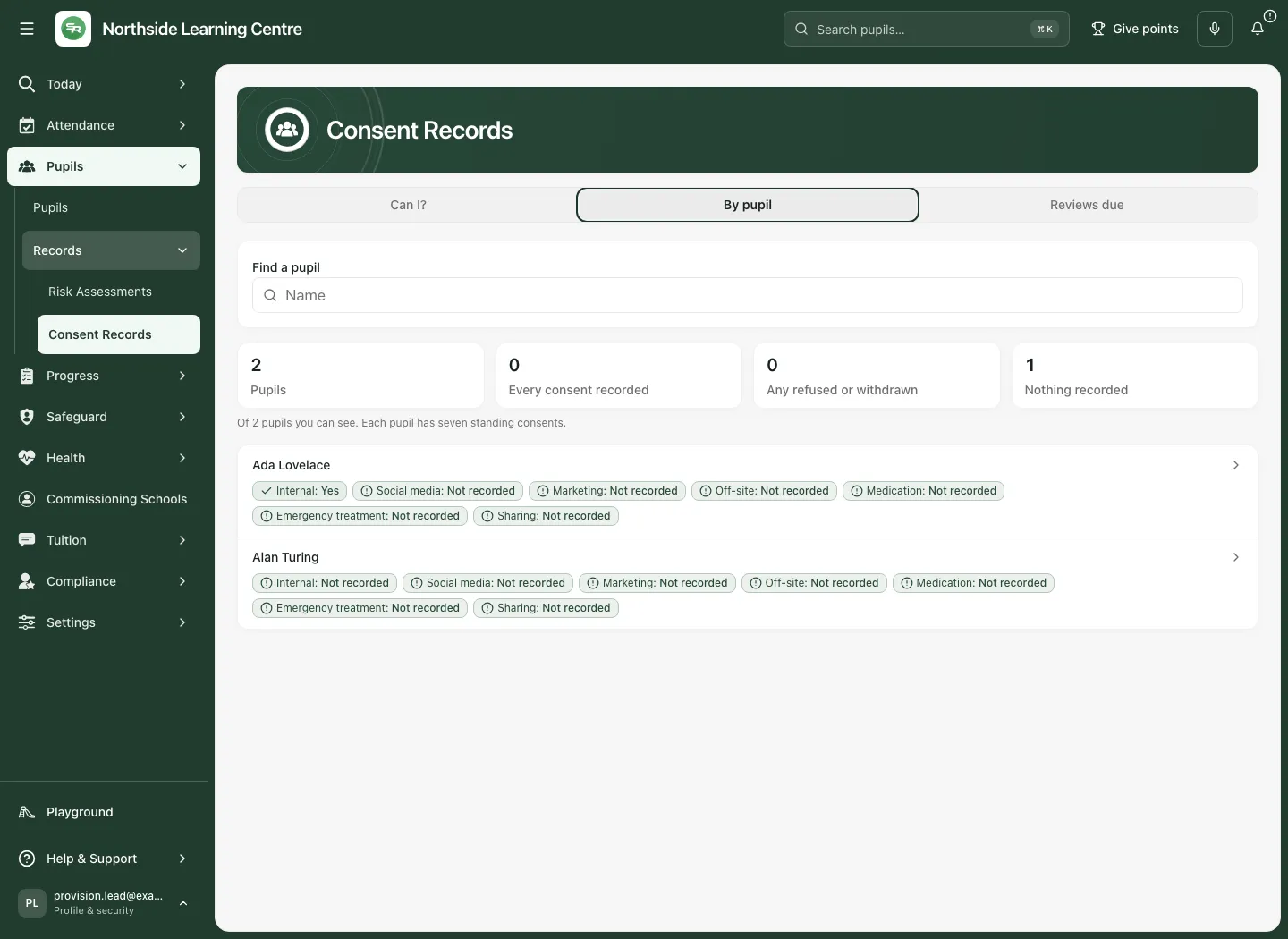
Section titled “Check the pupil-wide picture and reviews”Select By pupil to see the purposes grouped as Photos and media, Off-site, Health and Sharing. Read each chip separately. One Yes is not blanket consent for the pupil; other purposes can remain unknown or refused.
Select Reviews due to find Review overdue and Due in 30 days. This is a count of purpose decisions, so one pupil can contribute more than once. Open the relevant row, read the existing evidence and record a new decision when a real review establishes one. Merely opening or reading the old decision does not renew it.
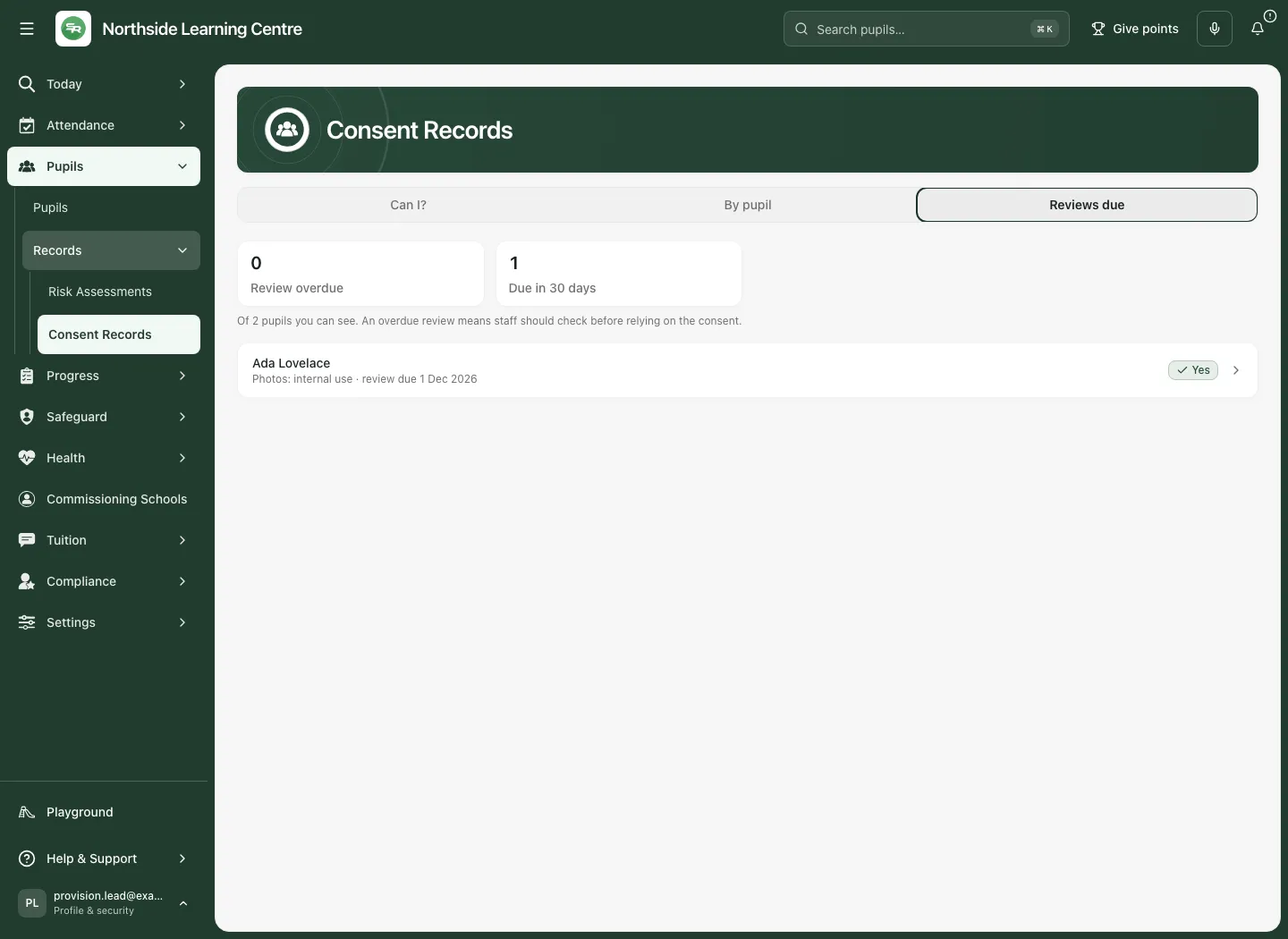
The Reviews list does not automatically create My Actions or Calendar items. Arrange the actual review and any owned work through the provision’s agreed process; an overdue chip is a prompt, not a completed notification.
Withdraw a previously given decision
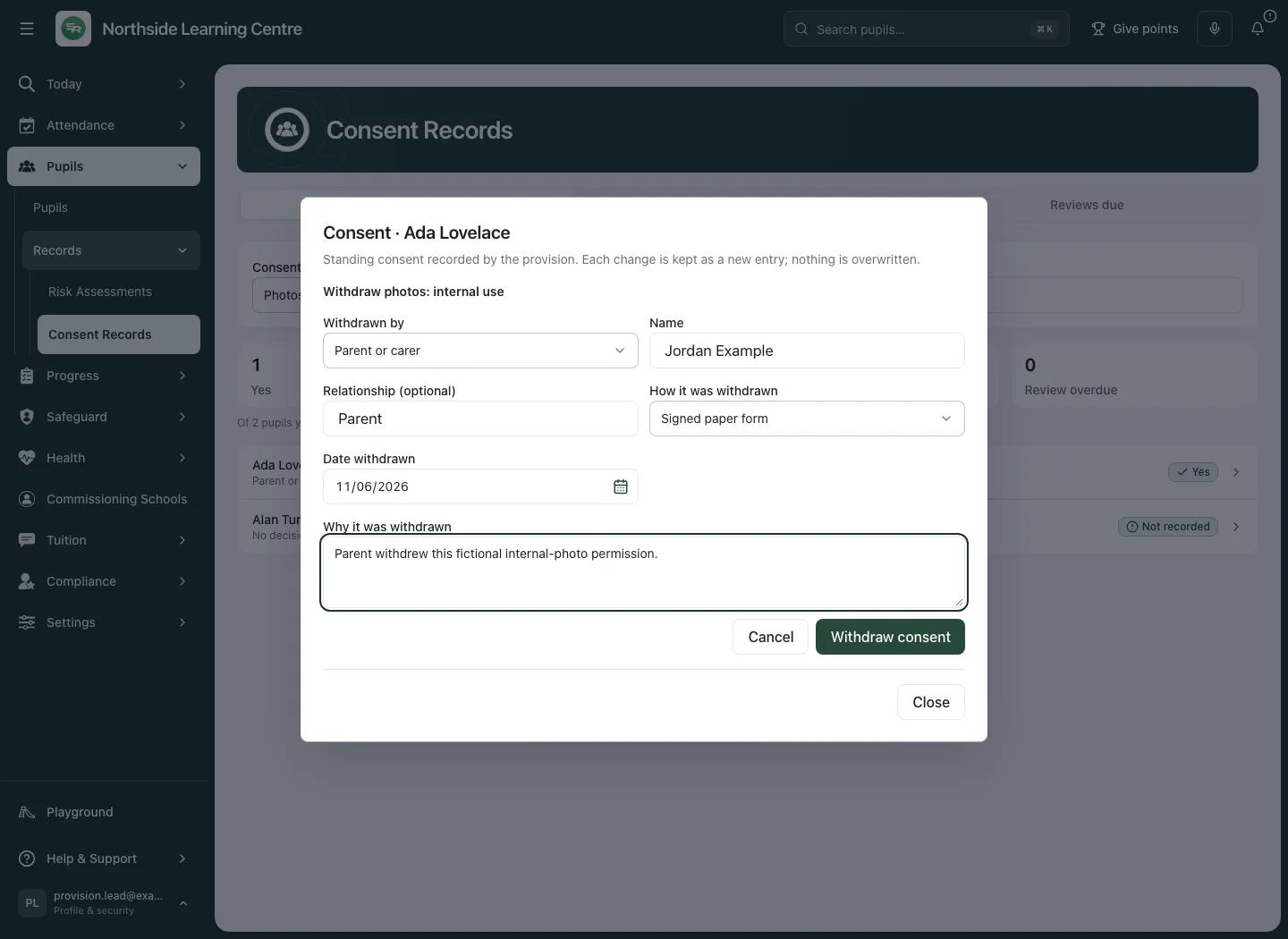
Section titled “Withdraw a previously given decision”- Open the correct pupil and purpose, then inspect the current given decision. Only a current given record offers Withdraw; an already refused/withdrawn or superseded source cannot be withdrawn again as though still given.
- Select Withdraw.
- Check Withdrawn by, their Name/relationship or young-person assessment, and How it was withdrawn. Confirm the actual person and channel.
- Set Date withdrawn, today or earlier, within the supported date window and on or after the current decision’s effective date.
- Enter Why it was withdrawn, at least three characters. Review/expiry is cleared for the withdrawal; it is a new negative decision, not a future review reminder.
- Select Withdraw consent and wait for Consent withdrawn. Reopen after refresh and check No, withdrawn.
- Follow up any affected planned activity, evidence use or sharing through its own authorised process. This record does not automatically recall publications, stop a medicine, cancel a trip or notify everyone who saw the earlier answer.
Read the earlier decisions without erasing them
Section titled “Read the earlier decisions without erasing them”Expand Earlier decisions (N) under the purpose. Compare the effective date, method, giver, note and Recorded by details. The current answer comes from the latest decision; an old given entry is history, not continuing permission after a withdrawal. The source retains the latest 70 entries per purpose within its bounded history read and warns when older decisions are omitted.
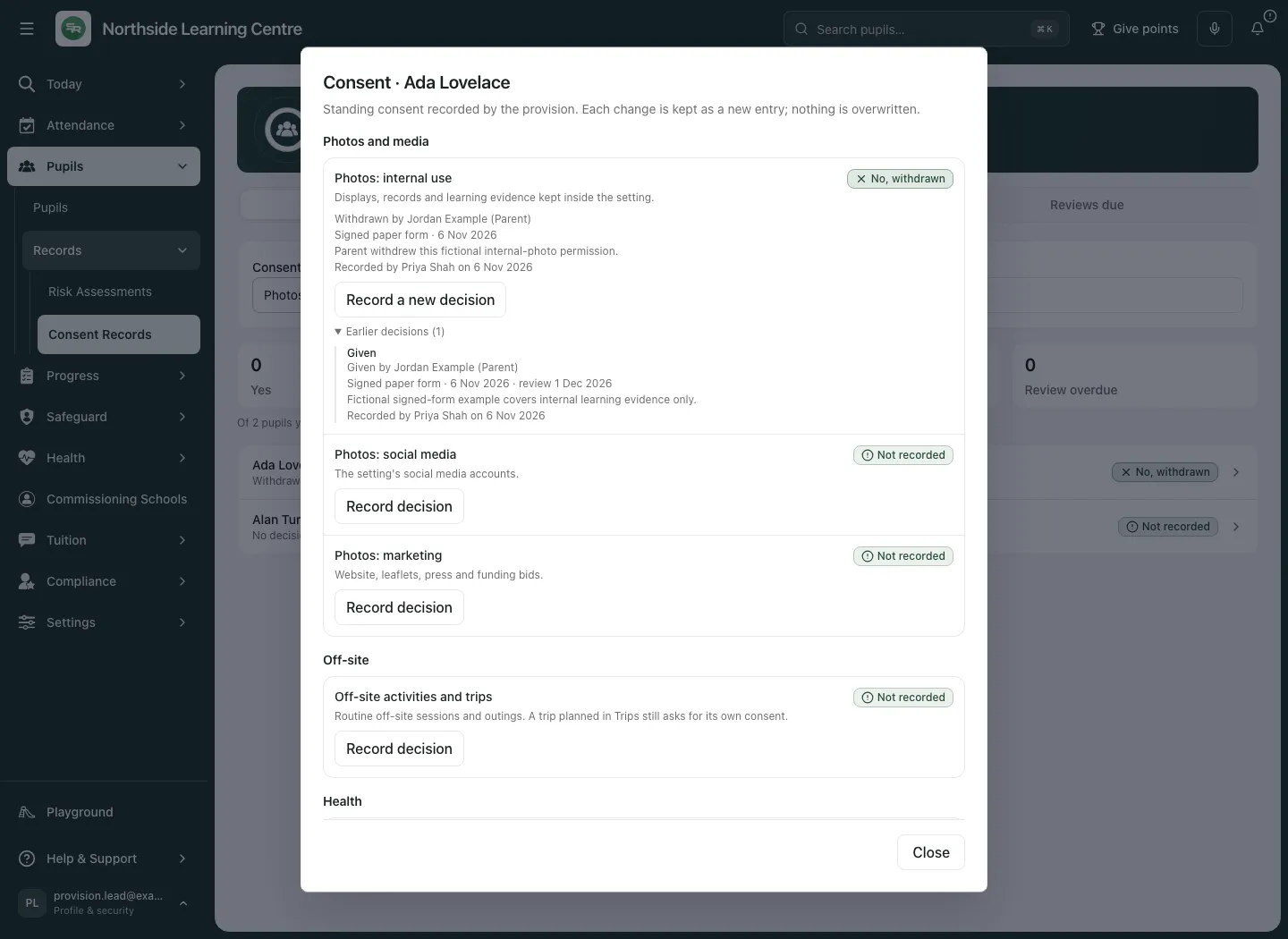
To record a later genuine change, use Record a new decision and the actual current evidence. Do not edit history to make a withdrawal disappear.
Recover carefully from a conflict or closed form
Section titled “Recover carefully from a conflict or closed form”The form saves against the revision it opened on. If someone else or an earlier save changed that purpose, the app re-reads the latest decision and tells you it was updated. Compare it before starting another form; a background refresh does not silently grant permission to overwrite the newer decision.
A failed re-read can preserve the typed form so you can retain your work. Cancel closes the current form. The outer dialog can also be closed while a save is sending: closing does not cancel an already sent command. Read the result notification. Consent decision not saved or Consent not withdrawn means the requested outcome was not confirmed, even if the form has disappeared. A refusal after closing may require entering the intended details again after checking the current source.
Changing pupil or provision drops the old draft rather than applying it to another identity. Before retrying a lost response, re-read the current purpose and use the existing request/recovery behaviour rather than submit a different decision repeatedly.
Use contextual hints and the phone view
Section titled “Use contextual hints and the phone view”Consent chips can appear beside permitted outreach rota sessions, trips, session-photo evidence, placement-sharing approvals and the pupil profile’s placement context. Not every workflow displays them or blocks an action automatically. Always check the original consent record and the separate specialist authority.
Where offered, Per-medicine consent opens Medications focused on this pupil, subject to access. Standing medication consent does not replace the named medicine’s consent, prescription or administration workflow.
If information cannot be confirmed
Section titled “If information cannot be confirmed”| Situation | What to do |
|---|---|
| AP or consent access cannot be confirmed | Use Try again where offered and check the intended provision. Do not label the source empty. |
| Pupil absent from permitted results | Check current identity/access with the responsible colleague; absence is not a No/Yes consent answer. |
| History missing or truncated | Read its coverage warning and use the authorised evidence process; do not claim complete history. |
| Invalid date, missing giver or reason | Correct the actual evidence. Review must follow decision; a withdrawal needs a reason and a currently given source. |
| Latest decision changed | Re-read it and decide again; do not reuse an old form as authority to overwrite. |
| Rate-limit/network or uncertain save | Wait if asked, check the result notification and fresh source before repeating the command. |
| A different workflow still allows an action | Consent Records is advisory, not an automatic enforcement gate. Apply the required professional and organisational checks. |
Common questions
Section titled “Common questions”What should I check before recording a consent answer?
Section titled “What should I check before recording a consent answer?”Confirm the pupil, specific purpose and decision actually received. The record is advisory and does not obtain the family’s consent.
How should I record a later withdrawal?
Section titled “How should I record a later withdrawal?”Record the changed decision through the consent workflow, preserving the earlier answer and evidence in history.
Related: Medication record, Plan a trip, Placement sharing, Student Radar support.