Record statutory assessments and standardised test results
Choose the check, actual assessment date and visible cohort before entering marks or judgements and checking the saved result. Choose the correct assessment date/year and cohort, record the mark or judgement, and check the saved result rather than treating a typed value as complete evidence.
Screenshots use fictional pupils. Example marks and the app’s input ranges illustrate entry; they do not determine a child’s assessment or replace the current assessment instructions your school follows.
Before entering results
Section titled “Before entering results”Open Assessment → Entry → Statutory Assessments. A school’s jurisdiction can change the group name, for example National curriculum checks. Read, create and update permissions can differ for individual pupils.
A secondary school can show a primary-capture gate. Use Open primary statutory capture only when deliberately recording those primary outcomes. Open standardised tests and, where available, Open KS4 Measures provide the relevant alternatives. A configuration error must be retried before entry; it is not proof that the school has no results.
1. Read the overview as coverage, not achievement
Section titled “1. Read the overview as coverage, not achievement”Overview groups the primary checks and shows the assessment year, cohort and progress. The pupils listed are those you can assess. Not assessed with a recorded reason is different from a result still to go. Completion shows coverage of recorded outcomes, not how many pupils reached a standard.
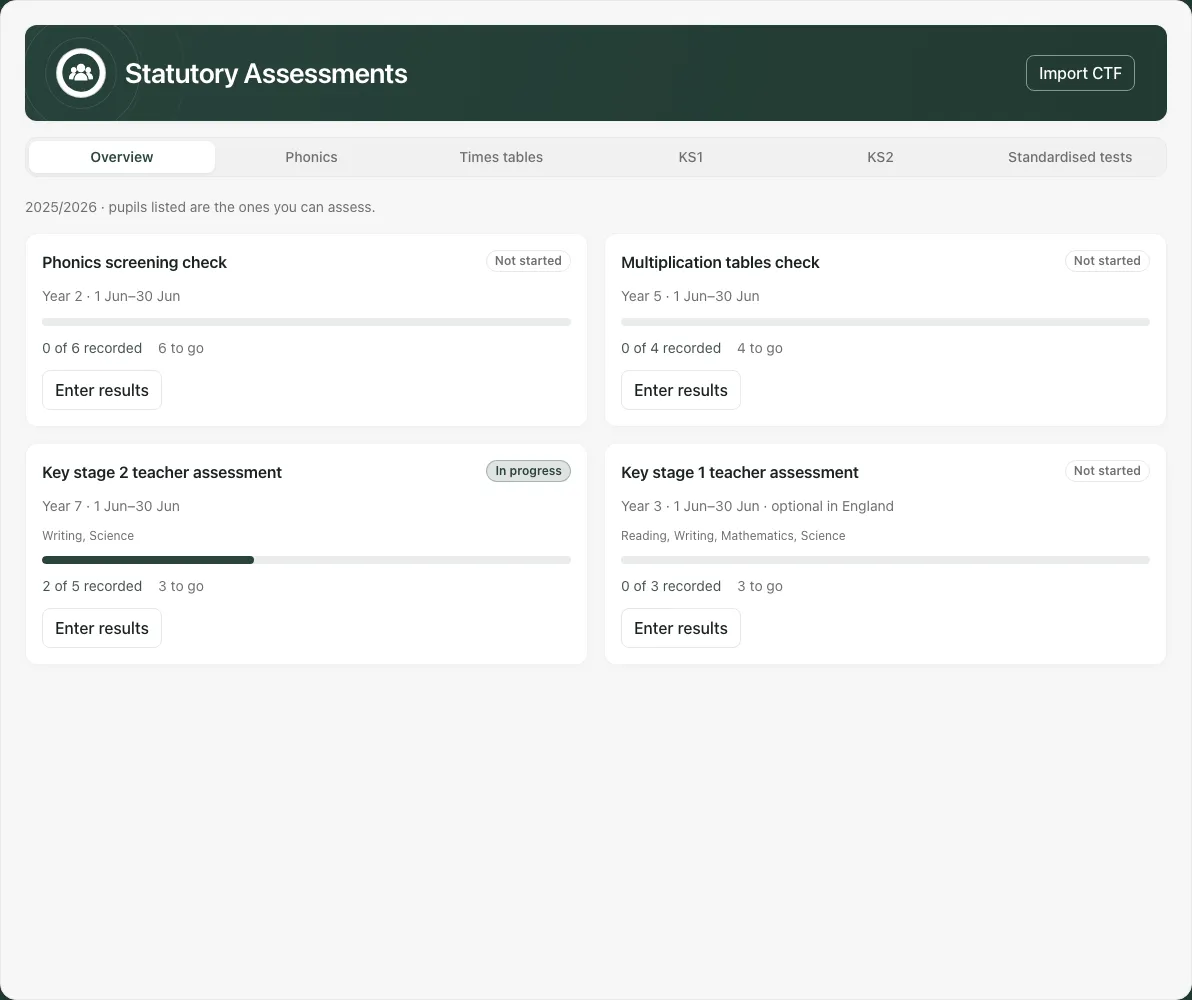
The default window can show last June’s checks outside the active summer window. Those pupils may now be in a later year group. Check the displayed assessment year/date and cohort; do not assume the current Year 1 is always the group that sat the selected phonics assessment.
2. Set the check, date and visible cohort
Section titled “2. Set the check, date and visible cohort”Choose Phonics, Times tables, KS1 or KS2. Set Assessment date to the actual assessment date. That date determines the result’s academic-year context. Review the expected-year filter and widen it only when appropriate for the pupils being recorded.
Missing only holds a snapshot of the missing rows while you complete them, so a saved pupil does not vanish immediately. Changing the assessment year or filters starts a new missing-only set. A missing row can mean a filtered-out pupil; check the cohort before concluding their result was lost.
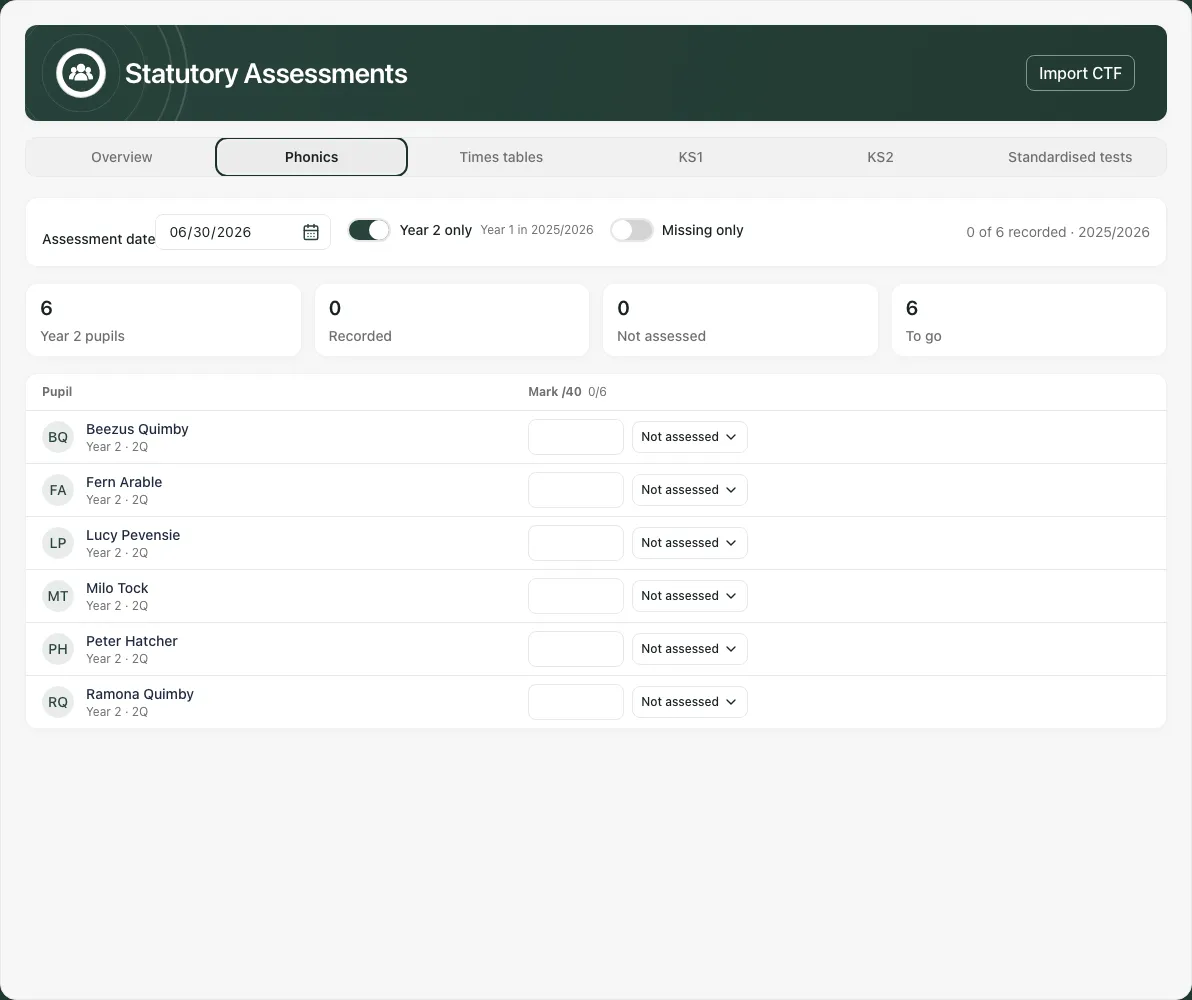
3. Enter a mark and verify the save
Section titled “3. Enter a mark and verify the save”For a mark-based check:
- Confirm the pupil’s name and year/class label on the row.
- Click the mark box or reach the cell with the keyboard. F2 or Space opens its entry control; a digit typed on the cell can start the mark.
- Enter the actual mark within the displayed range. Phonics is out of 40; MTC/practice times tables uses a whole number from 0 to 25.
- Move out of the box, for example with Tab, to commit the entry. Wait for success or a refusal message before moving to another assessment year.
- Reopen/reload the same check and assessment year to confirm the stored value.
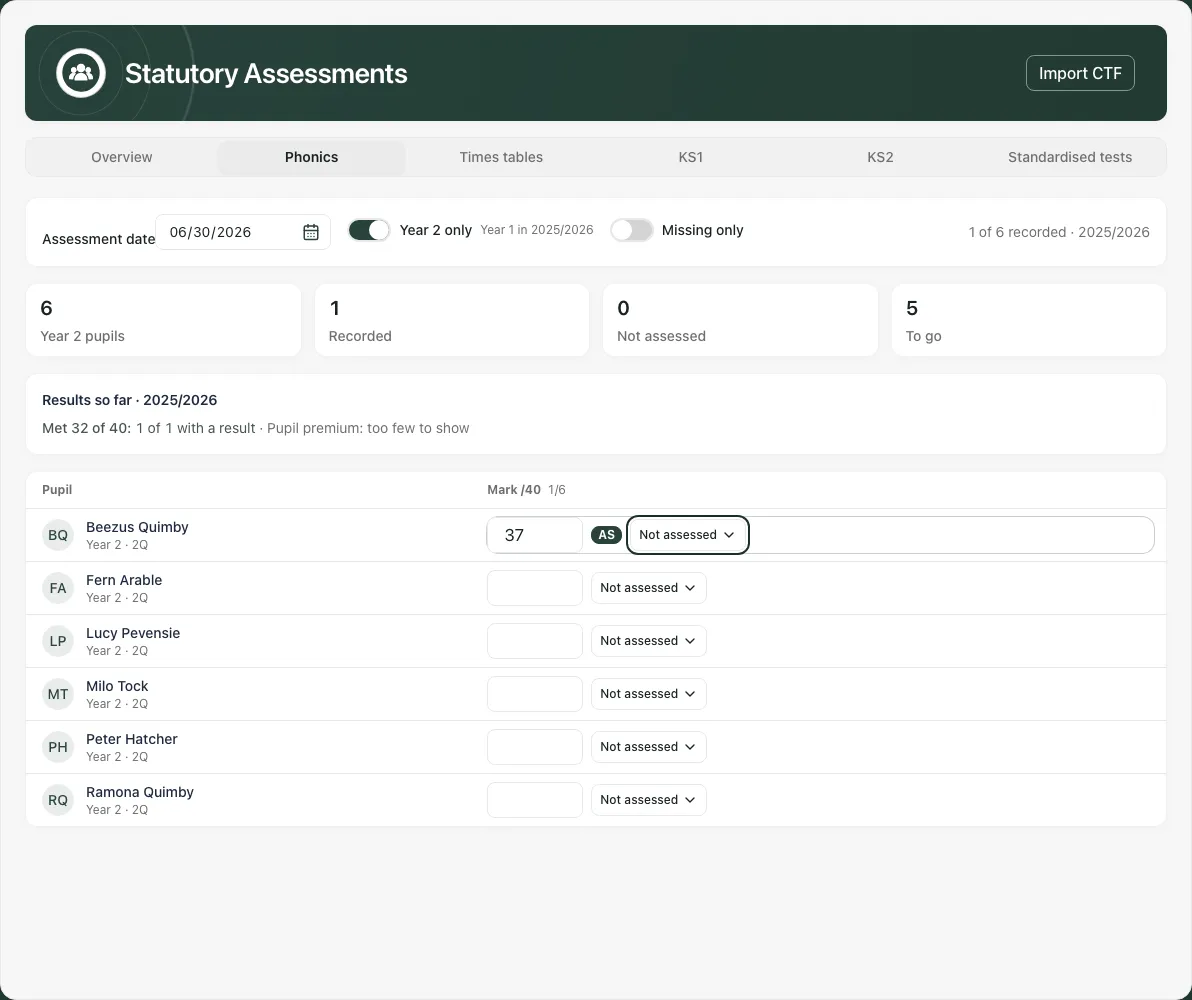
An unchanged saved mark is not resaved simply by passing through its box. A blank is not zero. Saved marks cannot be removed here by clearing the box or replaced with a reason for no result; correct the mark through the offered update process. Read any refusal instead of assuming the value was stored.
The MTC display can use a school target/status badge based on full marks. The screen also states that the statutory MTC has no pass mark. Do not describe an app target as an official pass/fail decision.
4. Record judgements and reasons deliberately
Section titled “4. Record judgements and reasons deliberately”For KS1 and KS2, select the judgement in the correct subject column. Read the description as well as the short code. More exposes the additional/pre-key-stage choices and reasons available for that specific scale.
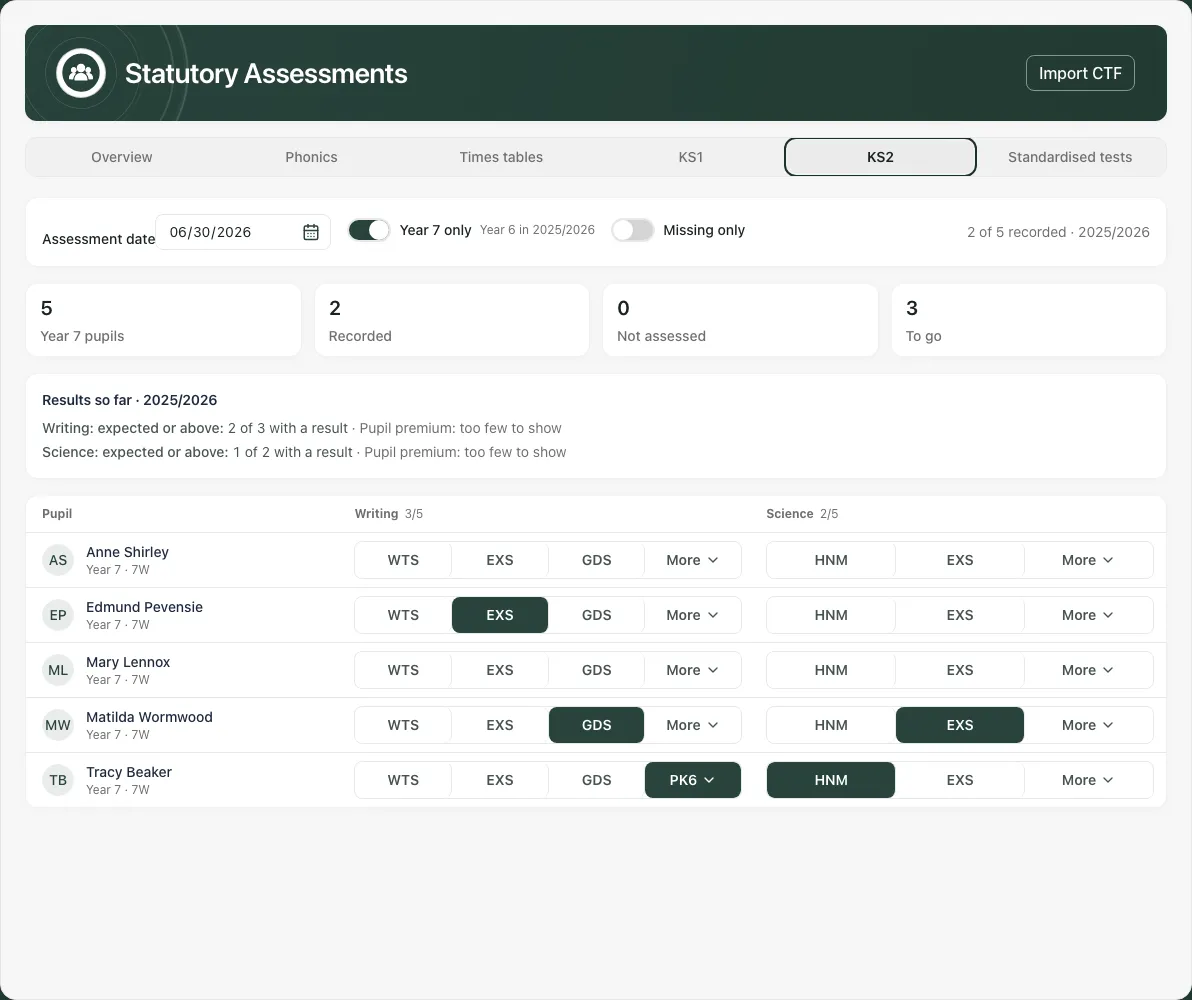
The KS1 main scale offers WTS, EXS and GDS; additional options include HNM, PK4–PK1 and EM. KS2 subjects have their own accepted options. Do not copy a code from another subject or assume the same list applies to every assessment.
If an imported or legacy result has a code outside the current offered scale, More shows the recorded code with an explanation. It must not look like an empty cell simply because the current scale does not contain it. Do not replace it merely to make the display look uniform; verify the original record and appropriate correction.
A reason such as absence records a different outcome from an unentered result. Use it only when supported by the actual assessment record. A saved mark can be locked against replacement by a reason; read the message and correct the original value where appropriate.
5. Use keyboard and fill-down with the same care as individual entry
Section titled “5. Use keyboard and fill-down with the same care as individual entry”Navigate between cells using the marksheet’s keyboard controls. Inside a judgement button, input or More menu, keys operate that control; Escape returns to the cell. Do not assume Enter on an internal judgement button merely moves to another pupil.
In coded judgement grids, Ctrl+D (Command+D on Mac) copies the selected accepted judgement to every pupil below in that column. Confirm that entire destination set before using it; it is not a mark-box fill tool or permission to infer identical outcomes. Off-scale codes are not copied. Recheck each affected row and any save refusals afterwards.
6. Read the results summary and groups
Section titled “6. Read the results summary and groups”The check summary can show pupil-premium and SEND groups as well as the overall cohort. Read group coverage and unknown results alongside outcome percentages; a filtered or incomplete set is not a whole-school benchmark. A group label is context for interpretation, not a causal explanation.
Use the selected academic year and actual assessment cohort consistently when comparing results elsewhere. Counts of recorded outcomes are not counts of improvement caused by an intervention.
7. Enter standardised test scores
Section titled “7. Enter standardised test scores”Choose Standardised tests, then Test and Test date. Options include supported times-tables practice, 11+, NFER, PTE/PTM and CAT4 presets. Check the exact score range/label for the chosen test; they are not interchangeable.
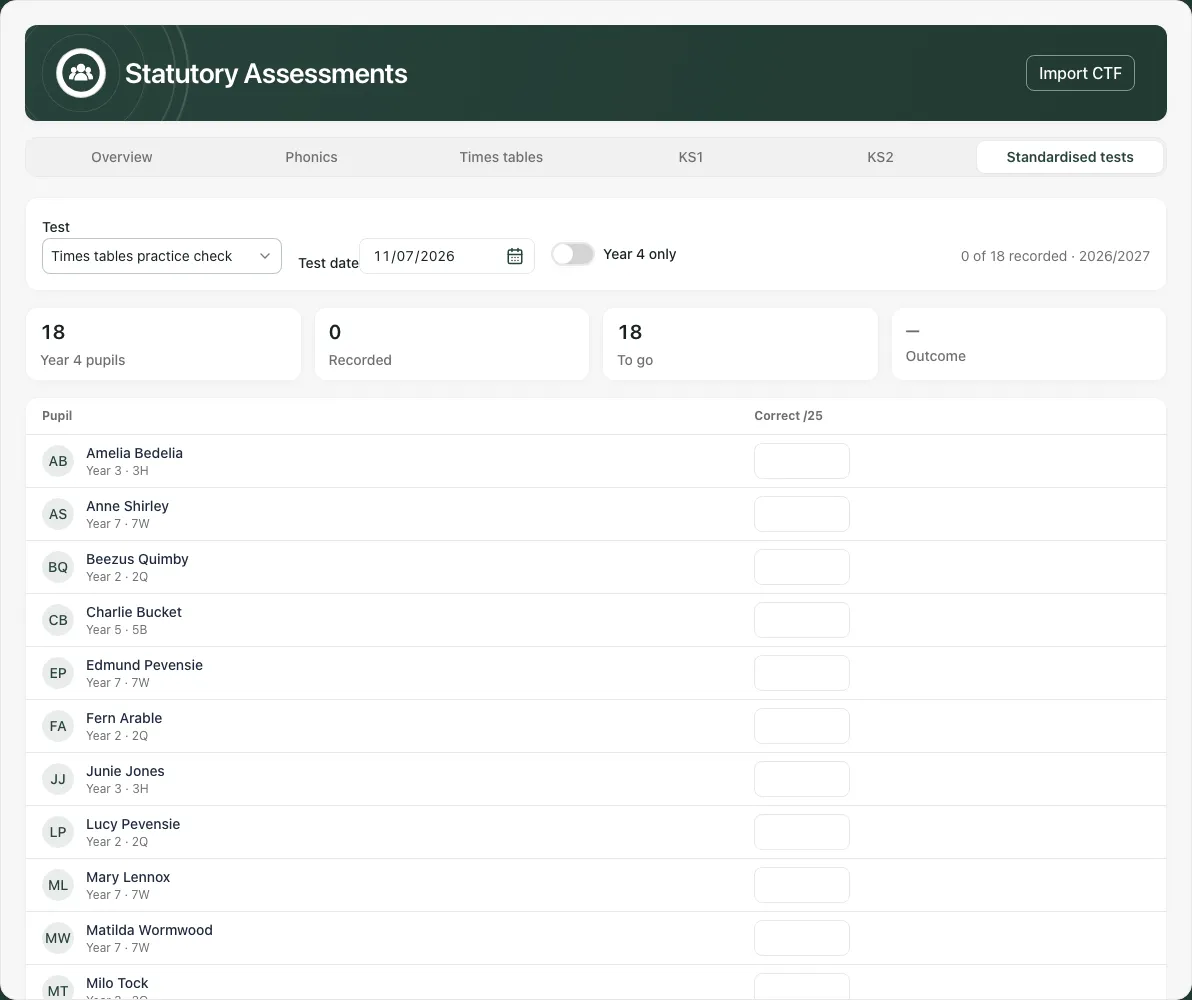
For a test with no conversion table, the screen offers Paste table or direct standard-score entry. If you already hold the publisher’s standard score, enter that score in the displayed range rather than putting it in a raw-mark field.
With a saved table, choose the correct Edition and review its raw range and completeness before entering raw marks. A raw mark absent from that edition’s table cannot be converted. Raw detail loading locks entry so an existing raw mark is not hidden while you type.
Check the resulting standard score and any displayed percentile/stanine details after saving. A failed raw-detail read can leave only the standard-score view available; it does not prove the raw mark was never recorded.
The current workflow keeps one result per pupil, test and academic year. A later term’s entry for the same test/year can replace the earlier one. Do not use it as a term-by-term history without checking that identity/retention limitation with the school assessment lead.
8. Save a publisher conversion table carefully
Section titled “8. Save a publisher conversion table carefully”Where supported:
- Choose Paste table or Change table.
- Enter Edition with the precise publisher/test version your school uses.
- In Conversion table, paste one raw-mark row per line using tabs or commas: raw mark, standard score, optional percentile, optional stanine.
- Review accepted/left-out row counts. Raw marks must be whole numbers from zero; standard scores must fit the chosen preset’s range. Correct omissions rather than assuming all pasted lines were accepted.
- Choose Save edition. Saving replaces that edition, so verify the intended complete table and avoid overwriting an unrelated version under the same name.
- Re-select/re-read the edition and check its completeness before entering marks.
To remove an edition, use its delete control and explicitly confirm Delete [edition] or choose Keep. A failed table read offers Try again; it is not the same as no saved table. Handle publisher tables according to the school’s licence/assessment arrangements.
9. Import or open related assessment records
Section titled “9. Import or open related assessment records”Import CTF, where available, opens the CTF section of Assessment Standards. Import is a separate reviewed process; opening it does not import a file. Imported teacher judgements can appear in the same marksheet, so inspect the current stored result before entering a duplicate.
Use Open Assessment & Outcomes, KS4 links or an offered pupil-record link for the relevant analysis/context. A link only opens the appropriate destination if you have access; it does not grant new assessment rights.
10. Use the phone view and recover from a refusal
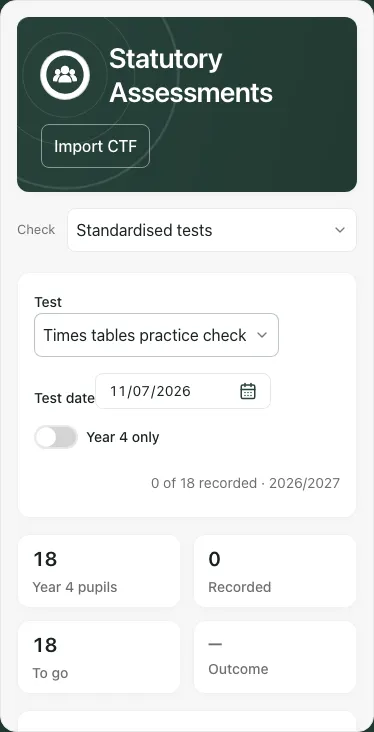
Section titled “10. Use the phone view and recover from a refusal”The phone uses a Check picker. Scroll the marksheet to the correct subject/row and verify the pupil before entering. A typed draft is tied to its assessment year and entry mode; leaving that context can discard an unsaved/refused value. It is not a saved result you can expect to find after changing year and returning.
| Situation | Next step |
|---|---|
| School assessment configuration failed | Use Retry before entry. |
| Results or pupils failed to load | Choose Try again; do not report an empty cohort. |
| Missing-only rows look different | Check year/date and current filters. |
| Mark out of range/fractional | Enter the actual value within that check’s displayed whole-number/range rules. |
| Saved result cannot be removed | Correct through the offered update route; clearing is not deletion. |
| Save refused | Read the exact permission, missing school reference, duplicate/conflict or unsupported-code message. |
| Conversion table missing a raw mark | Verify the correct edition and publisher row; do not interpolate a score. |
| New term result would replace an old one | Review the one-result-per-test/year limitation before entering. |
Common questions
Section titled “Common questions”Which date should I use for a check?
Section titled “Which date should I use for a check?”Set Assessment date to the actual assessment date. It determines the result’s academic-year context; check the cohort before entering marks.
Why is a saved pupil still in Missing only?
Section titled “Why is a saved pupil still in Missing only?”Missing only holds a snapshot while you complete the rows. Changing the assessment year or filters starts a new missing-only set.