Use AAC Echo to choose words and speak a message
Written for: Staff and supporters using an agreed AAC communication arrangement.
Open Echo, build and check a phrase, test device speech and understand the separate Interpret service before using it.
Interpret is a separate AI service. Read its data notice and check the intended meaning carefully.
Before you start
Section titled “Before you start”Check that the device, board and voice suit the communicator’s agreed support arrangements. Echo is a separate board served by Student Radar’s website. Opening it from a pupil workspace does not automatically save messages to that pupil’s record, create a communication log or share an ISP.
Use non-identifying words for Interpret. The notice explains that the phrase and button text are sent to Student Radar and OpenAI to create the spoken result. Do not enter names or other identifying details. Review the linked privacy information for retention/provider details; do not assume every Echo operation is offline or private to the device.
The screenshots use a generic fictional phrase. Check the actual device audio and available voice before use.
Open Echo from Student Radar
Section titled “Open Echo from Student Radar”Open Inclusion → SEND → Reference → AAC (Echo). The workspace title is AAC Board.
If Echo can be embedded in the supported app host, it appears within the page with Reload and an option to open separately. In environments that cannot frame it, the page says Echo opens in its own tab here: select Open Echo.
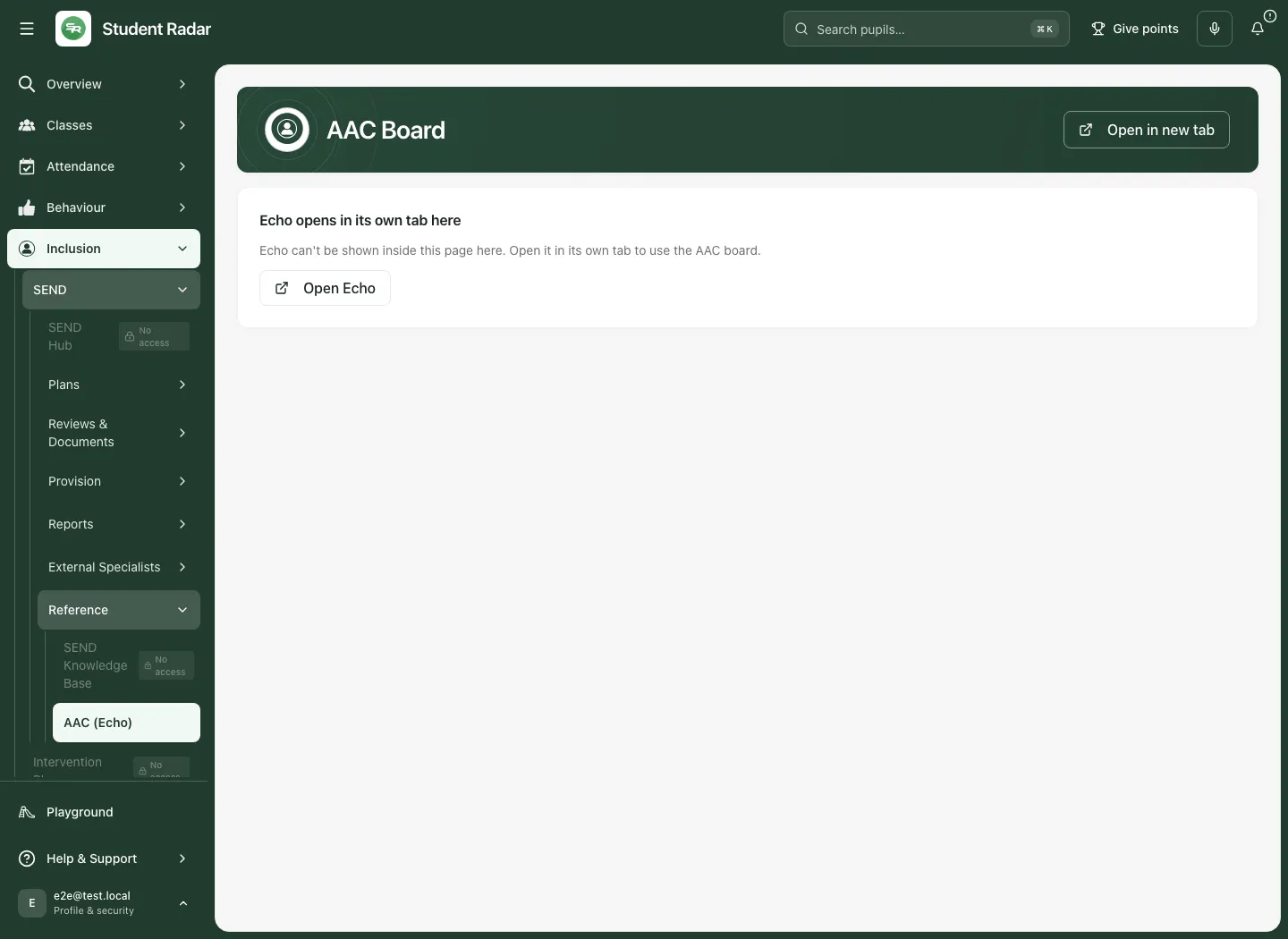
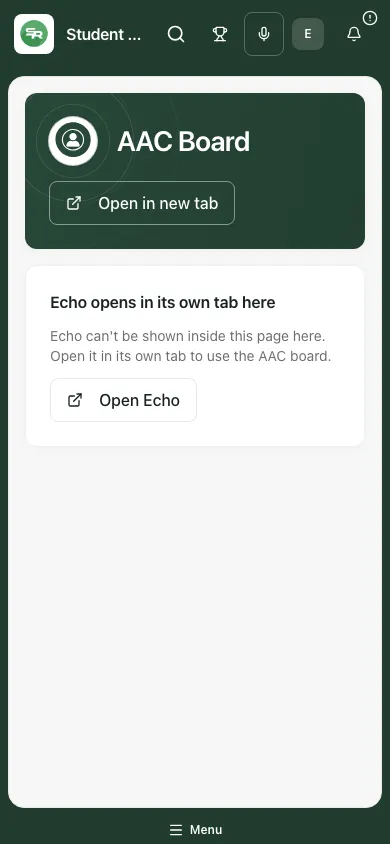
The Open Echo link leads to the canonical board at Echo AAC board. It is a separate destination, not a new pupil record. A slow frame can say Echo is taking longer than usual to open; use Reload or open it separately. An iframe’s loading indicator clearing does not prove that every board asset or audio service is ready.
Read the Interpret notice
Section titled “Read the Interpret notice”On a new browser/device context, Before you use Interpret explains the phrase/button-text processing and links to the privacy policy. Read it before choosing Continue to Echo.
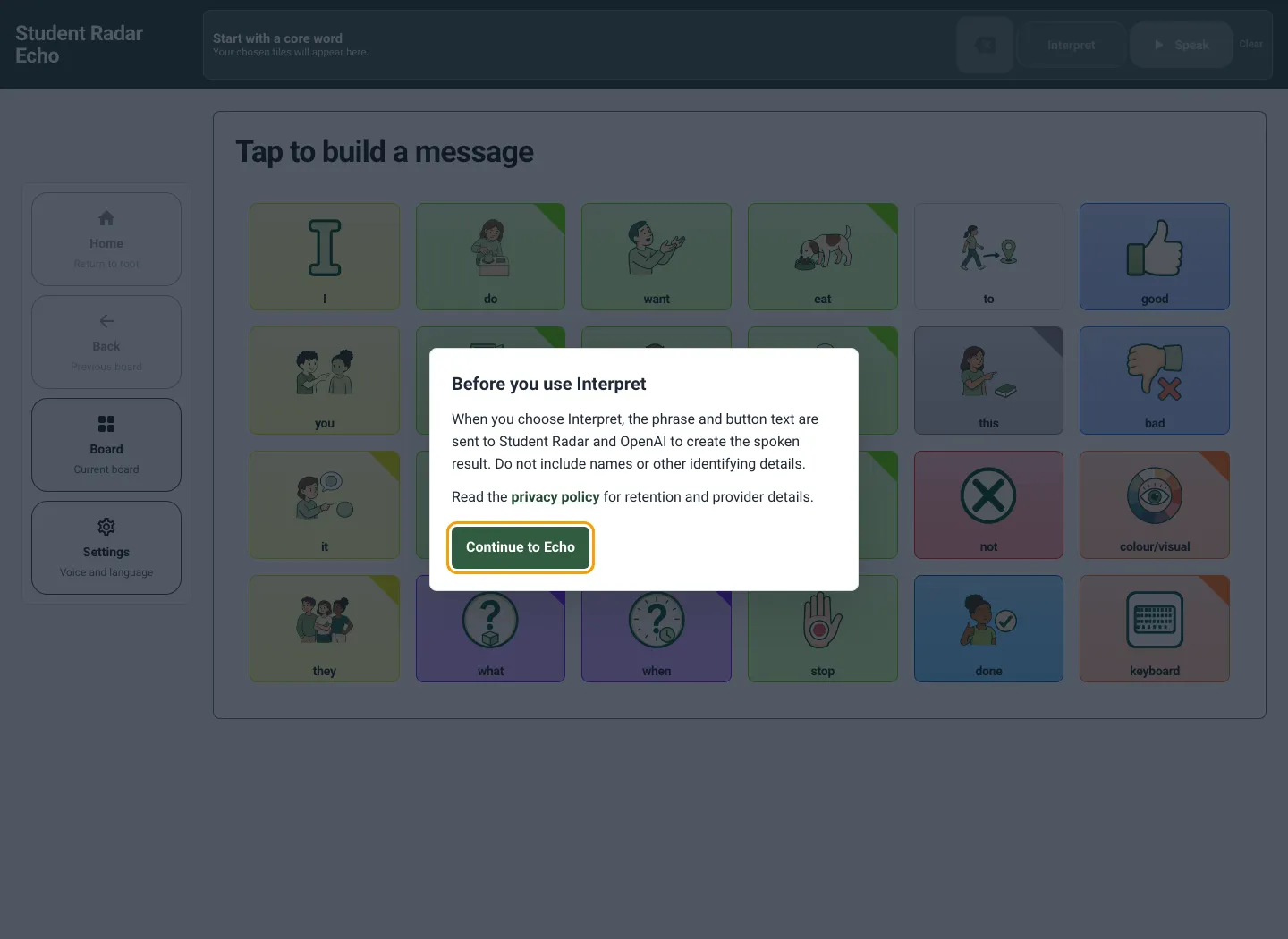
The notice is not a per-message permission check and is not a guarantee that a message contains no identifying information. Keep sensitive pupil details out of the phrase. Continuing opens the board; it does not save a school communication record.
Build a phrase from the board
Section titled “Build a phrase from the board”- Start with the core board or the appropriate included board.
- Select a word tile to add its word to the message area.
- Use a linked/category tile to open another board when needed. Opening a board is different from adding its category word to the phrase.
- Select the intended next word and read the message area before speaking.
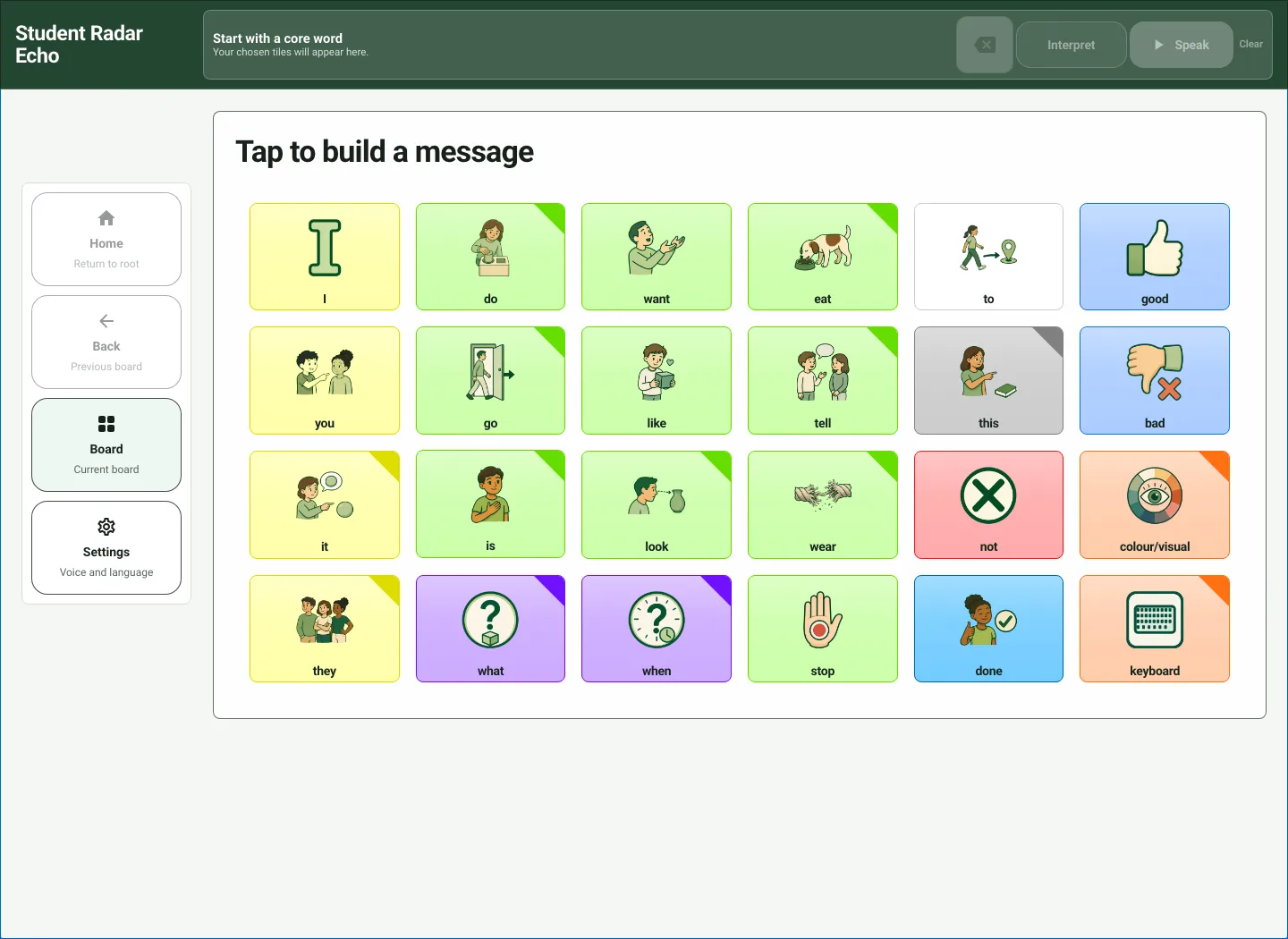
In this example, I and want add words; eat opens its related board, where water can be selected. The selected message is I want water. Check the actual message rather than assuming every tapped label was added.
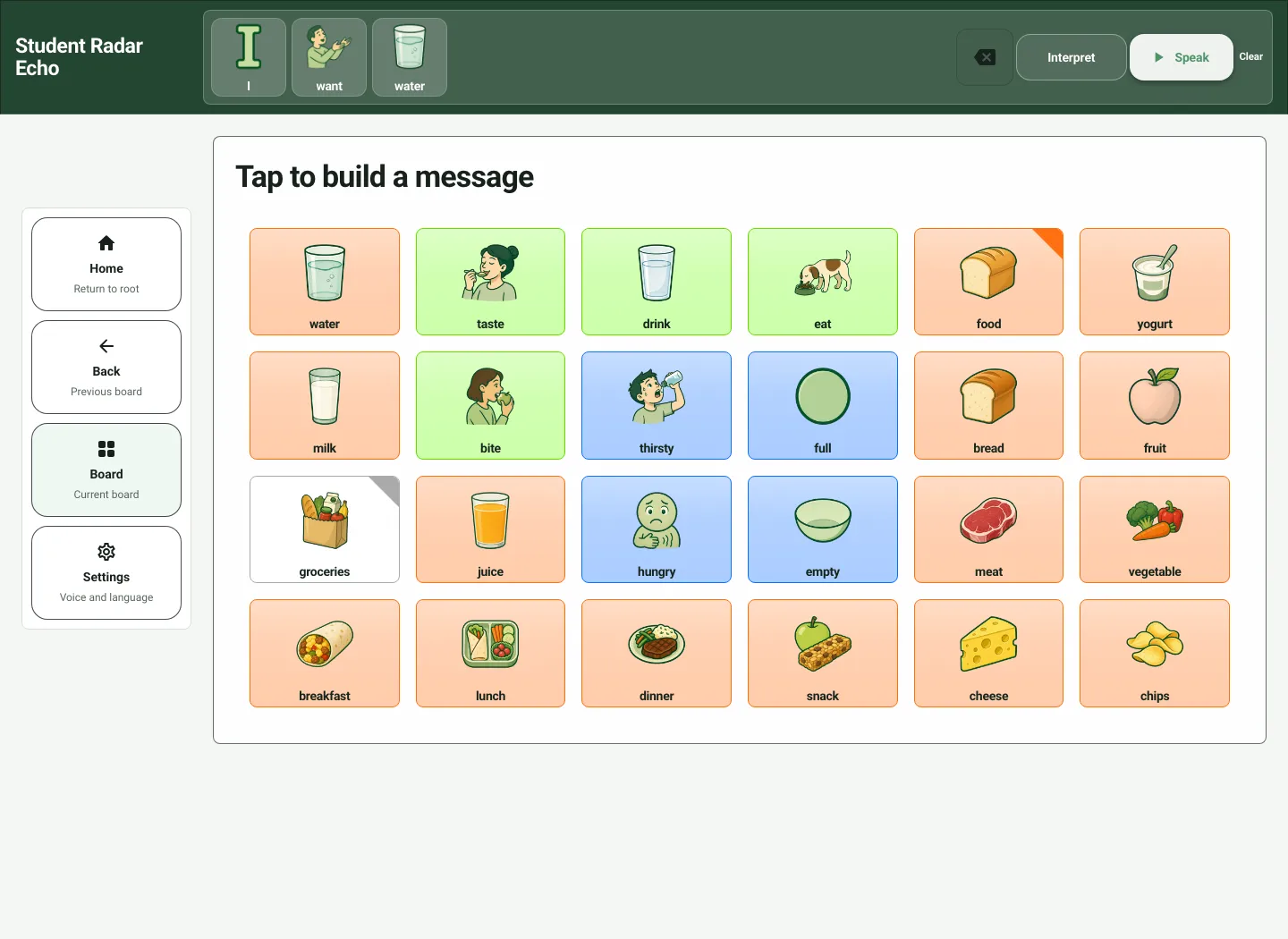
Use Backspace to remove the last selected message part. Clear (or Clear phrase in an expanded phrase control) clears the phrase. Clearing the message does not establish that every browser cache, previous download or external service record has been erased.
Speak the selected message
Section titled “Speak the selected message”Select Speak to play the chosen message through the device/browser’s speech facilities and the available board sounds. The control can be labelled Play message to assistive technology. Read the message and check device volume, mute state, available voice and the person’s preferred communication approach.
If playback is active, use the offered stop/control state before starting another action. A button press is not proof that another person heard or understood the message. Speech support and installed voices vary by browser/device; test the actual device before relying on it in practice.
Move between boards
Section titled “Move between boards”- Home returns to the board set’s root.
- Back returns to the previous board when available.
- Board opens Choose a board for a direct board choice.
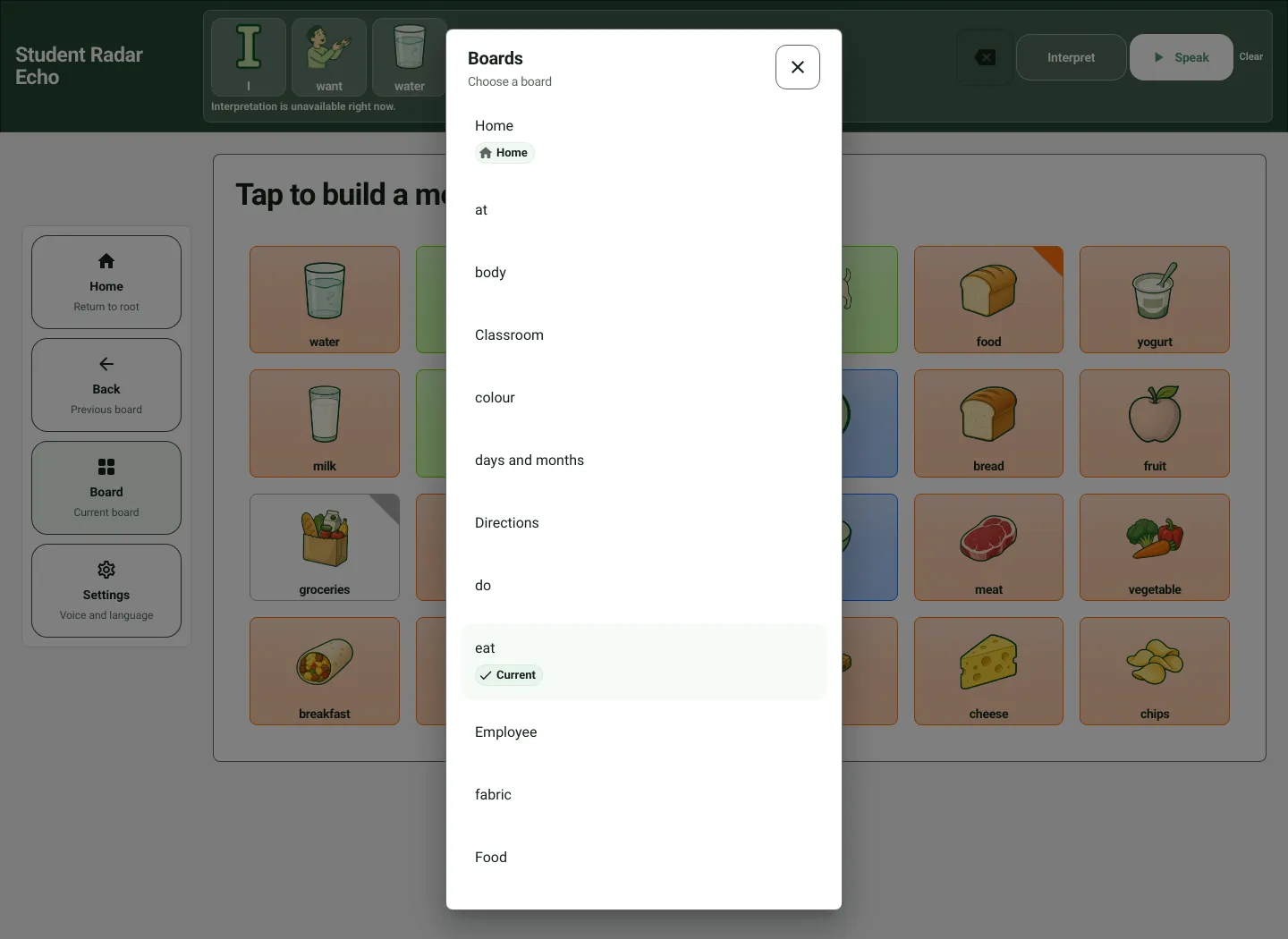
Check the current board and message independently. Navigation does not by itself record a conversation or assess a pupil’s communication needs. Do not infer a child’s intent from a category opened without a confirmed selected word.
Set voice and language
Section titled “Set voice and language”Open Settings (Voice and language). Review the available Language, Voice, Rate, Pitch and Volume controls, then use Preview to check the voice where supported.
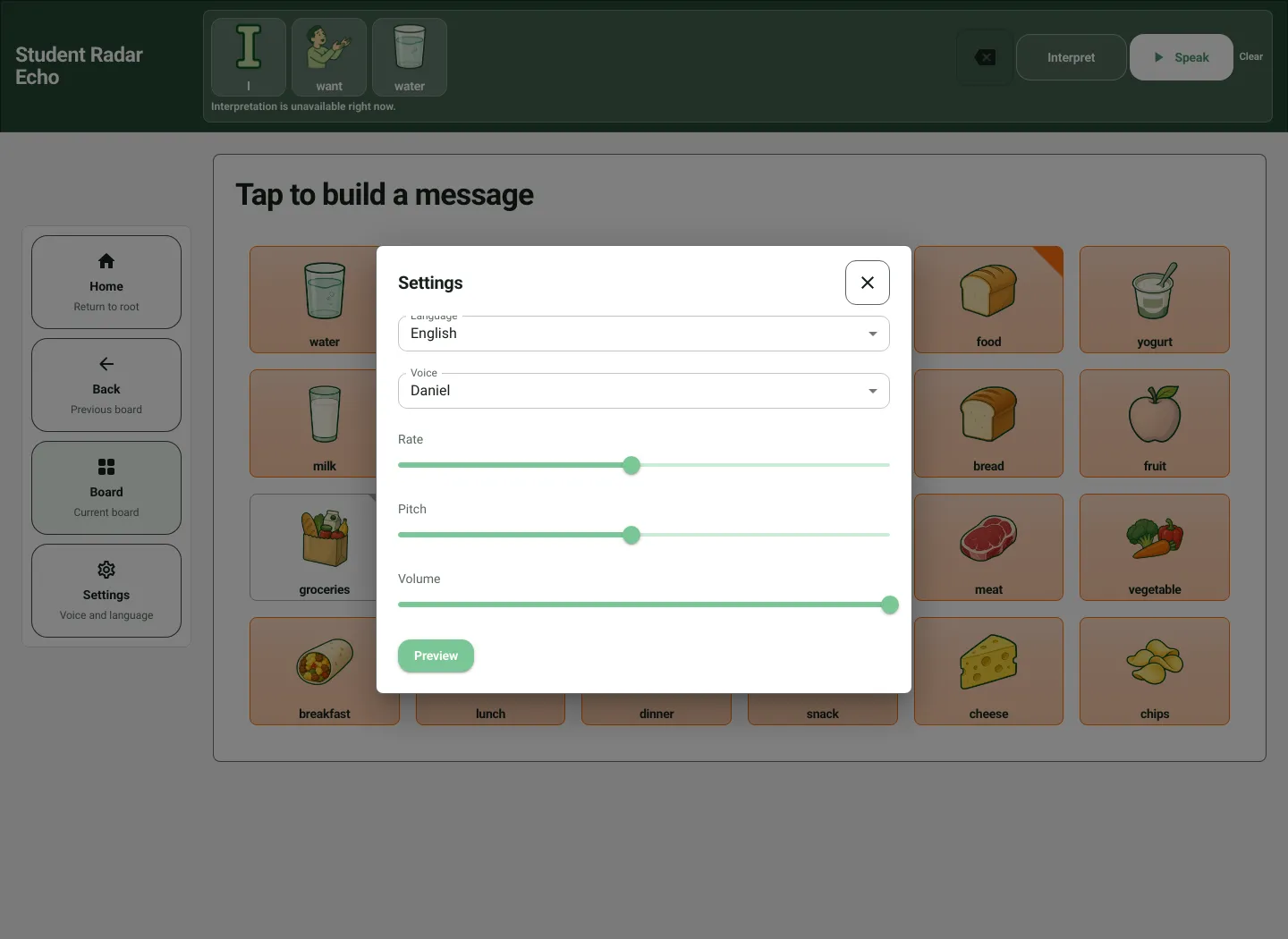
Choose a pace and voice appropriate to the communicator’s agreed arrangement and device. The listed voices depend on that browser/device. Do not assume the same voice choices or preferences follow the pupil across devices or school accounts. Return to the board and check the selected message before speaking.
Use Interpret deliberately
Section titled “Use Interpret deliberately”Interpret sends the phrase and the selected parts’ text to the service, which generates a short interpreted utterance and audio. It is different from Speak, which plays the selected message. An interpretation can add or change wording; it is not a verbatim pupil statement or a professional assessment.
- Read the selected phrase and remove identifying details.
- Choose Interpret only when that service is appropriate to the communication arrangement. On a successful response, Echo displays the interpreted text and immediately starts playing the generated audio; there is no separate approval step before playback.
- Check the interpreted result and intended meaning with the communicator in an appropriate way before relying on it.
- Do not record generated words as the person’s own confirmed statement without that confirmation.
If the service reports Interpretation is unavailable right now, there is no confirmed interpreted result. Keep the selected phrase, check the device/service state and avoid repeated submissions while a request is pending. A missing configuration, rate limit, incomplete response or stopped playback is not proof that interpretation succeeded.
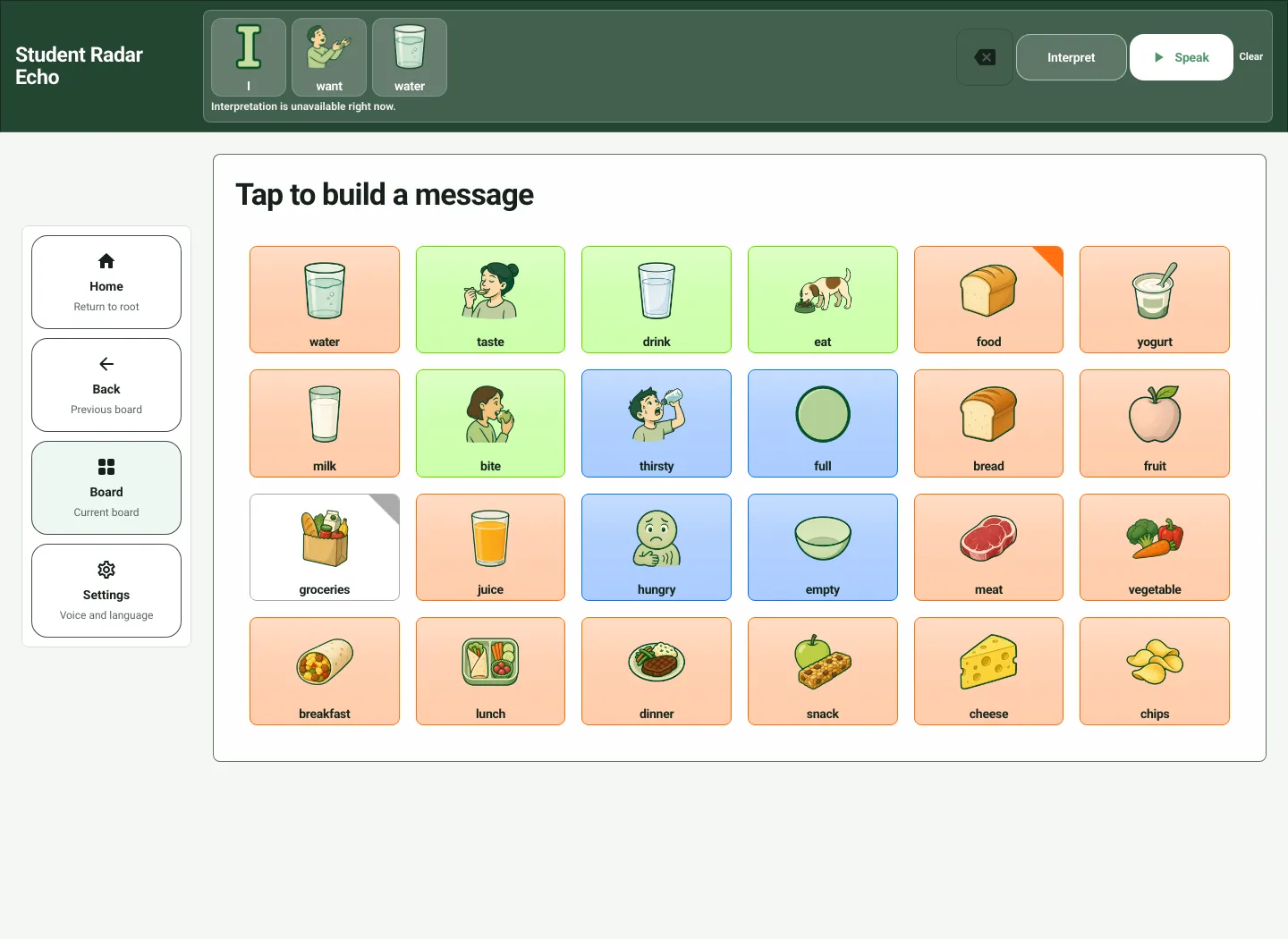
An unavailable message means no interpreted result has been confirmed. Use the selected-message speech controls and the person’s other agreed communication methods as appropriate; the app does not make a high-impact decision from the generated wording.
Use Echo on a phone
Section titled “Use Echo on a phone”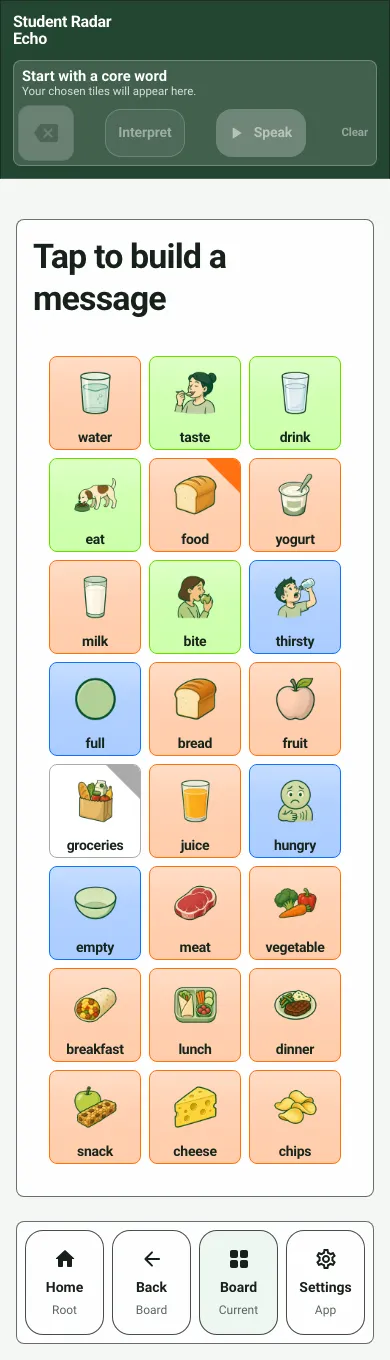
The phone layout keeps the message and tiles above compact Home, Back, Board and Settings controls. Scroll as needed and check the message before selecting Speak or Interpret. Local browser storage or an open board session is not a school-owned communication record or guaranteed backup.
If the board is blank or slow, wait for the assets to load, then use the app’s Reload/separate-tab options as appropriate. Check the actual device and service before calling a failed speech or interpretation action complete.
Common questions
Section titled “Common questions”Why did tapping a tile open another board rather than add a word?
Section titled “Why did tapping a tile open another board rather than add a word?”Linked or category tiles navigate to a related board. Check the message area to see which words were selected before speaking.
Does opening Echo save messages to a pupil record?
Section titled “Does opening Echo save messages to a pupil record?”No. Opening the board does not automatically create a school communication log or share an ISP, and an open board is not a school-record backup.