Write your provision's self-evaluation
Written for: Alternative provision leaders who write the provision’s self-evaluation.
An alternative provision’s self-evaluation works in the same way as a school’s. You evaluate each area of a framework, link the evidence behind your judgement and agree next steps. This article covers what’s different in a provision. For the steps themselves, see Write your self-evaluation.
Open the self-evaluation
Section titled “Open the self-evaluation”In the sidebar, open Compliance and choose Self-Evaluation. The list of evaluation areas shows your provision’s judgement for each area, with its evidence and when it was last saved.
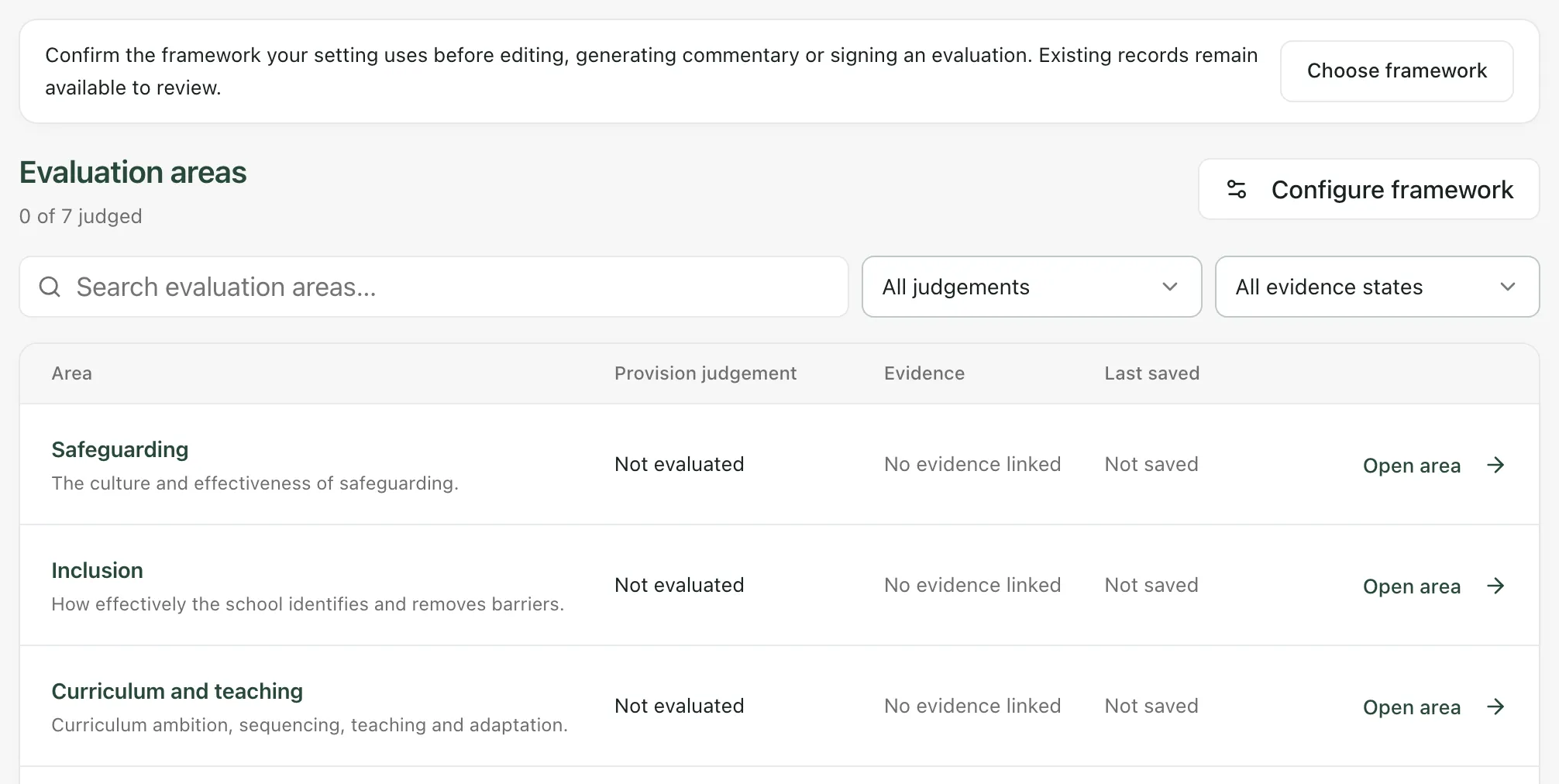
Choose a framework
Section titled “Choose a framework”Student Radar doesn’t have a framework written for alternative provision. Before anyone can edit the self-evaluation, a leader who can configure the framework chooses one with Choose framework. The choices are:
- Ofsted — state-funded school
- Ofsted — independent school
- ISI
- SCCIF — secure children’s home
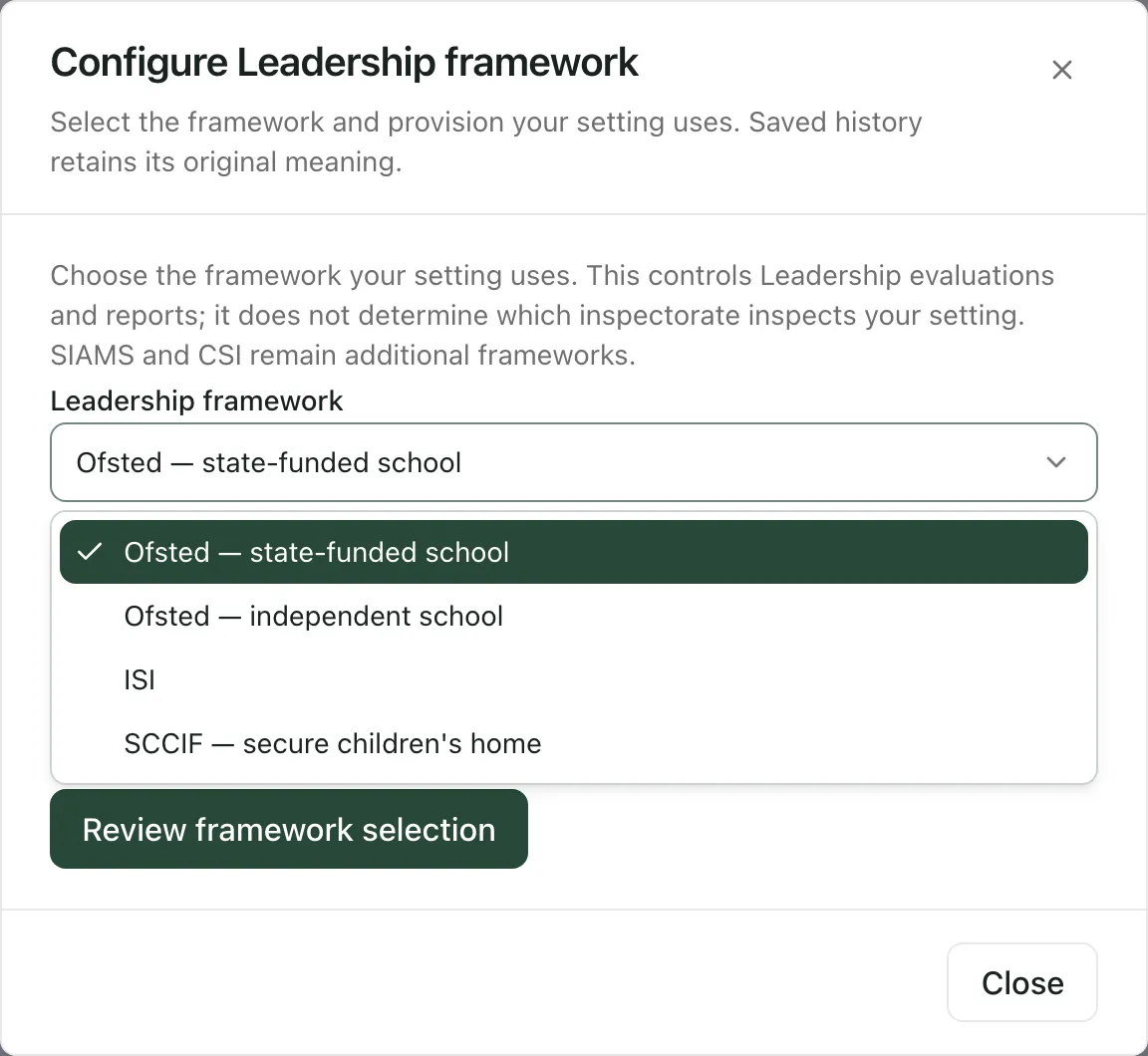
Choose the framework your provision is inspected against. If it isn’t inspected as a school, choose the one your leaders agree best fits how you evaluate your work, and say why in your evaluation. The framework decides which areas and judgements you see. It doesn’t decide who inspects or monitors your provision.
Use your compliance duties as prompts
Section titled “Use your compliance duties as prompts”When you open an area, the Evidence tab has a Connected workspaces list. In a provision, it also lists the compliance duties that relate to that area. For example, a safeguarding area lists your safeguarding duties, and a leadership area lists duties such as your single central record and policies.
Under the duties are links to your Compliance Checklist and to the pages where you keep the evidence for them, such as the Single Central Record, Policies or Safeguarding Audit. They open in a new tab.
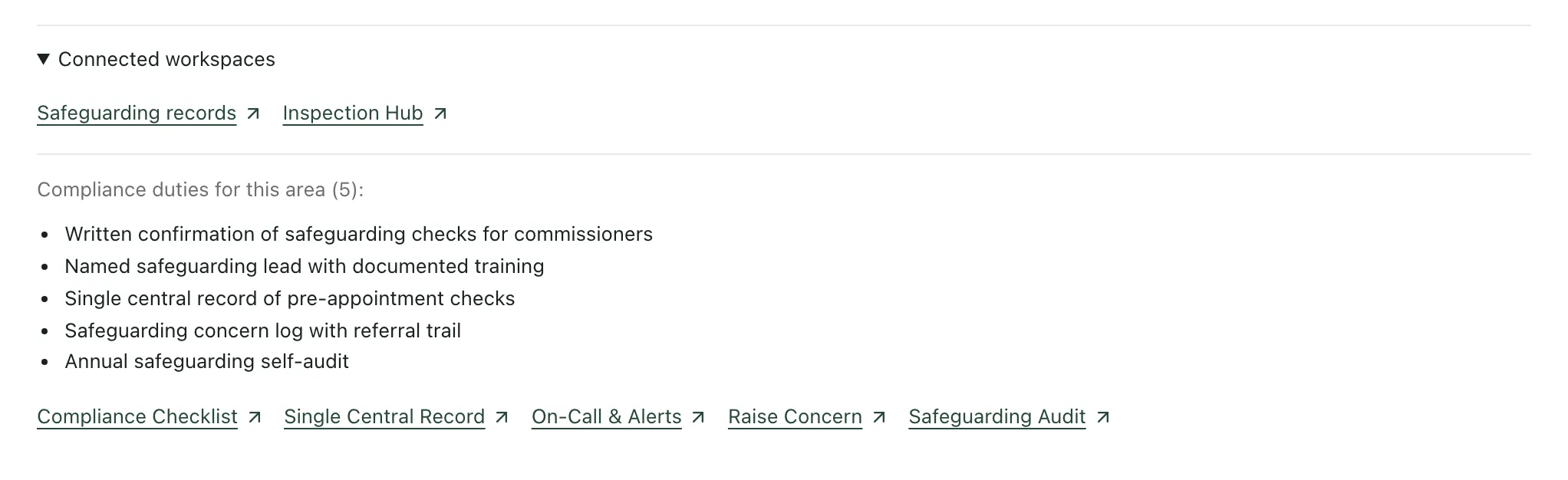
- Registration: duties that apply only to registered providers are listed when your Setting profile says your provision is registered. If your registration isn’t recorded, every duty is listed.
- Links only: opening a link doesn’t record a duty as met, and the duties aren’t linked to the area as evidence. To cite evidence for your judgement, use Add evidence on the Evidence tab.
- Not every area: some areas, such as early years and post-16, have no compliance duties.
To keep your compliance duties up to date, see Evidence your compliance duties.
Turn next steps into your improvement plan
Section titled “Turn next steps into your improvement plan”On the Actions tab, Create priority adds the next step to your provision’s improvement plan, with an owner and a review date. In a provision, priorities are on Compliance → Improvement Plan, which works in the same way as School Priorities. See Create a school improvement priority.
When the self-evaluation is complete, it can be signed off and downloaded. See Sign off and download a SEF.
- Wording: most of the page says provision rather than school. A few labels, such as the judgement in an open area, still say school.
- Who can edit: the same roles as in a school can edit the self-evaluation and choose the framework. Your provision can change who has access.
- AI suggestions: Suggest commentary drafts a summary for you to check and edit. The judgement and the final words are yours.
If something doesn’t work
Section titled “If something doesn’t work”| What you see | What to do |
|---|---|
| “Confirm the framework your setting uses before editing, generating commentary or signing an evaluation. Existing records remain available to review.” | A leader who can configure the framework needs to choose one. See Choose a framework. |
| No compliance duties under Connected workspaces | The area has no related duties, such as early years or post-16. |
| A link under Connected workspaces says you don’t have access | Each page checks your access separately. Ask your Provision Lead if you need it. |
| “You do not have permission to make this change.” | Your account can’t edit the self-evaluation. Ask your Provision Lead. |
| “Self-evaluation unavailable” | Click Retry. Your unsaved drafts in this browser are kept. |