Plan CPD sessions and review staff development evidence
Plan the CPD session, prepare its materials and record actual attendance before agreeing the evidence to review afterwards. CPD connects sessions with school priorities and training requests while keeping attendance, participant ratings, mandatory completion and evidence of changed practice separate.
Open Leadership → Staff → CPD. Alternative provisions may also offer CPD from their compliance rail. Screenshots use fictional staff and a future session with attendance still Pending.
1. Find the session and interpret the summary
Section titled “1. Find the session and interpret the summary”Sessions lists session dates, status, linked priorities, attendance and material state. Use Search sessions, presenters or priorities, the offered date/status/priority filters, Mine and Clear, then check the filtered count and page controls.
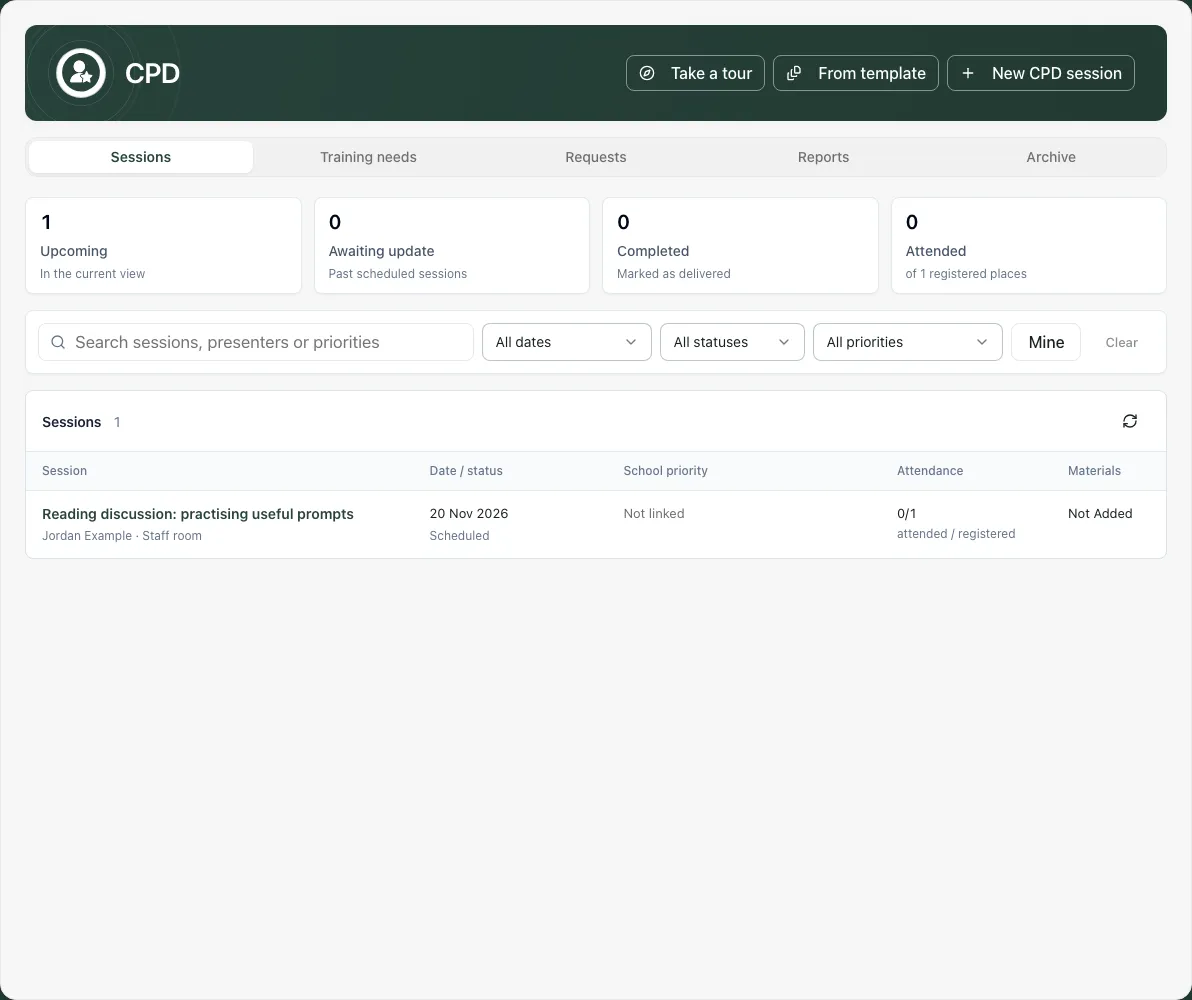
Mine means sessions you created, not automatically those you attend or present. Upcoming, Awaiting update, Completed and Attended describe the current filter’s records. Awaiting update means a past date still marked Scheduled; the date alone does not mark a session delivered. Attended counts registered places, not distinct staff across all sessions.
A missing rating is not a zero score, and attendance is not proof of understanding or improved classroom practice. Check the selected period before comparing totals or exporting.
2. Plan and save the session
Section titled “2. Plan and save the session”Select New CPD session or From template to start with a supported preset. On Details, complete Session title, Date, Status, optional Presenter (staff link) / Presenter name, Location, Duration (minutes), Cost (£) and Summary / notes.
Choose a staff presenter to retain the staff connection, or type an external presenter’s name where appropriate. Duration is whole minutes and cost cannot be negative. Leave unknown values unknown rather than inventing a zero duration or cost.
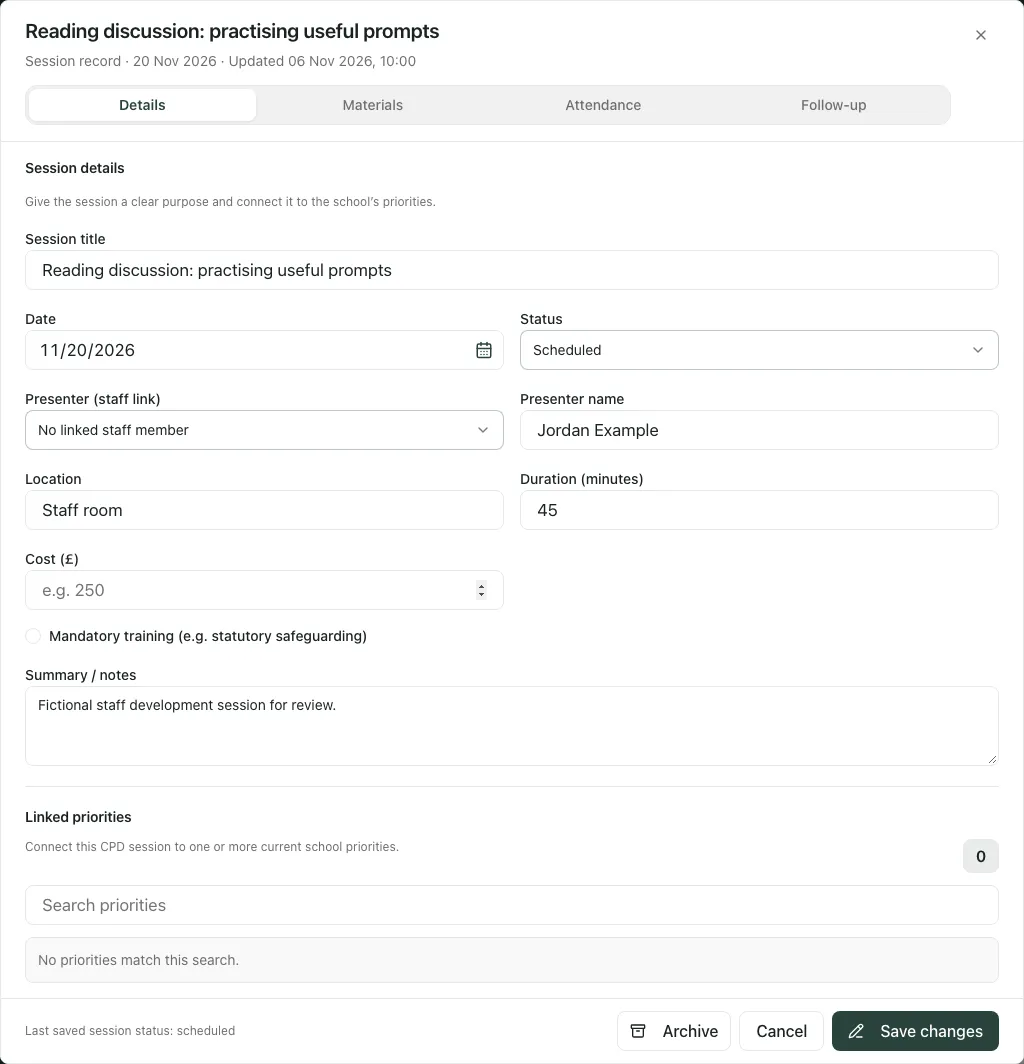
If appropriate, tick Mandatory training (e.g. statutory safeguarding) and set Completion due by. This records your school’s mandatory-completion arrangement; choosing a template or ticking a box does not establish legal compliance or a staff qualification.
Under Linked priorities, search and tick the school priorities the session supports. A linked archived priority can remain for history, but should not be offered as new active work. Check the saved links instead of removing a legitimate historical link just to make the form look current.
Select Create session for a new session or Save changes for an existing one. Wait for confirmation and reopen to check the title, date, status, notes and linked priorities.
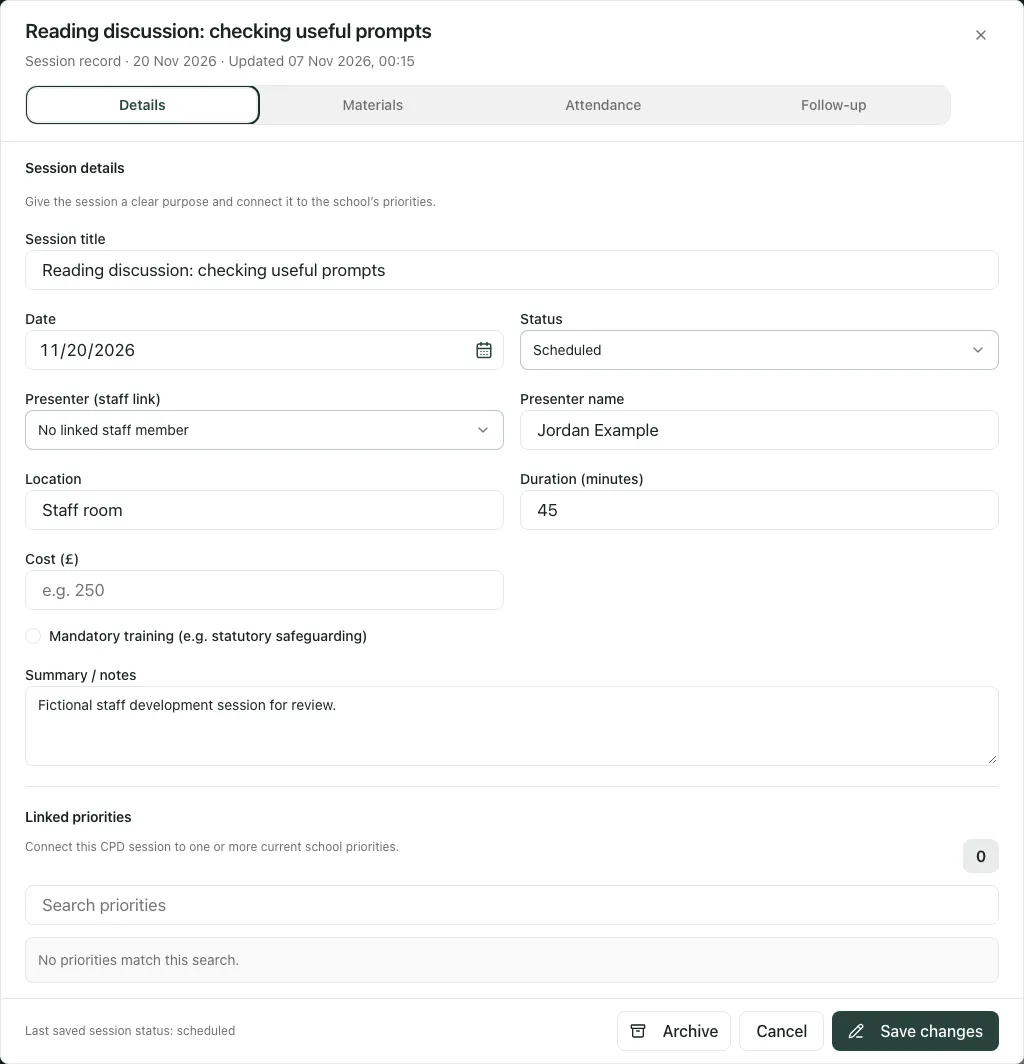
The session can remain open after saving so you can continue to materials or attendance. A saved title does not schedule an external meeting, notify attendees or prove the session occurred.
3. Record attendance and evaluations accurately
Section titled “3. Record attendance and evaluations accurately”Open Attendance. Search Search staff, select the expected staff and record Pending, Attended or Absent for each person. Selection means registration, not attendance. Check the actual person before changing their row.
For someone who attended, record their evaluation rating only if it was supplied, or leave Not rated. A participant rating is not an independent measurement of training impact. Removing a registered attendee is different from recording absence and should follow the school’s actual record.
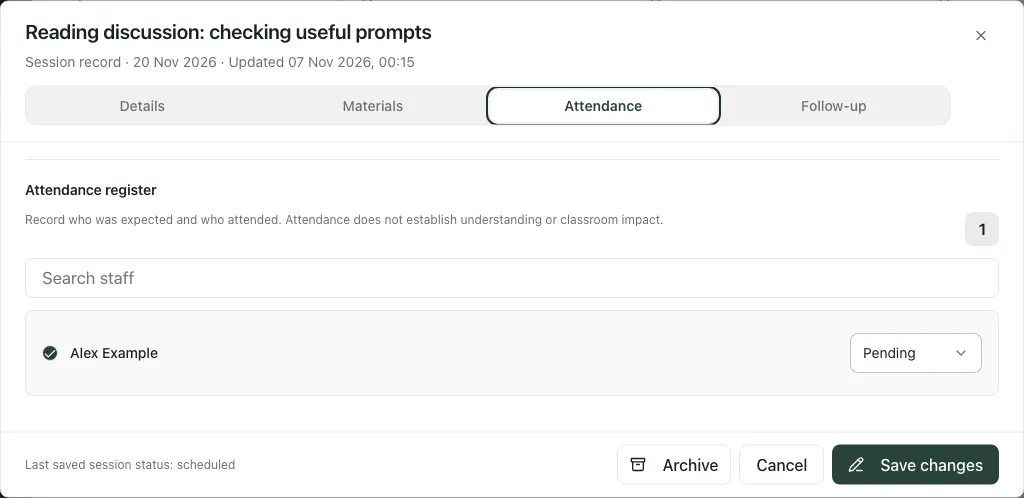
Select Save changes; where you can manage only attendance, the control is Save checklist. Check the returned register. If it changed while you were editing—for example a new starter was enrolled or an evaluation arrived—close and reopen the session, compare the latest rows and reapply the intended change. Do not repeatedly save an old whole register over newer input.
After a delivered session, update Details → Status → Completed and save. This is separate from each attendee’s status. A Completed session with a Pending attendee still needs that person’s record checking.
4. Add and present saved materials
Section titled “4. Add and present saved materials”In Materials, inspect Session materials. Upload deck adds a supported presentation/PDF to the session’s presentation workflow. Uploads/material links can save immediately, separately from unsaved session notes; check the actual saved material and processing state.
Use View slides only once processing has produced usable slides. A Processing/Failed deck is not a ready presentation. If a slide asset is unavailable, retry or use a verified original file; do not treat a blank frame as delivered content. A material saved to the presentation library may remain there even if its session link failed, so check before uploading another copy.
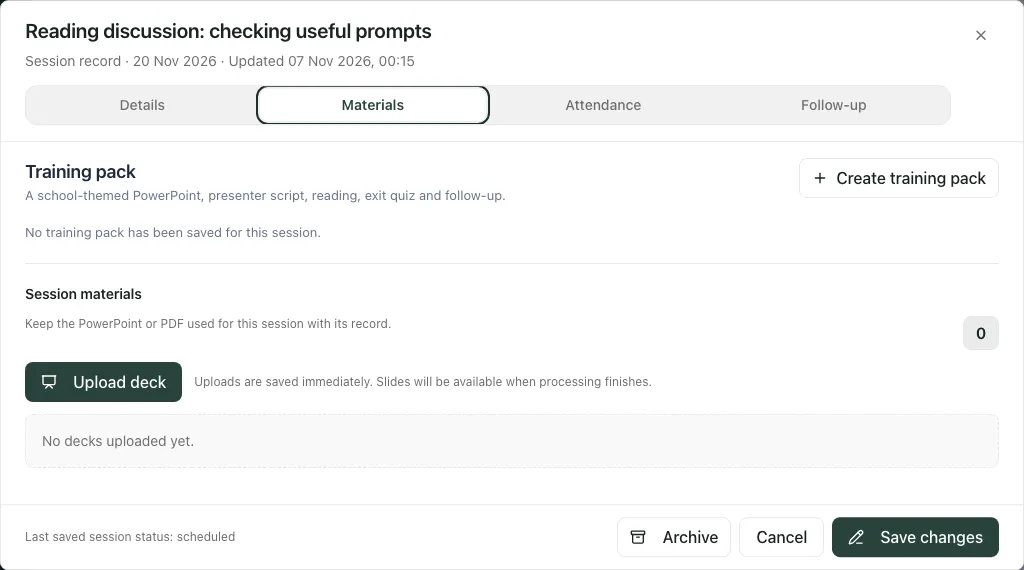
Removing or leaving the editor does not necessarily remove saved materials. Read Discard unsaved changes?: it concerns unsaved session/pack edits, while already saved materials remain with the session.
5. Prepare a reviewed training pack where available
Section titled “5. Prepare a reviewed training pack where available”Create training pack begins optional research and material drafting for a saved session. Enter Training topic, Staff audience, School phase, Duration (minutes), intended outcomes and the offered brief fields, then Research outline.
Review the cited sources, limitations, outcomes and sequence. Check I have reviewed the sources, outcomes and sequence. before Build training pack. Source references and generated wording still need professional checking; a citation is not a guarantee that every claim is correct or appropriate for the audience.
Review PowerPoint, Presenter script, Prior reading, Exit quiz and Follow-up and their consistency, including participant questions and the separate answer key. Edit the draft, Save draft, resolve any validation issues, then check I have reviewed all five outputs and the source references. before Approve version. Download training pack exports the approved version; it does not mark the session delivered or participants competent.
Saved attempts/versions remain available to review. Check progress, Retry building materials or Start a new attempt should follow the actual attempt state. An uncertain response needs recovery of that attempt rather than repeated new generation. Review source/date context again before reusing an older approved pack.
6. Record follow-up without claiming it is an assigned task
Section titled “6. Record follow-up without claiming it is an assigned task”In Follow-up, use Session notes and agreed follow-up to record the action, responsible person, review date and evidence to revisit, then save the session. This is the same session summary/notes context, not a separate automatic task-creation command.
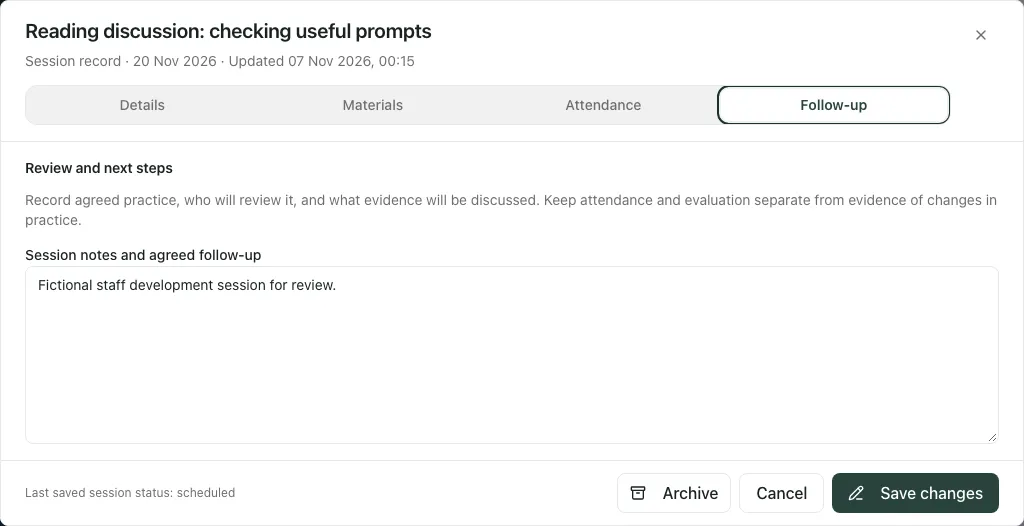
A sentence saying “Jordan will review practice next month” does not by itself create an owned work item or Calendar invitation. Use the relevant work/calendar workflow to make a deliberate assignment where needed. At review, record what staff actually changed and the new evidence; attendance and ratings are different evidence.
Linked priorities open their original planning workflow. Leaving with unsaved session/pack input asks whether to keep editing or deliberately discard. Save before following a link if the notes must be retained.
7. Turn training needs and requests into deliberate plans
Section titled “7. Turn training needs and requests into deliberate plans”Training needs brings together saved priority CPD ideas that have not become sessions and relevant priorities without planned CPD. Inspect the need, evidence and linked priority, then use its offered promotion/draft control. Nothing is scheduled until the resulting session draft is reviewed and saved.
In Requests, choose Request CPD, enter What training do you need? and optional Why, then Send request. Keep the rationale proportionate and relevant to the pupil/staff need. The request and decision are separate from a session.
Eligible deciders can Approve or Decline the specific request. Check the title/requester and decision before acting; decline is a decision, not a draft note. Decisions appear in the requester’s notifications. An approved request can offer Draft session, which still needs checking and saving. Check for an existing planned session before drafting another; approval alone does not enrol staff or demonstrate attendance.
Use the older-request/page controls and retry messages to distinguish no requests from a failed read. The current interface does not offer a general requester withdrawal workflow, so resolve a changed request with the CPD lead rather than promising a hidden cancel control.
8. Review mandatory attendance and export the right period
Section titled “8. Review mandatory attendance and export the right period”Reports reads the complete selected reporting period before making totals/exports available. A paged Sessions list is not the reporting denominator. If reports fail to load, use Try again; do not export or infer totals from the first loaded page.
Mandatory attendance register reports registered staff, outstanding places and registers needing staff. A session without registered staff cannot be assessed; it is not 100% complete. Review each session’s actual due date and attendee statuses before following up.
Attendance follow-up CSV exports the outstanding attendance context; Activities XLSX gives recorded activities. Under the portfolio panel, Choose a staff member and use Portfolio PDF or Attendance certificates where available. Check name, period, recorded hours/attendance and intended audience before sharing through the school’s agreed route.
An attendance certificate is a record from the CPD attendance data, not professional accreditation or proof of certificate validity/renewal. This school CPD page does not provide expiry/renewal tracking. Alternative provisions use the offered Staff training/Single Central Record connection for their own training records; check that source separately.
Do not assume a colleague’s portfolio should be downloaded simply because your current view offers it. Use the appropriate school purpose and audience for staff records, and keep incomplete or unrated evidence clearly labelled.
9. Archive or restore deliberately
Section titled “9. Archive or restore deliberately”Use the offered archive action for an obsolete session only after checking it is the correct record. The Archive section retains archived sessions and offers restoration where allowed. Archiving is different from recording Cancelled or Completed and does not prove mandatory training was fulfilled by another session.
A later catch-up session does not automatically clear absence/outstanding status on the original mandatory session. Check both source records and agree the appropriate follow-up instead of assuming the report reconciles them for you.
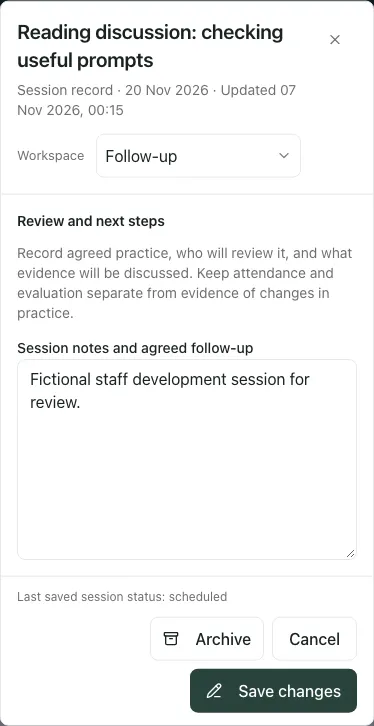
On a phone the session dialog keeps Details, Materials, Attendance and Follow-up reachable. Check the title and selected section, scroll within the dialog and wait for save confirmation before leaving.
Troubleshooting
Section titled “Troubleshooting”- A visible create/edit button is refused: the school’s current capability can differ from a role’s default. Read the returned permission message; repeated clicks do not grant access.
- Register changed elsewhere: reopen it to read current enrolments/evaluations and compare before resaving.
- Mandatory counts look incomplete: check dates, current registered staff, missing registers and the complete reporting period rather than treating missing rows as completed.
- Material Processing/Failed: check the actual saved deck or attempt; do not claim it was presented or create duplicate uploads blindly.
- Training pack needs review: save edits, resolve validation and explicitly approve the intended version before downloading.
- No expiry information: CPD attendance and a downloaded certificate are not a certificate-renewal register.
For a shorter session/register sequence see Plan a CPD session and take attendance.
Common questions
Section titled “Common questions”How should I record staff who registered but did not attend?
Section titled “How should I record staff who registered but did not attend?”In Attendance, check the actual person and record Pending, Attended or Absent as appropriate. Registration is not attendance.
Should I enter an evaluation rating that was not supplied?
Section titled “Should I enter an evaluation rating that was not supplied?”No. Leave Not rated when no rating was supplied. A participant rating is separate from evidence of training impact.