Record AP staff supervision and review agreed actions
Review who is due for supervision, record the session that took place and retain agreed actions and the next review date. The register shows recorded supervision and due dates; it does not establish that a supervision was effective or that every staff need has been met.
Before you begin
Section titled “Before you begin”Open Staff Supervision in the alternative provision workspace. Access to the page, managing the register and reading/writing restricted notes have different boundaries. A supervisor can see the people and sessions their access permits; senior leads may manage a wider register. Access to your own supervision status does not automatically include its restricted notes.
Prepare the correct supervisee, current staff supervisor, date held, themes and agreed next date. Nobody can supervise themselves. A person on the single central record may also be a supervisee; choose the actual person rather than creating another identity.
1. Review who needs supervision
Section titled “1. Review who needs supervision”- Open the people section and read People or People you supervise, Overdue, Due in 14 days and No supervision recorded together.
- Read any coverage note. If the register exceeds 500 people, the due/missing counts cover the first 500 by name rather than everyone.
- Use Search people to find a name and Filter by due state to choose All states, Overdue, Due soon, Scheduled, No next date or None recorded.
- Check the person’s kind, last session, supervisor and next due date. No next date and no recorded supervision are different conditions.
- Where shown, read Your supervision separately from sessions you hold for others.
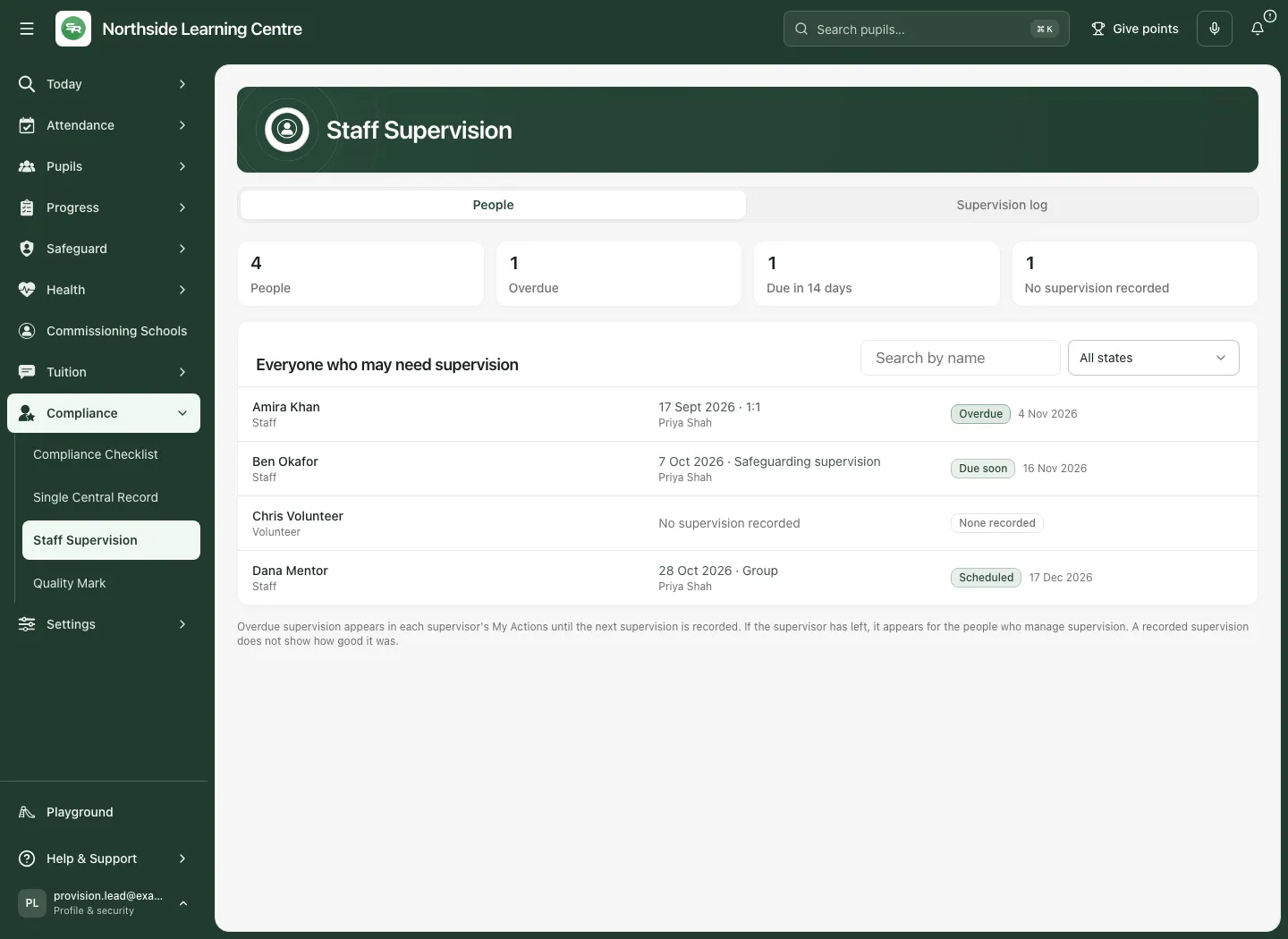
If the source cannot load, counts and missing supervision cannot be confirmed. Use Retry supervision where offered; a failed refresh may leave an explicitly stale last-known view. Do not treat unavailable data as no overdue work.
2. Read the supervision log
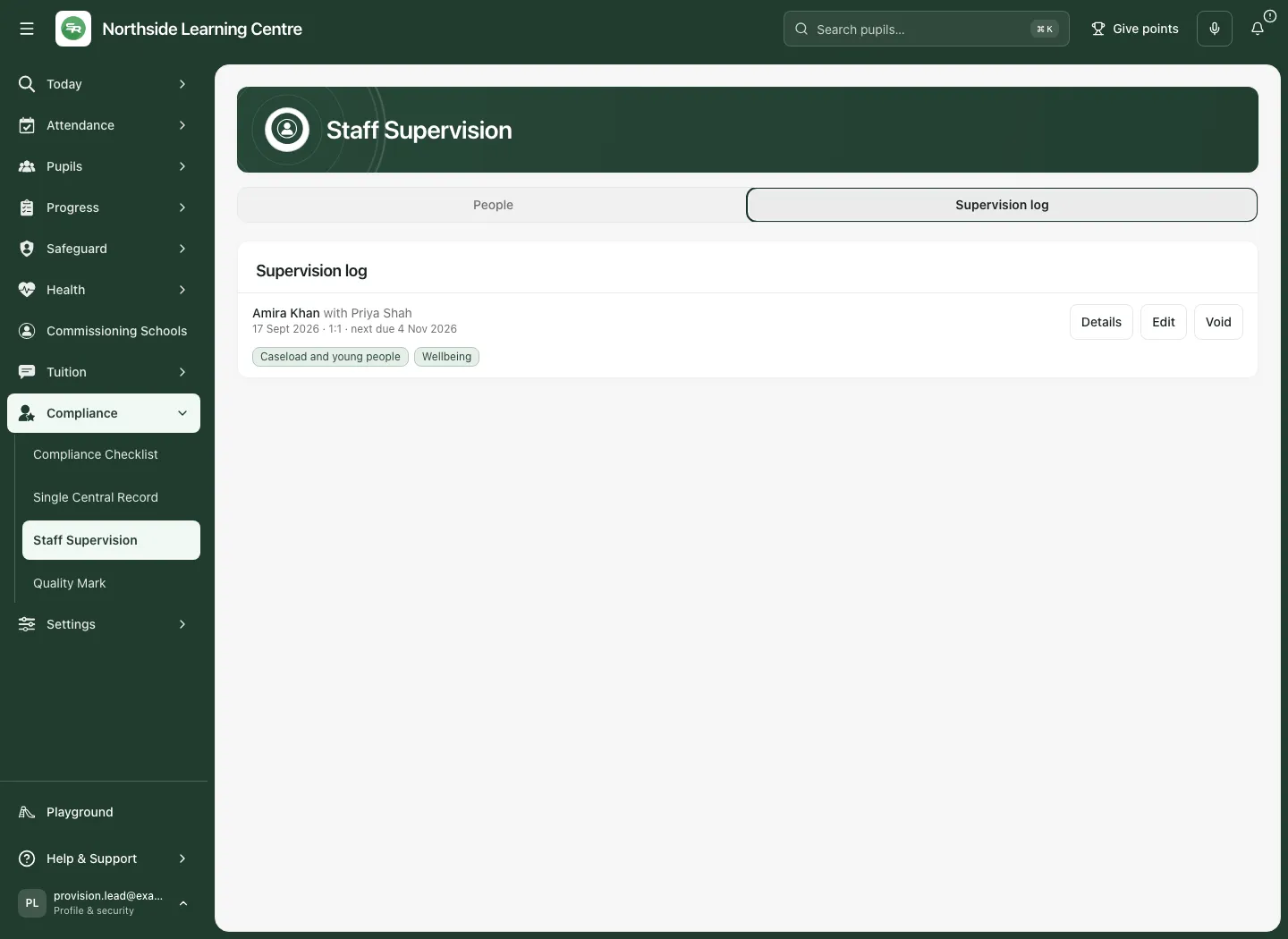
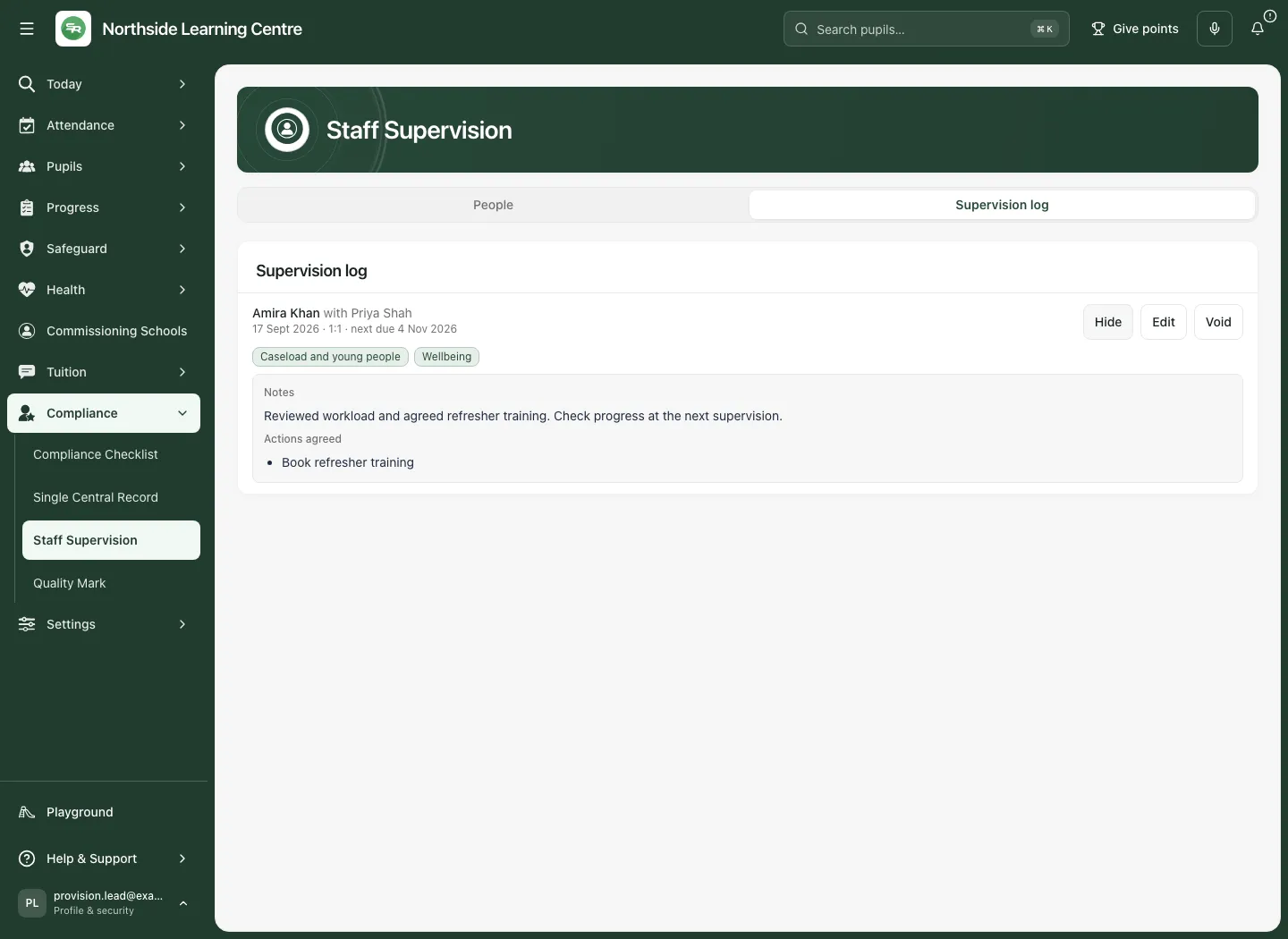
Section titled “2. Read the supervision log”- Choose Supervision log. On a phone use Staff Supervision sections to choose the section.
- Find the correct person, supervisor and date held. Read the session type and next due date.
- Choose Details for the intended session to see the themes and any restricted notes/actions you are permitted to read; use Hide to close them.
- Read truncation/coverage messages if the available session history is bounded. The visible log is not necessarily an unlimited archive.
- Open a linked work item or source record only where your access permits it. Links do not widen access to notes.
3. Record a session that actually took place
Section titled “3. Record a session that actually took place”- Choose Record supervision, either from the page or the appropriate person’s row.
- Select Supervisee and Supervisor. A current staff supervisor is required. Check the identity and relationship before writing notes.
- Enter Date held and Type: 1:1, Group or Safeguarding supervision. A group session record still identifies the supervisee represented by this record.
- Select Themes discussed: Caseload and young people, Safeguarding, Wellbeing, Workload, Practice and reflection, Training and development, Pupil progress or Other, as appropriate.
- Enter Next supervision due, or use 4 weeks, 6 weeks or 8 weeks from the date held. A blank next date creates no reminder. The held date cannot be in the future; new dates are bounded to the previous 730 days, with a next date after the held date and within 366 days of it. Follow any validation for a retained older record.
- Where permitted, enter Notes (restricted) and Actions agreed (one per line, restricted). Notes are limited to 8,000 characters; up to 12 actions of 300 characters each are supported. Record factual, proportionate information and agreed ownership/next steps.
- Review all fields and choose Record supervision once. Wait for confirmation, then reopen the log and the intended session.
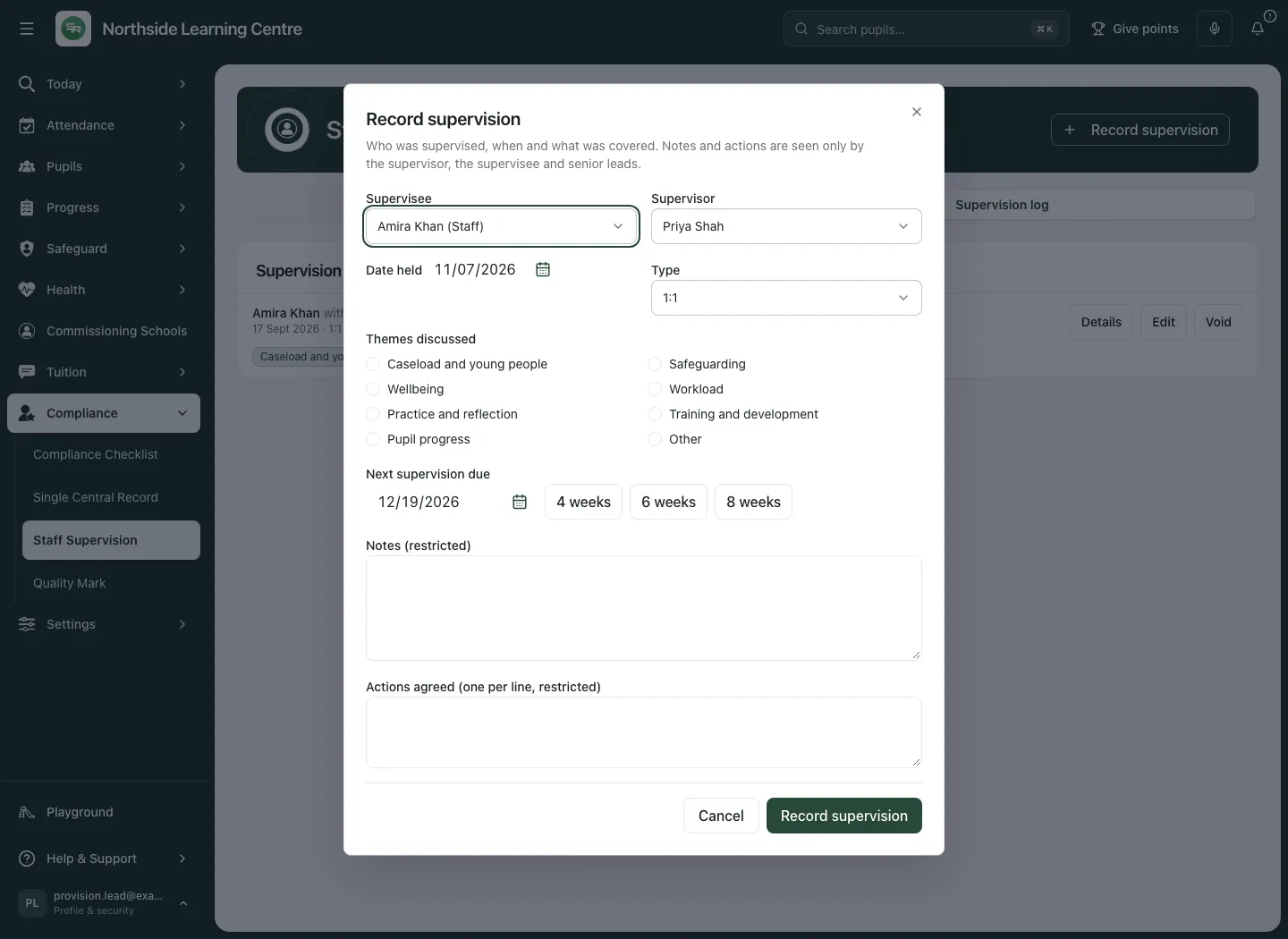
Only the supervisor or an authorised senior lead can write restricted notes and agreed actions. If those fields are unavailable, record only what your role permits. A list of agreed actions in this restricted record is not proof that separate tasks were assigned or completed.
4. Correct a recorded session
Section titled “4. Correct a recorded session”- In Supervision log, choose Edit for the intended person/date.
- Review the existing supervisee and supervisor before correcting the date, type, themes or next due date. Only a senior lead can change the supervisor, because that person can read the notes.
- Edit restricted notes/actions only if your current access permits it. Read any warning that notes you typed will not be saved.
- Choose Save changes once and wait for confirmation.
- Reopen Supervision log → Details for the same session and verify the saved wording and dates.
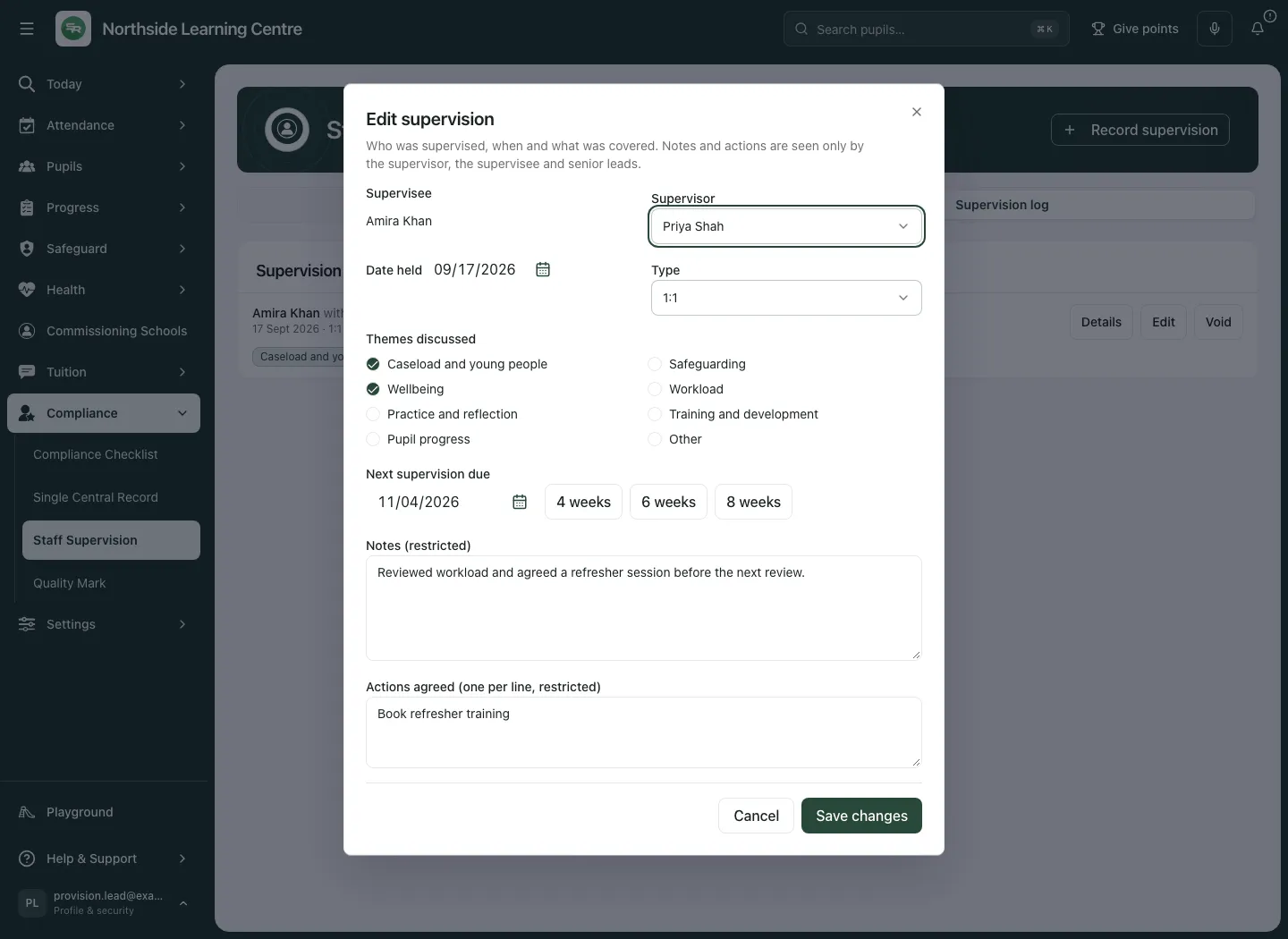
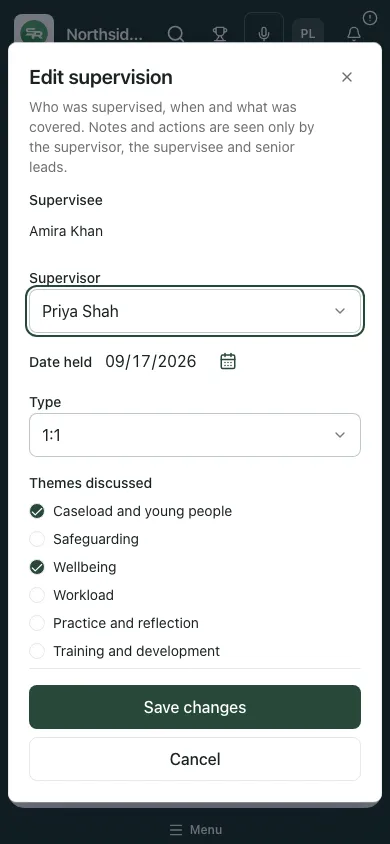
If another person changed the session, the application loads the latest copy and asks you to check it before saving again. If the latest copy cannot load, wait/retry rather than replacing it blindly. Losing notes access removes restricted content from the form; changing school or signed-in person closes the prior context’s form and unsaved work is not retained there.
5. Void a session recorded in error
Section titled “5. Void a session recorded in error”- Find the exact session in Supervision log and choose Void where permitted.
- Read Void this supervision, including the person, supervisor and date.
- Enter Reason (at least three characters, up to 500). Explain why the record is invalid rather than rewriting its history as if it never existed.
- Choose Void supervision and wait for confirmation.
- Check the log’s voided entry and the person’s due state. The record stays in the log as voided; the previous supervision’s next due date applies again.
Use Cancel when you intended an ordinary correction instead. Voiding is different from completing the agreed work.
6. Follow the next review through My Actions
Section titled “6. Follow the next review through My Actions”A recorded next due date can create canonical supervision review work owned by the supervisor. Use the offered action to open the source supervision/recording flow. Record the actual next session rather than marking a reminder done to imply it occurred. A missing next date produces no reminder; access, current supervisor and the source lifecycle affect what work is available.
Managers should review work whose supervisor has left rather than assuming it is still owned by an active colleague. The source session and its recorded next date remain the reference for the next decision.
Troubleshooting and questions
Section titled “Troubleshooting and questions”- Someone is missing: check the current school, search/filter, role-limited scope, staff/SCR identity and any 500-person coverage message.
- Notes are hidden: the register and restricted notes have different access. Ask the appropriate senior lead; do not copy notes into an unrestricted field.
- Save is disabled: check the current supervisee/supervisor, dates, action count/length and required fields. A supervisor cannot supervise themselves.
- The session changed while editing: reread the refreshed record and save a deliberate correction. Do not overwrite another colleague’s decision without checking it.
- The result is uncertain: check the log before recording again; keep the original decision while resolving the response.
- Reminder absent: check whether Next supervision due was recorded and whether you own/are permitted to see that work.
Does a due date book a meeting? It records when the next supervision is due and supports review work. Arrange the actual meeting through your normal authorised scheduling process.
Can I see my own restricted notes because the register shows my status? Not automatically. Status visibility and restricted-note access are separate.
Does recording an agreed action prove impact? No. Review what happened and the evidence at the next supervision.
Related: AP single central record and AP Quality Mark.