Review and respond to an LA EHCP consultation
Written for: SENCos, school leaders and authorised consultation reviewers.
Log the consultation, annotate the plan, review school context and record the checked response and actual LA outcome.
Keep the school’s provisional view, the letter actually sent and the LA’s eventual placement outcome separate.
Check your school, consultation and permitted actions. Aggregate context supports a professional review of the specified needs and provision; pupil numbers or suggested wording must not automatically determine a placement decision. The tracker’s dates and flags support planning; confirm the actual deadline with the authority and the individual case.
The examples use fictional Grace Hopper, a three-pupil class and Oakfield Example Authority. A working decision and edited response draft are saved in mocked state. No letter, parent message, placement decision, paid AI or real school change was sent or made.
Find the active consultation
Section titled “Find the active consultation”- Open Consults and read Active, Day 10 flags, Day 13 escalations and On roll links. These describe different parts of the permitted consultation workload.
- Choose Active for current work, Past for recorded response history or On Roll for linked pupils. A failed tab read is not an empty history.
- Choose Load more consultations when more records remain. Counts cover the permitted list, rather than merely the cards currently loaded.
- On the card, read the pupil identifier, authority, receipt/deadline, proposed year/class, annotation count and context timestamp. Check whether context is class-based or year-based and whether any pupil SEND status is unknown.
- Use Refresh after another colleague’s update. Take a tour introduces the workflow.
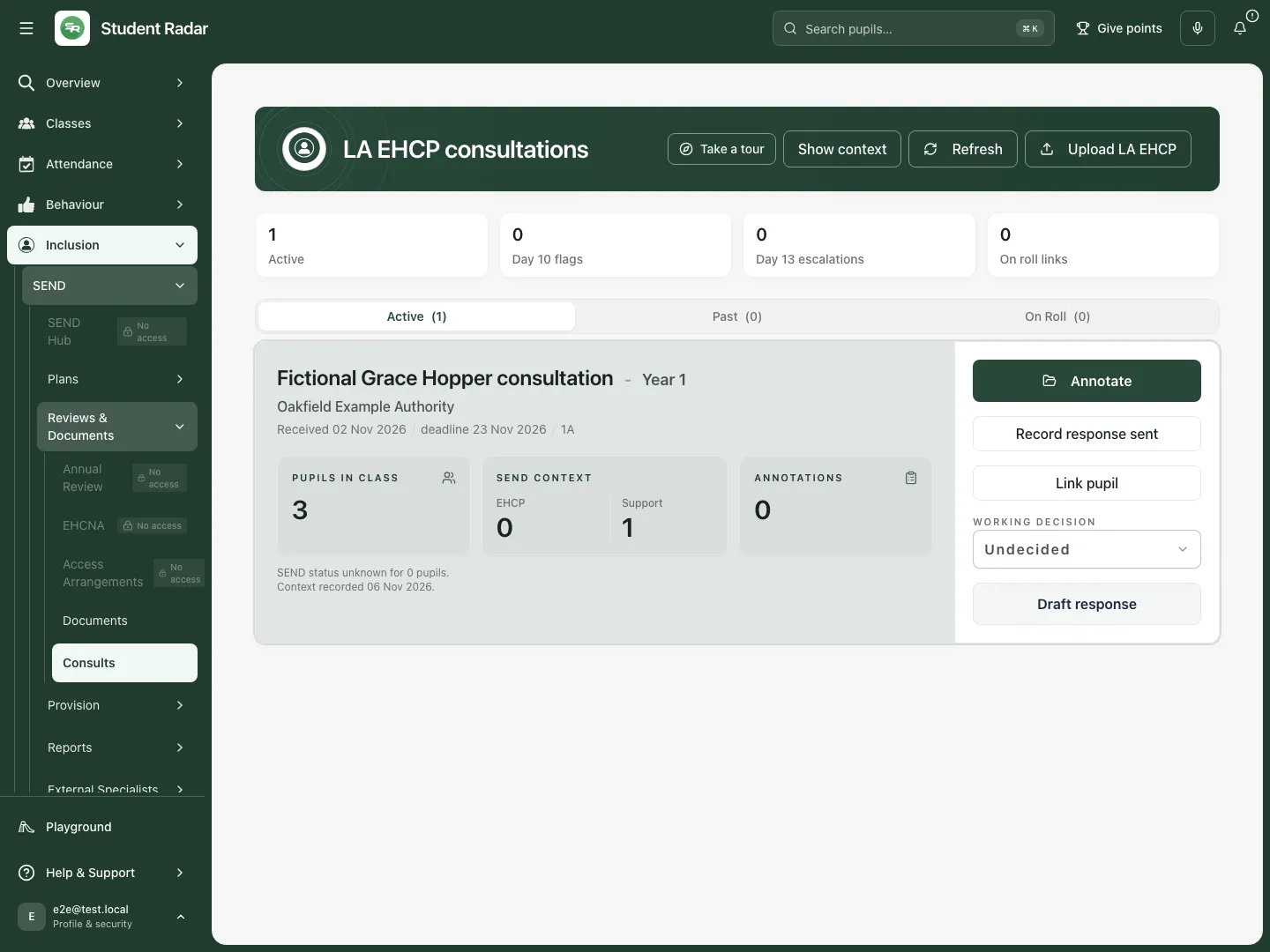 The fictional consultation is active, with no day-10 or day-13 flag. Its class context explicitly counts three pupils and identifies the recorded SEND-status coverage.
Log an incoming EHCP consultation
Section titled “Log an incoming EHCP consultation”- Choose Upload LA EHCP. Enter Consultation title, Local authority and Date received.
- Check LA deadline (optional). The form’s default is 15 calendar days after receipt; replace it with the authority’s actual deadline when different and verify the case requirements.
- Choose Year group. Select Proposed class, or leave it to be determined when the class is not known. Use readable class names rather than raw group identifiers.
- Enter Known pupil identifier and select the received EHCP PDF. Check that it is the intended plan and audience before uploading.
- Choose Create consultation, then inspect the saved card and deadline. This stores the received document and consultation record; it sends no placement response.
- If the PDF uploaded but consultation creation failed, complete the resumed form using that uploaded document. Do not upload the same file again merely because the second step needs retrying. Cancel leaves the intake form.
The upload workflow is source-inspected; no file was uploaded for these screenshots.
Record the school’s working decision
Section titled “Record the school’s working decision”- On the active card open Working decision.
- Choose Undecided, Can meet need, Can meet need with conditions or Cannot meet need, reflecting the authorised professional review so far.
- Wait for the save to settle. Refresh/reopen the consultation and check the selected value before using it in a response.
- Revisit the decision when new evidence changes the school’s view. A working decision is neither a sent letter nor the LA’s eventual placement outcome.
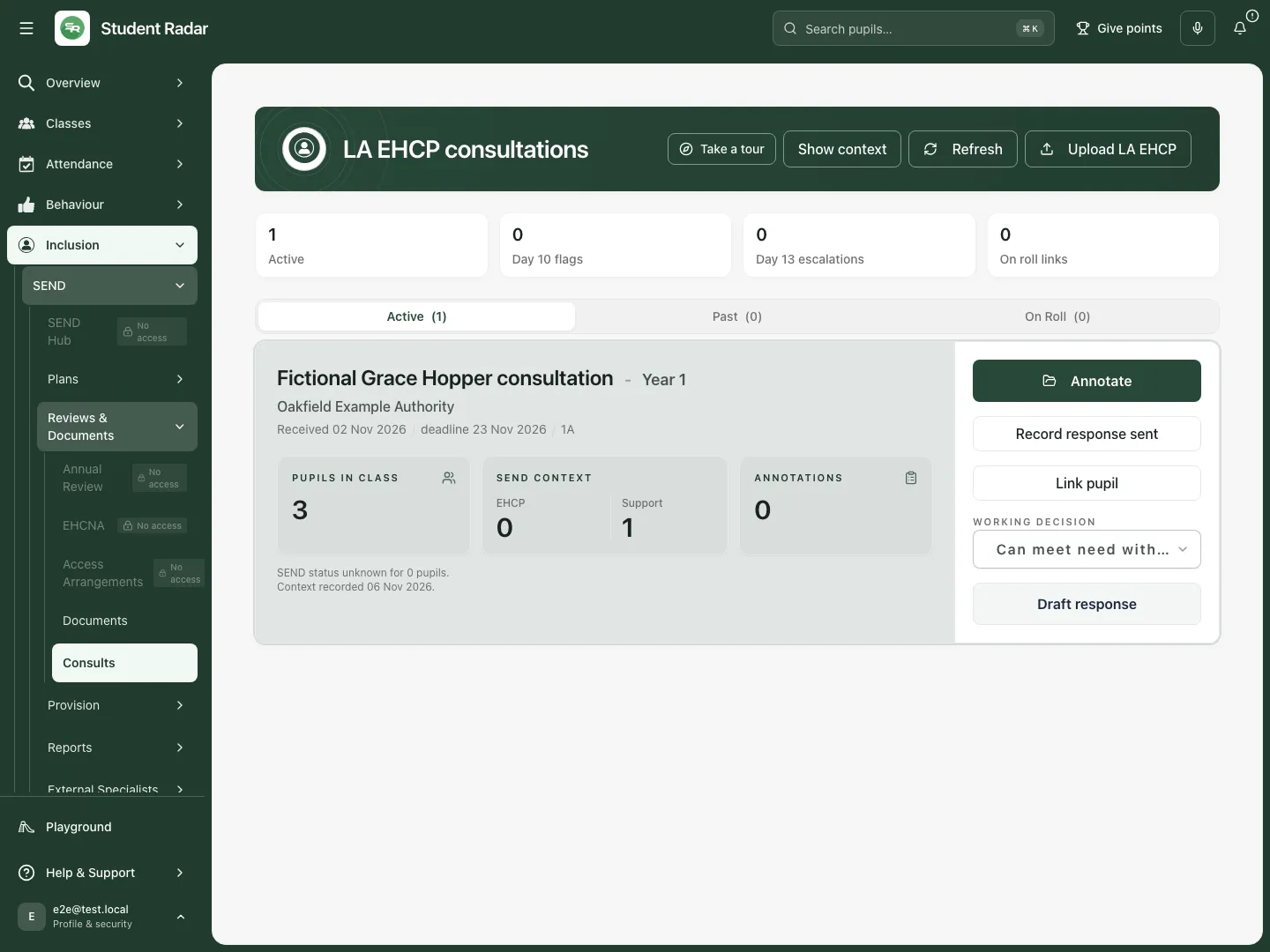 The fictional saved working decision is Can meet need with conditions. No response has been recorded as sent.
Check school context and deliberately select response evidence
Section titled “Check school context and deliberately select response evidence”- Select the active consultation and choose Show context. Read School context intelligence, the source cohort and recorded date. Hide context collapses it.
- Inspect the aggregate counts and source warnings. Unknown SEND status, unavailable context and zero recorded pupils are different states. Capacity context must not be treated as an automatic refusal reason.
- Choose Refresh context to obtain a current permitted snapshot while the consultation is editable. Review what changed rather than assuming an earlier snapshot remains current.
- Tick Use in response only for an insight you have checked and want available to drafting. The Response draft context count shows how many insights are selected. An unticked insight is not silently adopted into the response.
- Keep restricted context within its stated boundary. A presence-only safeguarding notice does not provide names, details or inferred facts for the response.
- Check a failed context read with Try again. Do not describe missing context as no needs, no risks or spare capacity.
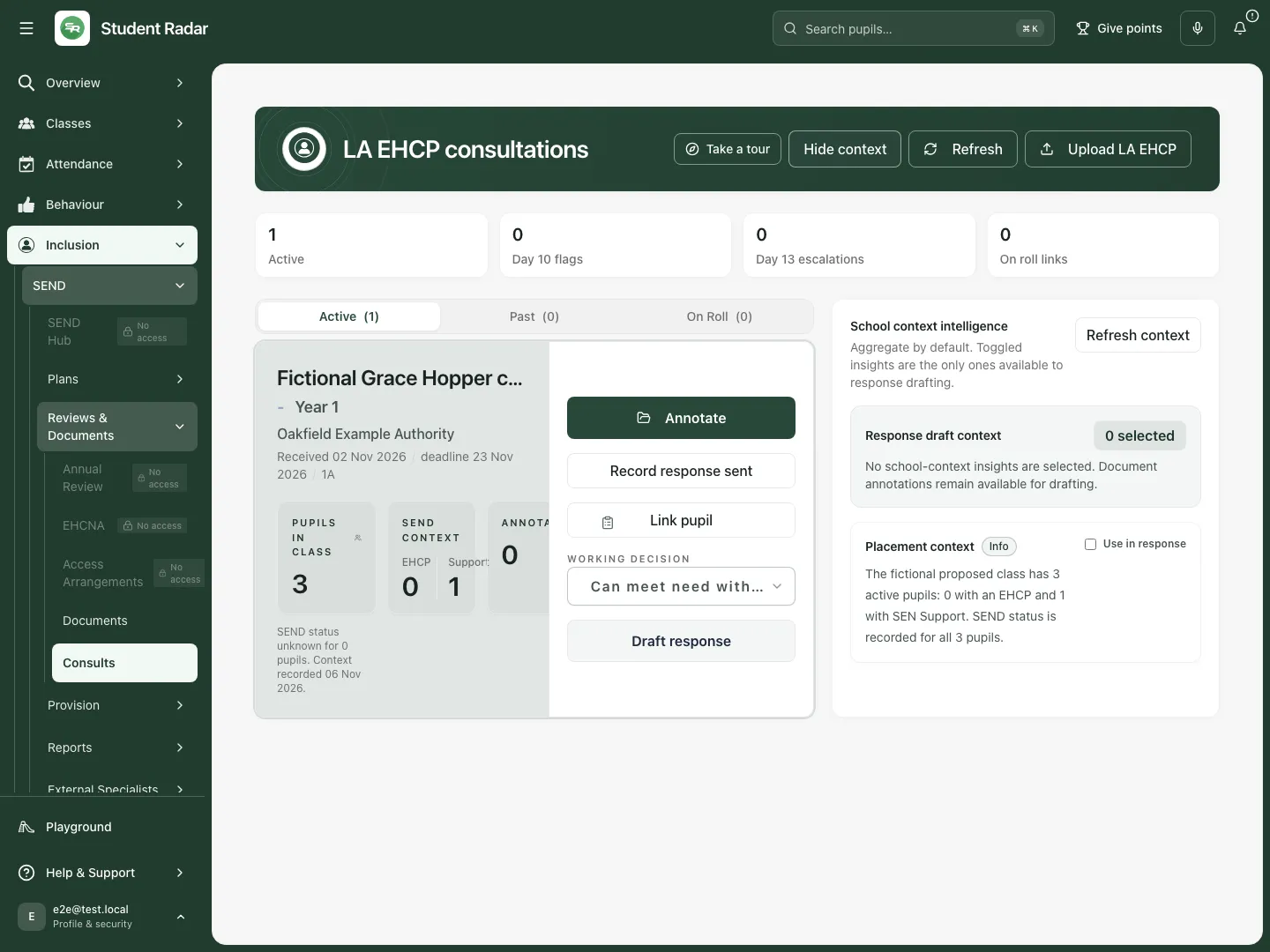 The fictional context is class-based, with three pupils and all SEND statuses recorded. No insight is selected for response drafting.
Annotate the incoming plan against its actual wording
Section titled “Annotate the incoming plan against its actual wording”- Choose Annotate and check the incoming document version. The consultation annotation workspace keeps notes anchored to that version.
- Use Excerpt to select source text for a note or Highlight for a visual PDF mark. Excerpt and Highlight have different effects; keep staff interpretation separate from the quoted wording.
- Choose an appropriate Send to label and enter the note. Consultation labels include Lacks specificity, Unmeasurable, Query for LA, Beyond staff expertise, Resourcing gap, Environment unsuitable, Timetabling conflict, Capacity reached, Can deliver as specified, Can deliver with adjustment, Already in place, Funding implication and Action needed.
- For structured concerns, complete the relevant provision, training, resource, quantity or capacity detail fields. Describe what the evidence supports rather than an assumed placement conclusion.
- Choose Save excerpt or Save unlabelled and check the saved state. Text notes, checklists, links and source navigation follow the SEND Documents annotation walkthrough.
- Review any unsaved-change or conflict notice before closing. An annotation does not amend the issued EHCP or communicate a response to the LA.
The annotation workflow is source-inspected in this guide; no real child’s plan was opened or annotated.
Prepare, edit and save the response draft
Section titled “Prepare, edit and save the response draft”- Choose Draft response. Read the selected evidence/context and existing draft before editing.
- Generate draft is the optional drafting action when no saved response exists; Regenerate draft prepares a replacement proposal when one exists. Review its confirmation and retained previous-draft option before proceeding. Neither generates an authorised placement decision or sends a letter.
- In Edit, correct the response using the actual plan, annotations and deliberately selected context. Use Preview to inspect the formatted letter.
- Review Editorial notes: Gaps to check, Case-strength concern, Unused evidence and Reviewer notes. “No notes returned” is not a guarantee that the letter is accurate or complete. Notes can become stale when evidence or wording changes.
- Choose Save and reopen Draft response to check the saved wording. A locally restored draft may contain unsaved edits; review and save it deliberately.
- Use Restore previous only after reviewing the previous saved draft and the restoration confirmation. It is a deliberate replacement, not a recovery of every historic state.
- Choose Download response to export a plain-text
.txtcopy when the saved, reviewed response is ready for the school’s authorised sending process. Downloading does not send it.
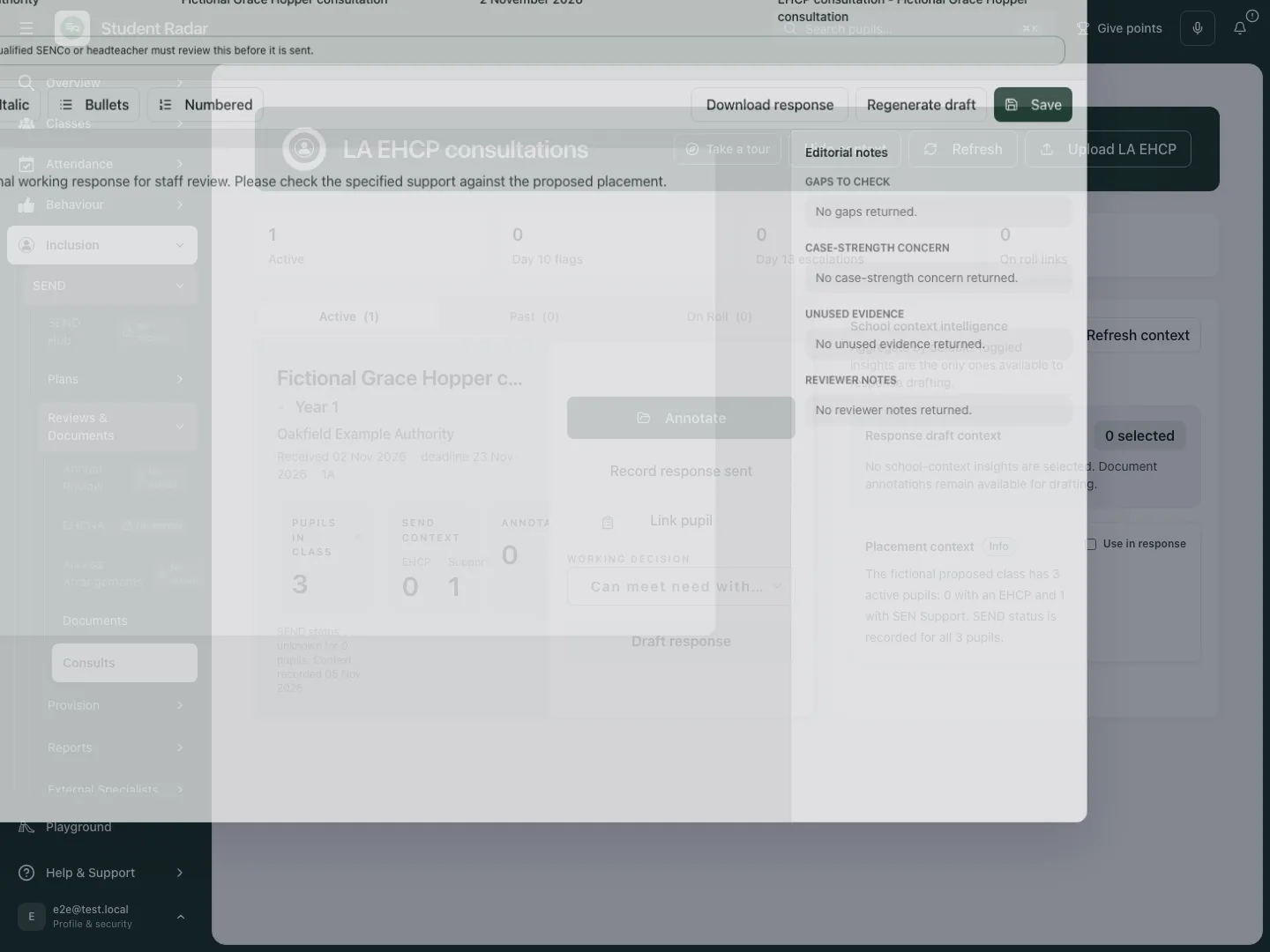 The fictional response opens as an editable working draft. Optional regeneration and editorial notes remain separate from staff review.
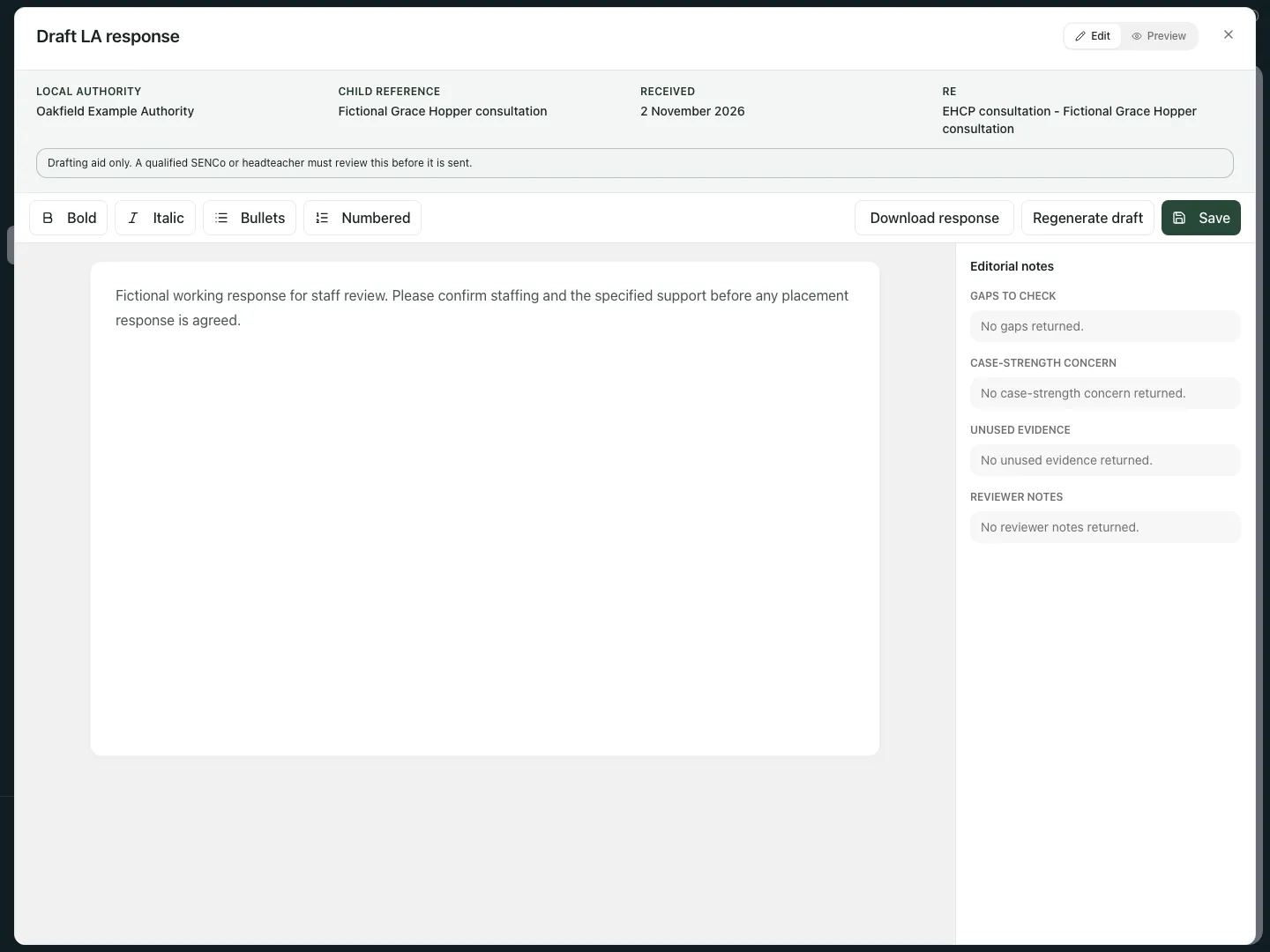 After saving and reopening, the fictional response retains the request to confirm staffing and specified support. It remains an unsent draft.
Record a response that has actually been sent
Section titled “Record a response that has actually been sent”- Send the authorised response through the school’s actual email, post or LA portal process first. Record response sent records that event; it is not an email-send button.
- Choose Record response sent. Read the saved letter shown in the form and check that the working decision is no longer Undecided.
- Enter Date sent and Recipient, and choose Channel: email, post, LA portal or other as appropriate. The date must be valid, no earlier than receipt and no later than the school’s current date.
- Tick I reviewed the saved response and current evidence, and confirm this is the letter sent to the local authority only when that statement is true.
- Choose Confirm response sent. Check the resulting record and Past tab. It locks the sent response and evidence context for that recorded event; do not keep changing the draft as though it were the letter already sent.
- To inspect it later, open the recorded response and check recipient, channel and actual sent date. Download response retrieves that response; it does not send it again.
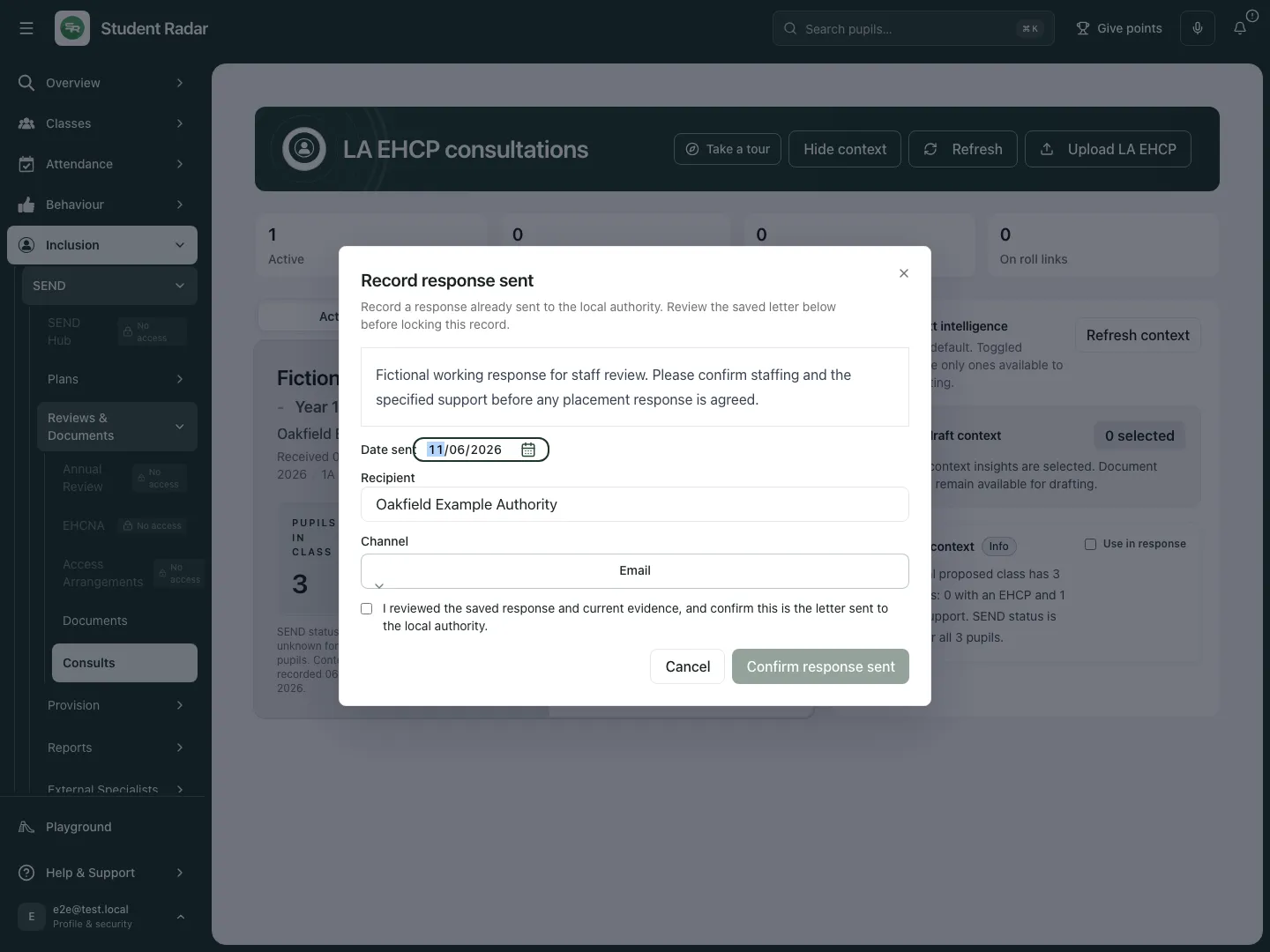 The fictional walkthrough opens this form and cancels. Its unchecked review statement and Confirm response sent control show the separate recording step; no sent event was created.
Link the pupil and record the LA outcome
Section titled “Link the pupil and record the LA outcome”- Choose Link pupil, or Change linked pupil if a link exists.
- Search Pupil name using at least two characters, then select the correct active pupil from the permitted matches. Check name and year before Confirm pupil link.
- If there are more matches, narrow the search. A failed search is not “no matching pupil”. A link does not create a new pupil or grant additional access.
- In Past, use LA outcome to record the actual outcome: placement confirmed, conditions met/not met, alternative placement named, EHCP not finalised, withdrawn or unknown.
- Confirmed-placement outcomes require a pupil link first. Wait for the save and check the outcome rather than rapidly selecting several values against a stale record.
- Use On Roll to open the linked pupil’s permitted record. A school working decision and a confirmed placement outcome remain different facts.
Phone use
Section titled “Phone use”Open the active card and read receipt/deadline, proposed cohort, coverage and working decision before acting. Use Show context deliberately so the supporting information stays understandable on a narrow screen. The same save, review and response-recording steps apply.
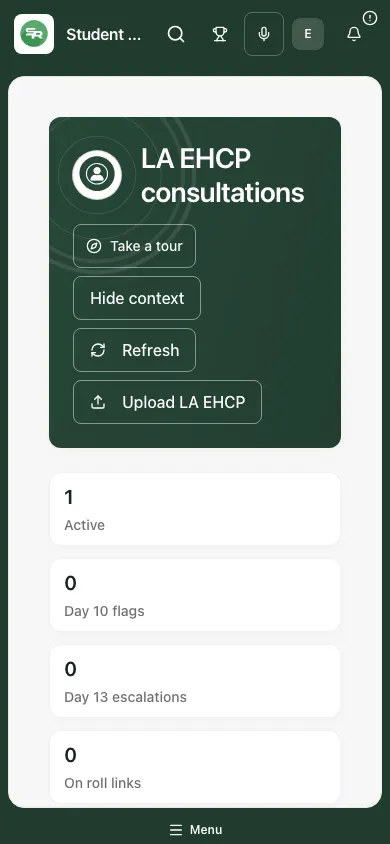 The fictional phone card retains the consultation and decision controls. No response is sent by opening or scrolling the card.
Problems and questions
Section titled “Problems and questions”No consultations appear. Check school, tab, permitted actions and any loading error. Refresh before interpreting an error as an empty workload.
A working decision or draft failed to save. Preserve the text, refresh the current revision and reconcile another colleague’s changes. Reopen the saved value before relying on it.
Context is unavailable or stale. Use Try again or Refresh context and inspect the new source date/coverage. Do not use a missing count as a placement conclusion.
Confirm response sent is disabled. Save a non-empty response, choose a working decision, enter a valid sent date/recipient/channel and confirm the review statement truthfully.
Does saving or downloading send the letter? No. Send through the school’s authorised route, then record the actual event. An unsent draft must not be marked sent simply to move it out of Active.
Why can I not change sent context? The recorded sent response preserves the evidence and wording used for that response. Review the recorded version rather than rewriting its history.
The LA confirmed placement but outcome saving is blocked. Link the correct pupil first. Do not select a different outcome solely to bypass the link requirement.
Related: SEND Documents, EHCPs, SEND Register, Annual Review, EHCNA.