Explore assessment outcomes from school to pupil evidence
Set the academic year and term, explore a year or class and open the pupil result before interpreting the report. Start with the selected year and term, explore a year or class, and open the pupil’s actual result before deciding what to investigate or teach next.
Screenshots use three fictional pupils and a fictional reading assessment. One recorded text value has no band. It stays visible without being assigned an invented attainment level.
Before interpreting the report
Section titled “Before interpreting the report”Open Assessment → Analysis → Assessment & Outcomes, or the corresponding Leadership link. The page banner calls the school-level view Assessment Reports. Your account needs access to the underlying assessment records as well as the page; seeing a sidebar item alone does not establish that the data can load.
A refusal, a temporarily busy service and no records are different states. An access refusal asks for the relevant permission rather than offering an endless retry. A busy message can ask you to wait before retrying. Do not report either as zero results.
1. Set the academic year and term
Section titled “1. Set the academic year and term”Use Academic year and Term at the top. All terms includes records that lack a term; a selected named term can exclude those undated-term records. Check the period label on the report after changing either control.
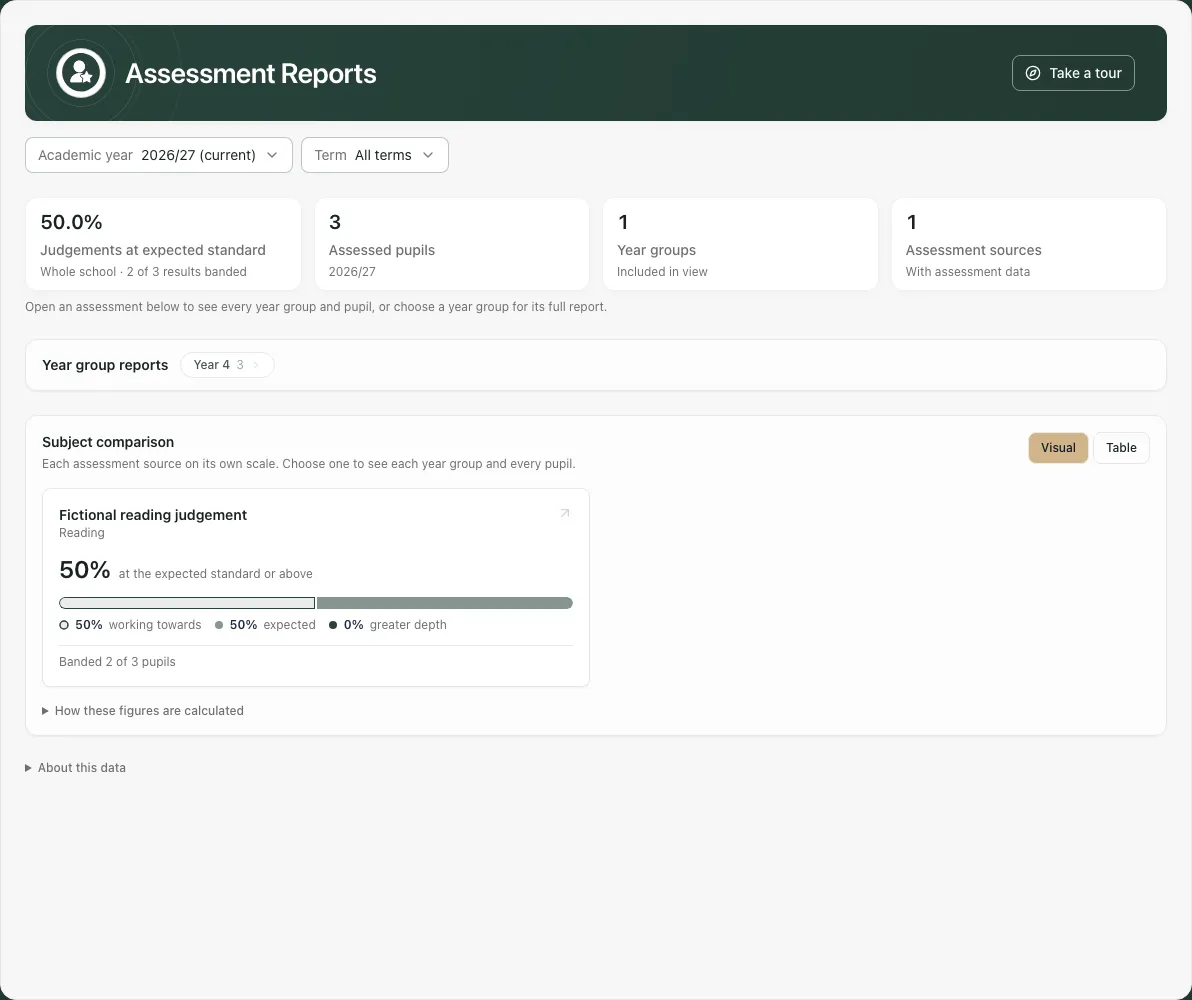
The year list checks which years have accessible results and can label a year no results. That is about the returned records for your account, not a claim that nobody in the school was assessed. A failed year-list read does not establish an empty year.
The latest result for a pupil/source is used within the selected context. If the same latest evidence disagrees, the report preserves the conflict instead of choosing a convenient value. A single undated result can still count; an unusable date or conflicting undated evidence needs verification.
2. Read the headline and denominator
Section titled “2. Read the headline and denominator”The banner adapts to what is recorded. Judgements at expected standard is shown when results have bands on their own scale. When none are banded, the headline can say Results recorded instead of inventing an expected-standard percentage.
Assessed pupils means pupils with returned assessment records in this scope. It is not the school roll. A pupil with several sources can contribute several results, so result counts and pupil counts are not interchangeable. Assessment sources counts the distinct measures returned, not a single universal score.
Read latest/earliest recorded dates where shown. Old evidence remains old even if the page was refreshed today. A current page load does not make a historical result fresh.
3. Explore a year and class
Section titled “3. Explore a year and class”Use Year group reports and select the intended year. The banner, breadcrumb and report cards change to that year. Check the selected year and term remain the ones you intended.
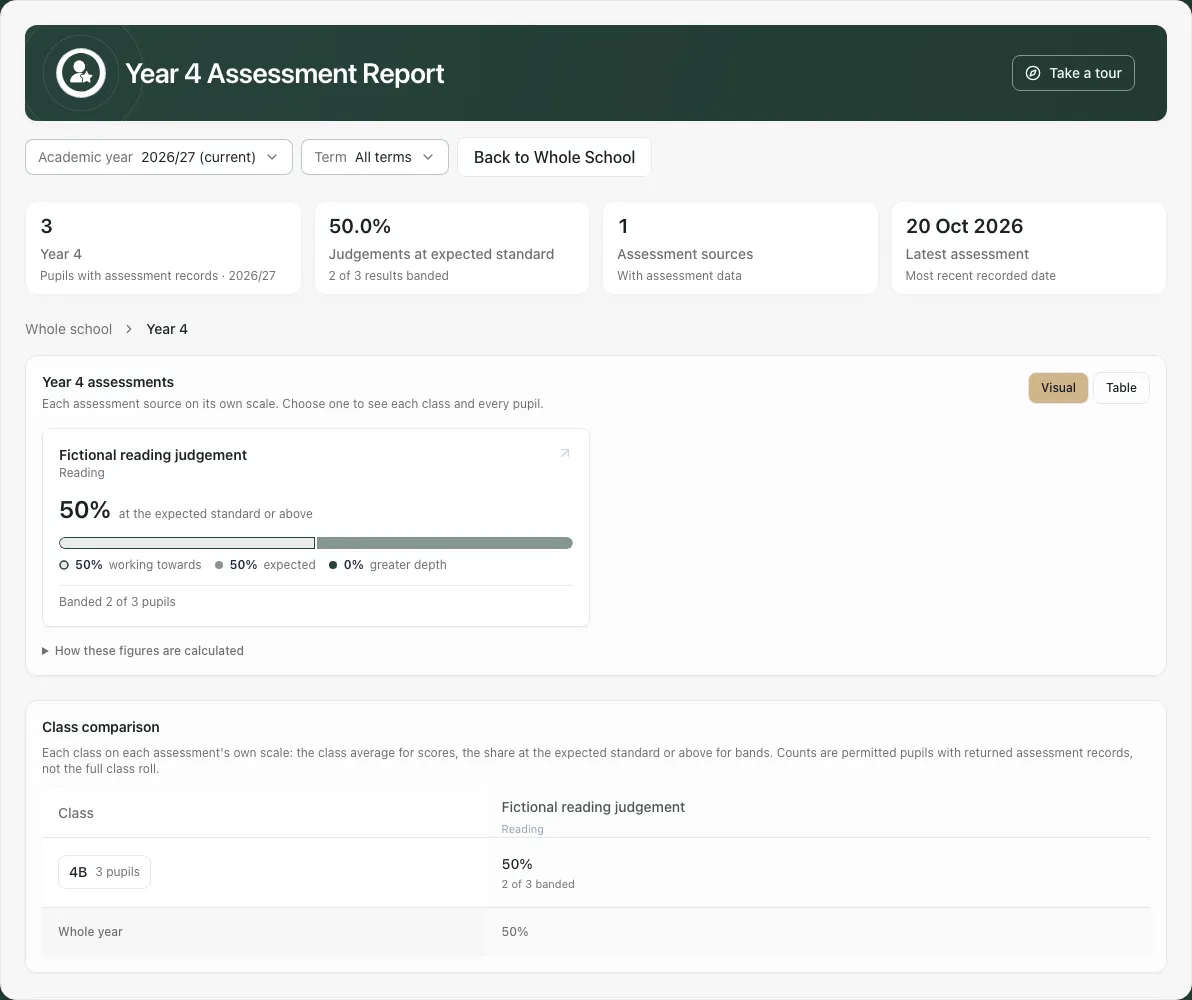
The year report offers the assessments, class comparison and pupil table. Select the class where offered to narrow the report further. A score difference is labelled against the actual scope, for example vs year or vs class; do not read every difference as a whole-school comparison.
Use the breadcrumb Whole school, year or class to return to the appropriate level. Opening a pupil keeps the report beneath at its existing cohort scope. Browser Back or a fresh rail link can change the address/context; check the visible breadcrumb after navigation rather than assuming the old filter persists.
A raw-looking year label can reflect an unresolved source identifier. Do not infer an age group from it. Ask the school to check the original year-group reference if the label is unclear. A pupil without a year can remain in whole-school figures without a year drilldown.
4. Compare sources without mixing their scales
Section titled “4. Compare sources without mixing their scales”The assessment/source card offers Visual and Table under Show subject comparison as. In Visual mode, choose a source to explore its year groups, classes or pupils. Table provides the explicit result counts/coverage for comparison.
Keep each source separate:
- A banded judgement uses that source’s own grading scale, not a new scale invented by the report.
- A numeric score can contribute to the mean of recorded latest scores. A score without a defined band is counted but not rated as expected standard.
- Standardised scores use their standardised reference and are not converted into an expected-standard judgement merely because a number is high.
- A text value with no band remains a recorded value, not a ranked attainment label.
- Conflicting latest results are excluded from the corresponding single-result rate/mean until clarified.
Open How these figures are calculated to read the calculation basis. Only year groups represented as having sat that source belong to its assessed-cohort denominator. Unrelated year groups are outside that denominator, rather than counted as missing results for a test they did not take.
5. Open the actual pupil result
Section titled “5. Open the actual pupil result”In the year/class pupil table, choose the pupil’s name. Column headers can sort the table; — means no result in that assessment, not zero attainment.
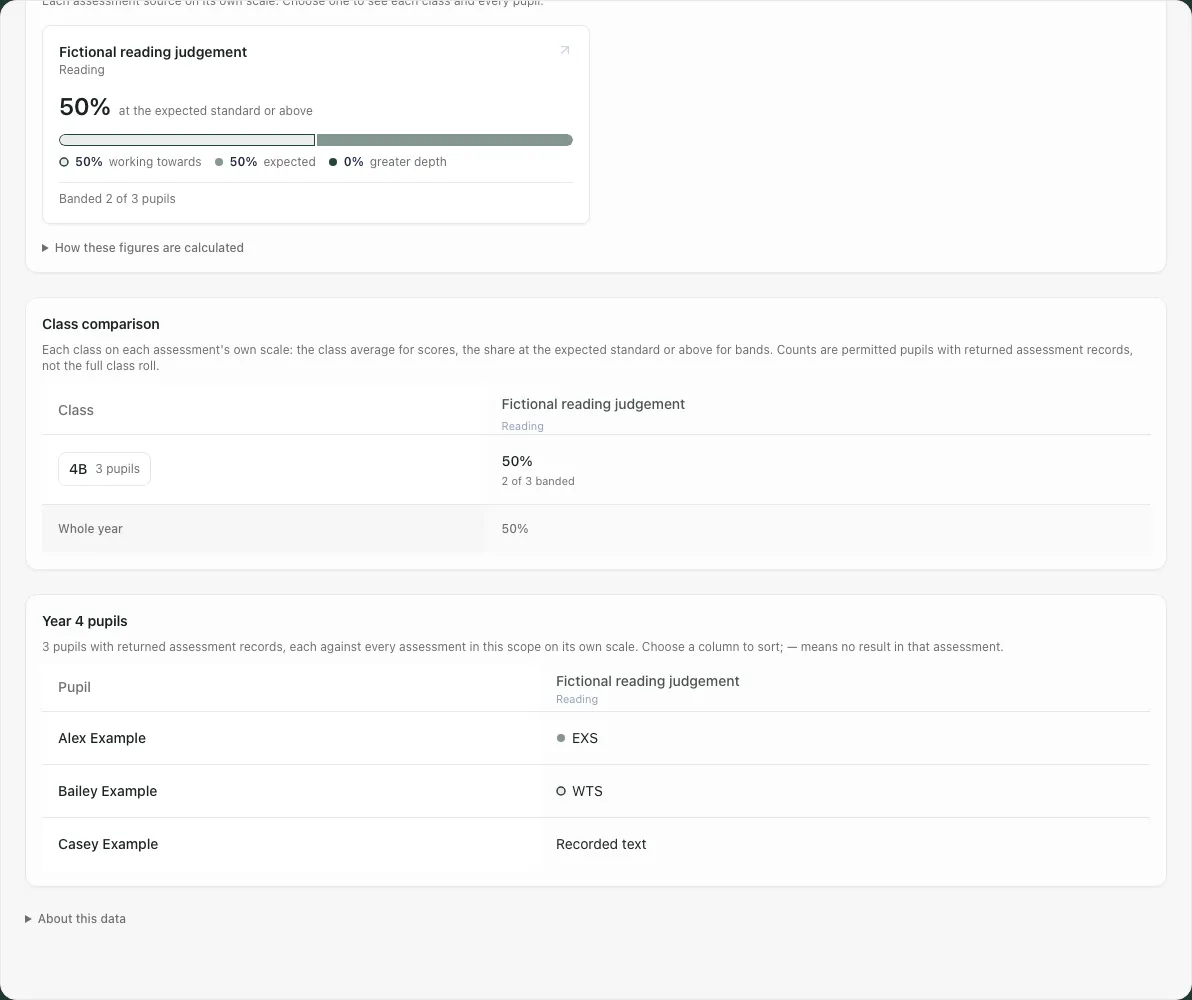
The pupil profile shows Assessment results, the latest result on each source’s own scale across recorded years, its recorded date/period, and Progress over time when repeated evidence exists. Check those dates against the cohort report’s narrower period before comparing. One result does not create a trend; the page explains when more recorded results are needed.
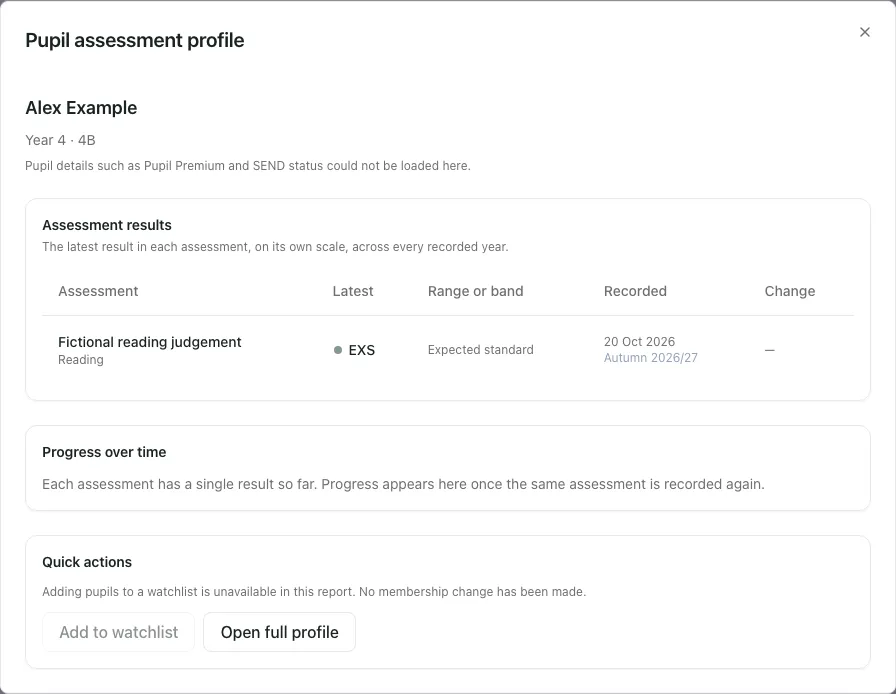
Optional pupil context can fail separately. The example deliberately shows that Pupil Premium/SEND details could not load while the assessment result remains visible. That is unknown context, not proof the pupil has no additional need or characteristic.
Open full profile goes to the appropriate pupil record when the identity is available. It still needs destination access. A disabled Add to watchlist with an unavailable notice does not add the pupil to a watchlist; no membership change should be inferred.
Close the pupil dialog to return to the same year/class report. Read the period beneath before comparing another pupil.
6. Use the source focus and chart carefully
Section titled “6. Use the source focus and chart carefully”In a source’s detailed Visual view, use Chart or List under Show pupils as to inspect pupil distribution. Open a specific pupil dot or name to read their result rather than guessing identity from a cluster. A tap on empty chart space opens nobody; a previous hover is not the pupil you just selected.
Keyboard selection can be opened with Enter or Space as offered. On a phone, use a precise tap or the table when points overlap. A dot location is a display of the recorded measure, not an independently verified assessment.
If equity/group information is available, read the group definition, denominator, missingness and any withheld/suppressed state. An unavailable or suppressed group is not zero. Do not reconstruct small protected counts from the other totals or interpret a gap as its cause.
7. Verify a surprising result at the source
Section titled “7. Verify a surprising result at the source”This workspace analyses existing evidence; it is not the marksheet editor. Before changing teaching or reporting a concern:
- Check academic year, term, school/year/class scope and exact source identity.
- Open the pupil result and verify its date, original label/score and history.
- Distinguish no result, unbanded recorded result and conflicting evidence.
- Check the original assessment entry or MIS record through the appropriate authorised route before correcting it.
- Return to the report and verify that the intended stored change is reflected.
Do not create a replacement result just to make a missing band disappear. Where the result is valid but its scale defines no band, the right interpretation is recorded-but-unbanded.
8. Change term without losing the report’s meaning
Section titled “8. Change term without losing the report’s meaning”Select a recorded term only when you intend that narrower evidence window. Check the report’s period label and latest dates after selection.
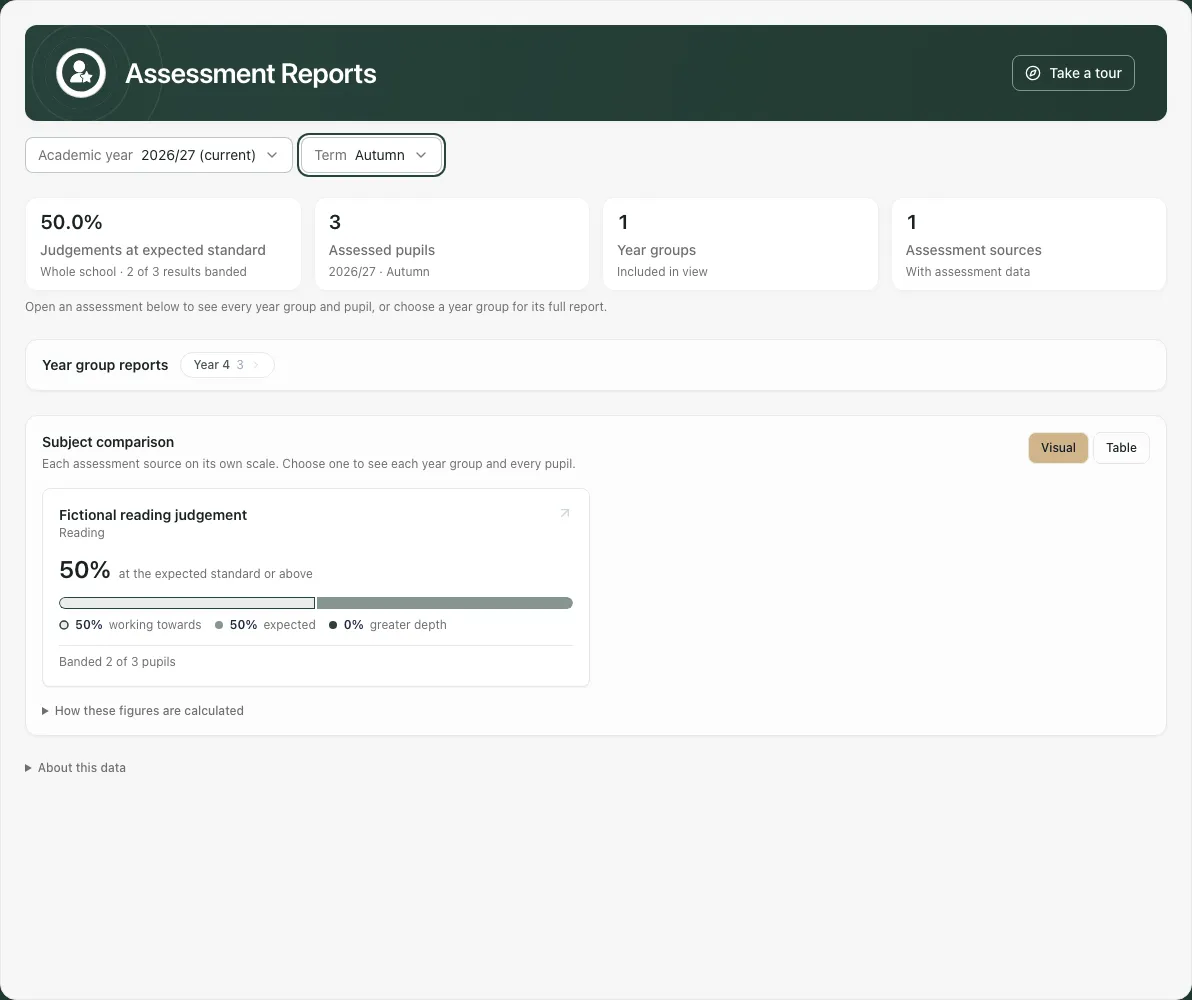
Records without a term can disappear from a named-term view. If a source’s expected records seem missing, return to All terms and check its recorded dates/term metadata. Do not assume the missing rows were deleted.
Phone use and troubleshooting
Section titled “Phone use and troubleshooting”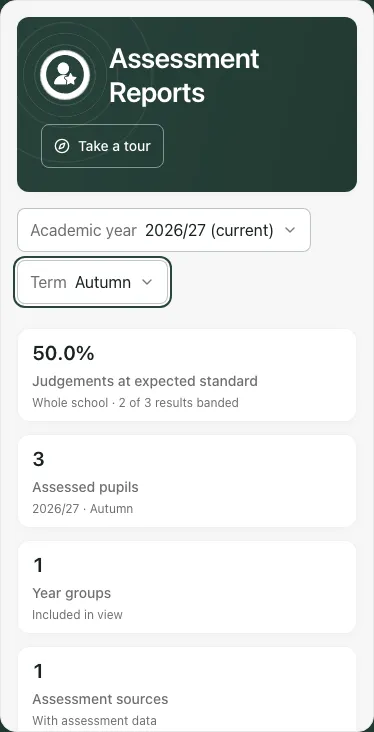
Scroll across wide tables to read the whole source/result/date. Use the breadcrumb to restore the school scope and close the pupil dialog before navigating another report.
| Situation | Next step |
|---|---|
| Access does not include these records | Ask the administrator for the underlying assessment-report access, not merely the sidebar item. |
| Busy/rate-limited | Wait as instructed, then retry the appropriate read. |
| Scope too large | Choose a narrower year/term/year group/class rather than interpreting a partial dataset. |
| No records in this scope | Check year, term and source filters before reporting an empty school history. |
| Text result has no band | Keep it as recorded; do not invent an expected-standard mapping. |
| Conflicting result | Check the original latest evidence and correct the actual source where authorised. |
| Pupil context unavailable | Treat the optional context as unknown while reviewing the results that did load. |
| Unexpected year label | Have the original year-group identity checked. |
| Chart selection misses | Use the actual pupil point/name or table; empty space is not a pupil selection. |
Common questions
Section titled “Common questions”Where should I check an unexpected result?
Section titled “Where should I check an unexpected result?”Open the actual pupil result and verify the original source, selected academic year and term before interpreting the report.
What happens to a result with no band?
Section titled “What happens to a result with no band?”It remains visible without an invented attainment level. Compare each source on its own scale and retain its coverage and gaps.