Prepare student app publishing and achievement rules
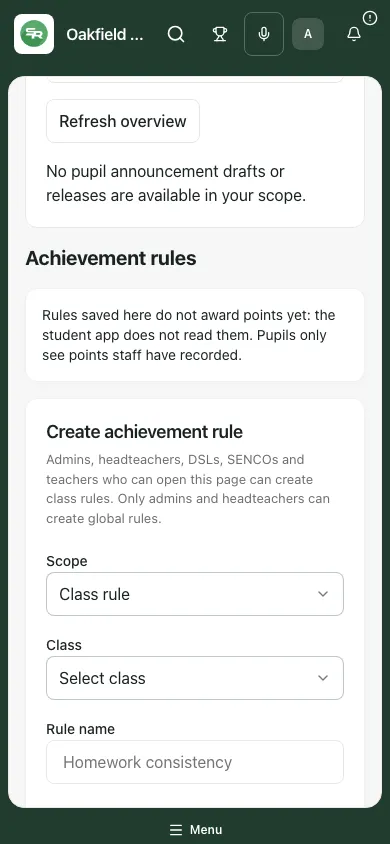
Choose School publishing for reviewed pupil-facing drafts or Achievement rules for class and global rule configuration. Publishing prepares pupil-facing material through a separate review/publication process. Achievement rules can be saved and enabled/disabled, but they do not award points yet: the student app does not read them. Pupils only see points staff have recorded.
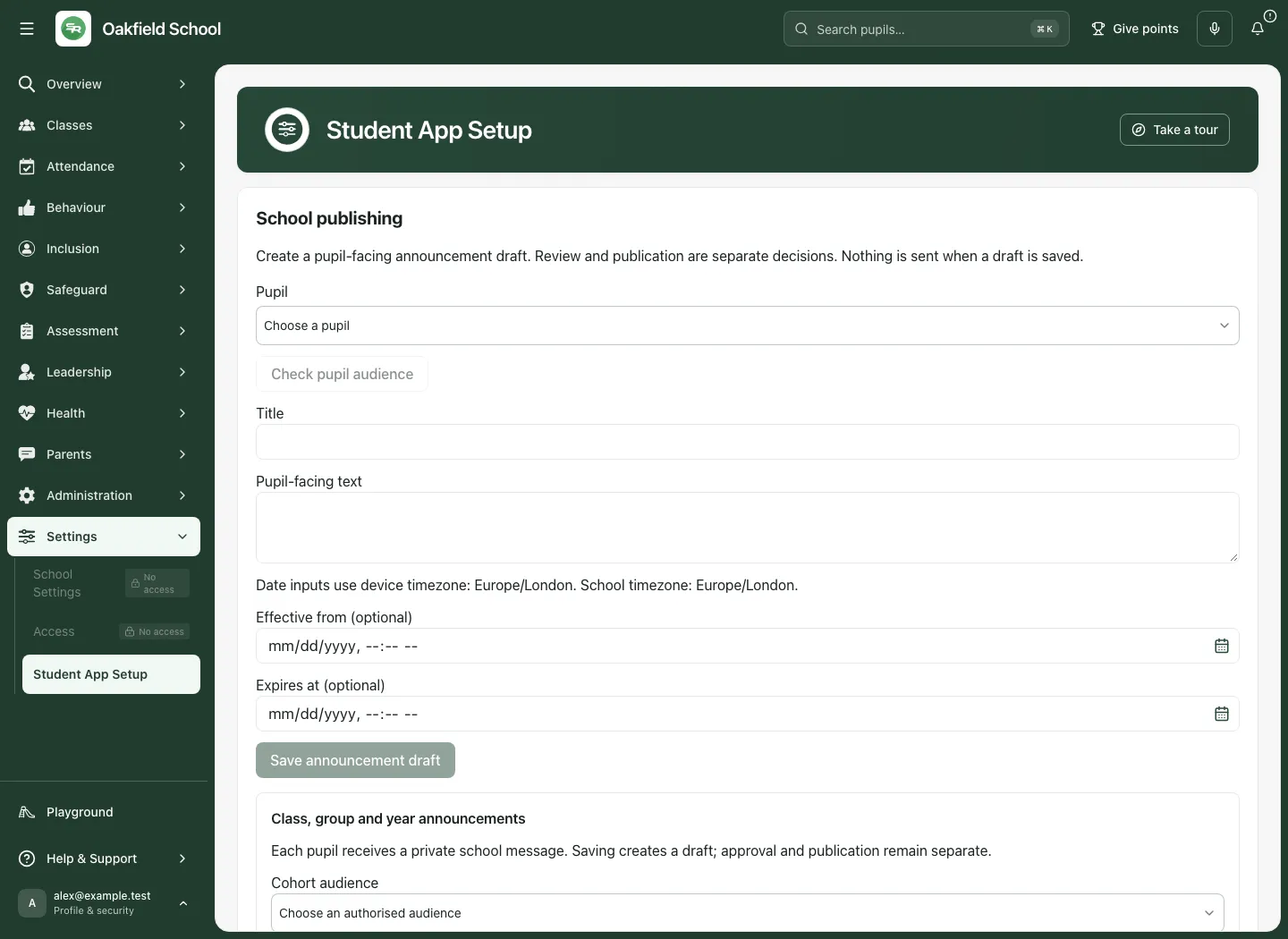
The fictional example saves a class rule called Homework submission preparation. Its Active label means the rule’s configuration is active, not that points have been awarded or a pupil outcome has improved. The publishing example shows the preparation controls; no pupil update is sent or published.
1. Before you begin
Section titled “1. Before you begin”Open Student App Setup under Settings. Confirm the school and your intended task. A staff member may have permission for class rules without global rules or publication approval. Messaging service availability and source-specific publishing authority remain separate.
For a pupil-facing update, verify the pupil’s identity and account, the current source material, age-appropriate wording, audience and timing. A pupil account may need creating in Account Connections before a draft can be submitted to that audience.
For an achievement rule, agree the intended scope, metric, threshold and points with the school owner. Because rules are not yet consumed by the student app, do not promise automatic rewards, reminders or evaluation from saving one.
2. Read the two independent workspaces
Section titled “2. Read the two independent workspaces”School publishing can remain available even when achievement rules fail to load. Conversely, a rule can be viewed/saved without a successful pupil publication. Read the error/status in the section you are using.
If the school is not identified, the page stays unavailable. A role that can view but not change rules sees that explanation. Take a tour helps locate controls; it does not submit work.
3. Prepare an individual announcement draft
Section titled “3. Prepare an individual announcement draft”- In School publishing, choose Publishing pupil, checking the name, year and class. A source workspace can fix the pupil rather than offering this chooser.
- Choose Check pupil audience. Read whether a current pupil account is eligible and whether translation review is required.
- If there is no recipient account, open Account Connections, arrange the authorised account setup and check the pupil audience again. Do not select another child just to enable Save.
- Enter Title and Pupil-facing text. Keep the content suitable for that pupil and avoid copying private staff notes.
- Set Effective from (optional) and Expires at (optional) when needed. Read the explicit date-input time zone: these inputs use the device time zone, while the school zone is displayed separately. Check the real instant, especially when travelling.
- Review the dates and text, then choose Save announcement draft.
- Read Draft saved. It has not been published. and inspect the release in the current list. A draft is not visible to pupils merely because it exists.
Changing the selected pupil means checking the audience again. Changing the content creates a new reviewable version; do not assume an earlier approval applies to later wording. Required limits are checked in the actual operation, including language byte limits, not simply by how short the text looks.
4. Prepare a class, year or whole-school announcement
Section titled “4. Prepare a class, year or whole-school announcement”- Open Class, group and year announcements where the current messaging permissions offer it.
- Select Cohort audience from the available whole-school, year or group choices. Read the bounded-list message if some options are not shown.
- Choose Check cohort audience. Review the distinct recipient-account count, missing coverage and the explicit private fan-out arrangement.
- If accounts are missing, resolve the actual pupil setup rather than assuming a class label guarantees every pupil has a recipient account.
- Enter Cohort title, Cohort pupil-facing text and the optional effective/expiry times. Check the displayed time-zone information.
- Choose Save cohort announcement draft. The resulting draft has not been published.
- Review the actual audience again at submission: membership is checked again when the draft is submitted for review.
A cohort is not a public conversation or a single shared pupil identity. Keep each pupil’s private context out of a broad announcement.
5. Prepare source-based pupil updates
Section titled “5. Prepare source-based pupil updates”After selecting a pupil, the page offers source panels only where the source and your authority permit it. A missing/changed source is not permission to invent a replacement result.
Learning, homework, recognition and reading
Section titled “Learning, homework, recognition and reading”- Choose Learning source type and the exact Current learning record.
- Read its current timing, status, comparison/coverage and source version. Recognition needs the school’s points label before sharing where that requirement is shown.
- Enter the Pupil-facing reason or other source-specific wording offered. Do not turn incomplete homework or a reading entry into an unsupported outcome claim.
- Choose Prepare learning wording. This preparation remains private.
- Review the exact prepared wording/source currency and choose Save learning update draft only when correct.
- Use Withdraw private preparation for an abandoned preparation through its explicit route. That is distinct from withdrawing a published release.
Assessment feedback
Section titled “Assessment feedback”- Select Current assessment, checking the exact assessment version and result.
- Enter Result to share, What the scale means, A strength and Next step.
- Choose Prepare selected feedback and read the prepared result.
- Choose Create pupil assessment update draft only after review. Different assessments/scales are not compared automatically.
- Use Withdraw assessment sharing for the relevant source preparation when appropriate. Source withdrawal and final release status still need checking.
Class information
Section titled “Class information”Review the eligible class-team/information source. If none is available, add/review it in the owning class workspace first. Use Create pupil class information draft for the current eligible version. Birthday feed cards are unavailable until individual opt-in publication authority exists; a class roster is not consent to publish birthdays.
Calendar/time updates
Section titled “Calendar/time updates”Review the eligible events for the pupil, including whether the school time zone is available, the actual timed/all-day range and location. The source list is bounded to the next 90 days. Choose Create pupil time update draft for the intended source. This does not create another calendar event or approve the source trip/meeting.
Pupil responsibilities
Section titled “Pupil responsibilities”- In Pupil responsibilities, enter Role name, Duties, Starts and Ends.
- Review Applies while the pupil remains in their current class where offered.
- Choose Save responsibility draft.
- Review the saved role and choose Confirm appointment when the school has actually agreed it. Editing a confirmed responsibility returns it to draft and needs confirmation again.
- Use Create pupil responsibility update draft to prepare sharing through Communications approval.
- Use Withdraw appointment only for the intended role; read the source and release outcomes separately.
These panels create source-bound preparations and drafts, not automatic high-impact decisions. Review current sources and human ownership before publication.
6. Submit, independently review and publish
Section titled “6. Submit, independently review and publish”- Read the release’s pupil/cohort, status, effective/expiry times and source currency.
- For a current draft, choose Submit for review when permitted.
- An eligible independent reviewer reads the exact wording/revision and source context. Use Approve wording, or enter Changes needed for [update] and choose the explicit request-changes control.
- Approval is still a separate state from publication. For an approved current release, an authorised sender chooses Publish approved update.
- Read Publication requested. Refresh to check its status. This is a request, not proof every pupil has read it.
- Refresh the release and follow queued/current/published/withdrawn or failed outcomes at their actual level.
- If the source changed or became unavailable, or expiry passed, read the displayed notice and re-review/prepare the current source. An earlier approved update must not be assumed current.
For withdrawal, enter Reason for withdrawing [update], then choose Withdraw update and check the resulting state. Do not simply edit private text and assume an earlier release disappeared.
7. Availability controls are separate from a release
Section titled “7. Availability controls are separate from a release”Where an authorised communications settings manager sees Pupil update availability, each category has Pupil reading, Publication approval and Dispatch choices.
- Review the current category state/revision and intended school rollout.
- Choose the specific operation switches needed. Publication approval enables draft/review work for that category; Dispatch releases approved updates; Pupil reading lets pupils see eligible updates.
- Enter Reason for availability changes of at least three characters.
- Choose Save availability settings and read Availability settings saved. No pupil update was sent.
- If turning Dispatch off, read the warning that queued updates in that category are cancelled and need publishing again. Updates pupils already have are not affected by that cancellation.
- If the save cannot be confirmed, refresh/check the current settings before retrying. A rollout switch is not a single release’s approval or withdrawal.
School communications readiness and these category controls are separate gates. A visible form is not proof the school can dispatch live content.
8. Read achievement-rule scope and current limitation
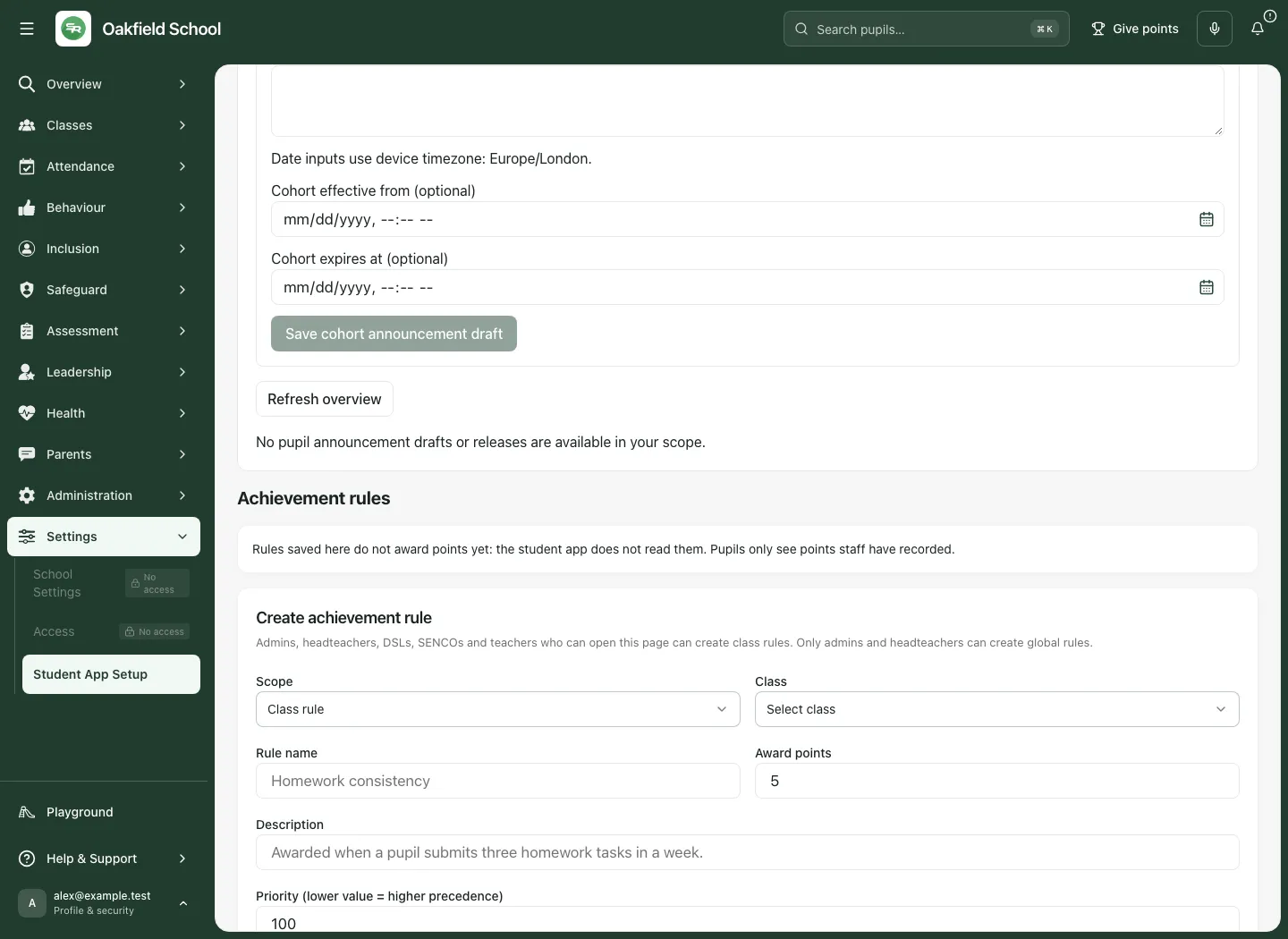
Section titled “8. Read achievement-rule scope and current limitation”The rules section repeats its current boundary: saved rules do not award points, and pupils only see points staff recorded. Read this before creating or explaining a rule to staff/families.
The current page offers class-rule management to admins, headteachers, DSLs, SENCOs and teachers who can open the page. Only admins/headteachers can create global rules. The server still checks each actual change; a role label in a screenshot does not establish a live school’s permission.
Global rules are listed before class rules. Within a scope, lower priority numbers come first. This is configuration order, not evidence an automated reward engine has evaluated those rules.
9. Create a class or global rule
Section titled “9. Create a class or global rule”- In Create achievement rule, choose Scope. Use Class rule for a specific class; global scope requires the broader current authority.
- For a class rule, select Class from the actual school list. If classes cannot load, use Retry classes before creating a class rule. A class no longer available is not the same as a valid selected class.
- Enter Rule name and Description.
- Set Award points to a non-negative whole number and Priority (lower value = higher precedence) to a positive whole number.
- Under Award criteria, choose When: Homework submissions, Attendance percentage, Behaviour points, Reading minutes, Quiz score or Login streak (days).
- Choose Is: at least, more than, exactly, at most or fewer than. Enter Threshold and Within (days).
- Read the generated rule sentence and check the metric, operator, threshold and window together. The window must be a whole number from 1 to 366; metric-specific threshold rules still apply.
- Choose Save rule and read Achievement rule saved. The toast again states that the student app does not award points from rules yet.
- Reopen/reload the page and inspect the rule in Global Rules or Class Rules. Check its class, active state, criteria, points and priority.
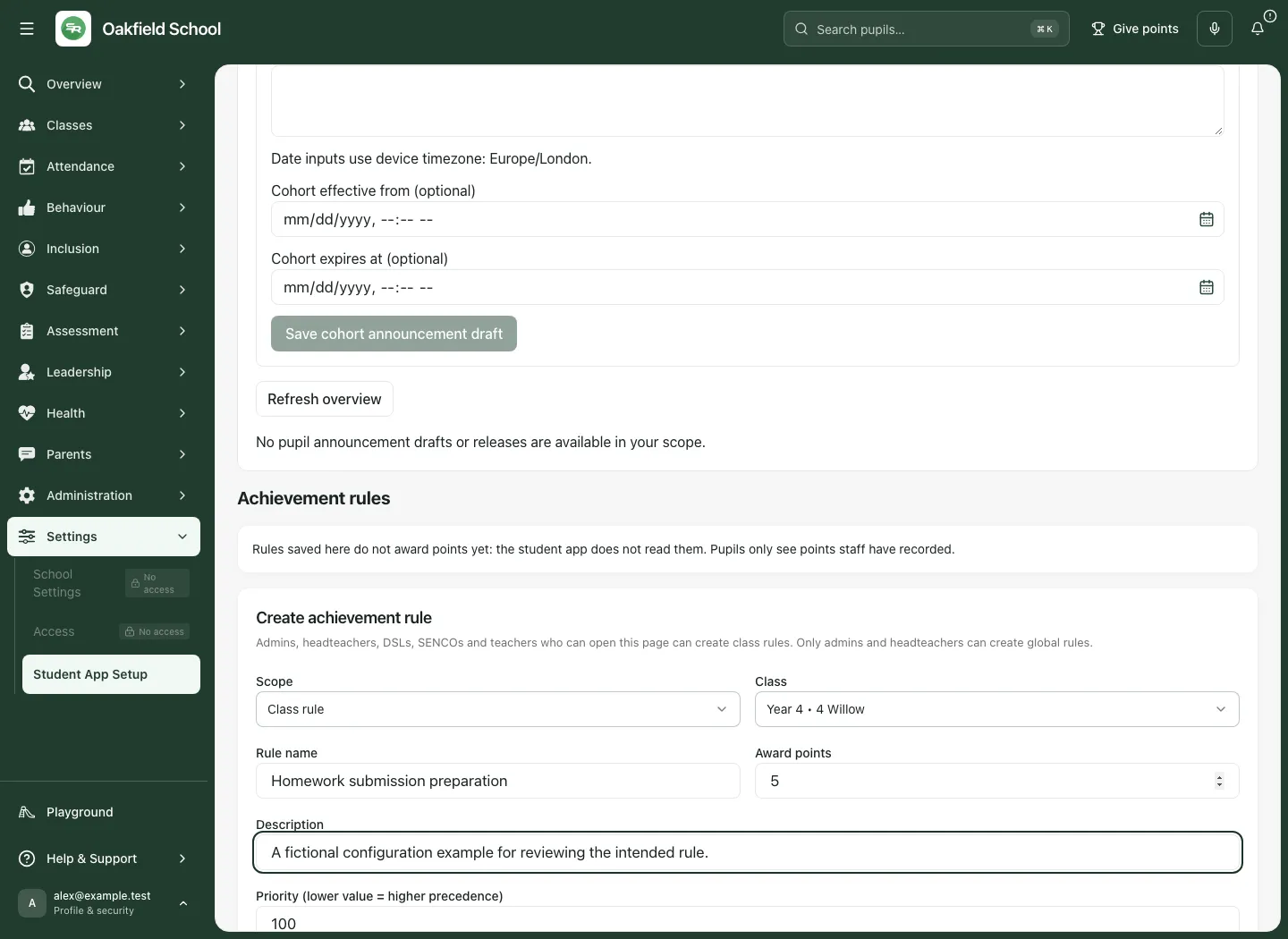
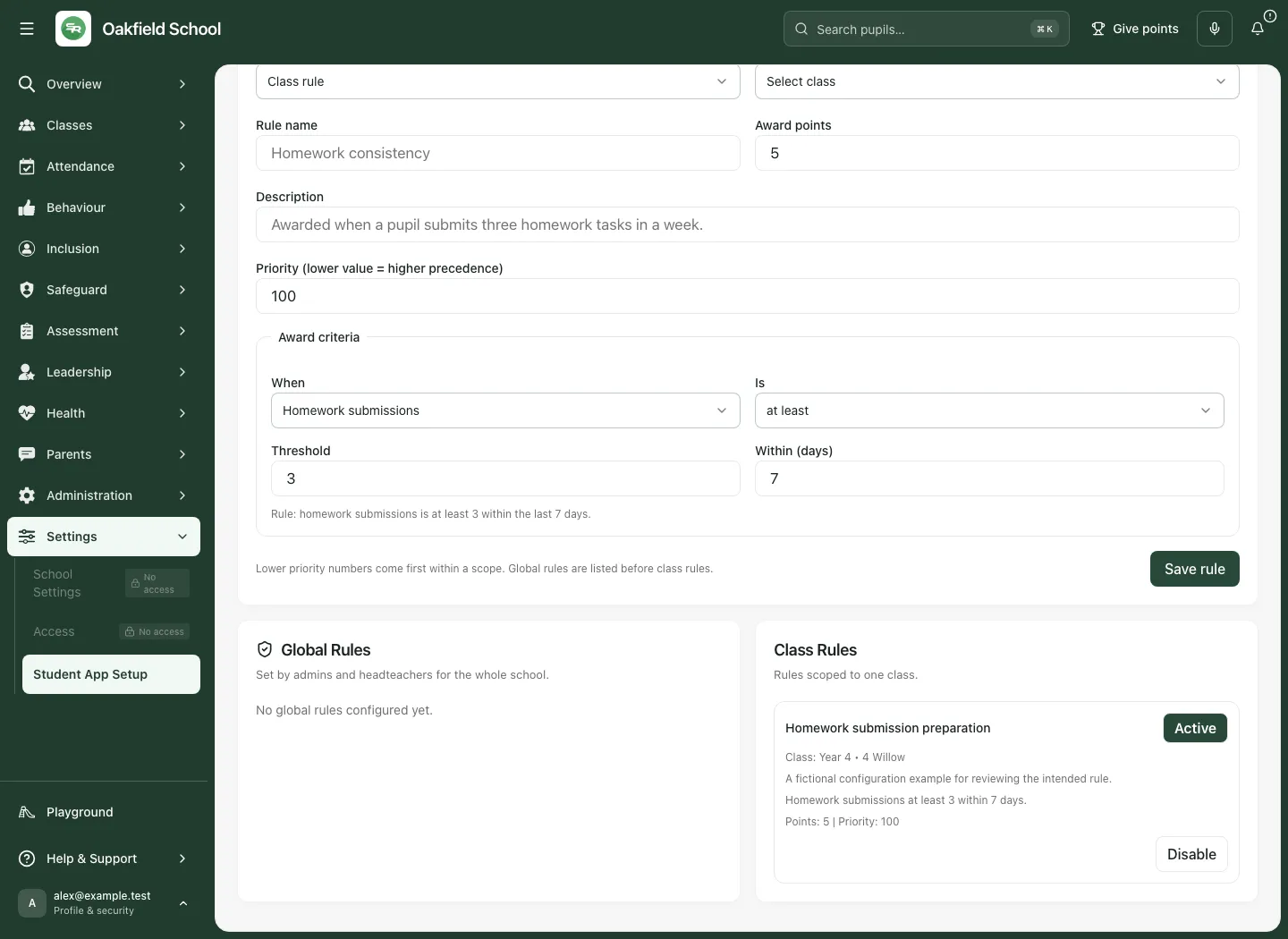
The current form creates a rule; it is not an arbitrary edit/delete form for an existing rule. Do not assume changing the creation fields updates an older card with the same name. Review existing rules before creating a similar configuration.
10. Enable or disable an existing rule
Section titled “10. Enable or disable an existing rule”- Find the actual rule card, checking name, scope/class, criteria and priority.
- Use Disable [rule] or Enable [rule] through the named button.
- Wait for the result and read Active/Inactive on that card.
- Reopen/check the current state if the save was uncertain or another person changed it.
An Active label does not mean points have been awarded, a notification was sent or a pupil met the threshold. It describes the rule configuration only.
The page initially displays up to 30 cards per scope and offers Show N more for additional cards. Read the shown/total count rather than treating the first cards as every rule.
Troubleshooting
Section titled “Troubleshooting”School publishing is not enabled. Read the current school communications readiness and availability state. Do not assume achievement-rule permission turns messaging on.
The pupil audience is missing. Verify the intended pupil account in Account Connections, then check again. A roster identity and an eligible app recipient are different things.
A draft cannot be created/submitted/published. Review category rollout, exact capability, current source, dates, account coverage and revision. Resolve the actual failed gate rather than repeatedly pressing a later action.
An approved update is no longer current. Its source may have changed, become unavailable or expired. Read the notice and prepare/review the current version.
Dates look different. Announcement inputs explicitly use the device zone; read it alongside the school zone and check the resulting instant.
Achievement rules cannot load. Use Retry rules before making changes. This does not have to block the separate publishing workspace.
Global scope is unavailable. It requires admin/headteacher authority. Use a valid class rule only for the intended class duty.
Rule numbers are refused. Points/priority/window require valid whole numbers, with a 1–366-day window and metric-specific threshold bounds. Read the exact input error.
An Active rule has awarded no points. This is the current supported behaviour: the student app does not consume achievement rules yet. Pupils see points staff recorded.
Questions schools often ask
Section titled “Questions schools often ask”Does saving a rule award points automatically? No. This limitation is explicit in the page and save result.
Does saving an announcement show it to pupils? No. Draft, independent review and publication are separate steps.
Does approval publish immediately? No. Publish approved update is a later authorised request, whose actual status must be checked.
Can a changed source leave the old update visible indefinitely? Current source/expiry rules govern visibility; read the stale-source/expiry notice and re-review the source.
Does turning Dispatch off withdraw every existing update? It cancels queued updates in that category; updates pupils already have are not affected by that cancellation.
Do birthday cards follow automatically from the class list? No. Individual opt-in publication authority is required before that capability is available.
Related guides: Account Connections, Connect, Homework, Assess and School Settings.