Read the evacuation brief for your teaching class
Written for: Staff who teach, support or coordinate provision for pupils.
Check the class, pupil arrangements, named helpers and review status, then follow the original evacuation plan when needed.
Check the class, named helpers and plan status before the information is needed.
Before you start
Section titled “Before you start”You need access to the class Evacuation page and the relevant pupils’ agreed plans. The brief shows only agreed plans you can see, without medical detail or contacts. Plans still being written are not shown; the SENCo or medical lead holds them. A link to a class does not grant access to its pupils or plans.
This is a read-only class brief from formal Personal Emergency Evacuation Plans (PEEPs). It is not a live incident record, an attendance check or a plan editor. Use the current agreed plan and school emergency procedures; opening the page does not confirm that a pupil or helper is present, trained or safely evacuated. Each read is recorded in the plan’s history.
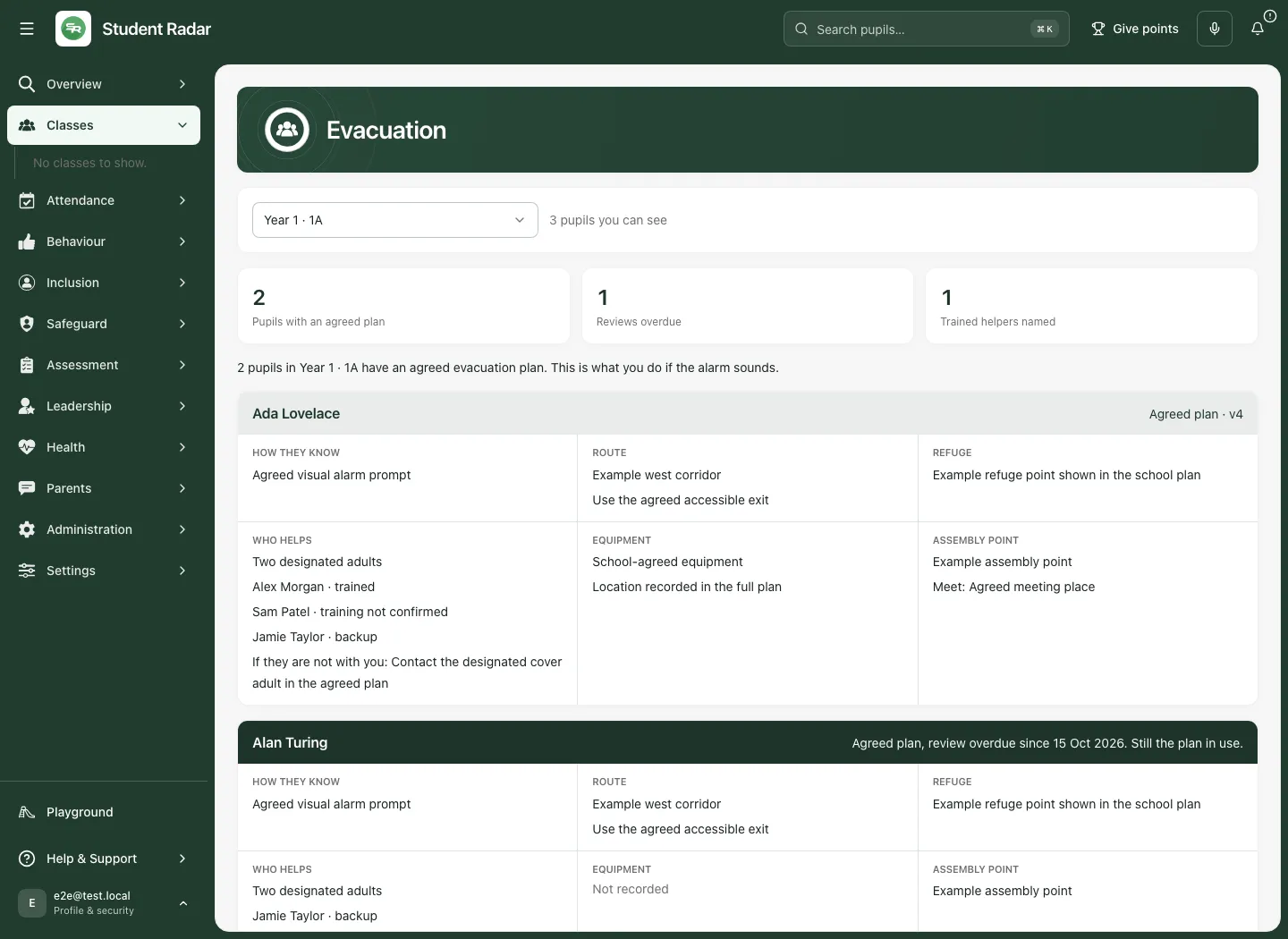
The screenshots use fictional pupils, helpers and example locations. Their routes are illustrative, not instructions for any real building.
Open and check the class
Section titled “Open and check the class”- Open Classes in the sidebar and choose the intended registration/tutor group or teaching class.
- Select Evacuation.
- Check Class at the top. Use the class selector if you need another permitted class.
- Read the counts and any availability message before the pupil cards.
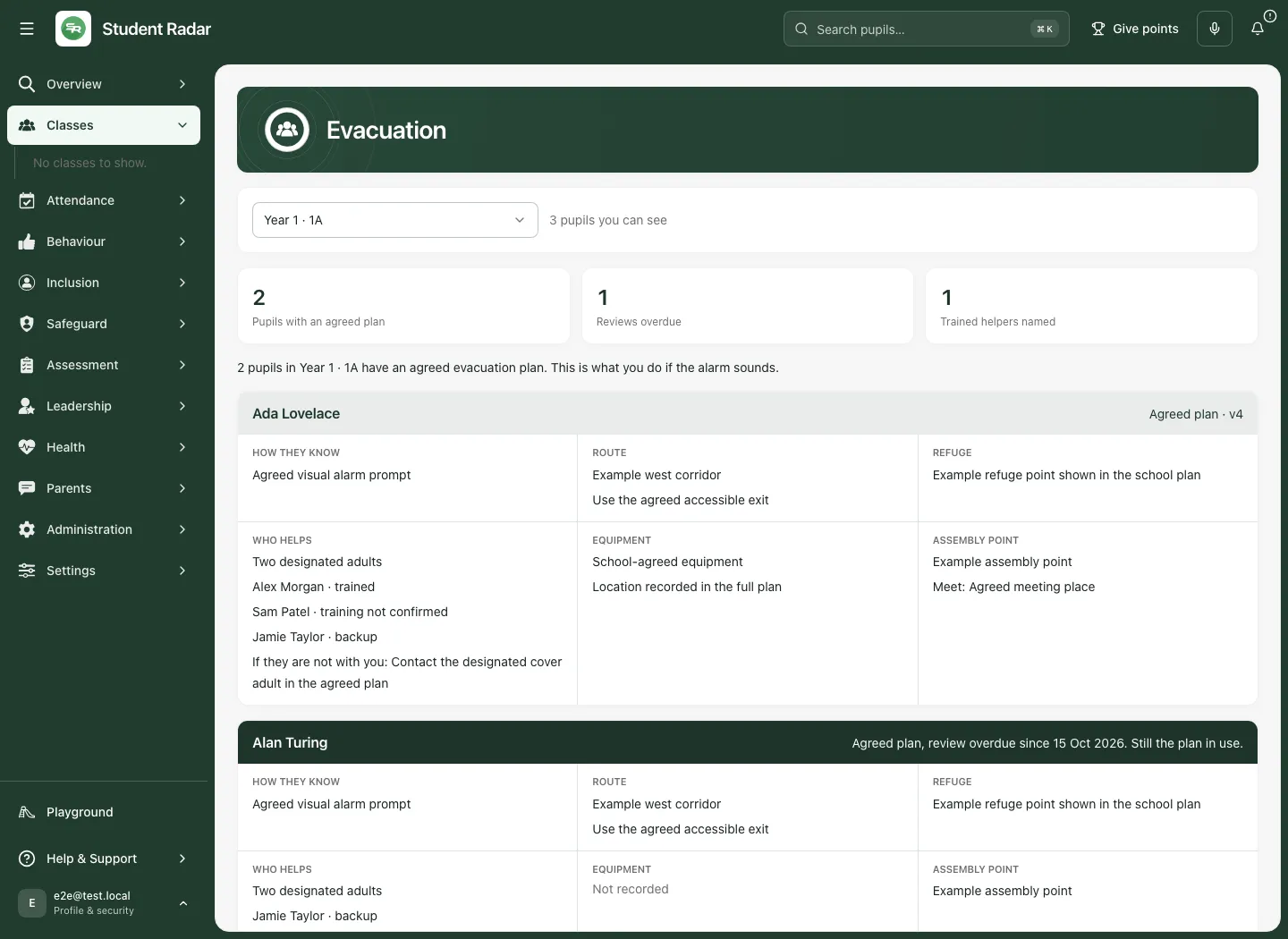
A mixed-age registration class can be shown across its years. A teaching-class selection and a tutor-group selection refer to different class scopes: check the displayed label rather than assuming the previous page’s scope.
Understand the three figures
Section titled “Understand the three figures”- Pupils with an agreed plan counts visible agreed pupil plans in this class.
- Reviews overdue identifies those whose recorded review is overdue.
- Trained helpers named counts distinct named helpers with training recorded in these assignments. It is not the number of helper slots or confirmation that those people are here now.
The figures do not count hidden or inaccessible plans. Read the coverage notice as well as the headline total.
Read a pupil’s brief
Section titled “Read a pupil’s brief”For each named pupil, check the plan status/version and work through these six areas:
| Area | What to check |
|---|---|
| How they know | The recorded way the pupil is alerted or prompted. |
| Route | The recorded route instructions for the class’s usual room. |
| Refuge | The recorded refuge arrangements and locations. |
| Who helps | Assistance required, assigned helpers and their training state, other named plan helpers, and cover instructions. |
| Equipment | Recorded equipment and any location guidance. |
| Assembly point | The agreed assembly location and any separate Meet: instruction. |
Not recorded means that field has no information to display. Do not fill that gap by assumption. Check it with the SENCo or medical lead through the school’s agreed process.
The Who helps list keeps assigned helpers’ trained or training not confirmed status beside the correct person. A separate backup written in the agreed plan may also appear; that additional name does not acquire a training confirmation from someone else’s assignment. Check cover instructions if the named adult is not with you.
Recognise an overdue review
Section titled “Recognise an overdue review”A current reviewed plan can show Agreed plan · vN. An overdue plan says Agreed plan, review overdue since [date]. Still the plan in use.
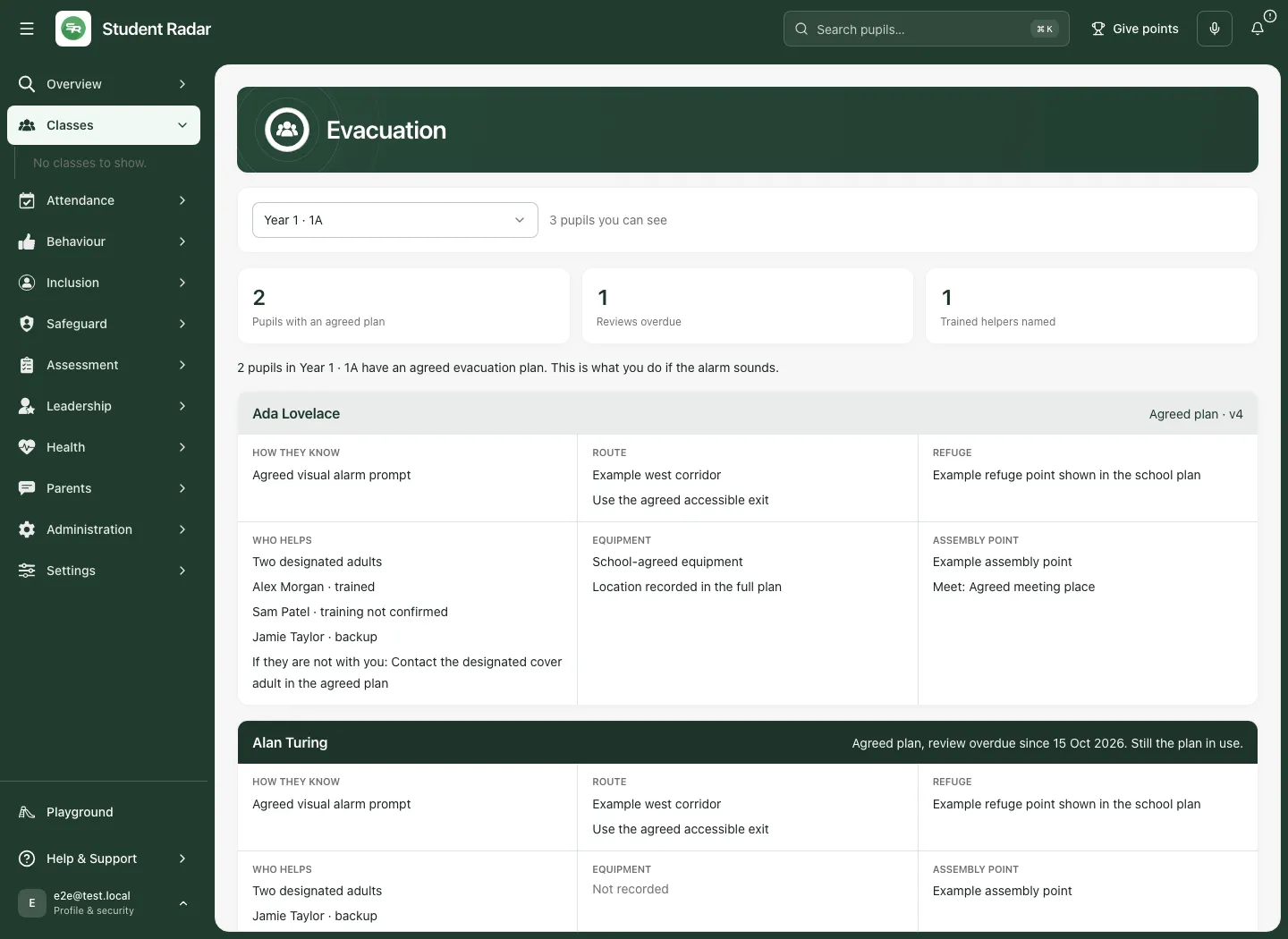
An overdue review does not silently replace or cancel the agreed plan. Follow the current agreed arrangements and raise the review with the responsible lead. This page does not offer Save, Complete or an approval action for the plan.
Use the phone view
Section titled “Use the phone view”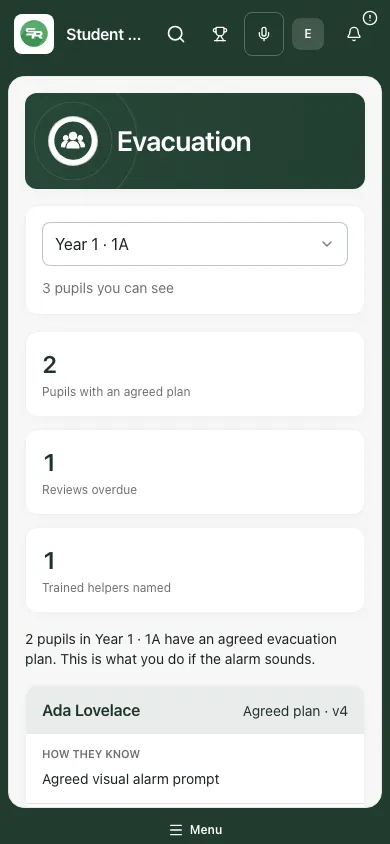
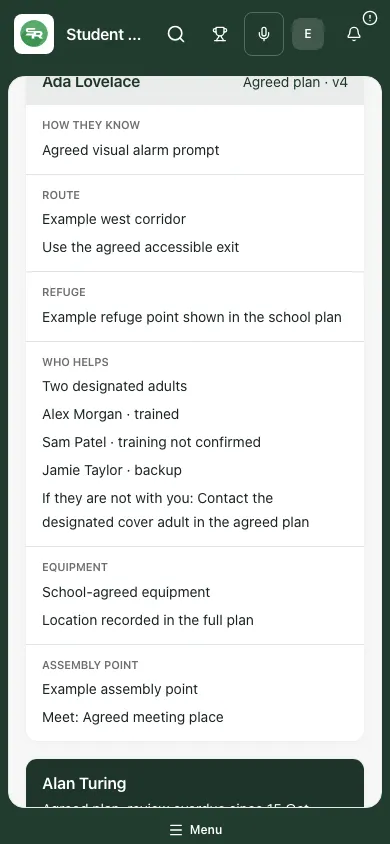
Check the class and scroll through every relevant section of the pupil’s card. Keep helper training, cover and meeting-point lines together in your reading. Do not stop after the route or assume a lower section is empty because it is below the screen.
Check partial coverage and empty results
Section titled “Check partial coverage and empty results”A notice such as Evacuation plans for 1 of the 3 pupils you can see aren’t available to you means the returned briefs do not establish complete plan coverage for that class.
No pupil in [class] has an agreed evacuation plan that you can see is a statement about agreed visible plans. It does not establish that no pupil needs support, that no draft exists or that all records are available.
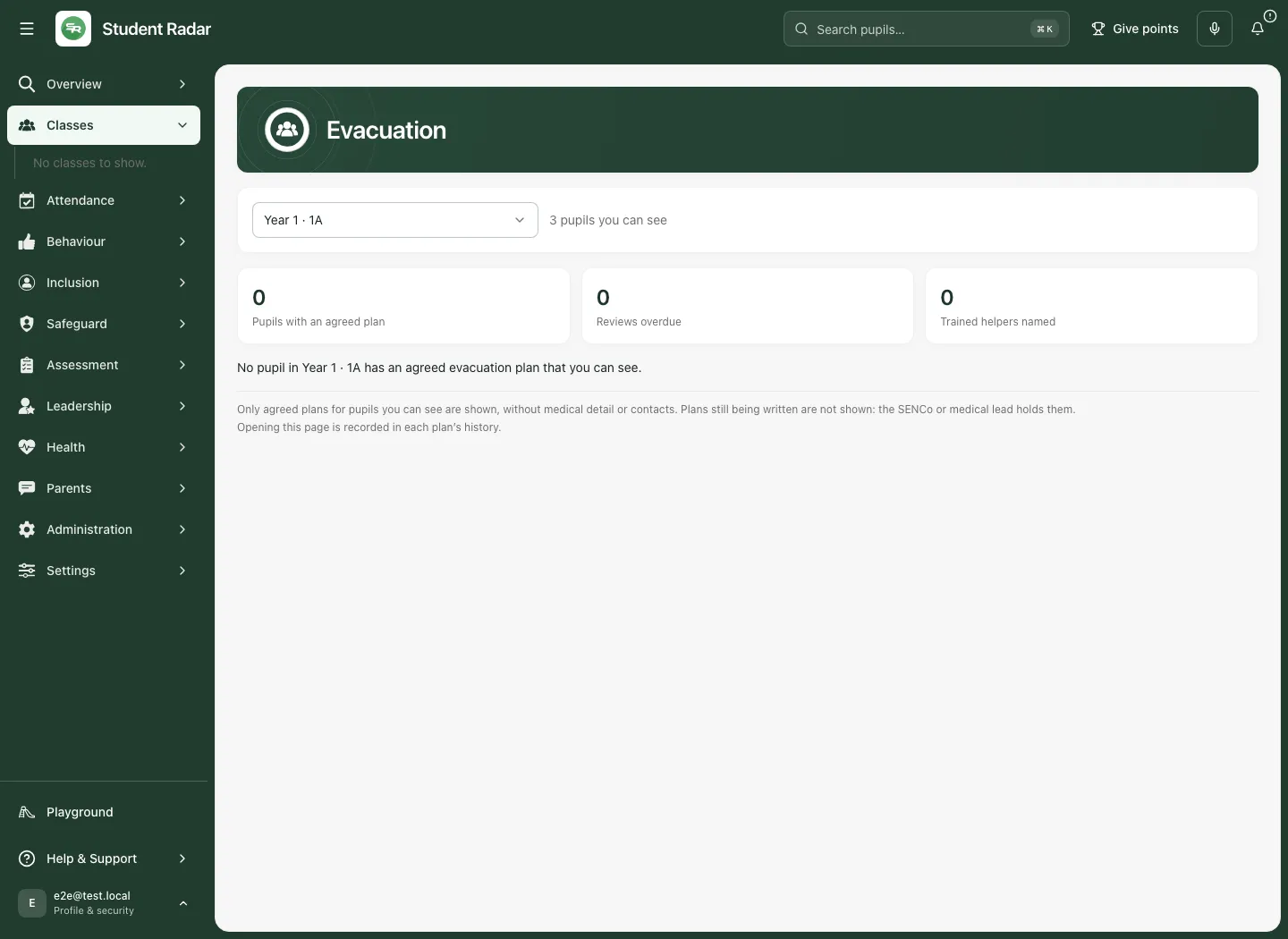
Ask the responsible lead about missing arrangements. Do not seek another pupil’s restricted details or treat zero visible plans as a risk assessment.
Respond to access and connection messages
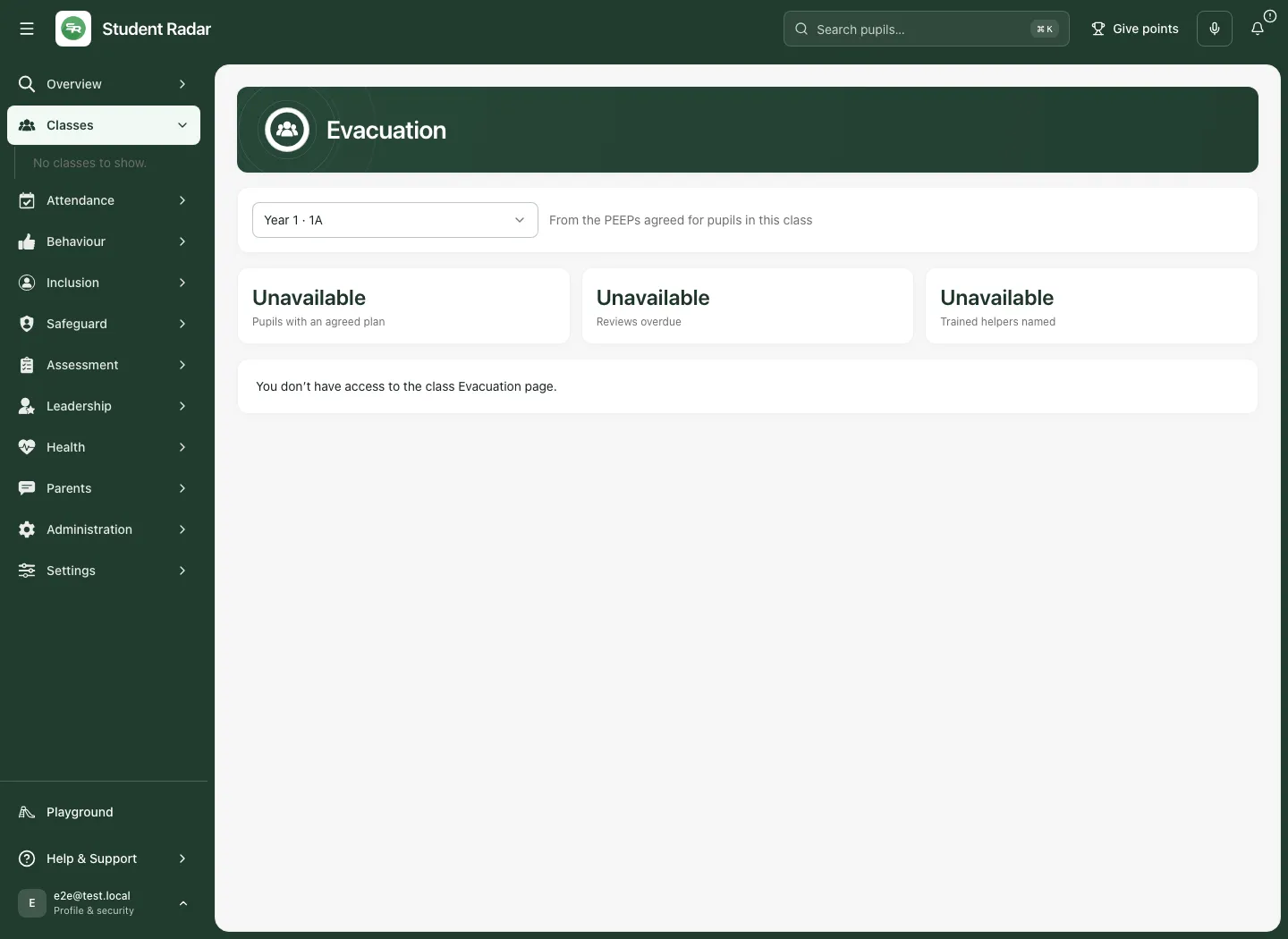
Section titled “Respond to access and connection messages”If the page says you do not have access or the class is unavailable, check the intended class and follow the authorised access process. Cached named instructions are hidden after an authoritative refusal; do not rely on a previously displayed brief as a substitute for current access.
A transient refresh failure may keep the last loaded plans on screen with Showing the plans as they were last loaded; they couldn’t be refreshed. Read that as an older successful read, not a new check. Use Try again where offered after connection or rate-limit problems. A rate-limit message asks you to wait a minute. For a group larger than 250 pupils, choose one class. Where an older service cannot read a mixed-age class together, the page may offer its year groups separately.
Teaching the class in another room
Section titled “Teaching the class in another room”Routes are written from the class’s usual room and may not apply in another room. Before using a different room, confirm the applicable route, refuge and cover arrangements with the responsible lead and the school’s emergency procedures. The page does not calculate a new route or approve a room change.
Room roll call, where available
Section titled “Room roll call, where available”For an eligible early-years registration class, Room roll call opens the existing Room Dashboard’s roll-call view using today’s room marks. It is a separate workflow with its own access and records. The class brief itself neither signs in an adult nor records a live muster or completes an evacuation.
Keep the original plan current
Section titled “Keep the original plan current”Changes to routes, helpers, equipment, training or agreement belong in the formal PEEP workflow with the responsible authorised staff. Reopen the brief after a source change and check the class, version and review status. A read, a roll call or a completed follow-up task is not evidence that evacuation arrangements were reviewed or effective.
Common questions
Section titled “Common questions”What should I check before relying on the class brief?
Section titled “What should I check before relying on the class brief?”Confirm the class, named helpers, plan status and available coverage, then read the pupil’s agreed plan as needed.
Does the brief confirm a helper is present now?
Section titled “Does the brief confirm a helper is present now?”No. It records agreed arrangements. Check actual presence and availability through the school’s emergency arrangements.