Draft, activate and review a behaviour support plan
Written for: Staff authorised to draft, coordinate or use a Behaviour Support Plan.
Draft specific support, record pupil and family consultation, activate after review and record delivery before judging outcomes.
A working formulation is an explanation to test against evidence, not a diagnosis. Saving a draft, completing a task and recording a positive outcome are different steps.
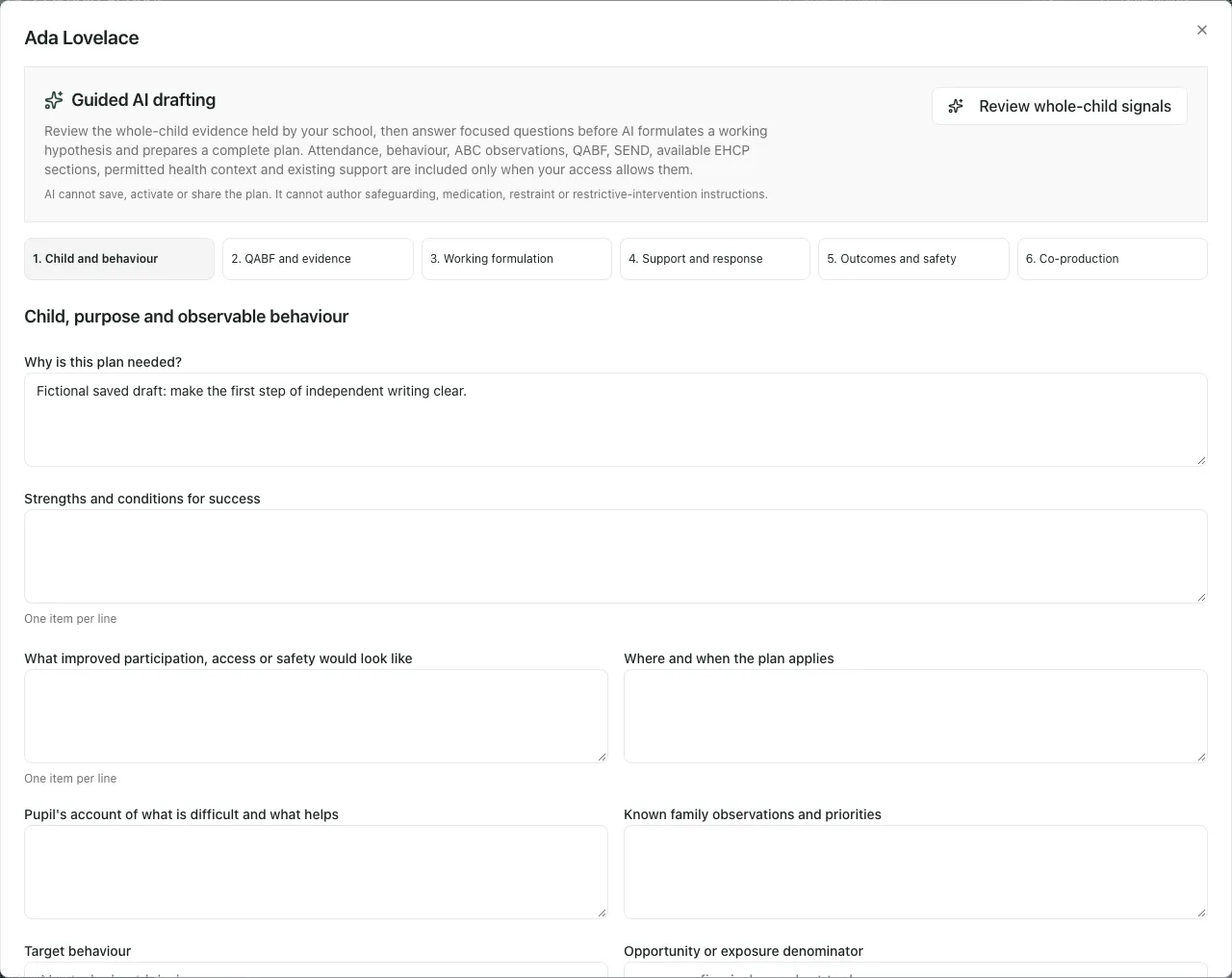
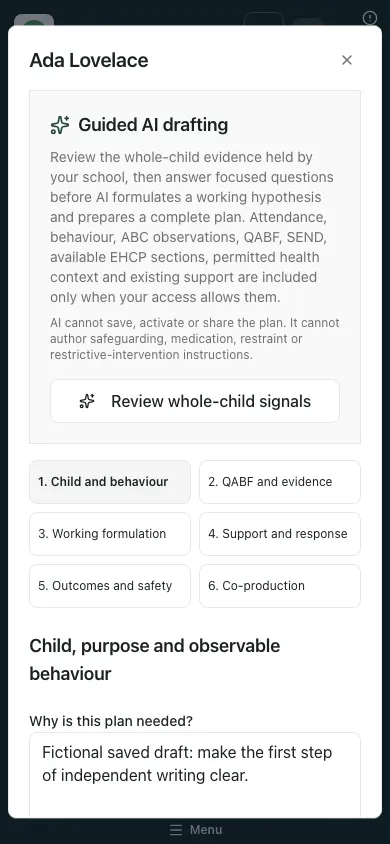
Screenshots show Ada Lovelace, a fictional pupil record, and an incomplete demonstration draft. The screenshots do not show an activated plan.
Before you start
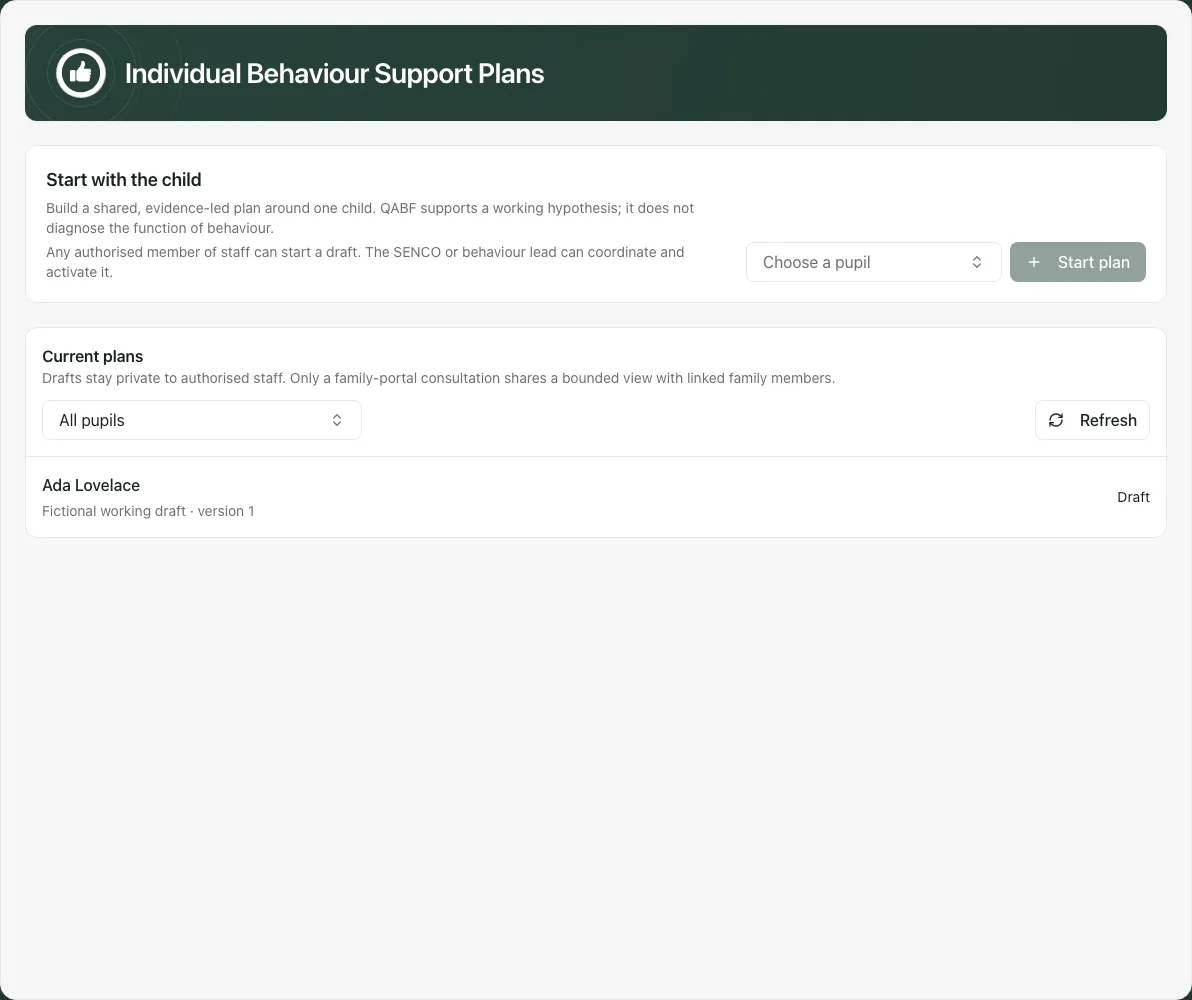
Section titled “Before you start”Open Behaviour → Intervention → Support Plans, where offered. The page is headed Individual Behaviour Support Plans. Check school and pupil. The feature is enabled per school, and the ability to start, manage, consult, activate, review or close a plan depends on the exact action’s access.
Read Current plans and use its pupil filter/search to find the intended series. The list can be limited to recent plans; filter by pupil when needed. A Draft revision can coexist with a plan already in use, so read the current plan’s review-due state rather than assuming the draft replaces it.
1. Start or open the correct plan
Section titled “1. Start or open the correct plan”Under Start with the child, choose the pupil and select Start plan where authorised. Opening an existing plan lets you review its version/status and the controls available to you.
A draft is editable only when your account can manage it. An active plan, or a draft outside your manage access, can open read-only. Do not type into a different copy to work around a refusal. Changes to the version in use follow the supported review/revision process.
2. Work through the six sections
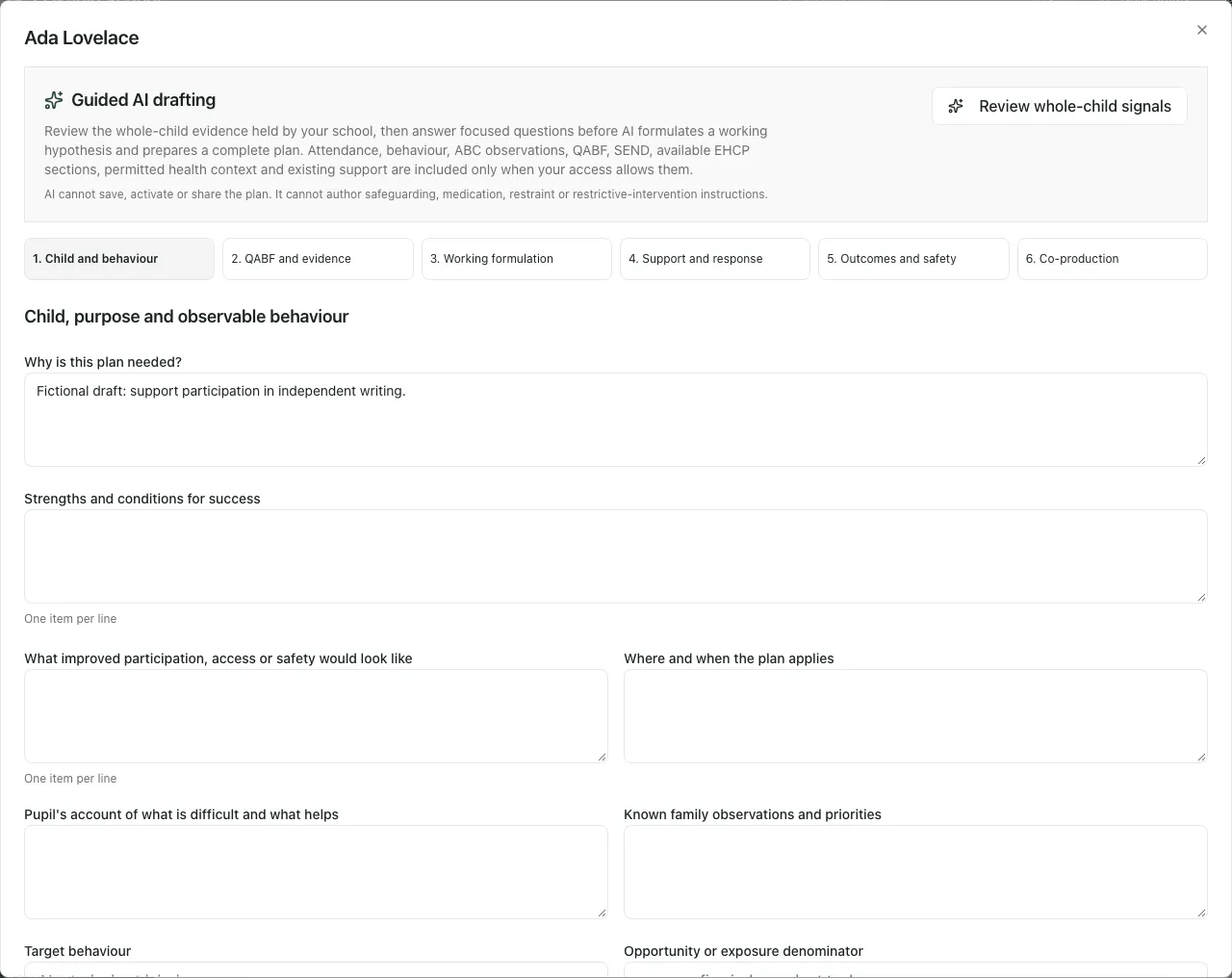
Section titled “2. Work through the six sections”Use the numbered section buttons, Previous and Next. Save explicitly; switching section does not itself save the whole draft.
| Section | What staff record |
|---|---|
| Child and behaviour | Why the plan is needed, strengths/success conditions, intended outcomes, where/when it applies, pupil/family views and a neutral observable target behaviour. |
| QABF and evidence | Valid ratings and observer context, direct ABC observations and other evidence with source/date. Distinguish missing evidence from a known negative finding. |
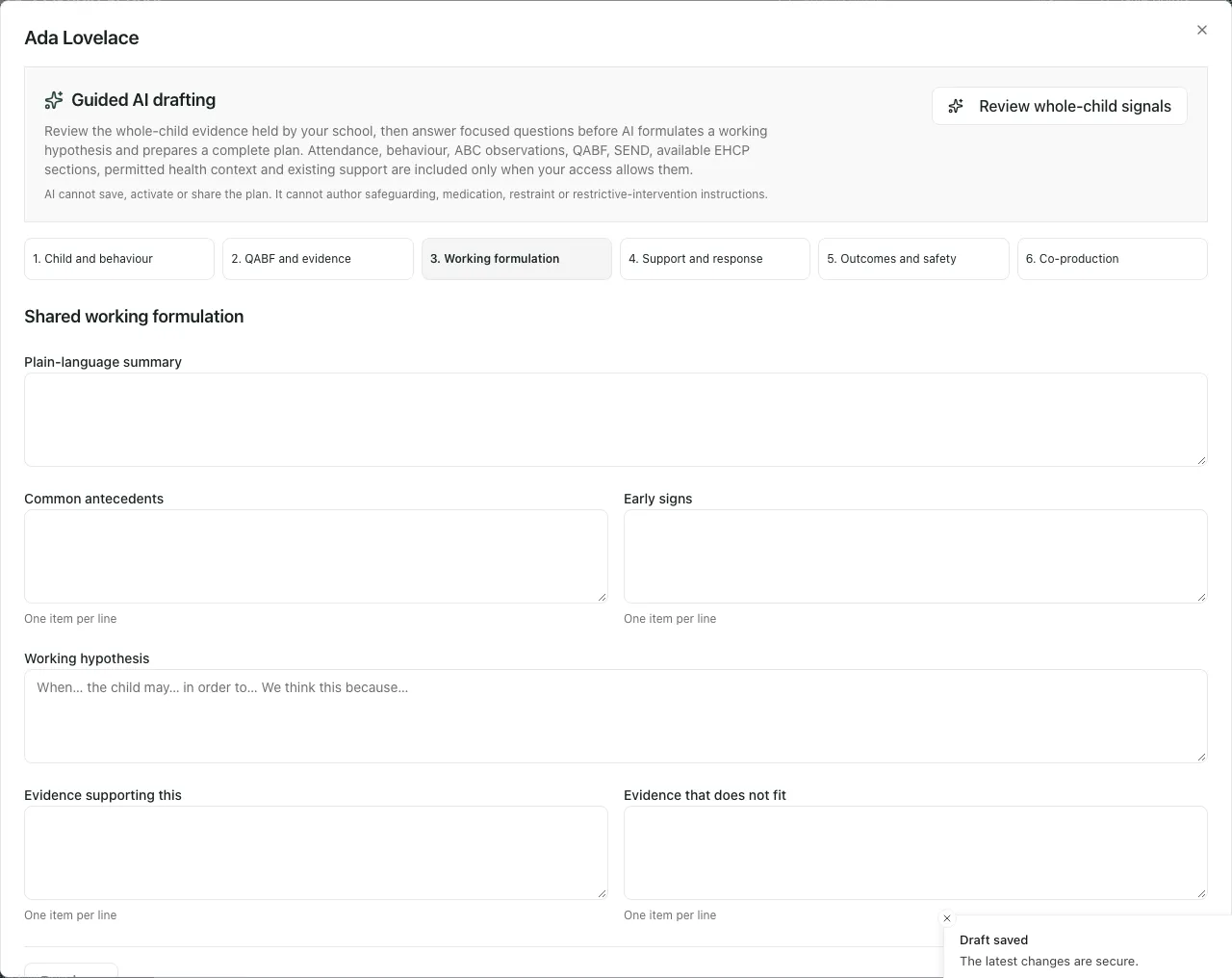
| Working formulation | A shared account, setting events, antecedents, early signs and possible maintaining consequences, with evidence for/against hypotheses and information still needed. |
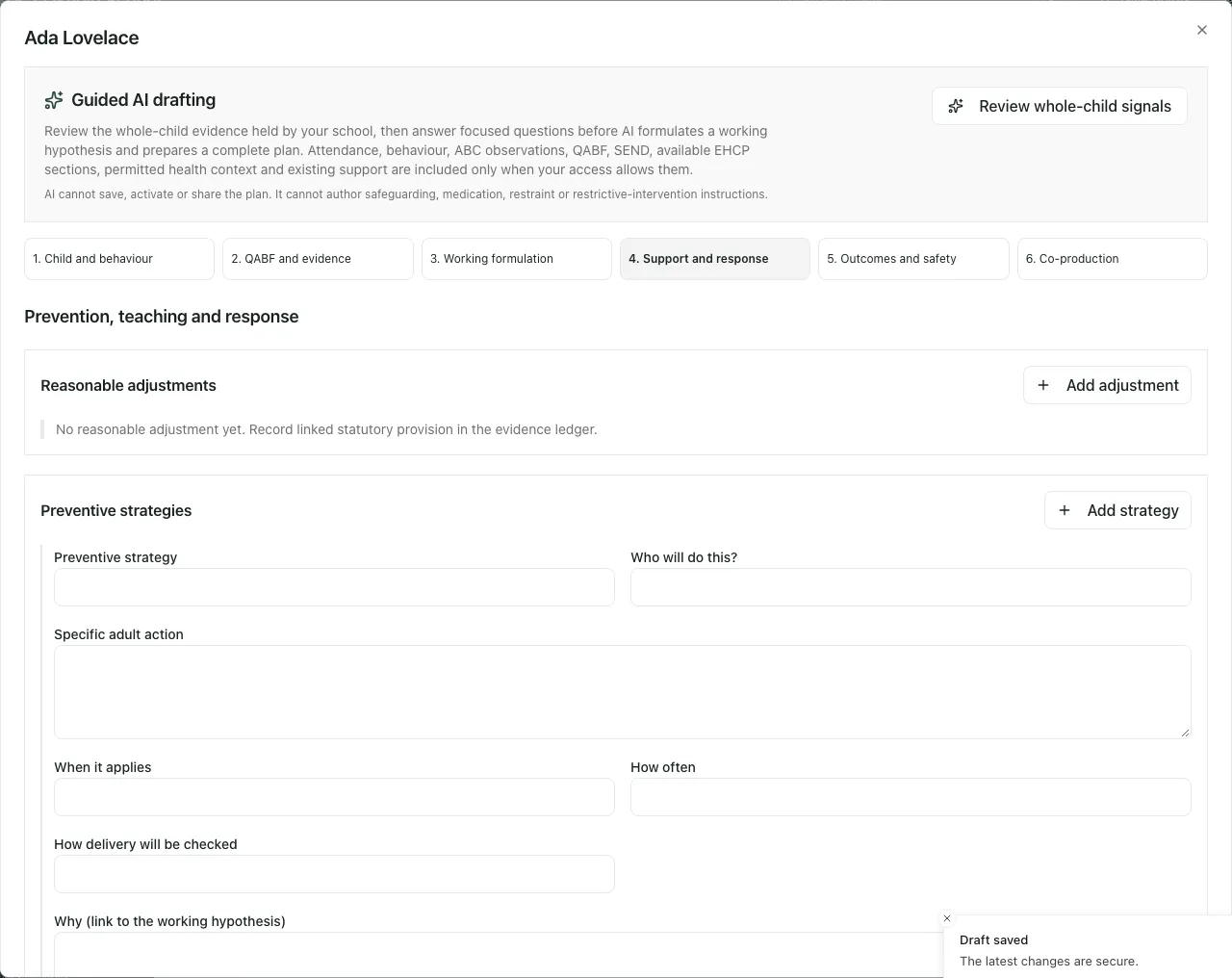
| Support and response | Reasonable adjustments, preventive adult actions, replacement skills/teaching, responsible staff and the agreed response stages. |
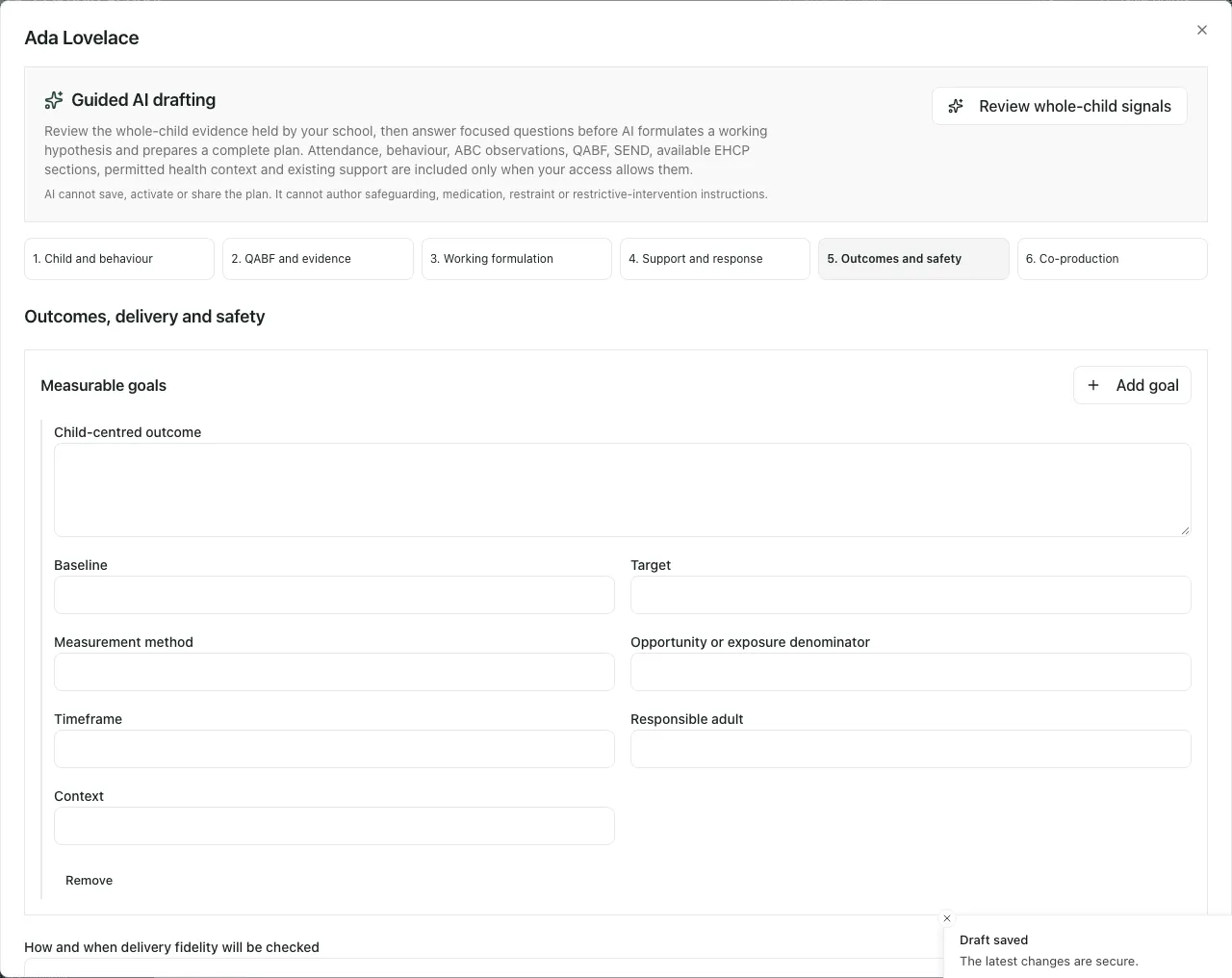
| Outcomes and safety | Child-centred goals, baselines, measurement and exposure denominators, delivery-fidelity checks, checkpoints, review date and approved safety instructions/response lead. |
| Co-production | Readiness gaps, pupil/family consultation records, their consideration and the authorised activation decision. |
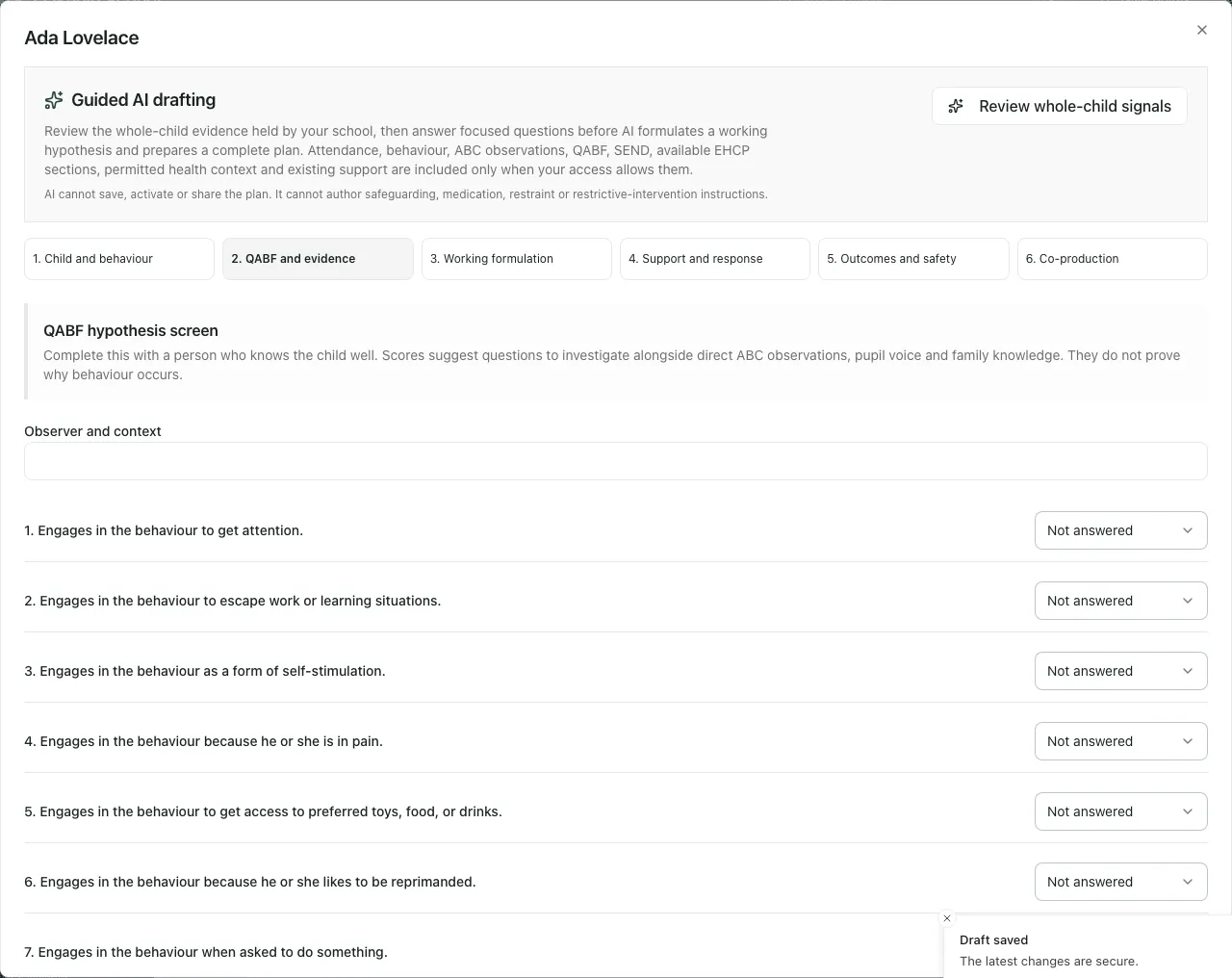
A QABF item marked Not answered remains unanswered. It is not the same as a valid 0 or X rating, and an incomplete set must not be treated as a completed screen. Read the actual answered count and readiness message. See Use QABF and Use ABC Observations.
3. Make support specific and reviewable
Section titled “3. Make support specific and reviewable”Name the actual adult action, situation, responsible person and frequency. Give each reasonable adjustment or strategy a useful title so delivery checks later refer to the right item. Record the skill being taught and the opportunity in which the pupil can practise it, rather than only asking the pupil to stop a behaviour.
For goals, preserve the baseline, target, measurement method, timeframe and opportunity/exposure denominator. “Four of five supported transitions” differs from a count with no opportunity context. Do not record an effect simply because an adult completed the planned action.
Use checkpoints for an implementation check and a later outcome/formulation review. They do not automatically activate, revise or close the plan.
4. Save a draft and verify what was kept
Section titled “4. Save a draft and verify what was kept”Select Save draft, wait for confirmation, then reopen the same pupil/version if you need to check the result. An incomplete draft can be saved while still having readiness gaps; saving does not mean it is ready to consult, activate or use as the current plan.
If another person changed the draft, reread the latest version before applying your correction. If a connection problem makes the save uncertain, inspect the saved draft before repeating it. Use Keep editing or Discard changes deliberately when the unsaved-changes dialog appears.
For focused drafting steps, see Create a Behaviour Support Plan.
5. Use optional AI drafting as a reviewed draft
Section titled “5. Use optional AI drafting as a reviewed draft”Where offered, Review whole-child signals reads the available evidence and shows its coverage and generation requirements. Answer clarifying questions only from information you know; leave uncertainty explicit rather than filling a gap with a guess.
When the controls/readiness permit it, Generate full plan for review can prepare a draft outline. Read the source coverage, questions, cautions and anything to resolve before consultation/activation. Apply draft to editor copies a proposed patch into the draft; it is not a save or activation.
Check every section after applying it, including pupil identity, the evidence, responsibilities, goals and contradictions, then Save draft if appropriate. AI cannot save, share or activate the plan and does not author safeguarding, medication, restraint or restrictive-intervention instructions. Staff must retain the right specialist process and approved safety information.
If AI is unavailable or the evidence is insufficient, continue collecting evidence or writing the draft manually. A generation threshold in the app is a software readiness rule, not a clinical standard or proof the formulation is correct.
6. Record pupil and family consultation
Section titled “6. Record pupil and family consultation”Open Co-production and read the required-area list. Complete the missing fields and valid dates before attempting consultation or activation.
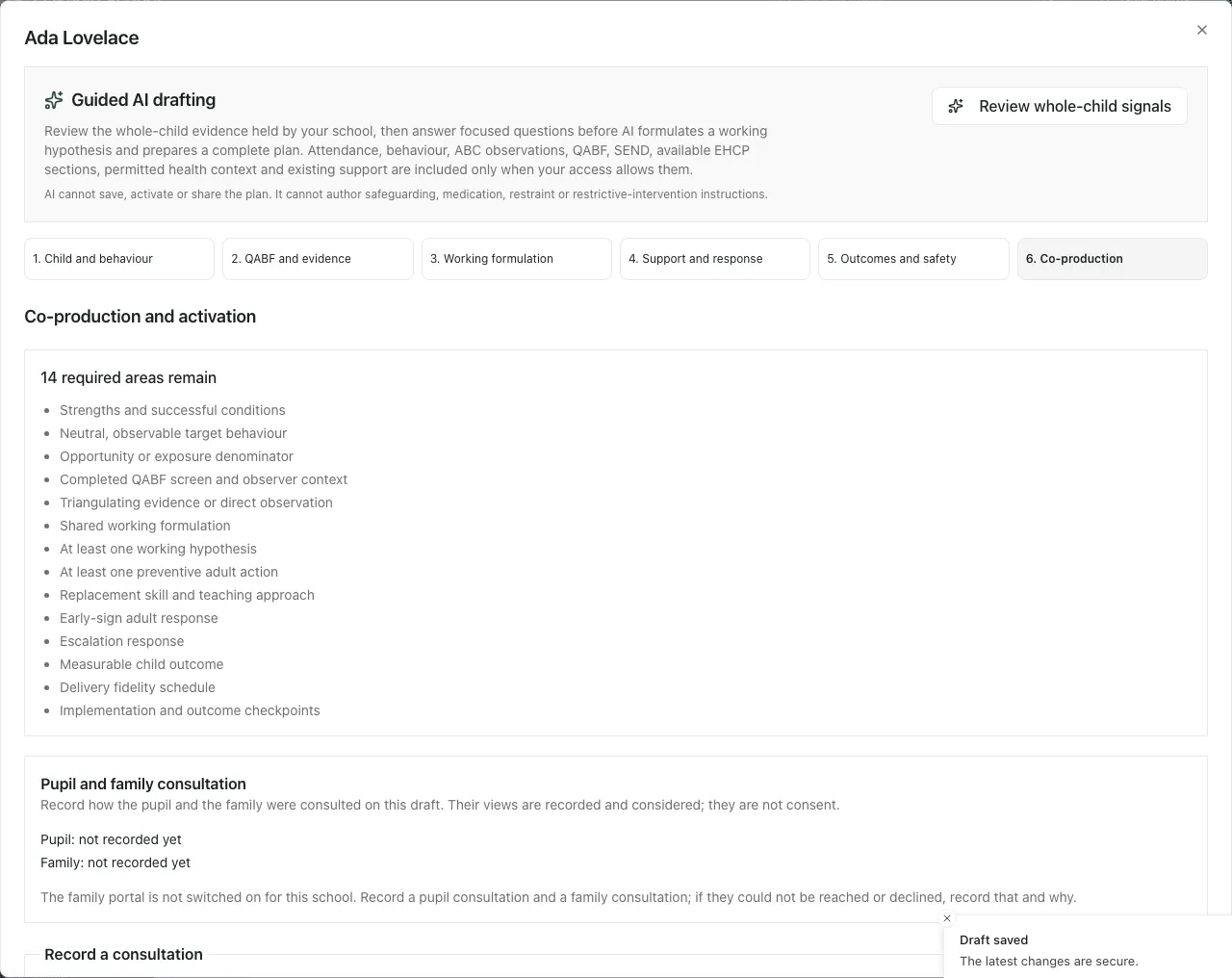
Under Record a consultation, choose Who was consulted, What happened, the method and date. When views were gathered, record Their view of the plan and their actual words. If they could not be reached or declined, record that outcome and why rather than inventing a view.
Record the pupil and family separately. Review any response requiring a disposition and explain whether/how it was considered; disagreement should not disappear merely to make the readiness panel clear.
Where the school uses the family portal, Save and open co-production shares the offered bounded draft view with linked family members. Read the audience/due date before confirming. This is a real sharing step, unlike saving a private staff draft. Where the portal is off, the staff-recorded consultation route can remain available.
The page distinguishes consultation from consent. Its status records the views and consideration shown; it does not replace the accountable staff decision or authorise a separate high-impact action.
7. Activate only after the authorised review
Section titled “7. Activate only after the authorised review”Read the blockers above Activate plan. If unsaved changes remain, the button can say Save and activate plan. Only an authorised activator should confirm the final version after checking the evidence, consultation, responsibilities, review date and safety arrangements.
A checkbox saying Restrictive intervention may be reasonably foreseeable does not authorise an intervention. Use the actual approved risk-assessment reference required by the form and your school’s established approval/policy process. Never enter a made-up reference to clear the blocker.
After activation, check which version is current. A read-only active version is not an editable draft, and a new draft revision does not silently replace the version staff are using.
8. Record delivery and review outcomes honestly
Section titled “8. Record delivery and review outcomes honestly”For an active plan, the progress panel can offer Record delivery check and Record review according to access. Choose the actual strategy, adjustment or skill and record what was delivered, partly delivered, not delivered or not applicable, with the requested date/evidence.
When reviewing, rate each goal once and provide the evidence requested for the rating. Not measured is different from not met. Keep implementation fidelity separate from the pupil outcome; check whether the opportunity and measurement window were sufficient.
The review can support continuing or revising the plan through the offered decision choices. Close plan is restricted to accounts allowed to close it and asks for confirmation/reason; ordinary review access does not automatically grant closure. A planned checkpoint or completed task must not close the plan by itself.
Phone use and common problems
Section titled “Phone use and common problems”The editor has its own scroll area. Confirm the pupil, version and section, then review the footer actions. A compact screen does not change the difference between saving a draft and activating/sharing it.
| Situation | What to do |
|---|---|
| Feature not enabled | Ask the authorised school administrator/support contact about the school setting. |
| Read-only editor | Check version/status and your action-specific access; use a review/revision where required. |
| Readiness gaps remain | Read the actual list and complete valid evidence/fields. Do not treat software completeness as clinical certainty. |
| Missing pupil context | Add relevant verified evidence manually or obtain the needed access; do not assume no need. |
| Stale draft or save uncertain | Reopen the current version and inspect what saved before retrying. |
| Consultation response missing | Record the actual pupil/family involvement or inability to gather views; do not invent agreement. |
| Review overdue despite a draft revision | Review the version in use; an unfinished revision does not remove its review duty. |
| No Close plan control | You may be able to review but not close. Ask the authorised lead. |
| Safety/approved-risk blocker | Use the actual approved source and responsible lead; the editor is not an intervention authorisation. |
Common questions
Section titled “Common questions”Can I activate the plan as soon as I save a draft?
Section titled “Can I activate the plan as soon as I save a draft?”Use the authorised review and consultation steps before activation. A saved draft and an activated plan are different states.
What should I record before judging whether the plan helped?
Section titled “What should I record before judging whether the plan helped?”Record actual delivery and review the pupil evidence. Completing a task alone does not establish a positive outcome.