Prepare and review an Individual Health Care Plan
Written for: Authorised medical leads, SENCOs and school healthcare-plan reviewers.
Choose the pupil, prepare the healthcare instructions and review date, then follow the separate approval and parent-involvement steps. A saved draft is not yet in force. Approval, parent involvement, parent acknowledgement and medication authorisation remain different decisions and records.
Use current agreed clinical information and school procedures. This guide explains recording and review, not treatment or clinical approval. You need the relevant healthcare-plan and pupil access; AI, authoring and parent request controls have their own checks. The examples use fictional Ada Lovelace and an incomplete working draft.
Find the plan that needs attention
Section titled “Find the plan that needs attention”- Open IHCPs under Health → Care & Support Plans.
- Use Needs action, All plans, Not required or Archived to choose the relevant register scope.
- Inspect the categories such as Need a plan, Reviews overdue or not set, Awaiting approval, Drafts in progress and Reviews in the next 4 weeks. These describe recorded plan/review state, not clinical risk.
- Search/filter the register by its pupil/year, owner and review-timing controls. Check the active filters before concluding that a pupil has no plan.
- Choose Open plan to read a record. Continue draft, Start review or the current revision action opens the appropriate working record; read the revision/status before editing.
- Keep No owner yet and missing-detail counts visible until the actual facts are recorded. A source error or failed Not required read does not establish a complete cohort.
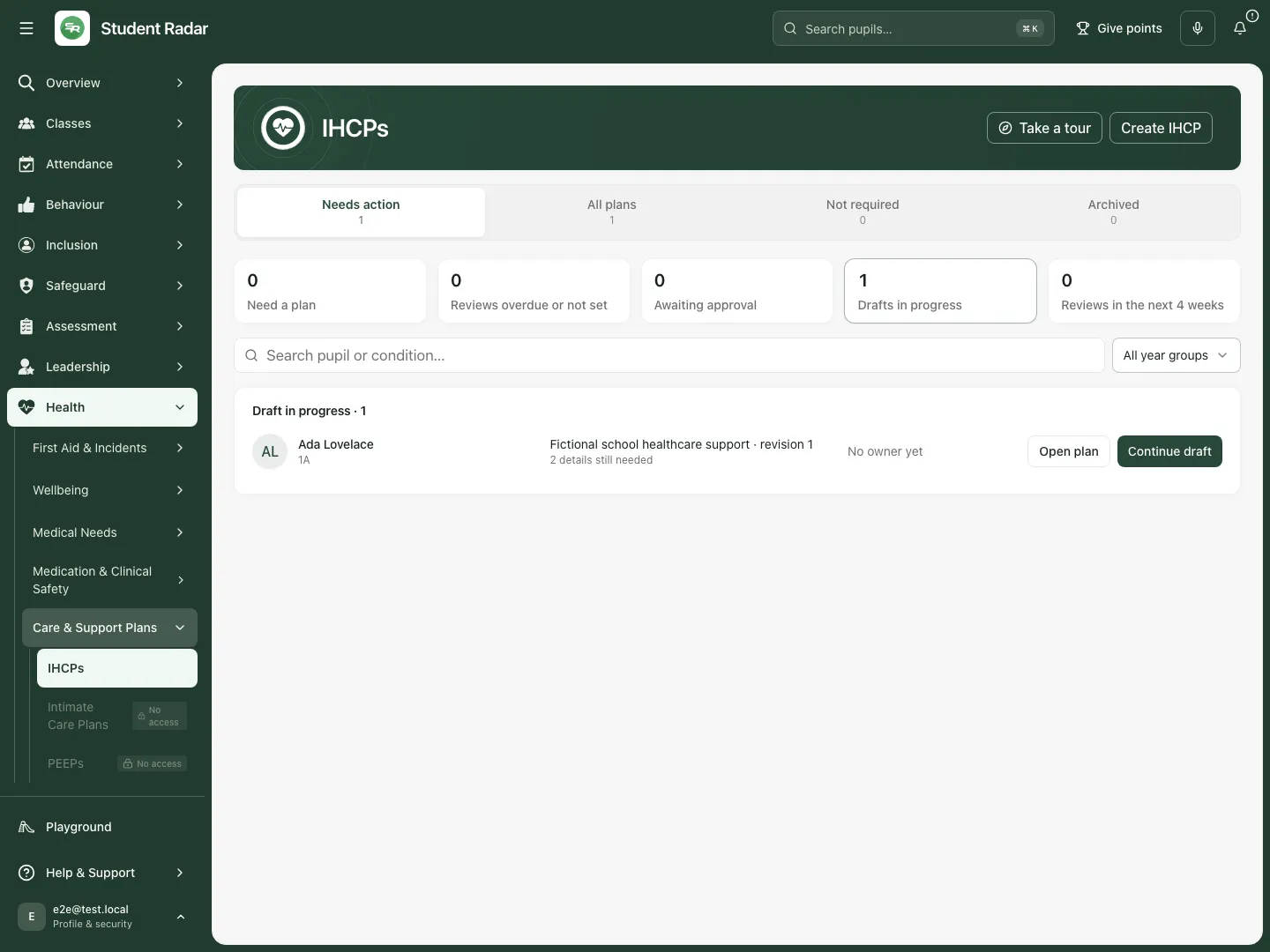 The fictional draft is in progress with missing details and no owner recorded yet. That is a working state, not an approved care arrangement.
Start a manual plan or record a Not required decision
Section titled “Start a manual plan or record a Not required decision”- Use Create IHCP, choose the correct pupil and select Create IHCP in the pupil selector, or choose Start plan from that pupil’s register row.
- In the creation choice select Write manually for a blank editable plan. Check the pupil before entering clinical or family information.
- If the school’s professional decision is that a plan is not required, choose IHCP not required instead. In Mark an IHCP as not required, record Reason (optional) and choose Mark not required, or Cancel.
- The decision records the actor/date and moves the pupil to Not required. It is not an assessment performed by the app. Include again reverses that register decision when appropriate.
- A pupil can have more than one plan for different needs; a combined plan can cover several needs. Check current plans before creating another, and review any overlap before approval.
Complete the Core record and save a working draft
Section titled “Complete the Core record and save a working draft”- In Core, enter Plan title, choose Plan owner, describe Medical needs covered and Condition summary (triggers/symptoms), then set Review date.
- Use Practical condition-specific arrangements to record the applicable agreed condition-care information. Do not substitute generic guidance for pupil-specific clinical instructions.
- Review Linked medication, needs and documents. Select relevant existing Medication records, Evidence documents and Medical needs only where available and appropriate. These references do not create medication schedules or clinical authority.
- Choose Save changes to preserve the working plan. Saving does not approve it. Cancel abandons unsaved editor changes; review any leave/discard prompt before continuing.
- Reopen Open plan and check the saved title/content and revision state. A failed or stale save is not success; keep the draft and reconcile the current record before retrying.
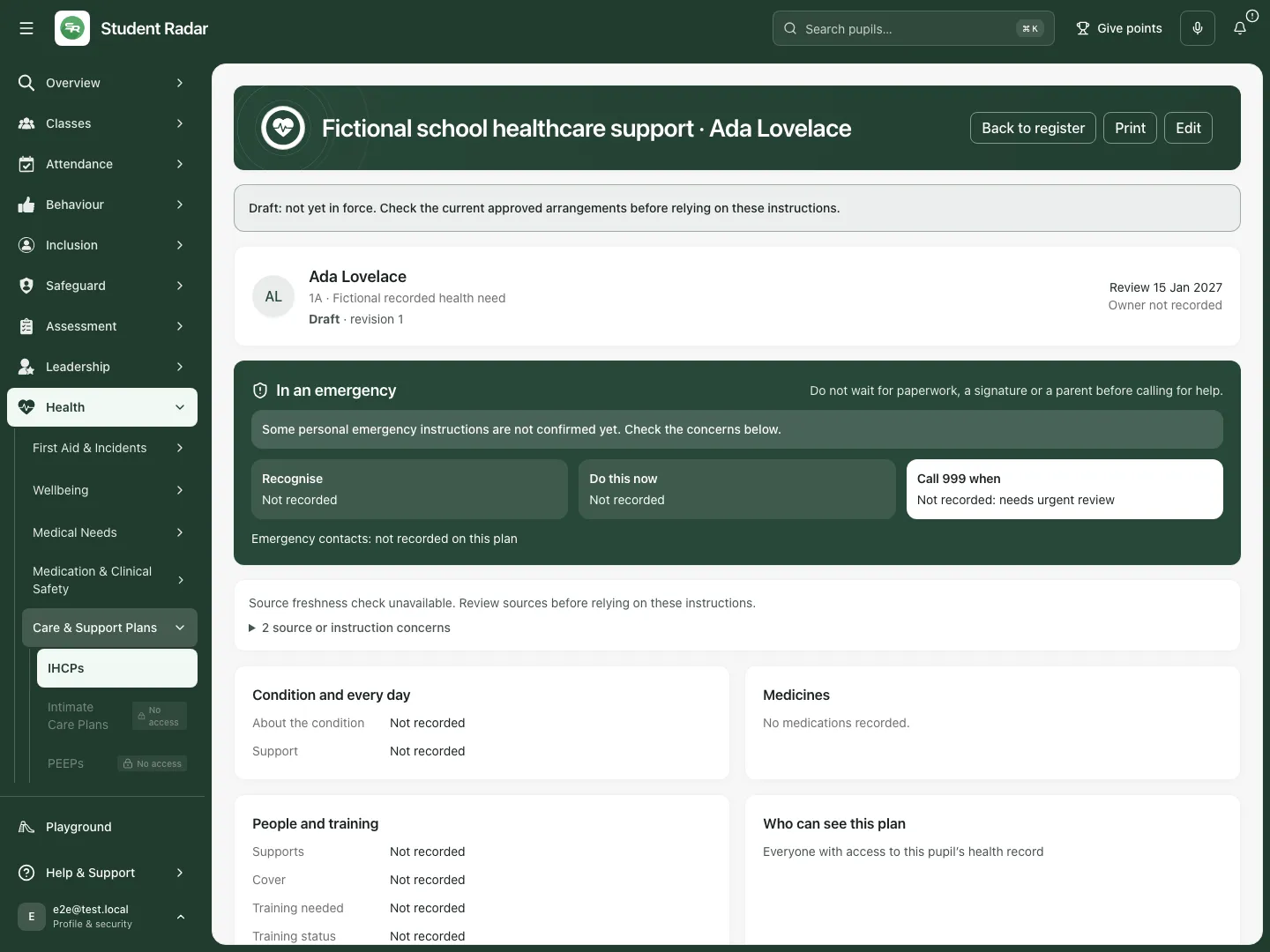 The fictional draft reader distinguishes the plan’s status and parent journey from instructions already in force.
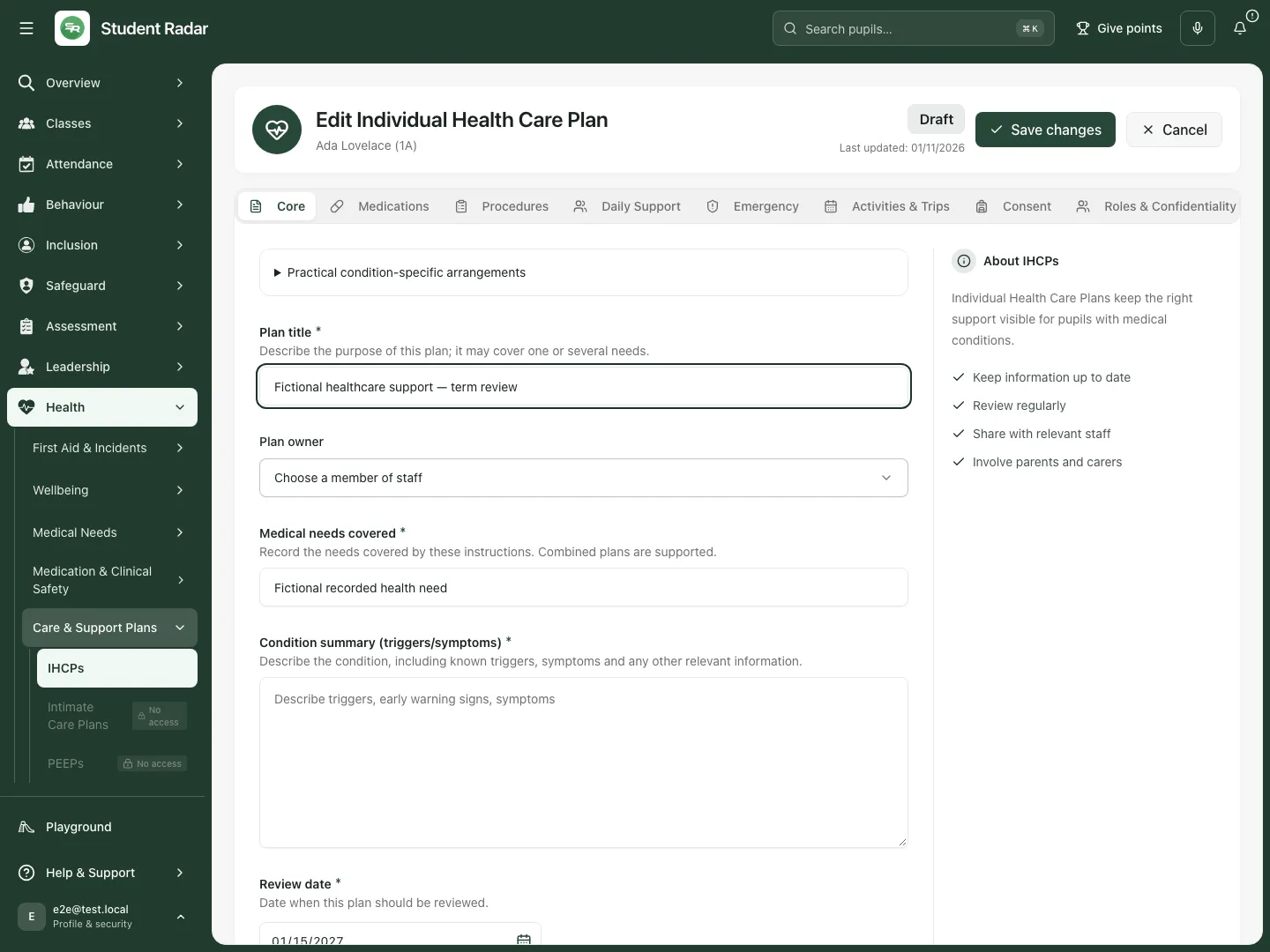 The fictional title edit remains separate from assigning an owner or completing the missing healthcare details.
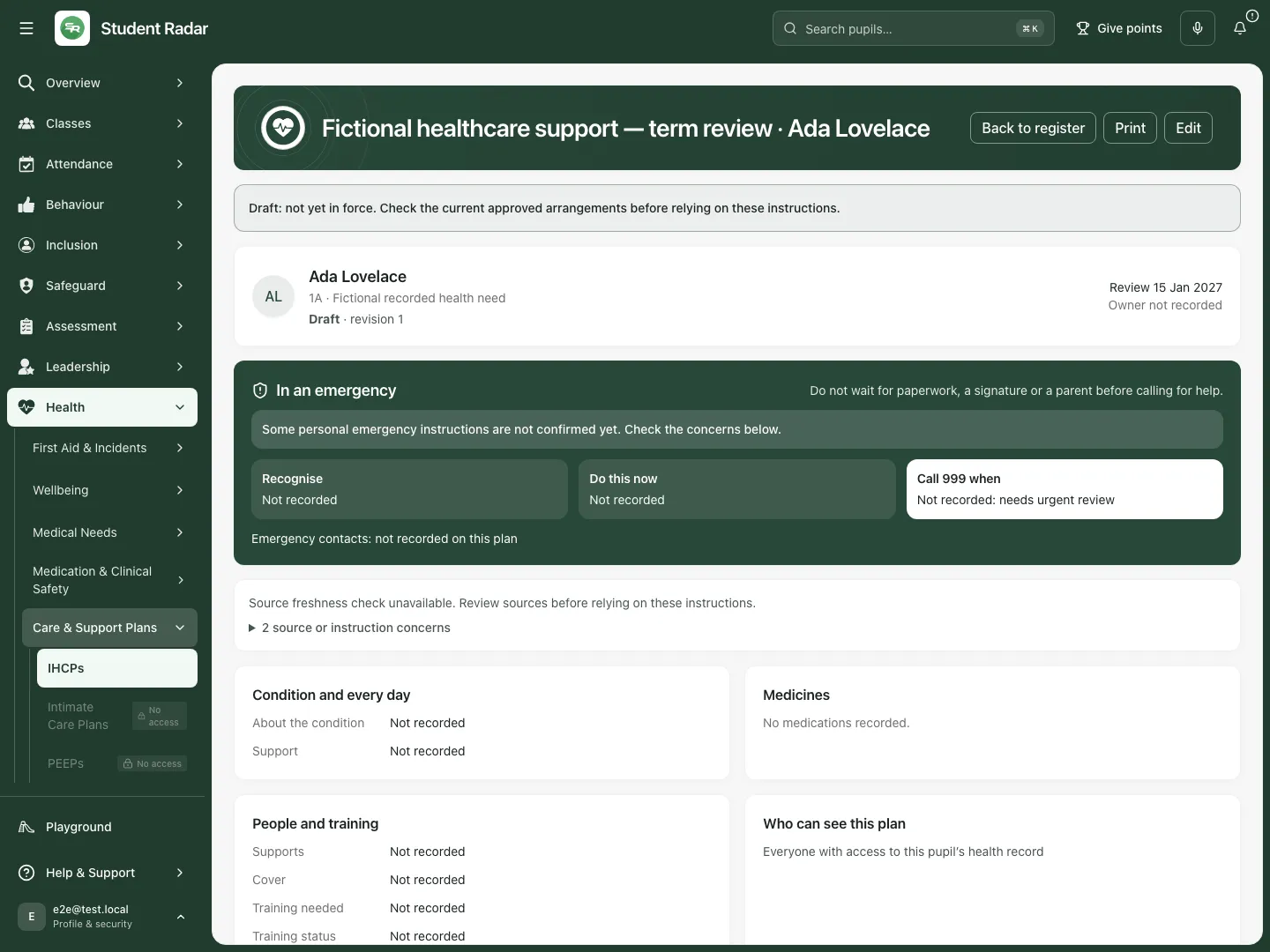 The reopened fictional plan retains its term-review title and still reads Draft. Saving has not activated it.
Record medication and procedure arrangements
Section titled “Record medication and procedure arrangements”- Open Medications. Add the actual medicine entries using Add medication, then record Name, Directions source, Administration setting and Administration record alongside the applicable Dosage, Route, Timing, Storage and Side effects.
- Link to an existing administration/medicine record where appropriate. An IHCP medication description does not authorise giving medicine, add stock or record a dose.
- In Procedures, choose Add procedure and add the agreed procedure and record Name, Frequency, Equipment and its training requirements. Remove an unwanted working entry through Remove before saving; this is not deleting a completed administration record.
- In Roles & Confidentiality, record the named roles/responsibilities and required training. Where a procedure requires training, Clinical procedure training has been checked records an actual authorised check, not the training itself.
- Choose Save changes, then review the resulting plan. Use the specialist medication record for stock, consent and actual administration.
Current specialist-procedure limitation: authorised specialist procedure instructions and competency evidence are not available through this workflow. Every recorded specialist procedure blocks activation; a plan marked as requiring specialist procedures is also blocked even if no procedure entry has been added. Recording a training checkbox does not remove that limitation. Record ordinary support in the appropriate Daily Support section, but never relabel a clinical procedure as ordinary support to bypass the restriction. Keep the plan as a draft and resolve the authorised clinical process with the school’s lead.
Record daily support, emergency and activity arrangements
Section titled “Record daily support, emergency and activity arrangements”- In Daily Support, record Adjustments and Independence level from the agreed plan. Keep what staff do and what the pupil can do clear.
- In Emergency, complete Recognising an emergency, Actions to take and When to call 999 from the current approved instructions. Do not infer emergency instructions from a generated placeholder.
- If the plan contains an AI emergency placeholder, review and replace it with the actual personal instructions, then record Personal emergency instructions have been reviewed only when that check has occurred.
- In Activities & Trips, review Trips and outings, Physical activity and Exams and academic arrangements. These sections do not book a trip, approve an activity or grant examination arrangements.
- Save and inspect the plan. A saved instruction is not evidence that the real-world arrangement was implemented.
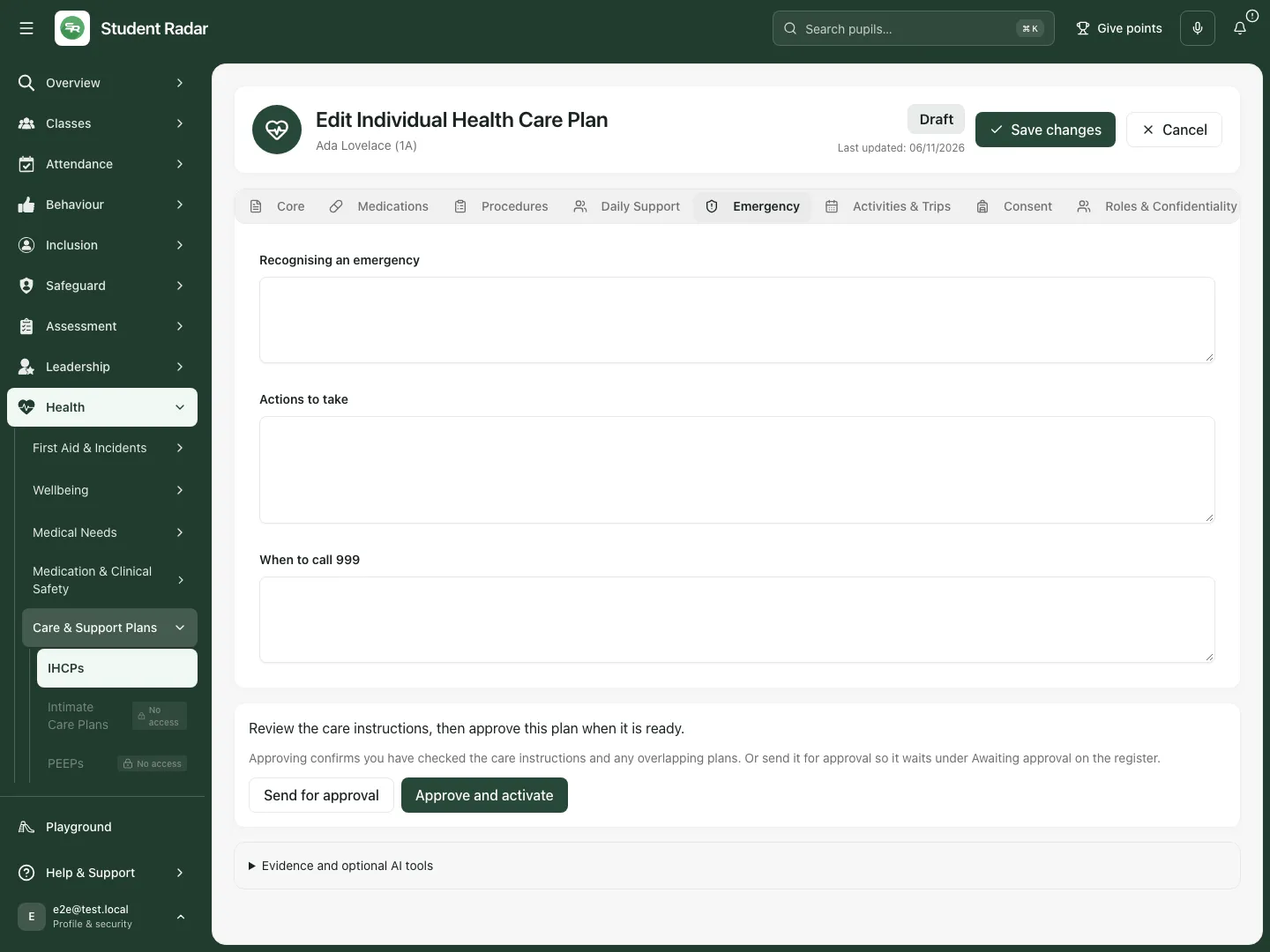 The fictional Emergency section is incomplete. Staff must supply the actual agreed instructions before approval; the example provides no treatment guidance.
Record involvement and intended visibility
Section titled “Record involvement and intended visibility”- In Consent, complete Emergency contact 1 - Name and Emergency contact 1 - Phone.
- Select Parent involvement and agreement recorded only for the involvement/agreement that actually happened; complete Consent note and Equipment supplied as applicable. This does not authorise medication or separate emergency medicine arrangements.
- In Roles & Confidentiality, review Staff roles who may see this plan and Confidentiality notes. Select intended roles deliberately; staff still need existing school, pupil and medical access. Selecting a role does not grant it.
- Choose Save changes. Inspect the reader’s Who can see this plan and parent information without treating a link as access authority.
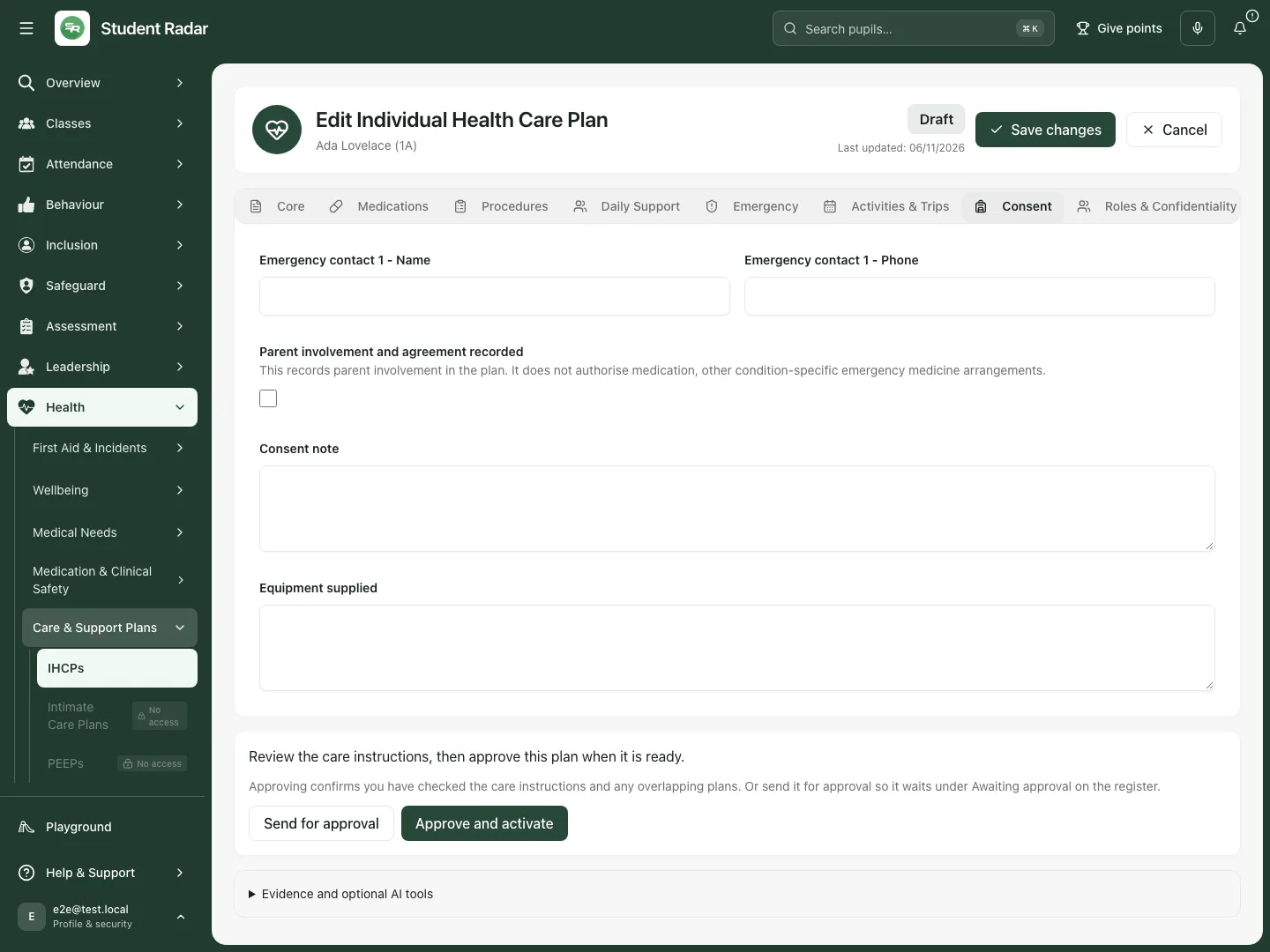 The fictional plan keeps parent involvement, contacts and equipment separate from medicine authorisation.
Send for approval or approve and activate
Section titled “Send for approval or approve and activate”- Review the saved plan and every displayed missing-detail/checklist item. Title, owner, review date, needs and emergency actions/call instructions can be activation blockers, with medication, specialist-procedure and source-review requirements adding their own restrictions. Missing parent/carer contact name or phone is a follow-up item rather than a universal activation blocker. Resolve the displayed blocker and follow-up states according to their actual meaning; do not delay ordinary support or emergency help merely for a contact-field follow-up.
- A draft’s Send for approval moves it to Awaiting approval. This is not activation or a message-delivery guarantee.
- The authorised approver reviews the clinical instructions and other active plans listed under Other active plans to check. Check overlaps and conflicting arrangements before proceeding.
- Choose Approve and activate only after the review is complete. Any unsaved working changes are saved first; approval still has its own checks. If blocked, use the specific message/checklist to correct the information rather than bypass it.
- Inspect the active revision and approval information. Draft and Awaiting approval records are not yet in force.
- An active plan’s Edit/review action creates or continues the next working revision rather than silently rewriting the in-force instructions. Continue revision … reopens an existing working revision. Approving the successor replaces the earlier revision; historical/superseded instructions remain reference history.
- If editing a plan awaiting approval returns it to Draft, send it for approval again. Do not treat an earlier approval request as approval of changed content.
Review dates, archive and historical revisions
Section titled “Review dates, archive and historical revisions”- Use the plan’s review-scheduling action to open Schedule review.
- Enter Next review date, then Schedule review; Cancel leaves it unchanged. Changing the date is a saved plan change and is distinct from recording that a clinical review happened.
- Read the resulting status after saving. In particular, saving an awaiting-approval plan can return it to Draft; review/approval must then be repeated for that content.
- Use the register’s archive action only for the intended plan. Confirm Archive the IHCP for this pupil? It will stay available in Archived IHCPs for reference.
- Archived and superseded revisions remain available for permitted reference; they are not current instructions. Use Open current permitted revision where available, or return to the register.
Parent review, comments, acknowledgement and print
Section titled “Parent review, comments, acknowledgement and print”- Open the saved plan’s parent journey to distinguish Comments on the plan, acknowledgement/signature state and the Agreed plan in force.
- Add comment accepts a plain-text comment. Review the intended plan, enter the comment and choose Add Comment (or press Enter). Comments do not send external email or change approved clinical instructions.
- Choose Or send a simple acknowledgement link to inspect the intended recipient/content before its separate final Send request or Send request + text action. Follow school authority before sending.
- Check the response rather than assuming success from a sent state. No reply, expired, not acknowledged and acknowledged are different outcomes. A parent acknowledgement does not approve clinical content or authorise medicine.
- Choose Print to generate the plan PDF. Check pupil, revision/status and permitted content before sharing it. The output is not proof that another person received, read or agreed to it.
Optional AI and supplied-source review
Section titled “Optional AI and supplied-source review”- From creation choose the AI-assisted option where permitted. Review condition context, Source of the reported context, title, owner, review date, child/parent preferences, linked records and Parent/carer emergency contact.
- Use Generate and open editable draft only for an authorised generation. It generates and saves a working draft for editing, not an active plan. If saving needs recovery, Retry unchanged draft retries that same draft rather than generating another one.
- In Evidence and optional AI tools, expand Review supplied source evidence. Select the intended supplied field/source document and exact location, inspect the actual value, then select I checked that this exact value is supplied at this source location.
- Choose Link supplied instruction only for that verified match. The source-kind rules matter: personal emergency instructions need clinician-document evidence; school policy and self-administration decisions have their own source/context requirements. A link does not make an unsupported clinical claim true.
- Expand AI review and section suggestions. Check draft quality returns issues for human review; it does not approve the plan. In Section to refine, choose the supported Daily Support or Activities & Trips section and select Suggest section changes.
- Compare Before/After. Apply suggested section changes the working draft; Keep current wording discards the proposal. A changed plan requires a fresh suggestion; an out-of-date quality review must be interpreted as historical.
- Review and save the intended draft explicitly, then complete the normal approval process. Never tick consent or training because generated text says it happened.
Phone use and questions
Section titled “Phone use and questions”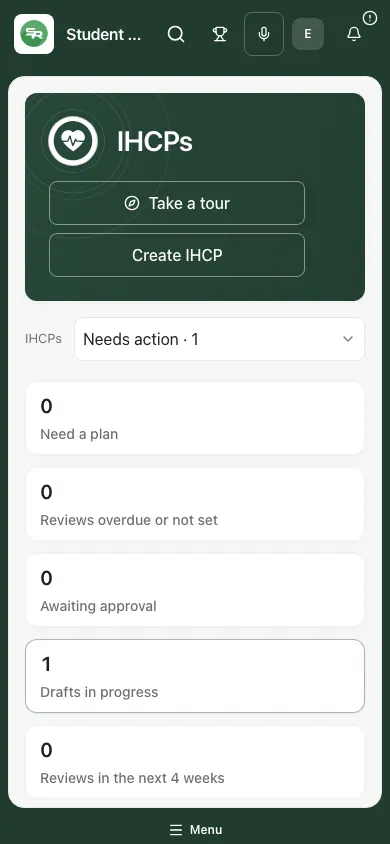 The fictional phone reader retains the draft status and pupil/revision context.
No plan or reference appears. Check register scope, permissions and source errors. An inaccessible reference is not proof that the school has no record.
Can a saved draft be used as the agreed plan? It is not yet in force. Check the approved current revision and the school’s current clinical instructions.
Does parent agreement authorise medicine? No. Medicine authorisation and other condition-specific arrangements remain separate.
The save or activation failed. Read the specific message, retain the working content and refresh/reconcile the current record. Do not create duplicates or overwrite a newer revision.
Related: Medications, Allergy Register, First Aid.