Record Small Steps observations and plan teaching moves
Choose the pupil and curriculum question, record the observed response and support, then review the next teaching move. Staff can record a supported or independent response, distinguish a question not observed from one not met, review changes and decide whether a saved teaching move should feed the next support plan or owned work.
Screenshots use fictional pupils and observations. A judgement is evidence about the question under the recorded conditions. It does not, alone, establish attainment, diagnose a need or show that support caused improvement.
Before starting
Section titled “Before starting”Open Assessment → Entry → Small Steps Assessment. Current sections are Assess, Progress, Caseload and Earlier framework. Use the current curriculum workflow unless you deliberately need the earlier framework.
The pupil picker offers accessible pupils with the relevant SEND status whom you can assess. No pupils, a failed pupil read and no assessment permission are different states. Check the school/account and use the offered retry if records cannot load; do not create a second pupil record to get around access.
1. Choose the pupil and a suitable curriculum pack
Section titled “1. Choose the pupil and a suitable curriculum pack”Confirm Pupil, Curriculum phase and Curriculum pack (accessible name Subject / curriculum pack). Choose the phase that fits the work the pupil is demonstrating; it need not match their chronological year. The pack choice affects the questions and content version against which observations are recorded.
Tick Show smaller steps to include finer questions alongside the teaching questions. A smaller step has its own judgement; recording it does not automatically record the parent teaching question.
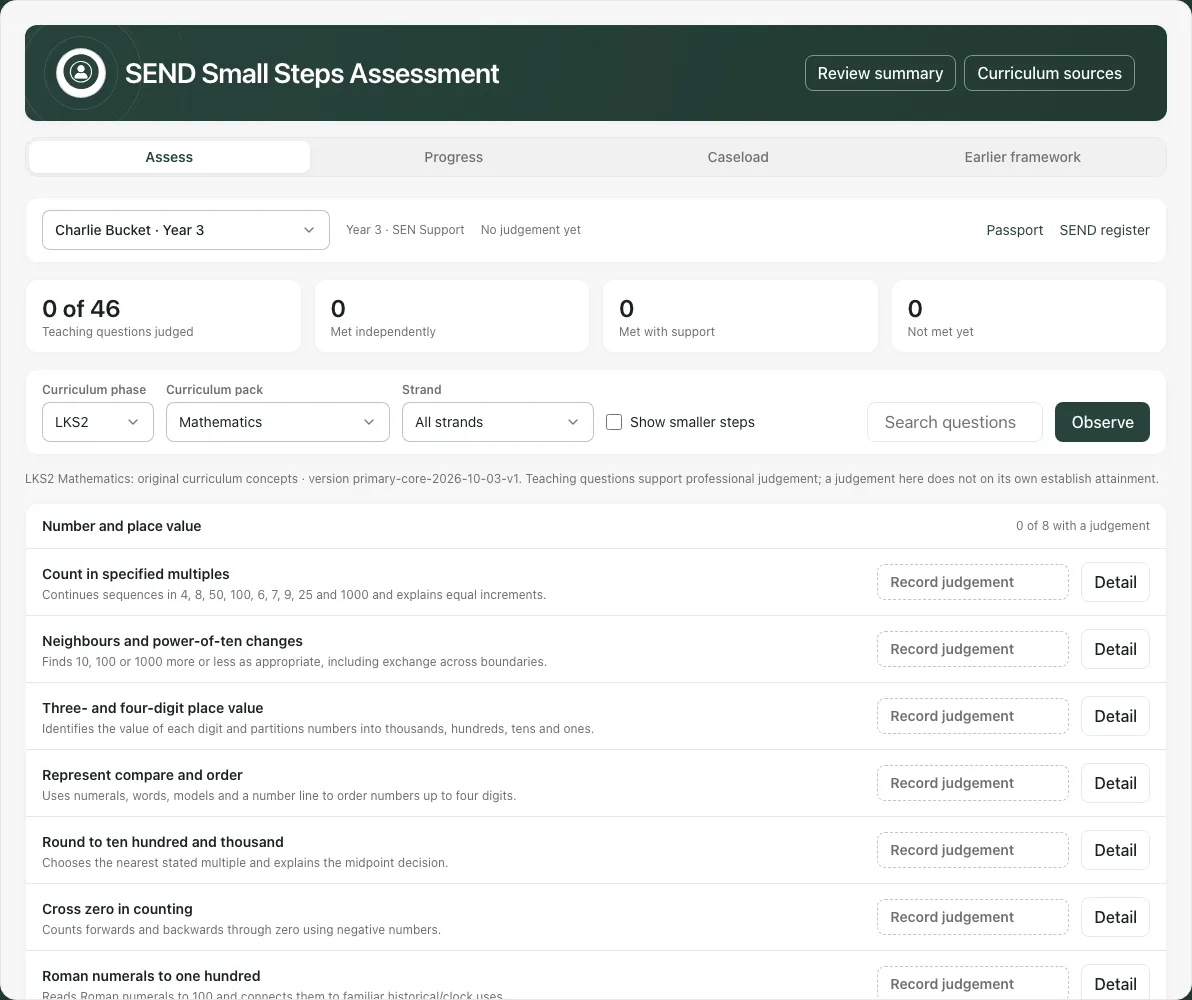
Filter using Search teaching questions and Focus strand. Curriculum sources explains the pack’s basis and coverage. Read it before treating the pack as a complete curriculum or statutory scale.
The pupil bar can link to Passport and SEND register. Use these to check appropriate context, with access at the destination; the link itself does not grant it.
2. Record what was observed, including a fair opportunity
Section titled “2. Record what was observed, including a fair opportunity”Read the question and criterion. Choose the judgement that reflects the actual evidence:
| Judgement | How to interpret it |
|---|---|
| Not observed | No recorded observation for this judgement; do not treat it as not met. |
| Not met | The observed response did not meet the criterion in the recorded conditions. |
| Met with support | The response met it with recorded support. |
| Met independently | The response met it without answer cues; check the actual conditions. |
| No fair opportunity | The pupil did not have a fair opportunity to demonstrate it; this is different from failure. |
In the question list, Record judgement (or the current saved judgement label) starts observation for that question. Choose the judgement in observation mode and use its save/move action. The Detail workflow lets you review the judgement together with the note before Save judgement; a selected choice alone is not a saved observation.
3. Add a useful observation detail and save it
Section titled “3. Add a useful observation detail and save it”Choose Detail on the intended question (accessible name Detail and history: [question]). Confirm the question, criterion and suggested activity before editing.
- Under Judgement to save, select the actual judgement.
- Add What you saw and Task or range observed to explain what the pupil did and how far the observation goes.
- Record relevant Access used and Adult guidance or answer cues given. Blank fields are unknown, not evidence that no arrangement or cue existed.
- Where offered, choose Finer distinction for the observed smaller step and write a practical Next teaching move.
- Choose Save judgement, wait for success and inspect Saved history. Reopen the question to verify the stored judgement and note.
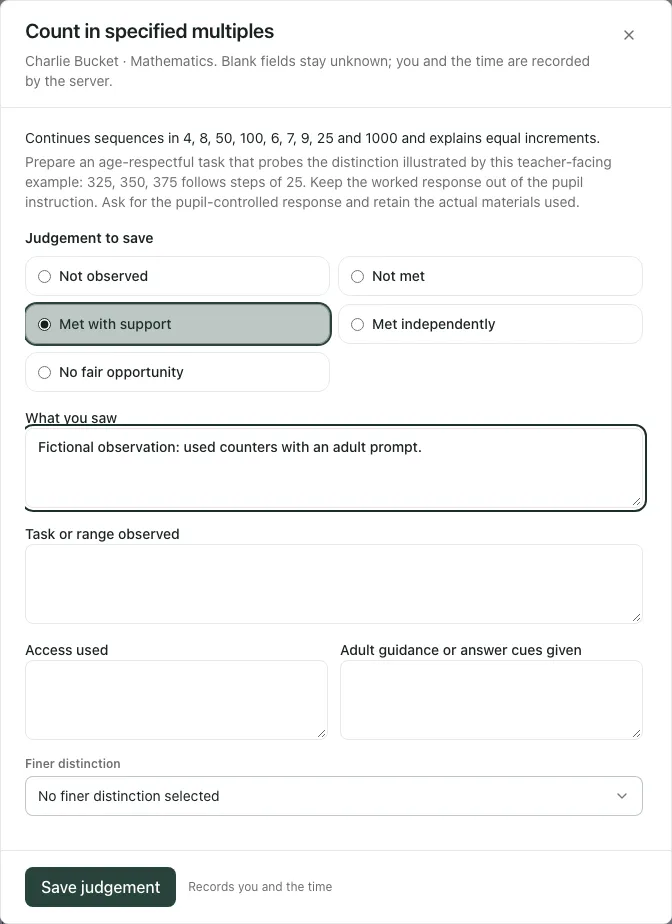
If Met independently conflicts with recorded answer cues, the dialog asks for a decision. Choose Answer cues helped: record met with support when that is what happened, or Confirm no answer cues were supplied only when true. Do not remove a real cue merely to retain an independent label.
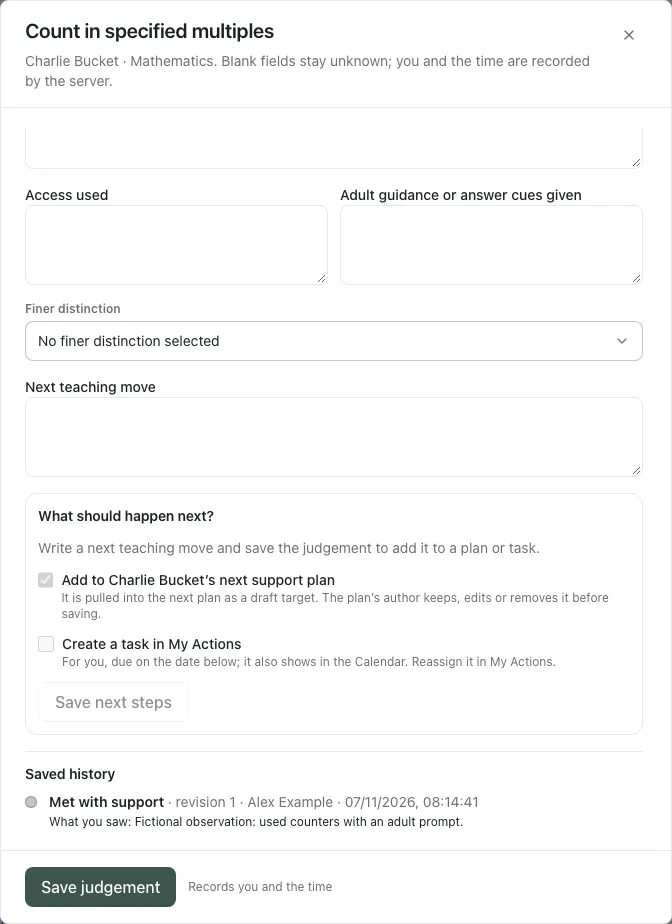
History records revisions, author and time; Load earlier history fetches older entries. A record from a previous content version keeps that version visible, so compare the wording/criterion before treating it as an observation against the latest pack.
4. Use observation mode without losing an unsaved choice
Section titled “4. Use observation mode without losing an unsaved choice”Choose Observe to work through one question at a time. The observation view places the question and judgement choices in focus. Keys 1–5 select the displayed judgement order; left/right movement follows the observation workflow rather than typing into another form field.
With a pending choice, Save and next, Save and finish or Save and exit saves before moving. Previous/arrow movement also attempts the intended save. A refusal should keep you on the relevant question or show the recovery state; do not assume movement proves a successful save.
The Detail dialog and observation choices represent the same current judgement. Saving from Detail should not need another identical save when moving on. If you edit a note or judgement while an earlier save is returning, the later edit remains an unsaved draft. Read the status line and save again before leaving; an earlier receipt does not cover new text.
On an uncertain save, Retry original save replays the original submission. On a changed revision, use Reload saved judgements and review the colleague’s current evidence. A retry must not silently turn your later edits into the earlier saved observation.
5. Turn a saved next move into proposed plan content or work
Section titled “5. Turn a saved next move into proposed plan content or work”The Next steps panel uses the saved next teaching move. Write and save a useful move first; an empty/unsaved note cannot be treated as agreed follow-up.
- Read Saved next teaching move and check it belongs to this judgement.
- Tick Add to [pupil]’s next support plan if it should be queued as a draft target for the next plan. The plan author can keep, edit or remove it before saving; queuing does not change a current plan.
- Tick Create a task in My Actions if work should be assigned to you. Check Task due date. The default follows the school date plus 14 calendar days; choose a deliberate suitable due date rather than assuming it is a school-day deadline.
- Choose Save next steps and read each outcome. The queue can succeed while task creation fails, so do not interpret one result as both.
- Use Open My Actions to verify the created work, ownership and due date. Reassignment happens there. The task’s question link returns to the source observation context.
A task needs your active staff link. A queued item from an earlier judgement can remain waiting with its earlier move; read that distinction. Where you added it, Remove from next plan lets you withdraw the waiting item before adding the current move. A move already pulled into an earlier plan is not proof this newer judgement is included in the next one.
6. Review progress with the window and recorded conditions
Section titled “6. Review progress with the window and recorded conditions”Choose Progress. Read recorded changes for the selected pupil/pack and compare from Last 4 weeks, Last 12 weeks or Since a date…. When choosing a date, use the school-day context and fill the date before expecting a comparison.
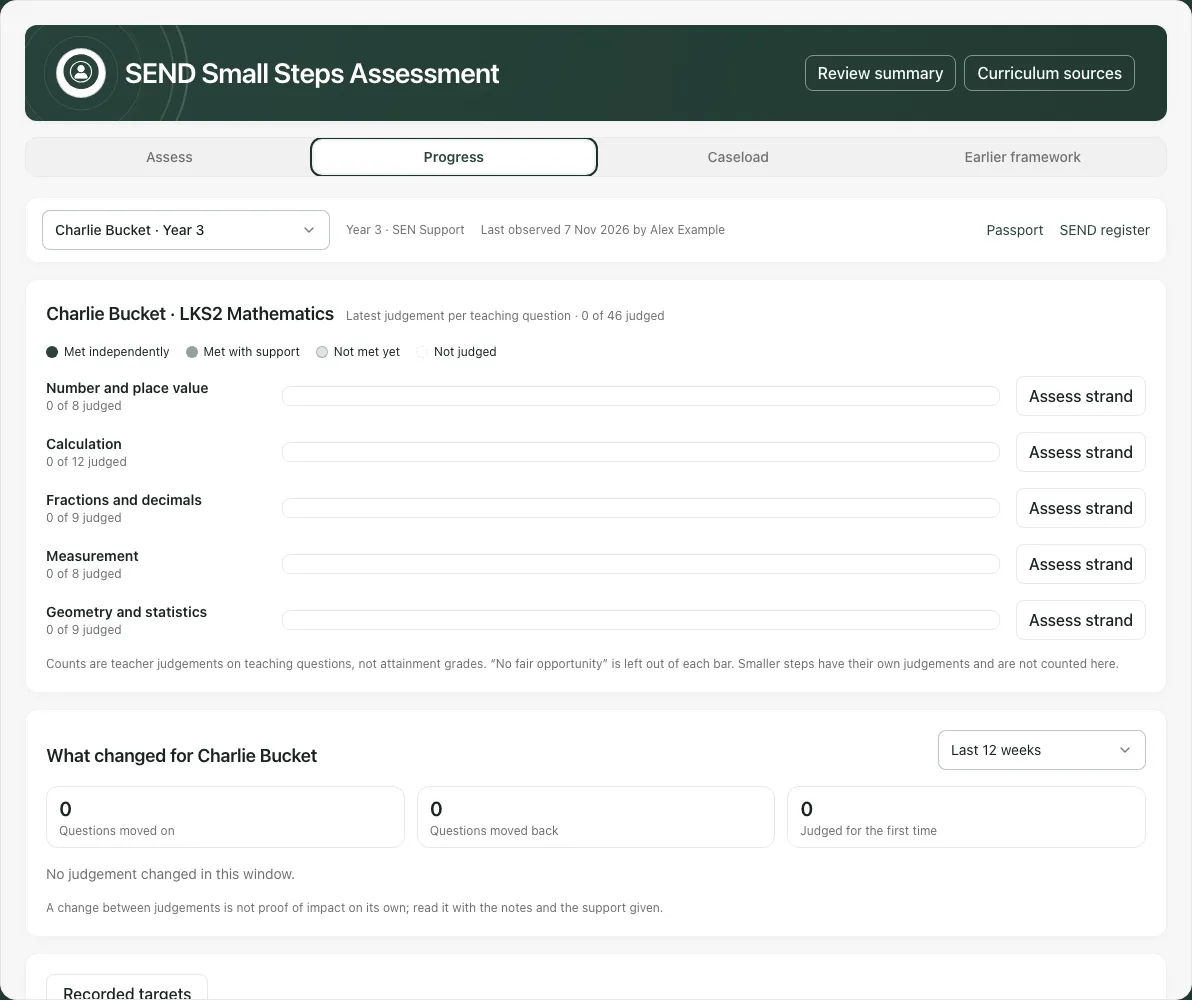
A change from supported to independent needs its underlying conditions and opportunities considered. No judgement changed in this window is not a claim that no learning occurred. A blank history is not zero attainment. Use Recorded targets and Jump to question to return to the actual question across packs; these are recorded observations, not necessarily the pupil’s agreed current targets.
7. Use Caseload to decide whom to check next
Section titled “7. Use Caseload to decide whom to check next”Caseload lists the accessible assessable pupils and their recorded activity. Filter by year/name and sort by Longest since a judgement, Most recently observed or Name. Today and Yesterday refer to school calendar days rather than a rolling 24-hour duration.
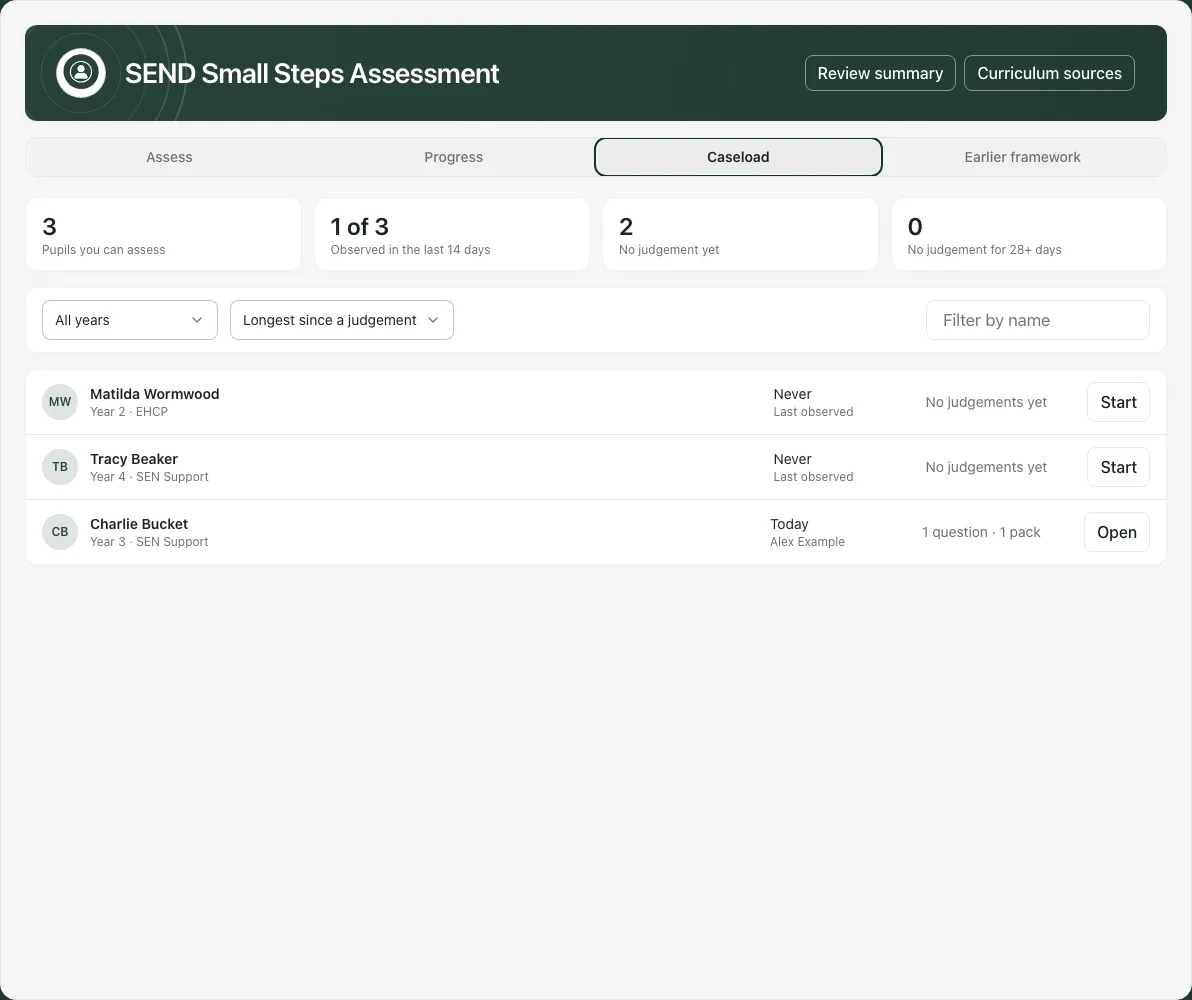
Sorting the displayed page is not evidence that every off-page pupil is covered. No recorded activity is a reason to check the evidence/context, not an automatic negative assessment.
8. Prepare a review summary and keep attachment separate from sharing
Section titled “8. Prepare a review summary and keep attachment separate from sharing”Choose Review summary for the selected pupil. Set the window to Last 12 weeks, This academic year or Since a date…. The academic-year start follows the school’s jurisdiction. Review Include next teaching moves and Family-friendly headings as presentation choices, not proof the content has been sent to family.
Inspect the preview, dates, question judgements, evidence and any missing context before Download PDF. It is a dated snapshot, not an automatically updated assessment.
If an open annual review is available and you have authority, select the correct review where offered and choose Attach to annual review. Check the attachment result. Open the annual review opens the pupil’s current open review context; verify which review is displayed rather than assuming a specific old review ID opened.
Attaching a changed summary replaces the summary already attached to that review; inspect the target and existing snapshot first. A download, an attachment and a family communication are separate actions. Do not infer consent, family delivery or reviewed approval from an attached summary.
9. Use the Earlier framework deliberately
Section titled “9. Use the Earlier framework deliberately”Earlier framework opens a different assessment model. Its step/evidence/status records should not be confused with curriculum question judgements. Choose the pupil/step, enter actual evidence and use the offered save action; Save evidence requires a note. Review history and date before treating a status as current.
A SENCo-override option can appear without permission to use it; a server refusal means the authorised capability is required. Suggest filing is an optional processing action with its own data flow; review what is supplied and the school’s approval before invoking it. It is not required to make an evidence-based manual assessment.
Add to pupil plan opens the SEND register rather than silently inserting a target into a saved plan. Review the destination and take the explicit permitted action there.
Phone use and troubleshooting
Section titled “Phone use and troubleshooting”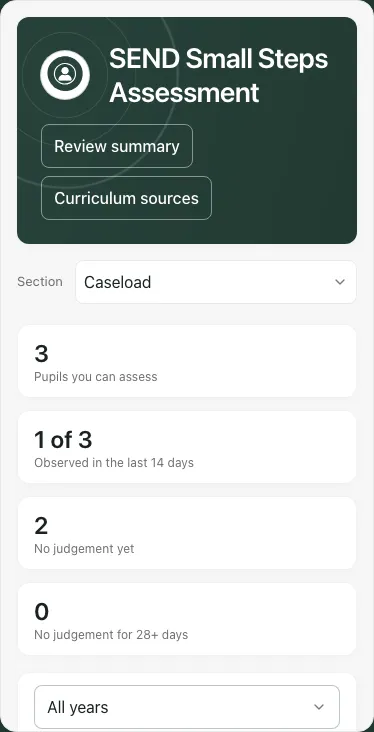
Use the section picker and scroll within the Detail dialog. The picker can stay disabled while a save is pending to preserve pupil/pack context.
| Situation | Next step |
|---|---|
| Pupils cannot load | Retry the pupil/activity reads and check school/access; do not treat failure as no SEND pupils. |
| New text says not saved yet | Save that later edit; the earlier receipt covered only its submission. |
| Uncertain save | Use Retry original save, then inspect history before another judgement. |
| Revision conflict | Reload saved judgements and reconcile the current observation. |
| Independent judgement with cues | Record the truthful cue resolution before saving. |
| Queued move belongs to earlier judgement | Read the earlier move and use the offered removal/requeue path where authorised. |
| Task unavailable | Check your staff link and read the queue/task outcomes separately. |
| Summary or attachment failed | Keep the source observations, retry the specific step and check the target review. |
Common questions
Section titled “Common questions”What should I record if the question was not observed?
Section titled “What should I record if the question was not observed?”Use the appropriate not-observed judgement rather than treating missing observation as a question not met. Retain the support and opportunity context.
What should I check before describing progress?
Section titled “What should I check before describing progress?”Review the observation window, recorded conditions and history. A supported response alone does not establish independent attainment or show that support caused a change.