Build and review a school curriculum plan
Written for: Curriculum leads, subject leaders and teachers.
Build a year plan, develop units and lesson outlines, review requirement coverage and approve the intended version deliberately.
Staff write and review the plan. The app can show coverage and offer assistance, but it does not decide that a curriculum is complete, compliant or effective simply because boxes are filled.
The examples use a fictional Science plan for Years 3 and 4. It contains deliberately incomplete unit detail and unavailable reference coverage so that the difference between planned content and verified coverage remains visible.
Before you start
Section titled “Before you start”Check the school and your responsibility for the subject. Creating, editing, reviewing, managing staff responsibilities and adopting a plan for a class have their own permissions. Seeing a plan is not the same as permission to approve it. Ask the school’s administrator or curriculum lead if the intended action is unavailable.
Have the correct academic year, year groups, subject requirements and source documents ready. Agree who will own the plan and who will review it. Keep sources and versions clear: a working draft and an approved edition can differ, and a class can still be using an earlier approved edition.
Open or create a plan
Section titled “Open or create a plan”- Open Curriculum Planning through your permitted navigation.
- Choose a plan in Open a plan, or select Open beside a plan in Your school’s plans.
- Check the title, academic year and status.
- To begin new work, select New plan where permitted.
- Use More → Plan details to enter the plan title, subject, phase, academic year, year groups and optional cycle/rationale.
- Select Save changes and confirm the result before expecting review, shared class use or source-linked lesson actions to be available.
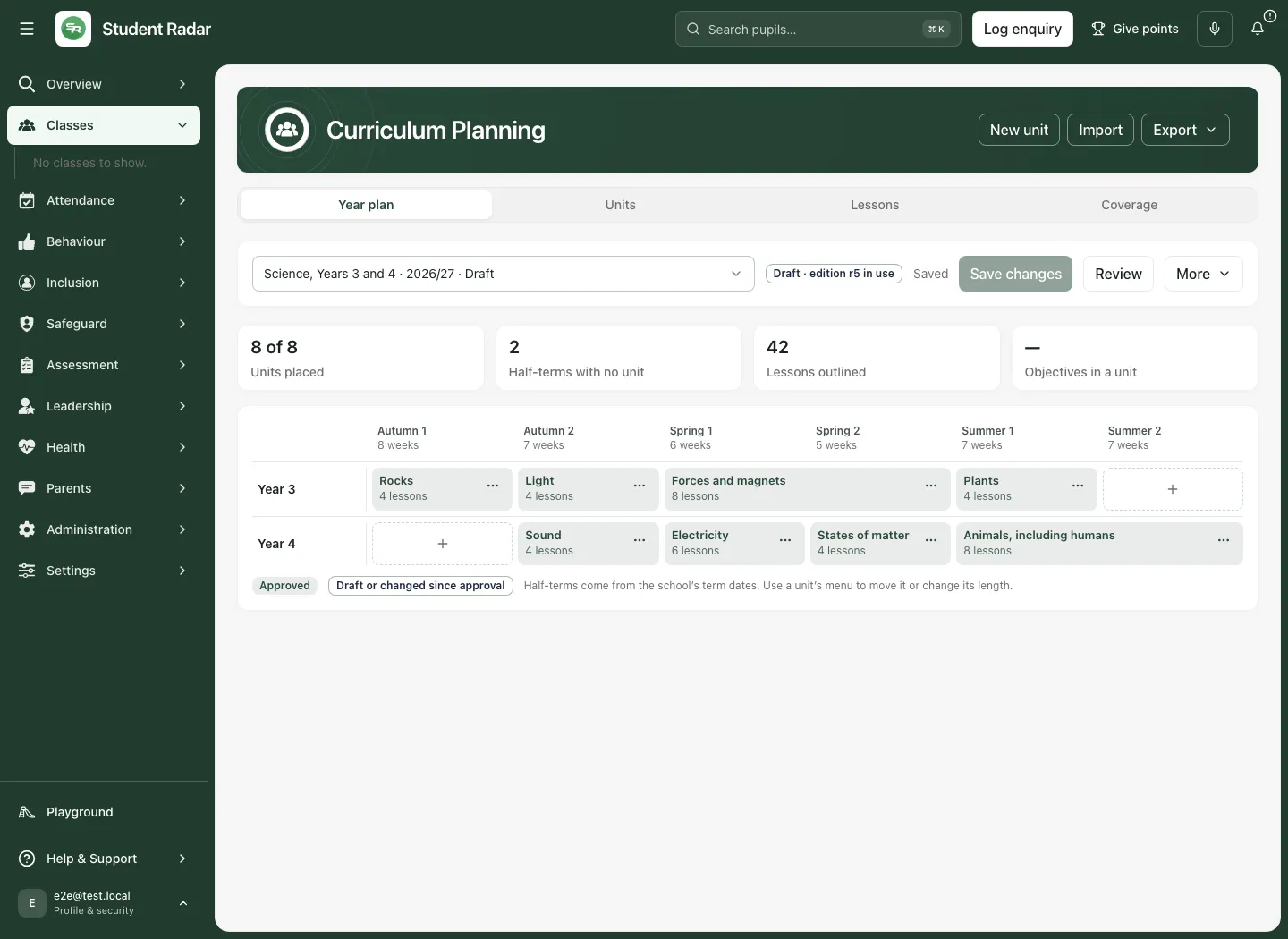
Use the year groups the plan genuinely covers. The plan’s academic year and school term dates determine how the timetable grid is interpreted. A missing year group or unresolved term structure needs attention; do not treat a fallback display as proof of complete school scheduling.
Understand the four sections
Section titled “Understand the four sections”| Section | Use it for |
|---|---|
| Year plan | See units across the year groups and teaching windows; identify unplaced units or gaps. |
| Units | Develop a unit’s learning intentions, sequence, objectives and lesson outlines. |
| Lessons | Open a lesson plan connected to the curriculum sequence and its class context. |
| Coverage | Compare mapped objectives with the available reference requirements or specifications. |
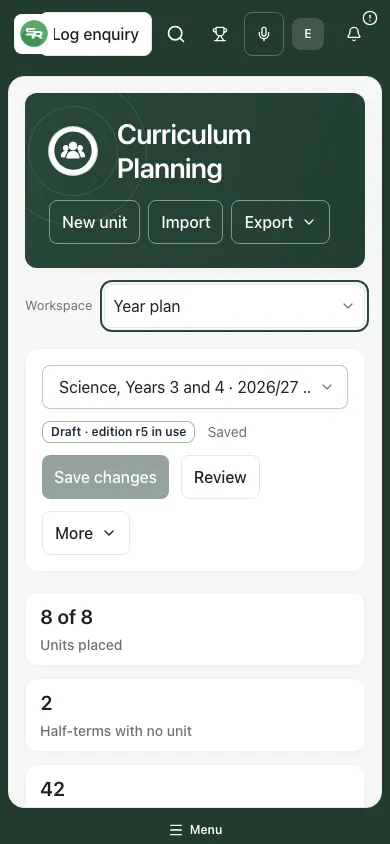
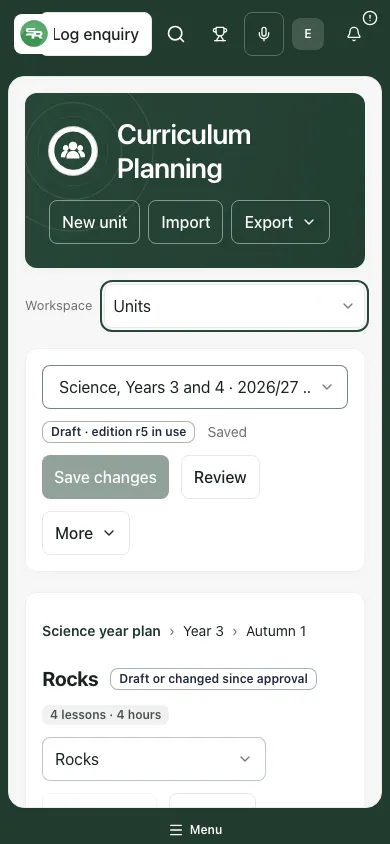
On a phone, Curriculum Planning sections is a chooser rather than desktop tabs. Select the required section, then use its own unit/lesson controls.
Arrange the Year plan
Section titled “Arrange the Year plan”The Year plan places units against teaching windows and year groups. Read the unit’s year and window before moving it. Use the available placement controls to change a unit’s window or add a New unit for the intended slot. A unit spanning several windows must remain an intentional sequence rather than duplicated lesson content.
The summary counts describe units placed, half-terms without a unit, outlined lessons and objectives used in units. These are planning measures. A half-term with no placed unit may be a genuine gap or an incomplete plan; it is not evidence that no teaching happened. A high objective count is not proof of well-sequenced teaching.
Open a unit from the grid to work on its detail. Return through the year-plan link when you need to check where it sits alongside the preceding and following units.
Develop a unit
Section titled “Develop a unit”- Open Units or select the unit in Year plan.
- Check the year group, teaching window and unit title.
- Under Unit essentials, select Edit where permitted.
- Write the Enquiry question, Knowledge, Skills, Builds on, Key vocabulary, Common misconceptions and Inclusion that genuinely belong to the unit.
- Check Objectives and link the relevant existing objectives.
- Select Done to return to the unit’s reading view. This closes editing; it is not the plan’s save.
- Select Save changes and wait for the saved result.
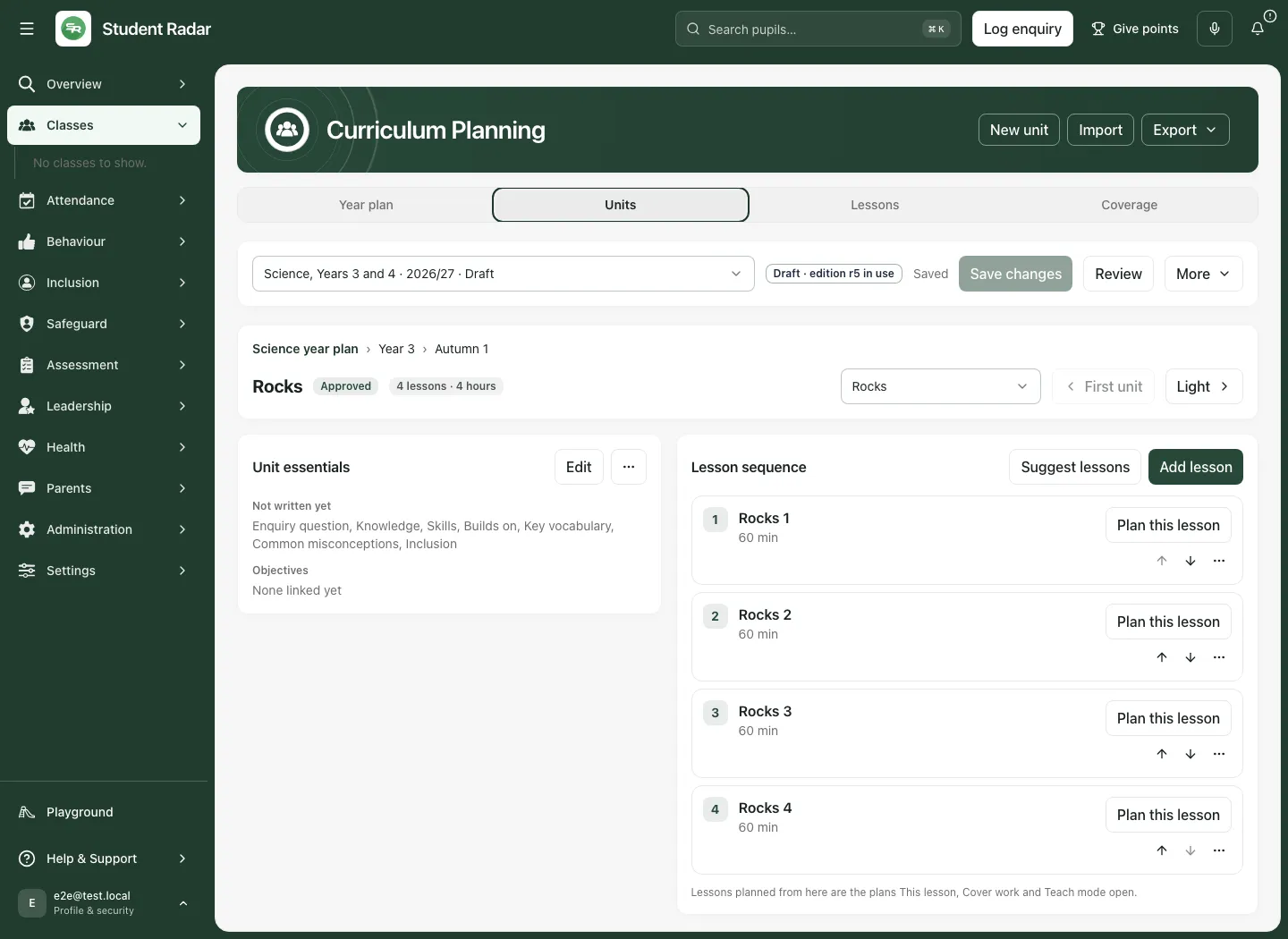
Keep statements practical. “How can we compare rocks using observations?” gives the unit a clear enquiry. Inclusion should describe useful teaching approaches, not duplicate confidential pupil records or make a diagnosis. Builds on should connect to real prior learning, not assume every pupil already has it.
Use More unit actions for Duplicate unit or Remove unit where appropriate. A copied unit needs its own title, placement and reviewed content. Removing a unit changes the draft sequence; check source links and the saved/approved distinction before proceeding.
Save, reopen and distinguish editions
Section titled “Save, reopen and distinguish editions”- Check Unsaved changes and the current plan status.
- Select Save changes.
- Wait for Saved to the school. and inspect the current revision/state.
- Reopen the same plan and unit to check the saved content.
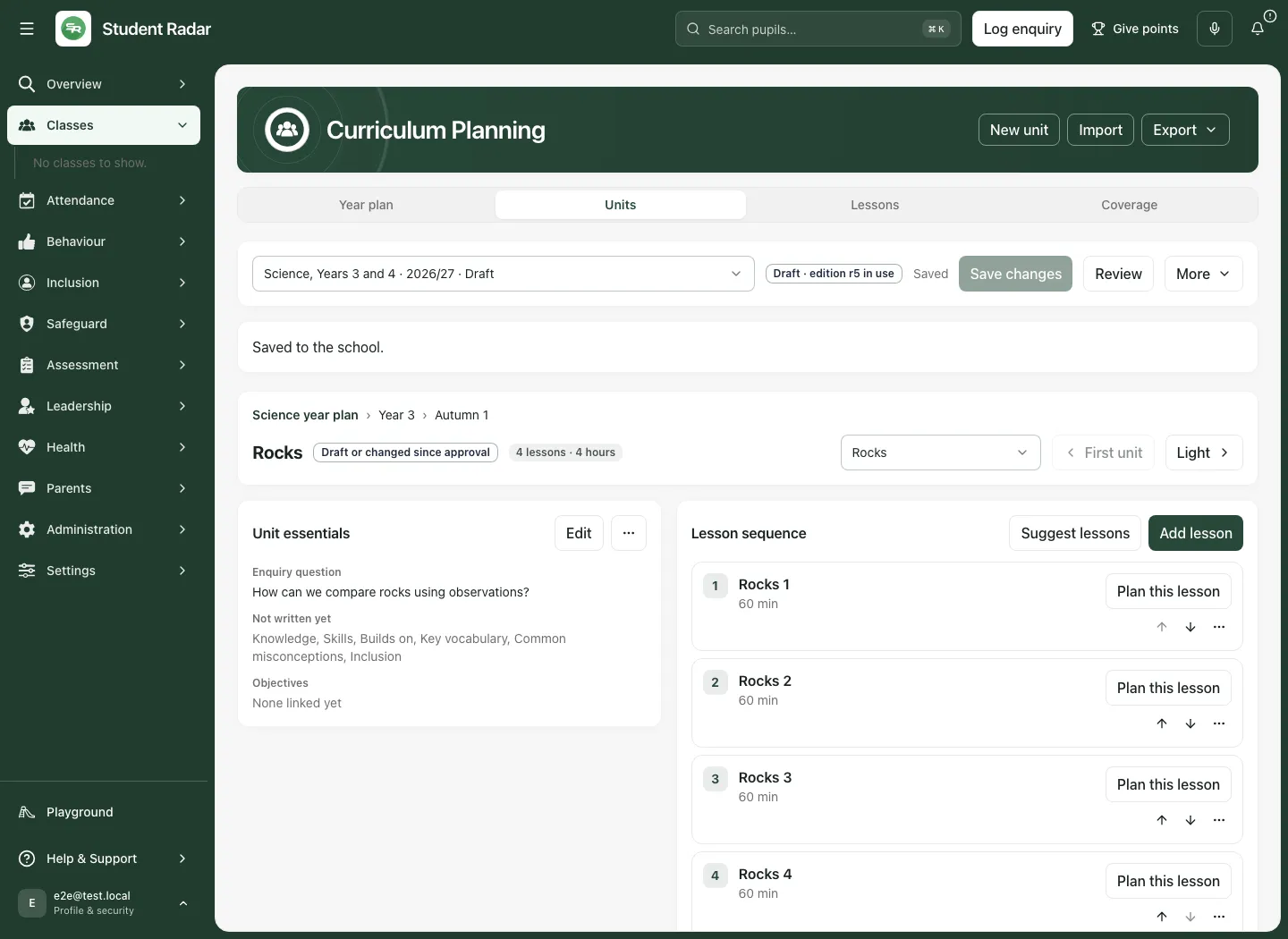
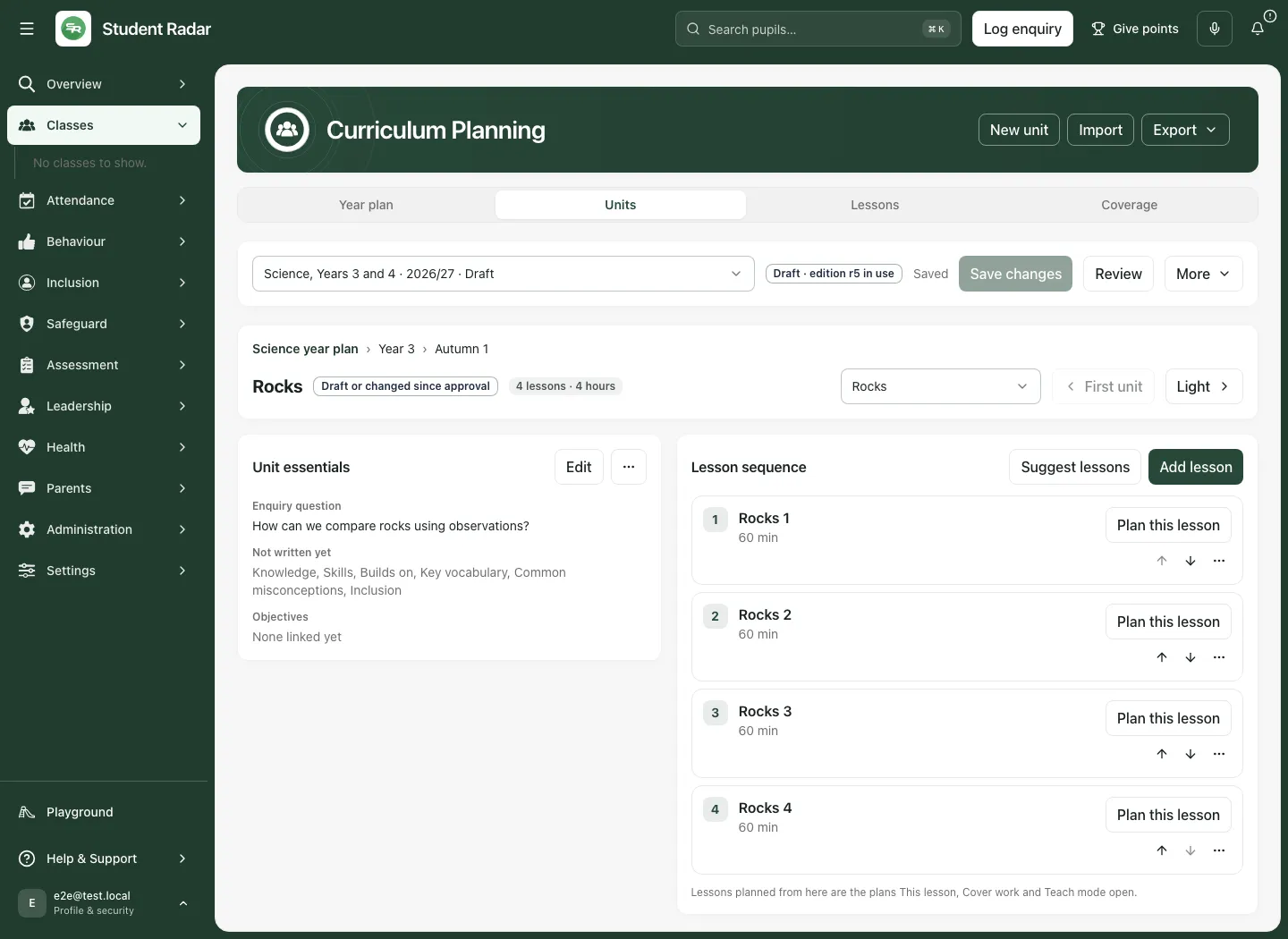
Saved draft content is not an approved edition. The page can show that an earlier edition remains in use until the new work is approved. Historical editions are read-only. Check which version a class has adopted before assuming a newly saved edit has changed its teaching plan.
If the app reports a school-context or revision conflict, stop and load the current version. Compare the saved content and your intended change before retrying. Do not overwrite a colleague’s newer work just to dismiss the message. Read unsaved-work warnings when switching plans or leaving the page.
Outline lessons in sequence
Section titled “Outline lessons in sequence”In the unit’s Lesson sequence, use Add lesson to describe the next lesson. Enter a specific title, duration, intended learning, teaching, assessment, resources and adaptations where offered. Link objectives that the lesson actually addresses.
Use the move-earlier/later controls to review the order. Consider prerequisites, knowledge introduced and opportunities to assess. Use duplication only as a starting point, and inspect the copy before saving. A sequence of outlined lessons is not evidence that those lessons were delivered.
Plan this lesson opens the supported lesson-planning handoff. It can require a saved plan and an approved edition, and must be able to check existing saved lesson plans. Read the reason when unavailable; do not create an unrelated duplicate to bypass the source connection.
Turn an outline into a teaching plan
Section titled “Turn an outline into a teaching plan”Open Lessons or use Plan this lesson from the sequence. Select the intended lesson and class, then develop its teaching plan: intended learning, success criteria, phase/activity detail, resources and notes. Select Save lesson plan and verify its result.
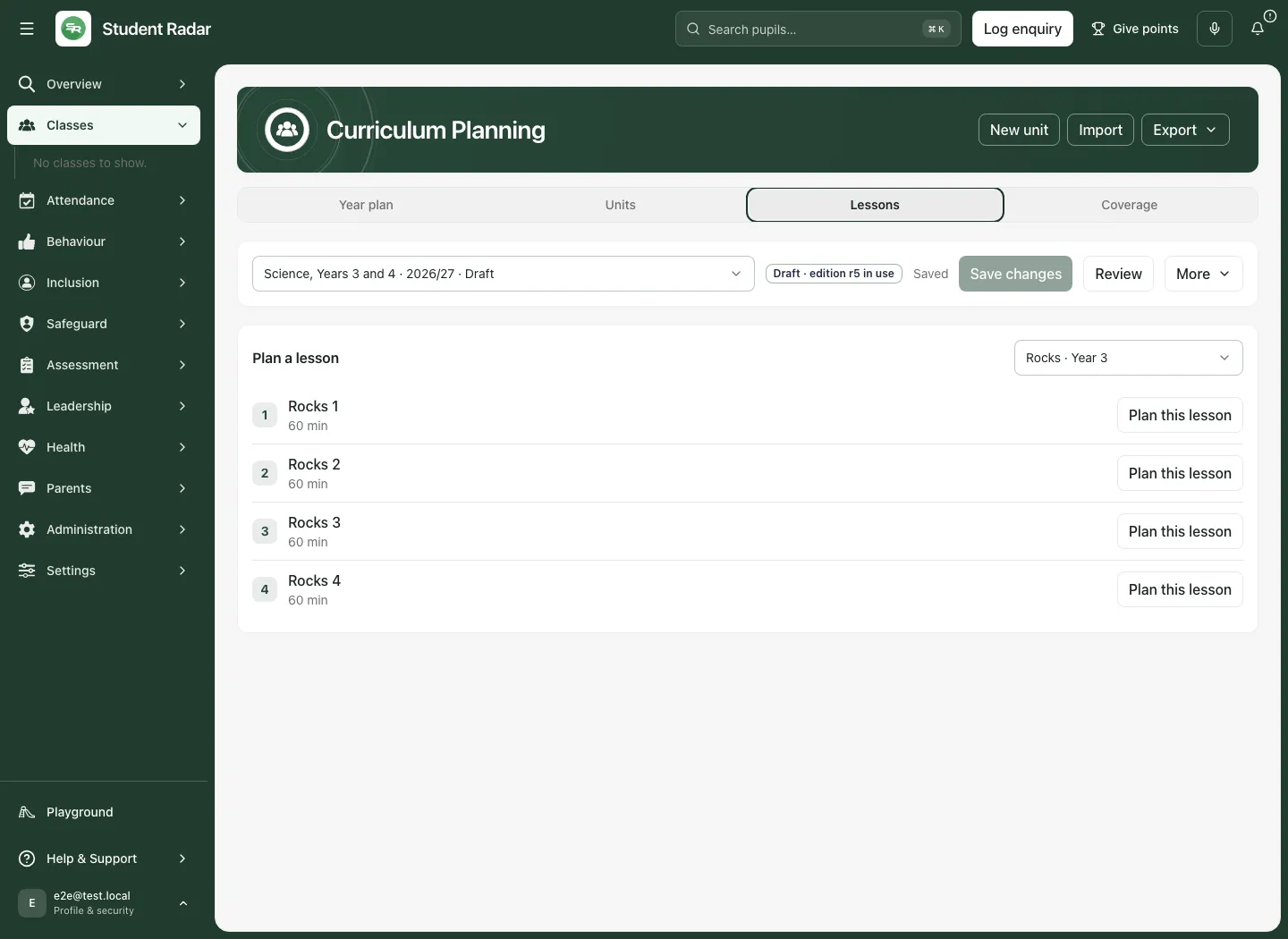
The curriculum-linked lesson plan is the plan that This lesson, Cover work and Teach mode can open. Keep the source lesson relationship intact. A curriculum outline, a saved lesson plan and a scheduled/delivered lesson are different records and states; opening one does not prove the others have occurred.
Review requirement coverage
Section titled “Review requirement coverage”- Open Coverage.
- Choose the available Framework, subject and key stage/specification filters.
- Check the source/version and any unavailable, partial or unknown-coverage message.
- Review requirements against linked unit/lesson objectives.
- Add relevant requirements to the plan deliberately, then place and teach them coherently rather than chasing a percentage.
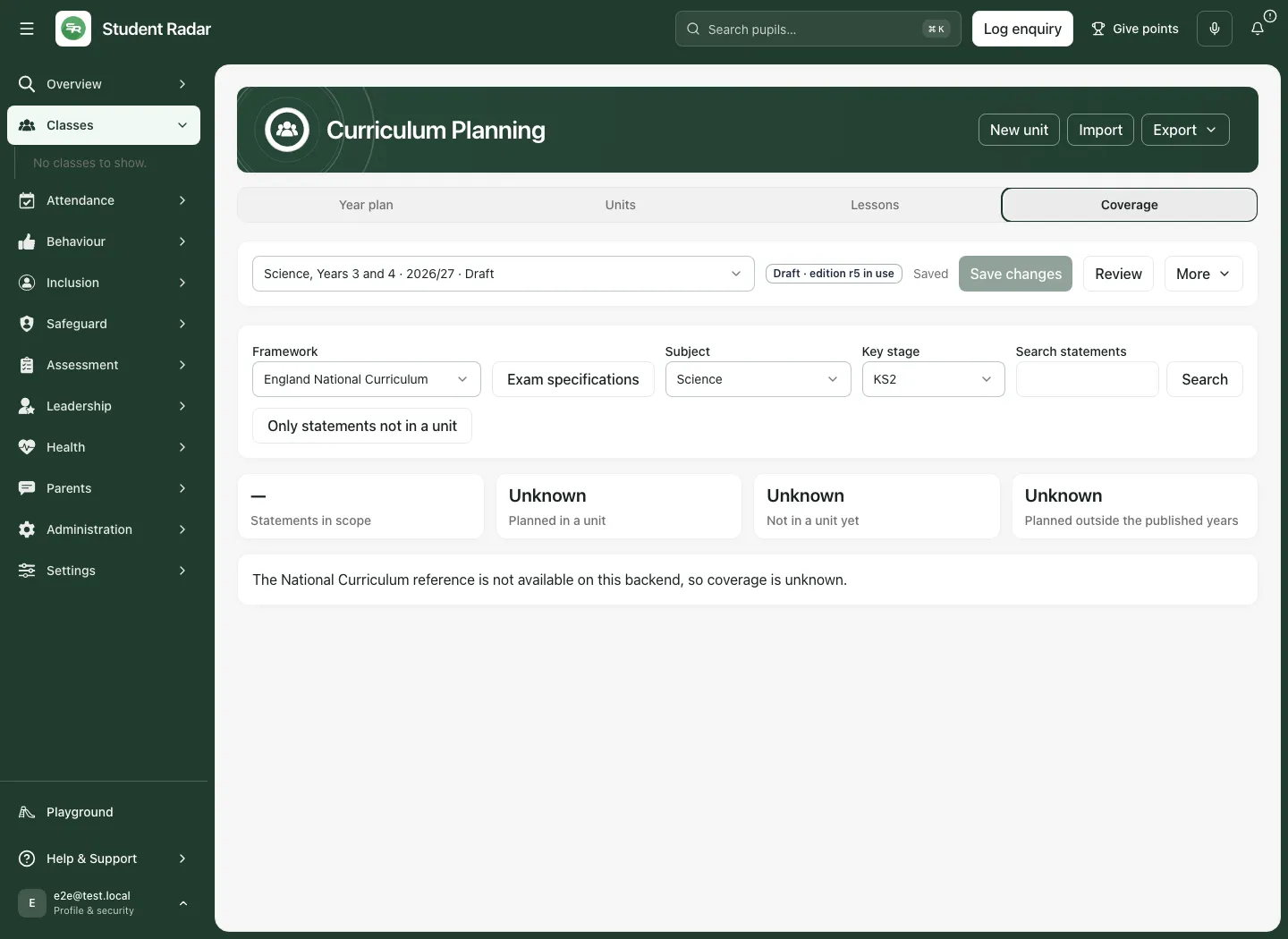
Not in a unit, not planned, not mapped and unavailable are different states. A missing reference dataset means coverage is unknown; it cannot certify complete coverage. Read partial-page/loaded totals and use any paging controls before comparing counts. Requirement coverage is a mapping, not proof of curriculum quality, inclusion or impact.
Use More → Exam specifications for the supported specification catalogue and source-management workflow. Check the board, qualification, subject, version and applicable years before using a specification. A label alone is not proof that the specification is the one your pupils study.
Review and approve deliberately
Section titled “Review and approve deliberately”- Save changes, then select Review.
- Read the current revision and the changes since the last approved edition.
- Add an explanatory note under Add a note where useful.
- Check the assigned staff responsibilities and reviewers.
- Select Submit for review only when the plan is ready and a reviewer is assigned.
- The authorised reviewer reads the actual plan and can Approve this edition or Ask for changes, with the required note.
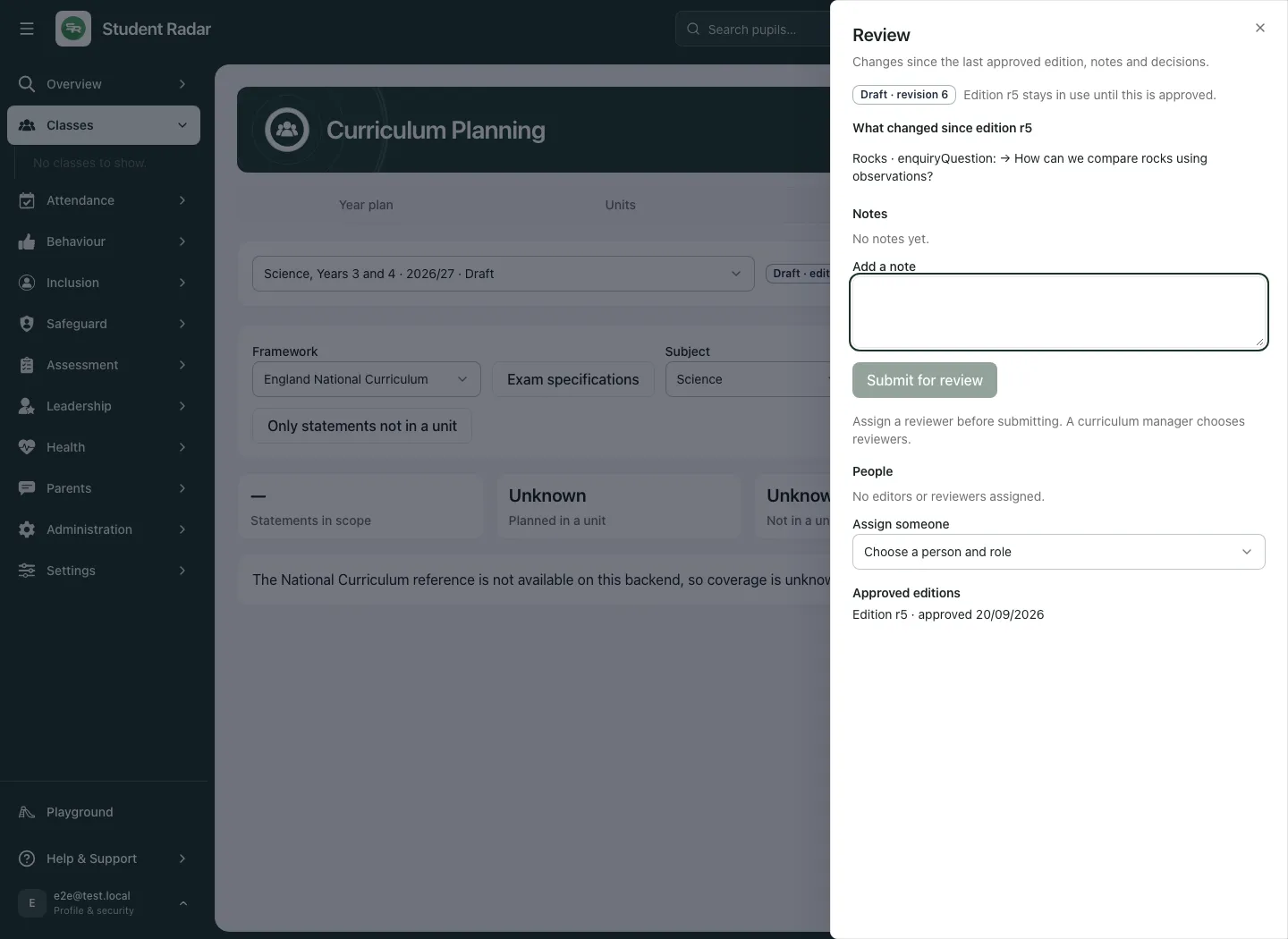
Approval is a human decision, not an automatic consequence of saving or filling every field. A reviewer should consider sources, sequence, coverage and the practical teaching context. Approved editions remain part of the record. Do not describe an in-review or saved draft as approved.
Use Class pace
Section titled “Use Class pace”Open More → Class pace to review the supported class implementation. Adopt the intended approved edition where permitted. Record unit delivery state and relevant notes, then use Save class pace. When a later edition exists, compare and deliberately adopt the update rather than assuming the class silently follows every draft edit.
Class pace describes implementation, not pupil attainment. A completed unit or delivered lesson does not establish that all pupils learned the intended content. Review assessment evidence separately.
Import a plan or source text
Section titled “Import a plan or source text”- Open an editable draft and select Import.
- In Import a plan, choose Import curriculum file. Supported files are JSON, CSV, TXT, Markdown (MD) and Word DOCX. PDF and images are not supported by this curriculum importer.
- Read the preview and notice. JSON preserves the plan’s references; CSV brings in units. Word and text are extracted for review rather than assumed to be a structured curriculum.
- For a structured document preview, inspect the units and references, then select Use this as the draft only if it is the intended replacement draft.
- For extracted text, select Keep the text as a source to retain it for your planning, or Ask AI to turn it into units to open the separate assistance workflow. The latter does not itself authorise applying generated units.
- Review the resulting draft, then select Save changes. Importing or applying a preview is not approval of an edition.
For CSV, use the supported headings title, yearGroup, windowLabel, allocatedMinutes, knowledge, skills and mappedYearGroups. Title is required. Unsupported or duplicate headings are refused rather than silently mapped into another field. Keep the file within the import control’s stated limits and correct a refused file before retrying.
Export the intended version
Section titled “Export the intended version”- Open the correct plan and check its saved/draft/edition status.
- Select Export.
- Choose JSON (keeps every reference) for the complete supported structured plan, CSV (units and years) for that narrower table, Editable Word for a document, or Print or save as PDF for the print layout.
- Read an unsaved-draft warning before continuing. An unsaved export can differ from the school’s saved or approved plan.
- Inspect the downloaded document or print preview and its version/title before sharing it with the intended audience.
Choose the format for the purpose: the CSV unit table is not an equivalent round-trip copy of every source reference, objective and lesson detail. Exporting does not approve a plan or update the edition a class is using.
Request, review and apply AI assistance
Section titled “Request, review and apply AI assistance”- Open the saved editable draft. For a unit-specific request, open the intended unit first. Save any pending edits with Save changes.
- Open More → AI assistance.
- Under What would help, choose Suggest lessons for this unit, Turn imported text into a plan, Review the order of units or Fit this unit into less time, according to the task.
- Write What you would like, within the shown 2,000-character limit. For a unit/time request, set the unit’s allocated minutes when asked. For imported text, import first and keep within the stated text limit.
- Check the programme, unit, source and requested purpose, then select Ask for a suggestion only when you intend to dispatch it.
- Wait for the result. Read its status, source revision, rationale, review and warnings. Under What would change, compare the proposed differences, and open The suggested plan in full to inspect the complete proposal.
- Accept only a proposal you have actually reviewed and are authorised to apply. Apply this suggestion and save is the explicit application/save action; requesting or reading a proposal is not application or approval.
- Check the resulting saved draft and Suggestions applied before history where available. Put the changed plan through the normal human review/approval process before treating it as an approved edition.
Assistance never changes an approved edition merely by returning a suggestion and does not certify coverage. Preserve the source version and review the teaching sequence, accuracy and inclusion. A failed or unavailable proposal is not a completed generation to cite as evidence.
Work on a phone
Section titled “Work on a phone”Use the section chooser for Year plan, Units, Lessons and Coverage. The year map can require horizontal movement within its grid; check the year and teaching window before opening a unit. Use the unit chooser and previous/next controls to stay in the same programme.
Troubleshooting
Section titled “Troubleshooting”| What you see | What to do |
|---|---|
| No plans yet | Create a plan if permitted, or ask the curriculum lead for access. |
| Plan details missing | Add the academic year/year groups before interpreting placement or coverage. |
| Read-only edition | Return to the current draft through the intended plan workflow; do not edit historical records. |
| Save before reviewing/planning | Save the current draft and verify the result. |
| Submit unavailable | Check unsaved changes, edit permission and assigned reviewer. |
| Coverage unknown or unavailable | Check the reference source; do not report complete coverage. |
| Saved lesson plans could not be checked | Reload before creating another plan for the same source lesson. |
| Revision conflict | Load current work and compare before retrying. |
| AI proposal unavailable/failed | Keep the original evidence and draft; do not invent a successful generation. |
Frequently asked questions
Section titled “Frequently asked questions”Does Saved mean Approved? No. Approval creates a deliberate reviewed edition.
Does coverage certify compliance? No. It depends on the reference source, mapping and completeness of the loaded data.
Will a class automatically use my latest draft? Do not assume so. Check its adopted approved edition and Class pace.
Does an outlined lesson become a scheduled lesson? No. Planning and scheduling/delivery are distinct workflows.
Can AI approve the curriculum? No. An authorised human reviews proposals and makes the decision.