Plan, record and review a school intervention
Written for: Staff planning, delivering or reviewing interventions.
Create the intervention, schedule sessions, record attendance and observations, then review delivery evidence and next steps.
Before you start
Section titled “Before you start”Open Inclusion → Intervention Planner in the correct school. The page can show records you can read without allowing changes. New plan, editable registers and review controls depend on access. Imported or source-managed interventions may be view-only: use the permitted original-record link, such as Open in Provision Map, when offered. A link does not grant access to its destination.
Have an aim, the pupils or cohort, proposed dates, delivery arrangements and success criteria ready. Scheduling a session is not a record that it happened. A delivered session, attendance mark, progress observation, formal pupil evidence and review decision are different records.
The screenshots show fictional pupils and examples.
Find the right work
Section titled “Find the right work”| Section | Use it for |
|---|---|
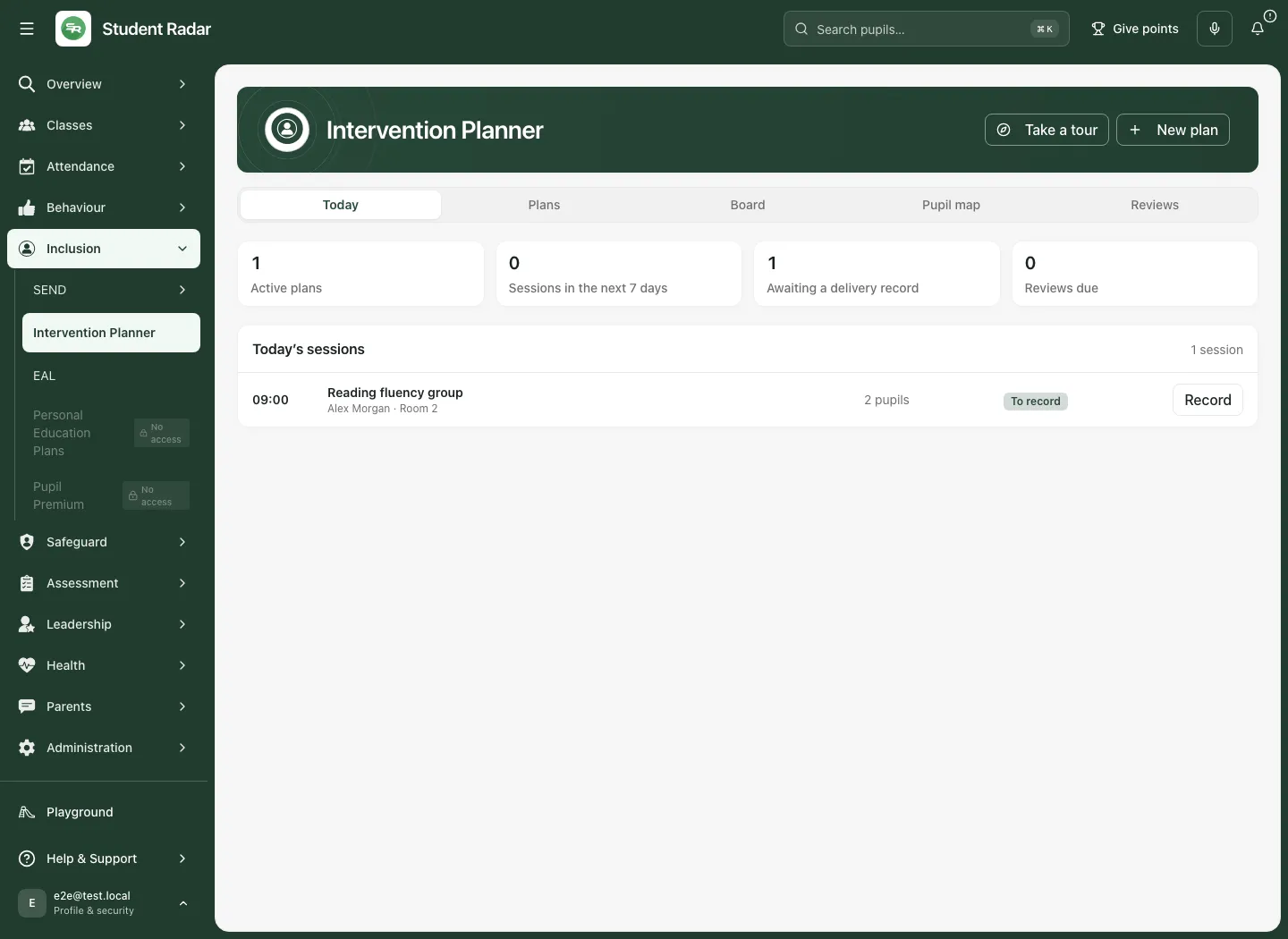
| Today | Today’s visible sessions, including those awaiting a delivery record. Open the session’s intervention to record what happened. |
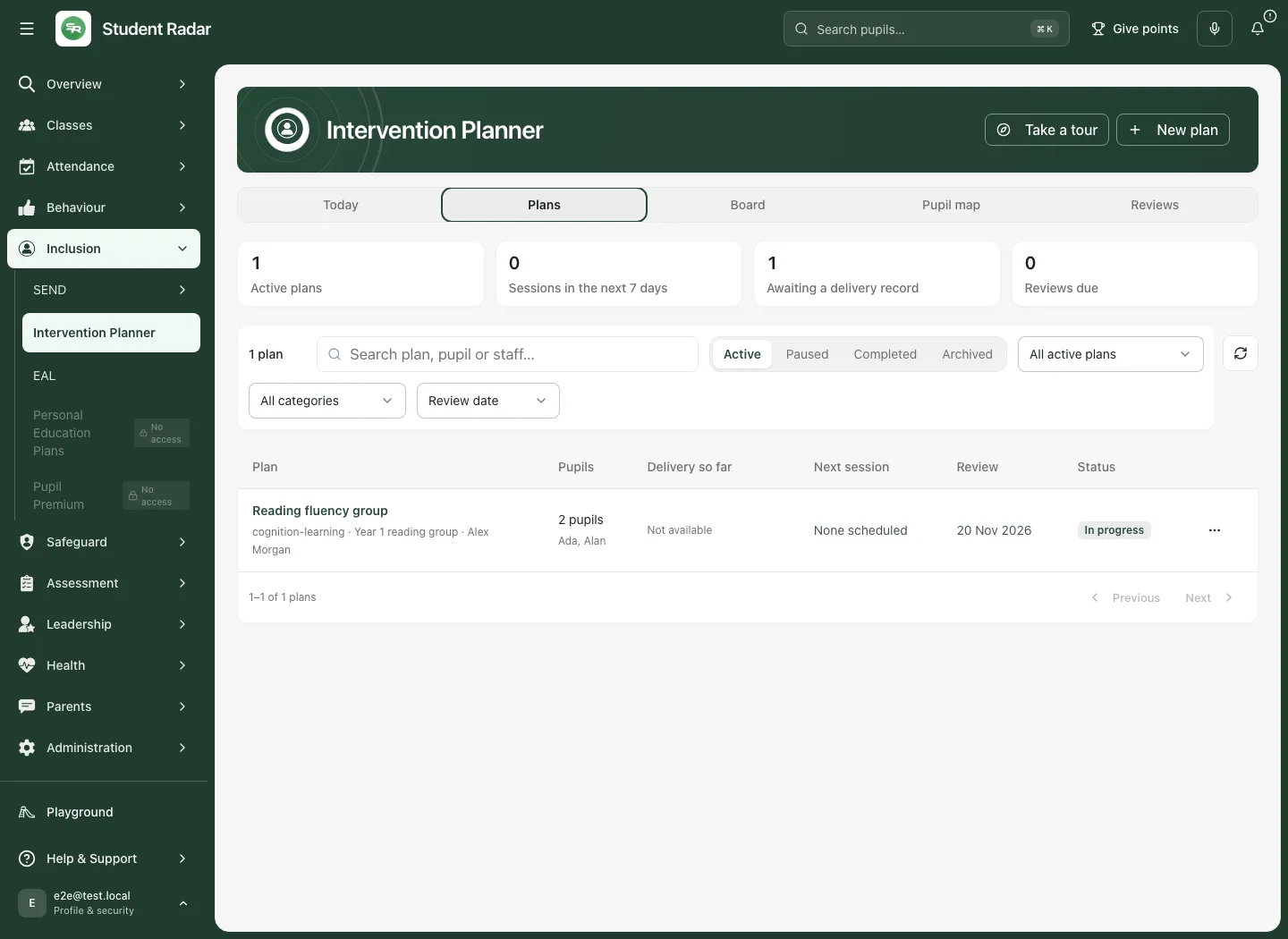
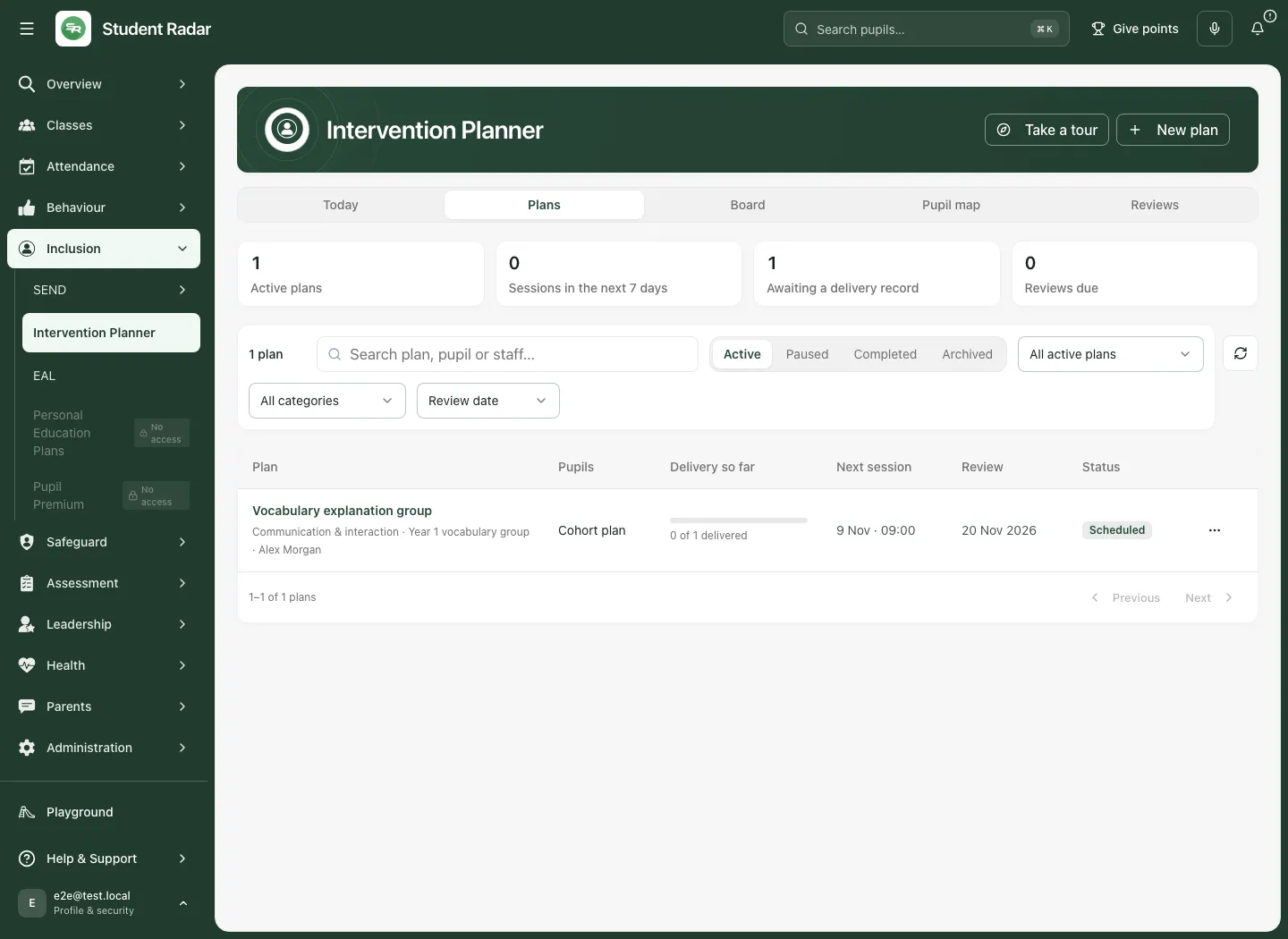
| Plans | Search and filter the plan list, then open a named intervention. |
| Board | Review plans by the school’s support categories. Standard categories are Wave 1, Wave 2 and Wave 3 until school categories are available. |
| Pupil map | See permitted support across pupils and open the relevant original plan or pupil context. |
| Reviews | Find overdue reviews and those due soon, then open Record review. |
Category managers can use Edit categories to rename/describe the school’s categories. Review existing usage before removing a category: a plan can then show no current category rather than silently being reassigned. If categories cannot be read, standard waves are a fallback, not a confirmed editable school configuration.
The headline counts cover the visible workspace, rather than only the currently filtered list. Sessions in the next 7 days and Awaiting a delivery record answer different questions. An unavailable figure is not zero. Use the list’s filters, sorting and paging to check the intended period or group; the board is also a bounded view, not an unlimited export.
Use the board and pupil map
Section titled “Use the board and pupil map”In Board, open a card to inspect its intervention. Where editing is allowed, moving a card to a current category requests a saved category change; check that it is confirmed. Plans with no category or a removed category appear separately and that uncategorised column is not a move destination. Category counts can cover more plans than the currently loaded card page.
In Pupil map, use Find a pupil on the map and Filter the map by area. The grid puts pupils beside their permitted current plans. Its flag threshold identifies pupils on that many plans or more; it is a prompt to inspect coordination, not a risk score or proof of excessive support. Read which sources the map includes: an inaccessible source is not a zero for that pupil. Open the relevant plan cell or pupil context, and use paging for other pupils. The map does not provide every fact or unrestricted access to another source.
Create an intervention
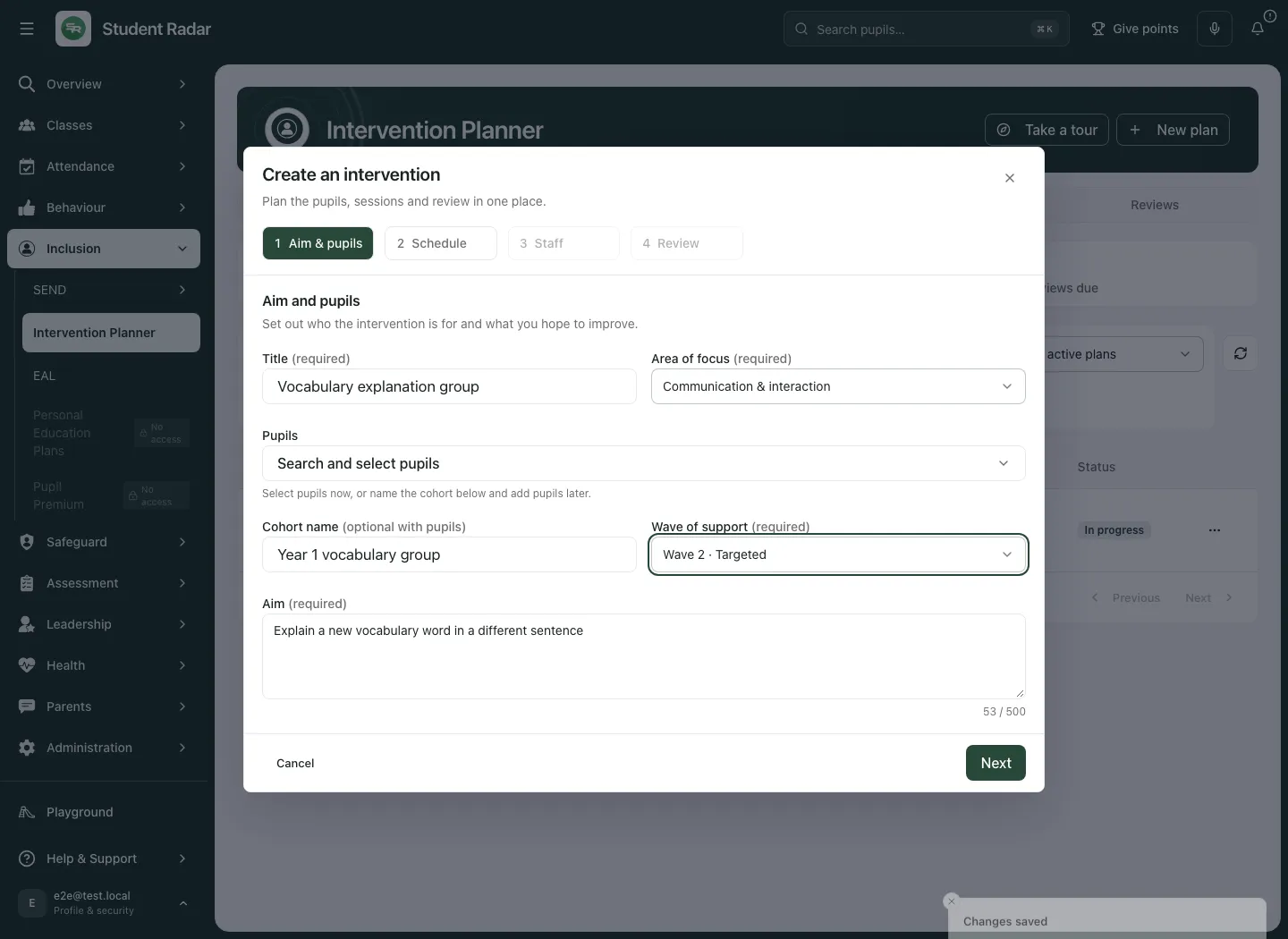
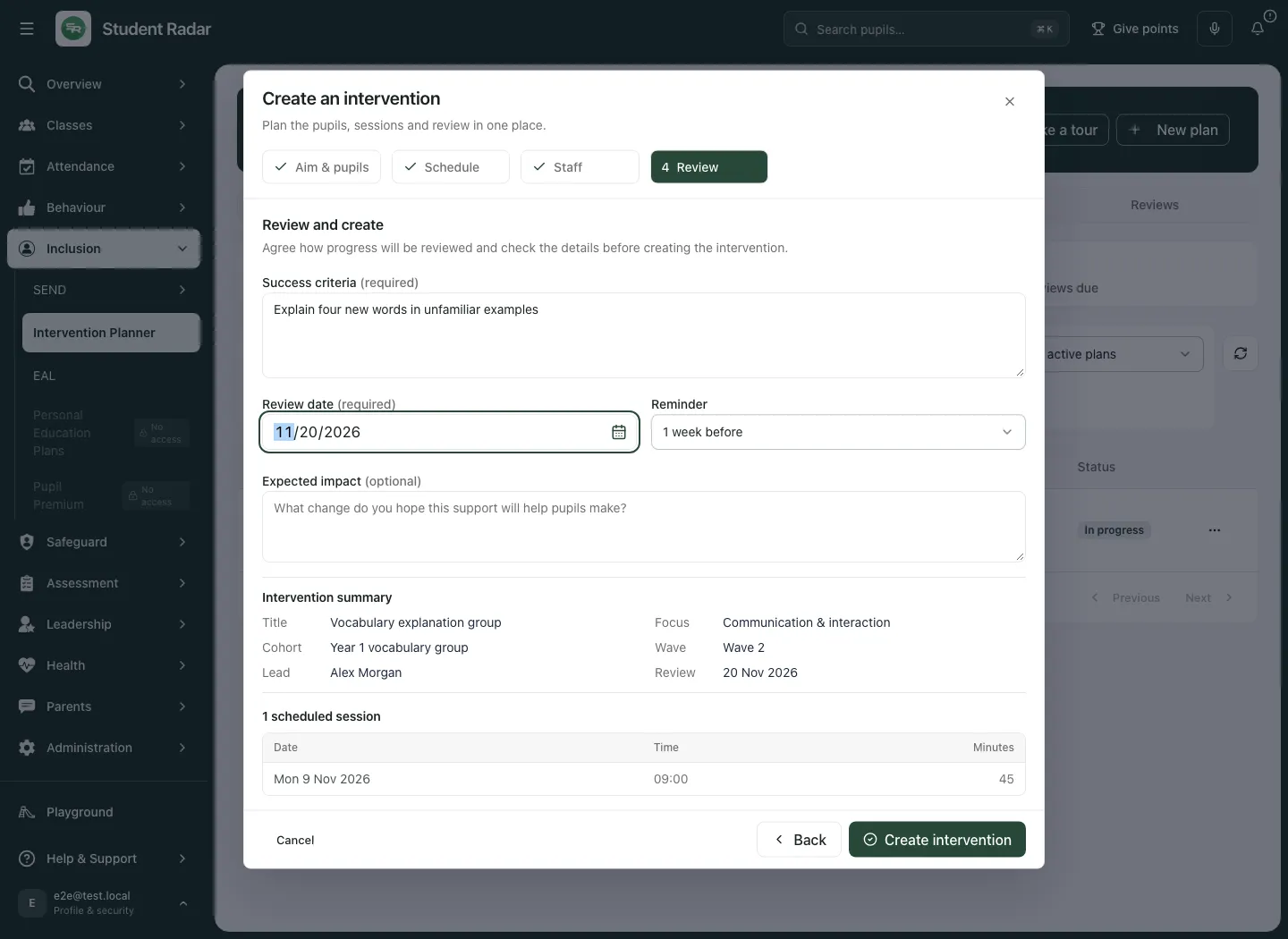
Section titled “Create an intervention”- Select New plan. The Create an intervention window has four steps: Aim & pupils, Schedule, Staff and Review.
- In Aim & pupils, enter a clear Title, choose Area of focus and Wave of support, and write the Aim. Select pupils, or enter a Cohort name and add pupils later. Search for named pupils when needed; a partial search result does not mean it is the whole school roll.
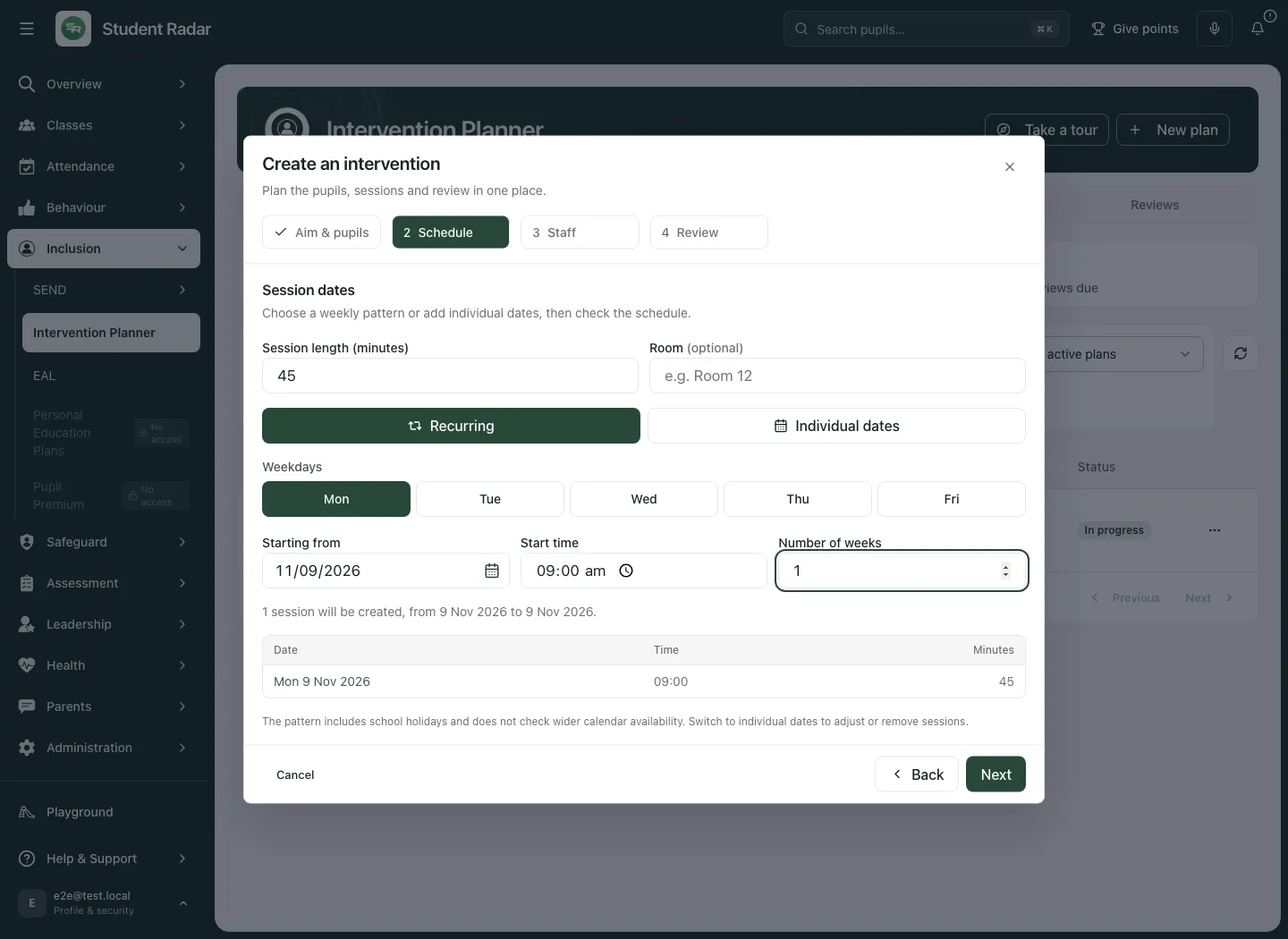
- Select Next. In Schedule, choose Individual dates or Recurring. Set session length and room where known. For a recurring pattern choose weekdays, Starting from, Start time and Number of weeks. Check the generated dates before continuing.
- A recurring pattern includes school holidays and does not check wider calendar availability. Switch to Individual dates to adjust or remove dates where necessary. The wizard allows up to 52 whole weeks, 260 sessions and session lengths of 5–480 minutes; a long pattern is not automatically a suitable timetable.
- Select Next. In Staff, choose or enter the Lead staff member and any Support staff. You can assign staff later. A typed name is a delivery arrangement, not evidence that a notification or calendar invitation has been received.
- Select Next. In Review, enter Success criteria, one per line, select the Review date and Reminder, and describe the Expected impact where useful. The review date must be on or after the first session. Expected impact is an intention, not a measured result.
- Check the summary, pupils, dates and staff, then select Create intervention. Wait for the confirmed result and find the new plan in the workspace. If saving cannot be confirmed, keep the draft and use the offered retry; do not create a second plan to work around an uncertain save.
Read or change the plan overview
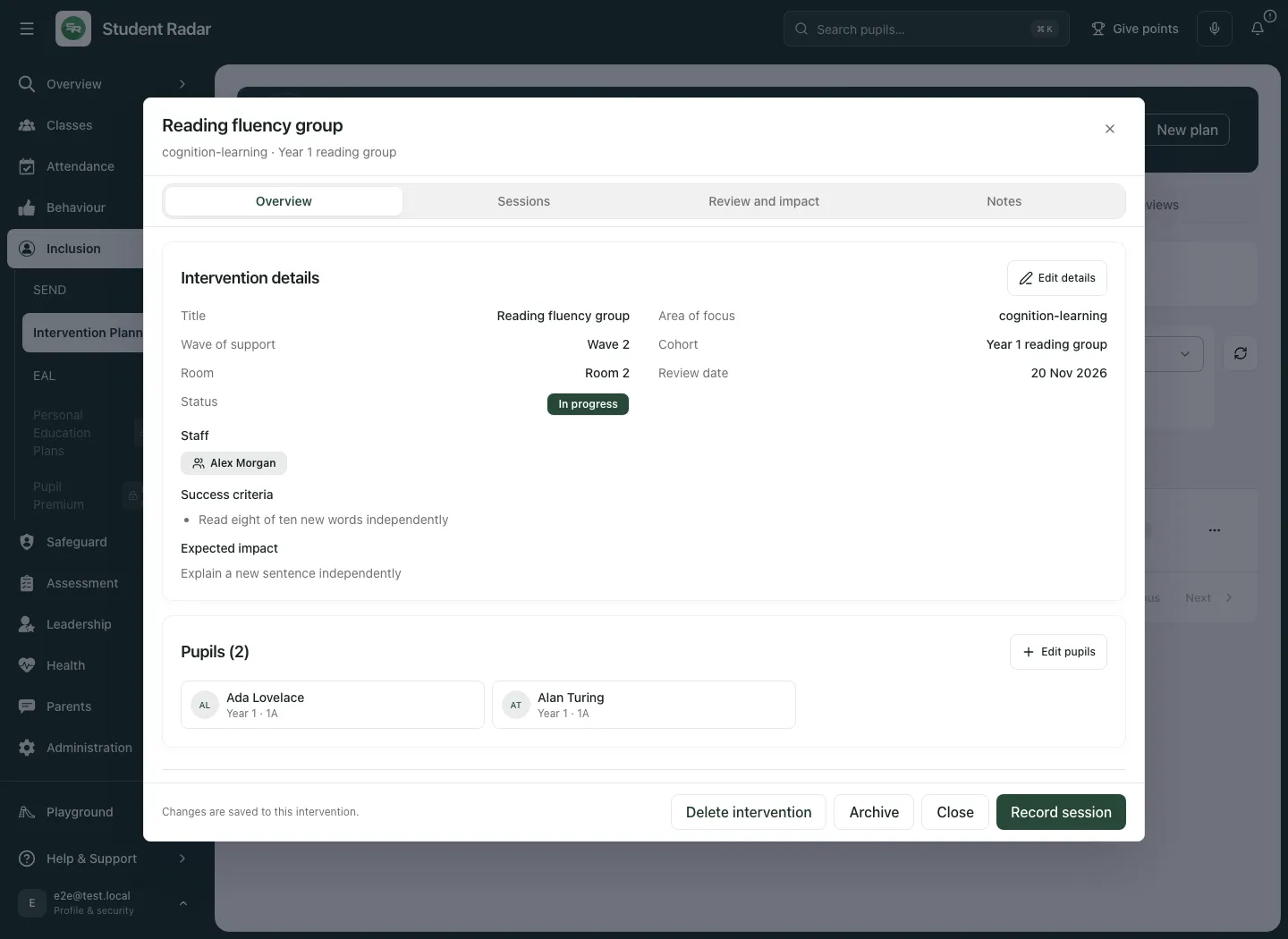
Section titled “Read or change the plan overview”Open a plan to see Overview, Sessions, Review and impact and Notes. Overview brings together the aim, pupils, delivery arrangements, review information and any teaching guidance.
Use the offered edit controls to change plan details or pupil membership, then use that section’s save action. A selection or typed edit is not saved merely because you switch tabs. Changes to the pupil list must be intentional: a session can retain its own roster, so today’s plan membership need not describe every historical session.
Where Track this intervention in Provision Map is available for an imported record, read the accompanying explanation before saving. Use the linked Provision Map guide for provision ownership, costing and review, rather than assuming a second independent support record should be created.
Teaching guidance can be drafted or edited where the record allows it. The bespoke drafting control requires 1–6 assigned pupils and valid programme details. AI drafting can take several minutes and does not save the generated plan until Save plan. Review it for the actual pupils, lesson conditions, suitability and evidence before saving. Stopping, a timeout or an interrupted reply is not a saved plan. Keep useful manual text before replacing guidance, and use Save changes for subsequent edits. Generation is not evidence of delivery or impact.
Record delivery before drawing conclusions
Section titled “Record delivery before drawing conclusions”- Open Sessions and find the date/time in Session schedule. Check the intended session, staff and room.
- Expand Record delivery. After a session has started, enter Actual minutes and Staff who delivered. These are actual delivery details; do not copy planned values without checking.
- Select Mark delivered once those required details are complete. A delivered record can be corrected through Edit delivery record → Save delivery record.
- If the session did not happen, enter a Delivery reason and use Record not delivered. For a move, enter the replacement date/time (and duration when required), then select Reschedule session. The original moved session and replacement are linked; a move is not delivery.
- For a cancellation use Cancel session and its confirmation. Read the confirmation before proceeding. Cancelled, moved and not-delivered sessions must not be counted as delivered sessions.
Future sessions cannot be marked delivered. Once a session has a terminal delivery state, the page restricts inappropriate schedule changes; do not treat a refusal as an invitation to duplicate it. Schedule a session adds a new planned occurrence where permitted. Check for unintended duplicate dates and do not assume the planner has checked the wider school calendar.
Complete the pupil register
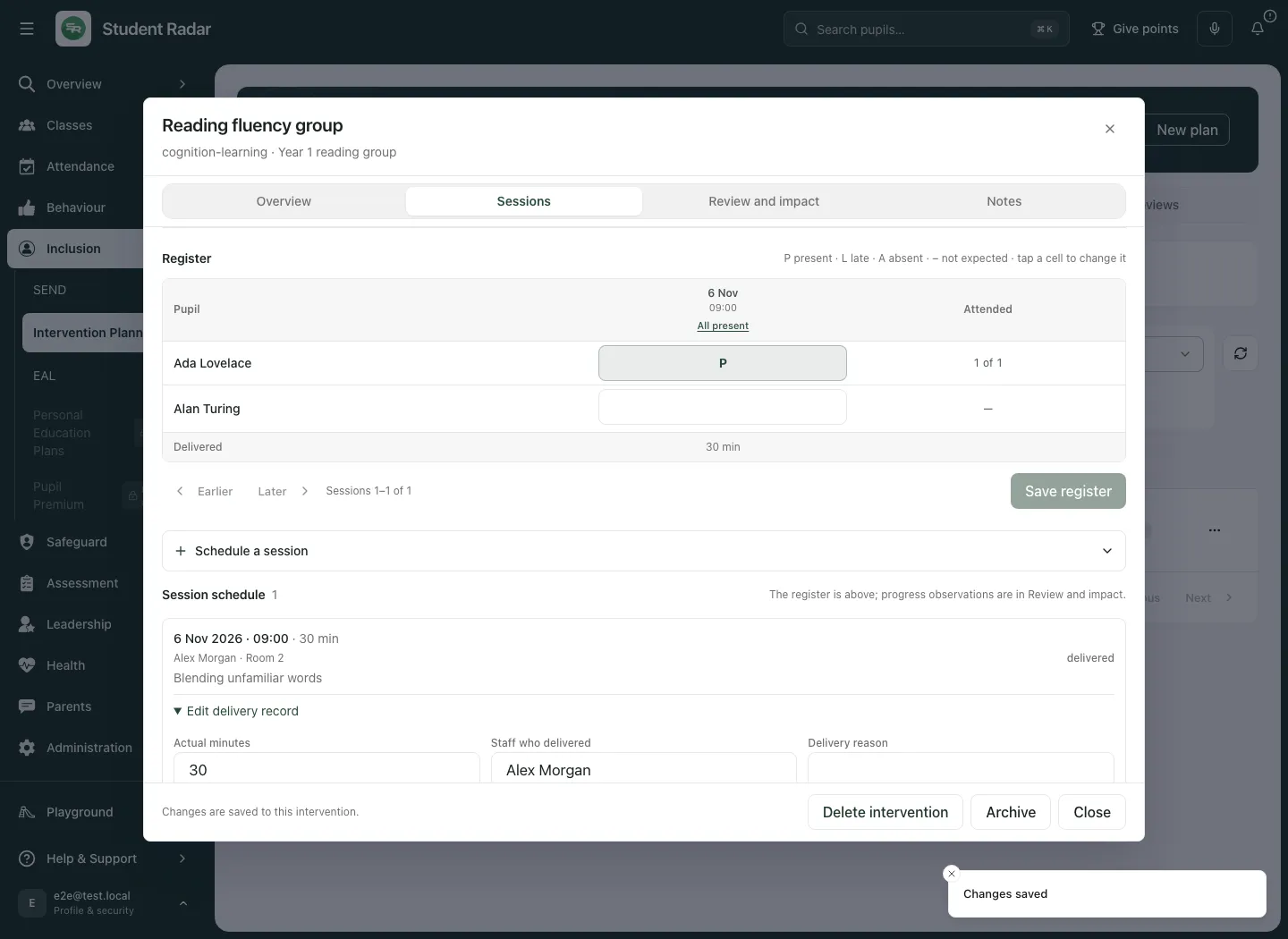
Section titled “Complete the pupil register”- In Sessions, use the Register grid. Earlier and Later move through the visible session window.
- For each eligible pupil/session cell, tap to cycle through present, late, absent, not expected and not marked. The legend uses P, L, A and –. All present is a convenience action for that session; check the actual roster before using it.
- Select Save register. Check the saved marks before leaving. A changed cell is a draft until saved.
- Read Attendance among marked places with its denominator. Unmarked places are shown separately, rather than treated as absence or a confirmed zero. A pupil outside that session’s roster is not simply an absent place.
The intervention register does not replace the school’s statutory attendance register. Imported timetable and pupil membership information does not supply attendance marks.
Add a useful observation or next step
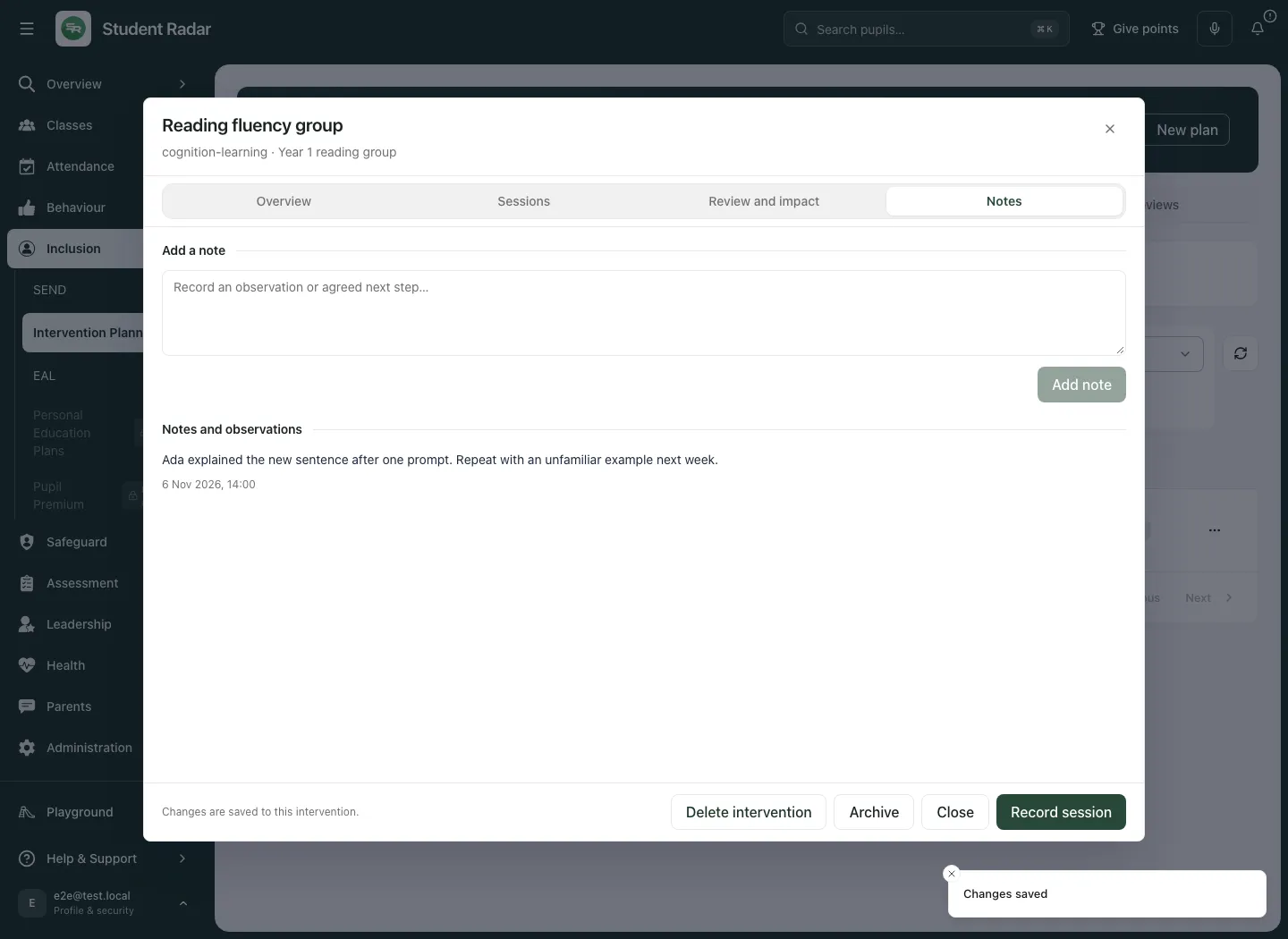
Section titled “Add a useful observation or next step”- Open Notes.
- Enter the observation or agreed next step in Note. Record what was observed, the task and any help supplied. Separate interpretation from fact.
- Select Add note and check it appears in the history. If saving fails, the text remains so that you can retry.
Notes also include appropriate session notes and recorded review information. Saving a note does not assign a task, communicate it to a family or prove that a next step has been completed.
Record evidence and review the intervention
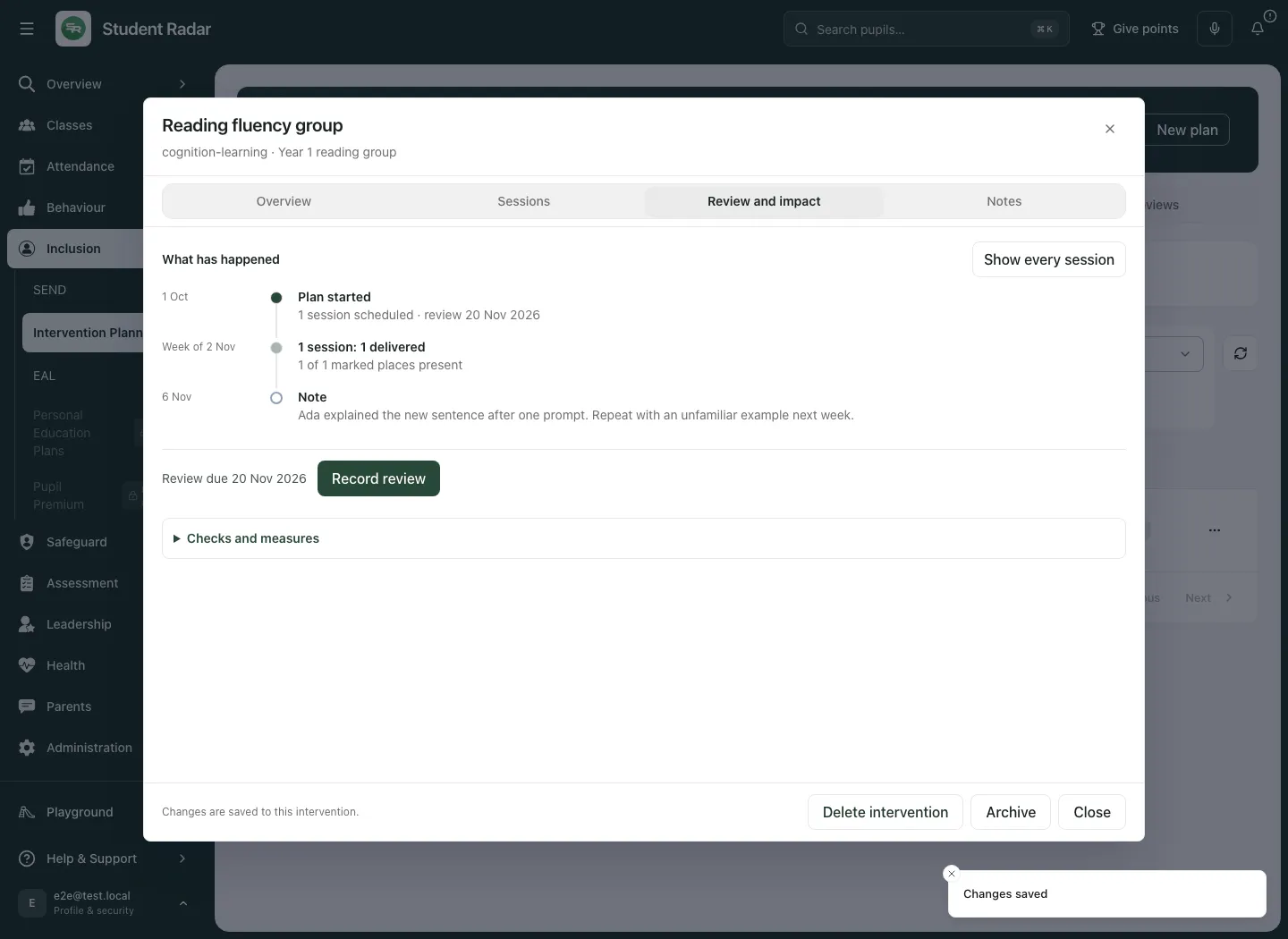
Section titled “Record evidence and review the intervention”Open Review and impact. What has happened combines visible sessions, notes, decisions and pupil evidence. Use Show every session or Group sessions by week to change detail, not the underlying evidence.
For a review:
- Select Record review. Check the success criteria and the evidence available for each pupil.
- Set the Review date to when the review took place; a review cannot be future-dated on the school clock.
- Choose Continue as planned, Adapt the intervention, Pause for review or Complete for now.
- Write the Review summary: observed progress, evidence considered, uncertainty, who will do what and any continuing support. For decisions other than completion, choose the Next review date, on or after the review date.
- Select the form’s Record review and check Review saved. and the updated plan/history. Complete for now closes the intervention rather than proving success; a completed intervention cannot be reopened as though the review had not happened.
Session notes and progress record what was observed in a session; they are not a formal entry/exit measurement. For formal pupil evidence use Record pupil evidence: select Pupil, Record type, date and optional session. Types are Entry assessment, Progress assessment, Exit assessment and Pupil session observation. For a scored assessment record the tool, version, units, improvement direction, score/maximum and conditions; use Not assessed — explain below when appropriate. Observations need actual evidence and notes. Select Save evidence and check the saved record. Dates cannot be in the future.
Compare entry and follow-up only when the tool, version, units, direction and conditions are comparable. Missing scores remain unknown. A change does not establish that the intervention caused it. Use a recorded correction to retain the original evidence rather than silently replacing its history.
Archive, delete and handle an error
Section titled “Archive, delete and handle an error”Archive removes a plan from ordinary active work without being an impact judgement. Use the appropriate archived filter and Restore when offered. Delete intervention is a separate destructive action with confirmation; read the prompt and check the plan identity. Imported/source-managed records may have neither action here. Archiving or restoring an open plan does not intentionally discard unsaved edits in its tabs; closing with unsaved work asks what to do.
If the plan changed in another window, close and reopen it to review the latest version before saving. If access or source context changes, editable context can be withheld while your draft remains; use the offered retry/check rather than assuming an earlier permission still applies. A session/workspace limit, completed plan or unavailable source may require a different decision instead of repeated retries. A loading or failed list is not an empty school.
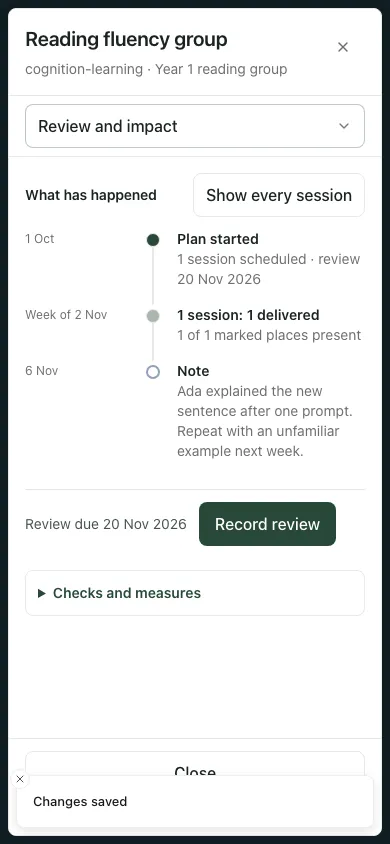
On a phone, use the section selector and scroll the plan window/grid as needed. Check the full label and pupil/date before changing a cell.
Related: Review SEND targets · Add and cost a provision · Use EAL.
Common questions
Section titled “Common questions”Can I use a scheduled session as evidence of delivery?
Section titled “Can I use a scheduled session as evidence of delivery?”No. Record the session’s actual delivery, pupil register and observations before drawing conclusions.
What should I review before changing or ending the intervention?
Section titled “What should I review before changing or ending the intervention?”Read the delivery and pupil evidence, then record the professional review decision and intended next step.