Record an exclusion case and its follow-through
Record the authorised exclusion case, follow notices and reviews, and plan return support while retaining source history.
The log identifies where records came from; a Student Radar case keeps the recorded decision, notice work, representations, reviews and return support together. Internal/on-site suspension is a separate school-practice record.
Screenshots use fictional pupils and decisions. The workflow supports authorised staff recording and checking the process. Its date calculations and validation messages do not replace the school’s required professional and legal checks.
Before opening or recording a case
Section titled “Before opening or recording a case”Open Behaviour → Response and Escalation → Exclusions. Available tools depend on the school’s jurisdiction, registered provision status, enabled workflows and your action permissions. In alternative provision, check the registration gate and its guidance before treating the provision as entitled to suspend or exclude. A context link does not create that authority.
The page must finish checking the school before showing the workspace. If a summary or log cannot load, Unavailable or an error is different from zero exclusions.
1. Set dates and interpret the figures
Section titled “1. Set dates and interpret the figures”Set both From and To using the school date. Clearing either asks you to choose both dates rather than displaying a false empty log. Keep ranges within the offered limits; a long range can be refused.
The banner shows Suspensions, Permanent exclusions and Repeats. Repeats counts pupils with repeated suspensions, rather than every repeated row. A missing/unavailable figure must not be copied into a report as zero.
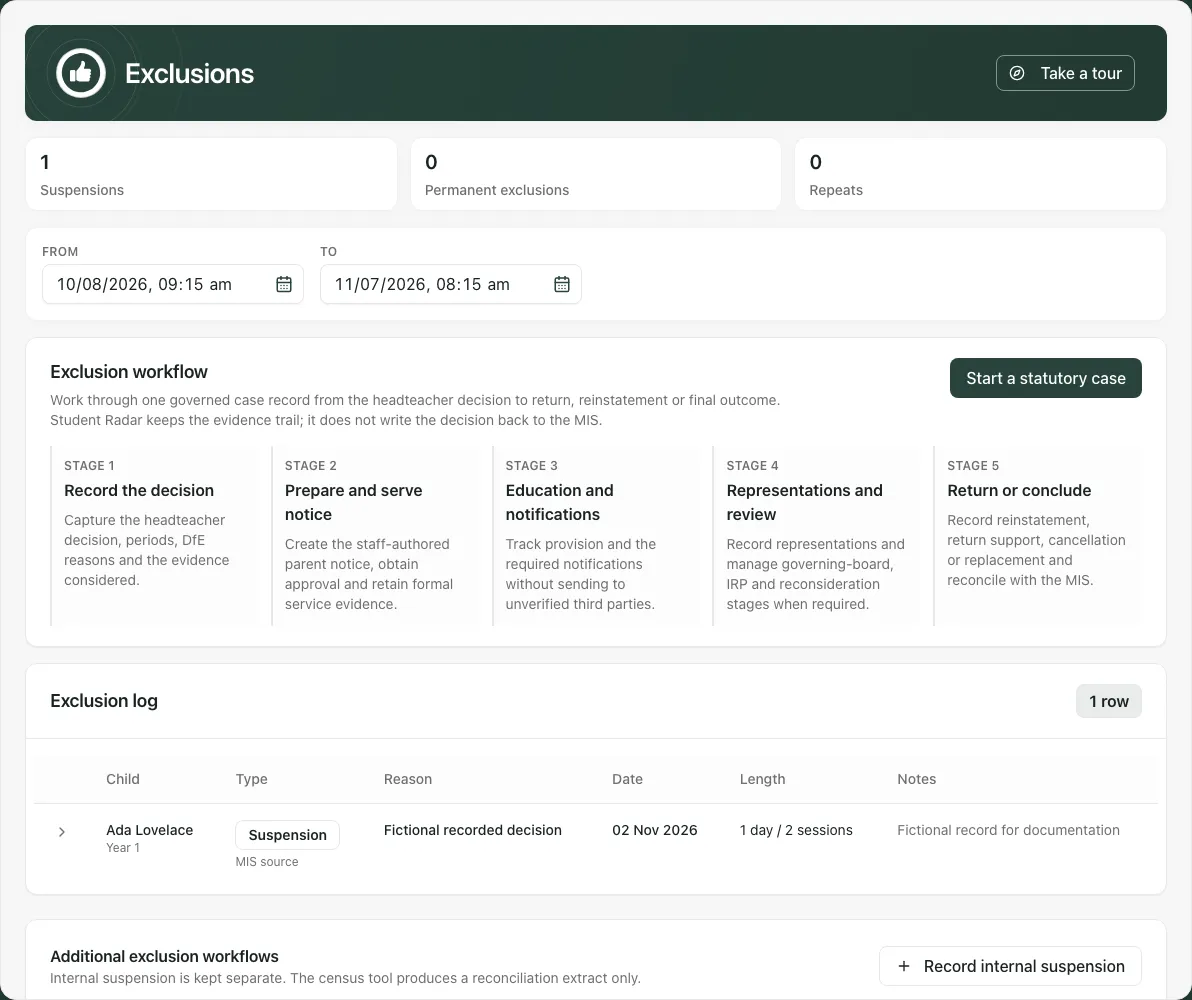
The summary and log need not have the same count. The summary considers records overlapping the range and excludes cancelled cases; the log lists records starting in the range and can show cancelled cases with their status. Check dates, origin and cancellation before assuming a mismatch is missing data.
2. Read the log without losing source or missingness
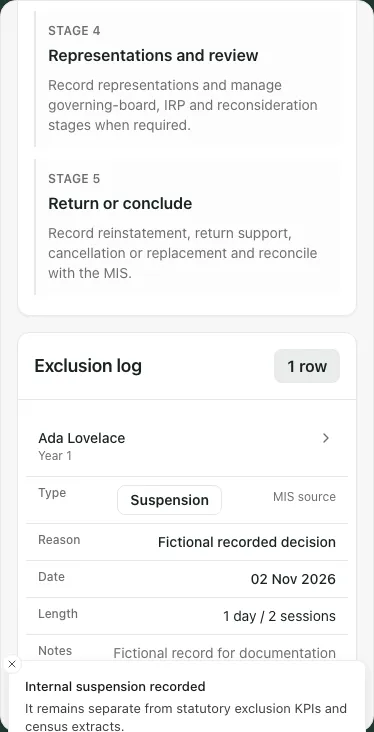
Section titled “2. Read the log without losing source or missingness”Each row shows Child, Type, Reason, Date, Length and Notes. Type and reason labels normalise MIS wording; the origin label distinguishes MIS source from Student Radar case. An unknown pupil label means the displayed identity cannot be resolved; it is not proof the child has left school.
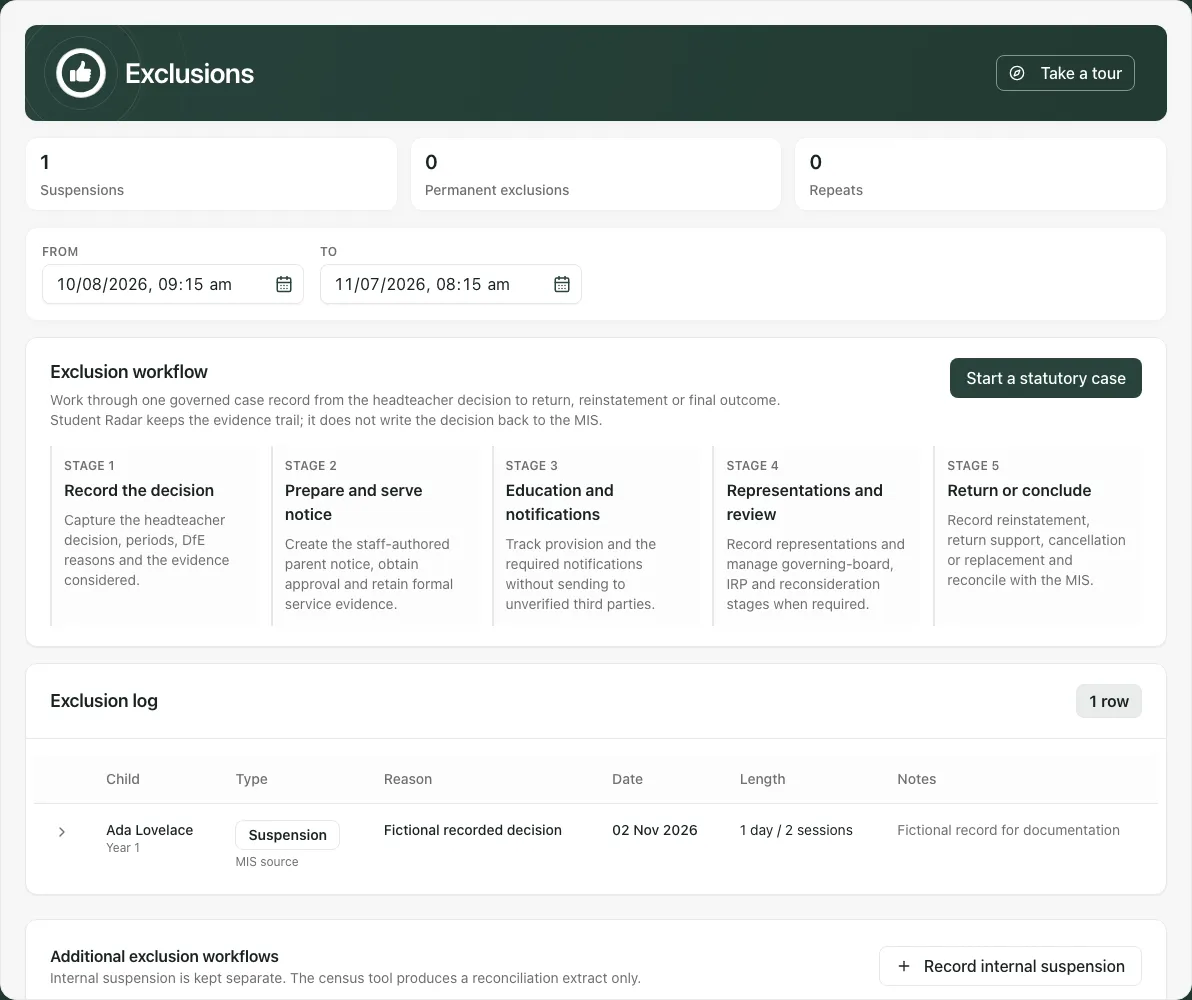
Where the MIS supplied appeal, discipline-committee or context fields, use the row arrow to expand them. A blank or dash means the field was not supplied. An explicit No is a different answer. A date-only record should be read as that school day, not converted to the viewer’s previous/next day.
Check the length basis. Duration not provided is unknown. An estimate marked weekdays; calendar unverified is not a verified count of school sessions. Do not replace it with zero or treat it as a checked statutory total.
MIS records are changed in the MIS. Student Radar does not automatically write a case decision back to it. At the 250-row log limit, narrow the range to obtain a complete result rather than interpreting the displayed subset as the school total.
3. Record an authorised statutory case
Section titled “3. Record an authorised statutory case”Where enabled, choose Start a statutory case. Work from the actual headteacher decision and verified evidence, not a decision generated by the application.
Select the pupil from the current results and recheck the displayed name/year/class. Editing search text can invalidate a previous selection. If identity cannot be distinguished, have the school record checked before saving.
Record the case type, start and relevant suspension periods, AM/PM sessions, reasons and factual note. Enter Headteacher decision made (school time) as the actual decision time, not the moment you are typing. It cannot be in the future.
Read the school-day/session preview, overlaps and academic-year totals. Where term dates are missing or an explicit session override is needed, record the genuine basis/reason. A failed preview or unknown MIS duration means the calculation is incomplete; do not infer compliance from a low displayed total. Ask the responsible lead to resolve uncertainty before relying on it.
Check all details, then Record case. This records the decision; it is not a substitute for making, reviewing or serving it through the required authorised process. Reopen the stored case to verify pupil, periods and status.
4. Work through the case record
Section titled “4. Work through the case record”Open Manage case on a Student Radar row where offered. The case workspace groups the work into Decision, Parent notice, Notifications, Representations, Reviews and outcome, and, when relevant, Reintegration. Optional school-practice features can also expose Additional evidence. The progress stages help identify unfinished work; a stage label alone is not proof of delivery or a lawful decision.
In Decision, inspect recorded periods, reasons, dates, evidence and history. A correction needs its actual reason and a deliberate factual change. The correction form begins from the current factual note, so review it rather than erasing it accidentally. Linking a confirmed MIS row requires a verified matching record and reason; linking is reconciliation, not an automatic MIS update.
5. Prepare, approve and evidence notice service
Section titled “5. Prepare, approve and evidence notice service”In Parent notice, prepare a staff-authored notice as follows:
- Check the case and recipient preview. If it failed, choose Retry recipient preview before selecting a recipient.
- Where a real written electronic-service agreement exists, enter Written agreement evidence reference, verify the recipient identity and use that recipient’s Record agreement. Do not record an agreement just to enable a channel.
- Fill Notice subject and Notice body with the staff-reviewed wording. Choose Prepare notice. This creates an awaiting-approval draft and clears the editor after success; inspect the stored subject/body and status.
- A separately authorised approver reviews that exact notice and chooses Approve notice or Reject. Before approving, verify the exact audience and text: approval reruns checks and can immediately queue electronic delivery to eligible recipients with recorded written agreement. Otherwise the notice can require manual service. Queued delivery is not proof of formal service. Rejection returns it for correction; do not assume the rejected draft was served.
- Where manual service evidence is required for an approved notice, enter Masked recipient, Service evidence reference, How the notice was served and the actual Served at (school time). Choose Record service only after the real service event, then inspect its recorded status/evidence.
Use the offered method that matches the event, such as hand delivery or first-class post. A future served-at time is refused. Preparing, approving and recording service are distinct actions; the presence of a button is not confirmation that one has happened.
Use Parent notice to inspect the current review/approval state. Check pupil, decision, dates, audience and the actual notice text before approving any version. A prepared or approved notice is not proof that it has been served.
Review the recipient information and any electronic-service agreement before choosing the appropriate service route. Record manual service with its actual method and served-at school time, not an invented time or an assumed delivery. A sent communication and formal service evidence are distinct records; inspect the current notice state.
In Notifications, process each named task separately:
- Check its recipient/task label, applicability and current status.
- After the underlying work happened, enter that task’s Evidence reference and choose Mark complete. Check the completed status and retained reference.
- For an offered conditional task that genuinely does not apply, enter Why it does not apply and choose Not applicable. This records a reason rather than pretending the work was completed.
These are staff evidence tasks; they do not send to an unverified third-party address. Review each notification/provision task and its applicability. Record completion and evidence only when the underlying work happened. An unavailable or unverified third-party audience must be checked through the school’s controlled process, not guessed from a contact name.
6. Record representations and review outcomes accurately
Section titled “6. Record representations and review outcomes accurately”In Representations, choose who the representation came from and the real received date. Parent, carer, pupil, advocate and another sender are distinct choices. Record the representation factually and keep any withdrawal reason specific to that representation. Terminal cases do not accept new representations through this workflow.
In Reviews and outcome:
- Choose Review kind: Governing-board review, Independent review panel or Governing-board reconsideration, according to the actual authorised stage.
- Enter Meeting date and time (school time). For an independent review panel, enter the actual IRP application made date where required. Review date-validation messages and the existing review list before Schedule review.
- When the scheduled review has an authorised outcome, choose Review outcome and enter Outcome evidence and reasons.
- Enter Written decision notice date from the verified notice/service record. If the outcome is reinstatement, enter Reinstatement date as well. Do not substitute the data-entry day.
- Choose Record outcome, then inspect the recorded review and updated case state. The form resets after success so another stage does not inherit those details.
The available outcomes depend on the review stage. A cancelled or adjourned meeting must retain that meaning rather than being treated as a reinstatement decision. Reviews and outcome supports the applicable governing-board, independent review and reconsideration stages. Record the meeting’s actual planned time and, later, the authorised outcome with its evidence, notice date and reinstatement date where relevant. A cancelled or adjourned meeting is not an outcome decision.
Read existing review records before scheduling another meeting. If the app refuses a second governing-board review or a changed case, refresh and ask the responsible lead to check the correct next stage. Do not create duplicate records to bypass a lifecycle guard.
7. Plan the return and review whether support worked
Section titled “7. Plan the return and review whether support worked”For applicable cases, use Reintegration to plan a meeting, record who was invited and later who attended, and enter Meeting held at (school time) when it occurred. Do not record the save time as a substitute for the real meeting time.
Keep pupil perspective, learning, strengths, adjustments and named support factual. The form asks for specific actions, an owner role and due date. Use controlled references for safety or harmed-pupil support records where appropriate, rather than copying unnecessary sensitive contents into a broad note.
Record action completion with evidence and use the follow-up review for pupil/family/staff views and next steps. Completing a meeting or action does not prove that support improved the child’s experience. Separate what adults delivered from what changed for the child.
8. Correct cancellation, replacement and reconciliation deliberately
Section titled “8. Correct cancellation, replacement and reconciliation deliberately”A cancellation/rescission needs its recorded reason/code and actual date. Starting a replacement does not automatically close the original case. Check both statuses and use the explicit authorised cancellation/replacement process where required.
Keep MIS reconciliation separate from the case decision: verify the confirmed row before linking, and use an explicit reason before unlinking. The Census reconciliation extract is a validation JSON extract, not a submitted statutory census return. It contains at most the 250 cases with the latest start dates; earlier cases can be omitted. Handle the named-pupil file through the school’s approved arrangements.
9. Record an internal/on-site suspension separately
Section titled “9. Record an internal/on-site suspension separately”Where enabled and authorised, choose Record internal suspension. The dialog explains that this school-practice record does not enter statutory exclusion KPIs, deadlines or census extracts.
- Use Pupil search and explicitly select the verified result. Recheck Selected pupil. Changing the search drops that selection.
- Enter Starts (school time) and Ends (school time). End must follow start; an impossible clock-change time must be corrected.
- Enter Reason and arrangements factually.
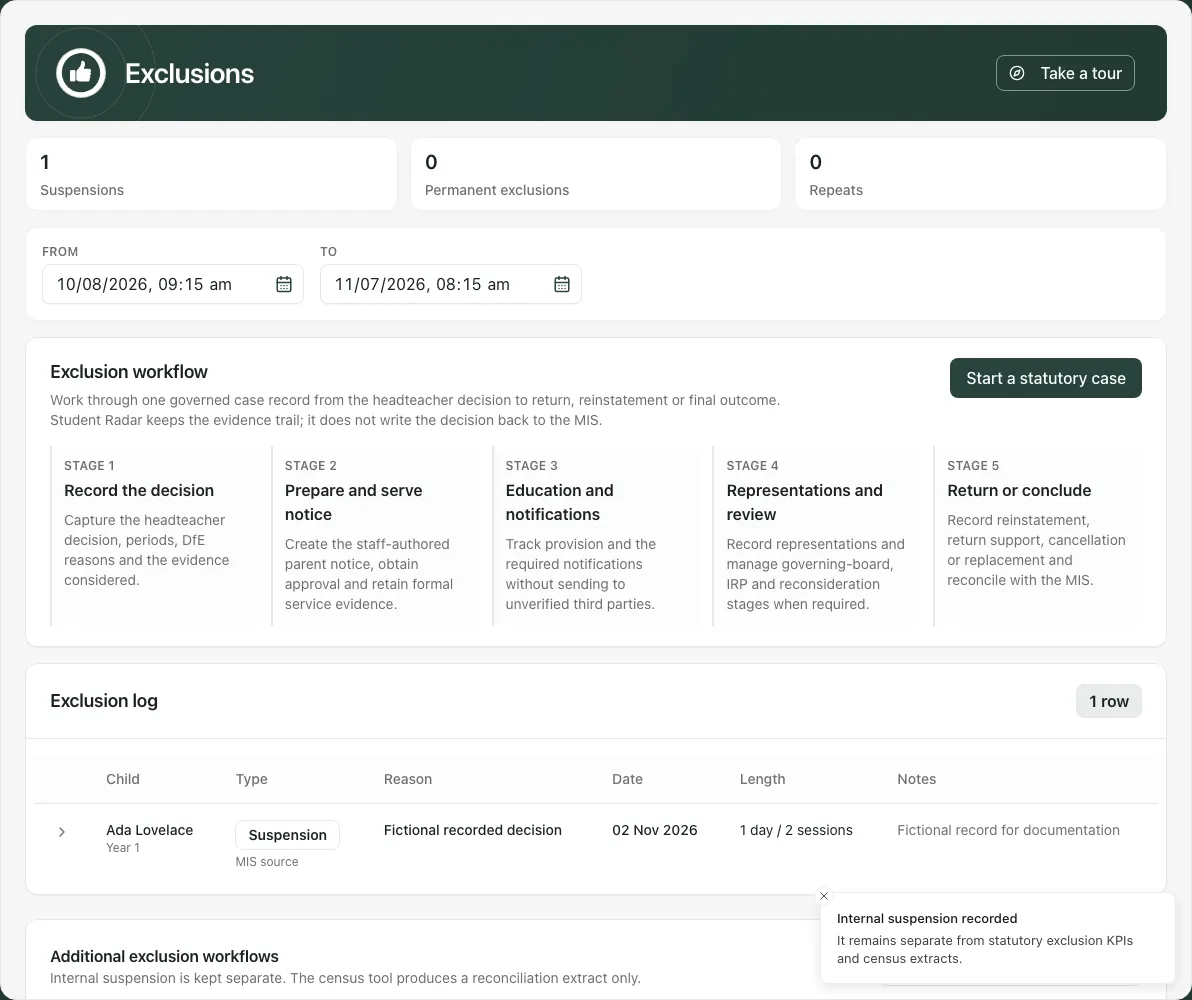
- Choose Record separately, wait for confirmation and check the reported result.
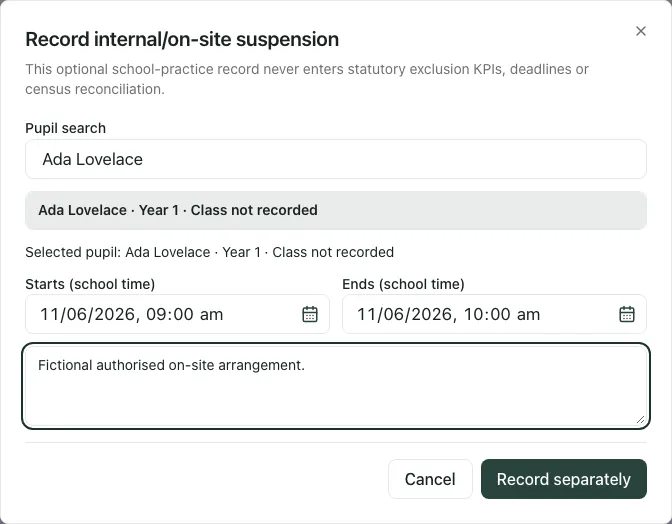
A failed save keeps the draft for a retry. Cancel, Escape or closing the dialog discards it. The successful internal-record confirmation is not an increase in the statutory exclusion log or headline counts.
10. Use a phone and recover from errors
Section titled “10. Use a phone and recover from errors”The phone log can require horizontal scrolling to read all columns. Check the whole date/length/origin rather than deciding from a clipped row.
| Situation | Next step |
|---|---|
| From or To missing | Choose both dates. |
| Log load failed | Use Retry exclusion log; an error is not an empty history. |
| Case tools failed | Use Retry case tools; the log can remain available separately. |
| Duration or school-day coverage unknown | Obtain verified dates/session evidence; do not substitute zero. |
| Pupil identity needs checking | Stop selection and ask the school office to resolve it. |
| Case changed or action refused | Reopen its current state and review the action-specific message. |
| Replacement exists but original remains open | Ask the authorised lead to complete the explicit lifecycle decision. |
| Extract reaches 250 cases | Treat it as a limited reconciliation extract, not a complete return. |
Common questions
Section titled “Common questions”Where should I record an internal suspension?
Section titled “Where should I record an internal suspension?”Use the separate internal/on-site suspension workflow rather than treating it as a statutory exclusion case.
Can I rely on the app’s dates without checking the case?
Section titled “Can I rely on the app’s dates without checking the case?”No. Date calculations and validation support planning. Carry out the required professional and legal checks for the individual case.