Record first aid incidents and follow up the response
Written for: First aiders, school office staff and authorised health leads.
Record the actual incident and first aid provided, then check parent communication, witness evidence and any investigation separately. It covers Injury, Illness and Near miss, including pupils, staff/volunteers and visitors/contractors. The record, parent communication, witness accounts, reporting decision and investigation remain separate steps.
Use this guide for the software workflow, alongside your school’s trained first-aid and emergency procedures. It is not treatment advice. Record observations and actions accurately; the app must not be used to diagnose a pupil or decide an emergency response automatically.
You need access to the relevant records and action. School-wide readiness, reporting and management may need broader permission than recording or reading an individual pupil incident. The examples below are fictional; no real incident, parent communication, HSE submission or school record was created.
Start with Today and the outstanding work
Section titled “Start with Today and the outstanding work”- Open First Aid and Today. Read Recorded today, Parents still to inform, HSE decisions due, Follow-ups open and Investigations to review together. Some reporting labels depend on the school’s jurisdiction.
- Review Needs attention and choose the item’s action to open its actual incident or next step. A pending parent message and a parent still to inform are different states.
- Read Today’s log for today’s records and the on-duty summary. A record in the log does not mean its communication or follow-up has completed.
- Use the five sections: Today, Records, Illness watch, Readiness and Investigations & reports. Take a tour introduces the workflow.
- Retry a failed summary or source read. An unavailable count is not zero incidents or no outstanding work.
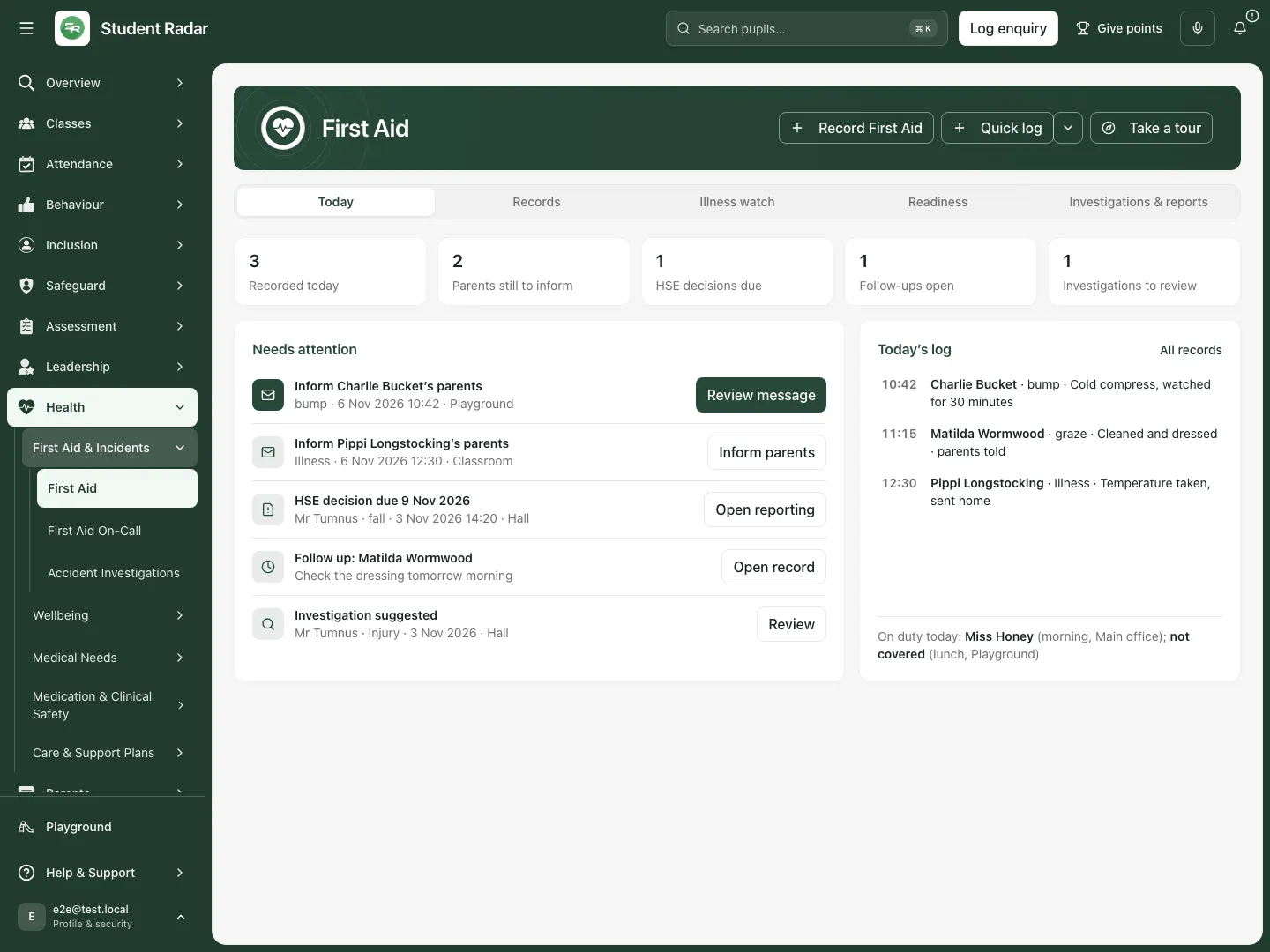 The fictional Today view separates recorded incidents from parents still to inform, follow-ups and an investigation suggestion. Example treatment text describes a fictional record, not care instructions.
Find and inspect an existing record
Section titled “Find and inspect an existing record”- Open Records and use Search incidents, Record type and Incident status to find the relevant event.
- Read the day grouping, person, type and summary before choosing the record. Check the incident date rather than assuming the first row is the most recent event you need.
- Open the incident and read Where this incident stands. Use its next-action controls for parent communication, reporting, witness accounts or an investigation.
- Use Reporting & history (or History where HSE reporting does not apply) for the recorded reporting/history context. Open pupil profile is offered for a linked pupil when permitted.
- Imported records are labelled separately. Summaries, illness tracking and Student Radar CSV cover native Student Radar accident-book records; imported history does not acquire communication or investigation status merely by being displayed.
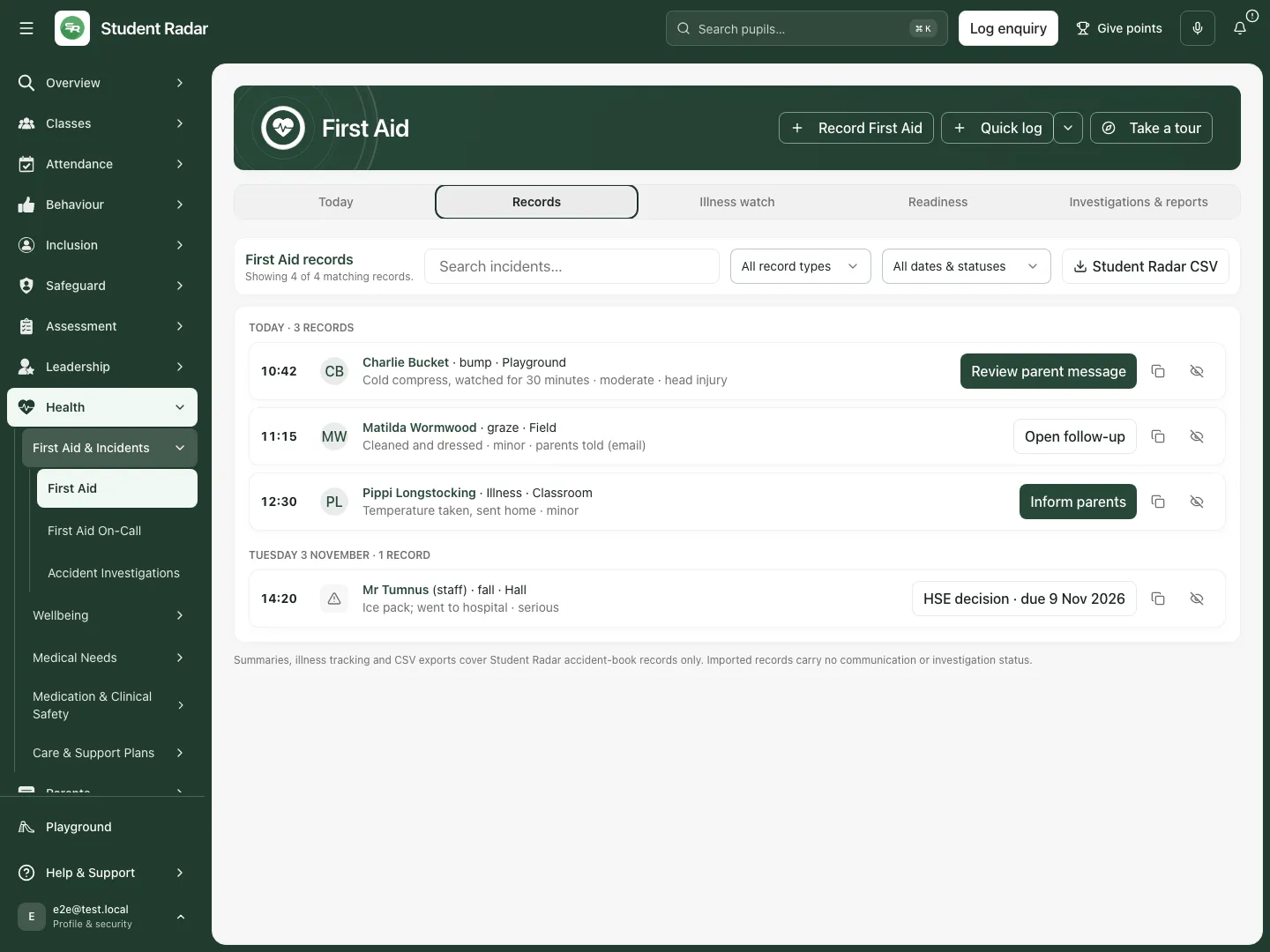 The fictional register groups injury and illness records by day while retaining their separate record types and people.
Record a new event
Section titled “Record a new event”- Choose Record First Aid. Select Injury, Illness or Near miss in What kind of record is this?.
- In Who is this for?, choose A student, Staff or volunteer, or Visitor or contractor. Back returns to the type choice.
- For a pupil, search Pupil and select the correct permitted pupil identity. For an adult, enter the named person in the relevant name field. Do not substitute a similarly named pupil when identity is unclear.
- Enter Staff member attending, Date, Time and Location. Suggested location buttons help enter a consistent place, but check the actual location.
- Enter What happened? in plain language, separating observed facts from explanations or uncertainty.
- Enter Treatment given from what actually happened. For a near miss with no injury, record that no treatment was required and the actual action taken; do not invent treatment to fill a field.
- Choose Record incident, then check Incident recorded. This saves the incident; it does not automatically finish follow-up or send a parent message.
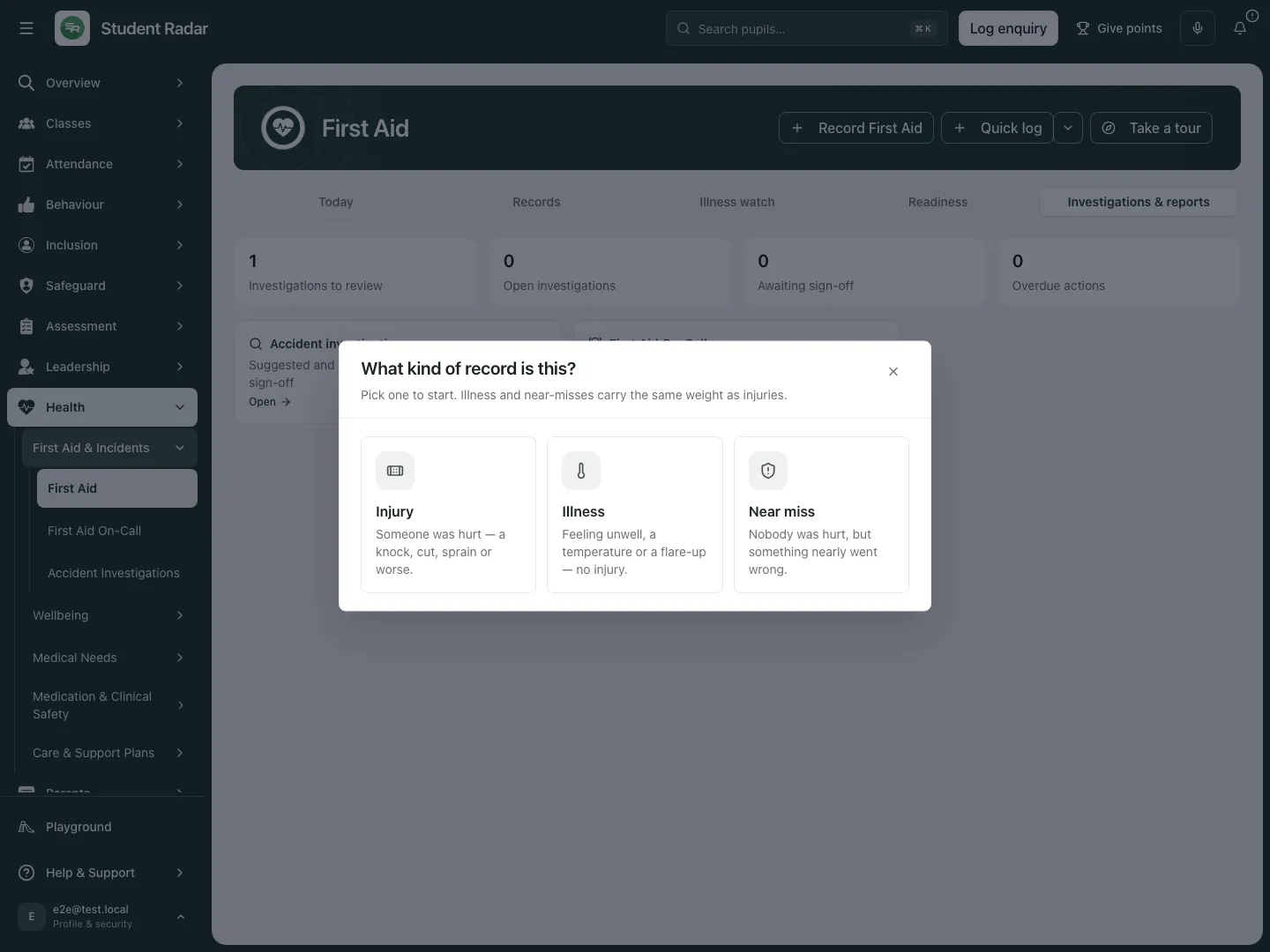 The real picker gives injury, illness and near miss distinct starting points; the fictional walkthrough chooses Near miss.
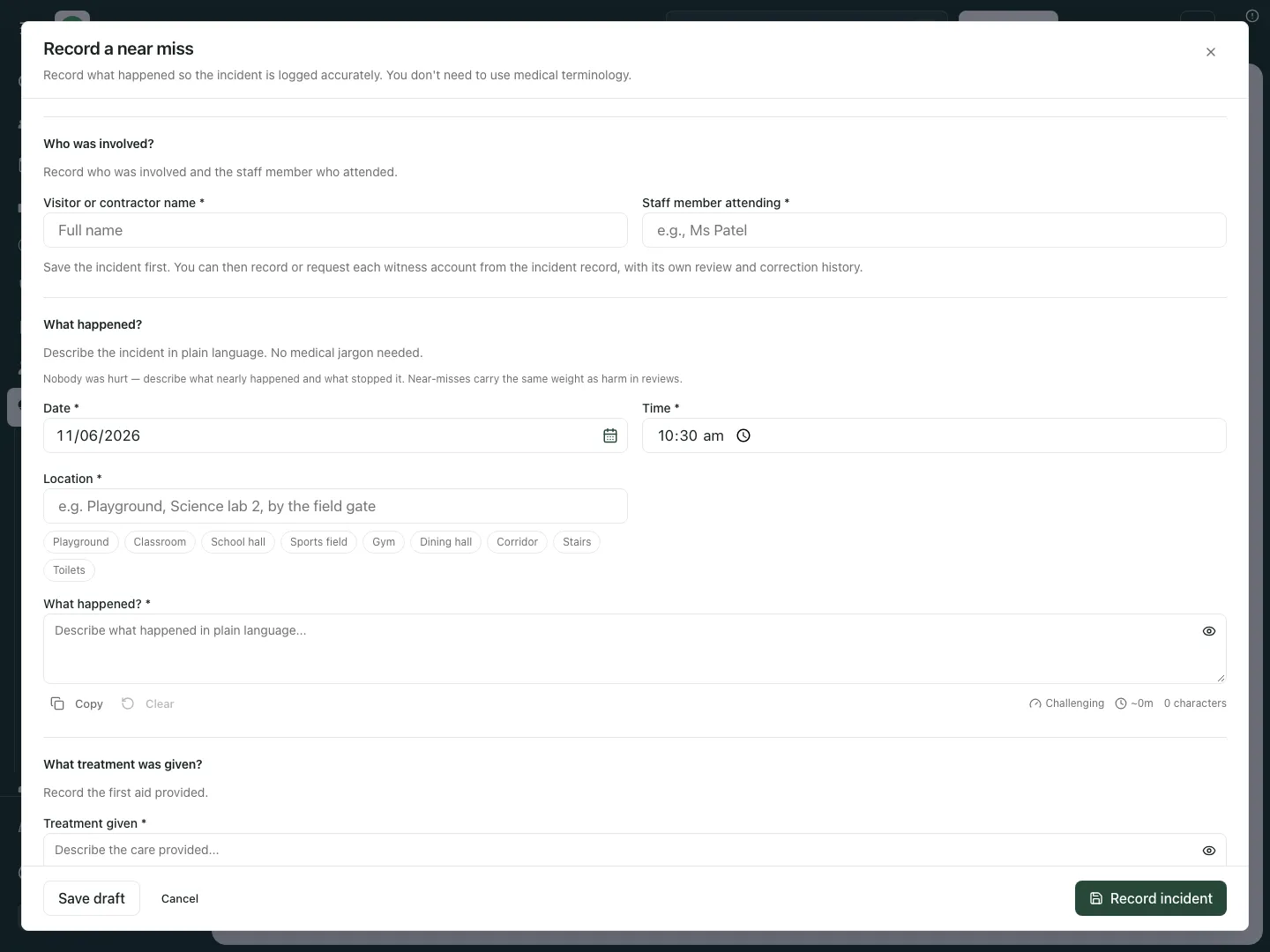 The fictional visitor form asks who was involved, who attended, when/where it happened and what was observed.
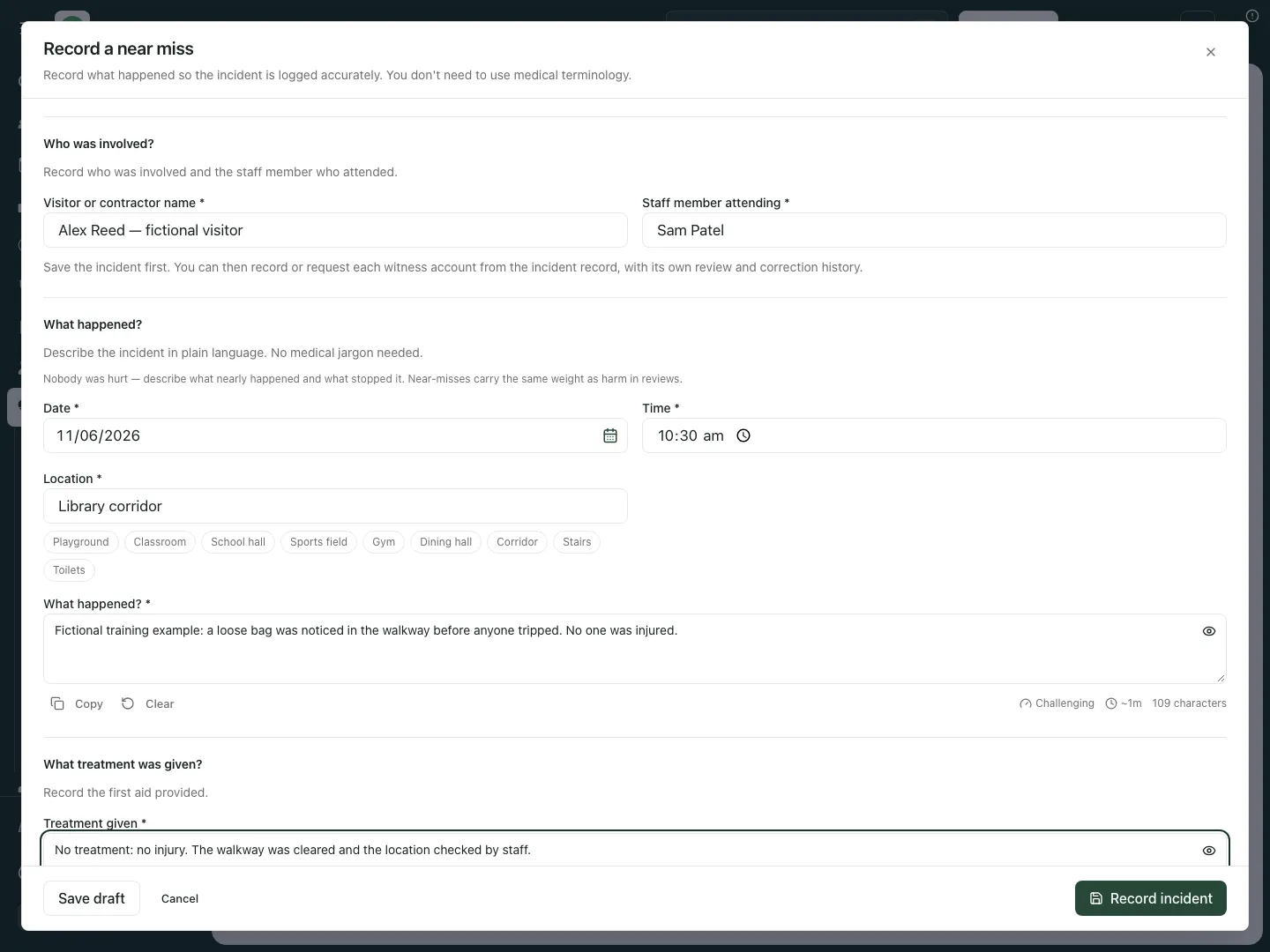 The fictional record says no one was injured and describes the walkway being cleared. It does not invent a clinical treatment.
Additional injury and illness controls
Section titled “Additional injury and illness controls”For Injury, choose Injury type and Injury severity deliberately. Use the body map for the observed injury locations and record relevant detail. If the location is unclear, select Injury location is unclear and explain what is known. Choose Is this a head injury?: Yes — head injury or No; the app requires the staff member’s explicit selection rather than inferring it from a body-map position. Follow the school’s actual procedure when the head-injury notice appears.
For Illness, record the actual symptoms, whether the pupil was sent home and the relevant observed information. A symptom prompt is not a diagnosis. Illness and near-miss records do not use the injury-specific body-map/reporting facts as though they were accidents.
If Also log this on the allergy register is offered for a pupil, it is a separate explicit choice with a severity selection. Use it only when the authorised record supports that additional entry, then check its result separately.
Finish the saved incident’s next steps
Section titled “Finish the saved incident’s next steps”- In Incident recorded, check whether any follow-up remains.
- For follow-up, enter what needs doing. Save follow-up and refresh message saves it before reviewing a parent communication. A task can fail separately from the incident follow-up save; read the result instead of assuming both succeeded.
- For a pupil, review the parent-communication step separately. For staff/visitors, there is no pupil-parent communication to complete.
- Choose Finish when the offered next steps are correctly recorded. Then return to Records, reopen the incident and check the saved facts.
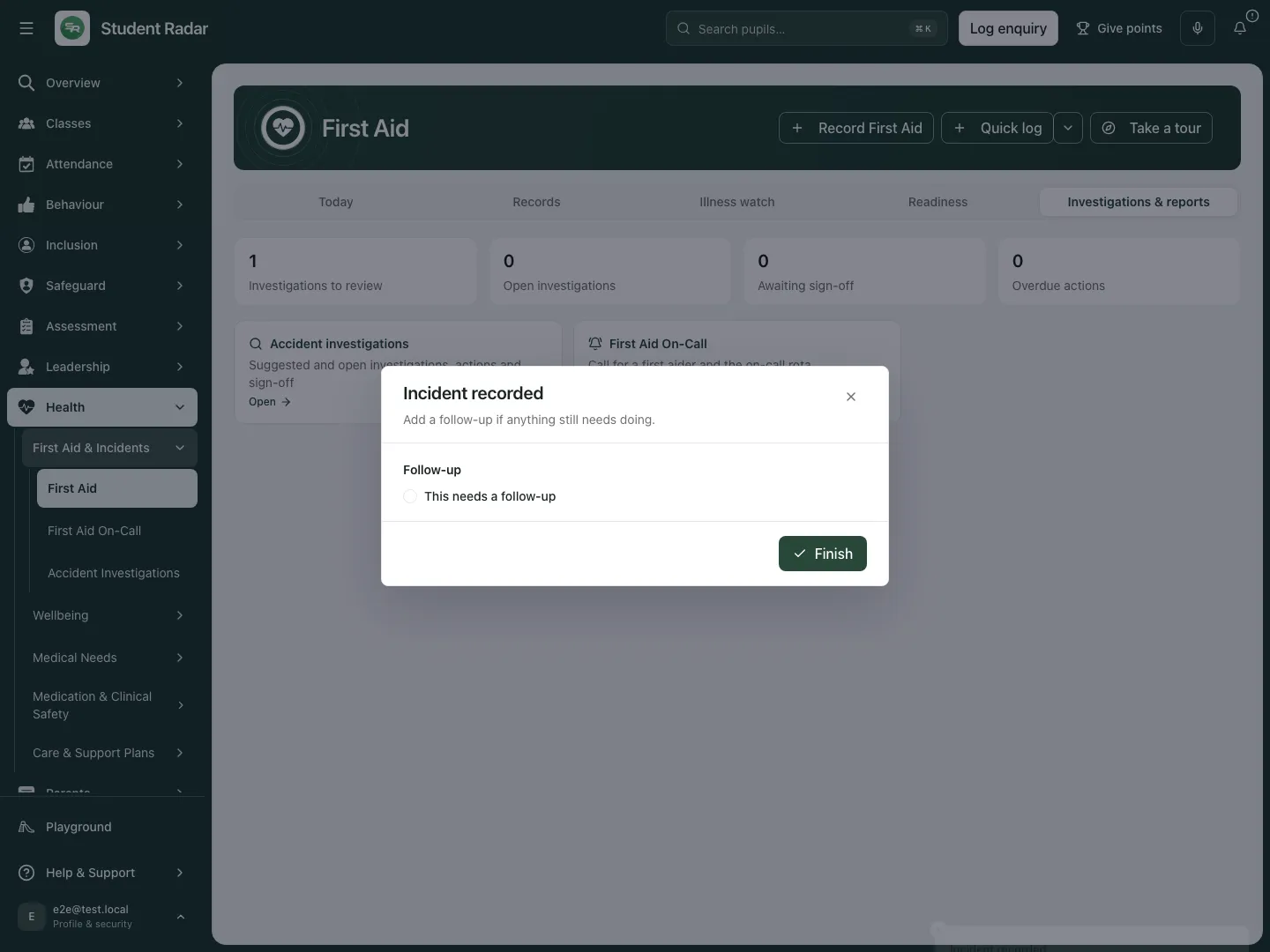 The fictional visitor incident is saved before any follow-up decision. No parent message is relevant to this visitor example.
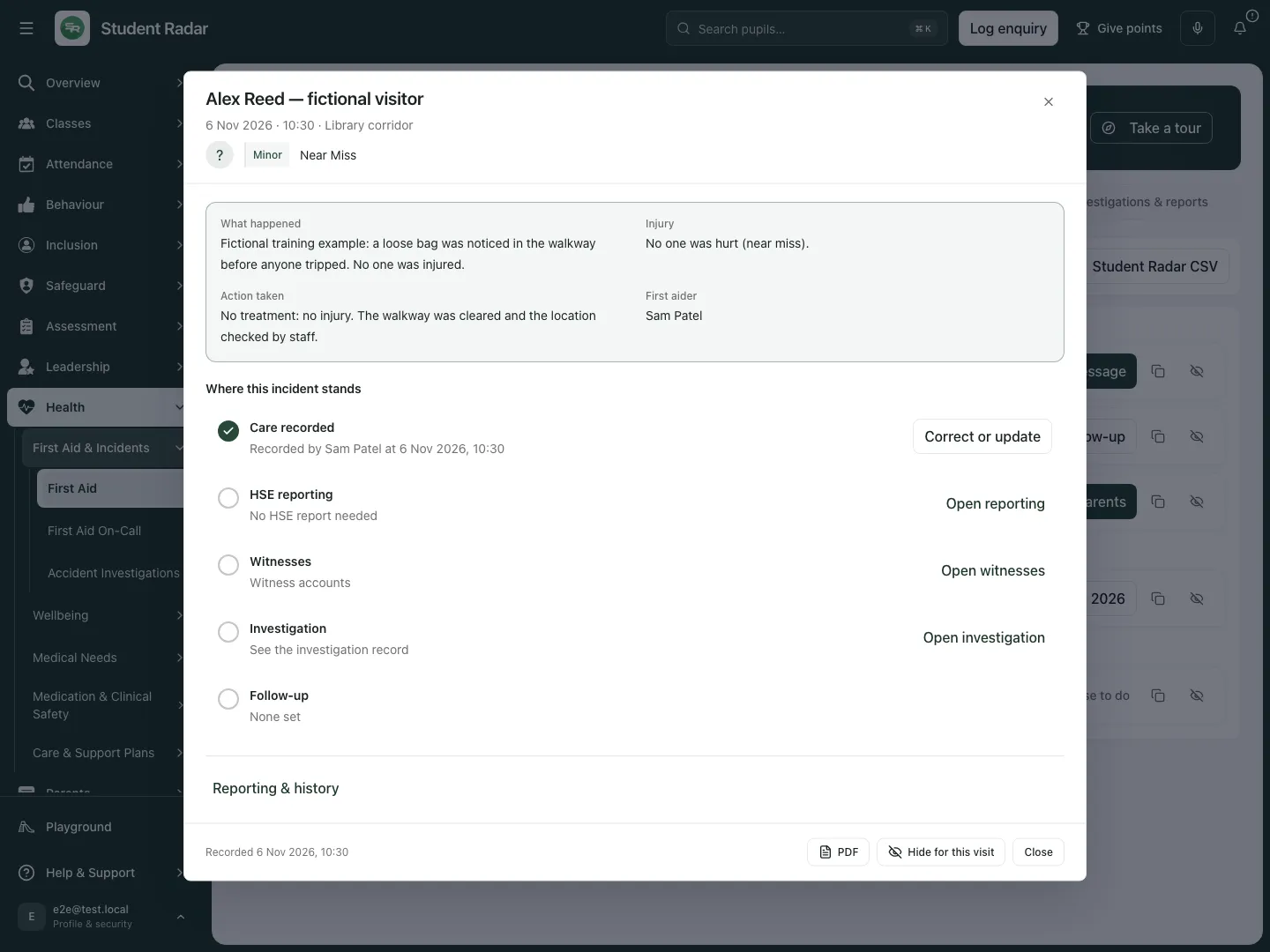 The reopened fictional near miss retains its saved description and staff action.
Keep a temporary draft or use Quick log
Section titled “Keep a temporary draft or use Quick log”- In a partly completed form choose Save draft. The app keeps it for 30 minutes in this tab; refreshing, signing out or changing school clears it. This is not a saved accident-book incident.
- Return to the form in that tab. Under Draft saved. Pick up where you left off., choose Resume draft, inspect the retained details, then Record incident when ready. Discard removes only that temporary draft; it does not delete a saved incident. Do not rely on a temporary draft as a permanent handover record.
- Quick log starts the compact pupil injury route. Use Quick log presets to choose a starting preset and check every prefilled field against the actual event.
- An authorised manager can open Manage presets from that menu. A preset supplies starting text; it does not establish what happened or what treatment was given.
- From an existing record, Copy to a new incident starts another form with supported previous details. Check the new pupil, date/time, location and observations before recording; copying is not a correction of the original incident.
Review parent communication deliberately
Section titled “Review parent communication deliberately”- Open the pupil incident and choose Inform parents or its review-communication action. Read Review parent communication, the recorded facts, recipient/contact information and exact proposed wording.
- Check accuracy, privacy and the school’s relevant procedure. Resolve any warning or wording concern before preparing a communication.
- In the reviewed workflow choose Prepare for approval only after the required checks. Preparation is not delivery. Use Open communication for review and delivery status to continue in the communication’s own approval/delivery record.
- If school activation or contacts cannot be read, use Check activation again or Refresh preview as offered. An unavailable setup/read is not proof that the pupil has no parent contacts.
- If contact happened outside the app, record the actual method through Record manual contact. This is a staff record, not provider-confirmed delivery.
- If the school uses the separate email/text confirmation route, inspect the exact recipients/channel before its explicit send control. Check partial, failed or unconfirmed results before retrying. A saved incident or a prepared message must not be described as a delivered notice.
No communication action was prepared, approved or sent in these screenshots.
Correct facts and close follow-up with an explanation
Section titled “Correct facts and close follow-up with an explanation”- Open the incident and choose Correct or update when permitted.
- In Correct or update incident, amend the relevant facts and Follow-up fields. Keep observed injury/head-injury facts distinct from a later reporting judgement.
- Use What needs doing? for open follow-up, or Follow-up done? Say what was done to close it to record the actual completion outcome.
- Enter Reason for the change, then Save changes. Reopen the record and inspect the result/history.
- If the incident changed elsewhere, retain the intended correction, refresh and reconcile the saved version before retrying. Finalised reporting/history needs its authorised correction route rather than an overwritten original.
Witness accounts, reporting and investigations
Section titled “Witness accounts, reporting and investigations”- Open the record’s witness stage after saving the incident. Record or request each witness account through its own controls; preserve who gave it and its review/correction history. Witness recollection is not automatically the incident author’s observed fact.
- In the supported HSE reporting workflow, an authorised lead reviews the actual recorded facts and reporting category. Enter the decision rationale before Confirm & finalise. The app supports that human judgement; it does not decide reportability automatically.
- Only after an external report has actually been made, record HSE reference and Method, then Mark reported. This records the event; it does not submit a report to HSE.
- Use Investigations & reports to open Accident investigations, First aid analytics or First Aid On-Call when permitted. An investigation suggestion is not a completed investigation or sign-off.
- From an open incident, PDF prepares the permitted incident record. From Records, Student Radar CSV exports the supported native-record scope. Review filters, coverage and any truncation or failed source before relying on an export.
See Review an accident investigation and its corrective actions for the separate specialist review and sign-off workflow.
Illness watch and school readiness
Section titled “Illness watch and school readiness”- Open Illness watch to inspect recorded illness patterns and its line-list controls. Review the recorded symptom/time window and source coverage; a grouping is not an outbreak diagnosis.
- Review and export the line list only for an authorised purpose. Imported records and missing symptoms must not be treated as complete illness coverage.
- Open Readiness to see Gaps to close in staff qualifications, equipment checks and rota coverage. These are recorded readiness gaps, not a guarantee that all practical arrangements are suitable.
- Open the relevant staff/kit/rota action from a gap to fix its source record, then refresh the readiness view.
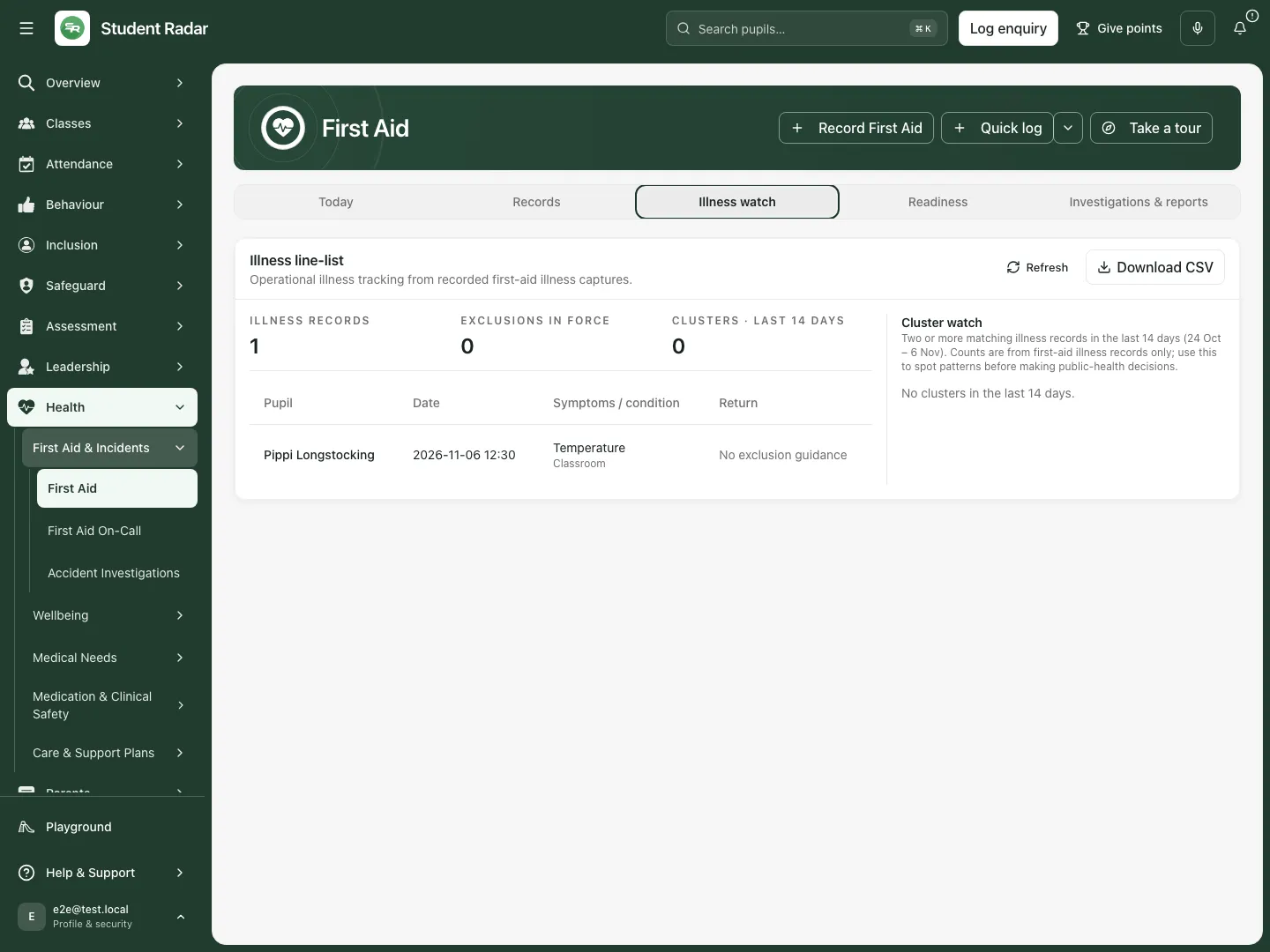 The fictional illness view shows the recorded illness source and its window separately from injury records.
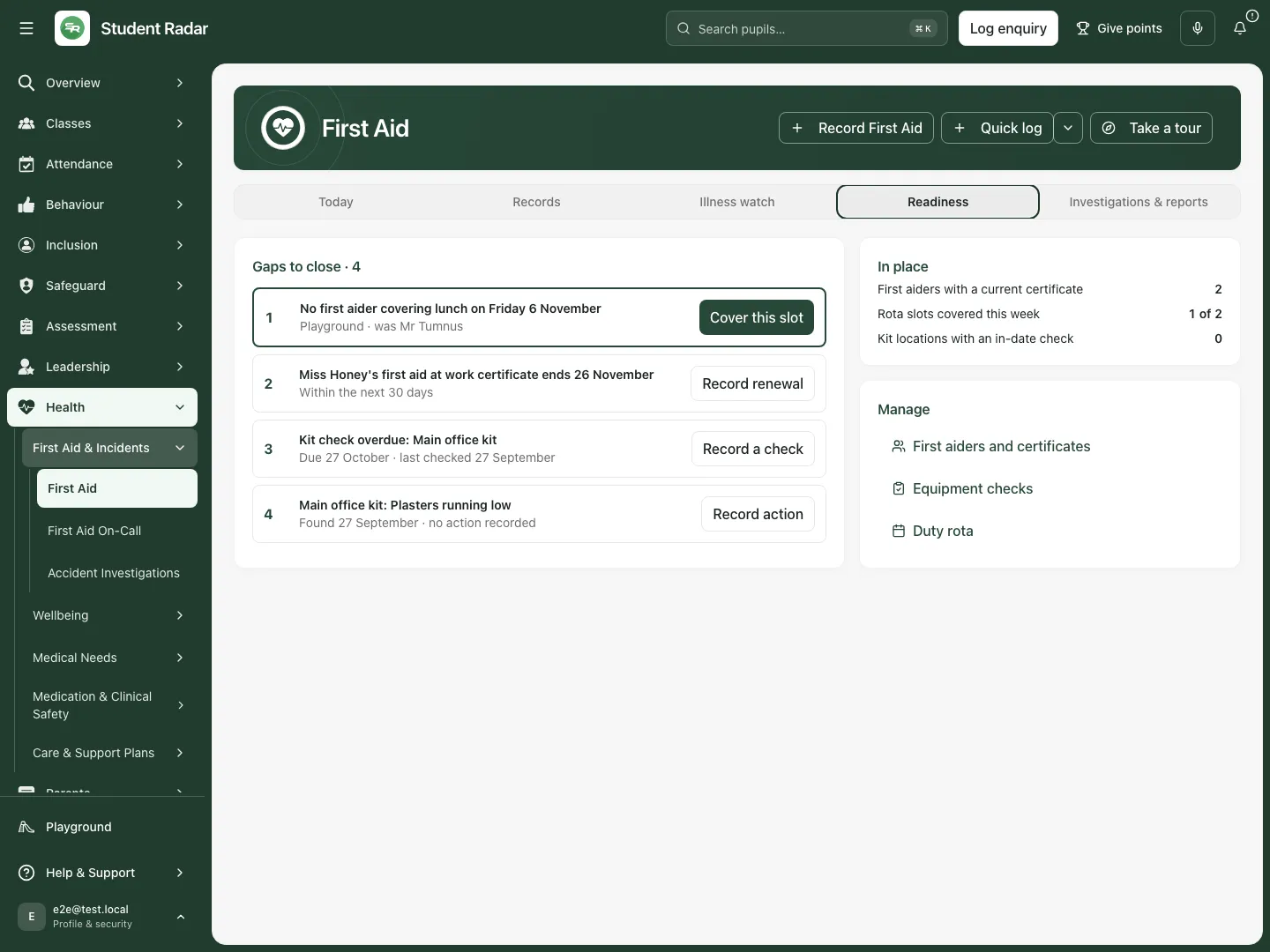 The fictional readiness view identifies an uncovered duty period, a qualification approaching expiry and equipment-check work from the seeded records.
Staff, equipment and duty records
Section titled “Staff, equipment and duty records”For qualifications, open the staff manager and choose Add Staff Member. Select Staff member, Qualification, Qualification Date and Expiry Date; enter optional Certificate Number and Training Provider, then Save. Use the renewal action and Record renewal for a new qualification period instead of pretending an expired record is current.
For equipment, open Equipment Checks, then New Check. Enter Date, Location and Checked By, record Items Checked, Issues Found, Action Required, Action Taken and Next Check Due, then Save (or Update for an existing check). Record the actual inspection; a completed form does not inspect a kit.
Use the duty rota for the named cover, date/time, location and coverage. First Aid On-Call’s Rota & settings provides the connected response rota; see its dedicated guide for exact cover/replacement controls and the distinction between a rota slot and someone actually responding.
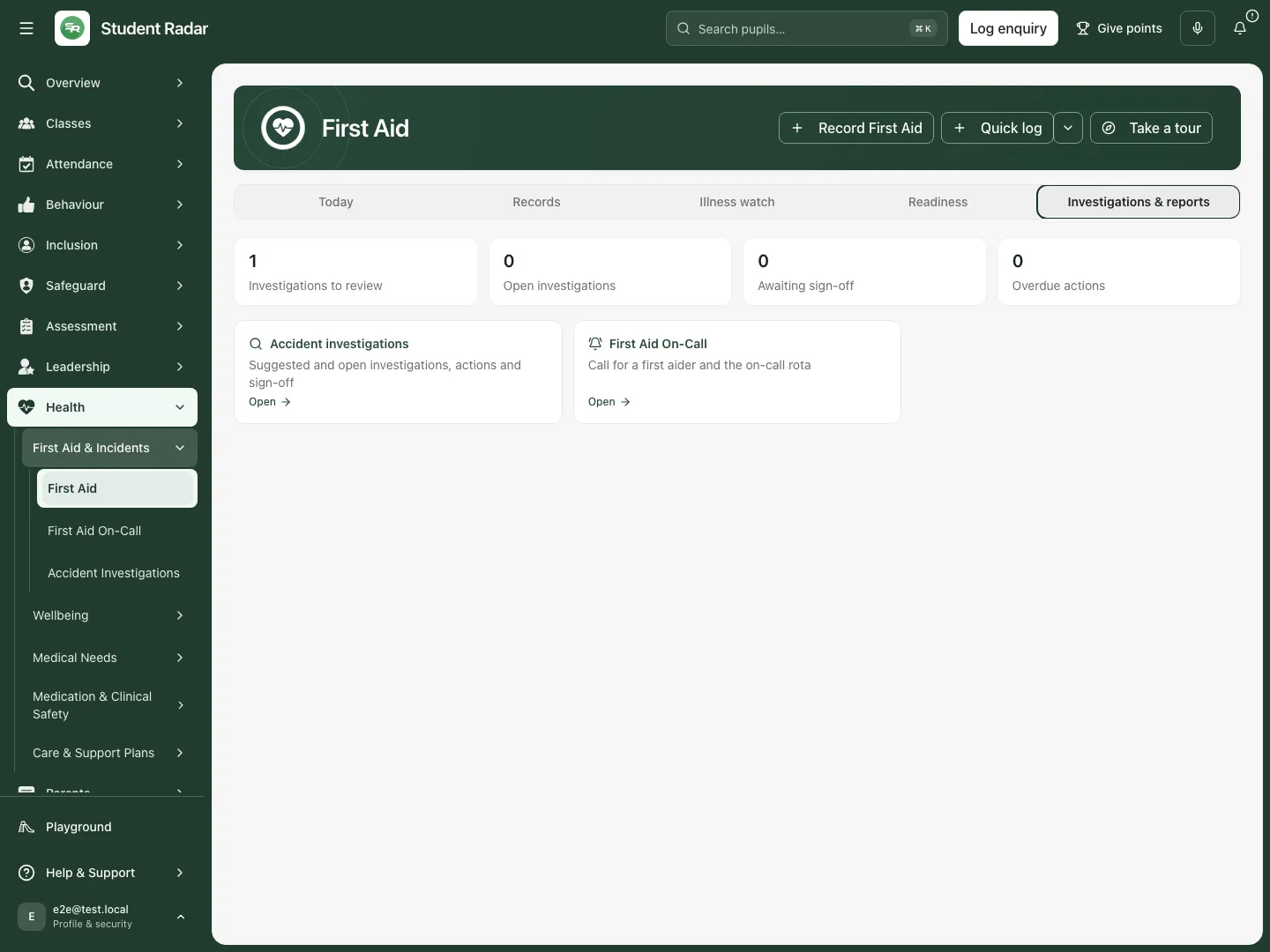 The fictional reports section links to permitted specialist workflows instead of silently completing their work.
Phone use
Section titled “Phone use”Use Section to choose Today, Records, Illness watch, Readiness or Investigations & reports. Open the record and inspect the person/date/type before editing or preparing a message. Check the saved result after returning to the register.
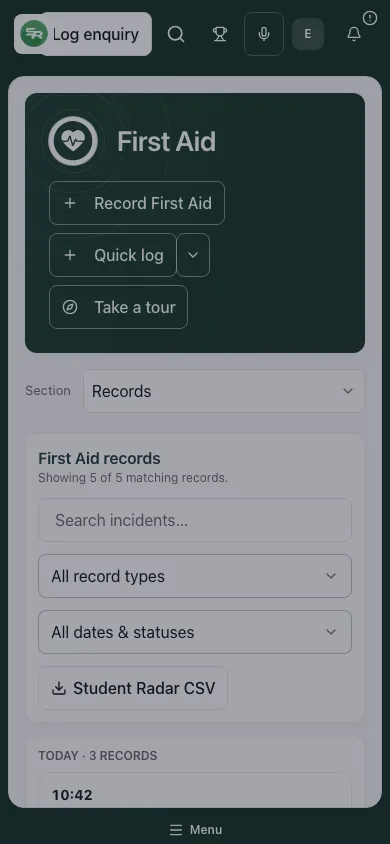 The fictional near-miss record remains identifiable by person, type and date in the phone register.
Problems and questions
Section titled “Problems and questions”A record is missing. Check school, pupil access, type/status/search and the event date. Retry a failed source; an error is not an empty accident book.
Record incident is blocked. Complete the actual required fields and explicit head-injury choice for an injury. Do not invent observations or treatment to bypass validation.
I saved a draft but it disappeared after refresh. Temporary drafts last 30 minutes in the same tab and clear on refresh, sign-out or school change. They are separate from recorded incidents.
The incident saved but a task or message did not. Check each downstream result separately. Keep the saved record and resolve the specific follow-up or communication problem without duplicating the incident.
A parent is marked informed. Inspect the communication/delivery record or the recorded manual contact method. A status alone does not prove receipt or understanding.
A count is unavailable or imported records differ from the summary. Native-record summaries and imported history have different coverage. Preserve that distinction when exporting or discussing totals.
Related: First Aid On-Call · Accident Investigations · Medications. Medical Needs and Evacuation remain separate workflows.