Record EYFS care and prepare a family day sheet
Written for: Authorised Early Years staff with care diary and relevant child access.
Record meals, toileting, sleep and checks for the right child, then preview a daily family summary before sending.
Keep each entry accurate to what happened, the child and the time. The screenshots show fictional children and records.
The diary supports the school’s care procedures. It does not replace supervision, an individual care plan, medicine administration checks or immediate action when a child needs help.
Before you start
Section titled “Before you start”- Check the school, room and child. The diary is available for the school’s Nursery/Reception or equivalent Early Years groups, subject to your access.
- You need permission for the diary and the individual child. Medicines, intimate care plans and First Aid keep their own records and access requirements.
- Times use the school clock. Check the time displayed, especially if the device is in another time zone.
- Record only what you observed or provided. No entry is different from a recorded outcome of zero or none.
- Use a private screen and the school’s approved family communication process.
1. Open the room board
Section titled “1. Open the room board”Open Care log through the available Early Years/class navigation. The page title is EYFS Care & Daily Diary. Use Room, if offered, to choose the intended group or All EYFS children.
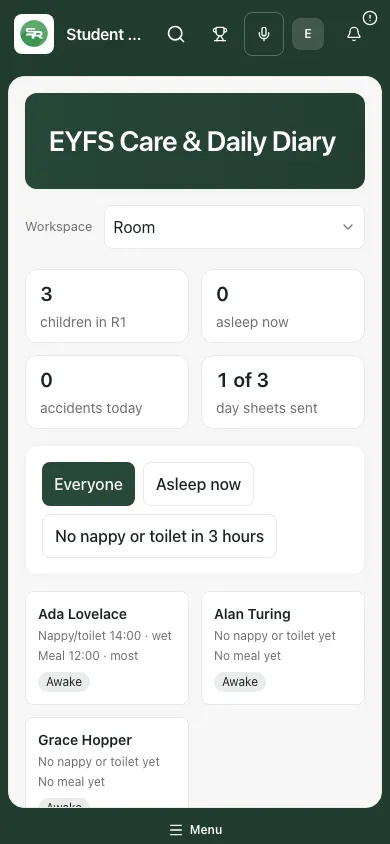
The sections are Room, Medicines and Day sheets. On a phone, use Workspace to choose a section.
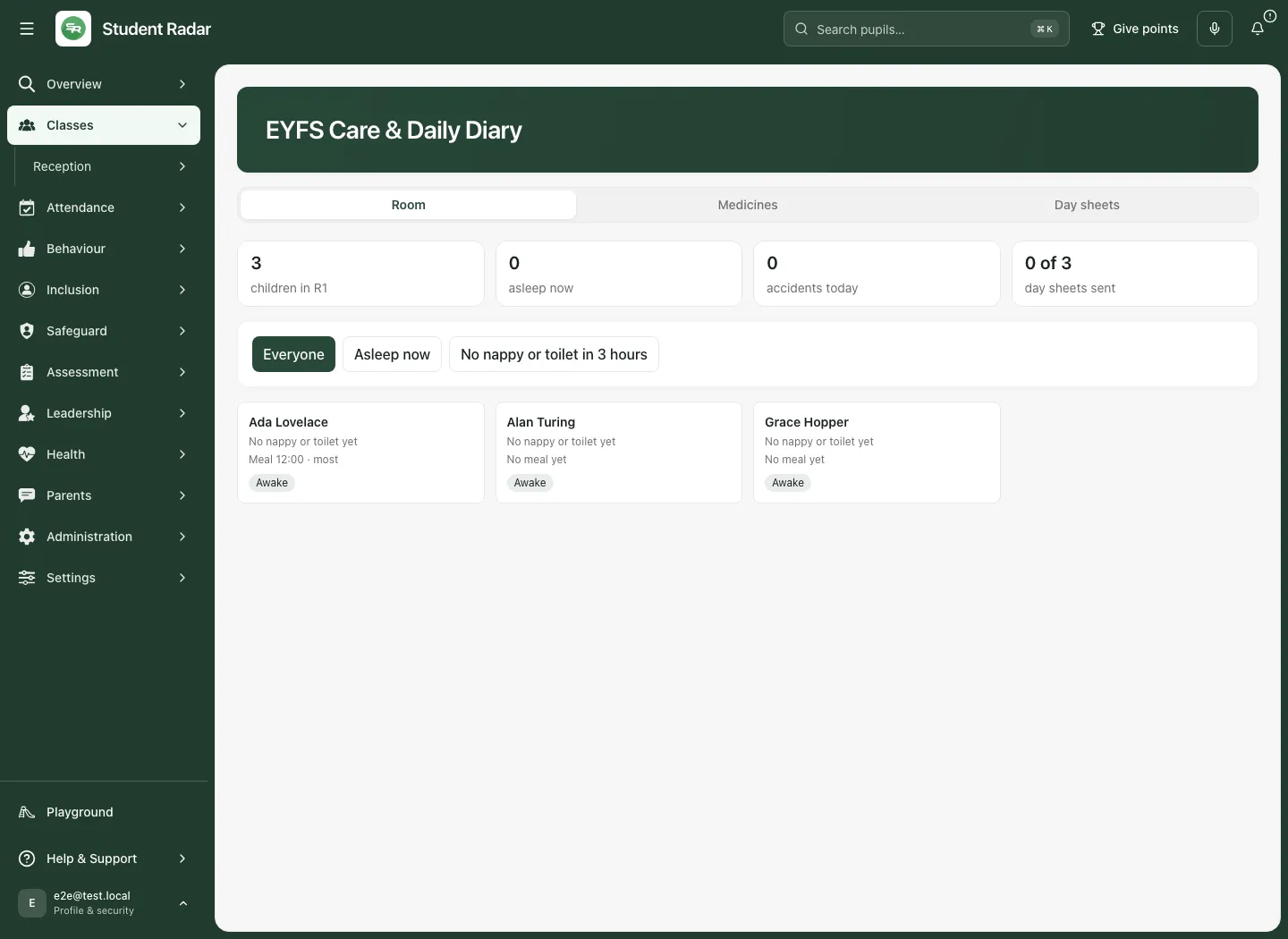
In Room, check the headline figures for children, asleep now, accidents today and day sheets sent. Read warnings about loading, unavailable sources, omitted records or a diary too long to read in full. A partial diary’s counts are not a complete account of the day.
Use Everyone, Asleep now, or No nappy or toilet in 3 hours to focus the board. A filter is a prompt to check records and the child’s circumstances; it is not evidence by itself that care was missed. Confirm with colleagues and follow the school’s policy.
Select a child’s card to open their day. Check the name and room again before logging anything.
2. Record a nappy/toilet or meal outcome
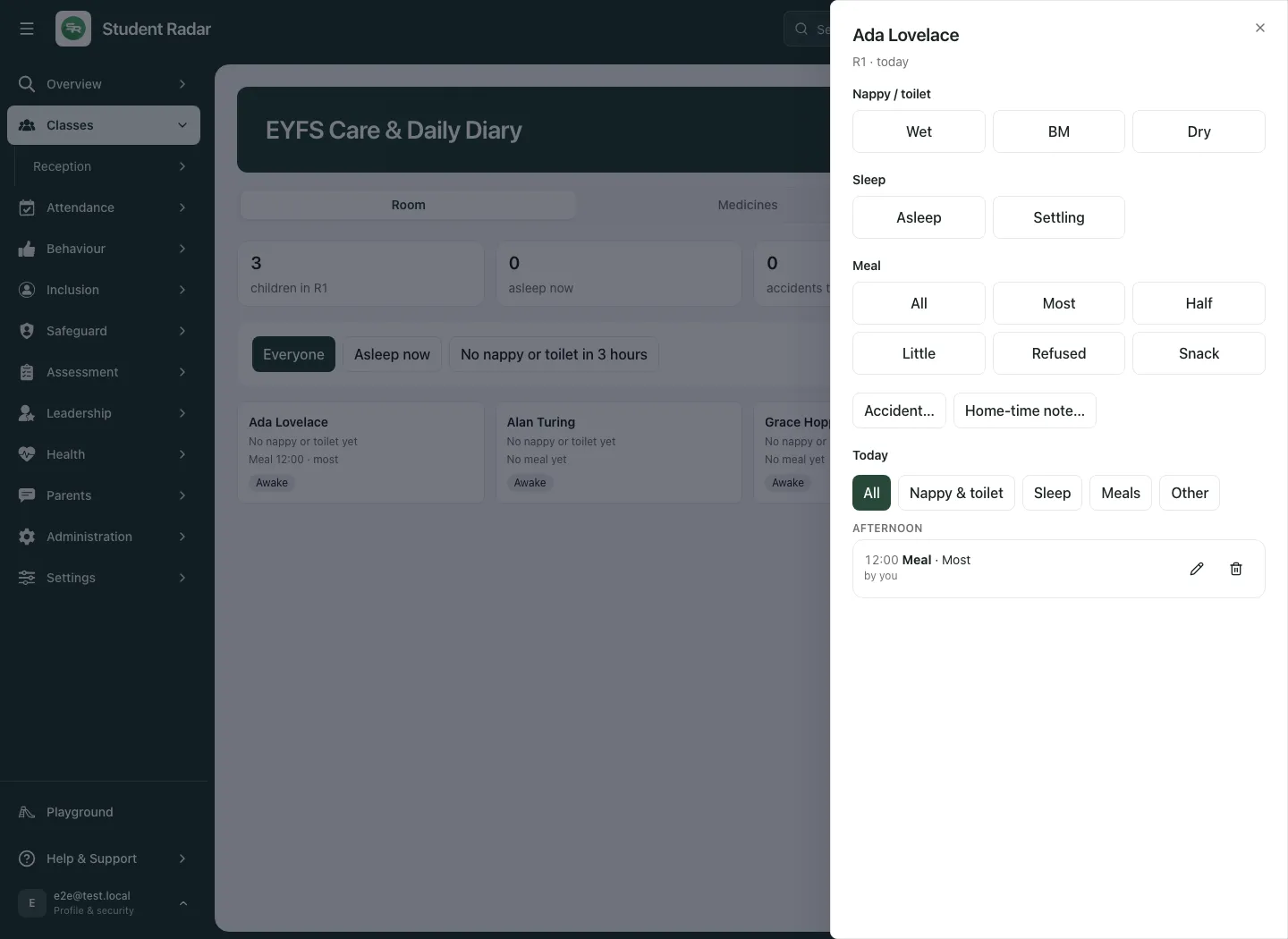
Section titled “2. Record a nappy/toilet or meal outcome”For a child without a linked intimate care plan, the Nappy / toilet controls include Wet, BM and Dry. Select the outcome that actually happened. The diary records the time and recorder.
If the child has an intimate care plan, choose Log care in the plan instead. That workflow includes the plan’s required details, such as the second adult and the child’s response. Do not create a simpler diary entry to avoid those requirements.
Under Meal, choose the observed outcome: All, Most, Half, Little, Refused or Snack. Read any available allergy information and follow the child’s agreed care process. An unavailable allergy read must not be interpreted as “no allergies”.
After a tap:
- Wait for the saved-entry message and refreshed timeline.
- Check the child, outcome and time.
- If it was an immediate mistake, use Undo beside the saved-entry message.
- To supply more detail or correct the time, use Add detail or the entry’s Add detail to this entry control.
- Check the result before logging another copy. If a save was uncertain, retry the same intended entry using the supported route; do not assume nothing saved.
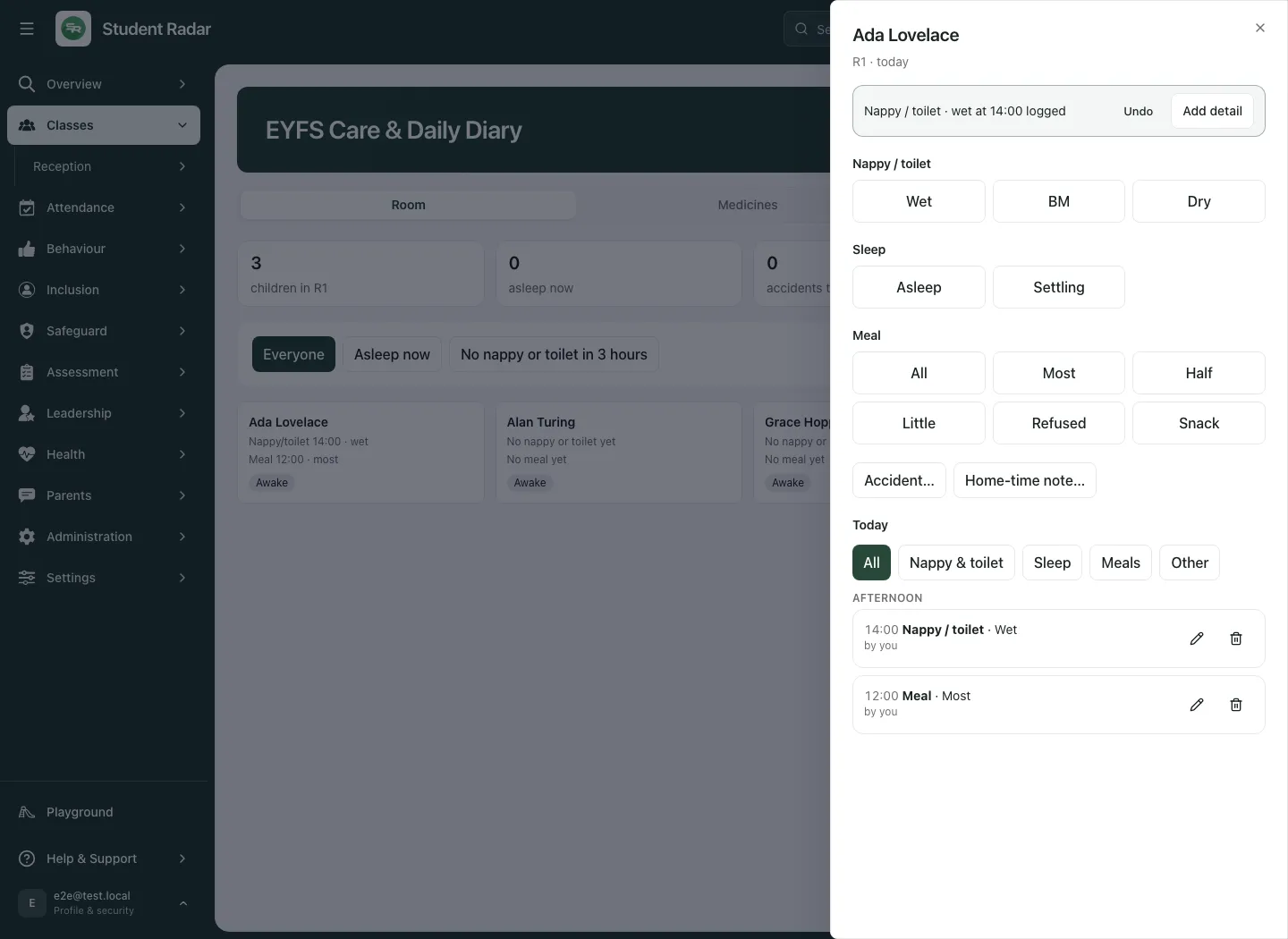
The timeline can be filtered using All, Nappy & toilet, Sleep, Meals and Other. If an entry is not visible, check the filter before recording it again.
3. Record sleep and checks
Section titled “3. Record sleep and checks”In the child’s Sleep section:
- Choose Settling if that is the observed state, or Asleep when the child is asleep.
- Review the displayed elapsed time and check status.
- Use Sleep check or Check due to open the check form when appropriate under your school’s procedure.
- Check the actual Position, Breathing normally and Colour normal values; do not leave defaults in place without observing them.
- Choose Record check and confirm the new timeline entry. Cancel leaves without recording.
- Choose Woke when the child wakes, then check the completed duration and time.
These controls record observations. Follow the school’s supervision and escalation procedure if there is a concern; do not wait for a timer or use the diary as clinical advice. A recorded check does not confirm that every future check has happened.
An open nap is still sleep recorded today. Before sending a day sheet, check whether the child is still asleep. A summary must not turn an open nap into “none logged”, and an unfinished nap is different from a completed number of minutes.
4. Add or correct detail without losing the record
Section titled “4. Add or correct detail without losing the record”Use Add detail on an entry to review Time, Outcome and Note for the team. Change only what needs correcting and select Save. Cancel leaves the entry unchanged.
A correction preserves the first version as replaced. If someone else changed the entry first, read the error, refresh and review the timeline before retrying. Do not write over another colleague’s correction without checking it.
To remove an inappropriate entry, use Remove entry, enter the required reason and select Remove. Read the result; removing an entry is different from hiding it with a filter. Keep corrections factual and follow the school’s recording policy.
Typed times cannot be in the future; the service also restricts how far back entries can be recorded. If a time is rejected, check the school clock and date rather than selecting a convenient different time. The supported historical limit is 31 days, but this room/day workflow and family day sheets centre on today.
5. Write the home-time note
Section titled “5. Write the home-time note”- In the correct child’s day, choose Home-time note….
- Check Time and enter the Note for the family. Write a useful, proportionate summary, such as an activity the child enjoyed or something the family needs to know.
- Select Save.
- Read it back in the timeline. A team-only detail note is different from this family-facing home-time note.
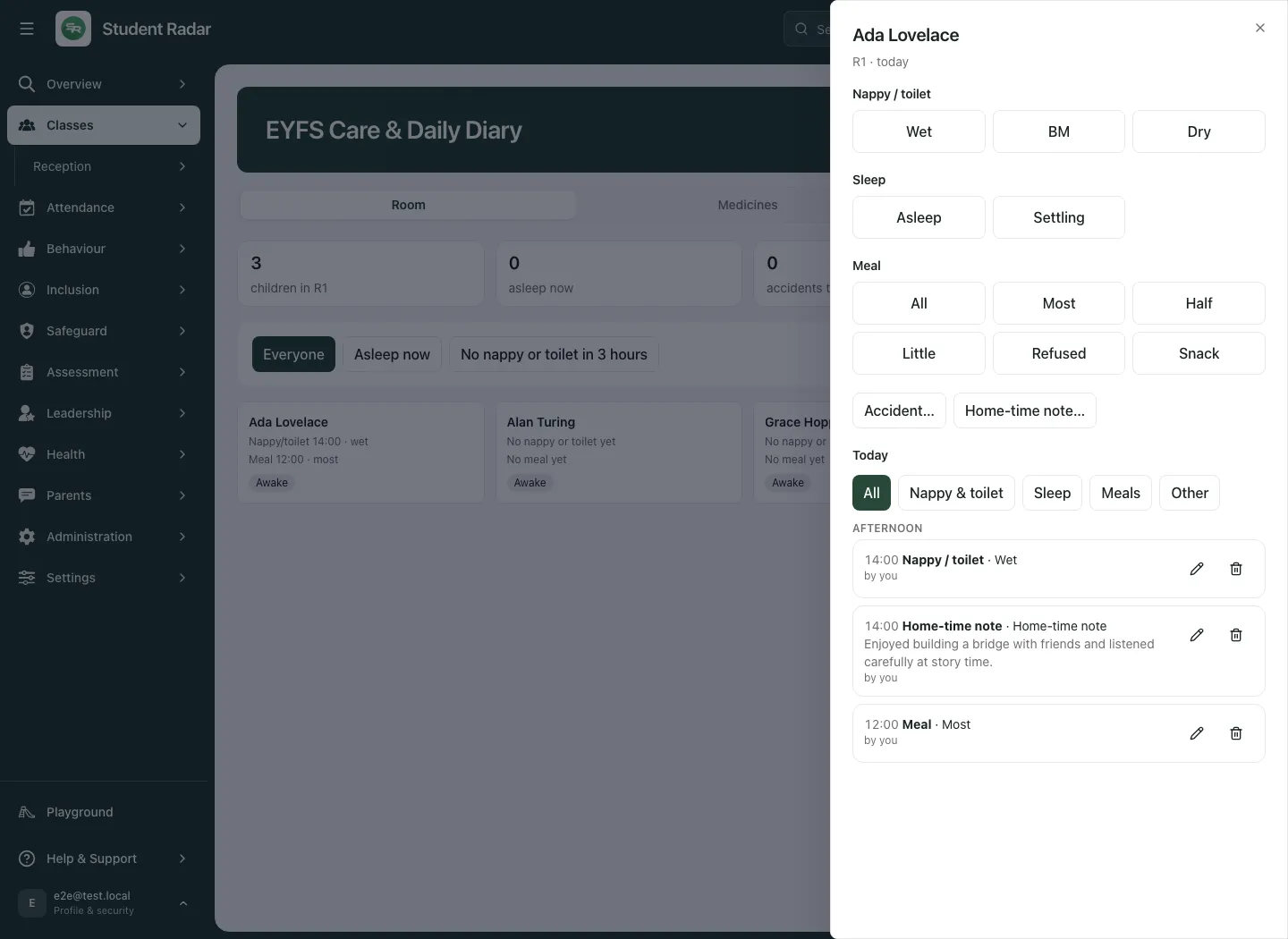
The note helps a day sheet become ready, but saving it does not send a message to the family. Review the whole day sheet separately before sending.
6. Review Medicines and linked specialist records
Section titled “6. Review Medicines and linked specialist records”Choose Medicines and the intended child, where available. Review the recorded active medicines and today’s administrations. If the list is empty or could not load, read the message; those are different states.
Record an administration only within your authorisation and the school’s medicine process. Check the medicine, recorded dose, administration time, witness and other required fields in that workflow, then confirm the saved result. A diary meal or general note does not record a medicine administration. Medicine stock and administration records stay in the medicine workflow.
First Aid incidents and intimate care logs can appear in the child’s timeline from their original records. Use the appropriate specialist workflow for changes rather than duplicating them in a general diary note. An injury, illness and near miss are distinct; the accidents count does not mean every First Aid record is an injury.
7. Preview and send a day sheet
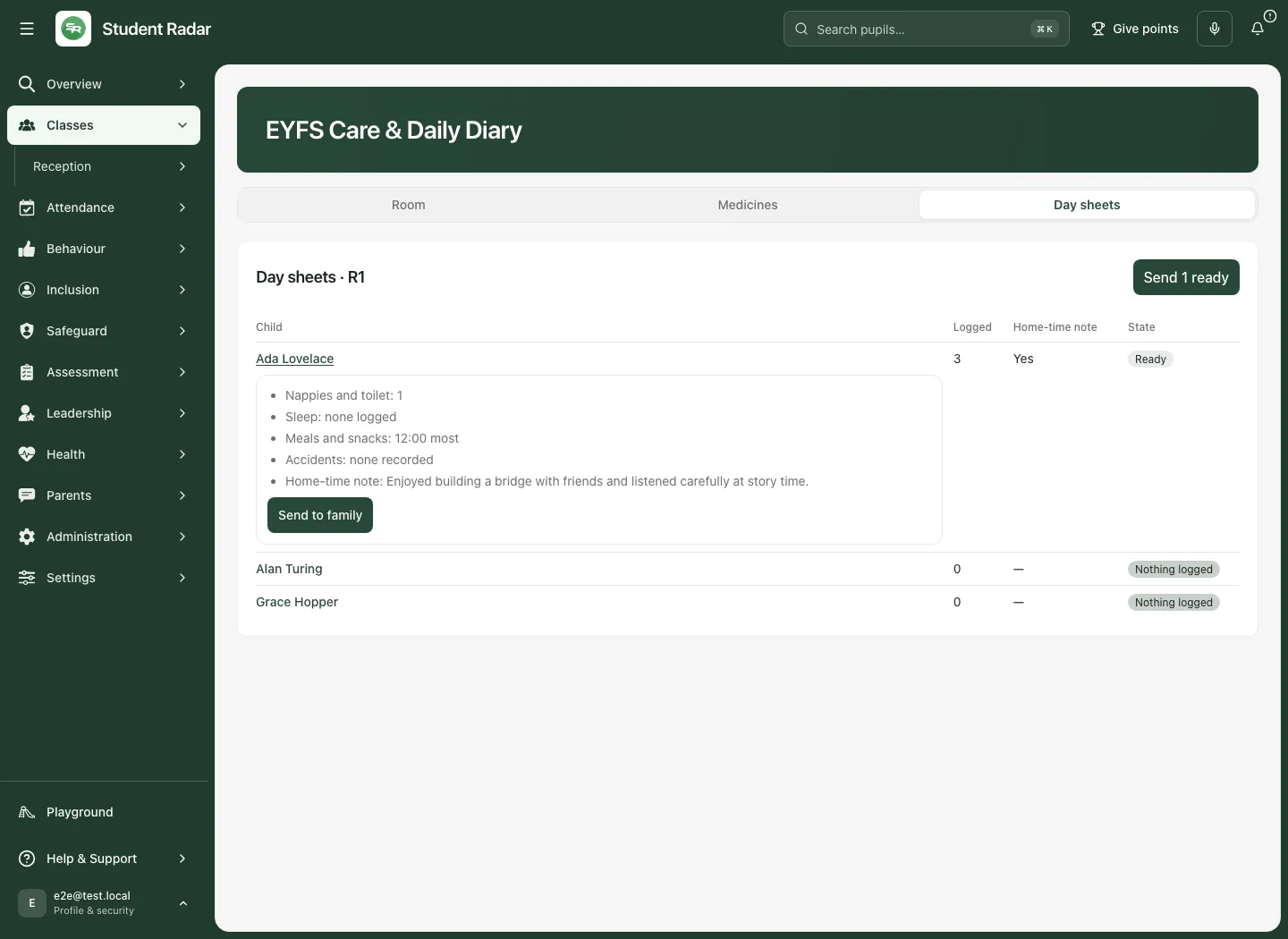
Section titled “7. Preview and send a day sheet”Choose Day sheets and check the room. The table lists each child, logged entries, home-time note and state.
| State | What it means |
|---|---|
| Ready | The diary has entries and a home-time note, and is eligible for the ready-group send. |
| No home-time note | Read the preview and decide whether to add the missing family note before an individual send. |
| Nothing logged | No diary entries are shown for that day; do not substitute a positive account of care. |
| Diary not complete | The read was cut short; the child’s sheet cannot be sent from that incomplete summary. |
| Sent [time] · [name] | A send is already recorded today. New entries remain in the diary rather than sending another sheet automatically. |
- Select the child’s name to expand the preview.
- Review the actual wording for nappies/toilet, meals, sleep, medicine information, accidents and the home-time note.
- Read any unavailable-source message. A failed medicine or First Aid read is not proof that no doses or accidents exist.
- For an eligible individual sheet, select Send to family. If the home-time note is missing, review that fact before choosing an individual send.
- For the room’s eligible group, select Send N ready, read the confirmation showing the number of children, then select Send. Cancel leaves without dispatching the group.
- Wait for the outcome and check each child’s state. A partial result can contain sent, already sent and failed children. Open those still ready and use the offered retry; do not resend the whole group blindly.
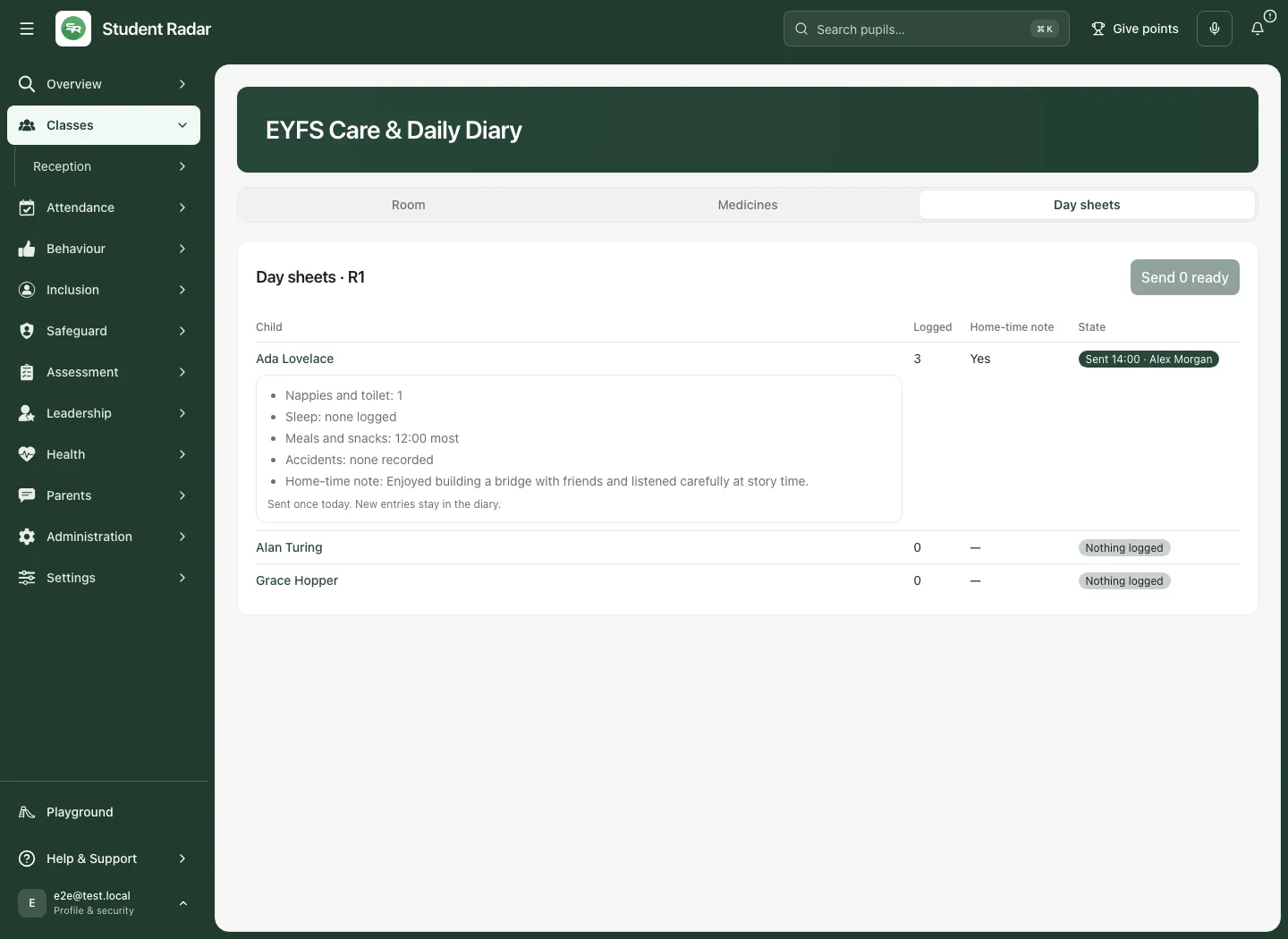
A sheet is sent once per child per day through this workflow. Only today’s day sheet can be sent. An incomplete read blocks sending because short counts could misrepresent the day; choosing a narrower room may allow a complete read. Check the preview again after the read completes.
The sent state confirms the recorded application outcome. It does not prove delivery to a particular device or that a family member has read it. Follow the school’s agreed route for urgent information or delivery concerns.
Troubleshooting
Section titled “Troubleshooting”| What you see | What to do |
|---|---|
| No Nursery/Reception pupils found | Check school, Early Years group classification and your permitted pupils. |
| A child is missing | Check Room, board filters and access before assuming the child has no care records. |
| An entry was not saved | Check the stated child/time/permission error and timeline, then retry the original intended entry if appropriate. |
| Someone else changed the entry first | Refresh and review the latest record before correcting it. |
| Sleep looks unfinished | Check whether a Woke entry is genuinely missing; record the actual observation rather than inventing a duration. |
| Diary is incomplete | Choose a narrower room and reread. Do not send short counts as the whole day. |
| Medicines or First Aid unavailable | Use the source’s retry/review route. Do not report “none” from an unread source. |
| A day sheet is already sent | Check the time/recorder. New diary entries do not create an automatic second send. |
| A bulk send partly failed | Review the per-child states and retry the remaining eligible sheets. |
For support, provide school, room, page, approximate time and error wording through the approved route. Use the approved process for any necessary child reference.
Common questions
Section titled “Common questions”When should I send a day sheet?
Section titled “When should I send a day sheet?”Preview and check the child’s daily summary before the explicit family send. Confirm that the entries describe the right child, time and care.
Can the diary replace medicine administration checks?
Section titled “Can the diary replace medicine administration checks?”No. Follow the school’s care and medicine procedures and the individual plan. The diary does not replace supervision or immediate action.