Record controlled-drug stock and witness decisions
Written for: Authorised medical staff, register managers and named staff witnesses.
Select the correct medicine and holder, then record the receipt, physical count or movement and any independent witness decision. A line belongs to a medicine and its pupil or school-stock holder. A physical count, a recorded movement and a witness request awaiting confirmation have different effects.
Use the school’s controlled-drug procedures and current authorised instructions. The app is a recording workflow, not a clinical decision or a guarantee of legal compliance. You need the relevant register, medicine and action permissions. A named witness may see their own requests without being able to read the full register. All examples are fictional.
Read the register and its coverage
Section titled “Read the register and its coverage”- Open Controlled Drugs under Health → Medication & Clinical Safety.
- Check Drug lines, Low stock, Count variances and Register entries shown. The last count describes the entries currently loaded, not necessarily the entire register.
- In Current stock, read the medicine, schedule, holder, unit and balance together. Do not combine pupil-held stock with school stock or mix units.
- Review Register for the movement, signed change, resulting balance, recorder and witness. A receipt’s external signatory is distinct from a staff witness.
- Read any Batches to check or count-variance notice. Batch expiry is derived from the recorded receipts; it is not an inventory inspection.
- Use the additional-entry loading control when present. The register initially loads up to 1,000 entries and can load another block; count/expiry facts have their own wider read, so a short displayed ledger is not the whole basis for those indicators.
- Controlled-drug records unavailable and Count variances and batch expiry unavailable mean those sources cannot be relied on. Choose Retry and resolve the failure before interpreting counts as zero.
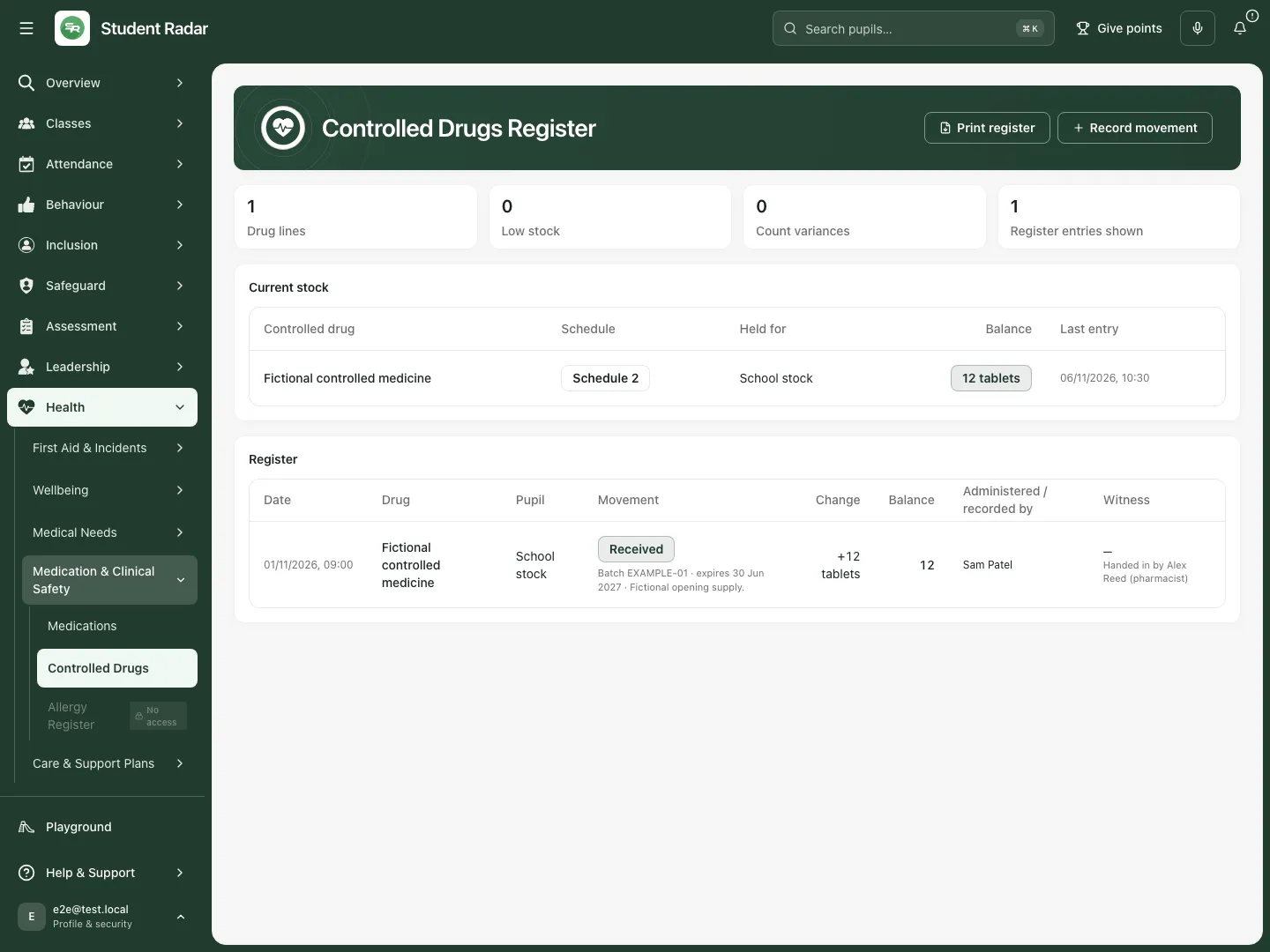 The fictional school-stock line records twelve tablets received, with the recorder and the separate external signatory visible.
Choose the correct medicine and movement
Section titled “Choose the correct medicine and movement”- Choose Record movement.
- In Pupil, choose the intended pupil or School stock (not for one pupil).
- In Controlled drug, select the medicine already set up on Medications with its controlled-drug schedule. Check Held for and the line’s unit before continuing.
- If there is no suitable medicine, use Set one up on the Medications page to maintain that record first. Do not create a lookalike drug-name line as a workaround.
- Set Movement type to the actual event: Administer to pupil, Receive stock, Dispose, Return to pharmacy / parent, Balance check (count) or Adjustment.
- Enter Quantity or Counted quantity, Unit and Date & time. Blank date/time means now; a specified time is limited to the last seven days, with a small clock tolerance. Do not use a future appointment as a recorded movement.
- Check Recorded by, which comes from your signed-in account. Record only the event you are authorised to record; selecting a name is not a substitute for another person’s own signature.
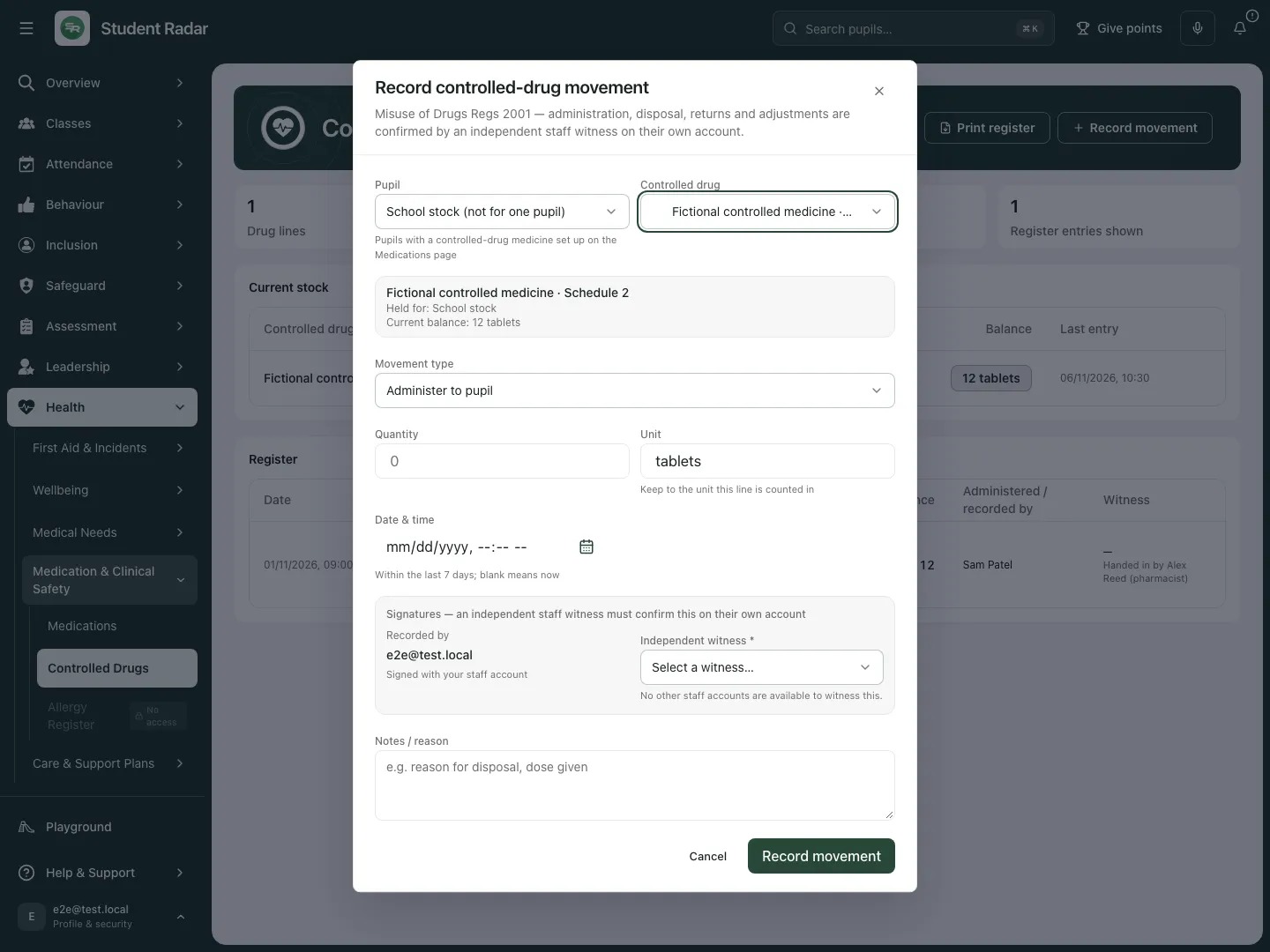 The fictional form first identifies the school-stock medicine. Movement type determines the quantity and witness requirements.
Receive stock with batch information
Section titled “Receive stock with batch information”- Select Receive stock for the intended line.
- Enter the quantity actually received and retain the line’s unit. Complete Batch no. and Expiry date from the supply as applicable.
- If appropriate, record Handed in by (not staff) and Their role: Pharmacist, Parent or carer, or Other professional. This optional person does not replace the staff recorder or independent witness where required.
- Complete Notes / reason, check the supply against the physical record and choose Record movement.
- Inspect the receipt and new balance. A saved receipt records supply received; it does not order, authorise or administer medication.
Record a physical count without changing stock
Section titled “Record a physical count without changing stock”- Select Balance check (count).
- Enter Counted quantity, including zero when that is the actual physical count. Keep the same unit as the line.
- Add the factual Notes / reason, then choose Record movement.
- Reopen the register and check the counted amount and comparison with the expected balance. A count has a zero stock movement: it records a discrepancy without silently adjusting the balance.
- If there is a variance, follow the school’s reconciliation process. A later matching count can close the displayed count variance; any actual adjustment remains a separate reasoned, witnessed movement.
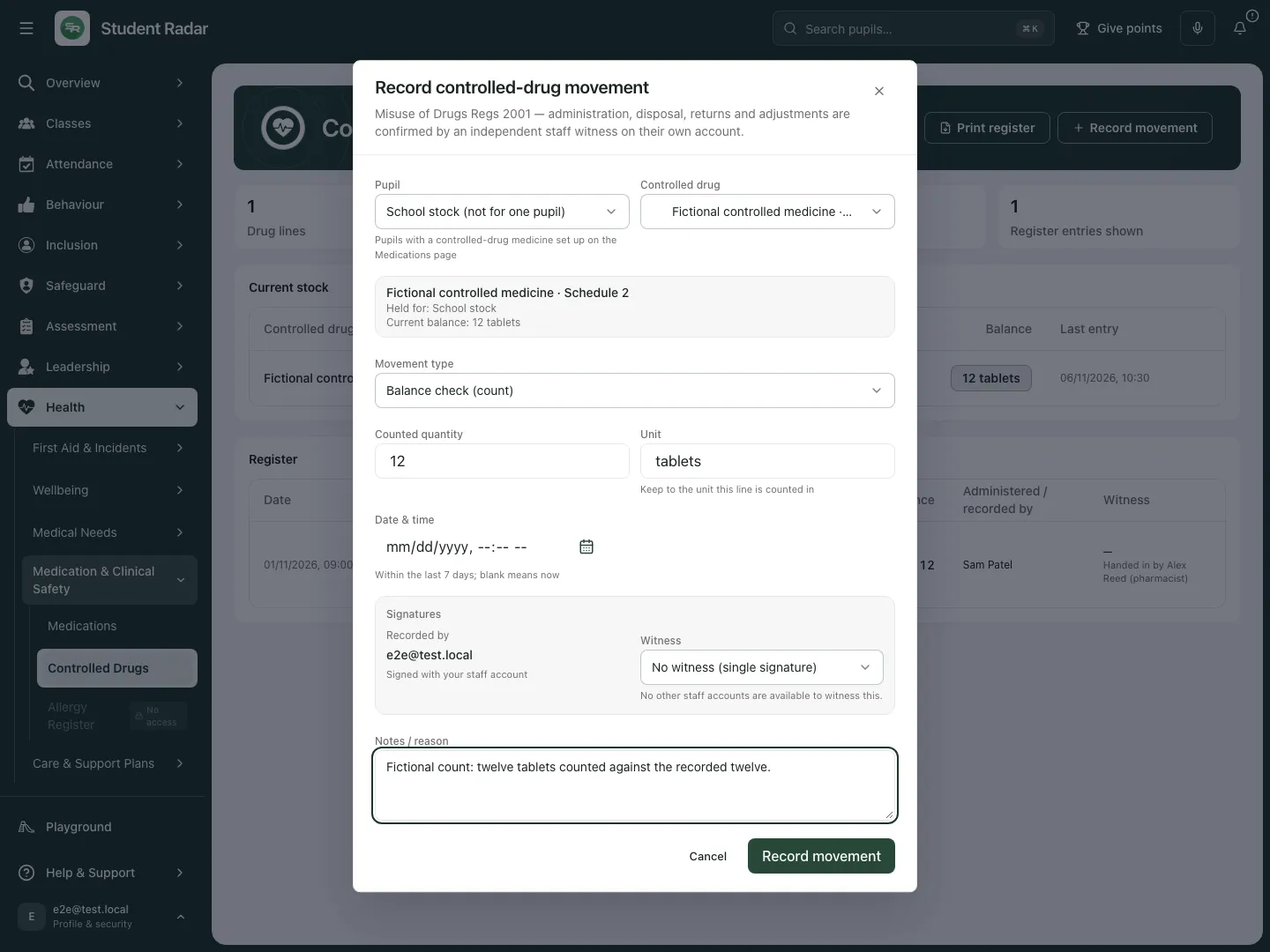 The fictional physical count of twelve matches the recorded twelve. It records an observation rather than adding stock.
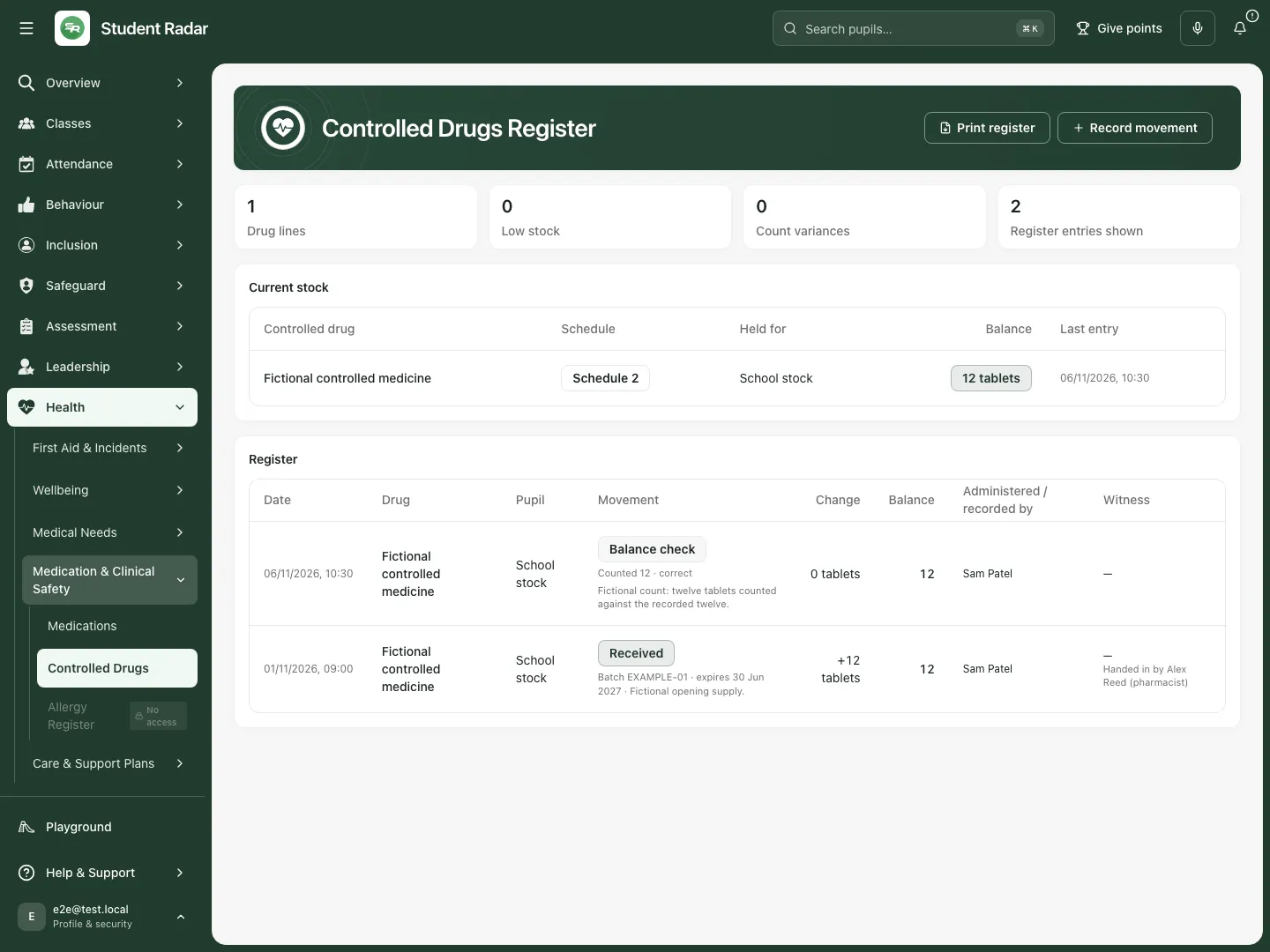 The reopened fictional register retains the count, zero movement and unchanged balance of twelve.
Record administration, disposal, return or adjustment with a witness
Section titled “Record administration, disposal, return or adjustment with a witness”- Select the actual movement. For Adjustment, choose Adjustment direction: Remove from stock or Add to stock, then enter its positive magnitude. Record a substantive Notes / reason; an adjustment needs an explanation.
- For administration, disposal or return, enter the actual quantity and check the resulting direction. Do not represent a refusal, missed dose or unavailable medicine as an administration stock movement; use the medication exception workflow for the actual non-given outcome.
- For a return, record Received by (not staff) and Their role when applicable. This remains separate from the staff witness.
- Choose an Independent witness who actually witnessed the event and can confirm through their own account. You cannot witness your own movement. If eligible staff cannot be loaded, close the form and resolve the staff/access issue.
- Choose Record movement. For these witnessed types, the result initially awaits the witness; the register and balance update when the witness confirms. Do not treat the sent-to-witness state as a completed ledger entry.
- Reopen the request and inspect its actual state. Cancel closes an unsaved form; a submitted awaiting-witness entry uses its separate Cancel entry control.
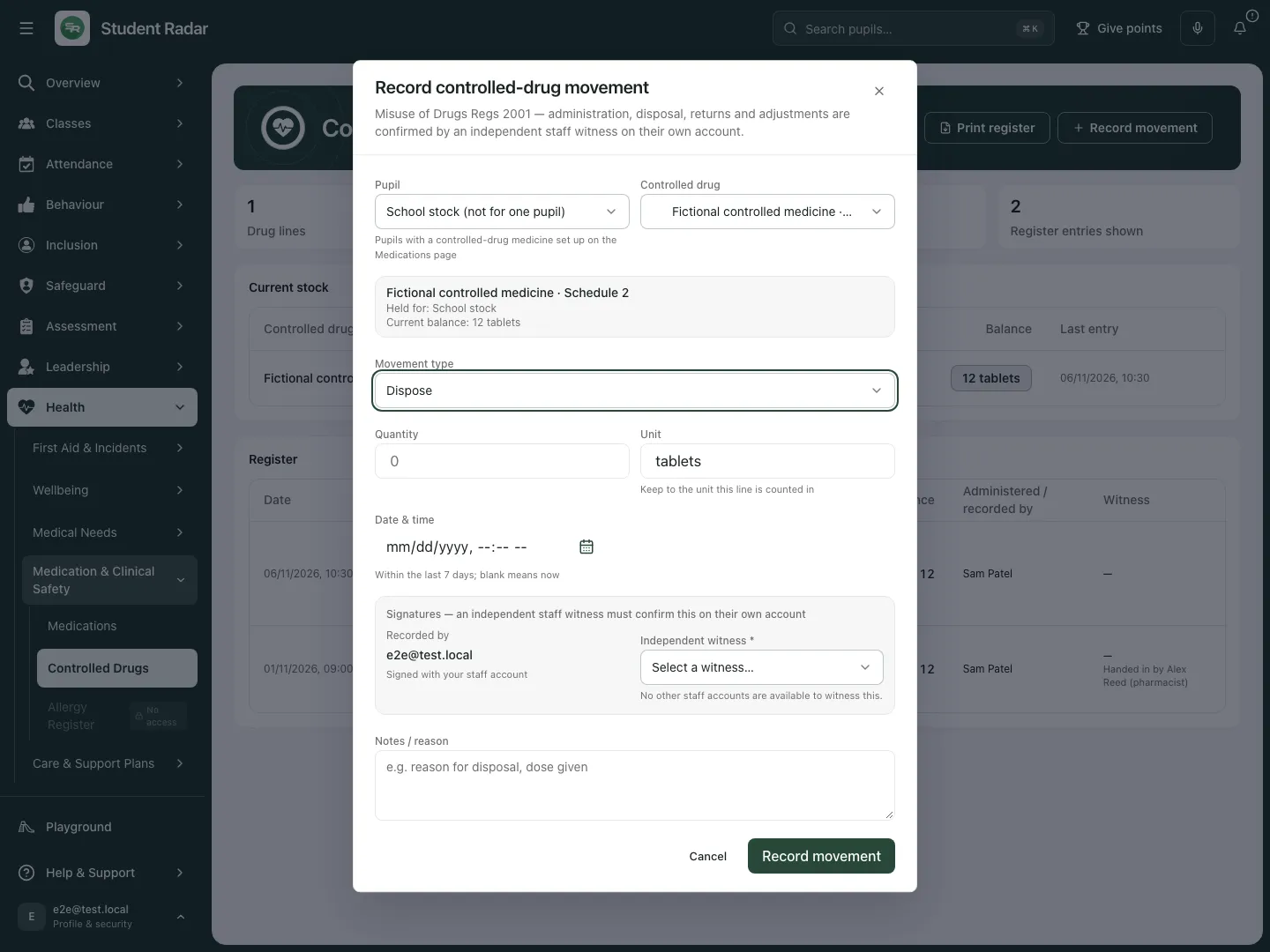 The fictional disposal form requires another staff account’s confirmation. No disposal was recorded in this example.
Confirm, decline or cancel a witness request
Section titled “Confirm, decline or cancel a witness request”- As the named witness, open your waiting requests on this page, Medications or the connected My Actions entry.
- Inspect the medicine, holder, quantity, unit, type, time and recorder. Only choose Confirm as witness if you actually witnessed that event and can verify the details.
- Confirmation signs the entry with your account, writes the completed movement and updates its balance. Reopen the register to check it.
- If you cannot confirm, choose Decline, optionally enter Reason for declining (optional), then Decline entry. Keep it leaves the request awaiting your decision.
- If pupil details are unavailable, the app does not offer confirmation. Decline so the recorder can arrange an eligible witness; a link does not grant source access.
- As the requester, use Cancel entry for your pending request when appropriate. Declined, cancelled and expired requests have not completed a movement. Review their outcome before deliberately recording a corrected request; do not assume an uncertain retry needs a duplicate.
- Recent outcomes show the request result. They do not establish that medicine was physically handled correctly; retain the school’s real-world controls.
Clear or reconcile an unlinked line
Section titled “Clear or reconcile an unlinked line”- Find the Not linked to a medication label and choose Count, clear or move for that exact line.
- Review the legacy drug name, holder, unit and balance. Such lines can be counted, disposed of, returned or adjusted; new receipts and administrations need a linked medication record.
- Use the appropriate reasoned movement and witness process. Moving a balance to the correct medicine requires the corresponding witnessed adjustments on the two lines; do not rename a historic line to hide the transfer.
- Review both resulting histories and balances. A closed/finished line retains its recorded history and is distinct from live stock needing attention.
Print and phone review
Section titled “Print and phone review”- Choose Print register to generate the register PDF. The export reads the register independently rather than printing only the currently displayed block.
- Check the school, drug lines, holders, movements, running balances and witness information in the output. A failed export is not a complete register; resolve the source error and retry.
- Handle the downloaded record under the school’s information controls. An export does not confer access on another recipient or certify the record.
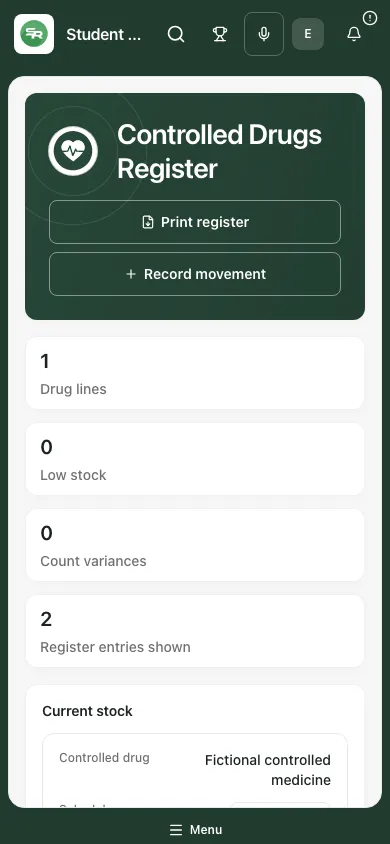 The fictional phone view retains the medicine, holder and movement context instead of treating the balance alone as sufficient evidence.
Problems and questions
Section titled “Problems and questions”The register appears empty. Read the access notice and source state. It shows what your account can read, not proof that the school has no controlled drugs.
There is no eligible witness. Check the school staff accounts and access with an authorised administrator. Do not select yourself or use an external signatory as the independent staff signature.
The count differs. Does saving fix stock? No. It records the difference. Reconcile the physical facts and use a separate authorised witnessed adjustment where appropriate.
A request is awaiting witness but the balance has not changed. That is a different state from a recorded movement. Check the witness decision rather than entering the movement again blindly.
Can I edit or delete an old ledger row? The register records completed movements as history. Use the appropriate new reasoned correction/adjustment process rather than rewriting a recorded movement.
Related: Medications, My Actions.