Review school commitments and find feasible slots
Read the authorised commitments, open an event’s source context and inspect availability before taking a permitted scheduling action. Where enabled and authorised, it also supports reviewed MIS timetable adoption, availability/capacity changes, temporary holds and explicit displacement decisions.
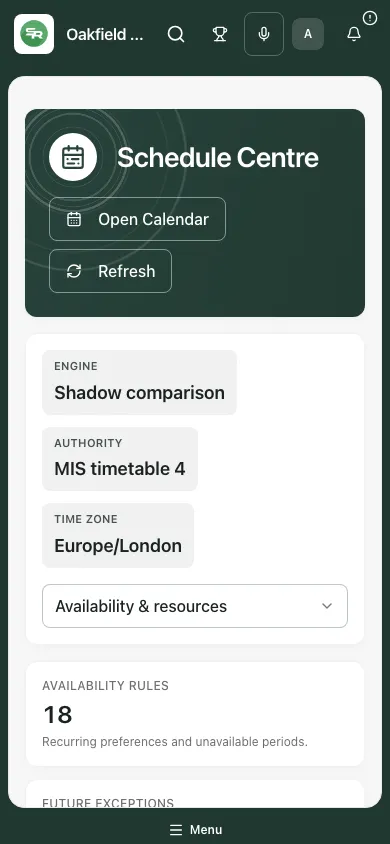
The fictional example shows Shadow comparison and an existing MIS timetable. The engine state matters: reading a schedule, evaluating a candidate, reserving a hold and publishing a timetable are separate operations. A suggested slot is not a booked meeting or a guarantee that everyone can attend.
1. Check the school, engine and authority
Section titled “1. Check the school, engine and authority”Open Schedule Centre under Administration. Read Engine, Authority and Time zone before interpreting the page. Open Calendar takes you to the school calendar; Refresh reloads current scheduling information.
- Legacy engine keeps existing source scheduling authoritative.
- Shadow comparison allows the explicitly enabled adoption/review path without silently switching ordinary scheduling writes on.
- Schedule Core active identifies the active shared scheduling engine.
- Writes frozen means scheduling changes are temporarily blocked; do not try another tab to bypass the freeze.
Viewing, evaluating, holding, staging/publishing timetables, managing availability/resources, deciding displacement and reading audit are separately controlled. A link to a commitment does not grant access to its source record. Restricted/private events are not exposed through general school counts.
2. Read Overview and the next fourteen days
Section titled “2. Read Overview and the next fourteen days”- Open Overview and read Active timetable, Event domains, Pending displacements and Active holds.
- Review Next 14 days in the school’s clock. Read the actual date/time and domain on each commitment.
- Use Show more commitments if more pages are available. The first loaded page is not the whole agenda.
- Read Coverage by domain as the authorised open school-event coverage. Restricted and private events are not included in those general counts.
- Select a commitment to open its Event workspace rather than inferring its lifecycle from a title alone.
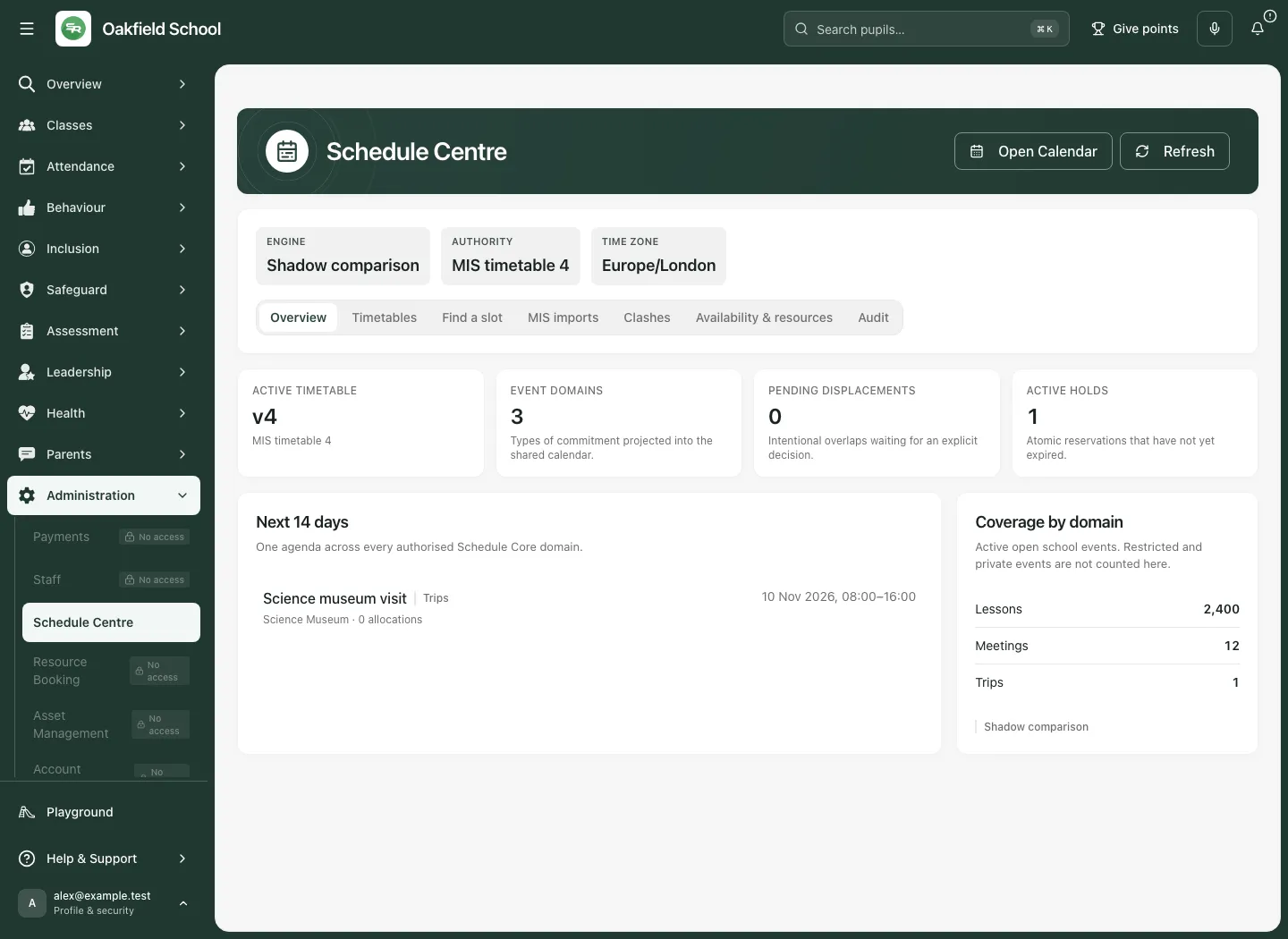
An unavailable figure is unknown, not zero. A domain count, a bounded agenda and a person’s timetable can have different scope. Do not compare them as if they were the same denominator.
3. Inspect an event and continue in its source
Section titled “3. Inspect an event and continue in its source”- Open the required commitment from an agenda/timetable.
- In Event workspace, check the domain, lifecycle, timing, occurrence and source provenance.
- Read the offered sections for schedule, people, resources and domain-specific context. Allocated places/resources and the people involved are separate from the event title.
- Review whether the schedule still needs confirmation, and whether the source is a projection or an active shared record.
- Use Open source workflow or Continue in source workflow for the specialist decision: trip approval/consent, intervention work, meeting records or another owning lifecycle.
- Use Back to Schedule Centre to return without changing the source event.
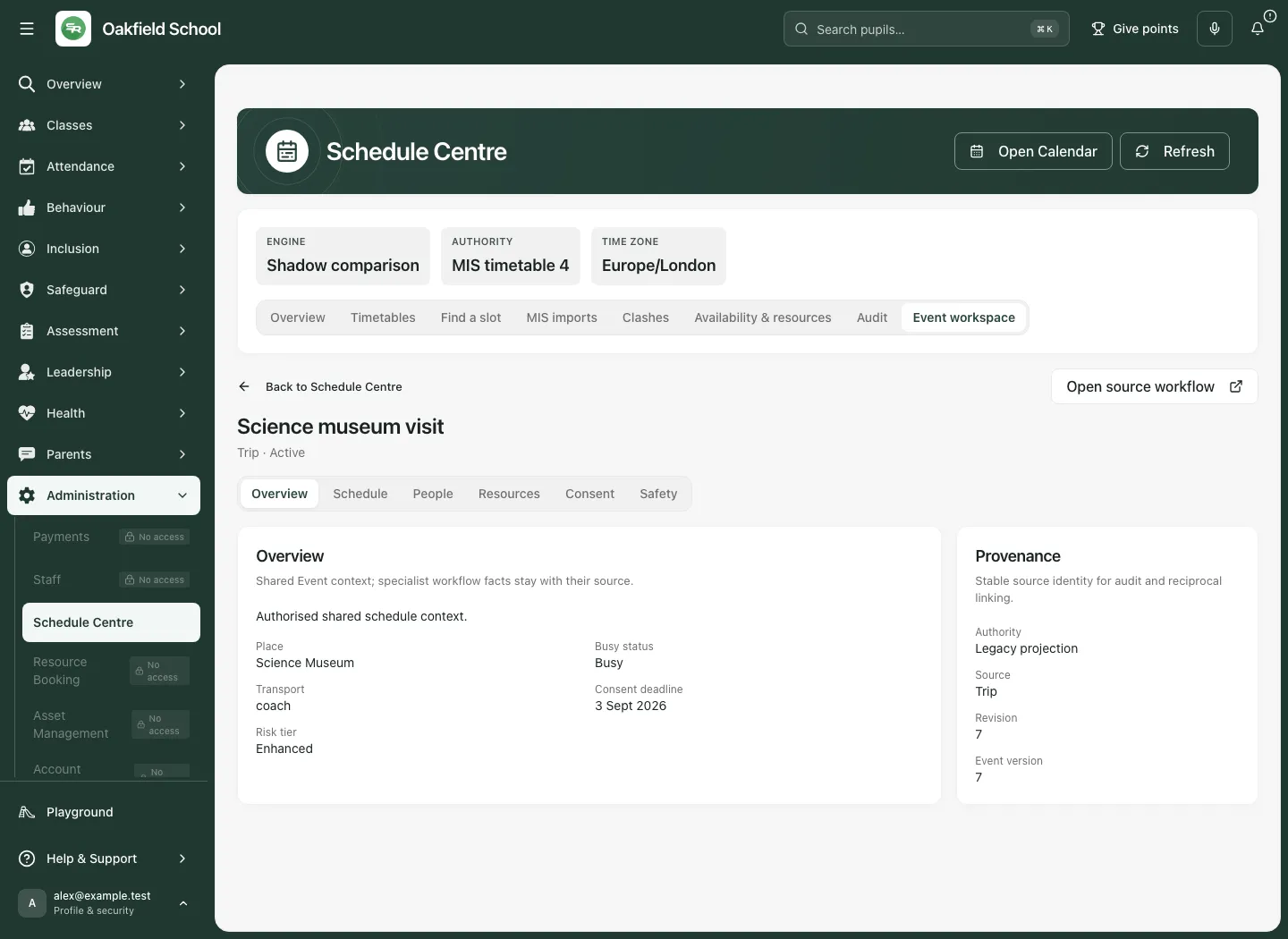
The workspace preserves a source identity/version so the event can be followed back to its owner. It does not replace the specialist record or silently write a new source decision. If a source link cannot be opened safely or you lack authority, read the explanation and ask the source owner; do not construct a different link to evade the restriction.
4. Find a subject timetable
Section titled “4. Find a subject timetable”- Open Timetables.
- Select the subject type: Pupils, Staff, Classes or Rooms.
- Search by name using the authorised subject search, then choose the intended result. Check identity/type before opening it.
- Read the resulting timetable in the school time zone and displayed range. Select a commitment to inspect its Event workspace.
- Use Show more of this timetable where offered. If results are capped, refine the search rather than assuming an unlisted person/resource does not exist.
- Change the selected subject deliberately; the absence of a visible commitment is not proof that a restricted/private source is free.
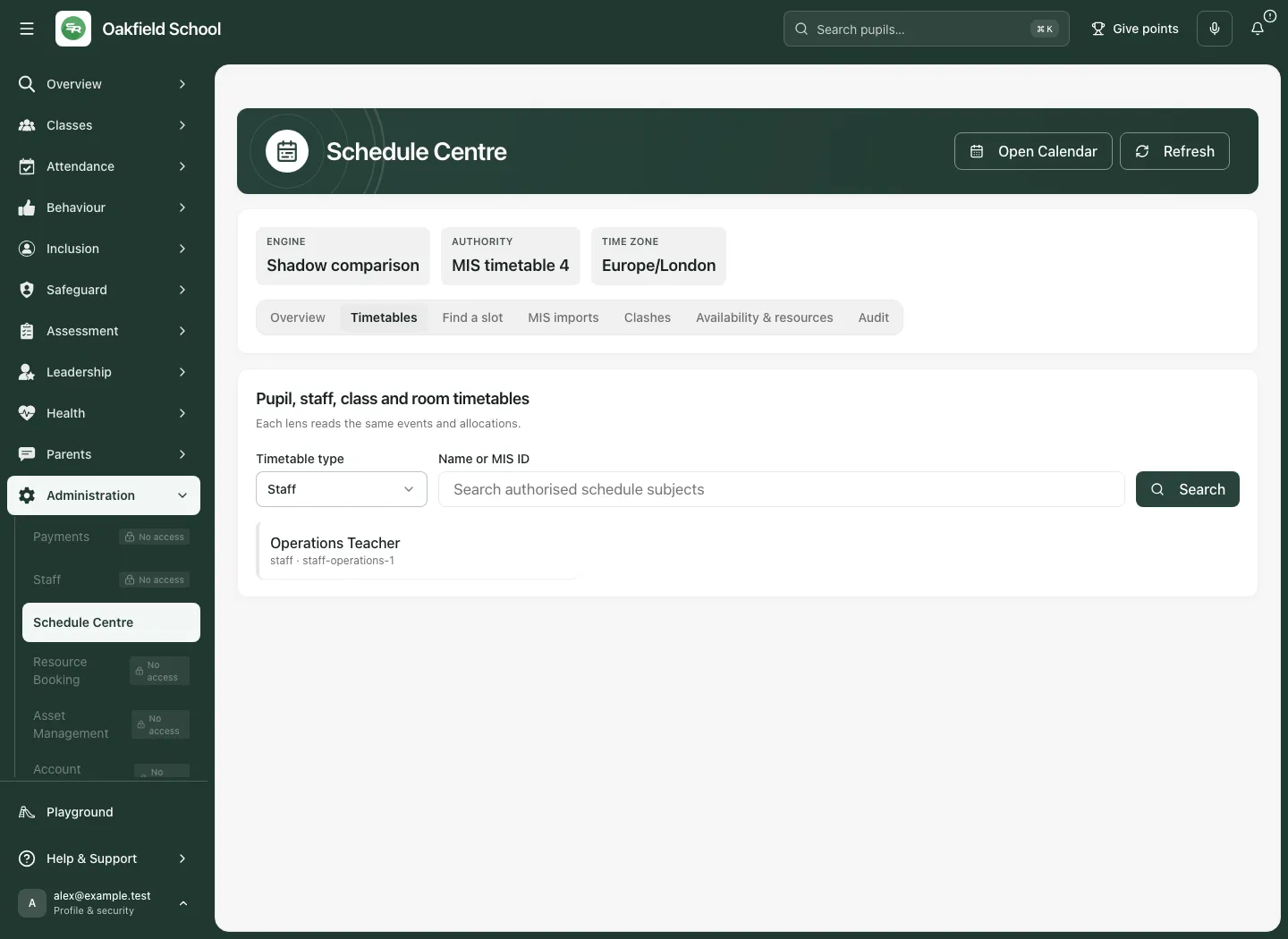
Pupil searches remain capability-filtered. Do not treat access to a school-level agenda as permission to inspect every pupil’s personal commitments.
5. Search for a feasible slot
Section titled “5. Search for a feasible slot”- Open Find a slot and choose Commitment type.
- Set School date, Window starts, Window ends, Duration (minutes) and Search step (minutes). Use the school’s stated time zone, not the browser’s current travel zone.
- Under People, places and resources, choose Entity type, enter Entity search and choose Search.
- Add the intended people/places/resources. Review Selected allocations, each Policy and Units. Use the named remove control for a wrong allocation.
- Choose Search feasible slots. Read the bounded-window/truncation explanation and alternatives returned.
- Use Evaluate on a candidate to obtain its current explanation. Read validation problems, hard conflicts, capacity, availability and travel/buffer issues.
- If nothing is feasible, change the actual requirements/window and search again. No feasible slot in this bounded search does not prove no slot exists anywhere.
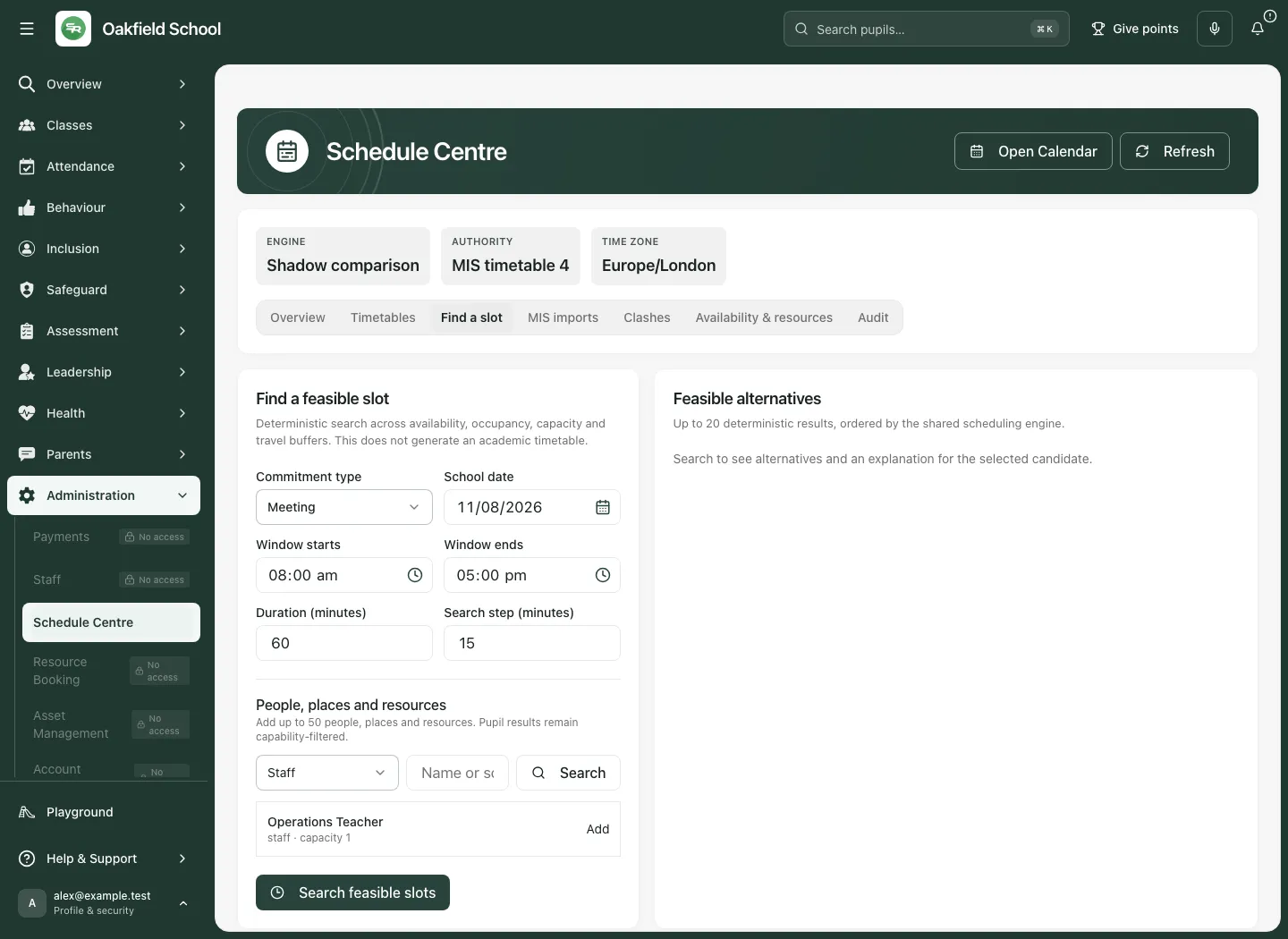
Changing the date, time, allocations or policy invalidates an earlier result. Re-evaluate the current candidate; do not rely on an old screenshot of a green answer.
Reserve a temporary hold when permitted
Section titled “Reserve a temporary hold when permitted”- Evaluate the exact candidate and confirm it is still feasible and current.
- Read its expiry and source requirements, then choose Reserve atomic hold when Schedule Core is active, writes are open and your role permits it.
- Wait for the reservation result. A hold is a temporary reservation, not a completed domain booking, invitation or published event.
- Complete the intended meeting/booking/other source workflow before the hold expires, through that workflow’s authorised handover.
- If the result is uncertain, use Retry reservation for the retained request. Do not create an independent duplicate hold while the earlier outcome may have applied.
The visible shadow-comparison example does not demonstrate a successful hold. Normal hold/availability/displacement writes require the active engine and open write state; the explicit timetable-adoption path is separately gated.
Explicit displacement
Section titled “Explicit displacement”Some authorised overlaps can be proposed rather than silently deleting the existing commitment.
- Read the conflict and select the exact Displace [commitment] only when that is the intended arrangement.
- Enter Displacement reason and choose Evaluate explicit displacement.
- Review the candidate and the exact displaced occurrence/person/resource. A proposal is not an approved displacement.
- Continue only through the permitted hold/source and separate displacement-decision route. Neither event is silently removed or rewritten.
6. Review clashes and displacement decisions
Section titled “6. Review clashes and displacement decisions”Open Clashes. Read each proposal’s displacing event, displaced occurrence, entity, reason, decision state and notification state.
- Open the linked event context where needed and confirm the actual impact.
- For a proposed item, choose Approve or Reject through the offered decision button.
- Read Approve this displacement? or the equivalent named confirmation. Check the exact event, occurrence/date and entity.
- Confirm Approve displacement or Reject displacement only when authorised.
- For an approved arrangement that should end, use Revoke and confirm Revoke displacement.
- Review the resulting state and notification outcome. A decision recorded is different from a notification sent.
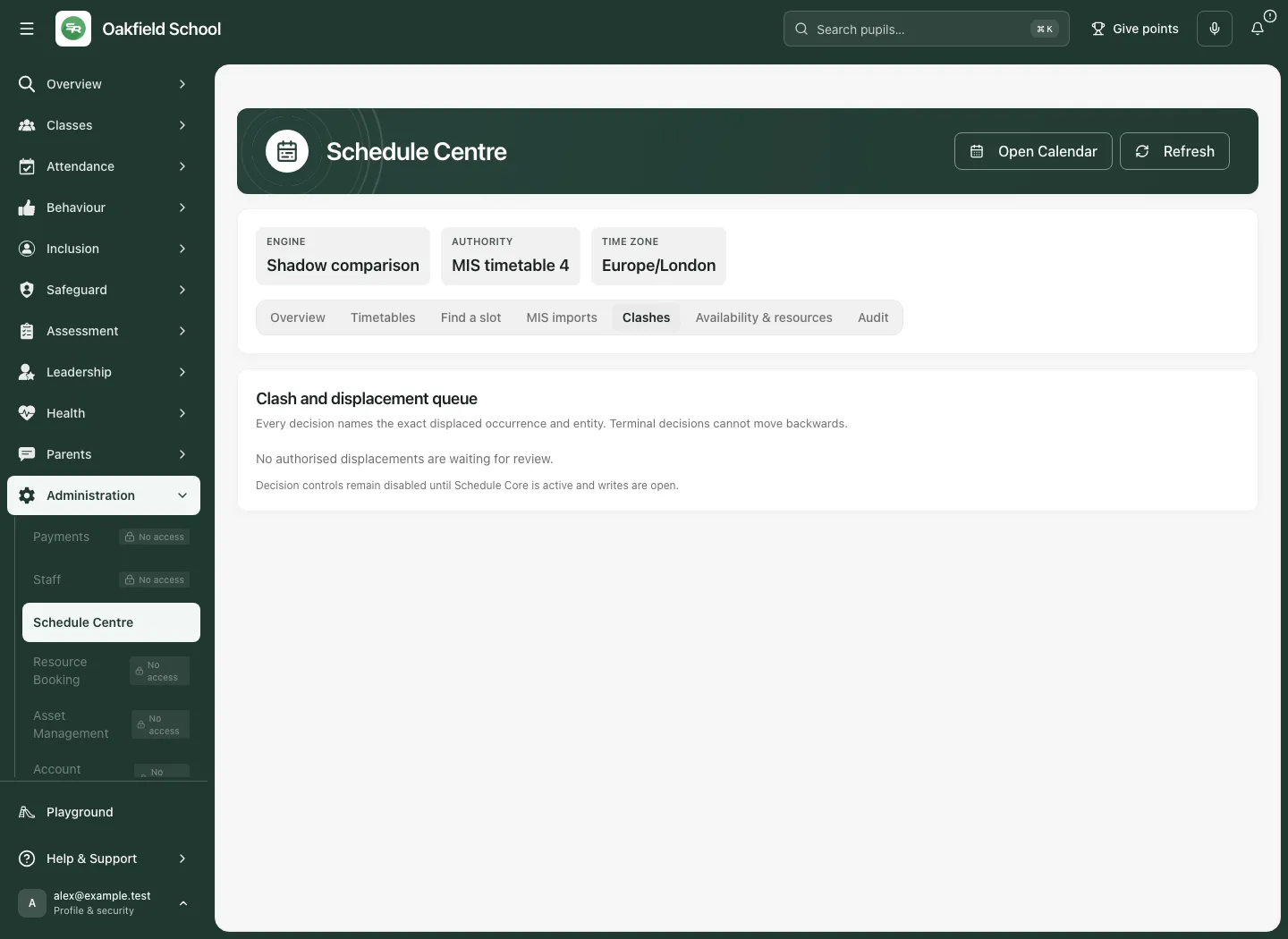
Decision controls remain disabled until Schedule Core is active and writes are open. Terminal decisions cannot be rewritten through a stale screen; reload and review the current state rather than repeatedly approving an old proposal. Load more displacements expands the bounded queue where available.
7. Availability and resource capacity
Section titled “7. Availability and resource capacity”Open Availability & resources. Availability rules, one-off variations and capacity overrides are different records. Changes require the appropriate management capability and active/open scheduling writes.
Recurring availability
Section titled “Recurring availability”- Search for/select Rule entity using the actual entity picker.
- Choose Kind: Unavailable, Available or Preferred as appropriate.
- Select the intended weekdays, Starts, Ends, Effective from, Effective to and Reason.
- Choose Add rule, or Update rule when editing a saved rule.
- Review the saved subject, days, time range and dates. Use Cancel edit to leave an edit without applying another version.
One-off variation
Section titled “One-off variation”- Select Exception entity.
- Choose Kind, enter Starts, Ends and Reason for the actual dated interval.
- Choose Add variation or Update variation, then inspect the saved variation.
- A variation affects the selected interval, not every future week. Check it against recurring availability and current commitments.
Capacity override
Section titled “Capacity override”- Select Capacity resource: the intended room, site, equipment or vehicle.
- Choose weekdays and the effective/date/time boundaries shown for the override.
- Enter Capacity units and Reason.
- Choose Add capacity or Update capacity and review the resulting saved record. Capacity units must describe the actual resource; do not increase a limit simply to remove a conflict.
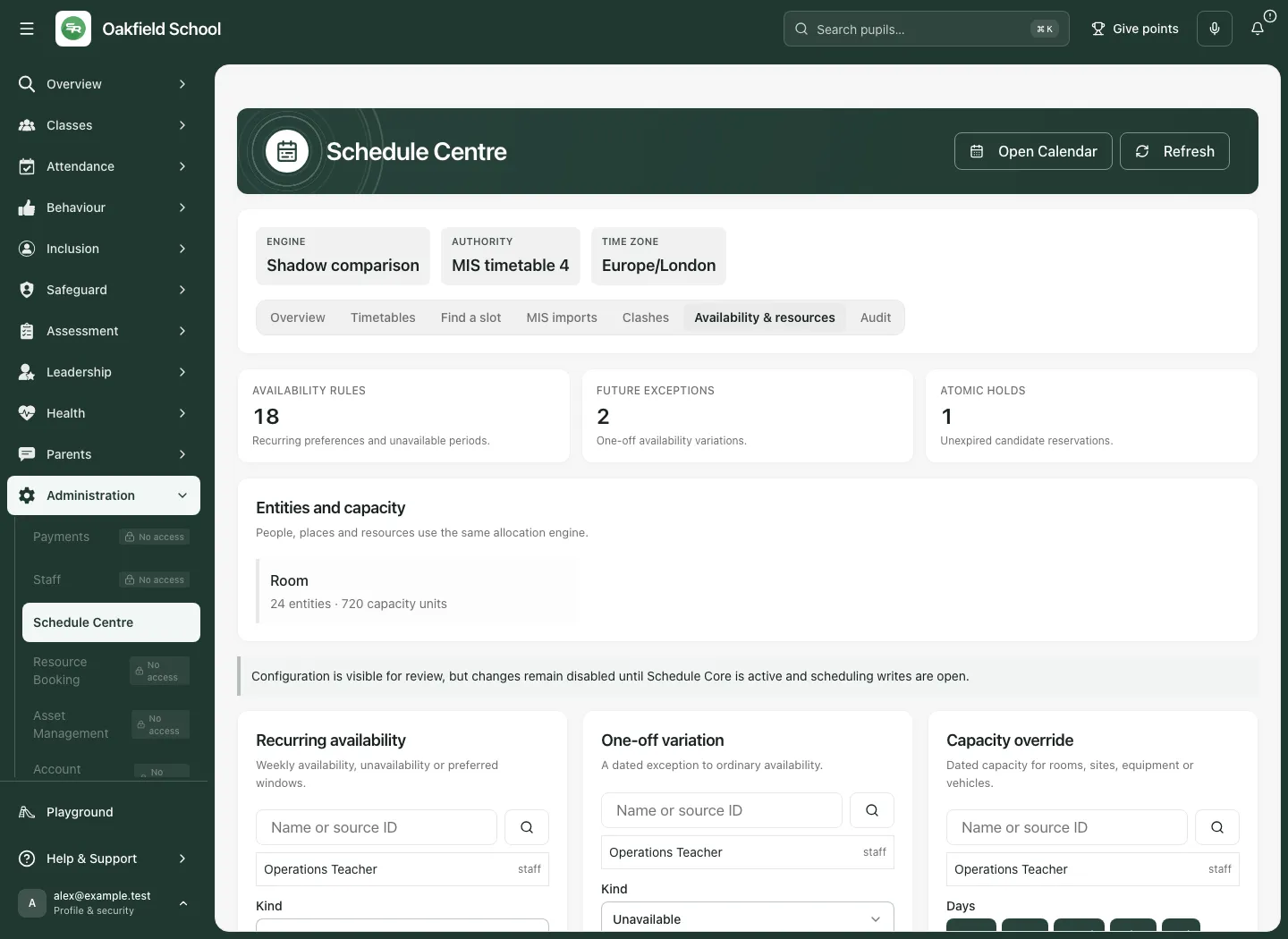
Use a record’s named Delete action only after reviewing its current version and the confirmation. Removing an availability constraint does not cancel the source event that prompted it. Load more operational configuration expands the loaded record set; the first page is not the whole policy.
8. Review an MIS snapshot before adopting a timetable
Section titled “8. Review an MIS snapshot before adopting a timetable”MIS imports is a deliberate versioned adoption process. It is not an automatic permission for every future MIS change to overwrite the active timetable. Explicit shadow-adoption mode or active Schedule Core is required, with writes open and the appropriate stage/publish capability.
- Open MIS imports and review available completed MIS snapshots, source/manifest, completion time and lesson count.
- Choose Stage for review on the intended snapshot. If already staged, use Review diff rather than creating a duplicate import.
- Read the staged import’s base active version and expected version. Review the counts for added, changed, removed, unchanged, conflicting and invalid rows.
- Open Review diff and inspect the actual row changes, source identities and timing. Load more diff rows where offered.
- Fix invalid lesson timing/mapping in the MIS and stage a new completed snapshot. Every invalid row must be resolved before publication; a zero-row loaded page is not proof the full import is valid.
- Confirm the entire diff was loaded and the active base/expected version has not changed. Re-review if someone else adopted a version meanwhile.
- Choose Publish reviewed timetable. Read Publish this reviewed timetable?: Student Radar becomes authoritative for the reviewed version; later MIS changes remain staged for review and do not overwrite it automatically.
- Confirm Publish reviewed timetable only after that deliberate authority decision. Check the resulting active version number and published lesson count.
- Read current authority in Overview and inspect representative timetables. Publication status is not evidence of a successful external MIS write.
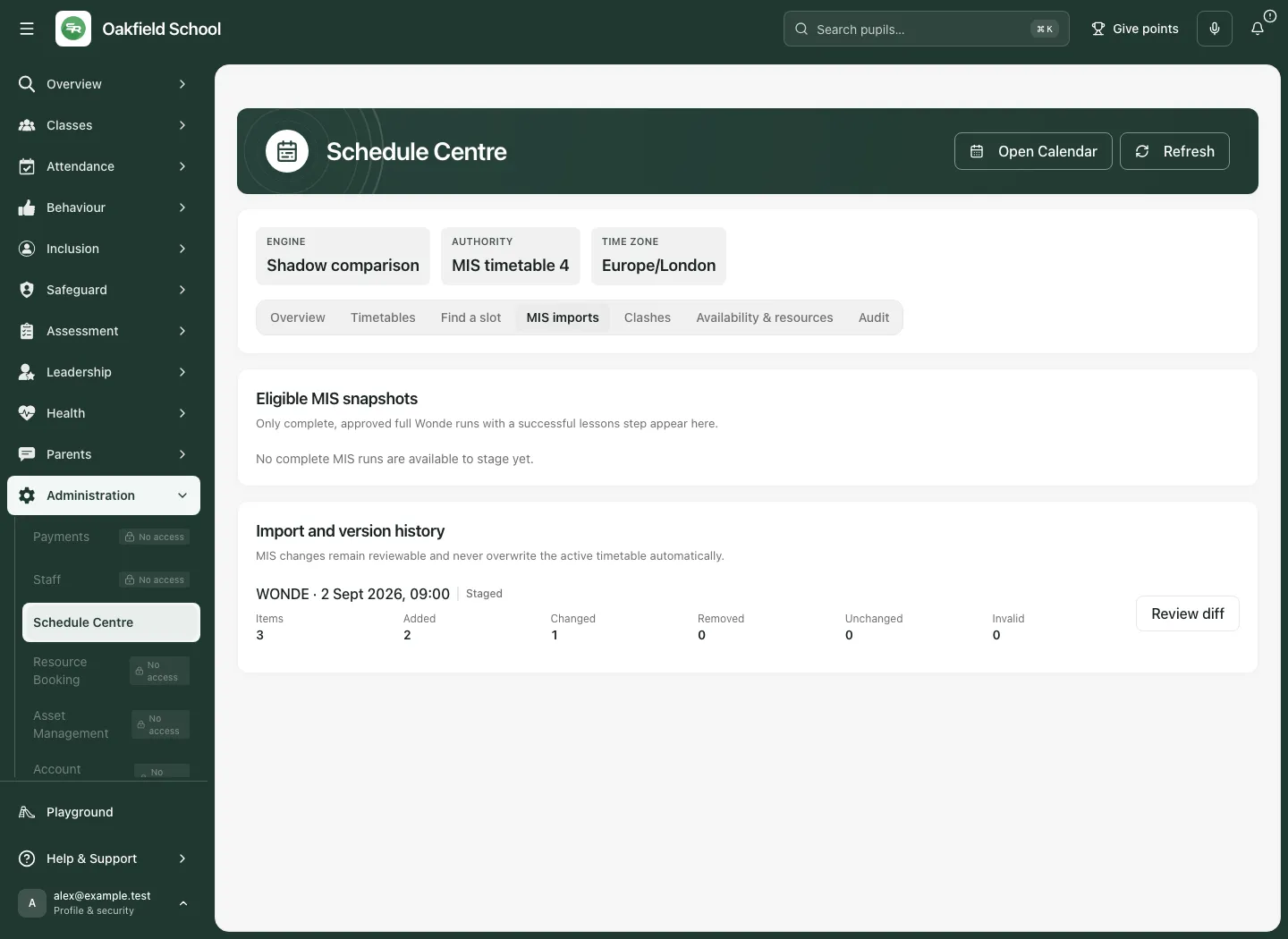
If staging is blocked on the legacy engine, the screen explains the required explicit adoption mode. If writes are frozen, wait for the authorised operational resolution; do not switch routes to try to publish around the freeze.
9. Audit and connected workflows
Section titled “9. Audit and connected workflows”Use Audit with read authority to inspect recorded scheduling outcomes and provenance. Read succeeded, rejected and failed outcomes separately. A queued attempt or current draft is not a completed scheduling change.
Follow the source workflow for the actual domain action. For example, a trip still owns trip consent/approval, a meeting owns its record/follow-up, and a booking owns its request decision. Schedule Centre connects shared time and resources without granting authority to make every specialist decision.
Troubleshooting
Section titled “Troubleshooting”The engine says Shadow comparison. Read-only projected context and the explicitly enabled timetable-adoption path can exist while normal reservation/availability/displacement changes remain disabled. Check the specific button’s explanation.
Writes frozen appears. Changes are temporarily blocked. Keep the draft/context and ask the authorised owner to resolve the freeze.
A person or event is missing. Check school, subject type, search, range, pagination and permission. Restricted/private details are not disclosed through a general count or search.
The time looks wrong. Check the school time zone and stated event timing, including daylight-saving boundaries. A browser/device travel zone is not the school’s clock.
No feasible slot is found. Read the search bounds, selected allocations, duration, units/policy and conflicts. Refine actual requirements; do not infer whole-school availability from one bounded result.
The hold expired or reservation is uncertain. Refresh/re-evaluate when expired. For an uncertain attempt use the retained retry first; do not launch an unrelated duplicate reservation.
A displacement decision is disabled. Check active engine, write freeze, exact authority and current proposal version. Approval does not erase the original event.
Timetable publication is blocked. Resolve invalid rows in the MIS, load/review the full diff, check the active base version and read engine/freeze/capability messages.
The source link is unavailable. Current source permission is required. A schedule projection is not a back door to its specialist record.
Questions schools often ask
Section titled “Questions schools often ask”Does a suggested slot book the meeting? No. Search, evaluation, temporary hold and the owning workflow’s committed event are separate.
Does a hold send invitations? No. Complete the actual domain handover and communication decision separately.
Does an approved displacement delete a lesson? No. It records the explicit overlap decision for the named occurrence/entity; neither event is silently deleted or rewritten.
Are missing restricted counts zero? No. Unknown/unavailable figures and privacy-limited coverage must not be presented as zero.
Will the next MIS import replace the active timetable automatically? After deliberate reviewed adoption, later MIS changes stay staged for review rather than silently overwriting the adopted version.
Can I make a trip/meeting decision here because it appears on the agenda? The specialist source and its current authority still govern that action. Use the source link.
Related guides: Staff, Trips, Clubs & Activities and Meetings & Appointments.